Shopper v10.1 — Manual
Shopper (Shpr) is your organisation's procurement portal. Use it to request items, follow approvals and manage orders, invoices and contracts, all in one place. This manual describes everything you need to work with Shopper version 10.0.0.
New features in version 10.0.0.
Shopper 10 contains the following new features (new functionality compared with version 8):
- Redesigned contract module: the whole lifecycle of a procurement contract in one flow, with the statuses Draft, To be reviewed, To be activated and Activated, review workflows per contract type, role-based actions, prepared renewals, controlled interim amendments, flexible agreements, a financial overview per period and timely alerts. See The flow at a glance.
- AI assistant: ask your question in plain Dutch or English, go straight to the right screen, read a contract in from a PDF or Word document and have contracts analysed or compared. The AI assistant is a separate module that is not included by default. See AI assistant.
- Impersonation: an authorised employee opens Shopper as another user, read-only and fully audited, for support and troubleshooting. See Impersonation.
- Contract to-dos on the dashboard: outstanding contract tasks show as tiles on the dashboard, right after logging in. See Contracts dashboard.
- Help documentation as web pages: the manual opens inside Shopper as searchable web pages instead of a PDF. See Help functions.
Improvements
Shopper 10 contains the following improvements to existing functionality:
- Shopping cart: purchasers can remove individual lines from an employee's shopping cart, for example when that employee no longer has access to a cost centre. See Shopping cart.
- Reporting: the Excel export of orders contains the fields Ordered amount (excl. VAT), Received amount and Invoiced amount, for year-end reporting and reconciliation. See Orders overview.
- Mobile app: completely rebuilt, faster and consistent on phones and handheld scanners; item barcodes are scanned with the phone camera. See Mobile app: screens and navigation.
- Interface and navigation: tables in which you select and update several rows at once or edit rows directly, consistent column sorting and text buttons per row; memo fields that grow while you type, with an enlarged editing window; a filter field when switching administration; a notification indicator on important form fields; better support for laptop, desktop and 4K screens; and a search bar with a Reset button. See Spreadsheet screen, Search bar and list and Screen controls.
- Performance and stability: shorter start-up time, faster page loading, more stable operation under load, lower memory usage, updated cryptography and full backward compatibility of existing integrations and configurations.
- Contract management, audit trail and signing: improved search, change and reference functions, linked images and documents in the audit trail, the contact person on contract payment lines sent to Elvy and smoother digital signing with ValidSign.
Bug fixes
The following problems (bugs) have been fixed in Shopper 10:
- Filtering in form tables no longer wrongly marks the form as changed, and after updating a row the position in the table is kept (when updating and saving several rows at once this can still occur in some situations).
- Special characters in form fields are kept where applicable; certain fields still refuse specific characters for security reasons.
- Quickly double-clicking an action button no longer performs the action more than once; a loading indicator is shown while the action is processed.
- The quantity in the item lines of the Shop Catalogue is increased by whole numbers instead of steps of 0.01.
- An expired session is reported clearly instead of leaving the application in an undefined state.
- Excel export: decimal amounts with the right precision, over-long worksheet names shortened automatically and a limited maximum column width.
- Unexpected errors are handled in a controlled way and reported, instead of being ignored in the background.
- Unsaved changes are detected more reliably; when leaving a screen you can save or continue without saving.
- Various improvements to the layout and display of the application.
This release also contains smaller technical corrections that are not listed separately here.
Further information
| Topic | Where to find it |
|---|---|
| Configuration steps | Shopper 10 manual (supplied with this release) |
| Upgrade instructions | Separate upgrade instructions document |
| Complete change list | Shopper 10 manual |
| Support and questions | helpdesk@archifact.nl |
Index
Contract: process, statuses and roles
Creating and activating a contract
Contract documents, communication and signing
Monitoring, renewing and ending a contract
General functions
General functions covers what you use in every part of Shopper: help, logging in, personal settings, the homepage and menu, the home dashboard, the layout of the other screens, the AI assistant and the basic purchase-to-pay process flow.
Logging in to Shopper
This chapter describes how you sign in to Shopper and what that involves. Login methods covers signing in with a username and password, with Windows authentication (Single Sign-On) and through OpenID Connect (Microsoft Entra ID); Changing password explains how to change your Shopper password.
Multi-Factor Authentication (MFA) explains when Shopper asks for an authentication code and which authentication apps are supported; Creating the MFA account in the authentication app describes the first registration with the QR code, and Logging in with the MFA authentication code the subsequent logins, including what to do when the code expires or you no longer have your phone. Finally, Impersonation describes how a colleague you have named can log in as your user, and Impersonation safeguards which restrictions apply.
Login methods
Shopper supports three ways to sign in; which one applies to your organization is set up by your administrator, not chosen by you at login time.
Login with username and password
You access the application by logging in with your username and password. If you exceed the number of login attempts, your user account will be made inactive. In this case contact your administrator to reactivate your user account and reset your password.
Login with Windows authentication (Single Sign-On)
If Shopper is installed with Windows Authentication/Single-Sign-On (SSO), the user will access Shopper via Windows. When you open the application, you will immediately see the >> home page. If the user in Windows is not known in Shopper, then a login dialog appears in the browser where you can log in with a Windows user who is known in Shopper. (This can be prevented by creating the user under the same name in Shopper.)
Login with OAuth / OpenID Connect (Microsoft Entra ID)
Shopper can also be configured to sign you in through your organization's identity provider using OpenID Connect (Microsoft Entra ID). You are redirected to your organization's own sign-in page; once you authenticate there, Shopper signs you in under the account's Shopper user without asking for a separate Shopper password.
The login remains active as long as the application is used and/or until the (session) time-out occurs (time-out period of the browser cookie).
Changing password
If you are logged in and have access to the menu, you can choose the menu option change password in settings. You will then be asked to enter the existing and new password.
The password changing option only applies to a Shopper login. If Windows authentication (SSO) is used, then this does not apply.
Multi-Factor Authentication (MFA)
If Multi-Factor Authentication (MFA) has been set for an employee, the login (using username password or Windows Authentication) will require to additionally provide an authentication-code. This authentication-code is obtained using a third-party authentication App. This authentication-code serves as a one-time-only password for gaining access to Shopper. Windows Authentication can also be combined with MFA. In this case the MFA is started when opening the Shopper application.
Note: If you don’t have the App available or decide to install the App at a later stage, then use the button to postpone the account creation with the authentication App. You will be returned to the Shopper login screen.
The first time the MFA is used for an employee, the account must first be registered in the designated mobile authentication App.
Supported Authentication Apps:
- Google Authenticator
- Microsoft Authenticator
- Yubico Yubikey / Yubi Authenticator
- Open source authenticators - Ente Auth, Proton Authenticator, FreeOTP
Depending on your mobile phone, the app can be downloaded and installed using the Apple App-Store or the Google Play-Store.
Creating the MFA account in the authentication app
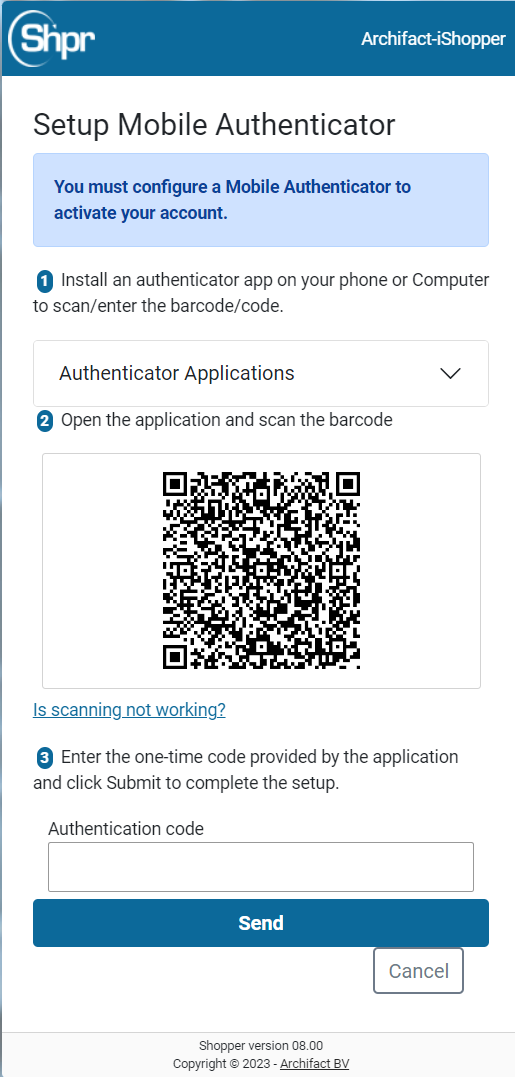
At your first login with Multi-Factor Authentication (MFA) you create an account for Shopper in the authentication app on your phone; Shopper shows a QR code for this.
Open the authentication App and Scan the QR-Code displayed by Shopper. Next the authentication App will create the Archifact-iShopper account, with the name of the employee in the subtext.
Note: If the authentication App requests an account type, then select .
The authentication App will display an authentication code, that need to be entered in the corresponding field in Shopper (at the bottom of the screen).
Press the button to verify the authentication code and to have Shopper establish the MFA-connection to the corresponding user account for the employee. If successful, the user is redirected to the homepage of Shopper.
The authentication code consists of a set of 6 digits that changes every 30 seconds. The digits result from a SHA1 algorithm, making it unlikely that this code can be deducted within these 30 seconds. Additionally, the employee will be inactivated if the maximum MFA login attempts are exceeded, just like with the password login.
Note: If the user account of the employee in Shopper is reactivated (for example after deactivation caused by exceeding the maximum MFA login attempts) the password is also reset, forcing the user to specify a new password. Additionally, it is required to use the authentication App and recreate the account. Depending on the authentication App used, it can be required to first remove the existing account.
Logging in with the MFA authentication code
Once the account is created in the authentication app and it is activated in Shopper, the consecutive MFA logins will request the 6-digit authentication code to be entered, based on the code obtained using the authentication App. Press the button to validate the authentication code and upon success get redirected to the Shopper home screen.
If you do not have the authentication App available at that time, use the link Cancel to abort the MFA login attempt.
Just as before, each rejected authentication code will count as a failed login attempt (regarding the maximum number of login attempts). Cancelling the MFA verification does not count as a login failure.
Note: The code changes every 30 seconds. The authentication App will indicate if this is about to happen. Keep this in mind when entering the code in Shopper. If the code is changed before you can press the button in Shopper, the code will be rejected, and you will have to enter the new code shown in the authentication App.
If you are no longer in possession of the mobile phone with the authentication App of if you reinstalled the authentication App and the Shopper account is no longer available in the App, you will have to request the Shopper administrator to reset your account/password, allowing you to restart the account registration process, using the authentication App.
Impersonation
New in Shopper 10 is impersonation: an authorized employee can open Shopper as another user and sees exactly what that user sees, without knowing their password. It is meant for support and troubleshooting, for example when a colleague gets a message you cannot reproduce yourself.
The permission is given by the user themselves: in the user settings (menu Management, User settings) the field for the employee who may log in as your user names the colleague who is allowed to do so. See User settings.
If a colleague has named you, the menu under your user name (top right) contains the option to switch account. After choosing it, select the account you want to impersonate and confirm; cancelling returns you to your own account.
While you work as another user this stays visible: the menu under the user name shows a highlighted block with your own user name and the impersonated user, and the button to undo the impersonation and return to your own account.
[Screenshot to be added: the user menu with the switch-account option, the account selection screen and the impersonation indicator, in the English interface]
Impersonation safeguards
The following restrictions and safeguards apply to impersonation (logging in as another user).
- Impersonation is read-only: you can view the other user's screens and data, but you cannot create, change, delete, submit or approve anything. Such an attempt is refused with a message.
- Every action is logged under both your own user name and the impersonated user's name.
- You cannot switch account again from an impersonated account.
Impersonation safeguards
- Off by default — the right must be explicitly granted; it can't be self-assigned.
- Read-only — the impersonator can view the target's account, data and screens, but can't create, edit, delete, submit or approve anything.
- Always visible — a persistent on-screen indicator shows when impersonation is active, so it's never ambiguous who's acting.
- Fully audited — every action is logged under both the impersonating and the target user's identities.
Example: a colleague cannot complete a purchase order and cannot work out why. Someone with the impersonation right opens that account, sees the blocking message in its exact context, ends the session, and fixes the cause from their own account. No password is exchanged, and every step is recorded in the audit log.
Shopper homepage
After logging in, Shopper opens with the homepage (start screen), by default Dashboard P2P or Dashboard Contracts, as described under Dashboard Home. It is recommended to use the application in full screen mode by maximizing the window.
The layout of the homepage and the menu may differ per user, but the components in this chapter are a fixed part of every screen: Main menu and menu bar describes the main menu on the left of the screen and its submenus, Title bar the bar at the top with the buttons and flags for the active administration and the logged in user, Shortcuts the keys you use to move around the screens without a mouse, and Site Map the overview of all menu items that you can also open with Control + Alt + M.
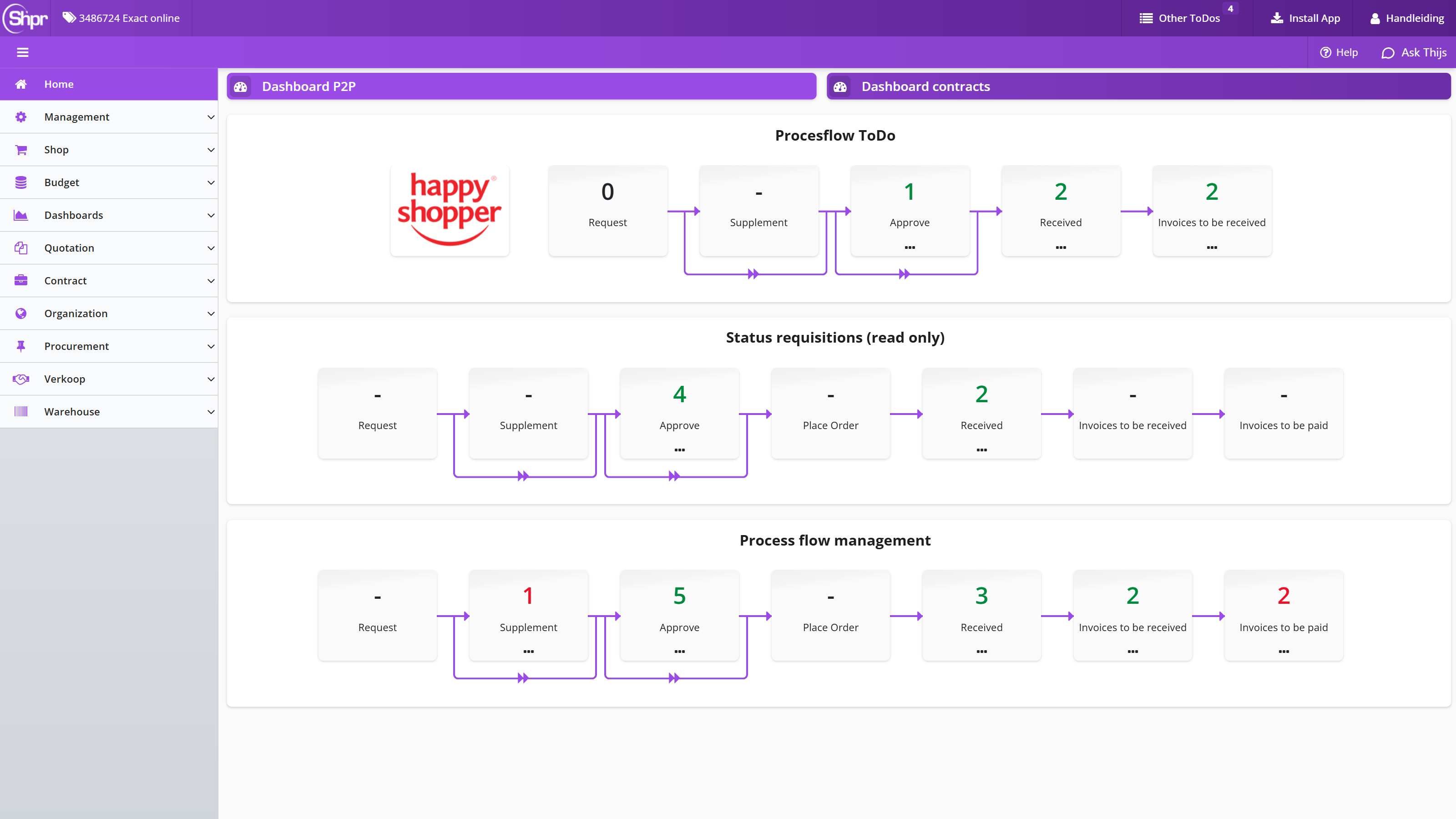
Title bar
At the top of all screens, you will find the title bar. The title bar contains several buttons and flags regarding the active administration, the logged in user and other activities.
Sub bar
In all screens, below the Title bar there is a (secondary) sub bar with buttons for accessing the main menu, quick links, shopping cart and help options.
Main menu
On the left side of the screen is the main menu. Here you will find the features to which you have access - based on your access rights. The firt level menu items in the main menu are identified by their own symbol. The menu is either in a collapsed (menu bar) or extended state (accordion).
In a collapsed state you can hover over the icons and the menu will dropdown and you can navigate through its levels. In an extended state the main menu is in accordion mode. Clicking a first level menu item will expand its underlying menu items.
The main menu can be collapsed and expanded via the hamburger menu button in the subheader bar.
The color of the menu is linked to the administration you work in. In other words, the color changes if you choose a different administration (see also Title bar).
Note: Some menu items are linked to license modules. In other words, if you have not purchased this license, this menu item is not applicable.
Shortcuts
It is also possible to move around screens without using the mouse:
-
The tab or shift + tab key can now be used to navigate through all elements on the screen.
-
Arrow keys to change state switch selection.
-
Space + enter to open a dropdown box.
-
Arrow keys to select the date in the calendar view.
-
Tab keys to walk through the process steps in the process flow ToDo and status flows on the dashboard.
-
Escape to close a popup message.
-
Control + Home goes to the homepage.
-
Control + M opens the menu.
-
Control + Alt + M opens the site map (see Site Map).
Site Map
As part of the Home menu the site map can be selected.
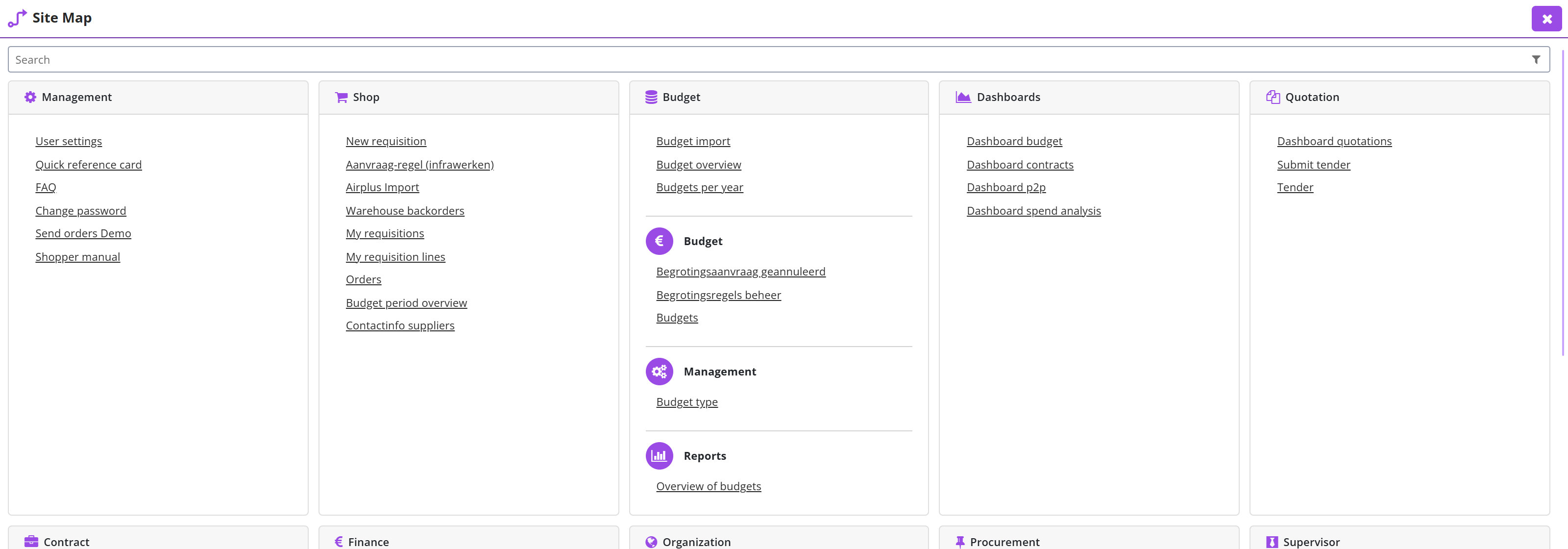
This will present an overview of all the menu items, listed within the menu structure. You can open a menu item by selecting the corresponding link. At the top of the site map a Search field lets you narrow down the menu items. The site map can also be opened with Control + Alt + M and is closed with the close button at the top right.
Shopper Dashboard
The Dashboard Home is the homepage of Shopper and shows, per license module, the process flow with your pending ToDos. Dashboard Home describes the layout of the dashboard, its tabs and the ToDo alerts; ToDo process flow explains how the process diagram with its steps, numbers and colors works and how you open a ToDo from a process step.
Then the tabs follow: P2P dashboard for the purchasing process, with the Global information (optional) section for orchestrators, Contracts dashboard with the contract alerts and the status of your contracts, and Offers dashboard with the workflow of the quotation process.
Process flows
The Process flow is shown on the Dashboard Home for all purchased license modules. Dashboard home is comprised of several tabs that only show the process flow for one license module: P2P dashboard, Contracts dashboard and Offers dashboard (the Dashboard quotations tab). You can switch between them by clicking the corresponding tab at the top. Upon returning to the homepage the dashboard that was last used will be shown.

If there are ToDos on another dashboard that require attention, there is a red flag with an exclamation mark on that tab, and next to the administration name in the title bar. You can then choose this dashboard to follow up on these ToDos.
Above the process flow the dashboard shows a panel with the ToDo alerts of that dashboard, for example P2P todo's on the P2P dashboard and Contract todo on the contracts dashboard. Each alert shows a number; the panel shows no-data when there is nothing to follow up.
The homepage only shows the process steps and dashboards to which you have access rights. So, the setup of the dashboard and the process flow may be different for you than for your co-worker.
ToDo process flow
The ToDo process flow is a visualization of the process. It is made up of a sequence (flow) of the process steps shown in a process flowchart. These process steps are connected using arrows that indicate the order in which these steps are processed. This order is determined by the dependencies in this process and cannot be changed. However, the role assignments and workflow setup will result in different actions that need to be performed for the steps Supplement and Approve. For more information see under Workflow.
The number of pending actions (ToDos) for the tasks assigned to you, are listed under the respective process steps. If you are not authorized to perform a task, the corresponding process step will not be visible/available in the process flow ToDo.
Below is the example of the ToDo process flow for the P2P purchasing process. The starting point of the process flow is the logo of your company/organizational unit. In this example the image/logo of the administration. (The logo may differ depending on the administration.) The process steps of the P2P flow are Request, Supplement, Approve, Place Order, Received, Invoices to be received and Invoices to be paid.

If there is a pending action (ToDo) that you can perform, there is a number listed at the relevant process flow step. This number represents the number of ToDos in this process flow step. The color of the number indicates the urgency or the type of the most important ToDo. When you point at or click the … (three dots) below the process step, the step shows a colored box with the number of ToDos, in the color that indicates the urgency or type of the most important ToDo.

Selecting the relevant process flow step opens a screen where you can perform the ToDo. You can only choose process steps that contain a number. Except for the Request process step, this one is used to request a new requisition or to complete a one that has not yet been submitted/confirmed.
P2P dashboard
The Dashboard P2P tab shows the process diagrams for the P2P purchasing process. Depending on your role assignments within the P2P process, it can show the panels Process flow ToDo, Status requisitions (read only), Process flow management (and, for some roles, Process flow purchasing) and the Global info section described under Global information (optional).
The process diagrams visualize the process steps that apply within your organization for the life cycle of an order / requisition. The flow of the process steps is fixed and visualized by the connecting arrows. For conditional process steps, an arrow is displayed that extends below the process step. So, these are only run through if they apply to a specific order.
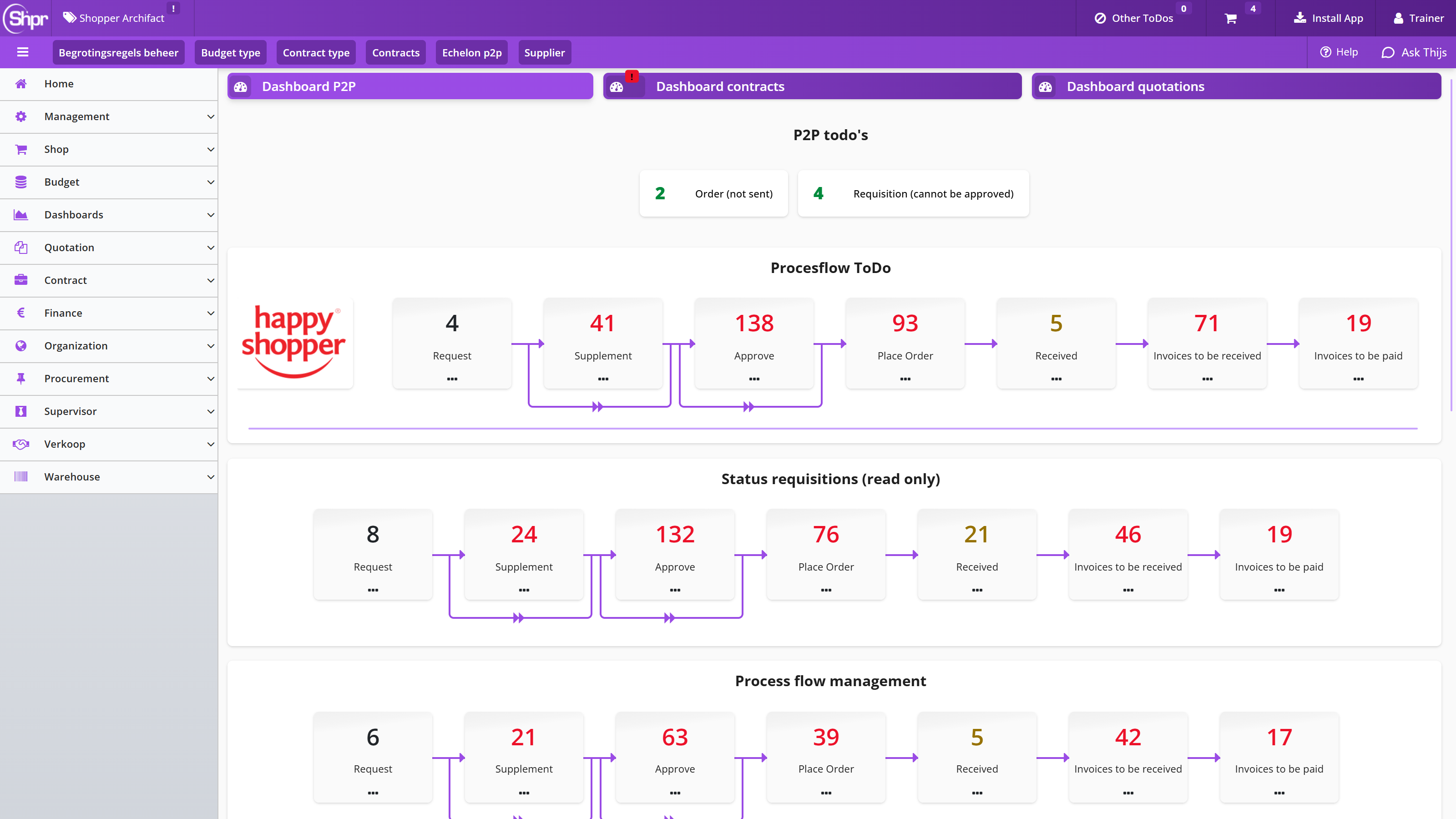
The individual panels on the P2P dashboard are described in detail under P2P process flow ToDo, Status requisitions and Process flow management.
Global information (optional)
The Global info section on the P2P dashboard is displayed for employees who are authorized for the role Orchestrator, as part of the echelon P2P-Procurement. In this section you will find several diagrams that show how the purchasing process is performed. The composition can differ and can be customized for each implementation.
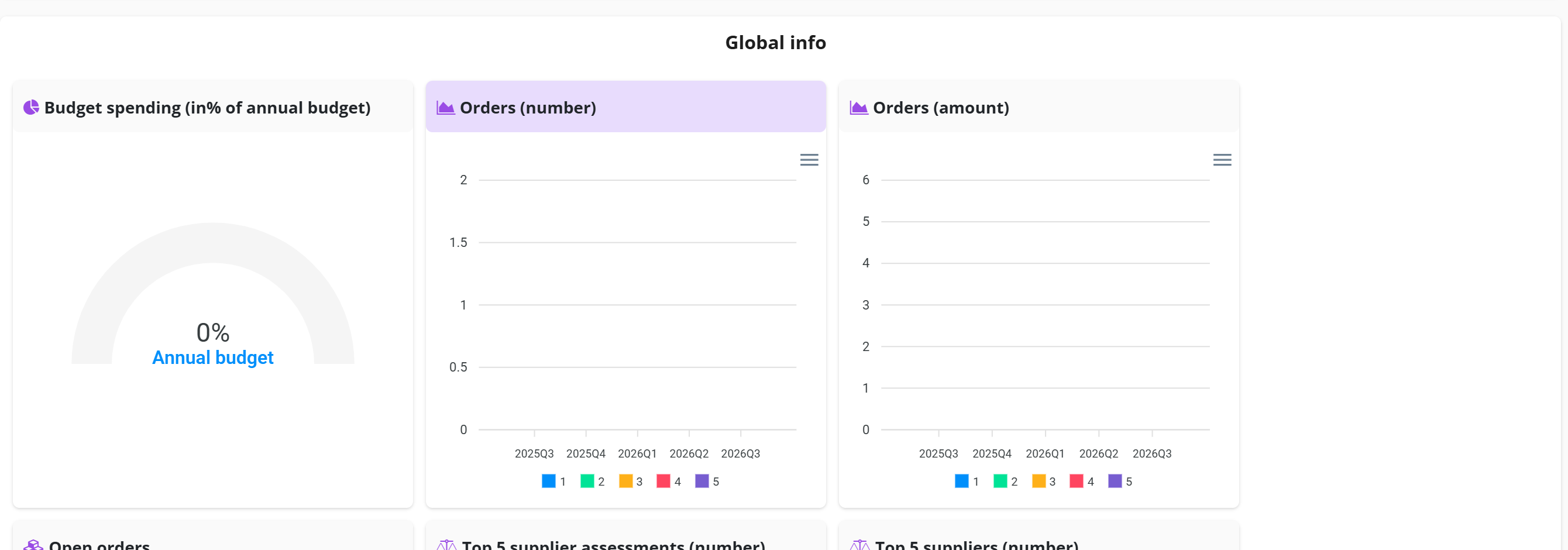
Consult Dashboard Graphs and Charts about the possibilities to limit the displayed graphs to your personal choices.
Contracts dashboard
The Dashboard contracts tab shows the process diagrams for the contract module. The Contract todo panel above the process flow collects the contract signaling alerts: each tile is a live count, for example the number of contracts nearing their notice period, their renewal decision or their trial-period cancellation window, or waiting for an acknowledgement. Click a tile to open the list of contracts in that condition. Since Shopper 10 these outstanding contract tasks appear as tiles directly on the dashboard, so you see what needs attention as soon as you sign in; previously these to-dos only appeared on the contract overview screen. This lowers the risk of a renewal or expiry date slipping by unnoticed.
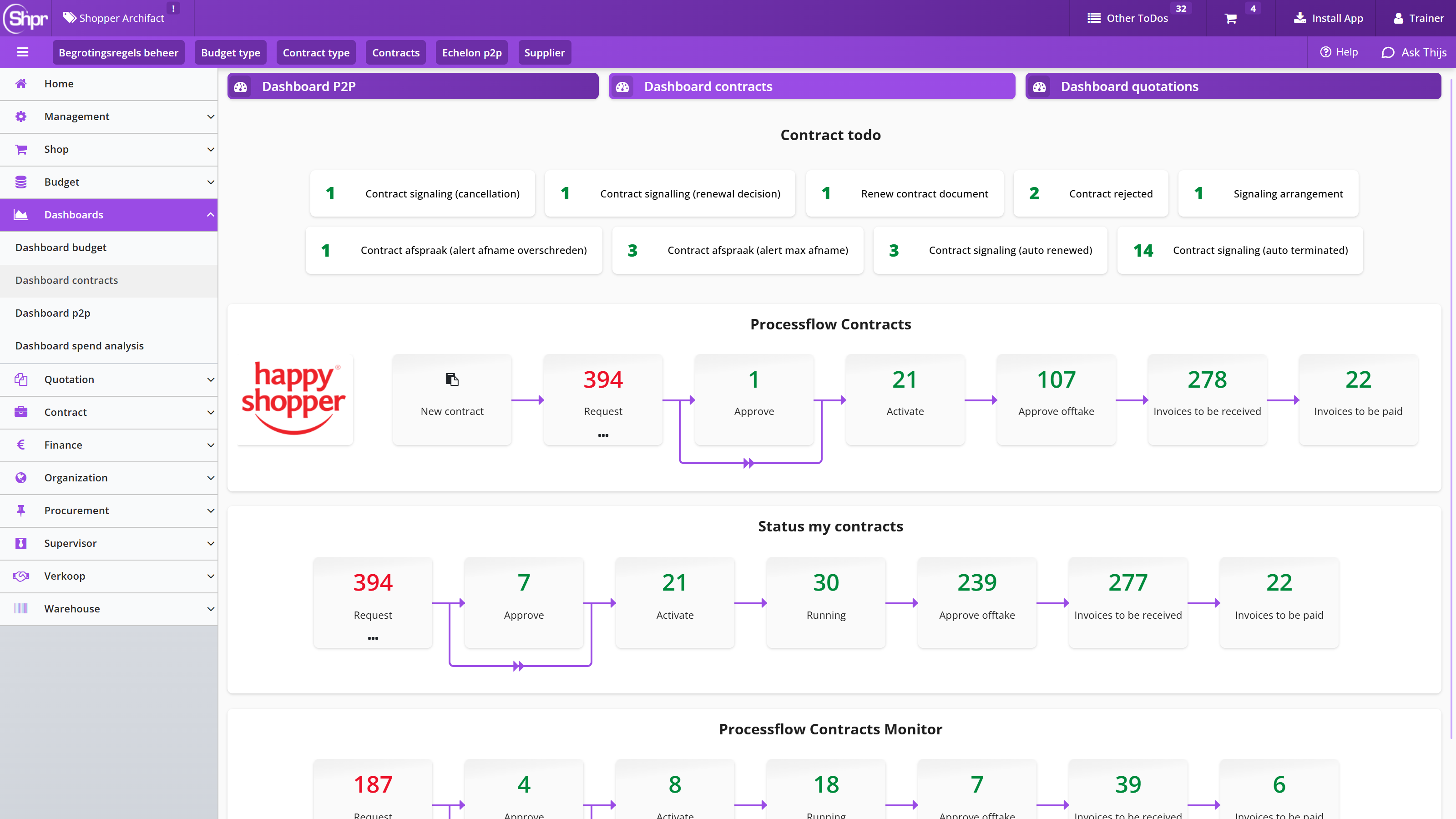
You follow the contracts you requested in the process diagram Status my contracts. Click a step to open the matching screen; these screens only give insight, you cannot change or add anything there. The exception is Running, which behaves like the menu item Contracts but lists only contracts in progress. The numbers are counts of contract periods in that state, because a contract gets a new period for each renewal. Steps that belong to a licence module you have not purchased, such as Approve offtake, Invoices to be received and Invoices to be paid, are not shown.
A team leader or manager can also follow the contracts that other employees in the same organizational units requested, for example while they are absent, in the Processflow Contracts Monitor block. This monitor is only shown to employees who are contract owner in the contract echelon and therefore hold the role Executive on these contracts.
Note: The contracts dashboard and the contract menu are only available to employees assigned to a role in a contract echelon.
Offers dashboard
The Dashboard quotations tab, described here as the offers dashboard, shows the Workflow Quotations process diagram and, for team leaders and managers, a Workflow Quotations monitor. The tendering process is composed of a number of fixed steps that need to be carried out to complete a quotation process. The steps that are visible depend on your authorizations within the quotation echelons.
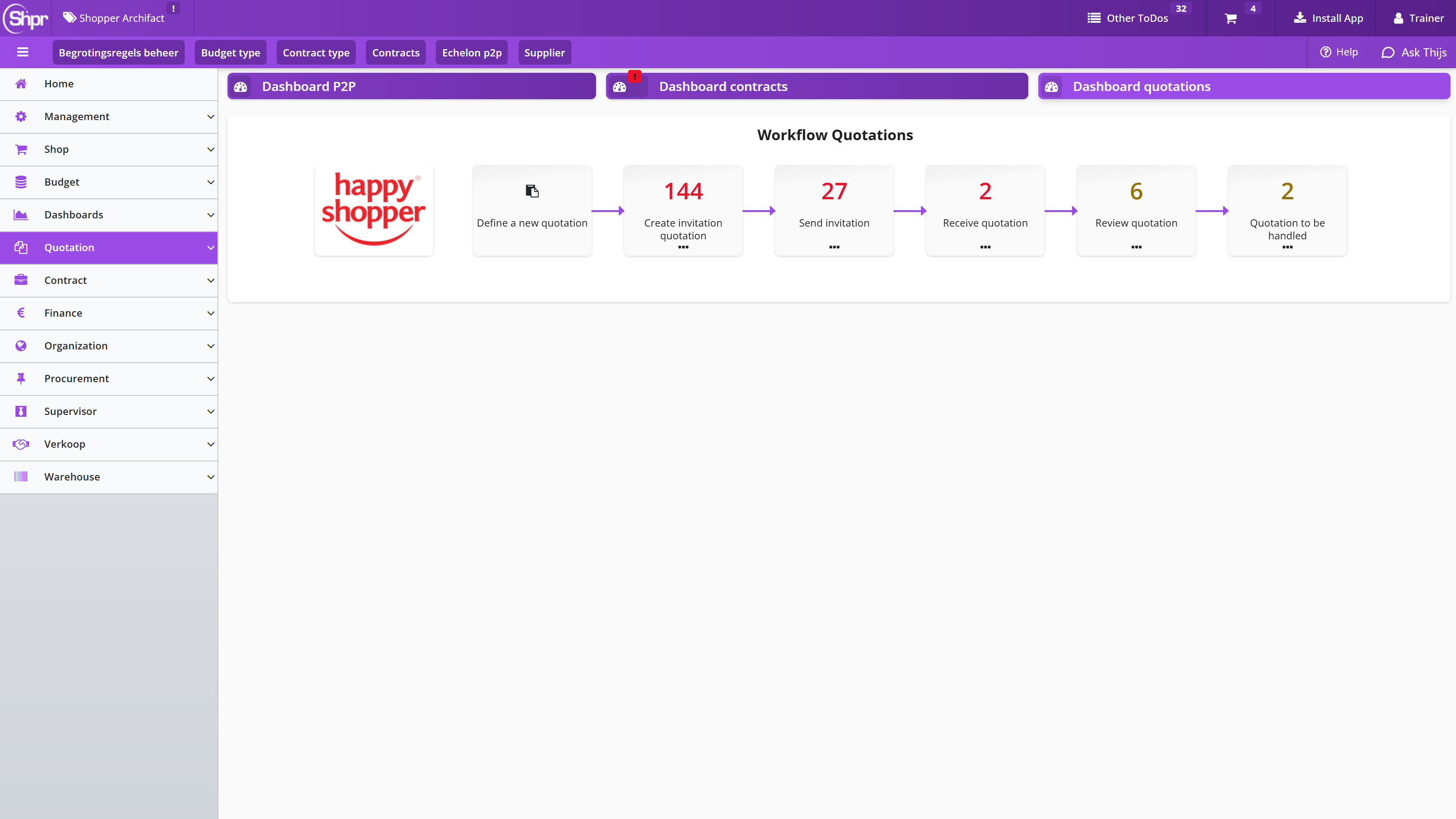
The workflow is conducted as follows: after starting a new quotation process, an invitation to participate needs to be created and then sent to the selected suppliers. Subsequently, the quotations are received and the related communication moments per supplier are recorded and then assessed. When a quotation is accepted, the processing of the quotation can be initiated, which can then be followed up with contracts or orders.
Note: The offers dashboard and the quotation menu are only available to employees that have the Quotations checkbox marked in their profile. This mark is set if the employee has been assigned to one or more quotation echelons.
The offers dashboard and menu for quotations are only available if you have purchased the Quotations license module.
Help functions
In the online help you can navigate to the functionality you want to find out about, by following the links. In addition to using the online help, there are also other options available in the application to get an explanation of what you see and what you can do with it.
The button (marked with the question-circle icon, "question-circle") in the header bar at the top right of the screen opens this online help. With the menu button (☰, "bars") at the top left of the screen you show or hide the menu on the left. In that menu - under the option Management - you will find the Quick reference card, the FAQ and the Shopper manual (the PDF version of this manual). You can view or print these documents online.
On a detail screen you can see the explanation about an input field by moving the arrow of the mouse pointer over the name/text of the input field. A question mark will then appear. If you click this, a pop-up is shown with the explanation about the input field.
If you are unable to resolve the issue with these help functions, or if you have a problem, please contact the Shopper Helpdesk. You may be asked for the version number of the application. You can request this by clicking the user icon (👤, "user") with your username at the top right of the screen and then choosing Shpr (marked with the info icon ℹ, "info").
As of Shopper 10 the help documentation no longer opens as a PDF document but as web pages inside Shopper. The pages open directly, you search the complete help documentation through one search bar, you navigate through the menu and the table of contents to the part you need, the pages adapt to your screen and you can send a colleague a direct link to a section. You always see the latest version, without downloading anything.
Personal settings
This chapter describes how you tailor Shopper to your personal preferences; all of these settings are found in the user settings. Under User settings you set, among other things, your language, your homepage, the notifications you want to receive and the colleague who may log in as your user.
Under Absence you register your absence and name a delegate who takes over your tasks and access rights during that period, and you see who has delegated to you. Under Dashboard Graphs and Charts you choose which graphs are shown on your Dashboard Home, and under Quick access you add quick access buttons that open menu items directly.
User settings
In the User Settings you can choose your user settings. In the screen dialog you can set your personal preferences for using the application.
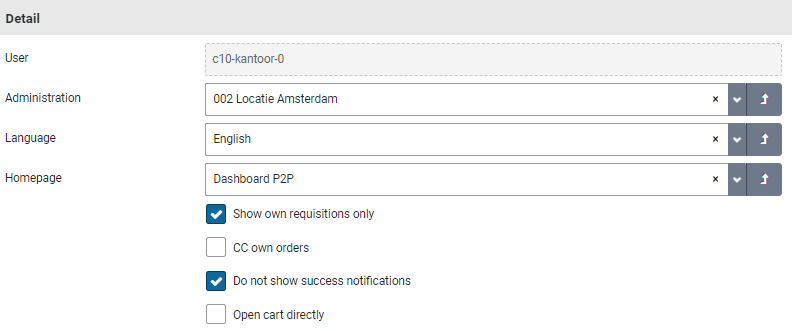
Here you can set, for example: what is shown on your homepage (field Homepage); if you want to track the requisitions made by your co-workers (Checkbox Show own requisitions only); which notifications you want to receive (Checkbox Do not show success notifications & CC own orders); if you want to open the shopping cart directly if you are authorized for only one organizational unit and cannot perform requisitions for projects (Checkbox Open cart directly); and in which language you want to work (field Language). The field Administration shows the administration you work in.
Note: In the user settings the standard tab can be set by assigning the default home page as Dashboard P2P, Dashboard contracts or Dashboard quotations). To change the default homepage, see User settings).
New in Shopper 10 is the field with which you name the colleague who may log in as your user (impersonation, see Impersonation). Leave it empty if nobody may do so.
Absence
In the user settings you can also specify your absence in the Absent / Delegated section. When registering your absence, you can specify (fields Start date, Up to and including and Delegate) which employee may perform your duties during the absence. This employee assumes - for the specified period - your tasks & access rights and therefore does not have to possess these him/herself.
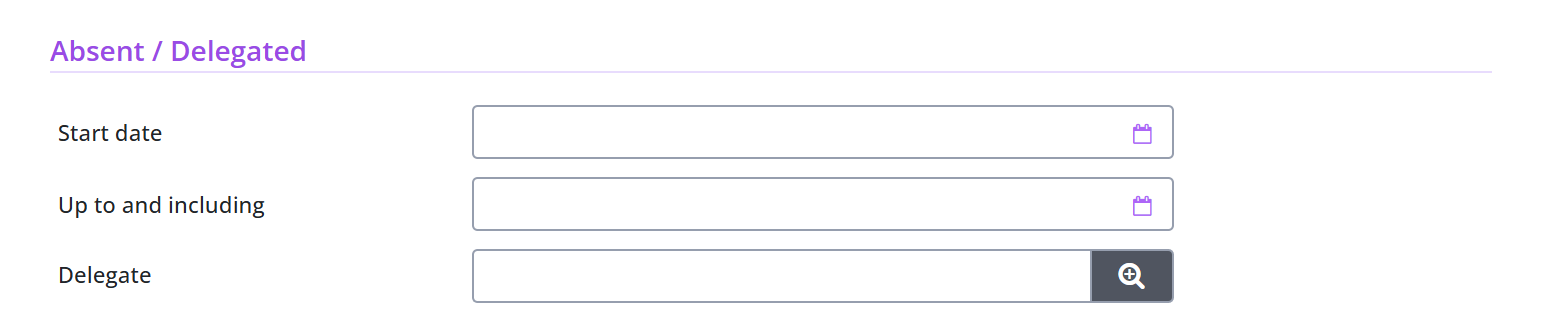
The absence already entered is listed in the list below. You can pre-register your absence for several periods. All registered absences are listed.
If you do log in during a specified period, you will not have access to your tasks and access rights. So, if you are back earlier than Up to and including of your absence. Then you have to reset this to regain access to your tasks and permissions.
When an employee has delegated tasks and associated authorities to you, you will find this mention in the section Delegated by.
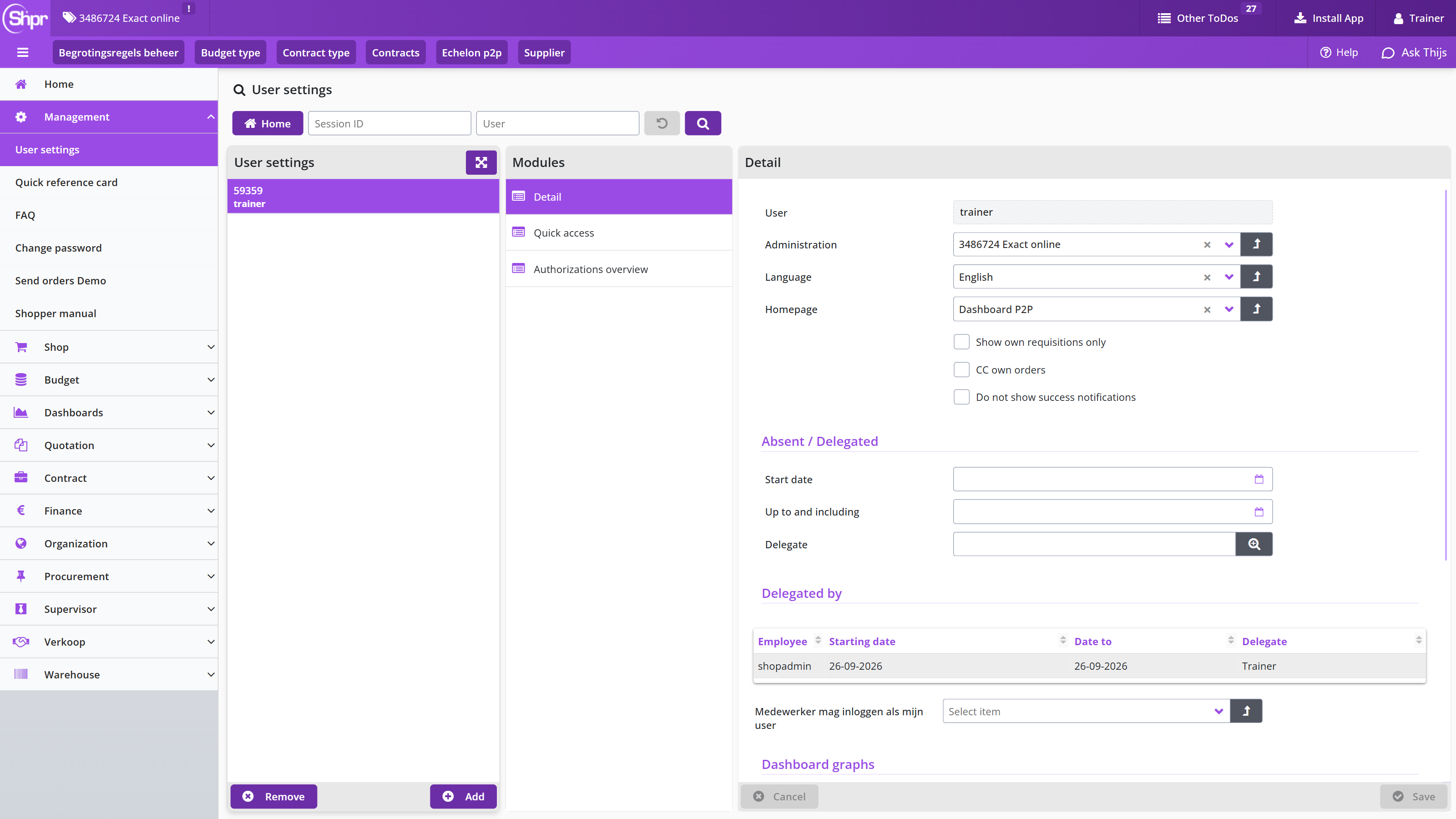
If you have been delegated by several employees, these will all appear in this list. The related ToDos for these tasks can be found in the ToDo process flow on Dashboard Home or at the other ToDos, combined with the ToDos for your own task.
Shopper screen layout
This chapter describes how the Shopper screens are built up and how you operate them. General screen layout describes the main sections of a (detail) screen: the list, the data modules, the details, the search bar and the action buttons. Search bar and list explains how you narrow the list on the left of the screen with search criteria, the Reset button and the filter; Modules and details describes the data modules, the two types of modules and when data can be edited; Requisition-/order lines covers the related lines at the bottom of a data module.
Screen controls describes the buttons and fields you will find on the screens (Home, Back, search, expand, upload, download, memo fields and the notification indicator) and Spreadsheet screen the expanded overview in table form, including updating several rows at once and the export to MS-Excel.
General screen layout
After choosing a process step on the home dashboard, or after choosing a menu item, a (detail) screen is opened. The content and layout of these screens differ per function, but the structure and operation are in accordance with the description below.
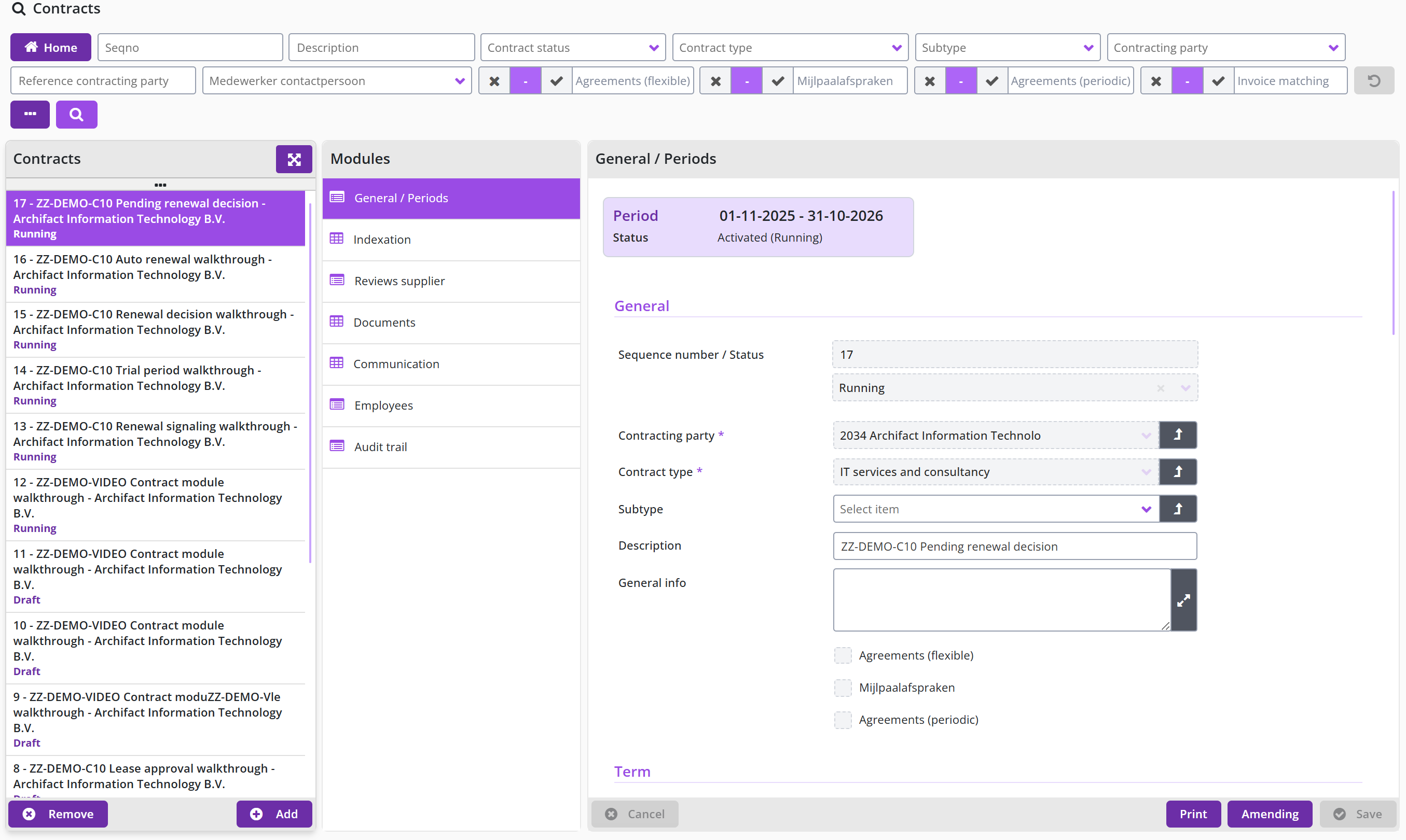
By default, these screens are made up of several main sections: 1) the List, 2) the data Modules and 3) Details. Above these sections is 4) a search bar. Optionally, there is also 5) a list of the relevant requisition-/order lines. There may also be 6) action buttons visible with which you can initiate the processing indicated on them. On top (below the reported active administration) the buttons.
Note: In this manual, references to the items in the Modules section (2) are made using the name Data module.
As of Shopper 10 the screens are optimised for larger screens (up to and including 4K displays) and for more laptop resolutions; navigation within the drop-down menus of the side menu has also been improved. The drop-down list for switching administration (at the top of the screen) has a filter field, so that you can find and select the required administration more quickly.
Search bar and list
On the left side of the screen, you’ll see the list of those items that are relevant according to your role and access rights. For example, a list of orders for which you can perform a (follow-up) action.
If many items apply, you can narrow the list of items through a search. Enter the search criteria and with the button (magnifying glass) you will perform the search on the items in the list. The list then shows only those items that match the search criteria you entered.
The search bar also has a button, which clears all search criteria at once and restores their initial values. The button is at the beginning of the search area. While you are adding a new item, the search bar is disabled, so that a search cannot be started by accident.
The button with the three dots gives you more selection fields for the search, so that you can also search the data in a data module. These search fields appear under the search bar in a tab named after the data module (in the example below the tab Indexation).

The indicator for state may be checked as Yes, by selecting the checkmark, or as No, by selecting the cross. You switch the state by clicking the item. The dash stands for no choice, in other words it is not included in the search criteria.
If there are a lot of items in the list, a narrow bar with three dots may appear at the top of the list. If you click on it, you will be given the option to specify a filter to limit the number of items in the list.
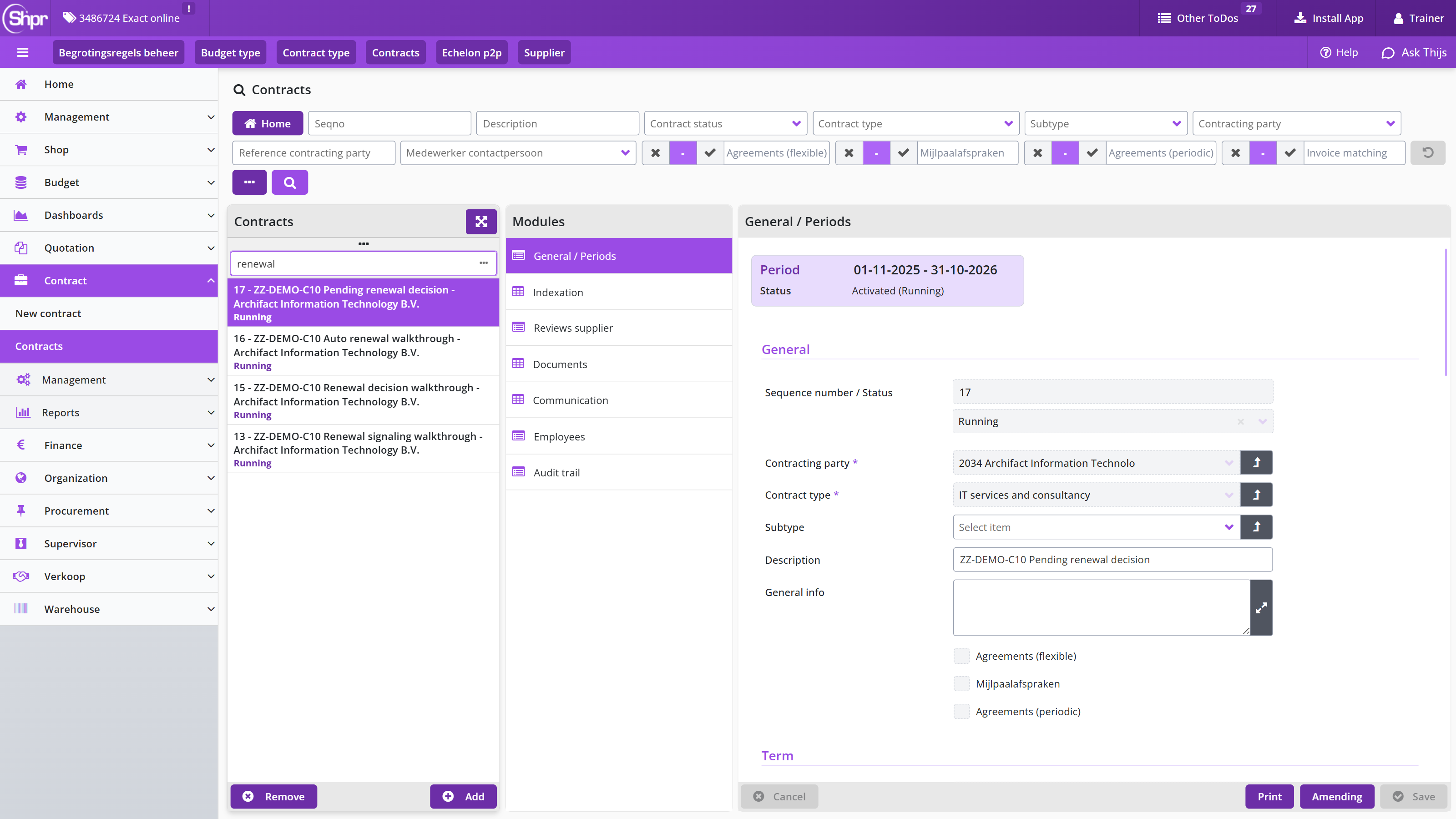
What is in the list depends on the specified search criteria and the maximum number of lines to which the list is limited.
If you cannot find an item, adjust the search criteria to shorten the list.
You can also expand the list to a table, in which more information becomes visible so you can narrow down your choice. For this view read the section Spreadsheet screen.
Modules and details
For the selected item from the List, the data for the relevant data Module is shown in the right section of the screen. You can choose a data module from the list of modules that are shown on this screen. If you want an explanation of a data field, you can click with the mouse pointer on the name/text of the field to get more information about it.
Whether the data can be edited depends on the status, the relevant function of the screen and your access rights. Editable data has a white input field and data that cannot be edited is shown in gray in a dashed frame. If an input field is mandatory, an asterisk will appear next to the name of this field. Mandatory fields must be completed before you can save the data.
Different data modules may apply to an individual item in the list. This is determined by the item type and the function of the screen. There are two types of data modules:
A data module for which one-to-one data can be displayed. In the list of modules this type has an icon of a form in front of its name.
A data module with multiple data entries. If multiple items apply you will be provided with a list of items instead of the details of the one item. By selecting an item from the list, the resulting (detail) screen is opened with the data modules and data that apply for it. In the list of modules this type has an icon of a table in front of its name.
Requisition-/order lines
If applicable, related items are also displayed at the bottom of the data module, such as the relevant requisition-/order lines for a requisition/order. With a filter and by means of which you can scroll here. You can also set the number of lines/rows per page. (See also Spreadsheet screen for how to operate this part)
Screen controls
On the screen, you may see the following buttons:
General buttons:
- The button will take you back to the homepage. You will be notified if any edits have not yet been saved.
- The button will take you back to the homepage. Also, here the warning if edits have not yet been saved.
- The button opens a dialog to select the entry from a list, which is then entered in the relevant entry field. (See also spreadsheet screen)
- The button opens the detail screen of the item entered in this input field. You can then view or change the details there.
- The button shows a list of items that can be selected for this input field (dropdown), with the option to search in this list.
- The button allows you to add a document or image. You can choose a file that is on your computer.
- The button allows you to view, print or save a document or image to your computer.
- The button clears the input field or removes the selection of the file (for an image or document).
Buttons for a short list of items:
- The button displays the list of items – as an overview in table form – in full, so that more details are clear. (See also spreadsheet screen).
- The button closes the expanded overview (spreadsheet screen) and takes you back to the details screen.
Other controls:
Memo fields (fields for several lines of text) expand automatically as you type. With the button you open a larger window to edit longer text; a memo field containing a lot of text opens in this expanded view straight away. The notification indicator: when an important field requires attention or processing, a blue notification icon is shown – where applicable – in the form header and the field itself is highlighted, so that you can find it easily.
Spreadsheet screen
On a spreadsheet screen, the data for an item is displayed in columns, with one line for each item. You can scroll horizontally and vertically if not all the data fits on the screen. A search bar is usually available at the top to reduce the number of rows to the items that meet the specified selection criteria (see also Search bar). Additionally, the data on this screen can be exported to MS-Excel.
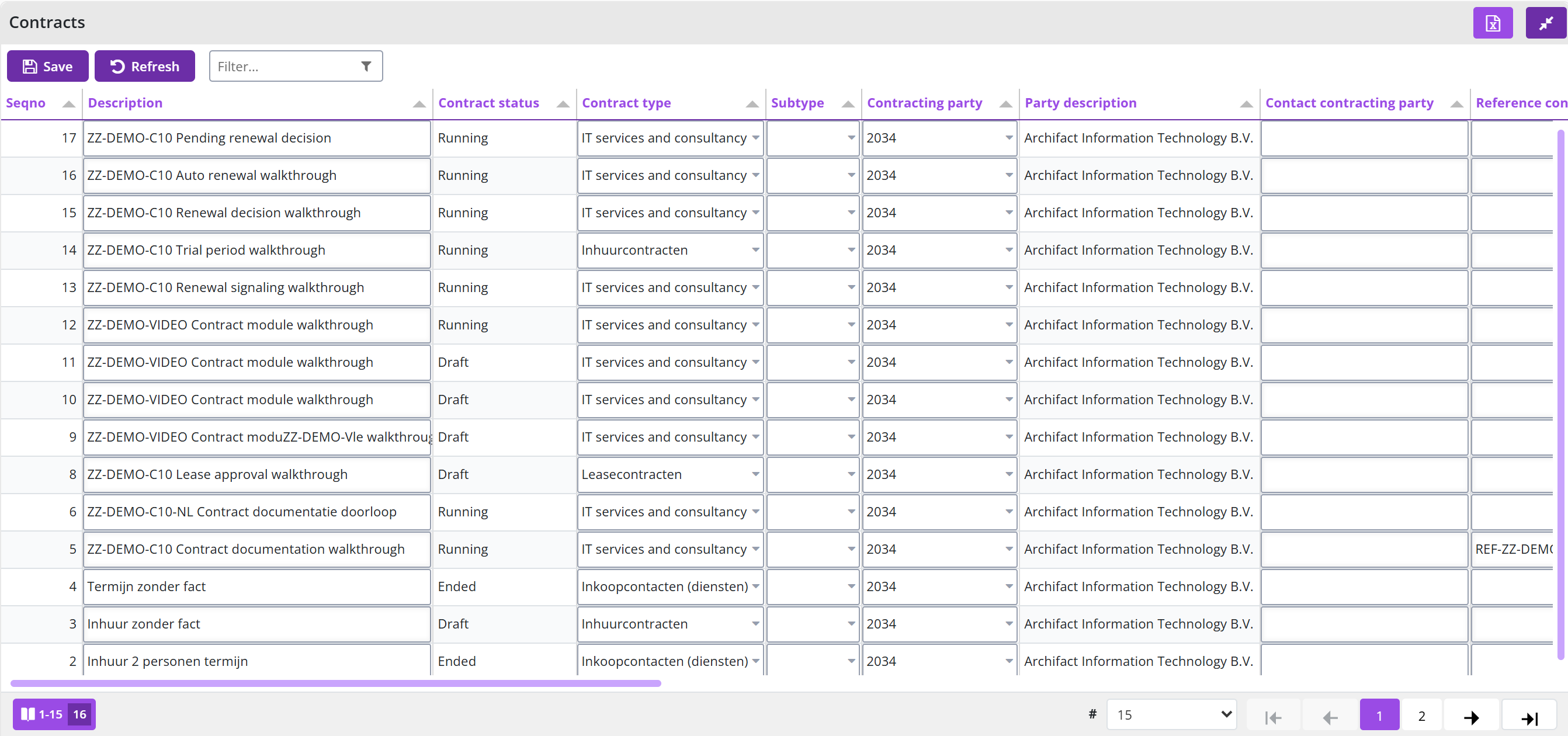
Use the "Filter...” field to narrow down the rows, the button to export the data to MS-Excel and the button to collapse the overview at the top right, and below the table the page selection with the number of rows per page.
Where applicable, The table is editable and the following buttons are present on the spreadsheet screen: Save and Refresh.
Where applicable, you can select several rows in the spreadsheet screen with the checkboxes and then update them all at once with the action button in the table header. An overview can also be editable: you then edit several rows directly in the table and save all changes at once with the button in the table header.
When sorting on a column, numeric values, dates, currencies and other formatted data are sorted by their value, so that the order is correct and consistent. Actions per row are shown as clearly labelled text buttons, so that it is immediately clear which action a button performs.
Remembered table settings (UNDER REVIEW FOR SHOPPER V10 INCLUSION)
Table settings are remembered separately for each table. When you return to a table, your previous settings are automatically restored.
The following settings are remembered:
- Sorting: The selected column and sort order.
- Header filters: The filters applied in the table headers.
- Current page: The page you were viewing.
These settings are stored per table, so each table retains its own settings independently.
AI assistant
The AI assistant is a built-in assistant of Shopper 10 to which you ask questions about working with Shopper in plain Dutch or English. This chapter describes under "What the AI assistant can do" what the assistant does for you: answers from the manual, navigating to the right screen, reading in contracts, and analysing and comparing contracts.
What the AI assistant can do
Shopper now has a built-in AI assistant. Open it from the top menu bar and ask your question in plain Dutch or English.
- Answers from the manual — the assistant searches the help documentation and shows its sources so you can read further.
- Straight to the right screen — ask "take me to invoices" and you get a button to that screen, provided you have access to it.
- Reading in contracts — drag a contract (PDF or Word) into the conversation. The assistant extracts the details and shows them in an overview you check and adjust step by step; Shopper then creates the contract.
- Analysing and comparing contracts — ask for an analysis of one contract or a comparison of two.
The assistant works within your own permissions and changes nothing without your confirmation.
Add-on to purchase separately, contact support for more information.
Shopper Basis
This chapter describes the basis of the purchasing process (P2P, purchase-to-pay) in Shopper, as you follow it on the P2P dashboard. See P2P dashboard for an overview of the P2P dashboard tab and which of the panels you see there, depending on your role assignments within the P2P process. P2P process flow ToDo describes the process steps with the ToDos you perform yourself and refers to the chapter per task; Status requisitions shows the progress of your own requisitions and those of co-workers (read only); Process flow management lets a team leader, manager or board member follow the requisitions of employees.
P2P-Workflow describes where the workflow for supplement and approve is set up (financial administration, organisational unit, project, item type). The best-practice scenarios for that workflow are described under Best-practice P2P workflows: workflow 1 and 2 (base licence and procurement supplement) and Best-practice P2P workflows: workflow 3, 4 and 5 (extra approval, business supplement and implicit approval).
P2P process flow ToDo
The purchasing process for P2P is a sequence of necessary actions/activities (ToDos) - to request an order (requisition), to supplement it, approve it, sent it to the supplier (order) and to handle receipt and payment - whereby these ToDos are grouped within different process steps corresponding to the related tasks (Request, Supplement, Approve, order, etc.). The various process steps that are available in the process flow ToDo diagram depend on your role in the organization.
For a general explanation of the operation of the ToDo process flow, see Dashboard Home.

Based on the workflow setup for your organizational unit or project - in reference to the source, content, and amount of the requisition - various ToDos can apply, that consecutively complete and approve the request. See the option for the workflow setup under Workflow.
Each task (process step) of the P2P process is described in its own chapter:
Status requisitions
You can follow the progress of the requisitions in the process diagram that is displayed under the Status of requisitions (read only). Here too you can open the corresponding screen by selecting the process step, but these screens only provide insight for inspection, and you cannot change or add anything.
For more details on the status of the requisition, read: From request to receipt and Invoices and payment.

The numbers in this process flow diagram represent the number of requisitions / orders in this state. A requisition / order consists of one or more requisition-/order lines, where an order line is first a requisition line, until the requisition is fully approved and can be sent to the supplier as part of an order. The color coding of the numbers is the same as with the ToDo process flow. By default, you will only see the status of the requisitions that you have submitted. You can also see the status of the requisitions from your co-workers in the same department by de-selecting the checkmark Show own requisitions only in the user settings. See User settings.
Note: you will see the requisitions from your co-workers that have the same limit type authorization for submitting requisitions and then only for the organizational units that you share with them.
Process flow management
As a team leader, manager, or board member, you can also inspect the progress of requisitions submitted by the employees under your control (i.e., who work within the organizational units assigned to you and that have the same or lower power of attorney as yourself).
In this way you can monitor the progress of the requisitions made by these employees. Even if they are on vacation, sick or otherwise absent.
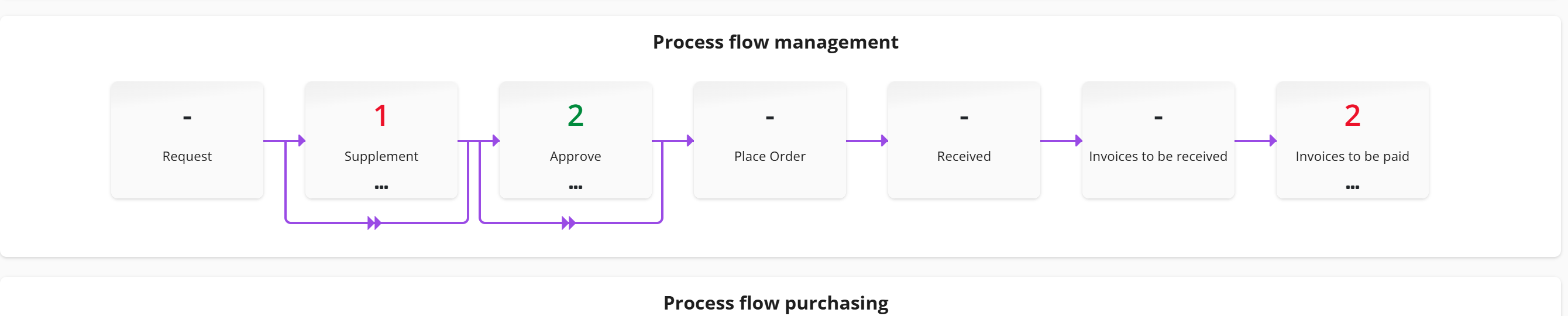
The process flow management is only shown for employees in the role Board member, in respect to their power of attorney, as part of the echelons P2P-Manager and P2P-Board. In other words, this employee has a limit type for approval that is higher than the corresponding limit type of the employees for the same organizational unit.
P2P-Workflow
The process step for Supplement and Approve can be setup with a workflow that can differ between organisational units or projects. A default workflow is set as part of the system parameters or setup the financial administration, that applies to all organisational units and projects that have not been setup with their own workflow. The workflow setup for a project takes dominance over the workflow setup for the related organizational unit.
Additionally, a workflow can be setup for an item type, that takes dominance on requisition lines of this item type. Hence, if a workflow is setup for an item type, then this workflow is used for all order lines of this item type regardless of the organizational unit or project for this requisition line.
Note: the other requisition lines within the same requisition (that have another item type) will stick to the workflow that is setup for the organisational unit, project, financial administration, or system parameters. The workflow for supplement and approve can be setup independently from another. Hence other permutations of the example below are supported within a best-practice setup.
Best-practice P2P workflows: workflow 1 and 2
For supplementing and approving requisitions Shopper offers five best-practice workflow scenarios. Workflow 1 (Shopper base licence) and workflow 2 (procurement supplement) are described in this section; workflows 3, 4 and 5 are described under Best-practice P2P workflows: workflow 3, 4 and 5.
The image below presents an example of the workflow concatenation for supplement and approve, based on the best-practice workflow scenarios.
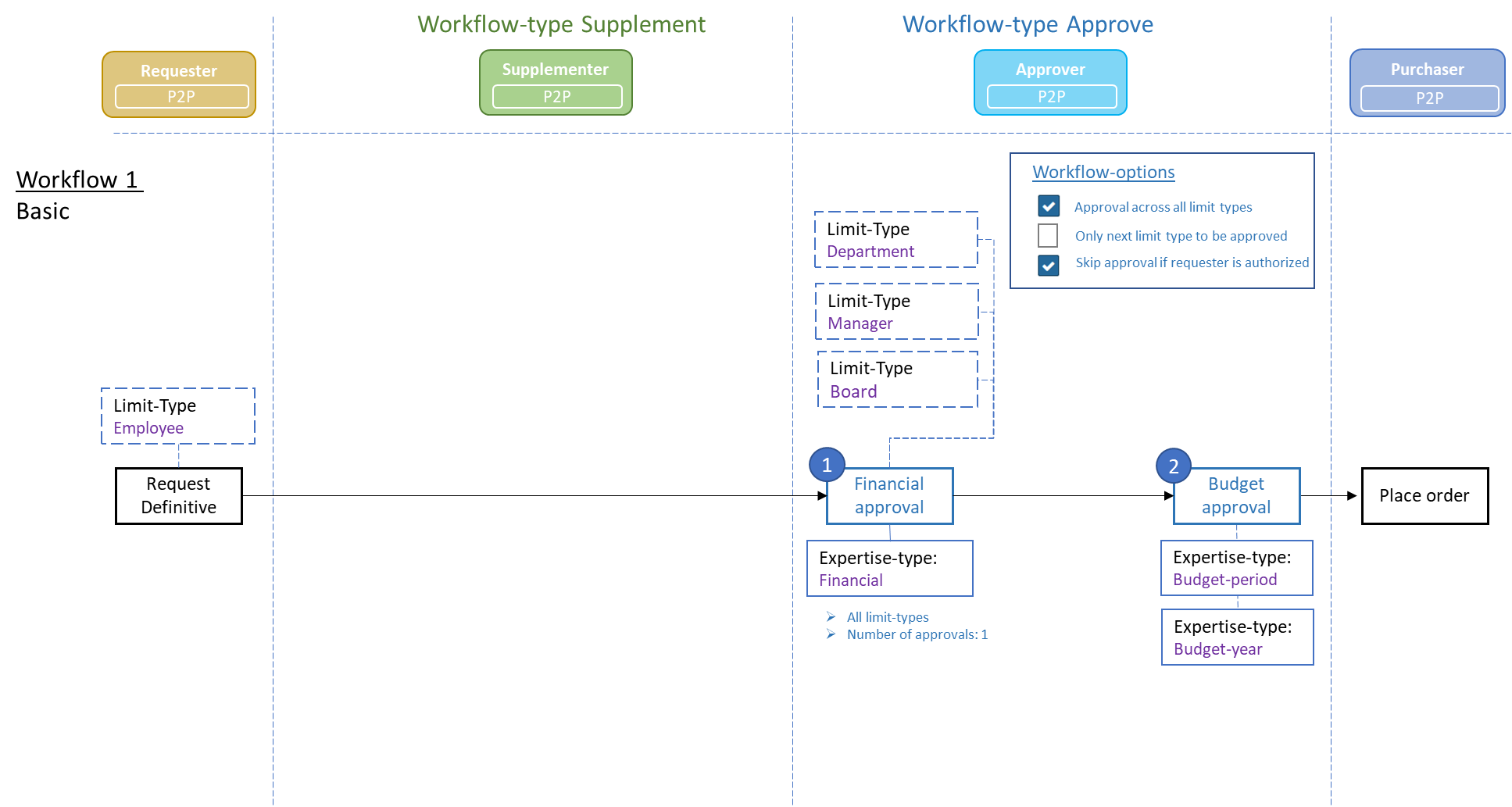
Workflow 1:This workflow is part of the Shopper base licence. It is comprised of the workflow type Supplement: None and the workflow type Approve: Basic.
Workflow type: Approve – Basic The requisition – depending on the workflow options and the authorized signatory scheme – needs to be reviewed and approved. This can involve two workflow steps: Financial approval and Budget approval. The financial approval needs to be performed by an authorized signatory (with the required power of attorney) and the budget approval requires authorized budget holder. Depending on de power of attorney scheme the financial approval step may have to be performed by multiple employees to satisfy the required number of signatures/ approvals.
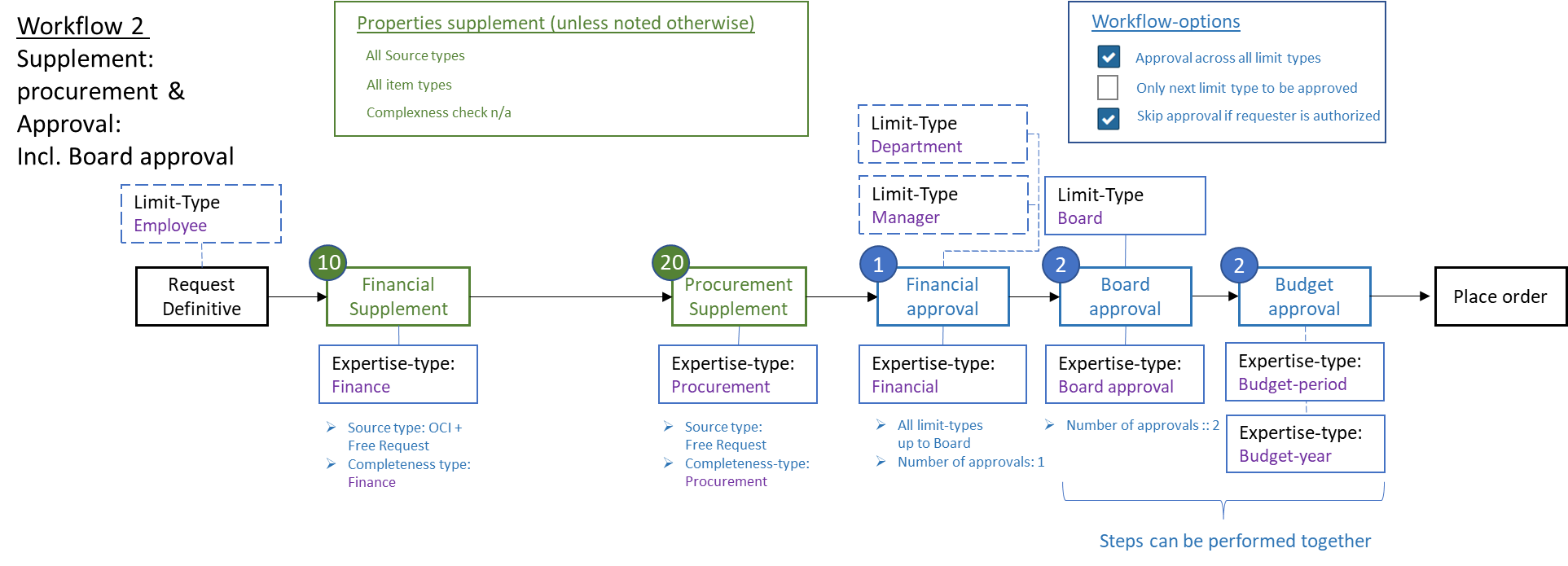
Workflow 2 The workflow steps for Financial Supplement and Procurement Supplement require an additional license module Procurement Supplement (SHOPMOD-AI).
Workflow type: SupplementThe requisition lines – depending on their completeness and source - need to be supplemented. This can involve two workflow steps: Financial supplement and Procurement supplement. The financial supplement has to be provided by the finance department (regarding the booking details for the order line) and the procurement supplement has to be provided by an employee of procurement (the purchasing department).
Note: The booking details are – besides their use for handling the invoice – also required to determine the designated budget for the budget control in Shopper. This workflow step can also be used to supplement requisition lines for requisitions that originate form OCI (external catalogue). Also see Derive item type under OCI link in the chapter on the administrative tasks.
Workflow type: ApproveThe requisition – depending on the workflow options and authorized signatory scheme – needs to be reviewed and approved. This can involve multiple workflow steps: Financial Approval, Board approval and Budget Approval. The financial and board approval need to be performed by an authorized signatory (with the required power of attorney) and the budget approval requires authorized budget holder. Depending on de power of attorney scheme the financial and board approval step may have to be performed by multiple employees to satisfy the required number of signatures/approvals.
Best-practice P2P workflows: workflow 3, 4 and 5
Workflows 3 and 4 are variants of best-practice workflow 2 (supplement by the finance and the procurement employee, followed by financial, board and budget approval; see Best-practice P2P workflows: workflow 1 and 2); workflow 5 has no supplement or approval step.
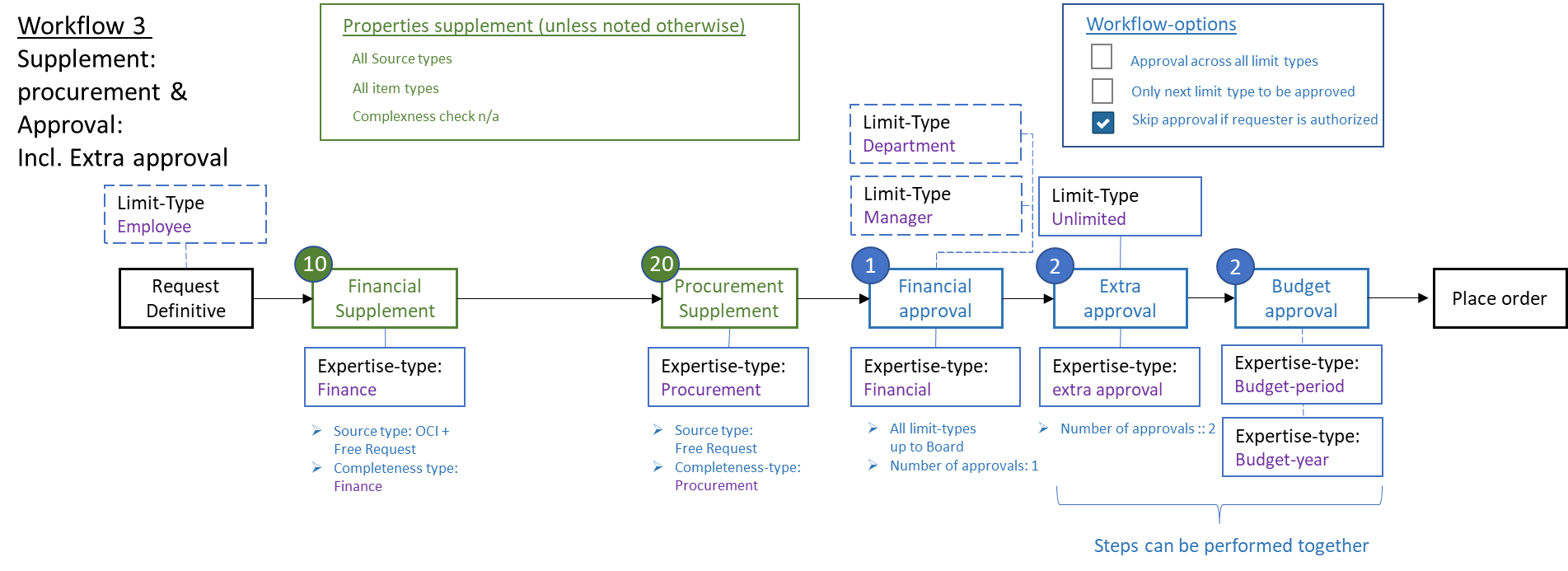
Workflow 3 Identical to workflow 2, except for the Board approval that is replaced by a Extra approval. Always requiring additional approval(s) on top of the financial approval.
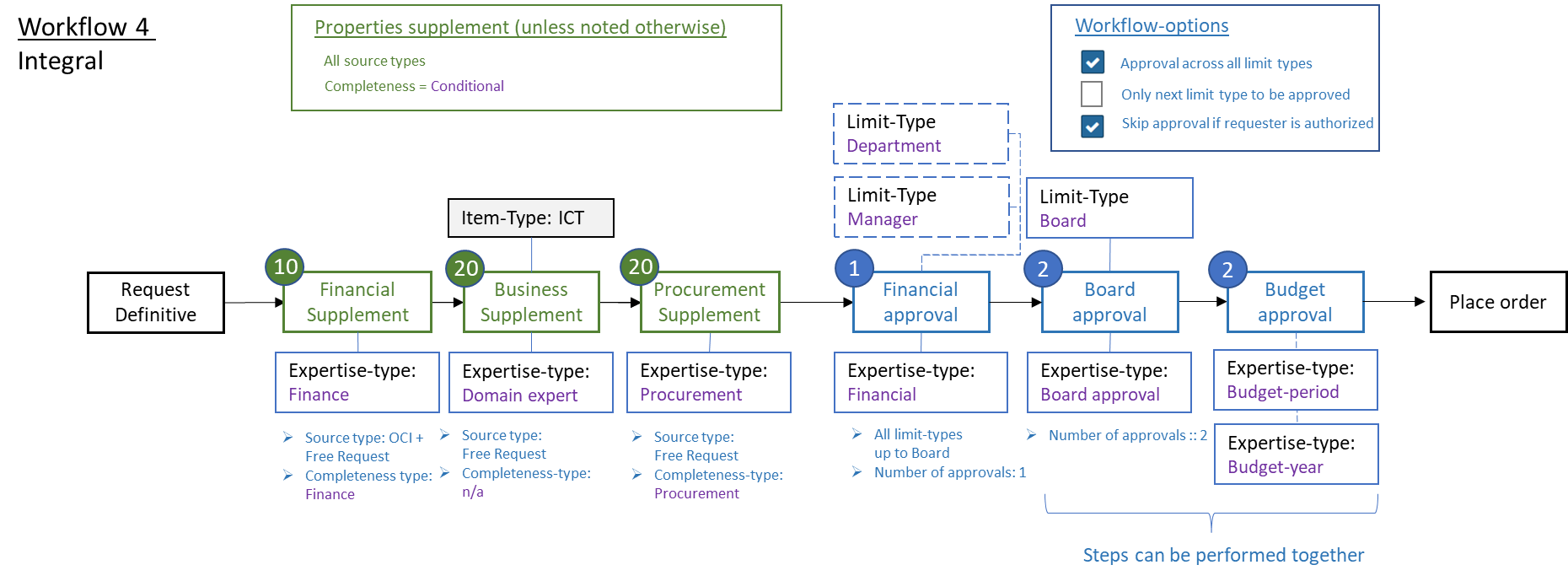
Workflow 4:Identical to workflow 2, with the addition of a supplement workflow step Business Supplement regarding requisition-lines of a specific item type, requiring a domain expert (e.g., ICT) to be involved in the supplement workflow.
The workflow-step for Business Supplement requires an additional license module Procurement Supplement (SHOPMOD-IA).

Workflow 5 – None/Implicit approval:The requisitions can be made without the need for supplementing or approval of the requisition.
Note: An elaborate description of the best-practice workflow P2P is provided as P2P-Workflow Supplement and P2P-Workflow Approve in the chapter Workflow.
Purchase process
The purchase process describes the steps of a requisition from request to receipt: ordering a requisition, supplementing its data, approving it, placing the order with the supplier, receiving the ordered items and releasing installment payments.
Order requisition in Shopper
Ordering in Shopper always starts with a requisition (order request), so that budget control, approval and power of attorney are validated before anything is sent to a supplier. This chapter describes how you start a requisition (Request), how you continue with Existing shopping carts, how the Request screen is organised and how you search the Internal catalog in the request screen. It then explains how the Shopping cart works, how you finish with Confirming the requisition (Apply definitive) and what to do with a Declined requisition.
For an item that is not in the catalogs, or when you have a quotation, you use the Free request (Create requisition line); the remaining fields of that dialog are described under Specification, internal explanation and attachments on a requisition line, under Discount, delivery time, estimated price and extra checkboxes on a requisition line, under Installment payments on a requisition line and under Copying a requisition line (Copy button). Finally, Direct order describes how an item that is needed immediately goes straight to the order step after the requisition is applied definitively.
Request
To ensure budget control, signatory power, and power of attorney (approvals) are applied according to company policy before an order is sent to a supplier, a requisition must be submitted. This is the first step in the purchasing process, as also shown in the process flow diagram on the P2P dashboard.
Employees authorized for the role Requester as part of the echelon Employee can start a request by clicking on the process flow step Requests or via the menu option New requisition in the menu Shop.
A requisition starts by selecting the organizational unit and/or project. You will only be able to choose from the organization units (departments/location) and projects assigned to you. Additionally the selectable projects/cost units can be restricted based on the selected organizational unit. Additionally, you have the option to specify a specific desired delivery date. With the button you confirm the choice, and the requisition dialog is opened.

Note: You need to first select an organizational unit before the button can be used.
If you choose to skip the requisition dialog – as can be specified in the user settings – you will not be able to select a desired delivery date. To do so, you need to first disable this option in the user settings if you want to specify the desired delivery date.
Existing shopping carts
When you start a requisition (process flow step Requests or menu Shop, menu option New requisition), the requisition dialog also shows the shopping carts that already exist for you.
If shopping cart(s) already exist, you will see a list of existing shopping carts.

You can then choose the desired action in a shopping cart:
- Show the shopping cart and continue adding or removing items. You go to the request screen and continue working with this shopping cart.
- Or delete the shopping cart if it no longer applies. All requisition lines of this shopping cart will be deleted.
- The existence of shopping carts can also be determined by the indication on the top right part of your screen (to the right of the Other ToDo’s):
Select this shopping cart indication to directly open the shopping cart. If there is more than one shopping cart, you will be presented with a list of shopping carts. From this list you can select the shopping cart you want to open.
Note: If you make a new requisition for an organizational unit that already has a shopping cart for it, the existing shopping cart will be opened containing the already existing requisition lines.
Request screen
After choosing a shopping cart or entering a requisition for a new shopping cart, you can manage the contents of the shopping cart via the request screen:
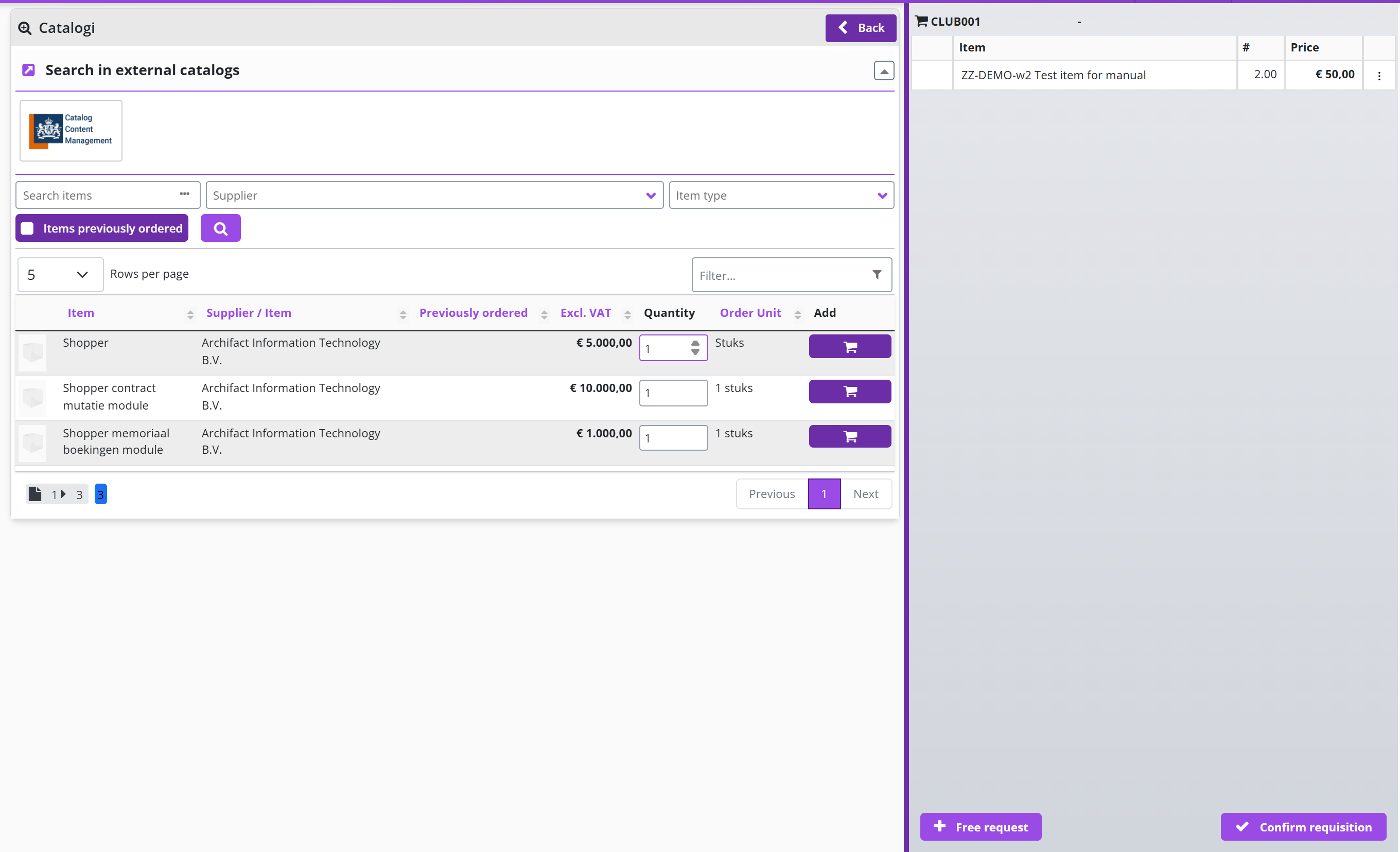
In the request screen there are several ways to request an item for requisition:
Search in internal catalogsYou choose an item from the list shown at the bottom left (see Internal catalog in the request screen).
Search in external catalogsYou choose a supplier and in so doing open their website. There you can choose items. After confirmation, the shopping cart from this website is transferred to Shopper.
Free requestYou have: found an item elsewhere; a price estimate or quotation. Then you can enter this via the button. You will find this button at the bottom left of the overview of the shopping cart. (See also Change item in shopping cart)
Internal catalog in the request screen
The offer in the internal catalog is defined by procurement (your purchasing department) with items from different suppliers. By clicking on an item in the internal catalog, the details of this item are displayed in a pop-up. You can scroll and browse through the internal catalog (see also the explanation about the operation of a spreadsheet screen under Use of the other screens)
You can request the items from the internal catalog by entering the quantity in the relevant item line in the column of the same name and pressing the shopping cart button.
If the shopping cart is opened, it is possible that (with a lower resolution or a too small size of the browser window) the display of the shopping cart covers part of the request screen (and thus the button with the shopping cart). You can then collapse the shopping cart to see the full request screen. You can also collapse the menu for more screen space. (See also menu bar in >> Homepage and menu). Another option is to adjust the zoom factor of your browser to allow for more room for the full screen to display.
In the internal catalog you can limit the displayed items to the offer of one supplier. This can be done by choosing a logo from the list. Alternatively, you can use a search or filter.
You can limit the displayed items by entering a search query. Enter the search criteria and press the button (magnifying glass). You can also check Previously ordered items to quickly repeat an order for previously ordered items.
You can also quickly find the desired items by entering (part of) the name of the item in the filter.
Note: It is possible that the list of items in the internal catalog remains empty (or is limited to the previously ordered items). You can then do a search to retrieve the list of items. This can be a choice when setting up Shopper if the list of items is very long to avoid unnecessary waiting times (it can then take longer to build the request screen).
Shopping cart
The items you have selected will be added to the shopping cart. This is displayed on the right part of the screen. If you do not see the shopping cart, it is collapsed.
You can expand the shopping cart using the shopping cart button (see also menu bar in >> Homepage and menu)
At the top is the organizational unit and optionally the project for which you are adding entering requisitions. The contents of the shopping cart are shown below with a requisition line per item. Selecting a requisition line will open the details view for it, allowing you to make changes. Or:
Note: if you select the requisition line, the Change dialog box is opened directly, without the need to first select the three dots and use the pop-up menu.
From Shopper 10 onwards, an employee of procurement (the purchasing department) can also remove individual requisition lines from an employee's shopping cart. This is particularly useful when an employee has lost access to a cost centre and the shopping cart contains items that can no longer be processed. The procurement employee removes those lines directly, so the shopping cart does not stay blocked.
A status indicator is displayed in front of the requisition line:
Confirming the requisition (Apply definitive)
When all required items have been added to the shopping cart, you can submit the contents of the shopping cart with the button at the bottom right.
After confirmation, you will receive a detailed overview of your requisition, grouped by supplier, for checking. You can use the button to return the application screen for any adjustments.
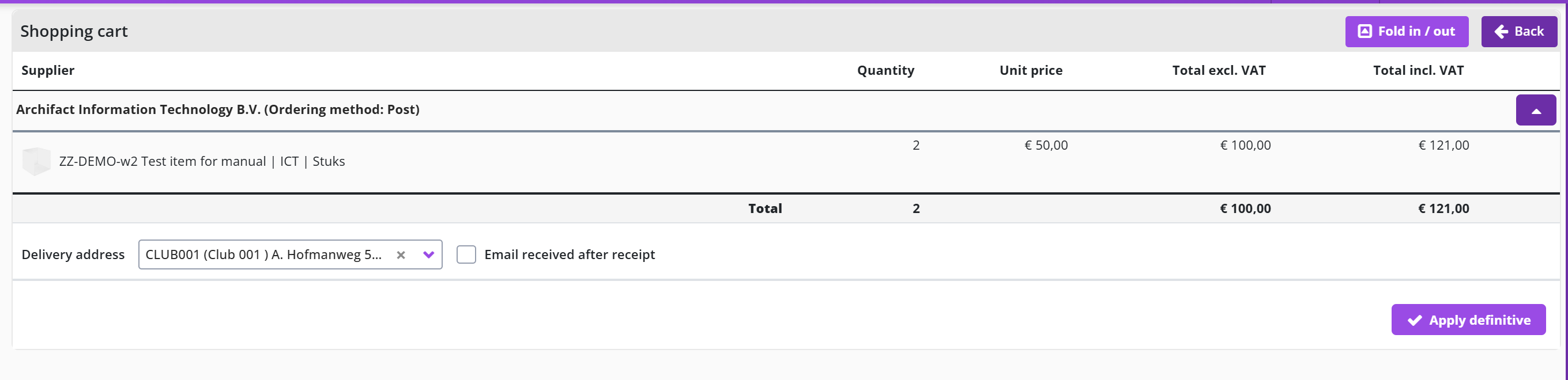
If applicable, you can specify a different delivery address at the bottom of this overview. You can also indicate whether you want to receive an email when the complete notification of receipt for this application – at this delivery location – has taken place.
If applicable an if you are authorized to, the check box Send whole as a separate order will be available. You can check this box to indicate that this requisition (as a whole) is to be processed as a separate order and that it cannot be merged with other requisitions for the same supplier.
If you are authorized to, you can also use the check box Requisition not public. This will indicate that other employees within the same organizational unit - for which the requisition is requested - cannot see this requisition when viewing the Status requisitions and it will also not be listed when viewing the requisitions or orders using the menu Shop.
After checking, you can approve the requisition with the button . Next the requisition will be processed according to the applicable workflow. This workflow can include the process flow ToDo steps for Supplement and Approve before the order can be placed and the receipt registration can be performed.
The status of the processing can be found in the process flow diagram on the Dashboard Home under the Status requisitions. If you have disabled Do not show success reports in User settings , you will also see a pop-up with the status of the processing after the Apply definitive.
You can also confirm at another time. At that moment in the process flow diagram, choose the process step with the shopping cart to continue (see also >> Homepage and menu).
Declined requisition
If the requisition for an item has been rejected (the number in the process flow step of the shopping cart is then red), you can find it in a shopping cart with the rejected items for this organizational unit/project. You can find the reasons for rejection by choosing to change the rejected item in the shopping cart (Field Rejection note).
In the shopping cart there is a padlock in front of the rejected item.
You can make the required change and mark the checkbox Note reviewed to indicate that you have seen the reason for rejection. After saving, the padlock next to this item in the shopping cart will disappear. If you want to cancel the requested item, you can choose to remove the item from the shopping cart.
As long as there are still items in the shopping cart with this padlock (that are not postponed), the button is not available. You will first have to change the item in the shopping cart and put the checkbox at comment read or else remove the item from the shopping cart. The comment read checkbox is below the comment provided by the employee who rejected the requisition. (See also the screen dialog under Free request (Create requisition line)).
Free request (Create requisition line)
If an item is not in the catalogs or if you have a quotation for the purchase of a product or service, you can enter this via the request screen by using the button . This dialog box is also used if you are changing an item (requisition line) in the shopping cart or when following up on a rejected requisition line. In these cases, the fields are prefilled with the existing data of the requisition line.
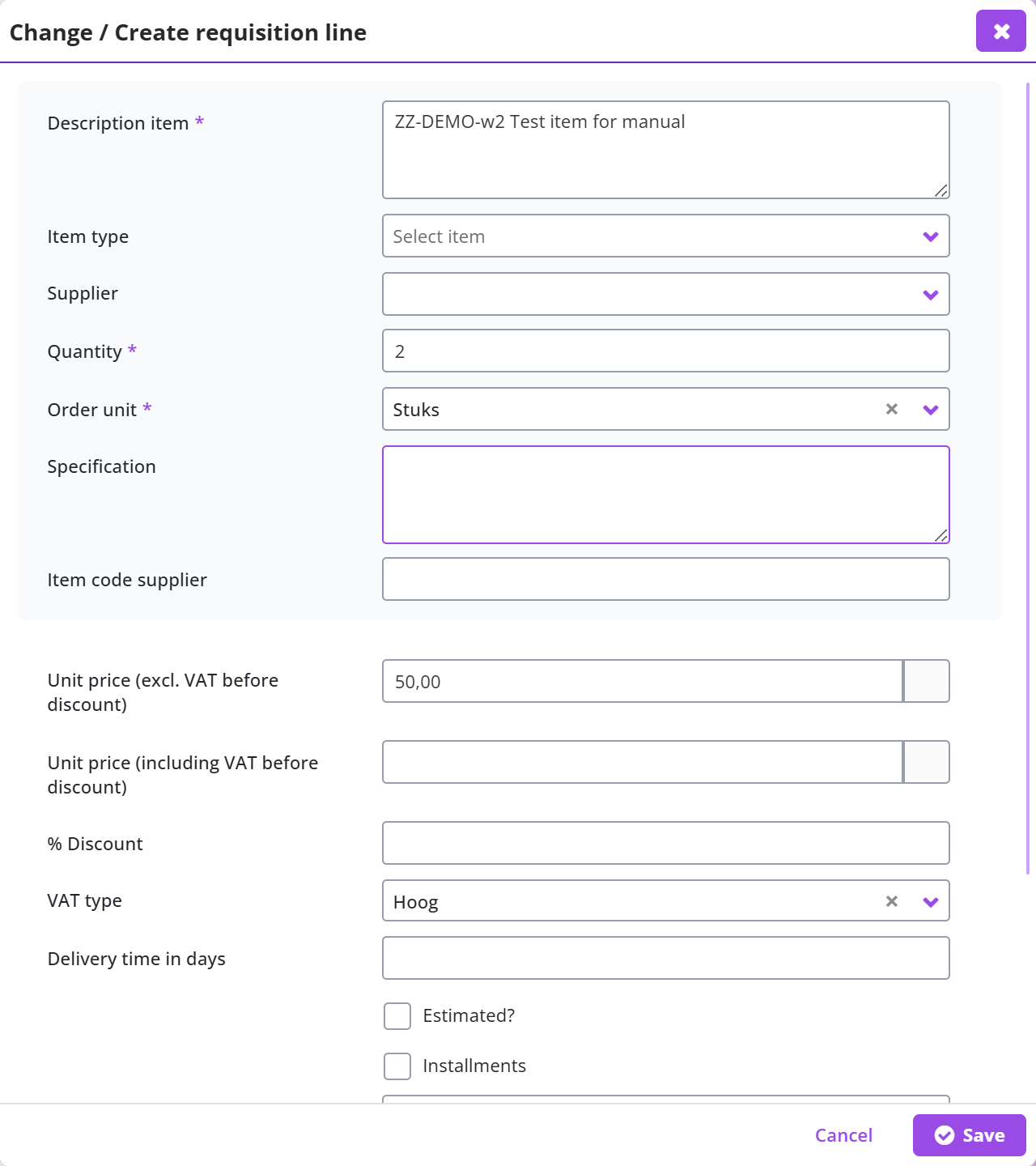
When entering a free request, you can specify the desired item that you want to order (see the screen dialog). The required fields are Description item, Number, Order unit. An employee from procurement (the purchasing department) then needs to complete the requisition.
Additional data about the requisition can also be entered if available. Including the item code used by the supplier, unit price (price per unit) and when applicable the % discount. The unit price can be entered including VAT as well as excluding VAT (when pressing Save the other one will be calculated). If you are familiar with the item type (in relation to how this requisition line should be booked financially) it can be specified. The VAT type is derived from the item type, but you can adjust the VAT type if necessary. All the provided data that will be submitted after Apply definitive can be validated and supplemented or changed by procurement (purchasing department) and the financial department. Assuring all requirements of the procurement and financial policies are satisfied.
If your organization monitors annual budgets, it is possible that the available budget (Budget available) will be shown in relation to the costing type (category) derived from the item type, combined with the costing unit and costing center for this requisition. An overview of the available budget space per cost center/cost unit is available via the menu Shop under Budget period overview
Specification, internal explanation and attachments on a requisition line
You can also fill in additional fields or add them to existing requisition lines. For example, you can enter a comment to the supplier (in the field Specification) or add a Internal explanation. This explanation internally therefore does not go to the supplier!
In case you have a quote from the supplier, you can add the quote as an attachment. You can then enter the quantity and price per order unit or enter the number 1 as the number and the total of the price quote (even if it includes multiple items).
You can add an attachment using the button with the symbol for Upload file. You can also indicate whether or not this should be sent to the supplier in the email. After uploading a file, the option is offered to add another file. You can add a total of 3 documents if needed.
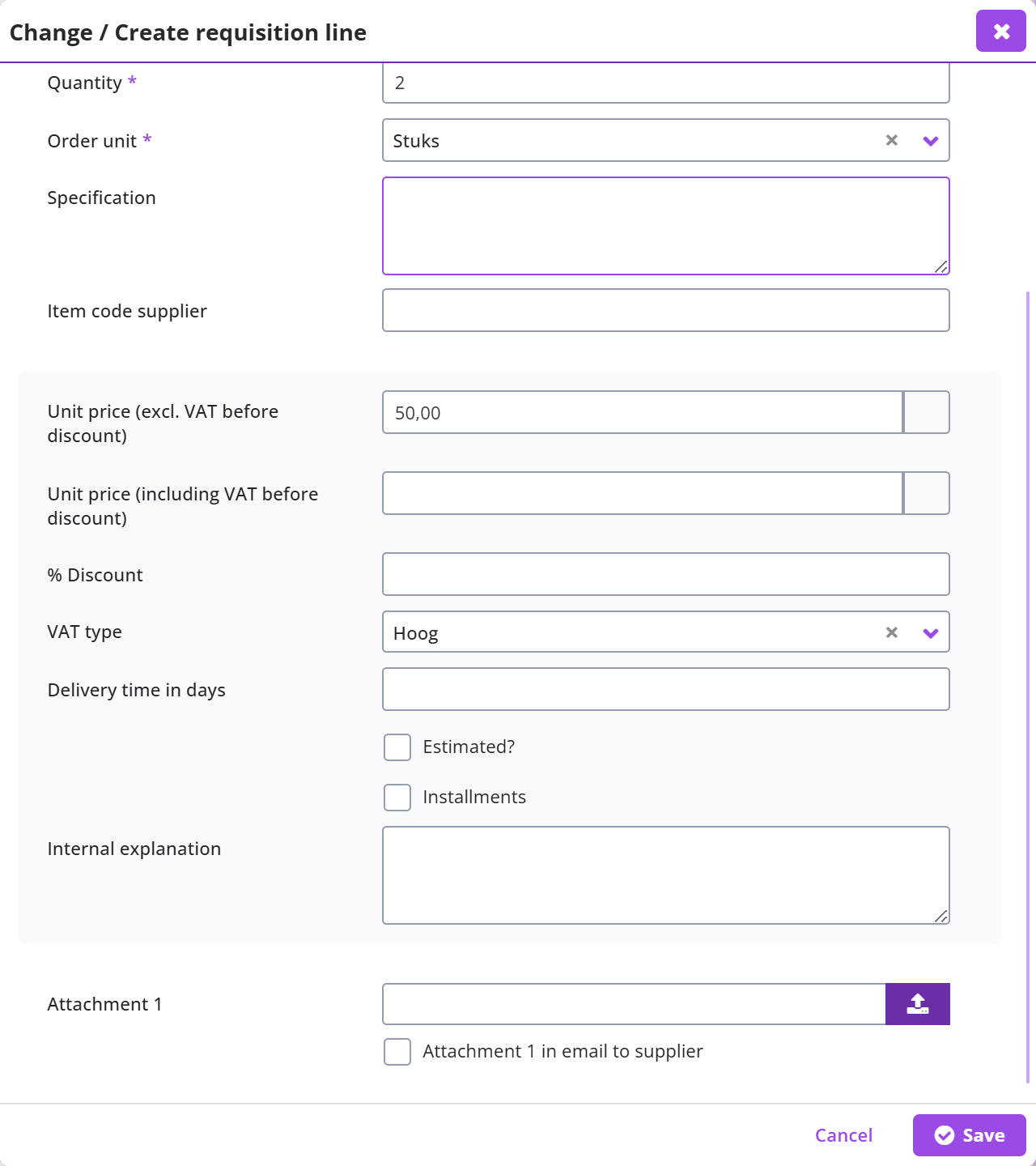
Discount, delivery time, estimated price and extra checkboxes on a requisition line
In a free request, or when changing a requisition line in the shopping cart, you can also specify a discount, the delivery time, an estimated price and a few extra checkboxes (Exclusively in order and Investment) in addition to the item data.
If an item is temporarily delivered with an extra discount, you as a requestor can specify this discount percentage on top of the price stated in the catalog. For example, for a (short-term) promotional period, the standard price in the catalog can remain unchanged and the promotional discount can be specified with the requisition.
If an additional discount has been agreed by procurement (the purchasing department) with the supplier, it will be adopted here and displayed in the % discount field. If applicable, you can still adjust this percentage.
The delivery time in days is prefilled with the value, which is defined for this item in the Shopper internal catalog. For the external catalog (OCI), the value can be provided by the webshop/supplier (using the field OCI NEW_ITEM-LEADTIME). The number of days can be entered manually or updated if required. this option is only available if the support is also set up.
If the actual cost of the item is not yet known, you can check the ”Estimated?” checkbox. You can then adjust the price upon receipt, so that the automatic processing of the invoice matching can then be done. This only applies to a free request and this option is only available if the support is also set up.
If the item in question has to be assessed separately - compared to other items that are ordered from the same supplier - you can check Exclusively in order. A separate order will be placed for this item once it has been supplemented and approved. For example, if you want to order an item urgently or if you want to receive a separate delivery. This option is only available if its support is also configured.
If your organization works with other cost types for booking an order as an investment, the checkbox Investment is available. You can then indicate this should be booked as an investment during the free request or when changing items in the shopping cart.
Installment payments on a requisition line
If it concerns an order that has to be paid in installments or that will be delivered in parts, you can indicate this by checking Instalments. This is only possible if you have chosen an item type that allows 2 or more decimal places. If the decimals are not sufficient, you will see an error message and you can contact an employee from procurement (the purchasing department). This also requires the unit price to be dividable by the number of instalments.
If it is unknown how many instalments will be delivered a paid, leave the number of instalments empty. (For example, if you agreed on a total amount, but there is no set amount for the individual offtake per instalment.)
If you know in advance how many installments will be delivered and paid, you can enter the number of installments. Then press the button to make these terms visible. By default, an even distribution over all installments is applied. If applicable, you can adjust the distribution over the terms and also the name of this term. The last installment is always calculated so that the total distribution always comes out at 100%.
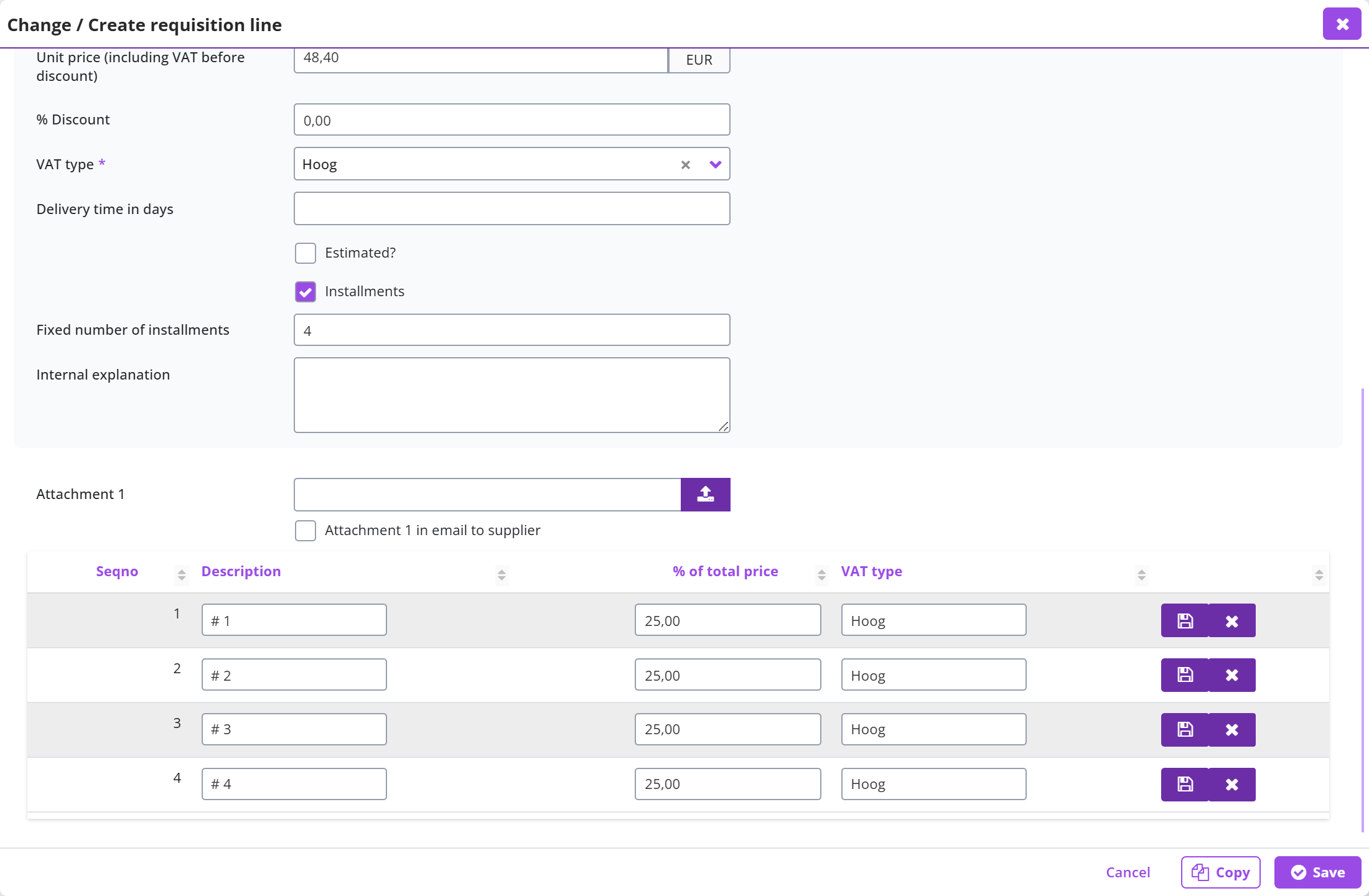
After modifying an instalment, you first need to save it, before you can modify the next instalment. The percentages of the other instalments will be calculated adjusted.
You can also remove an instalment if it is not needed.
When you have finished entering the distribution you have to close the dialog by pressing the cross at the top right of the screen dialog. If you change the installments or the number of installments, you must first press again to update the installments.
Copying a requisition line (Copy button)
If you change an item in the shopping cart or after you have saved a free request, the button becomes available. With this button you can add the same item again in the shopping cart and you can adjust and save it (if necessary).
Note: after using the copy button, the data of the copy is displayed in the window. Transactions you make will then only apply to the copy. If you want to change the original, you will have to choose it again for change in the shopping cart.
The window remains visible after using the button so that you can use the button. You can then close the window with the cross at the top right.
Direct order
If an item is needed immediately (for example for a time-critical production process), it can be specified in the requisition line that the item must be ordered immediately. To do this - when changing the item in the shopping cart (requisition line), or when filling in a free request - check the Direct order checkbox. If this checkbox is selected, then the requisition - after final confirmation - is immediately transferred to the process flow ToDo step Place order. Any approval is handled separately in relation to the invoice processing, so that the order can take place immediately.
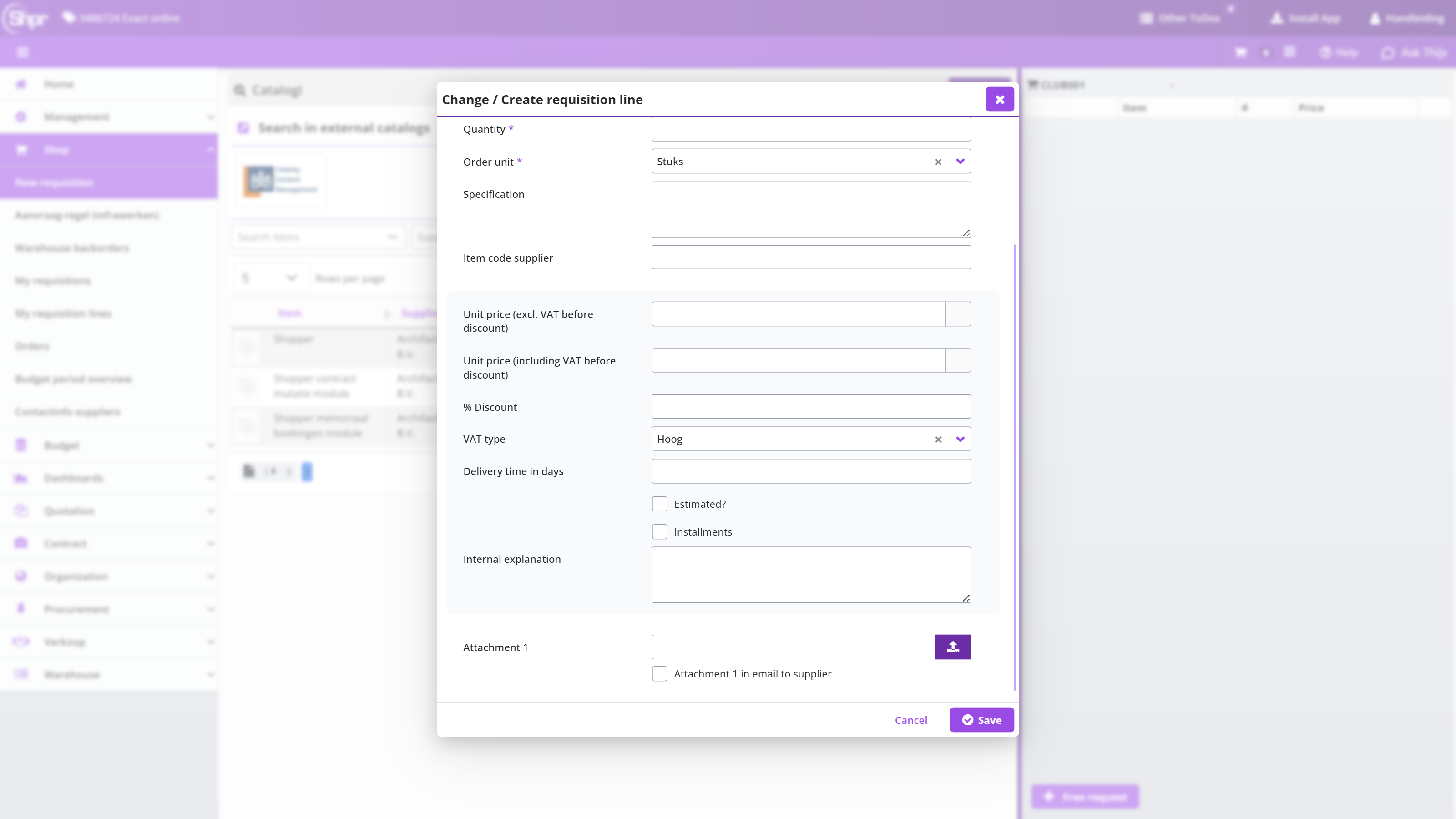
The image shows the checkboxes of the requisition line dialog for an employee who is not authorized to request a direct order; for an authorized employee the checkbox Direct order is shown below Installments.
Note: It is not always possible to request a direct order. This is only possible for organizational units and item types that have been set up for this purpose. As an employee, you also need to be explicitly authorized to request a direct order. Only if all these conditions are met, the checkbox Direct order is available for the relevant organizational units and item types.
If after the final confirmation of a requisition - for a direct order - the order can be automatically processed, then the order will be immediately visible to you at the ToDo process step To be received.
Note: Payment of the invoice is only possible after receipt has been reported and, if applicable, the approval of the order has been carried out by the employees concerned. For more details, see Approving direct orders.
Supplementing requisitions shopper
Supplement is the process step in which a procurement or financial employee completes a requisition line before it can be approved and ordered: the item, the supplier, the price or the booking details. This chapter describes under "Supplement" when this step applies in the workflow, under "Supplement ToDo" the screen you open from the process flow ToDo, under "Supplement the requisition line" how you complete the details of a requisition line and under "Reserve order number" how you pass an order number to the supplier while the supplement is still in progress.
Supplement
The process step Supplement applies for a requisition line depending on the workflow setup. This setup can differ per financial administration, organizational unit, project, and item type (of the requisition line).
Supplementing is conditionally and depends on the minimal set of required data (as specified for the completeness check). This can apply for a free request, for requisitions from the internal catalog where prices of discounts were modified or for requisitions from other sources (e.g., external catalog). . It can also apply if the field specification or internal explanation is provided as part of the requisition line. Additionally, requisitions for a specific supplier could always need supplementing
Employees who are authorized for the role Supplementer can follow up the ToDos for this process step, as part of the echelon P2P-Procurement and P2P-Financial administration. The ToDo for supplementing will be assigned to the employee with the corresponding expertise and authority. As such multiple employees can be involved in completing all supplements.
Take for example the requisition for an ICT item, where this requisition needs to be supplemented for relevance by an ICT employee with expertise in this domain, before procurement (the purchasing department) supplements the requisition data. Possible preceded by a supplement from the finance department regarding how the resulting order/invoice should be booked (supplement the item type).
For information on setting up the Completeness-check and the supplier (regarding supplementing), please read Completeness type in Workflow and Supplier in Catalog management.
Supplement ToDo
Selecting the process step Supplement – from the process flow ToDo – presents the following screen:
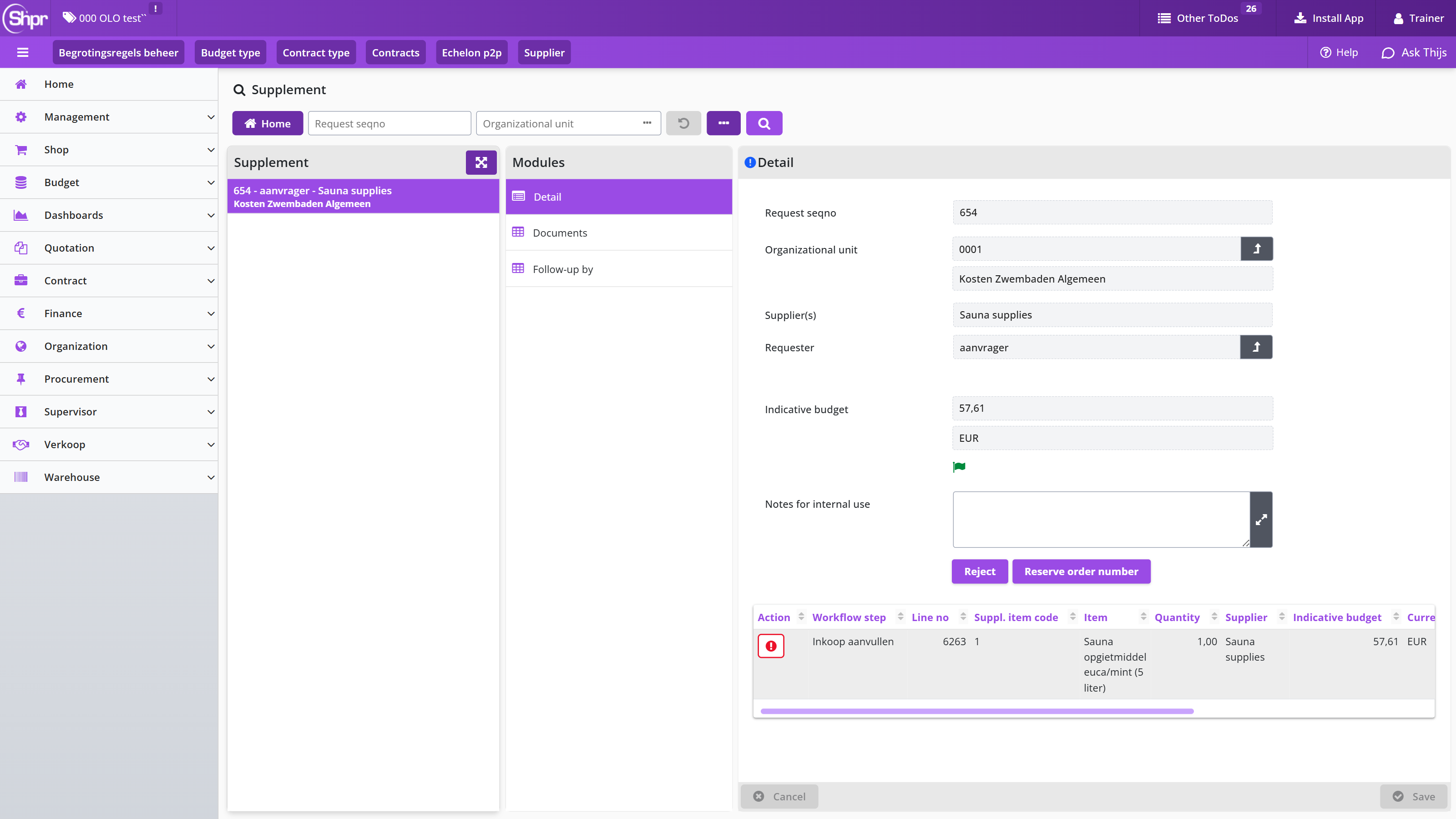
Note: You can also open this screen from the Status requisitions (read only) block on the P2P dashboard, by choosing the process step Supplement there. The screen then opens read-only: the Approve and buttons are not shown.
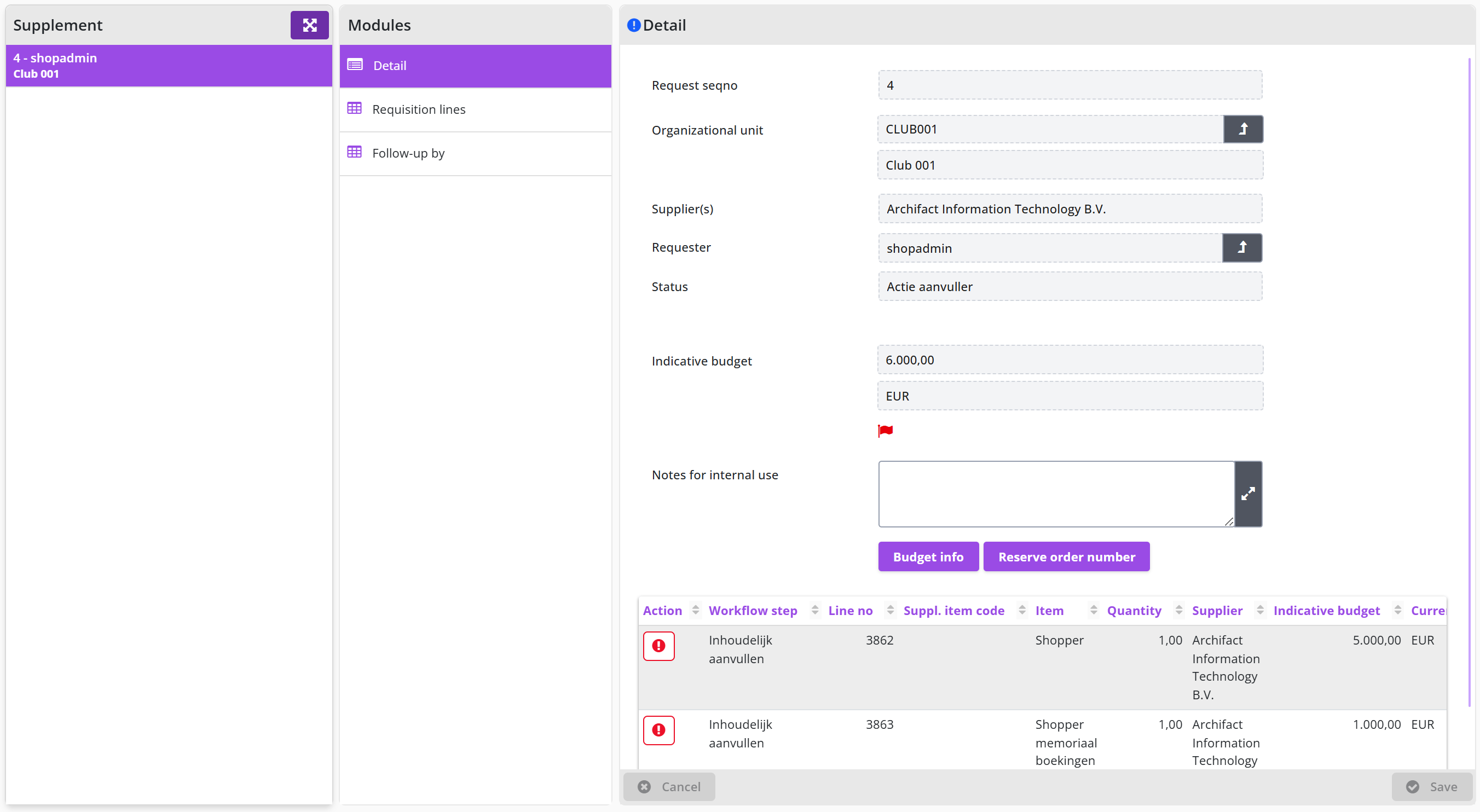
On the left of the screen is the list of item requisitions that can be supplemented (ToDo’s). Choose the requisition you want to assess from the list and select the requisition line that needs to be supplemented. Requisition lines that need to be supplemented are marked with an exclamation mark. The color of the exclamation mark corresponds with the urgency/priority reflected in the process flow ToDo for this step. Next to the explanation mark you can see the required workflow step.
The requisition itself stays in the state To be supplemented until all requisition lines are complete, and no more supplementing is required.
In the General data module you can see all the details of the requisition (read-only), including the budget indicator (if applicable). Additionally, you can enter Notes for internal use. For example, to indicate the progress or to describe what still needs to be done to supplement this requisition.
If budget control is active the budget indicators are also visible for each requisition line. See process step Approve for more details on the budget indicators.
The button or Approve can be used to approve or reject the requisition (as a whole). To reject or approve an individual requisition line, first select the requisition line and then use the Reject of button. A rejection reason must be supplied when rejecting.
Note: The approval button is only available when for all requisition lines the completeness conditions have been satisfied.
It is possible that certain requisition lines can only be supplemented by another employee or that the same requisition line also needs to be supplemented by another employee.
If a requisition line has an exclamation mark, it still needs to be supplemented, however if you do not have the required role authorization to perform the workflow step indicated for the requisition line, you can view this requisition line, however you cannot modify, reject, or approve it. (i.e., the button is only available once all required data fields have been entered and then only for an employee that has the role authorization for Supplementer combined with the expertise type that corresponds to the indicated workflow step), as part of the echelon P2P-Procurement (procurement).
For the requisition line in the column Detach a small button with a checkmark can be visible. Using this button you can disconnect the requisition line that still needs to be supplemented, allowing it to be processed separately from this requisition. The Documents data module will contain the documents that were provided during the requisition, or it can be used to add additional documents.
Supplement the requisition line
Upon selecting the requisition line, you will be provided with the details of this requisition, with the option to supplement them:
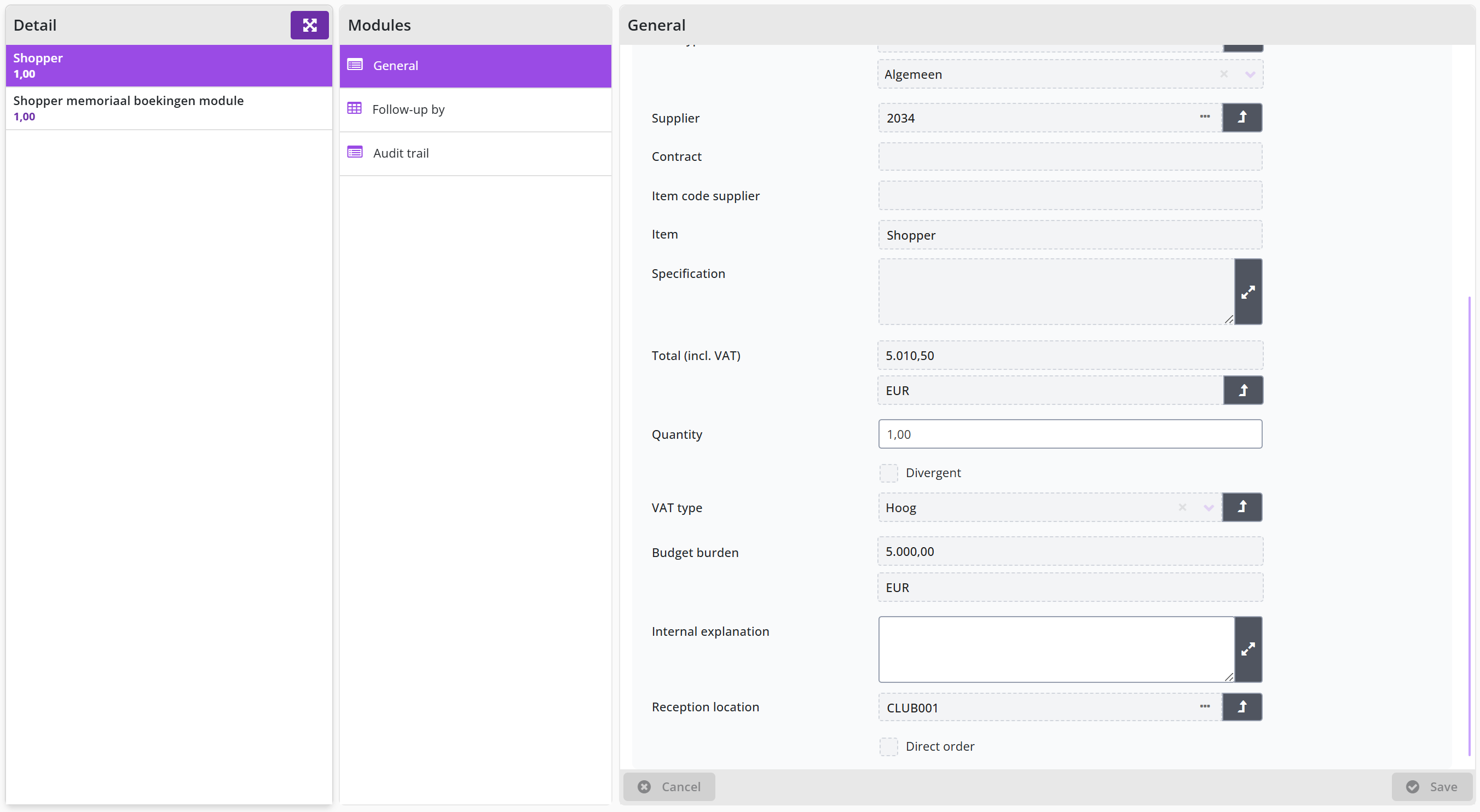
The General data module of the requisition line also contains the Contract field. It shows the purchase contract to which the requisition line is linked.
In the General data module will find all the details of the requisition line. You can supplement or modify them. For example, provide the supplier, item type or correct price.
The required action that needs to be completed to supplement the requisition line is stated at the field Still to be completed. Once this field is no longer shown, the requisition line still needs to be Approved or Rejected. A rejection reason must be supplied when rejecting.
If needed the fields location and project can be modified, allowing for this requisition line to be booked on a different cost unit/cost center combination, based on the related organization unit and project.
Note: The fields location and project cannot be modified once a order number has been reserved for the requisition and only those items can be selected for which the user has access.
Further down you will find the price related details. These can also be changed in which case you have to check the Deviating price checkbox next to Deviating price check box.
For free requests – to which no item from the internal or external (OCI) catalog is linked, the checkbox Deviating price is selected by default. You need to then check the Approve checkbox before you can approve the supplemented requisition.
Note: Only when all Still to be completed actions have been completed, the button for this requisition can be used. If you want to reject the requisition line for this item, use the button , that will require you to enter the rejection reason.
When an item that is submitted using the free request ends up in the supplement step, the button can be used to add this item (including all details) to the internal catalog for this supplier. This way you can amend your internal catalog or establish one based on submitted requisitions.
When an item that is submitted using the internal catalog ends up in the supplement step (for example if the price was changed), the button can be used to update the price for this item in the internal catalog. Allowing you to keep the catalog up to date.
After the addition, you can confirm the addition with the button. If you choose not to complete the application for this item, but to reject it, you can do so via the button, where you can enter a comment about the reason for rejection.
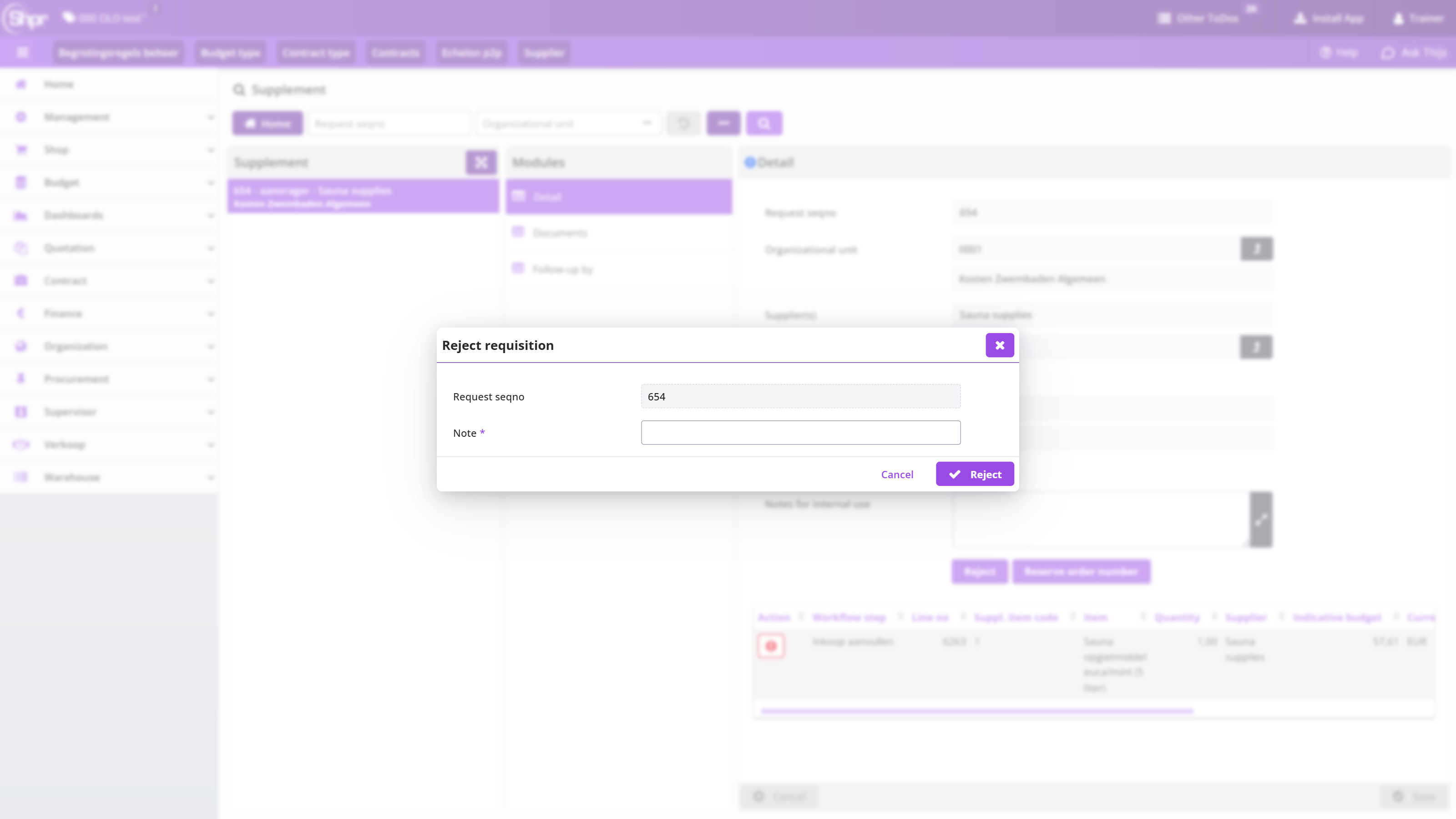
Reserve order number
In case you want to inform the supplier up-front about an order that will be placed, while the requisition for it still needs to be supplemented, you can make use of the button. This is only possible if all requisition lines of the requisition are with a single supplier. If the requisition contains requisition lines for multiple suppliers, then this button is not available!
When using this button, the order number is generated and assigned to the requisition. The order number will then be shown (data module General) at the field Reserved order number.
Note: this button is only available if all requisition lines end up at the same supplier and only if the indicator Reserve order numbers possible is set under System parameters.
Using direct orders, it is also possible to reserve an order number. See Direct order under >> Requests.
The button can only be used once and is therefore hidden after it has been used. A requisition with a reserved order number can no longer be merged with other requisitions for the same supplier at the process step Place order.
Approve requisitions in Shopper
Approve is the process step in which an authorised employee approves or rejects a requisition, according to the workflow set up for the administration, the organizational unit or the project. This chapter describes under "Approve" when this step applies and who may approve, under "Approve ToDo" the screen from the process flow ToDo, under "Approve or reject" the review of the whole requisition, under "Reject requisition line" rejecting a single line, under "Change booking items" changing the booking details by an employee with financial authority and under "Reserve order number (after changing booking items)" reserving an order number in advance.
Approve
The process step Approve applies for a requisition depending on the workflow setup. This setup can differ per financial administration, organizational unit, and project (in regard to the requisition). The workflow can include several approve steps, including a financial approval, board approval, budget approval and other relevant approvals that apply within your organization.
Financial approval is required if the total amount of a requisition (i.e., the sum over all requisition lines) exceeds the order limit of the requester (i.e., the limit type for the role assignment Requester of the employee who made the requisition). The ToDo Approve is then assigned in the process flow to an authorized signatory (i.e., an employee with the role Approver that has the power of attorney for approving the total amount within the corresponding organizational unit), as part of the echelon P2P-Manager or P2P-Board.
Depending on authorized signatory scheme the financial approval step may have to be performed by multiple employees to satisfy the required number of signatures/approvals (like with the four-eyes principle). This is often applied for a board approval for requisitions that exceed a certain amount. The board approval for your organization can be given as part of the financial approval, but it can also require a separate board-approval step.
Note: It is possible that you are an authorized signatory, but that other employees with lower signing authorizations will handle the approval, so that you do not have to carry out this approval.
Depending on the Shopper configuration, one or more approvals are required to authorize the requisition from the authorized signatory. The process step Action by authorized signatory will then be repeated until all required approvals have been obtained. The audit trail will reflect all approvals and rejections for the requisitions.
Approve ToDo
Selecting the process step Approve – from the process flow ToDo – presents the following screen:
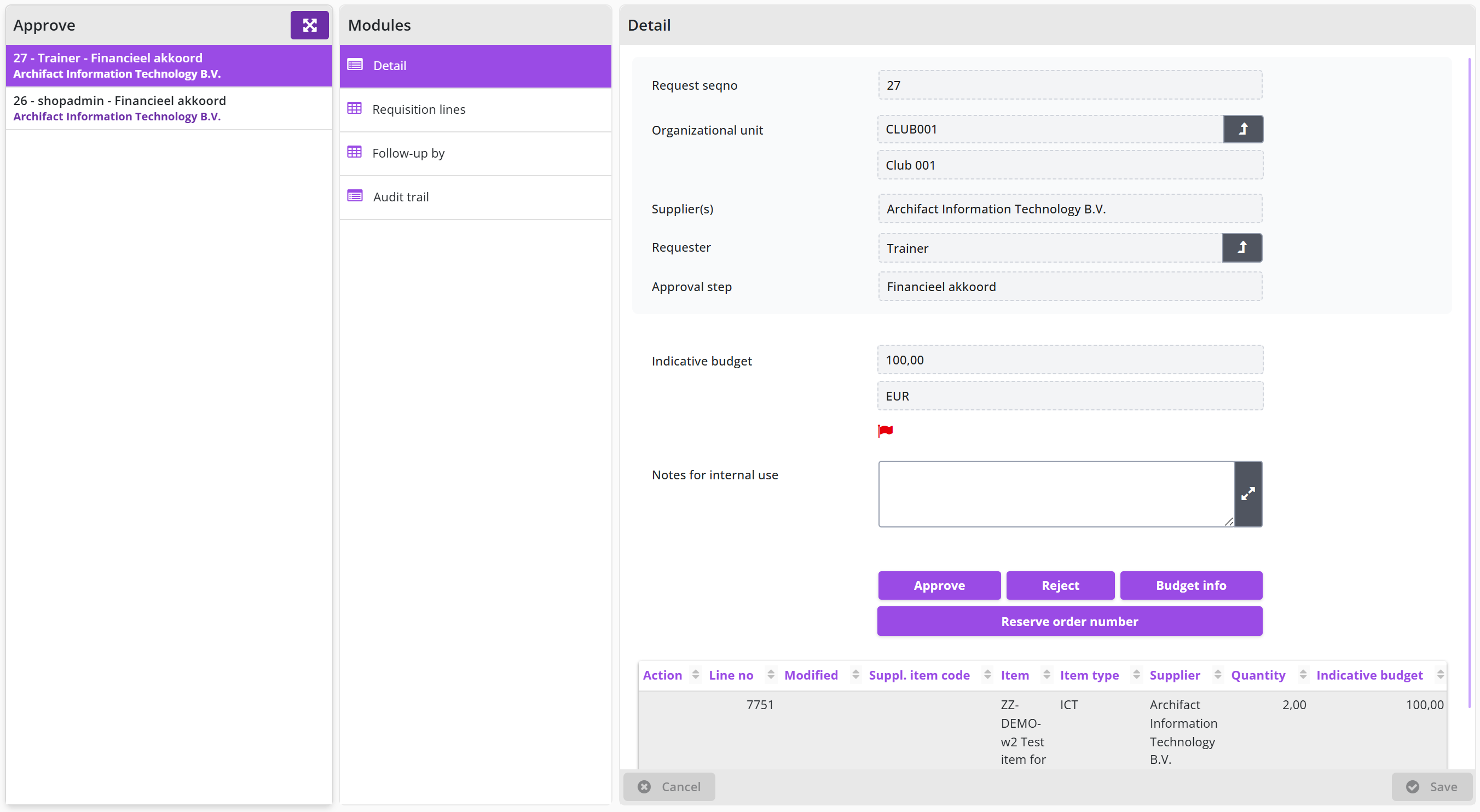
On the left of the screen is the list of requisitions that can be approved by you (based on your power of attorney). Choose the requisition you want to Approve from the list and view the data in the various data modules so you can make your decision to approve or reject this requisition.
You can view all the details of a requisition, such as who made the request (field Requester), the designated department/location (field Organizational unit), who has provided approval so far (field Already approved by) and which approval need to be given now (field Approve step).
Note: If no approval has yet been obtained, the field Already approved by is not visible.
If budget control is active, you will find a indicative budget amount for each requisition line, reflecting the amount that will be allocated for the corresponding budget. (Read more in the section below on Approve or reject)
Under Notes for internal use you may find an explanation about the previous action(s) (regarding the processing or approval of this requisition). You can also enter your own comments here or adjust/expand the existing comment. See Approve or reject for more details.
Note: The Notes for internal use that is specified in the shopping cart for a requisition line is accessible via the Requisition lines data module of the requisition. This note is also listed in the overview of the requisition lines (at the bottom of the Detail data module) in the Item column. The text of the explanation is concatenated after the description of the item.
Approve or reject
On the Approve ToDo screen you approve or reject a requisition; the requisition lines of the requisition are listed at the bottom of the Details data module.
At the bottom of the Details data module, an overview is shown of the requisition lines that are part of this requisition. (See also spreadsheet screen under Use of the other screens).
If budget control applies, the colored flag appears to the right of the total amount for this requisition that shows the total budget impact in relation to all requisition lines, where you can view the details of this joint budget impact with the button .
The budget flags are also available for the individual requisition lines, using the same color coding.
- No budgets are exceeded
- The budget for the period is exceeded (a disproportionate amount of budget is used)
- The annual budget is exceeded
By clicking a flag on a requisition line, a pop-up appears with detailed information about the impact on the budget as a result of this requisition line. The budget info shown here depends on the budget indicators set under System parameters.
Note: The authorized signatory can therefore also take the impact on the budget into account in the decision-making process. However, this is separate from the budget approval that has to be given by a budget holder if a budget is actually exceeded as a result of this requisition.
After reviewing the requisition, you can use the Approve or buttons to indicate whether you – from the perspective of your signing authority – want to approve or reject the requisition as a whole.
If you want to provide an explanation of why an approval has been given, you can enter this in the Notes for internal use field and then the button.
Note: Do this before pressing the button! For example, you can explain why you have approved it for the employee who has to perform the next action authorized to sign or a board/budget approval. If you forgot or want to add an explanation afterwards, you can access the order for this requisition via the menu Shop – Orders.
You can also individually reject a requisition-/order line or adjust its booking.
Buttons on a requisition line:
- Reject: requisition line returned to the requester’s cart.
- Change booking item: Change the costing unit, cost center, or project for this line.
Note: The button is only available if you have financial authority (i.e., role Controller or Executor, as part of the echelon P2P-Financial administration) and then only if no budget control applies for this requisition line. I.e., the requisition line does not allocate within a yearly budget or the indicator Budget control is turned off. Also see administration year under Accounting.
Reject requisition line
An individual requisition line can be rejected using the thumbs down button for this requisition line, available in the list of requisition lines at the bottom of the Detail data module. Opposite to rejecting the requisition as a whole (i.e., reject all requisition lines) using the button .
After rejecting the requisition or an individual requisition line, you need to confirm this and be asked to provide a reason for it. This rejection reason is also visible for the rejected requisition line in a shopping cart of the employee who made the request.
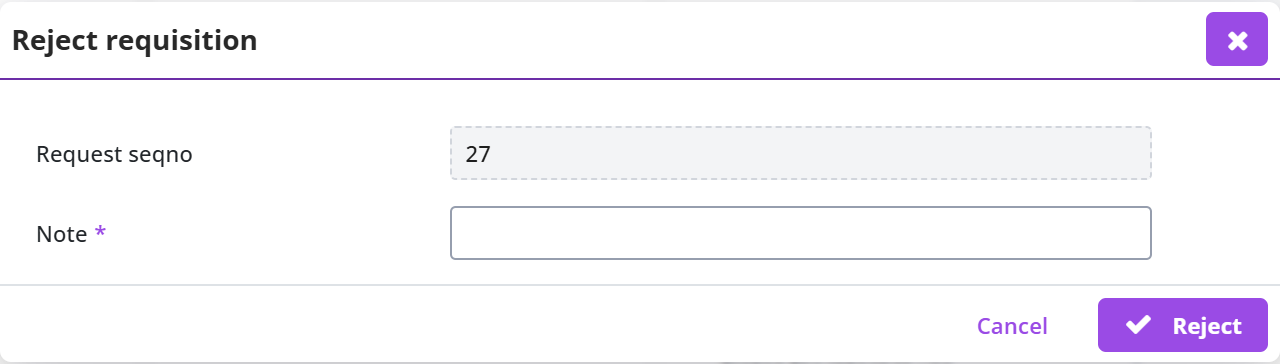
Change booking items
Employees with financial authority are allowed to change the way the (invoice for the) order is to be booked. They can use the button in the column Change booking items for a requisition line. After changing the booking items, the button must be used to confirm the changes.
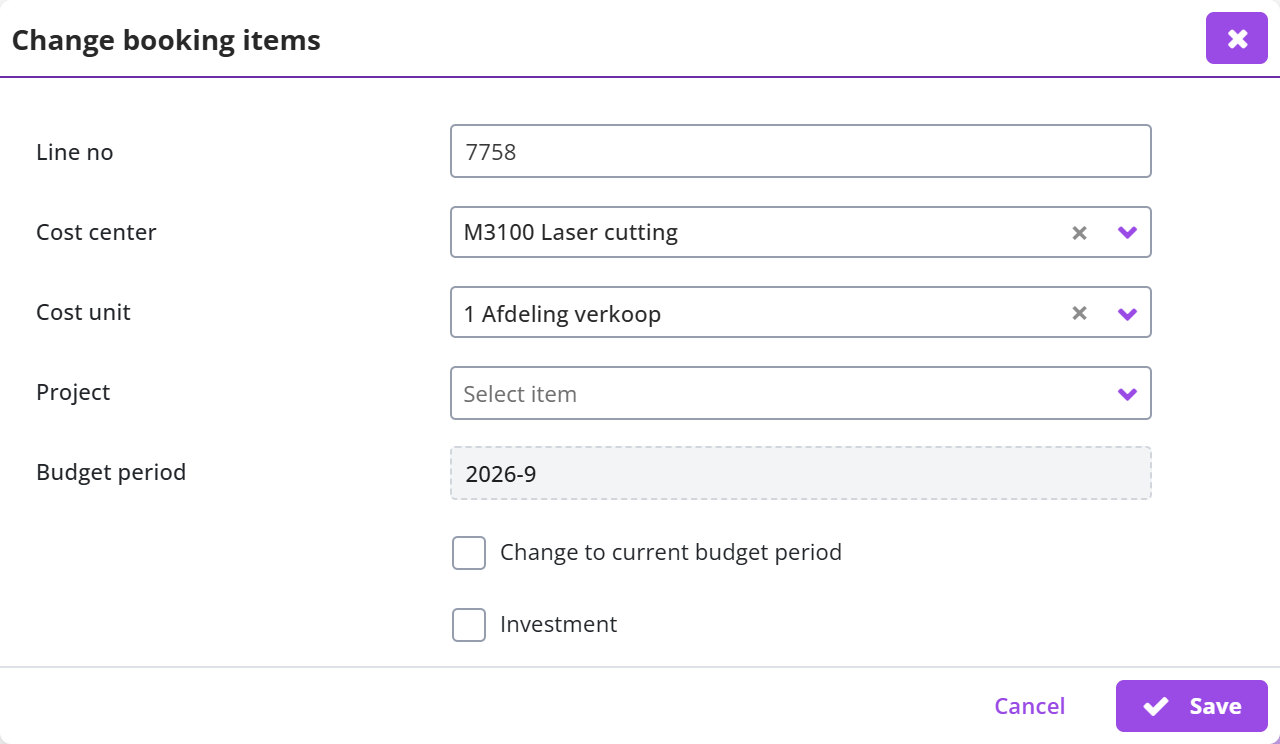
The costing unit, costing center, project and also the Investment indicator can be changed. Additionally, if the requisition could not be approved – because there was no budget for it – you can decide to change the booking items in order to have the requisition end up in a budget with sufficient budget space.
Note: A booking item can only be changed if this functionality has been enabled under notifications of the System parameters and the approval step is performed for a financial approval. During the budget approval this button is not available!
The selection of the cost unit is restricted by the selection of cost units, setup for the organizational unit. See organizational units at Organization.
Reserve order number (after changing booking items)
In case you want to inform the supplier up-front about an order that will be placed, while the requisition for it still needs to be approved, you can make use of the button. This is only possible if all requisition lines of the requisition are with a single supplier. If the requisition contains requisition lines for multiple suppliers, then this button is not available!
When using this button, the order number is generated and assigned to the requisition. The order number will then be shown (data module General) at the field Reserved order number.
**this button is only available if all requisition lines end up at the same supplier and only if the indicator Reserve order numbers possible is set under System parameters.
Using direct orders it is also possible to reserve an order number. See Direct order under >> Requests.**
Note: The button can only be used once and is therefore hidden after it has been used. A requisition with a reserved order number can no longer be merged with other requisitions for the same supplier at the process step Place order.
Ordering in Shopper
Depending on the configuration for your organization and the order method at the supplier, an order is or is not sent automatically. Orders that were not sent automatically are found in the process flow ToDo step Place order. This process step is available to employees who are authorized for the role of Administrator, i.e. employees who perform procurement management or who are allowed to send their own orders.
This chapter describes the screen of the Place order ToDo, the Requisition lines and data modules of the order and Sending the order to the supplier (order button, order form, resending the e-mail and the other ToDo Order (not sent)). It then explains how to Merge requisitions, which Requesters, receiver and cc of a merged order are listed, and how you handle Order advices before an order can be sent.
Place order ToDo
Selecting the process step Place order – from the process flow ToDo – presents the following screen:
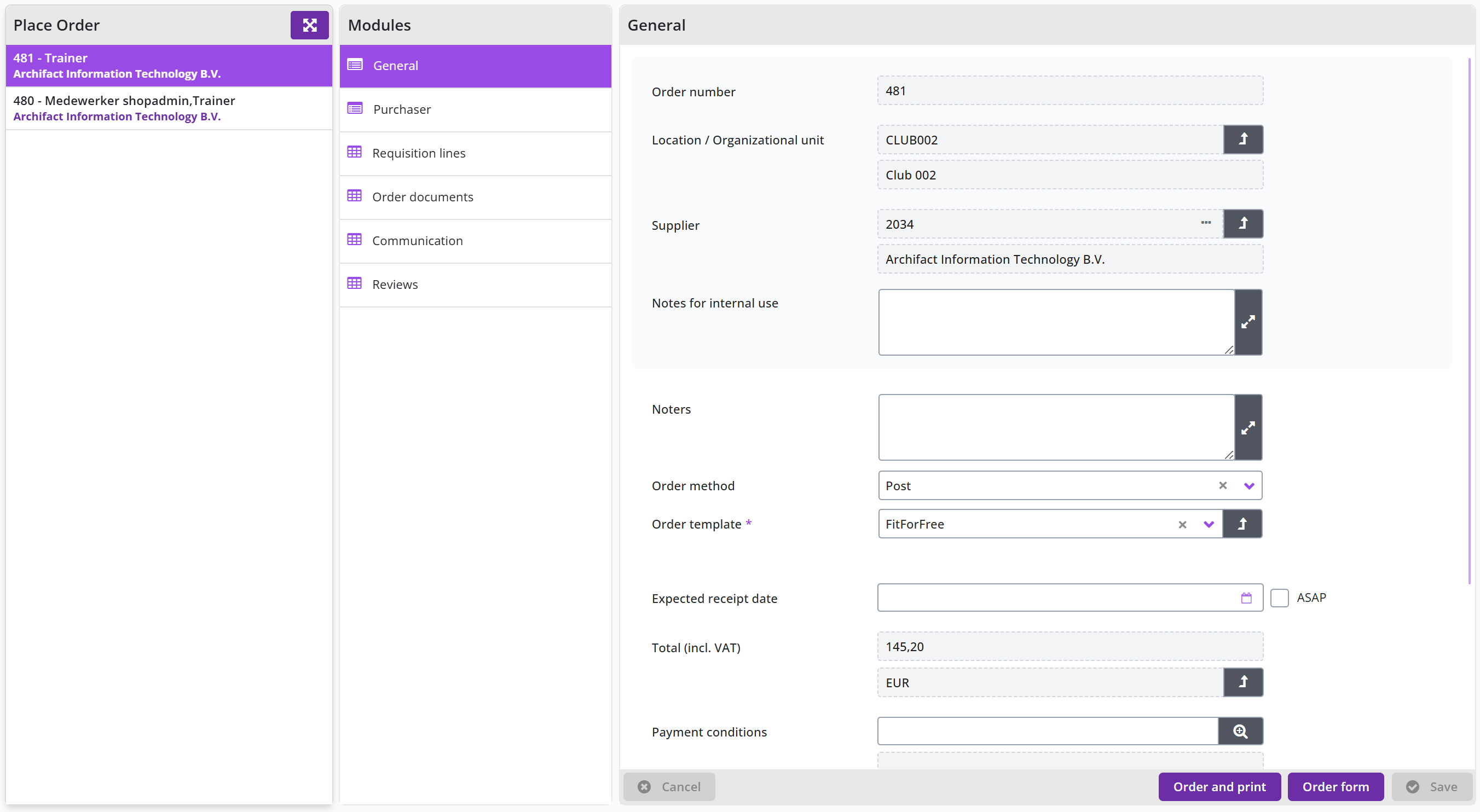
On the left of the screen is the list of requisitions that can be ordered (ToDo’s). Choose the order you want to process from the list and view the data in the various data modules and decide on how and when the order should be sent.
You can still edit or supplement the order details (for example if the email address is missing or if a different order method is to be used for this order). By pressing the order button, the order is sent to the supplier. If there are any details regarding the order that you would like to share internally, you can enter this in the field Notes for internal use. This will also be visible in the confirmation of receipt. Any comments for the supplier can be entered in the Notes field. Internal comments regarding the prior authorization are also stated in the field Notes for internal use.
Note: the field Order template is only available based on the settings for the administration. When it is available a different order template can be used for sending the order. Also see Administrations under Accounting.
When an Expected receive date is known it can be entered or you can mark the checkbox A.s.a.p. before you sent the order, and then confirm this by using the button. If a Desired delivery date was specified for the requisition, it will be in the field Expected receipt date.
The delivery costs are derived from the delivery costs specified for the supplier in Shopper. You can mark the checkbox Deviating costs to specify them.
Note: delivery cost handling is only available in the Shopper Enterprise edition.
Requisition lines and data modules of the order
In the screen of the ToDo Place order you find the requisition lines (order lines) of the selected order and the data modules with the related data.
At the bottom of the General data module, an overview is shown of the requisition lines that are part of this order. (See also spreadsheet screen under Use of the other screens).
Buttons on the requisition line:
Reject: place item(s) back in the requester’s shopping cart.
Disconnect: Create a separate order for this requisition line to order or reject them separately.
Note: The order line itself will be removed from the original order, however, the separate order with this order line will only become visible once you reload the list of orders.
The General data module for the order and the Detail data module for the requisition lines display several fields that contain an arrow-button. If you have the authority, you can use this button to access the underlaying data.
This allows you – for example – to access the requisition for the requisition line of the order, including the other items that are part of this requisition, if applicable.
The Purchaser data module contains the data of the requester(s), the receiver, and the recipient address, with the option to modify them.
The Order documents and the Communications data module can be used to add information regarding the coordination with the supplier and optionally the related papers. Additionally, the Reviews data module can be used to add a review of the supplier.
Sending the order to the supplier
Depending on the order method at the supplier, a specific button is shown for sending the order. For example, Place Order or Print and order. If the order cannot be sent for technical reasons - for example because the e-mail address is missing in the case of the order method e-mail - then no order button will be displayed. In this case, you must first enter the email address to activate the button. If you have changed the order method or order details, you must first save the order before the correct order button becomes available.
If you want to delay sending the order but want to review the order form for this order (validating its contents), you can view the order form using the button. You can repeat viewing the order as often as needed (to validate the order form regarding the changes you made in the order or the order form). The order form can also be viewed after the order has been sent to the supplier. You will have to select the order from the Procurement menu and use Order form butting in the Order data module (for example if you need to resend the form using mail of fax).
If the order was sent by e-mail, but was never received or got lost, the order e-mail can be resent using the button, located in the Place order data module of an order. You can repeat this action as often as needed in order to successfully send the order to the supplier. (This can also be used if the e-mail of the supplier was changed).
Note: If the e-mail cannot be sent to the supplier, an Other ToDo is created under the name Order (not sent). An employee with the role Guardian, will be assigned to this ToDo as part of the echelon P2P_procurement. If the e-mail address is updated as part of this ToDo, Shopper will automatically try to send the order to this updated e-mail address. If this was successful, the ToDo will no longer be shown at the Other ToDos.
When the order has been sent to the supplier and an obligation has therefore been entered into with this supplier, this obligation can also be made known to Exact Globe or Exact Online. More about the costing category for general journal entries / memorial bookings and how to make this obligation known to Exact, see financial administration under Accounting.
Merge requisitions
If you manually handle the sending of the orders, then newly created orders for the same supplier can be merged with the existing order, if the delivery address/location is identical. This way requisitions for different employees and organizational units are combined into a single order, for which procurement (the department handling the purchases) decides when to place the order. This allows for larger volume orders that are eligible for discounts of reduced shipping costs.
Note: normally Shopper merges only requisitions of the same employee and for the same organizational unit. Merging requisitions over multiple organizational units is only available if you purchased the license module SHOPMOD-CO Shopper module Contract offtake, contract invoices, contract utilization and order advice optimalization, or when the Shopper Enterprise edition is used.
Note: Merging requisitions to a single order will only be applied if the Group order based on receiving location indicator is set at Indicators data module under System parameters.
Note: The order buttons are not available if an order advice applies to this order. It’s required to first process the order advice before the order can be sent. See Order advices.
Requesters, receiver and cc of a merged order
If an order is comprised of multiple requisitions, the listed requesters in the data module Purchaser for the process step Place Order are separated by commas. The field Receiver lists the name of the (first) requester, or the Receiver as specified for the organizational unit. The field E-mail address recipient lists the e-mail address of the first requester, or – if specified at the organization unit – the value of the field E-mail recipient. These fields specified for the Delivery address at the organization unit are leading.
If requesters – when confirming the shopping cart – marked the checkbox E-mail received after receipt, their email address will be included in the cc of the email, together with the e-mail addresses that are specified for the administration account or otherwise in the email item setup of the supervisor management menu. The list of e-mail addresses for the cc are also listed in the field Cc at the General data module for the process step Place order. When using the employee tag in the body of the order e-mail all requesters are listed, regardless of their occurrence in the cc.
Order advices
The “Order advices" data module of the order presents you with a list of order advices that apply for this order. They need to be satisfied or overruled before an order can bet sent to the supplier.
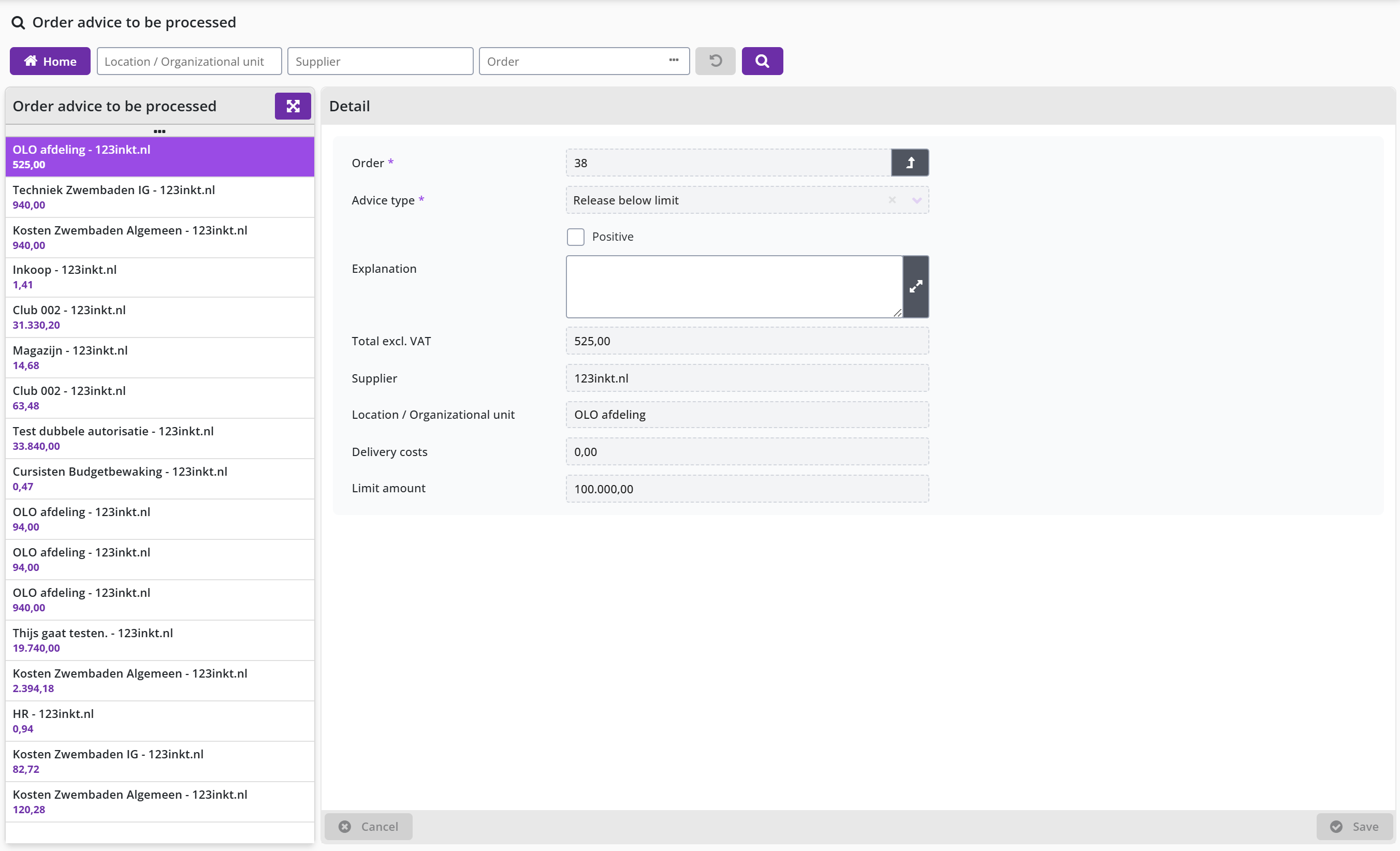
Note: pending order advices can also be found under Other ToDos listed as Order advice to be processed, where they can be processed.
The field advice type lists the kind of advice needed. By default, only the advice type Release below limit is available. By marking the checkbox Positive and confirming this by using the button, you are giving a positive advice and as such overrule the threshold amount validation, allowing the order to be sent to the supplier. You have the option to provide a note on why you made this decision. As long as the order has not been sent to the supplier, it is possible to reconsider and unmark the Positive checkmark.
Order advices are often used combined with the “Group order based on receiving location“ indicator to merge orders. See Indicators data module under System parameters.
An advice type is the result from setting up threshold amounts (lower and upper limits) for suppliers. See the Delivery cost data module for the supplier at Catalog management.
Note: the order advice functionality is only available if you purchased the license module SHOPMOD-CO Shopper module Contract offtake, contract invoices, contract utilization and order advice optimalization, or when the Shopper Enterprise edition is used.
Receiving in Shopper
This chapter describes under "To be received". Receiving is the process step in which the receipt of delivered goods or services is registered, so that the invoice can be processed.
Who may register the receipt, under "Receipt ToDo (Registering reception)" the screen and the registration per order line, under "Tracking delivery performance of supplier" keeping the delivery time up to date, under "Correction of receipt notification" reversing a wrong quantity, under "Handling incorrect delivery" and Canceling delivery dealing with wrong or no longer available items, under "Report problems with the delivery or supplier internally" the supplier review and under "Contacting the supplier" where you find the contact details.
To be received
When the ordered goods or services have been delivered, the receipt thereof can be registered. This can be performed by an employee who is authorized for the role Receiver and who has authority for the organizational unit for which the order was placed, as part of the echelon P2P-Employee. So you can also register the receipt for items/requisitions requested by your co-worker if you both work for the same organizational unit.
Reporting correctly and on time what has and has not been received (and whether what has changed) is important in order to be able to (automatically) process the checking/matching of the invoice. Processing the invoice is based on the receipt you have registered.
This prevents incorrect invoices being paid or unnecessarily long delays in payment. If the invoice does not match what you report in the system, an employee of the financial administration needs to investigate what is going on. By handling the notification of receipt with care, you can avoid unnecessary sorting work.
Receipt ToDo (Registering reception)
Selecting the process step Received – from the process flow ToDo – presents the following screen:
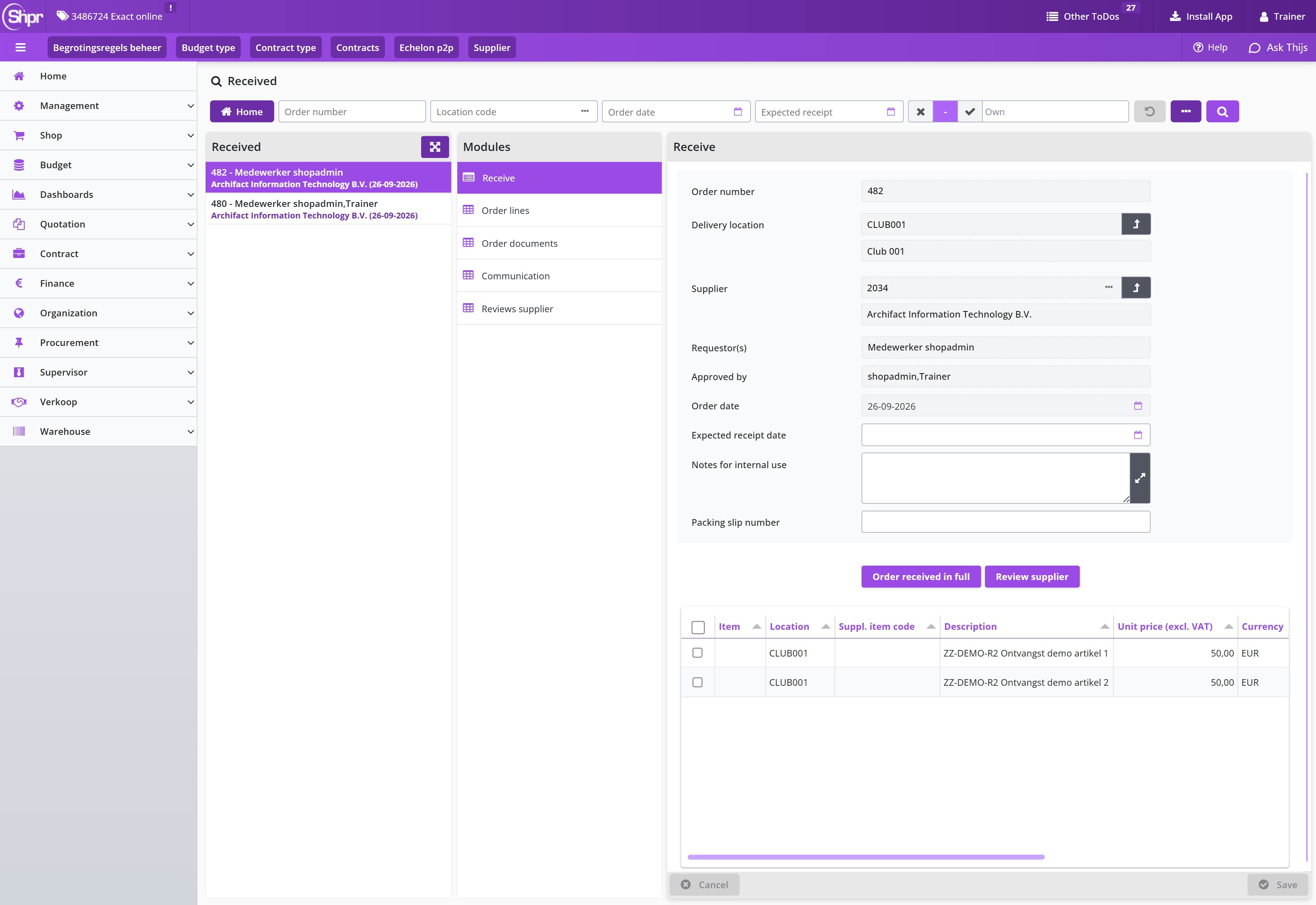
In the receipt screen, the list Received of orders still to be received is shown on the left. By default, all orders that are outstanding within the organizational units that are assigned to you are shown. Choose the ToDo for the order for which you want to register the receipt and indicate what has been received or if there is a problem with it.
If there are a lot of orders, you can narrow the list by means of a search on the details of the order (see also the explanation about the search under search bar in Use of the other screens)
In the search you can also limit the list to the outstanding orders that you have requested yourself. If you want make this your default, you can set this in the user settings. (See also User settings)
For the selected order, the data modules are shown with the related data and documents. The receiving screen opens by default with the Receive data module where the details of the order are displayed with the list of order lines at the bottom. If an internal explanation has been added to a requisition-/order line, this will be shown behind the description of the item in the overview of the order lines (at the bottom).
By default, the receipt screen shows the Receive data module, that lists the details of the order, including the orderliness at the bottom. If Notes for internal use have been added to a requisition-/order line, it is also listed in the overview concatenated after the description of the item. The order lines can also be found at the Order lines data module.
You can register the packing slip number in the corresponding field. If you have the packing slip in digital form and want to add it as part of the registration of reception, you can do this via the Order documents data module and the button. You will then get a dialog where you can select the attachment and enter a description under Extra info. Logging indicates when the order document was created and changed.
Note: Order documents can only be deleted by the employee who added them (or in his absence by the delegated employee), an employee of procurement (the purchasing department) or the supervisor.
All receivals will be registered in the order mutations of the individual order lines, where the packing slip number is recorded in accordance to its value registered in the data module Receive.
Note: If an employee forgot to register the packing slip number, this can be amended using the corresponding order mutation for the reception (also see Correction of receipt notification)
If an order has been delivered completely and correctly, you can press the button to indicate at once that the order has been received in its entirety.
If the order has only been partially delivered, you can indicate per order line (in the overview at the bottom) what has or has not been received:
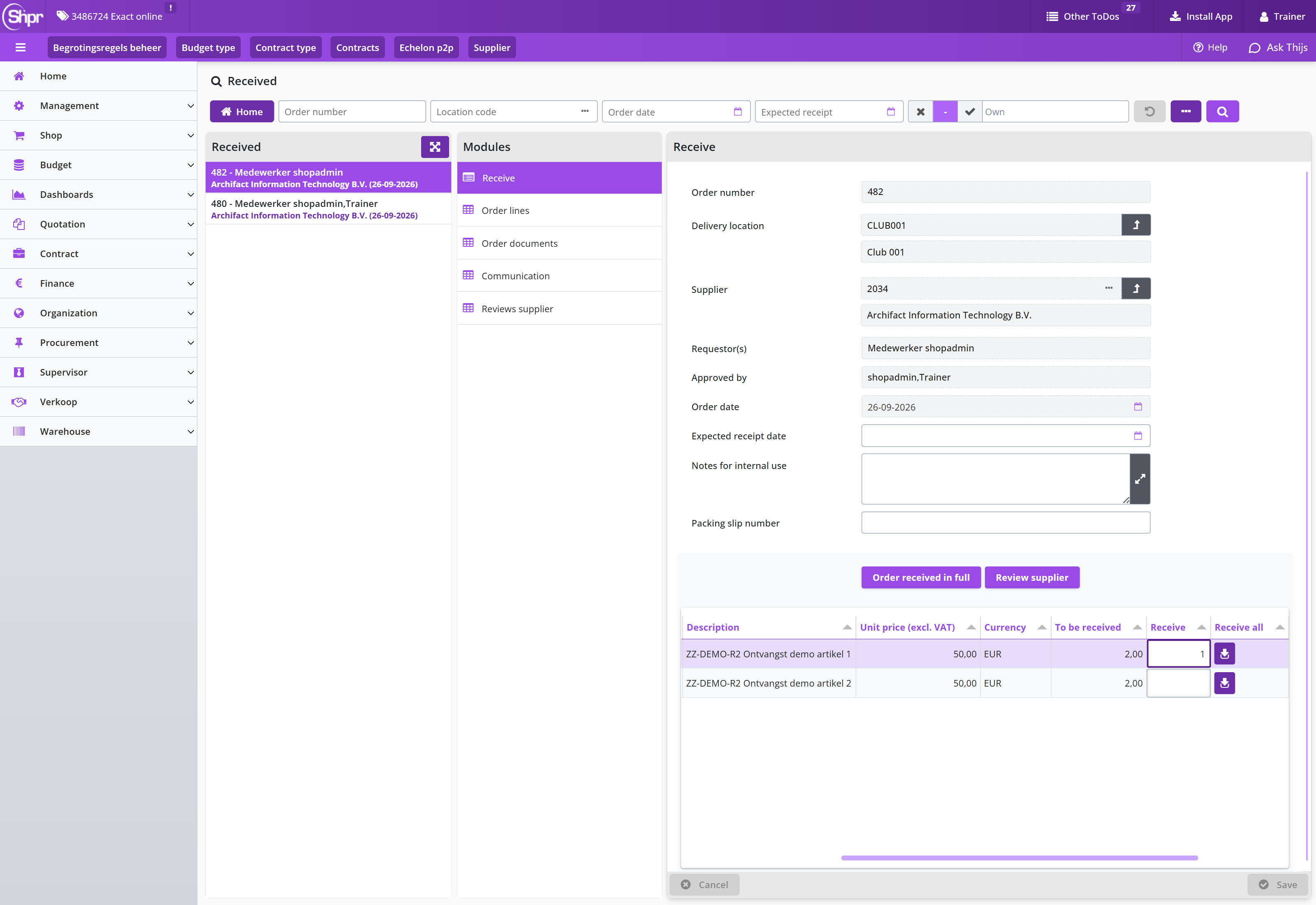
If everything for an order line has been delivered correctly, you can enter it in one go in the column Receive all.
For each order line it is stated in the column To be received how many pieces (of the order unit) are still to be received. You can register/book in the number of pieces that have been received by entering the number in the column Receive of the relevant order line. The buttons and Cancel at the bottom of the screen become available during the input:
Save books in the entered number of pieces received.
Cancel clears the entered number of pieces received.
If not all items have been registered as received yet, the order will remain visible in the Received list, pending future back order.
The moment invoices have been received for an order you have requested, you can view them in the Invoices data module, under the menu-item Orders in the menu Shop. Additionally if you are authorized for the role Requester or Receiver you can also see the invoice at the record of receipt for an requisition made by your co-worker, as part of the echelon P2P-Employee.
Tracking delivery performance of supplier
If desired you can track the delivery times for the individual items ordered, by keeping the Delivery time in days field up to date. Select the order line while processing receivals and enter or update the corresponding field in accordance with the delivery time reported by the supplier upon order confirmation (or otherwise).
The delivery performance of the supplier can then be determined using the order and receival dates regarding the delivery times of the items.
Note: also read the section Correction of receipt notification for updating the order mutations regarding the actual receival dates.
Correction of receipt notification
If you accidentally entered an incorrect quantity during the receipt notification, you could correct this by reversing this transaction and then entering the correct quantity.
You click on the relevant order line in the overview at the bottom of the receipt screen or you select it in the Order lines data module. You then choose the data module and select the last/bottom mutation for Reception. Checking the Rollback checkbox and saving it will reverse the receipt registration. In Shopper 10, as soon as you check Rollback, the order mutation of a reception also shows the field Number of reversals and the checkbox Cancel / Credit below the Rollback checkbox.
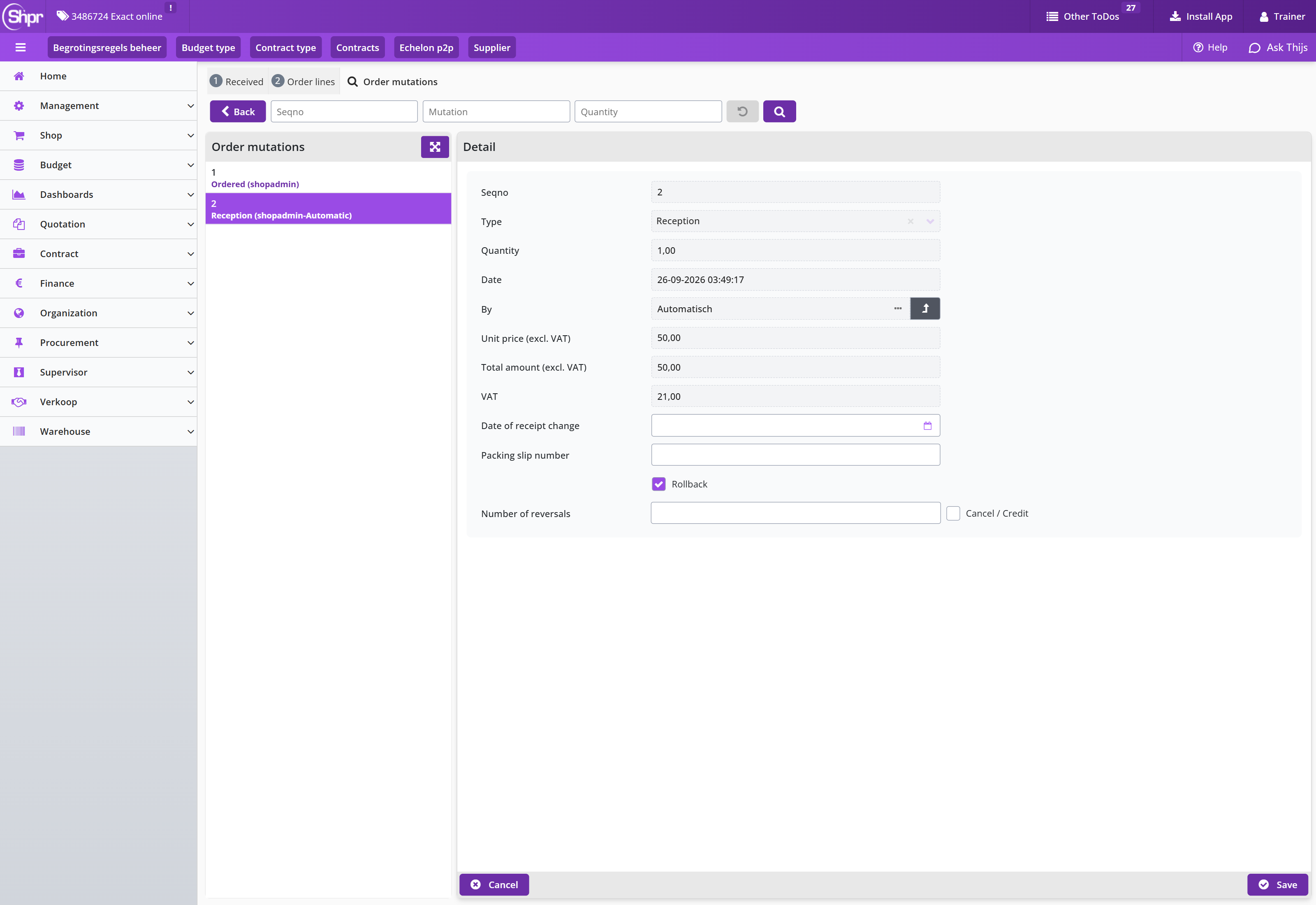
You can then use the button to go to the receipt screen to enter the correct number of receipts in the Receive data module.
Note: If your order is no longer visible in the ToDo step To be received process flow, then select via the Shop menu and select the relevant order from the list. You can then go through the above steps to correct the receipt registration.
In case the date of the order mutation for the registration of receipt does not match the actual date the order was received or if the packing slip number was not provided, it can be corrected in the order mutation for the corresponding receipt.
Note: when the date of receipt change has been applied it will overwrite the for the registration of receipt was performed. Hence the date on which this task was actually performed will be lost. On your request Archifact can turn the option to change the date of receipt on or off. The employee that performed the change on the order mutation will be listed in the order mutation.
Handling incorrect delivery
If the correct item has not been delivered or the item is unusable and you have agreed with the supplier that it will be returned, you can indicate this by pressing the button with the cross on the order line in the Error column.
You will then see the Incorrectly received order line dialog where you can enter the Quantity rejected and indicate in the field Info misdelivery what the problem is and what action you have agreed with the supplier. Optionally you can attach a photo/image to clarify the situation (File upload).
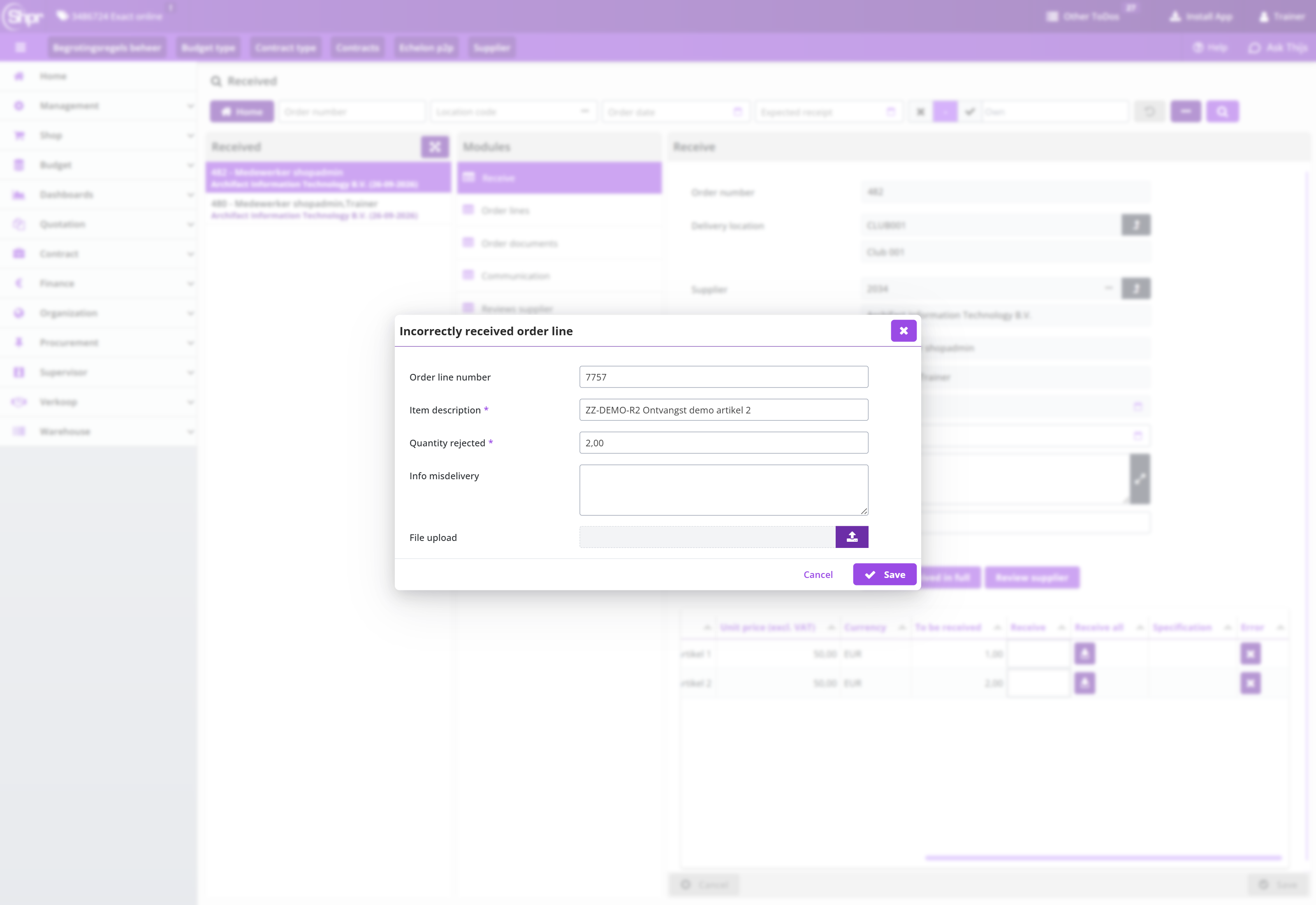
A change is now added about the incorrect delivery, but nothing is booked in or out! If this item is returned and no replacement is provided, you must also indicate this by canceling the delivery. If the correct item is still delivered later, you can book it in at that time by registering its reception.
Canceling delivery
If the supplier reports that an item is no longer available or if an item is returned, you need to write this off for the order line, by reporting it as canceled.
In the Order lines data module, you can select the relevant order line or click on the order line in the overview at the bottom of the receipt screen.
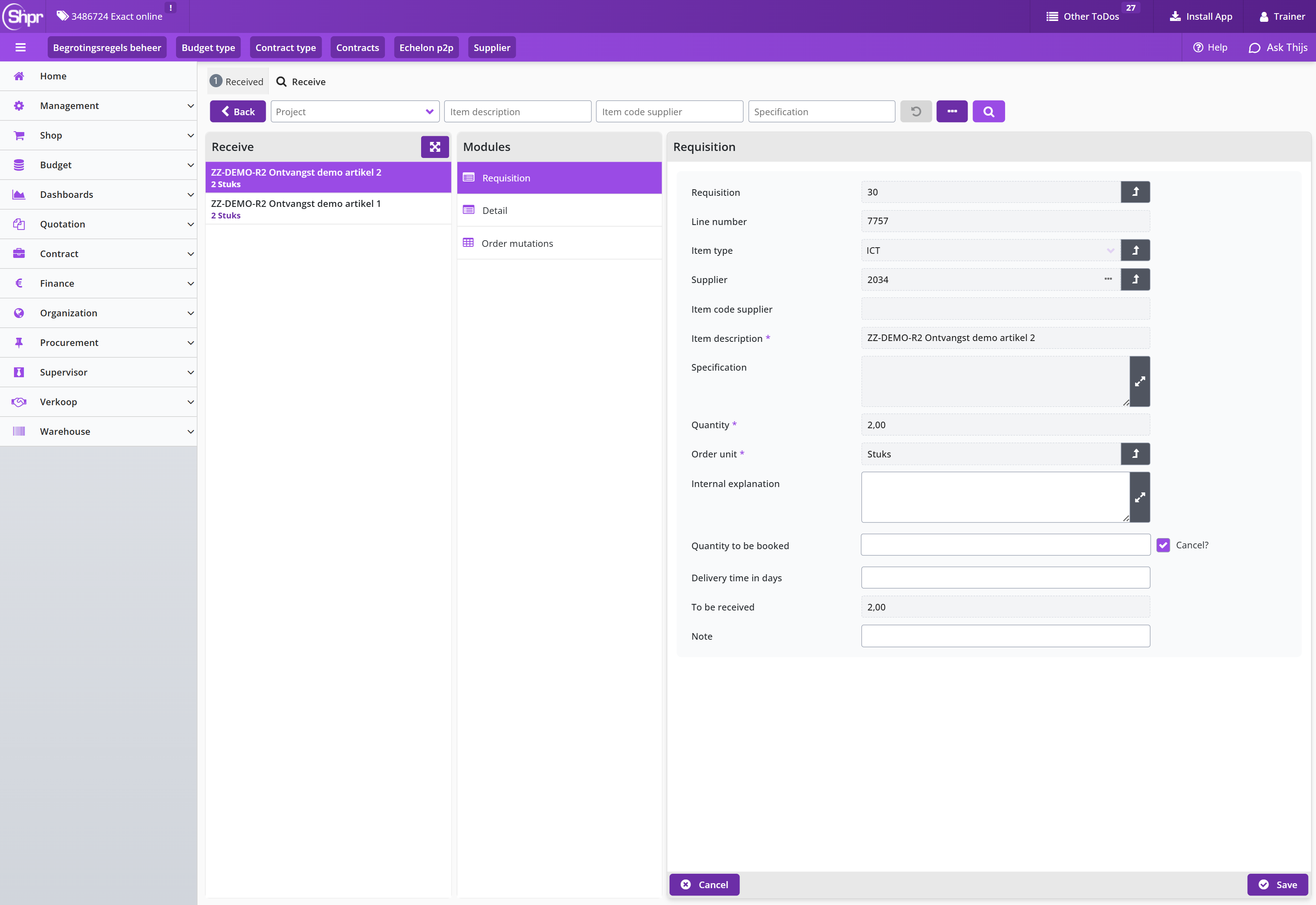
You then select the data module and enter the number that will no longer be delivered in the Quantity to be booked field. You then check the Cancel? checkbox; the field Note is now shown. Enter the reason for the cancellation there and save the change.
Note: Entering a note is mandatory when cancelling a receipt.
You can now go Back to the Receive data module where the quantities to be booked in the relevant order line have been adjusted. The matching of the invoice now assumes that this item will not be charged or that it will be credited.
Report problems with the delivery or supplier internally
If you encounter problems or other details during the delivery or during the coordination/dealing with the supplier - which are important to make known within your own organization - you can report this by means of a supplier Review.
Reviews are kept at a supplier and are transparent to procurement (the purchasing department) when they discuss contracts, performance or agreements with the supplier.
With the button you open the screen dialog in which you have to confirm that you want to create an Review. Press the button to confirm. You will then see a dialog where you can enter the supplier’s Review, using stars. Click on a star to change the rating. You can rate several aspects based on the review category groups – that have been defined for your organization.
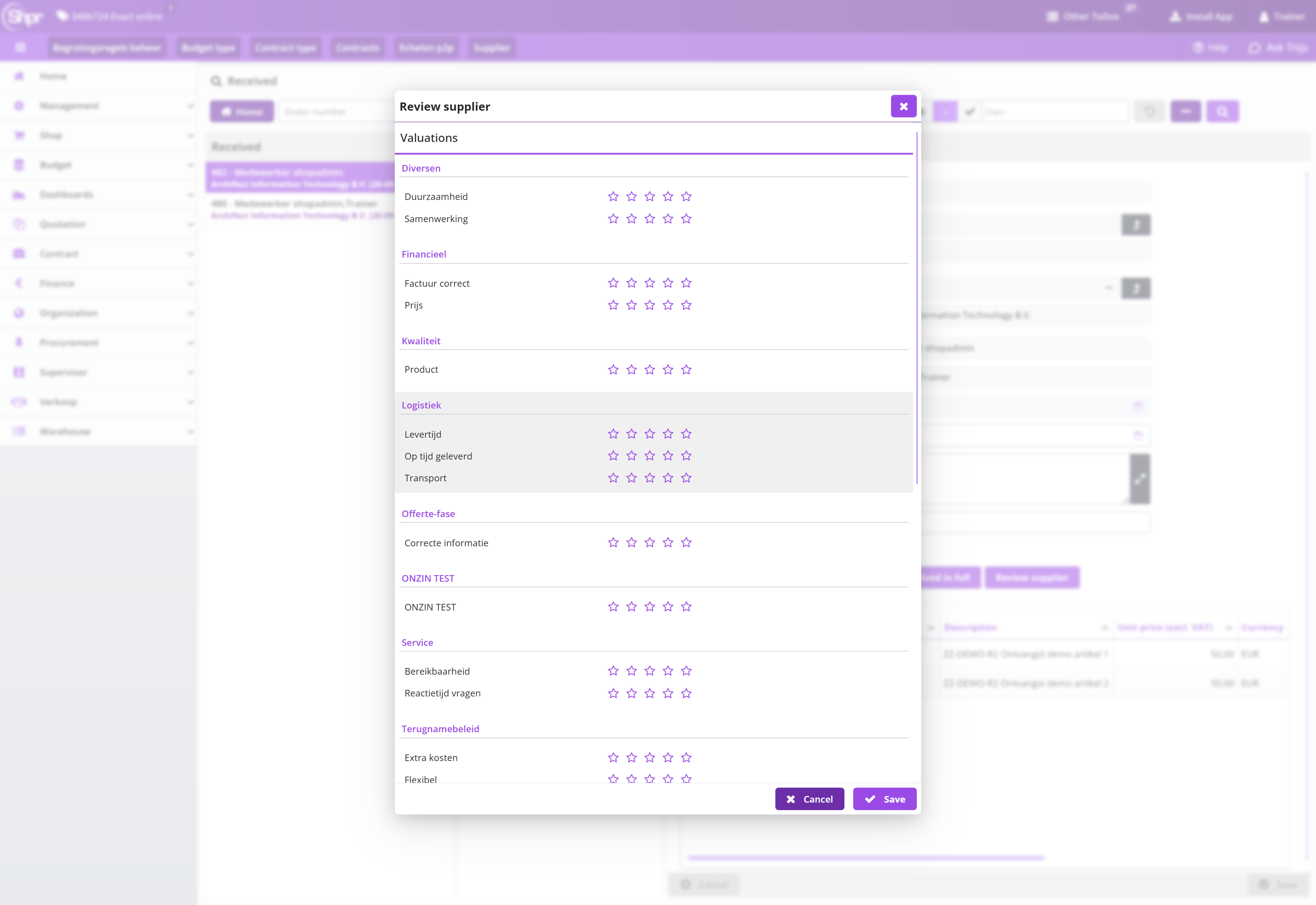
When you scroll further down, below the Valuations section and the Average rating, you will find the section Detail containing additional fields:
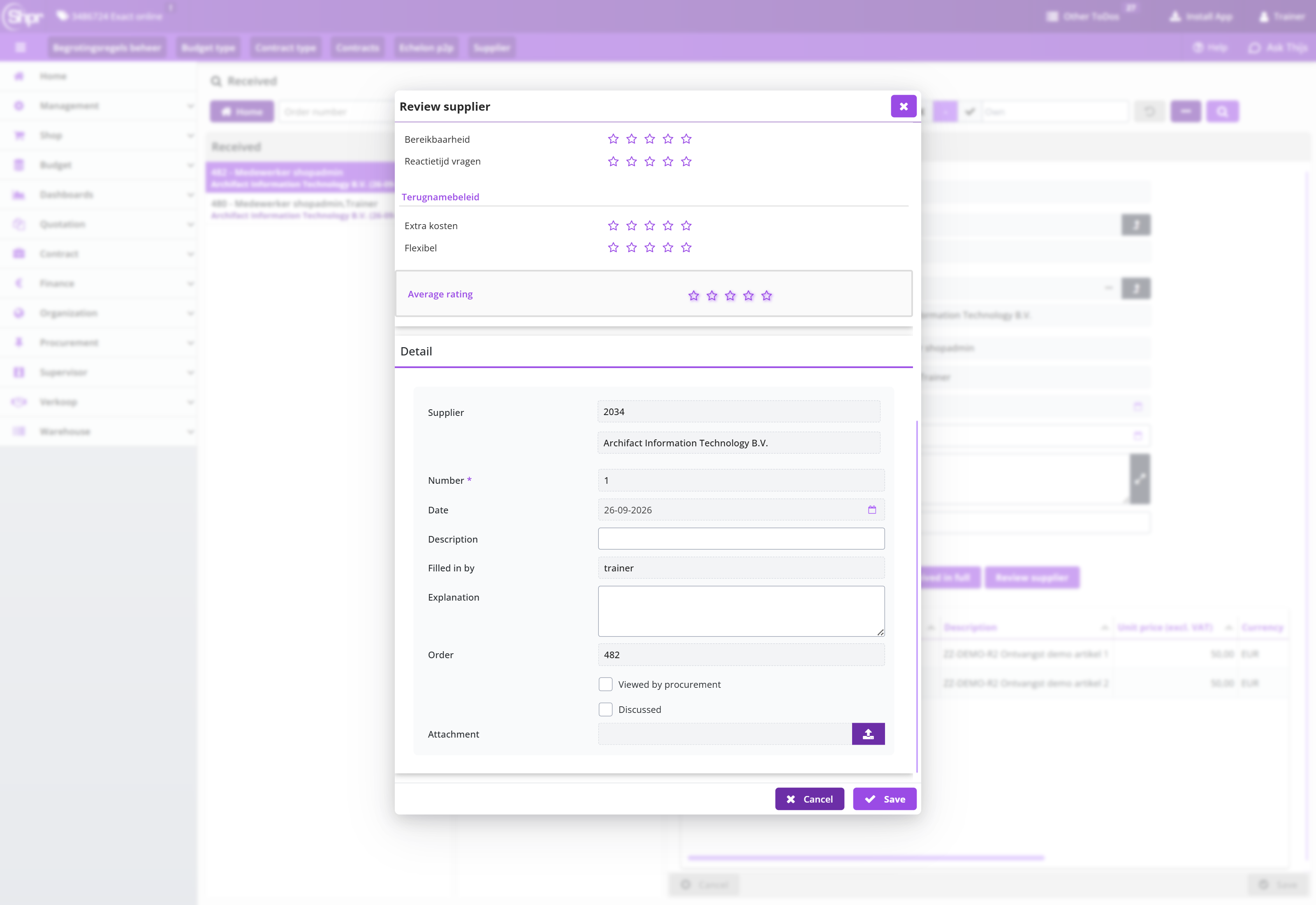
You can enter your experience in the Description and Explanation fields. Optionally, you can attach a file or image to clarify the situation, such as a photo of the damaged package or item (Attachment).
You can view previous reviews in the Reviews supplier data module.
Contacting the supplier
If you want to contact the contact person/account manager at the supplier, you can find the contact details and request the contact details via the menu Shop under the menu item Contactinfo suppliers. Select the supplier in the list on the left; the Contact details show the Contact name procurement, Phone Procurement department, Email general and Fax procurement as registered with the supplier.
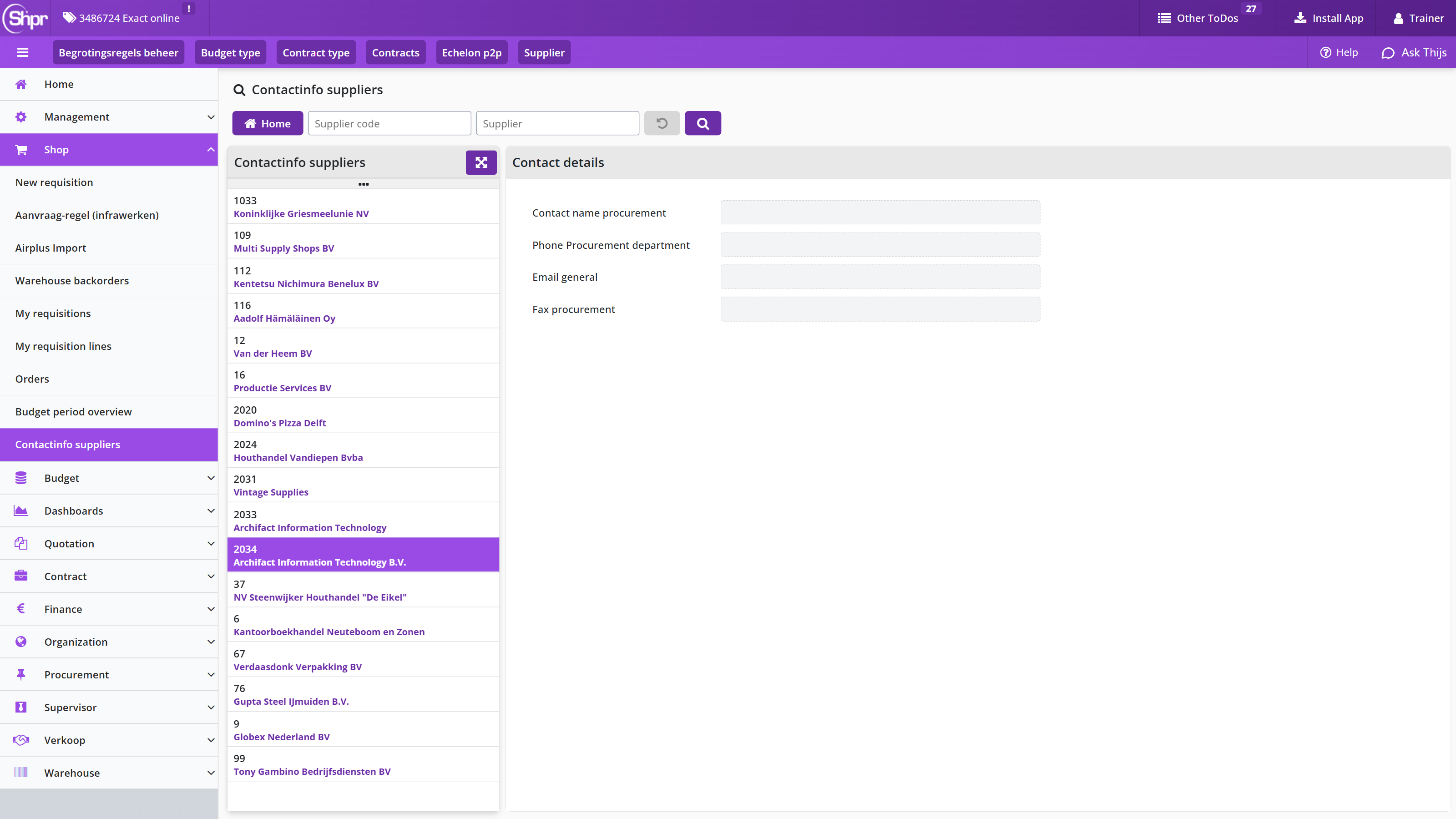
Installments Shopper
For an order that is delivered or paid in installments (partial delivery, installment payment) you release each installment separately in Shopper, so that the related invoice can be made payable. This chapter describes the ToDo Installment payments (to be released): where you find it under Other ToDos, how you release an installment or an amount, adjust the percentage of an installment, cancel an installment and what happens after saving.
Installment payments (to be released)
If it is specified with the requisition that delivery/payment is to be made using installments (partial delivery or installment payment), the order for this requisition will not be displayed at the process flow ToDo step Received. Instead, in the Other ToDos section, the ToDo Partial delivery (to be released) will become available in the Request section.
If you select this ToDo you will get an overview of all outstanding installment payments (to be released):
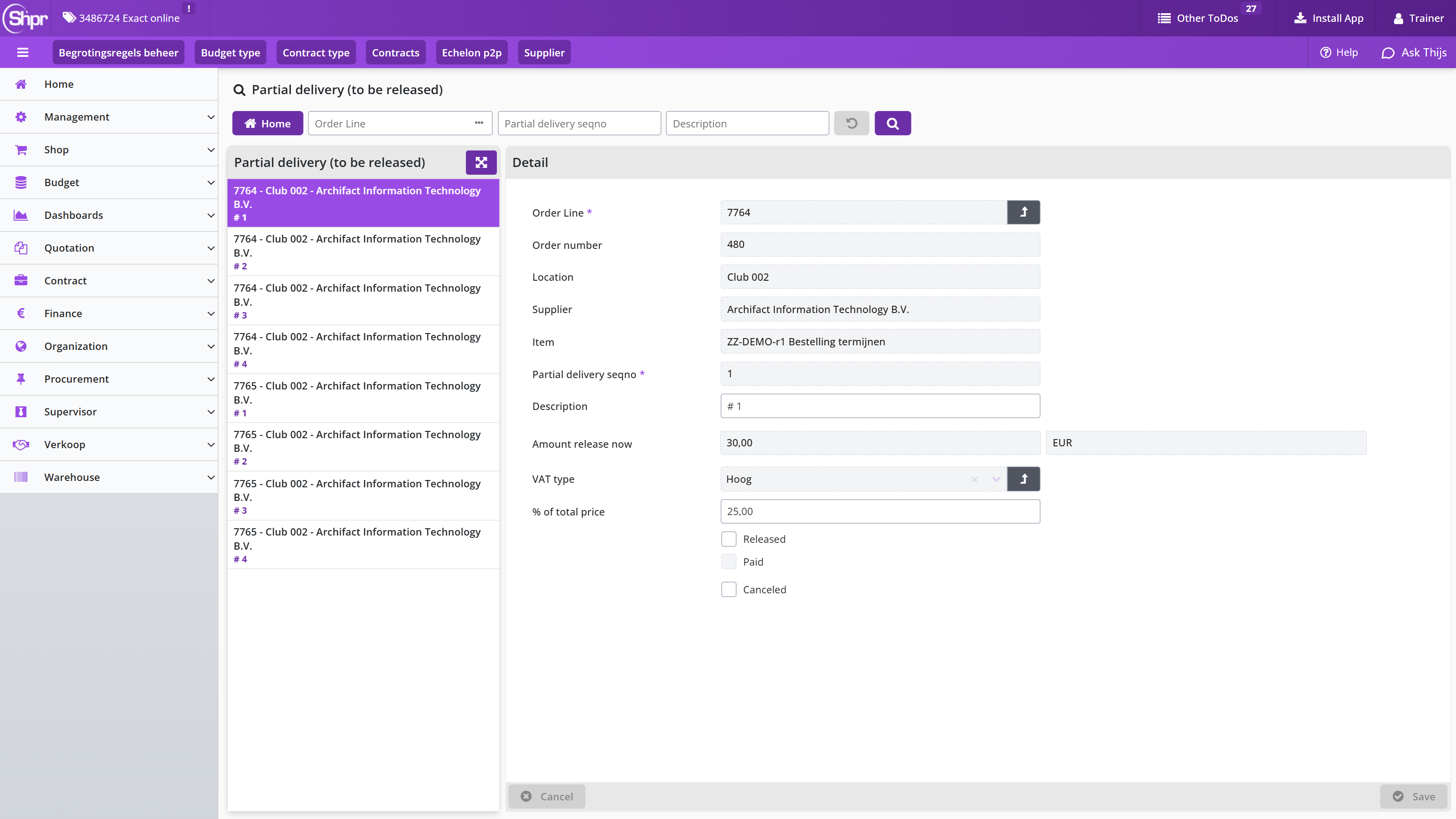
Select the part delivery for which you want to release an installment. If you have specified a fixed number of installments, a partial delivery is available for each installment in the list. Optionally you can modify the % of total price field if the installments are deviating from what was originally requested. The percentage for the last installment will be calculated each time you adjust the percentage. Once you reach the last installment the percentage can no longer be adjusted.
By checking Released you indicate that this partial delivery has taken place and that – for the amount that is released – the related invoice may be made payable. If this invoice has already been paid, you will see this with the checkbox Paid. If this partial delivery or installment payment is canceled, check Canceled checkbox.
If you did not specify a Fixed number of installments with the requisition, you need to indicate for each partial delivery the amount for which you want to release this now. In that case, you enter this amount in Amount release now.
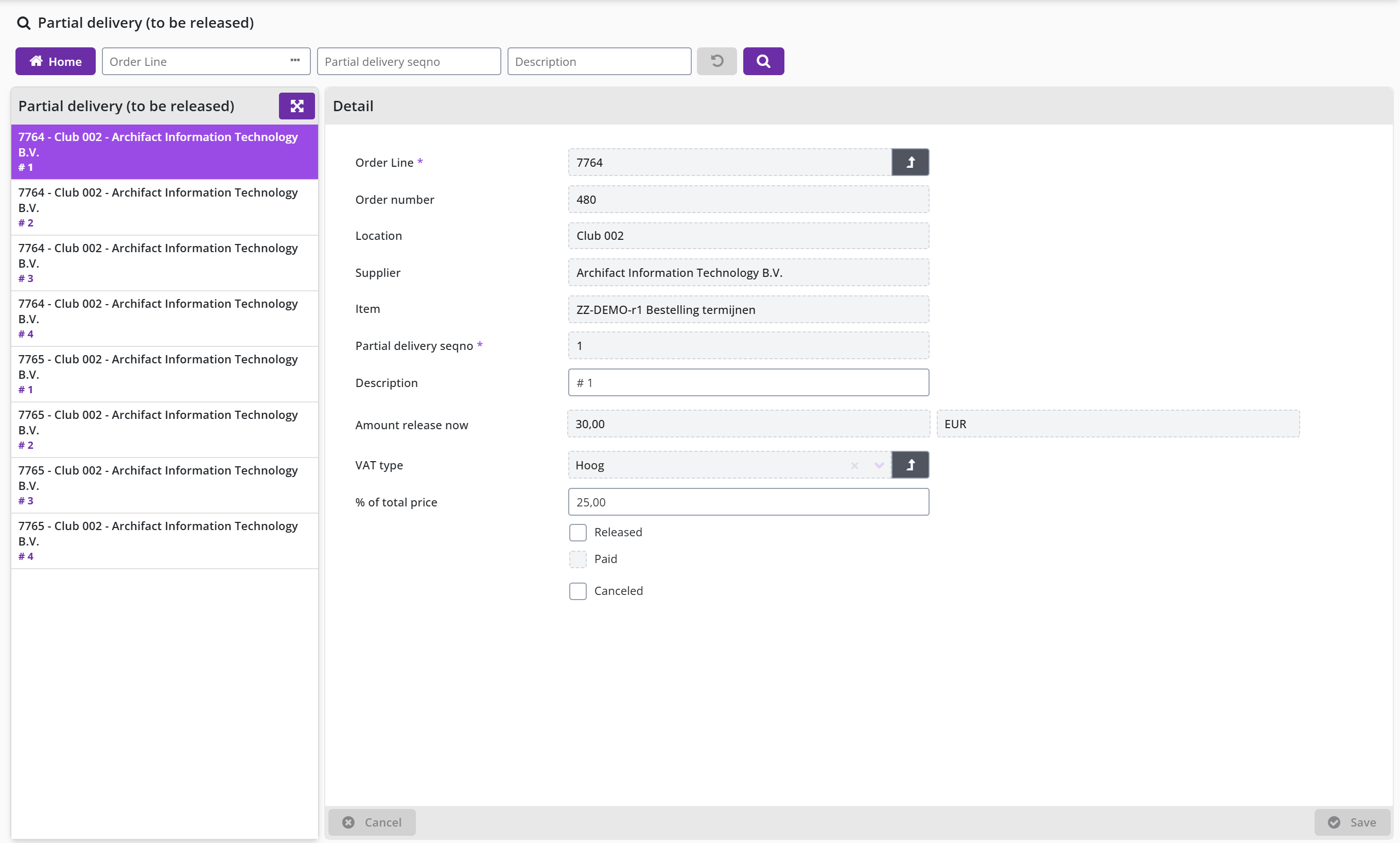
If price estimation is allowed, you can enter a higher amount than specified by the Amount still outstanding field, as long as the maximum price deviation for estimation is not exceeded. See section Place order indicator Estimated allowed, Items under Catalog management and the section P2P under System parameters.
Press the button to confirm the processing of the partial delivery. Partial deliveries that have been released will disappear from the list. For partial deliveries with a variable installment amount, a subsequent partial delivery is always created until 100% of the total amount has been released.
Status requisitions index
Status requisitions index shows how to follow a requisition and its order: from request to receipt, the status of invoices and payment, and the audit trail of requisitions and orders.
Status of requisitions in Shopper
This chapter describes how you follow the status of your requisitions and orders in Shopper. From request to receipt describes the status screens you open from the P2P dashboard and the data modules in them (Details, Follow-up by, requisition lines, order lines, Documents); My requisitions and Orders in the Shop menu describes the overviews of all your requisitions, requisition lines and orders.
Order mutations shows the changes applied to an order line after the order was placed; Follow-up by shows which employee can follow up the pending ToDo for your requisition; Status of my requisition explains the statuses of a requisition-/order line, from Request to Financially completed.
From request to receipt
On the Dashboard P2P (homepage) you can view the status of your requisitions and optionally the requisitions of your co-workers (Status of requisitions), and/or - if available - those of the employees in your team (Process flow management). The functionality of these process flow diagrams is described under P2P dashboard.

Select a process step status block to view the list of requisitions/orders that have the corresponding status of the status block you have selected.
The composition of the screen can vary depending on the status, but the structure is conforming to the standard as described under General screen layout.
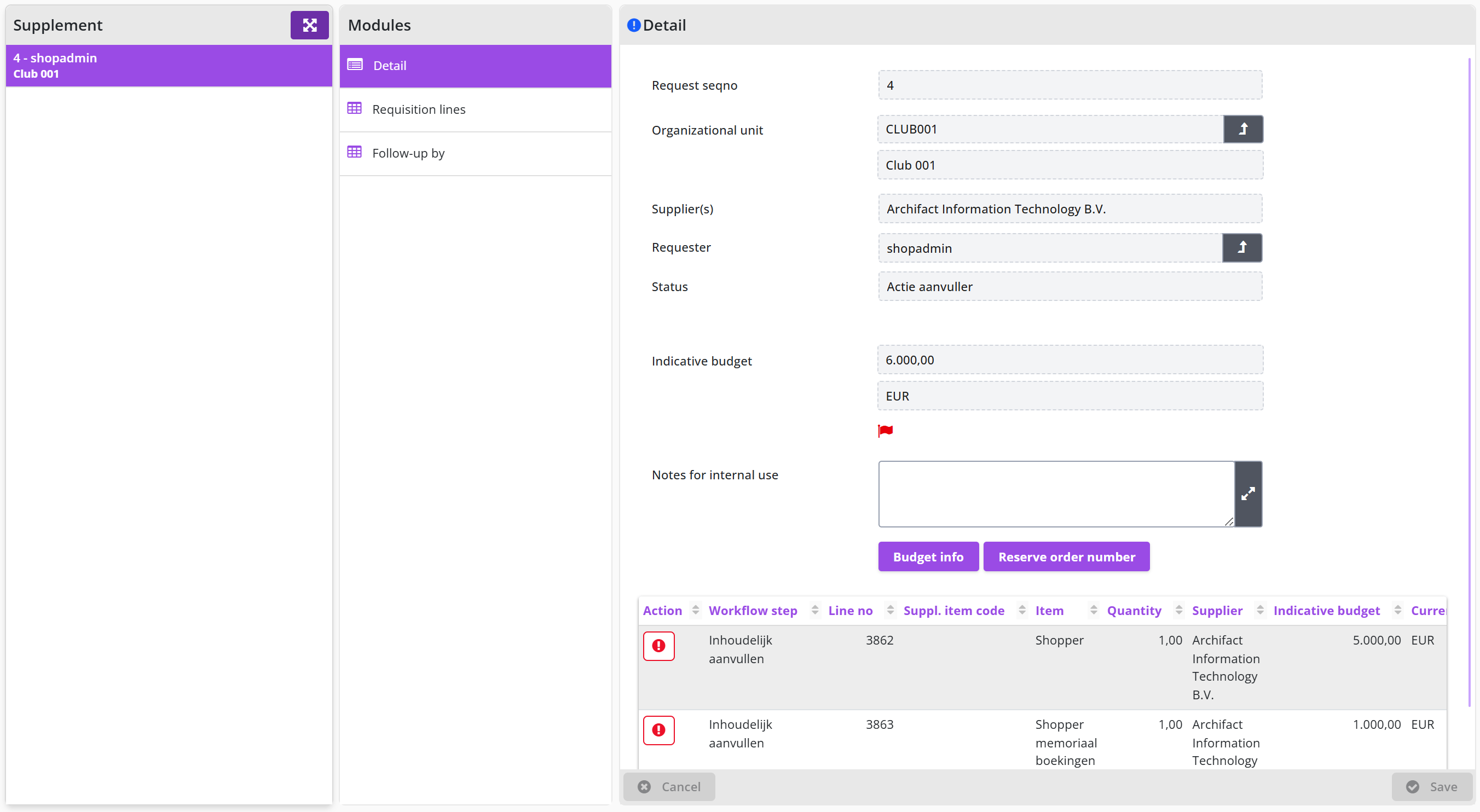
After choosing a status block in the status of requisitions, you will receive a list of the requisitions/ order lines in the status associated with the process step you have chosen. Choose the requisition you want to view. By default, the Details data module will be opened listing the details of the requisition / order. You have the option to expand the list (button top right) and select the column you want to sort on and then select the requisition / order.
The fields Status and Approve step reflect the required follow-up action. If the follow-up action cannot be assigned and an administrator needs to adjust the configuration to allow the process to continue, an additional field reflects what needs to be done:
The Follow-up action then ends up with the employee that can resolve the problem, in general an employee with the role Orchestrator, as part of the echelon P2P-Setup.
The data module Follow-up by will list the employees that can perform the follow-up. This module is listed for each requisition/ order.
The Documents data module of a requisition/ requisition line lists the documents that were attached to the requisition line. Same for order/ order line.
My requisitions and Orders in the Shop menu
An overview with the status of all your requisitions can be obtained via the menu Shop with the menu item My Requisitions.
This overview lists all your requisition-/order lines that you have made over time, and you can search for the line whose status you want to know.
You can locate orders in relation to the requisitions using the Orders menu-item. You can view the order lines and open the related requisitions. Additionally, you can view the related invoices once they have been received.
Note: These menu-items are only available if you have the required authorization
Order mutations
The data module Order mutations of an order line lists all mutations that were applied after the order was placed. For each mutation the employee that performed the mutation is listed including their authorization.
Select a mutation to view the details of who was involved in the mutation, including the date and time of the mutation. Mutations reflect the actions performed as part of the process steps, such as changing the number of ordered items, the price (for estimations), cancellation, or status changes that result from processing the invoice.
All performed process-/workflow steps are listed in the Audit trail data module. See Audittrail P2P.
Follow-up by
If you want to know who can take the follow-up action to continue with your requisition/order, in the data module Follow-up by you can see a list of the employees who can follow up the pending action for your requisition/order.
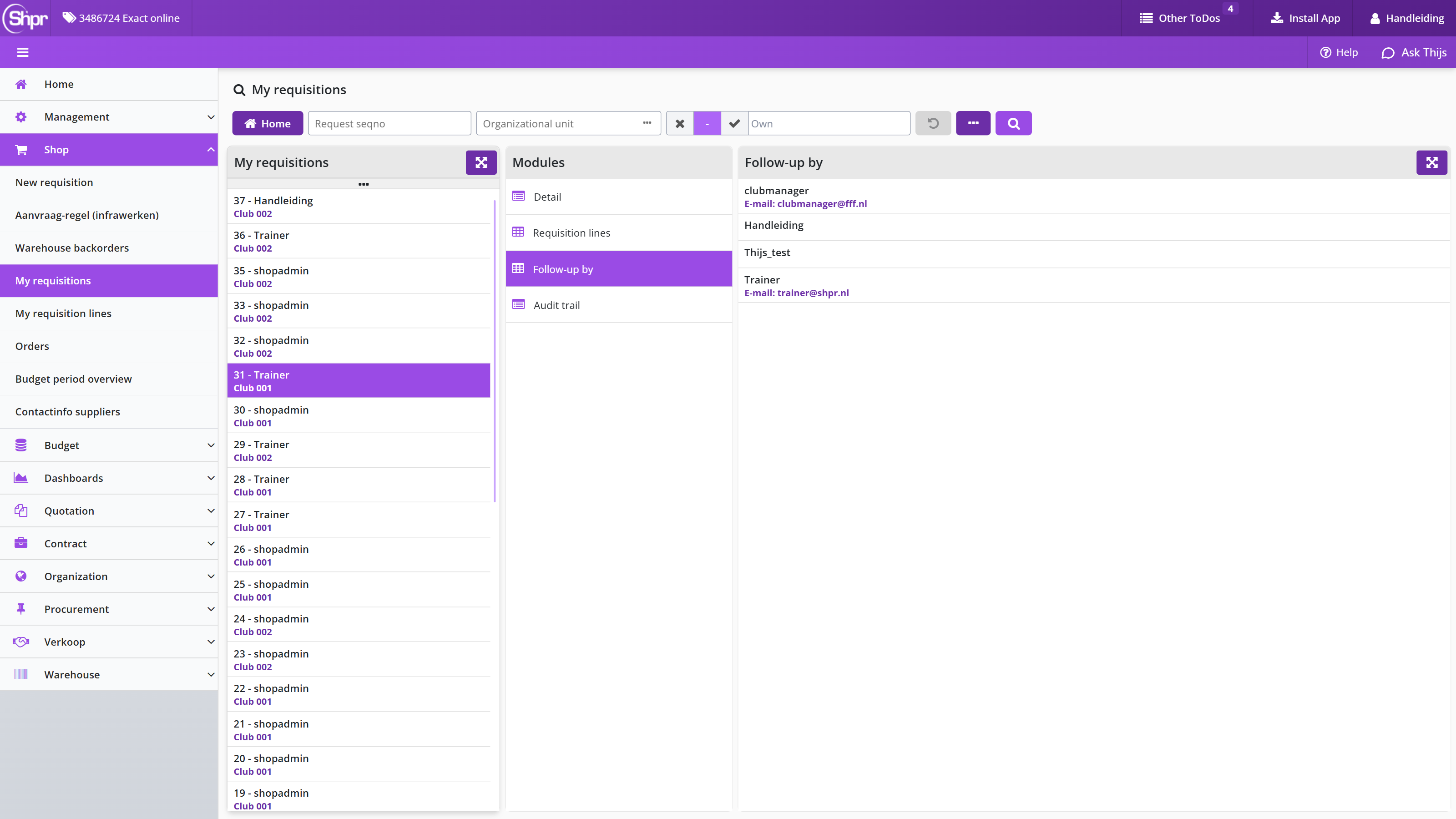
The employee’s contact details for telephone and email are listed – if available – so that you can contact us if necessary.
Note: If the list under Follow-up by is empty, contact the administrator/internal helpdesk so that they can look at the setup and ensure that an employee is available with the required role and authorization to follow up this ToDo.
Status of my requisition
In the General data module of a requisition/order, the status of the requisition is displayed in the Status field.
The following statuses exist:
- RequestThe requisition is still in your shopping cart and must therefore still be completed and confirmed by you (Also applicable for rejected requisitions)
- Action SupplementerA procurement employee still needs to supplement your requisition
- Ready to be approvedThe requisition line is fully supplemented, however the supplementation of other requisition lines in the same requisition still needs to be completed
- Action approverAn authorized signatory, budget holder or board member has yet to review and approve your requisition
- Ready to orderRequisition is fully approved and can be ordered
- OrderedThe order has been sent to the supplier and as soon as a delivery has taken place, you (or your co-worker) can register it.
- ReceivedThe order for the requisition has been received in full
- Invoice bookedAn invoice has been booked on this requisition-/order line. i.e., this requistion-/order line (or a part of it) has been made payable. Note: (when using installments multiple invoices can be applicable)
- Financially completedThe full amount for the requisition-/order line has been paid to the supplier
- CancelledThe requisition has been canceled (applicable only for rejected requisitions)
Note: The status of requisition-/order line can also be found via the My requisitions lines menu-item under the menu Shop, using the data module Status and approval of a selected requisition-/order line. For the status Action supplementer and Action approver the field Current workflow step is also shown, to indicate what the action is about.
Status of my order in Shopper
After an order has been received, invoice handling follows: matching the purchase invoices and making them payable. Invoices and payment describes the process steps on the P2P dashboard, the colour coding and the roles; it is followed by Invoice handling with ImageCapture and Invoice matching in Shopper without ImageCapture. The ToDo screens are described under Invoices to be received, Invoices to be paid and Action incoming invoice, together with Approving or rejecting an incoming invoice, Correcting invoice bookings, Detail data module and enquiries for an incoming invoice and Bookings for the order lines.
Status order describes the statuses of an order up to Completed. Deviating invoices and general journal entries covers invoice differences and financial write-offs, Overview of orders and outstanding invoice amounts covers the orders in the menu Shop and the reports with outstanding amounts, and Approving direct orders covers the approval of a direct order after the fact.
Invoices and payment
On the P2P dashboard (homepage) you will see the process steps for Invoices to be received and To be paid next to the process steps listed under >> From request to reception under the Status requisitions. If Shopper is used in combination with ImageCapture from ScanSys, the related tasks are not handled in Shopper, but in ImageCapture. The progress however can be tracked using the status blocks for the process steps Invoices to be received and To be paid.
The color coding in these process steps is related to the number of days that invoice processing is pending: Green – 0 to 1 days, Yellow - 2 to 6 days and red - longer than 6 days.
Note: Only an employee with the role Executer will see the process step To be paid. Only an employee with the role Controller will see the process step Invoices to be received. In combination with ImageCapture, these process steps are then limited to viewing, correct receipt bookings (cancelling) and being able to remove an incorrect invoice (this last one is only possible if it is allowed based on the corresponding indicator under the system parameters and then only by a supervisor).
Invoice handling with ImageCapture
If Shopper is used in combination with ImageCapture from ScanSys, invoice handling (matching the purchase invoices and making them payable) takes place in ImageCapture and not in Shopper.
Committed order lines (i.e., that have been sent to the supplier) are also visible in ImageCapture, where the related invoice processing can be performed once receipt registration has been performed.
Note: Reporting to ImageCapture requires a creditor link with the supplier. If the creditor link has not yet been established for a new supplier, the obligations will only be made known to ImageCapture after the creditor link has been added.
The action to link a creditor is mentioned in Other ToDos for employees who are authorized for the role Administrator.
ImageCapture processes the received invoices and will – as far as possible – automatically match them with the registered receipts in Shopper. When making these invoices payable, the entry data for these order lines that have been derived in Shopper in relation to the relevant device is assumed. See the chapters on administrative tasks for this.
The bookings for invoices that have been made payable are reported to Shopper by ImageCapture. Invoices that deviate from or for which no order line exists are manually assessed and processed in ImageCapture by an employee.
Note: It is possible that multiple bookings for an order line can be reported by ImageCapture in the same invoice. This can occur if the booking data for items is subsequently changed in ImageCacture and is divided over, for example, multiple locations (cost centers), whereby a booking is then reported back to Shopper for each location.
Invoice matching in Shopper without ImageCapture
When the invoice matching and making the invoice payable are performed in Shopper (thus without the use of Image Capture), the process steps Invoices to be received and To be paid are also used and conform to the standard color coding (green 0 to 1 days, yellow 2 to 6 days, red longer than 6 days).
The process step Invoices to be received applies when for a received (in regard to the matching criteria) order line no matching invoice line has been found (i.e. the automatic matching cannot be performed). This process step can be followed-up by an employee of the financial department with the role Controller.
The process step Invoice to pay can be used to make adjustments in regard to the invoice line and the related order line, deciding what will and will not be made payable. This process step can be followed-up by an employee of the financial department with the role Executer.
The matching applied by Shopper will determine if the invoice booking line will be set to approved, where – depending on the system configuration – the number or the total amount are set to be leading. Also see the indicator Write off booking allowed? in the section Financial for the indicators under System parameters.
The incoming invoices are in this case processed as invoice interface lines, provided via a connected invoicing system (of the financial department), that scanned and digitized the received invoice and consequently passes this data to Shopper, where the matching and follow-up can be performed (using the Invoices to pay step).
If there are invoice interface lines that cannot be processed in Shopper (e.g., if they cannot by matched to financial data in Shopper) an Other ToDo is created in the section Orders. Follow-up this Todo requires the data fields of the invoice interface line to be adjusted or the financial data in Shopper to be amended, allowing the match with the order line to made.
If invoices are made payable in Shopper, the related invoice bookings will be reported back to the invoicing system (of the financial department). In case of Exact Globe, Shopper can provide a CSV-that can be used to import this data in Exact Globe.
Invoices to be received
When following up the ToDo Invoices to be received in the screen link, the list of invoices to be received is shown for the orders received and, on the right - when the data module Receive is displayed - the details of the related order and the order lines.
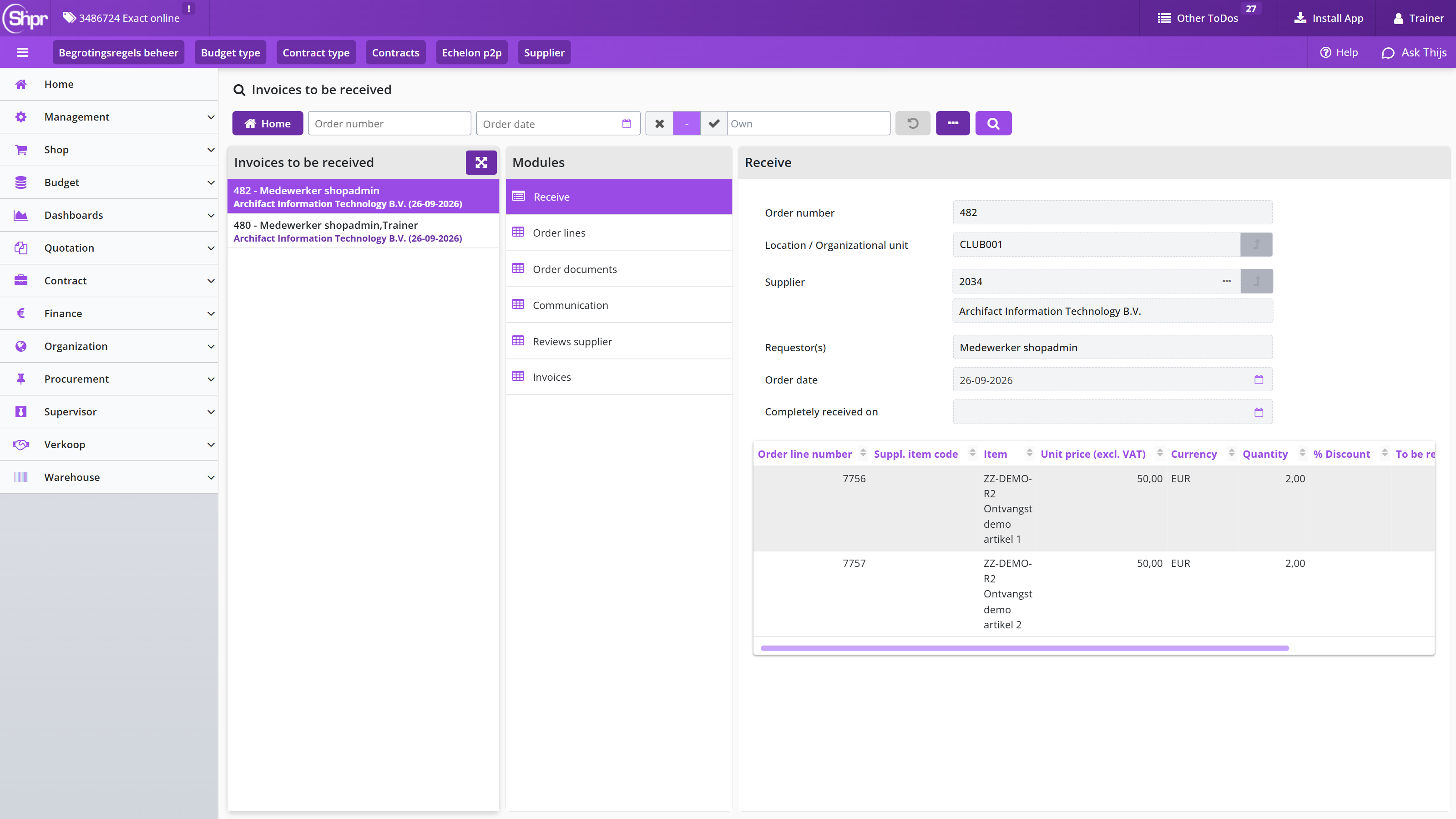
If the order has not yet been received in full for the invoice, the remaining part can be debited if the remaining part is no longer delivered and will therefore not be invoiced. For more details, see Deviating invoices and general journal entries.
Invoices to be paid
When following up the ToDo Invoices to be paid the list of invoices to be paid is shown on the left of the screen and on the right - when the Detail data module is displayed - the invoice and the related invoice entries.
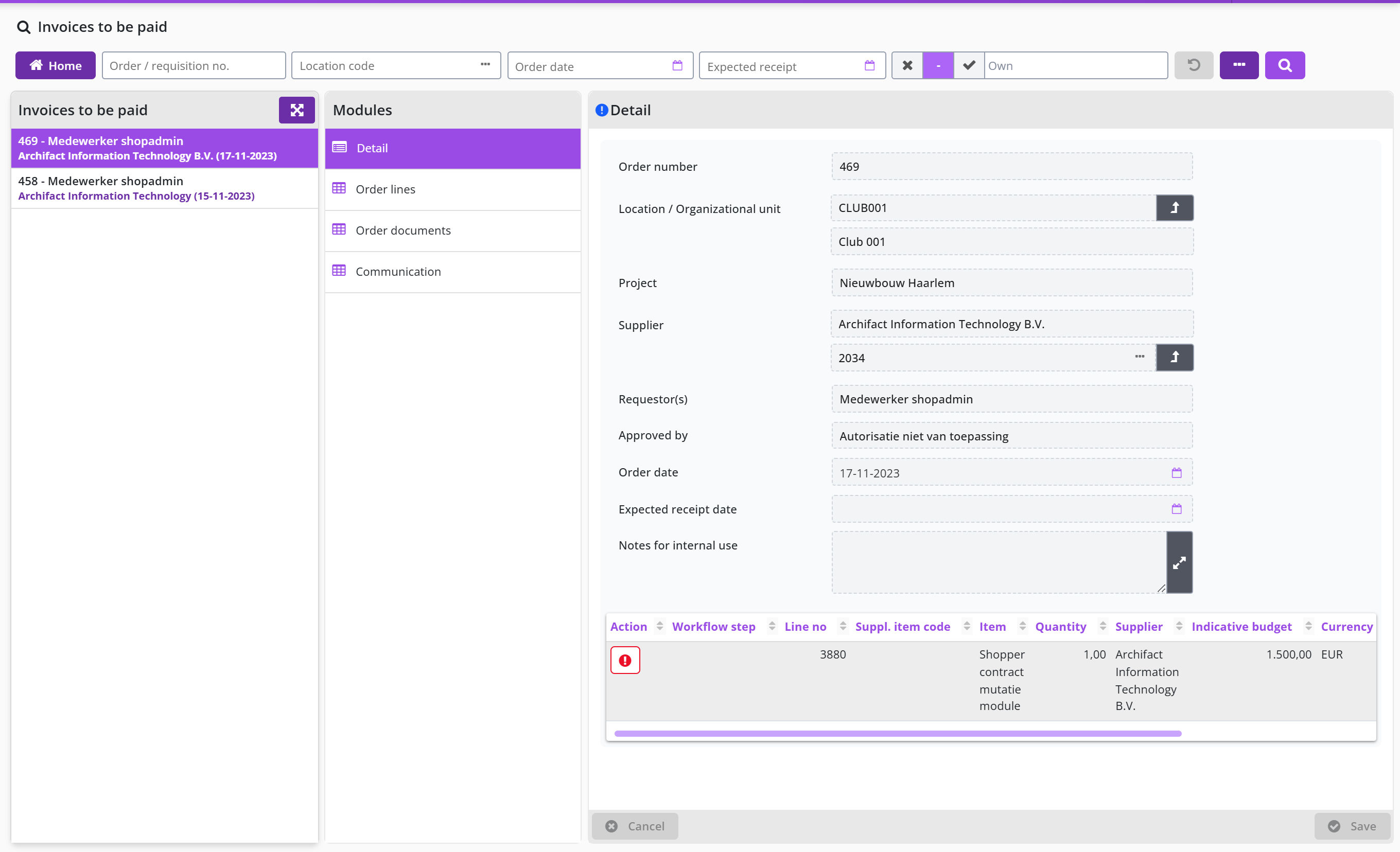
With the button the scanned invoice can be viewed and if this turns out to be the wrong invoice, then this invoice can be removed with the button . After removing the invoice, the order returns to the process step Invoices to be received, until the correct invoice is linked.
Note: The button can only be performed by a supervisor in combination with the role Controller, as part of the echelon P2P-Financial administration and is only visible if the corresponding indicator is set under the system parameters.
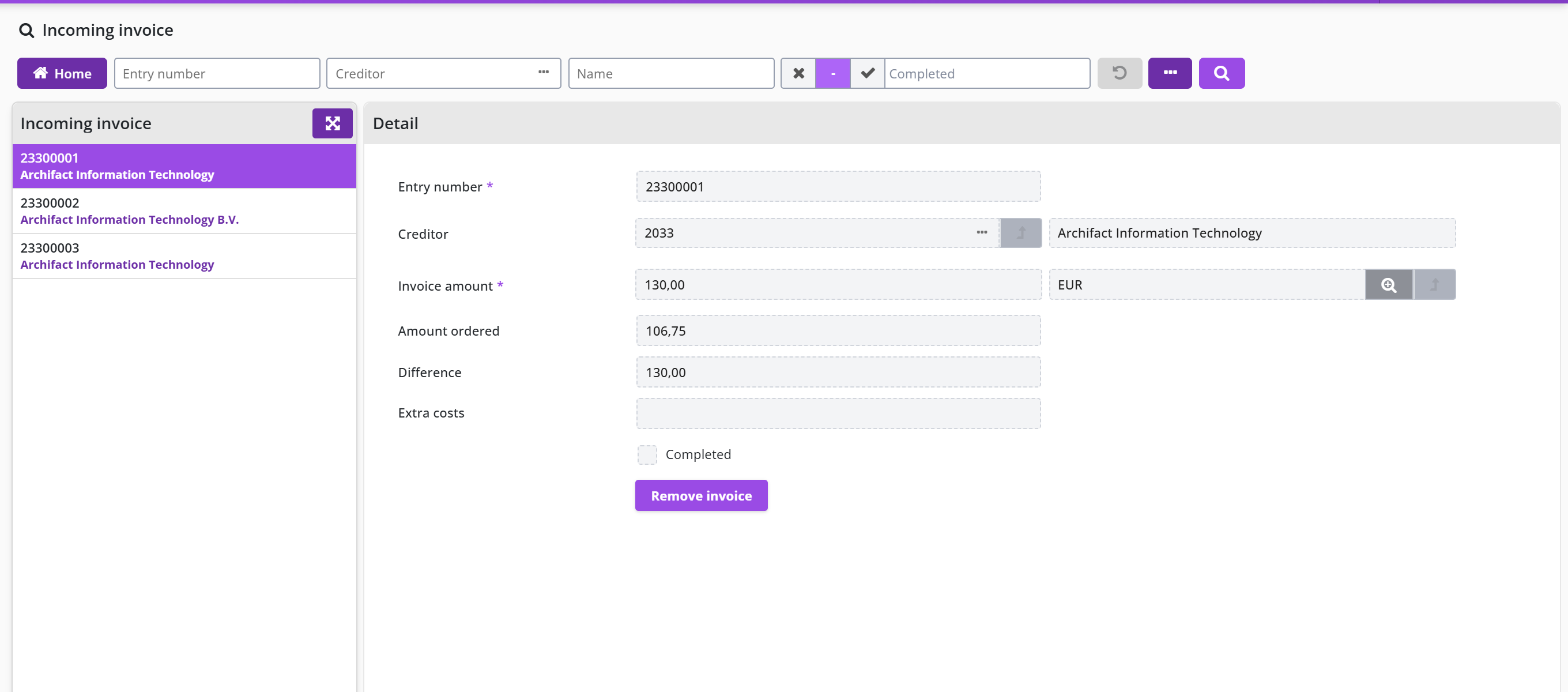
Action incoming invoice
Following up on the ToDo Action incoming invoice present a screen with a list of received invoices on the left side and to the right the Details data module with the data related tor the order, followed below with the bookings for the order lines in relation to the received invoice. If the order is related to a proforma-order of a contract, the Contract field will show the designated contract.
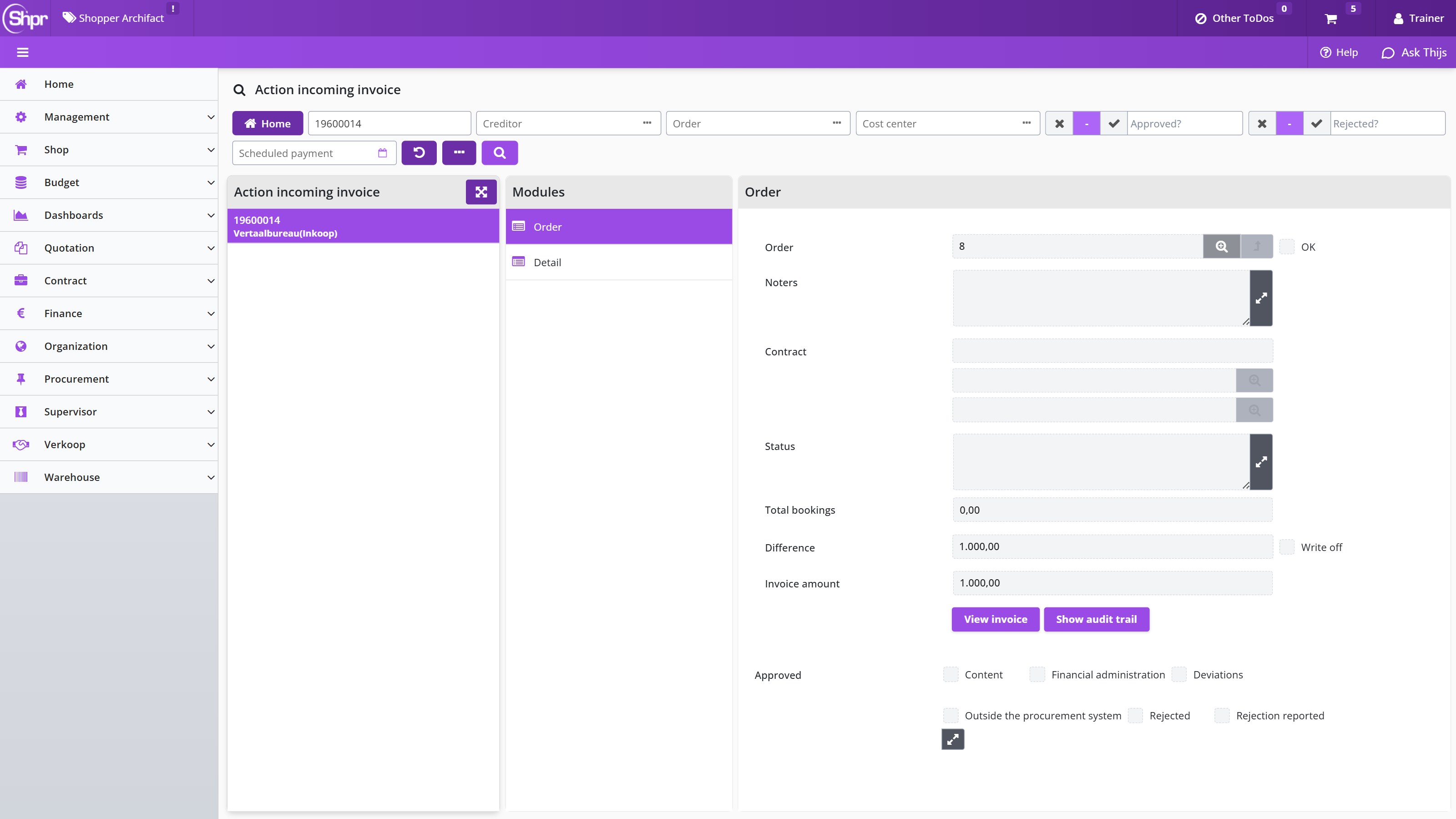
If an invoice does not refer to an existing order number in Shopper, the data for the order will be left blank. In that case the Order and if applicable the Contract field can be entered manually. The Link orders data module lists the connected orders and if needed can be used to connect another order. If the order was not placed using Shopper, the button of checkbox Outside the procurement system can be used to indicate that no order in Shopper applies. The invoice will then be made payable (if you do not want this invoice to be paid mark the checkbox Reject).
Approving or rejecting an incoming invoice
You approve or reject an incoming invoice (purchase invoice) in the ToDo Action incoming invoice, in the section Approved.
The section Approved includes several checkboxes regarding the assessment of the invoice. Use the checkbox Content if from a procurement perspective the invoice is approved (even if the invoice deviates from the order). Use the check box Rejected to reject the invoice as a whole. If the invoice is rejected, use the checkbox Rejection reported to indicate that the supplier/creditor has been informed of the rejection. The marked checkboxes are processed after using the button.
The checkboxes Financial administration and Deviations are derived and cannot be changed. The checkbox Deviations is set if there is a Content approval has been provided while deviating amount or rejected booking are present. The checkbox Financial administration is set if the costing type of the booking corresponds to the costing type of the order line, or if the system parameters indicate to skip the financial approval. Also see the section Financial of the Parameters under System parameters.
If an invoice line is invalid, it can be rejected using the checkbox for the designated booking for the order line (at the bottom of the Order data module. If all (remaining) invoice lines need to be rejected, then use the button . All bookings that were not yet approved will then be rejected in a single action.
Correcting invoice bookings
In the ToDo Action incoming invoice you can correct the invoice bookings when the amount on the incoming invoice (purchase invoice) deviates from the order.
The bookings listed for the order lines (at the bottom of the Orders data module) contains a column with the original amount of the order line, to the right of the column Total amount (excl. VAT). If the amounts are different, the amount to be paid can be adjusted and then saved. Also, you can select the booking to view the full details. These bookings are also listed in the Bookings data module, with full details and options for adjustments (see Bookings for the order lines).
The field Difference shows the difference between the invoice and the order. This field is updated after correcting (the amounts) the individual bookings. If a remaining discrepancy exists that is acceptable, you can use the checkbox Write off (to the right of the Discrepancy field). The invoice can then be fully matched, and the difference is written off.
Detail data module and enquiries for an incoming invoice
In the ToDo Action incoming invoice, the Detail data module shows the details of the incoming invoice, which can be modified if needed. The scanned invoice can be viewed using the button.
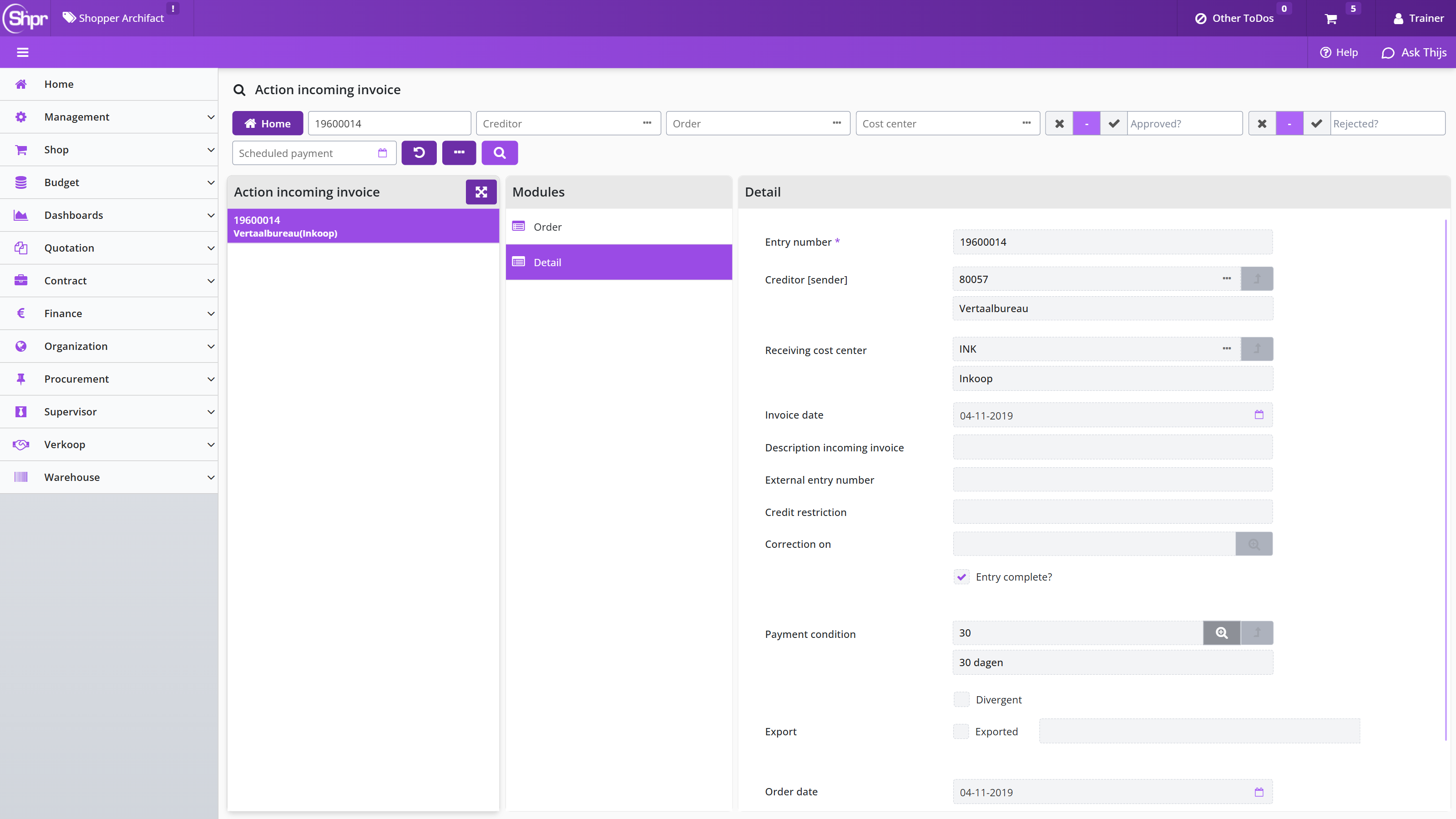
The Status field can be used to provide a explanation on the progress/status of the approval.
The checkbox Entry complete is set by default, allowing automatic matching for the invoice, and making it payable, to occur once the bookings have been adjusted or the differences have been written off. However, if you want to prevent an automatic match from occurring – before you are finished with all the bookings – you can unmark this checkbox and then mark it again once you are finished. The ToDo for the Action incoming invoice with then remain present until the automatic matching has been performed or the invoice has been rejected.
The ”Correction on” field can be used to specify that this invoice contains a correction (crediting) on another invoice, by selecting the other invoice form the presented list. Multiple invoices can correct another invoice. For the corrected invoice these credit invoices can be found under the Corrections data module.
If an enquiry is needed for the invoice this can be done using Shopper by adding a memo for the purchaser, using the Approval data module. The purchaser will then get an Other ToDo Incoming invoice to approve in order to follow up on the enquiry memo. All memo’s that have been created and followed up for an invoice are listed in the Approval data module. Alternatively, the action incoming invoice can be followed up by the purchaser using the other ToDo Incoming invoice (purchaser).
Bookings for the order lines
The Bookings data module lists the order lines for the order connected to this invoice in correspondence with the matching invoice line. The amount of number of units (that are derived from the amount) of the invoice line can deviate from the order line. The booking then needs to be adjusted or small differences need to be written off (using the Orders data module).
If the amounts deviate, then the checkbox Divergent is set. The Number fixed checkbox is set if it concerns a partial delivery or an installment. This is done to prevent the number to be automatically derived from the amount from the invoice, hence making it possible to enter (or change) this number manually. The total amount (excl. VAT) and the VAT type (VAT field) can be modified to let a match arise between the invoice line and the order line.
An approval on the invoice containing bookings with deviating amounts is only accepted if the fall within the range that is specified by the supervisor, using the amount or percentage write off fields of the section financial of the system parameters, under System parameters.
The booking details (Cost unit, Cost type and Costing center) can in this stage be changed towards how this needs to be booked in the financial administration (if this integration applies).
Note: These are not the bookings that are part of the Excel export of the weekly bookings. These bookings are a listing of the orderliness that have been delivered using the pick list groups for the warehouse.
Status order
In Shopper, the progress of processing in ImageCapture can be followed for the requestor under the Status requisitions using the process steps Invoices to be received and To be paid.
The data module Follow-up by is not available for requisition-/order lines for which the invoice handling is performed in ImageCapture.
The status of the order can also be found in the data module Status and approvals (accessible via the menu-item orders under the menu Shop). See status of the requisition under From request to receipt.
The following statuses are distinguished for invoice processing:
- Invoices to be receivedThis concerns order lines for which receipt has been registered.
- To be paidThis concerns order lines for which an invoice has been received and for which the receipt has been registered. When the invoice has been made payable and the payment has been made, the order line will no longer be displayed in the Status of requisitions.
- InvoiceAn invoice booking has been made on the order. I.e., an invoice has been connected to a requisition-/order line for this order and there exists a match of the invoice line with the requisition-/order line.
- CompletedThe financial processing of all the requisition-/order lines of the order have been completed. The related invoices have been paid or the remaining amounts have been written off. The requisition-/order line will no longer be listed at the Status requisitions on the P2P dashboard.
Deviating invoices and general journal entries
If the amount on the invoice deviates and this deviation has been accepted in ImageCapture and does not conflict with the indicators for Financial at the System parameters , then this will be visible in Shopper at the Other ToDos by means of a ToDo for Order-line invoice mismatch.
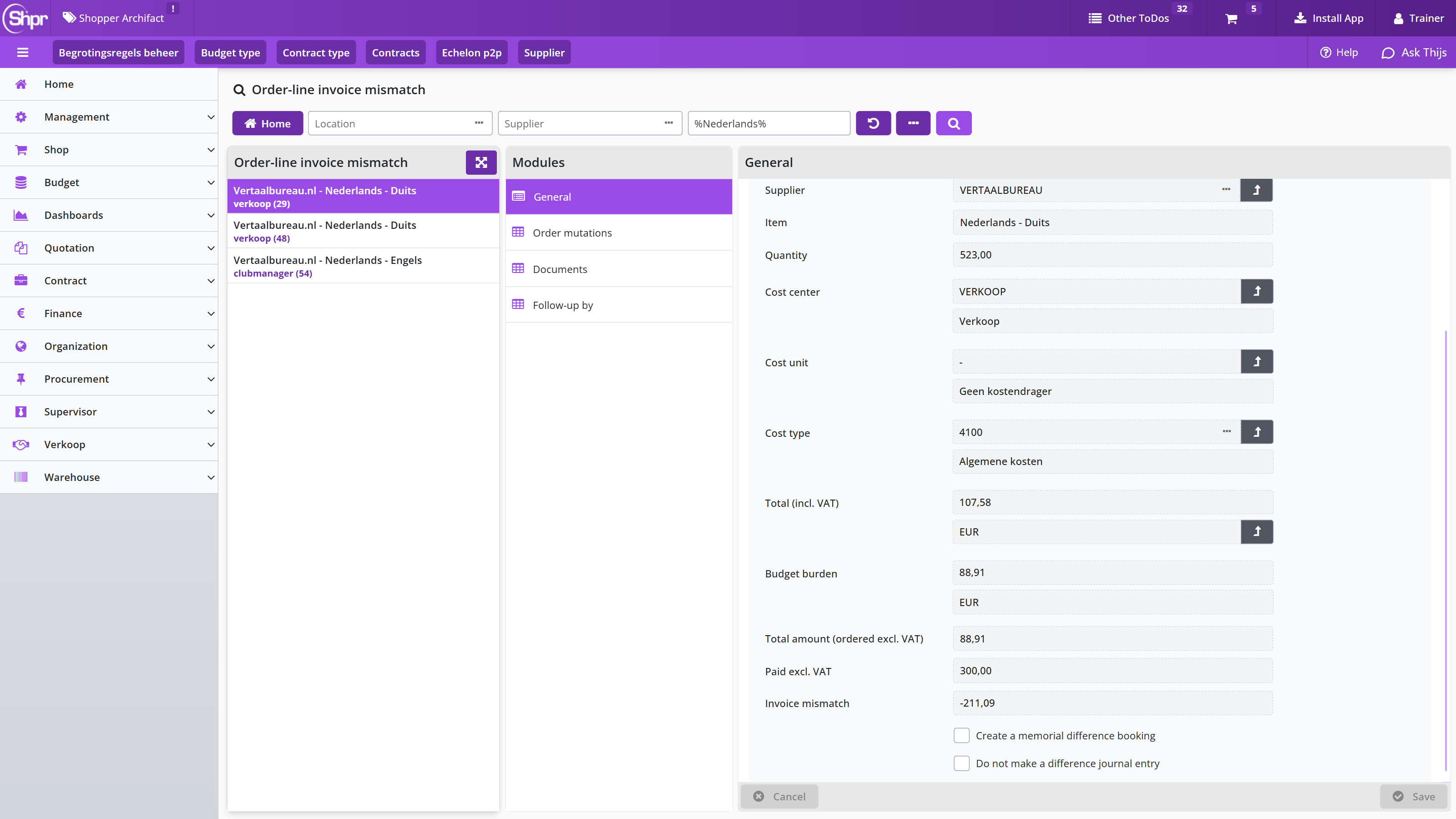
When following up this ToDo, you can explicitly indicate per order line whether or not you want to create a journal entry / memorial booking for the difference. In other words, to make a reversal to administratively correct the previously recorded liability (on the interim account). This only applies when using general journal entries / memorial bookings.
If the financial processing has not yet taken place and will never take place, then it can be written off financially in the Process Flow ToDo Invoices to be received. Open the Order lines data module, select the concerning order-line and open the Requisition data module.
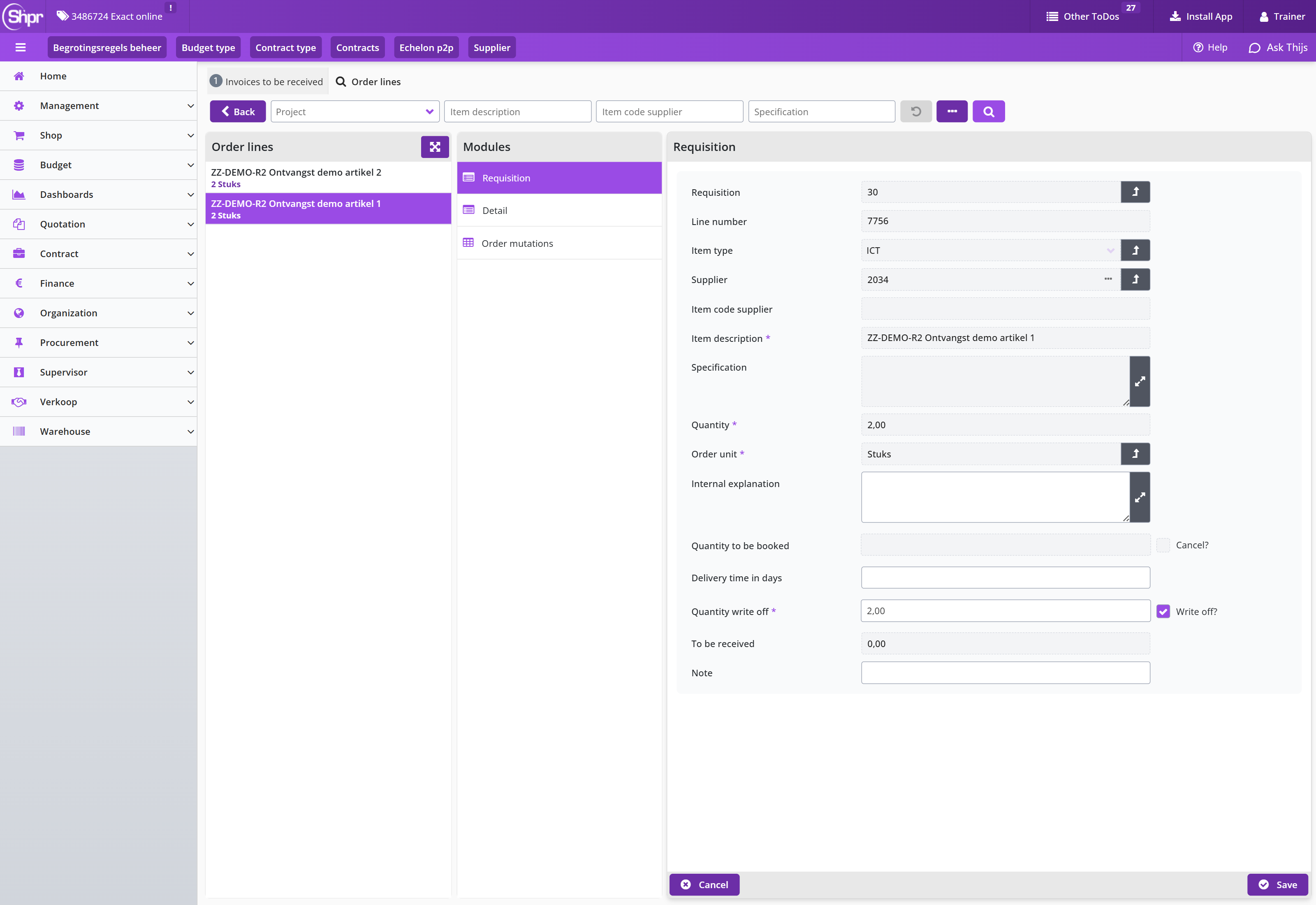
In that case, Fill in the number of items that you want to write off at Quantity write off and check the adjacent Write off? checkbox. Next you are required to provide a note (field Note) on why the write off has been performed. This is mandatory and you cannot save the write-off until it is done.
Note: this field is only available once the order line has been received in full (To be received is 0). Otherwise use the option to cancel the receipt as the receipt process step. See canceling delivery under >> Receipt.
After saving, a general journal entry / memorial booking with a counter-entry will also be created for the canceled quantity if you work with general journal entries.
Note: Journal entries (Memorial bookings) is a separate license module of Shopper for reporting obligations arising from the purchasing process in Shopper to Exact. For more details see financial administration under Accounting.
Overview of orders and outstanding invoice amounts
Via the Shop menu item Shop > Orders you can view all orders that have been requested by you or your co-workers (within the organizational units assigned to you). For an order, you can view the details of the relevant order line via the Order lines data module. In the data module Invoices you can find the related invoice or invoices (from the moment that the invoice matching has taken place).
Note: If this menu-item is not available, you are not authorized to use it
Using the search bar you can find orders, using the search fields for the order as well as for the order lines (accessible via the three dots …).
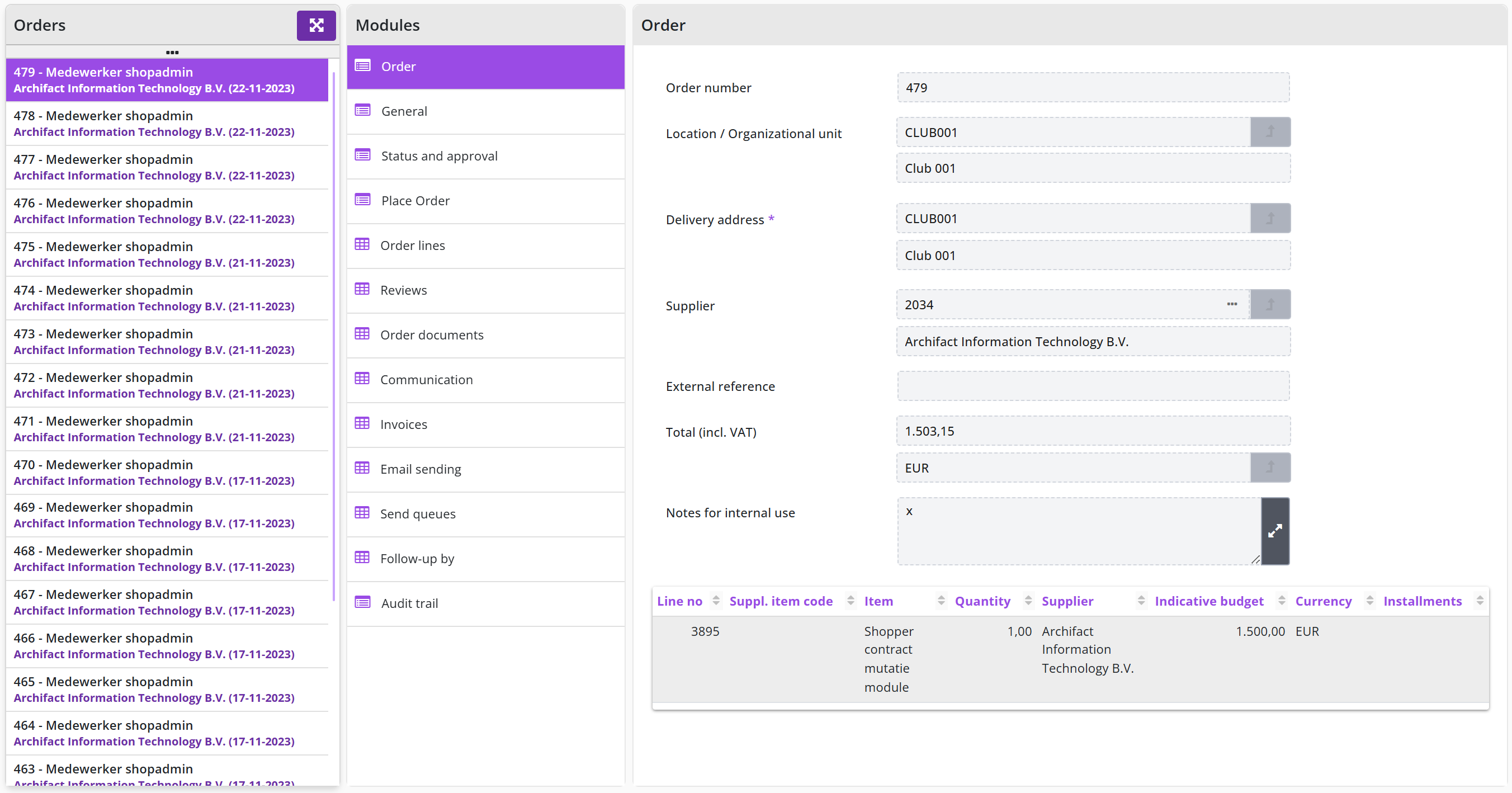
An employee with the role Controller or Executer can access the menu-item Reports under the menu Finances and select the reports for Overview contract to be paid and Overview contract invoices payable regarding orders or contract offtake with outstanding payments. These reports are grouped by order, creditor, costing unit, costing center and cost type. In case you need to do a write off on the outstanding payments, see the section on Deviating invoices and general journal entries.
Approving direct orders
When a request for requisition has been processed as a direct order, invoice processing – in relation to the executed order for this order – is only possible if, in addition to the receipt registration, the necessary approval has also been issued. This processing is like the regular process, but for a direct order this is done via the Other ToDos.
In the ToDo process flow for a direct order, the process of the requisition, ordering and receipt is completed, unimpeded by any process steps for Action by authorized signatory and Orders to approve. These two ToDos are handled separately from the ToDo process flow via the other ToDos for the Direct order.
The ToDo Direct order (action authorized signatory) or Direct order (to be approved) are displayed in the list of the Other ToDos in the Direct order section. If you choose this, you will see a list of relevant pending approval actions for direct orders:
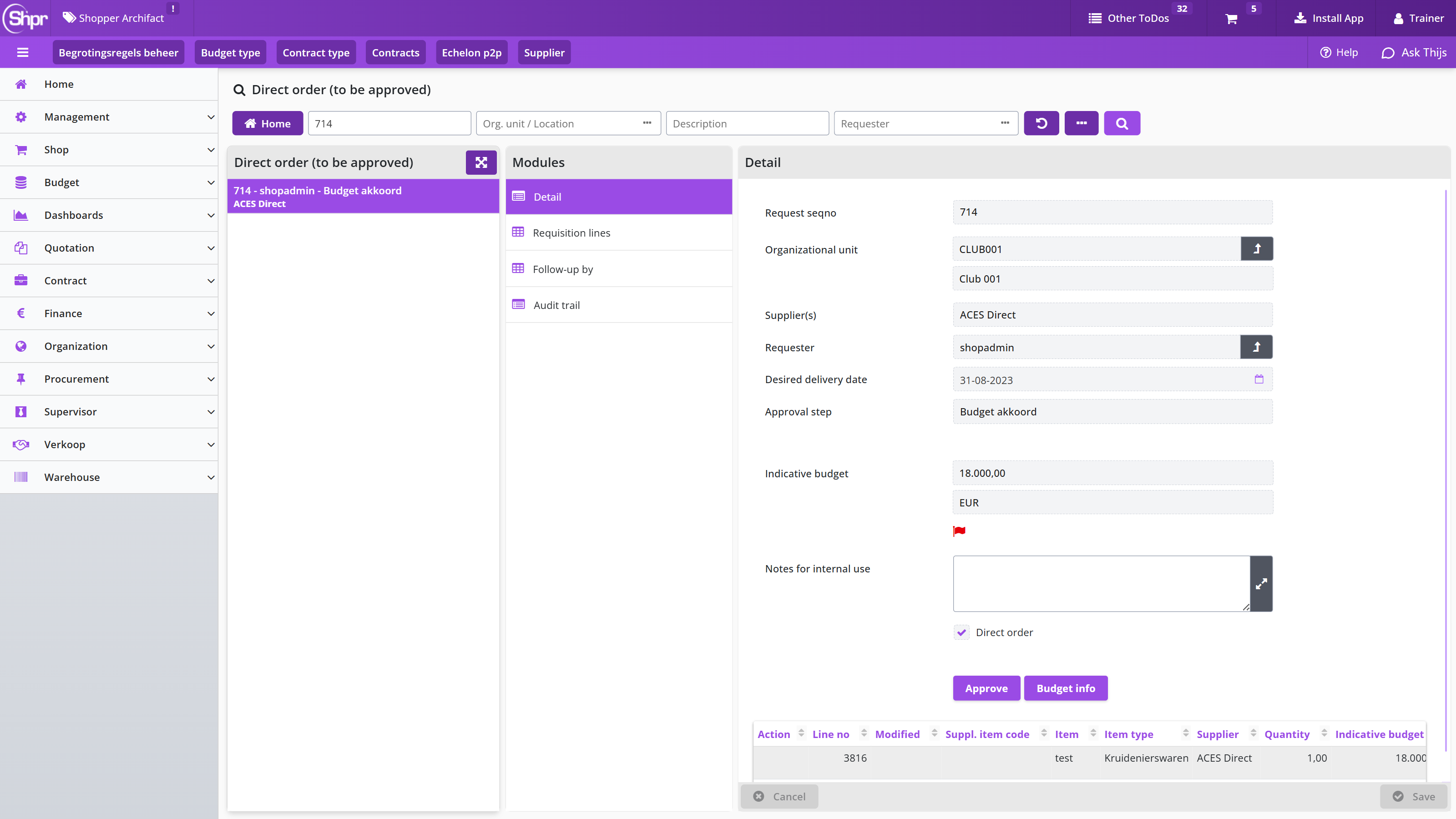
When handling these ToDos, you can only choose . After all, it makes no sense to reject this requisition, as this requisition was ordered directly, and the item may already have been received and processed in production. If it is established that the employee who submitted the direct order request has acted incorrectly here, you need to deal with this internally by addressing this employee or - if it is decided to do so - to remove the authorization for direct orders from this employee.
The layout and operation of these screens also correspond to the operation of the screens in the process flow ToDo steps for Approve.
Note: Sometimes you can still intervene manually if the order has not yet been fully processed. You may still be able to cancel the order (if the order has not yet been sent to the supplier) or return the received goods, reverse the related receipt and then cancel the order line. In that case, do not approve the direct order with the other ToDo. If you can still intervene, the ToDo will disappear from the other ToDos automatically as soon as the order or the order line is canceled.
Audittrail P2P
Shopper keeps an audit trail on all requisitions and orders: which process flow and workflow step was performed when, by whom and with what authority. Audit trail requisitions and orders describes the Audit trail data module, the report P2P audit trail overview and shows the audit trail of a requisition; Audit trail order describes the audit trail of an order with the button and the delivery of the report to ImageCapture; Audit trail requisition-/order line describes the audit trail per requisition-/order line with the buttons and Print audit trail.
Audit trail requisitions and orders
An audit trail is kept on all requisitions and orders in Shopper. The audit trail can be accessed via the Audit trail data module, that is present for requisition, requisition lines, orders, and order lines.
All performed process flow and related workflow steps are recorded in the audit trail and listed under the registration of when, who and with what authority the were performed. In case of a rejection the related note is also included.
Note: Only steps that were applicable to the workflow of the requestion are present in the audit trail, where this depends on the setup of the workflow and the workflow steps.
An employee with the role Controller or Executer can access the report P2P audit trail overview using the menu-item Reports under the menu Finance.
Example of the audit trail of a requisition (Audit trail data module of the requisition); the audit trail of an order and of a requisition-/order line are described under Audit trail order and Audit trail requisition-/order line:
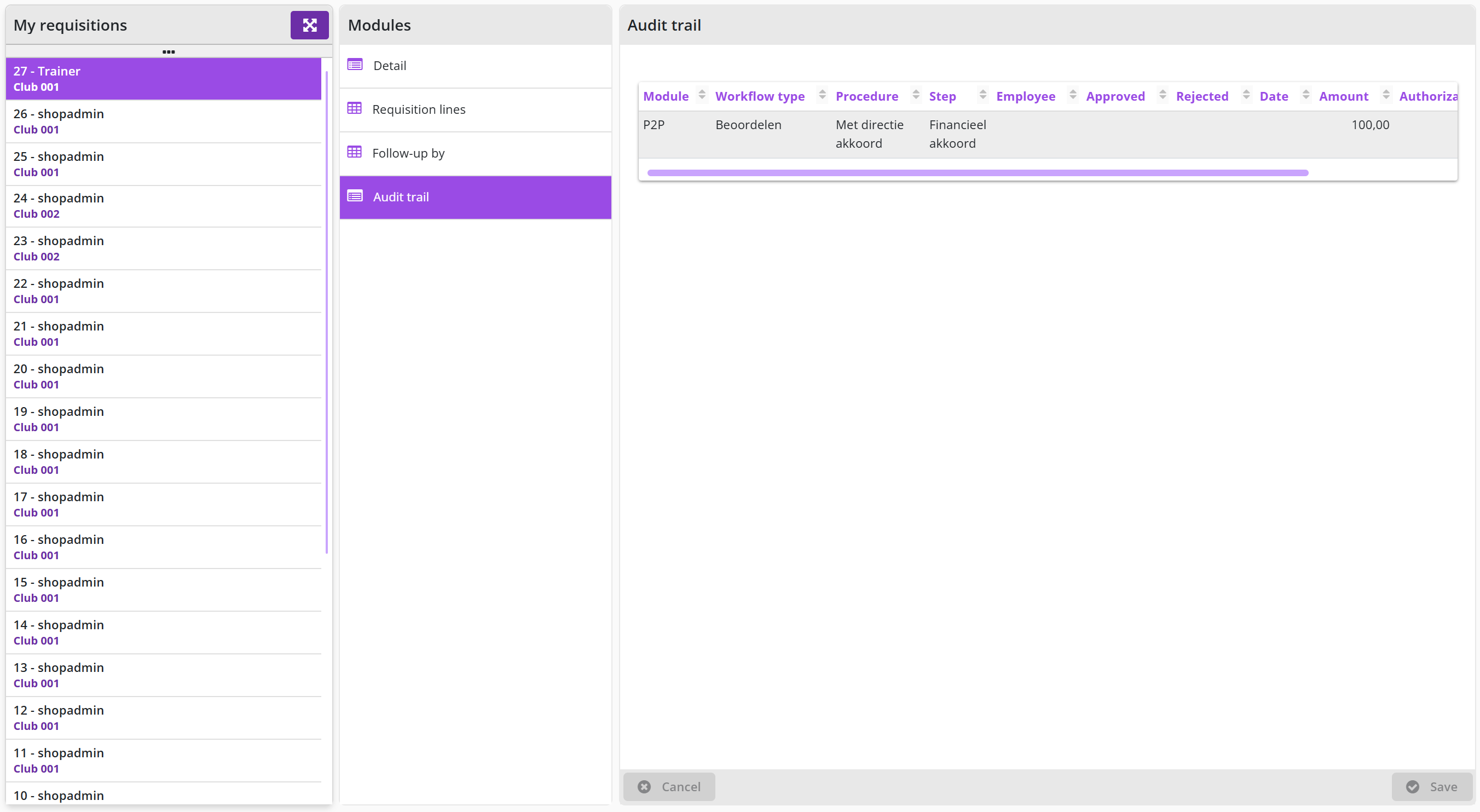
Audit trail order
The audit trail of an order is found in the Audit trail data module of the order, listing all performed process flow and workflow steps with when, by whom and with what authority they were performed:
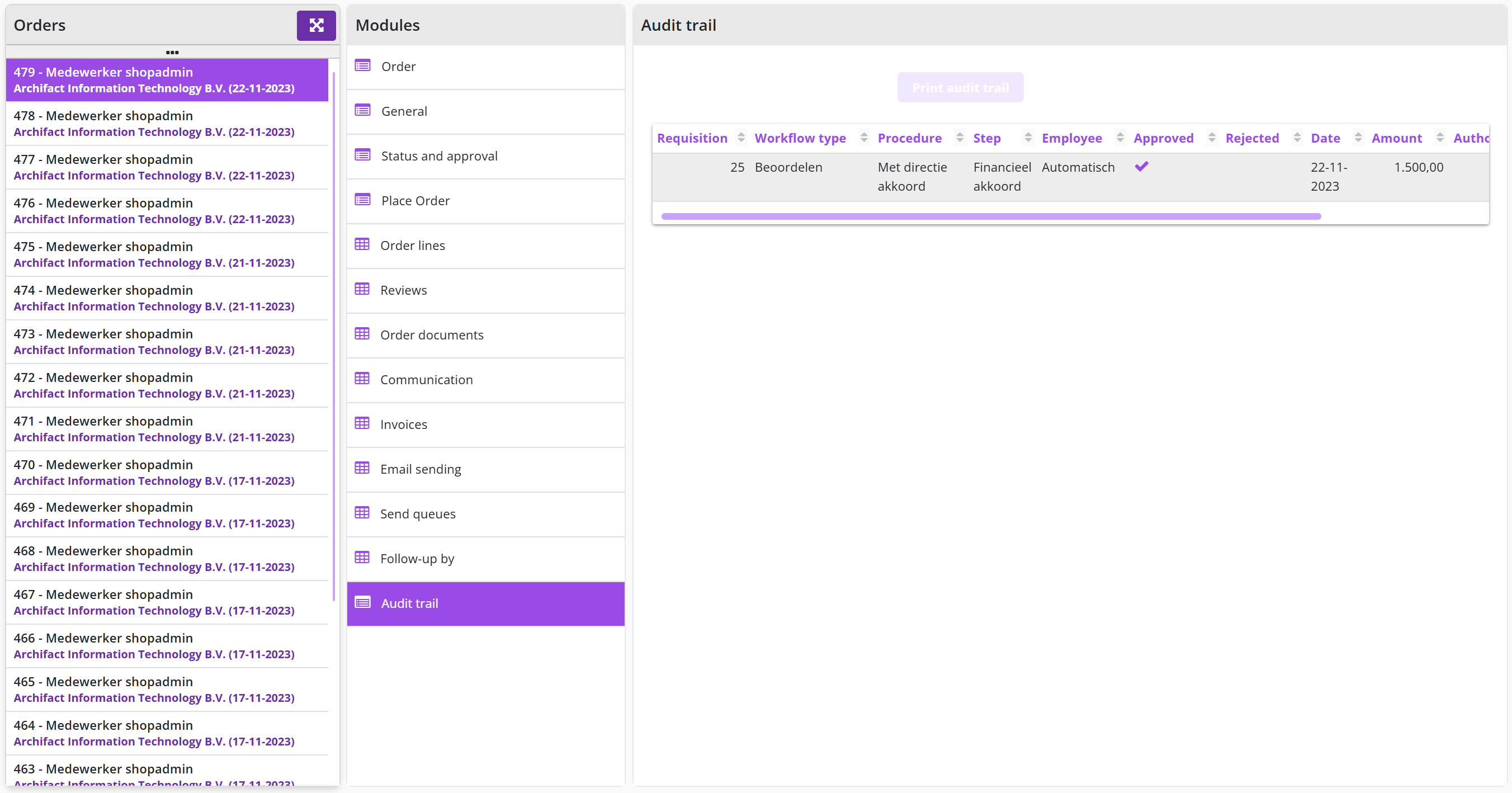
The button is available in the Audit trail data module for employees of the finance department with role Controller and for the employees of the procurement / purchasing department with role Orchestrator.
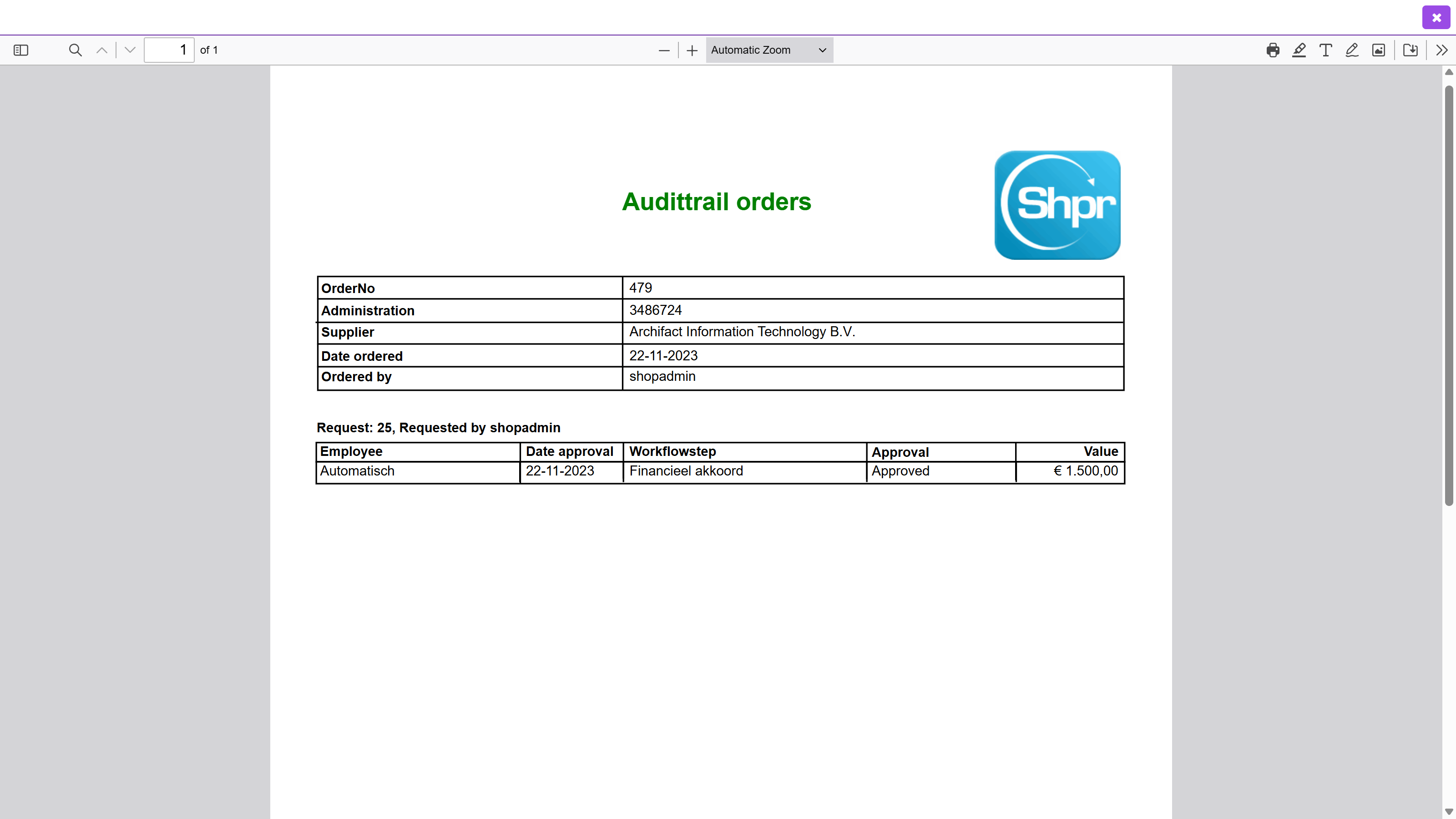
Note: The report that results from printing the audit trail for an order, is also provided in PDF format to the ImageCapture application, allowing this application to forward it as part of an integral audit trail to Exact.
The printed report itself keeps its own fixed layout and the older Shpr logo mark; only the screen around it (the PDF viewer opened from Shopper) is in the current purple styling.
Audit trail requisition-/order line
This audit trail can be access via the Audit trail data module for the requisition-/order lines of a requisition or order. The audit trail for the requisition lines of the same requisition can be different in regard to the supplement actions that were performed per requisition line.
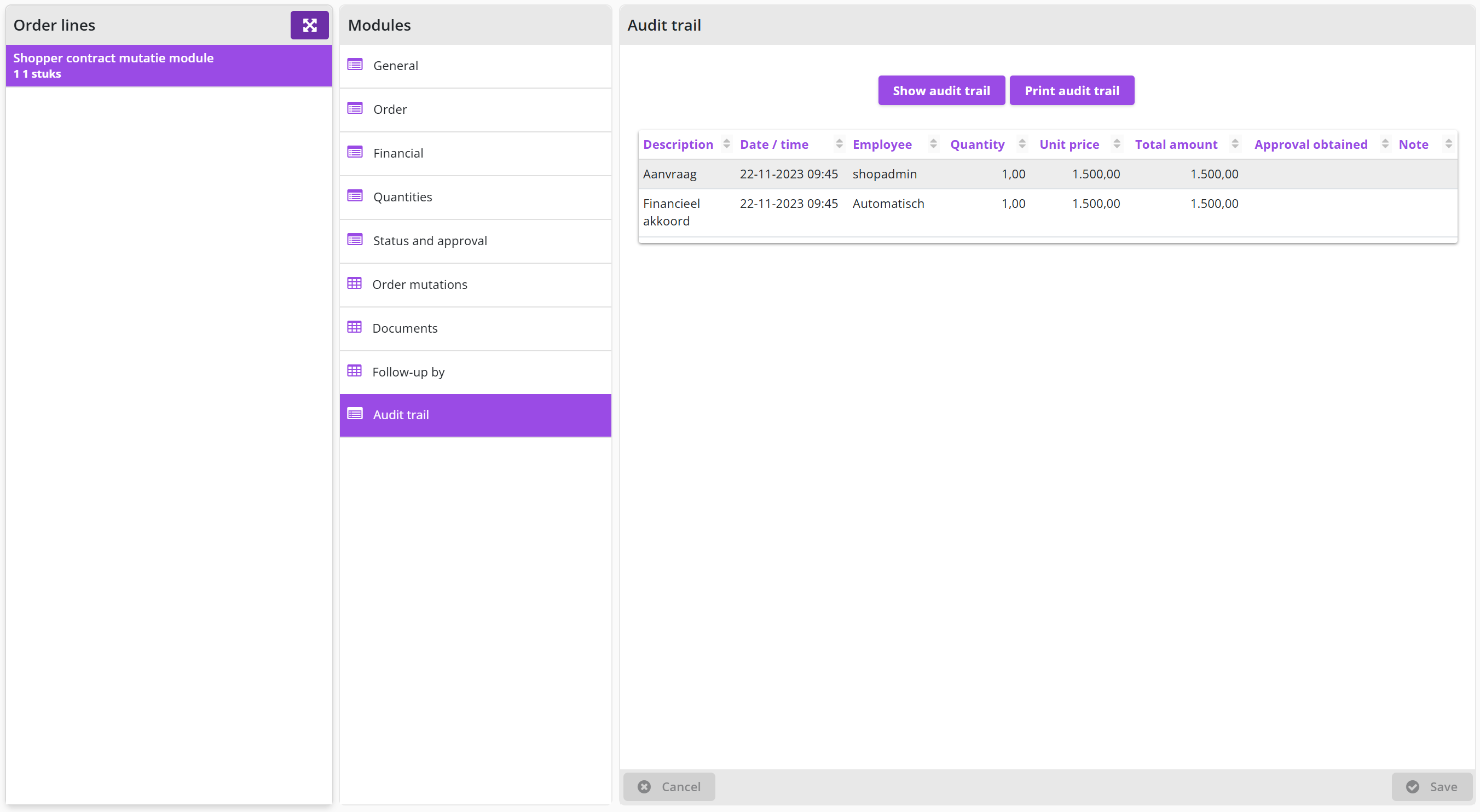
The buttons and Print audit trail are available in the Audit trail data module for employees of the finance department with the role Controller and employees from procurement (the purchasing department) with the role Orchestrator.
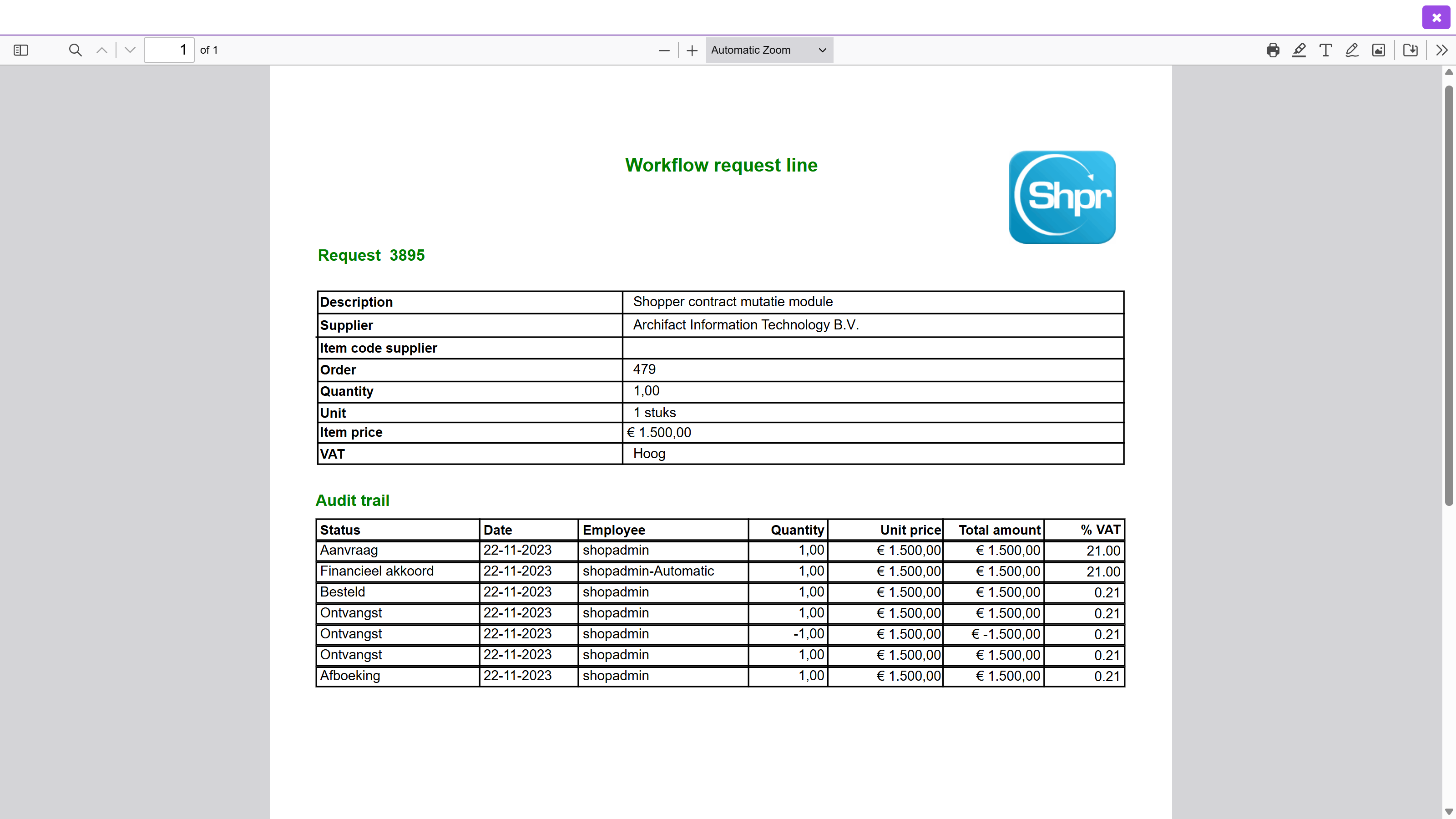
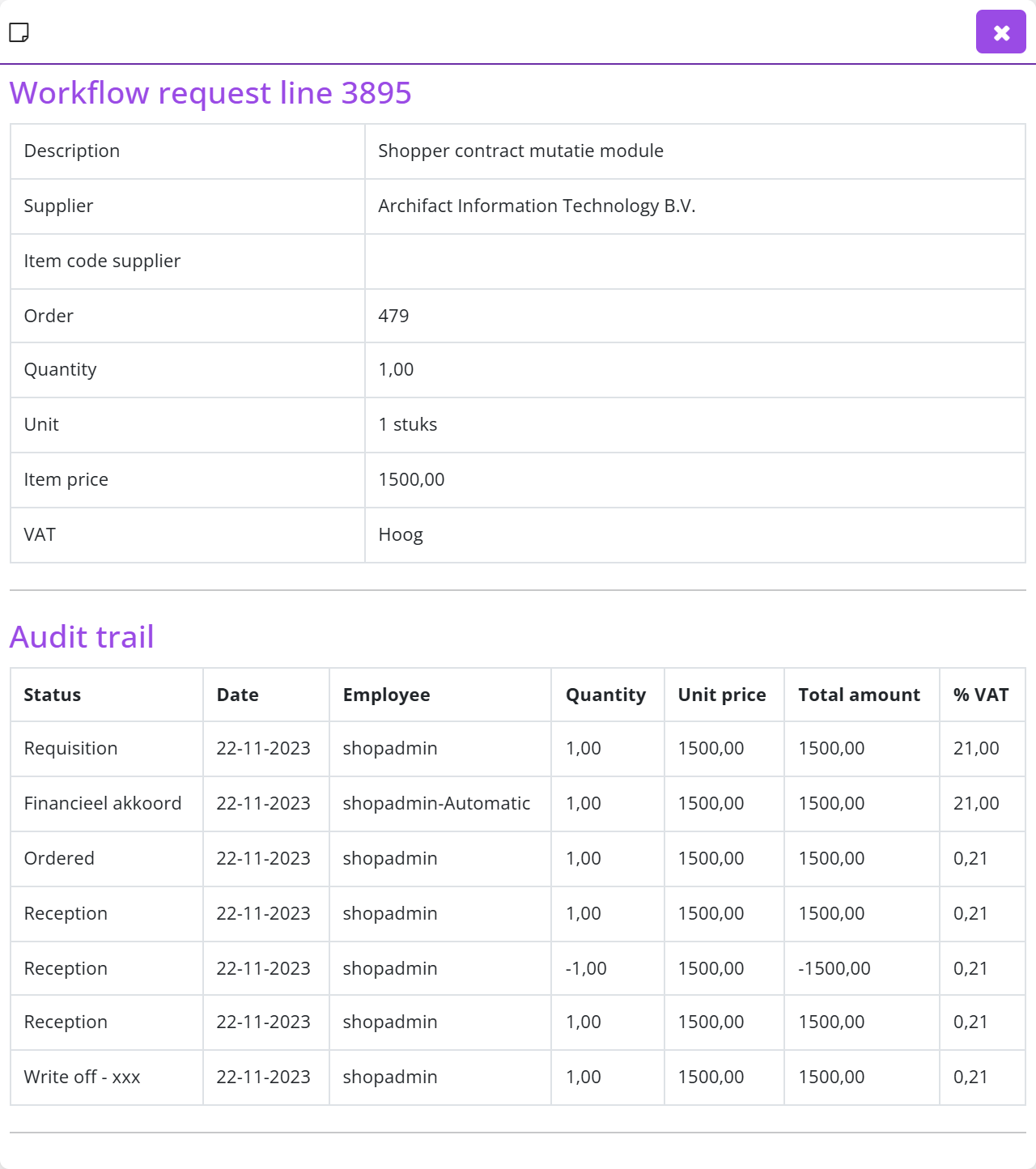
If Shopper is used in combination with ScanSys ImageCapture, the workflow and related data from ImageCapture will also be shown in its entirety in this overview, when applicable.
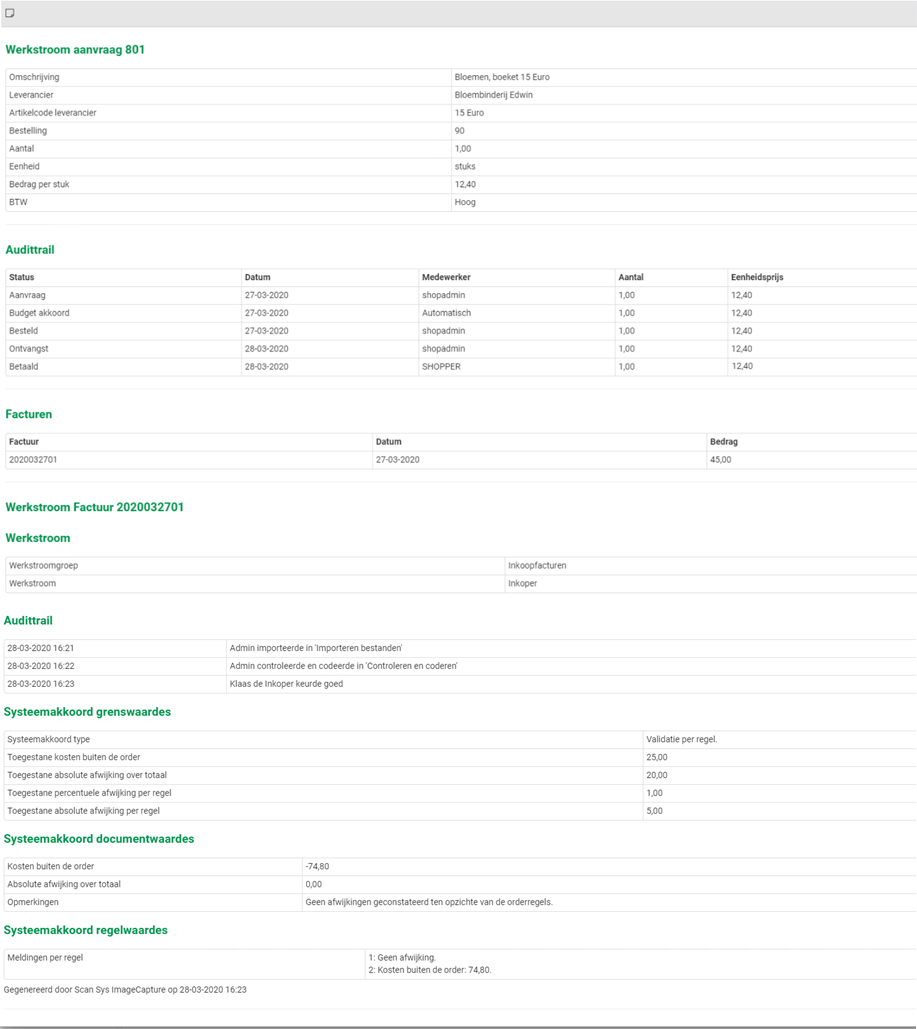
Tenders
This chapter describes how you run a tender (quotation process) in Shopper: from starting the tender and inviting suppliers to reviewing and processing the quotations you receive. See Offers dashboard for an overview of the quotations dashboard tab and the role/licence requirements for the quotation module.
The sections "Workflow Quotation" and "Workflow Quotations monitor" describe the process flow on the dashboard that shows the outstanding ToDos of your own tenders and those of other employees. "Tender screen" describes the screen with the list of tenders and its data modules, and "List of quotations (Detail data module)" the list of quotations under the details of a tender. "Adding tender", "Tender planning" and "Adding suppliers / quotations" cover creating a tender, its planning and adding the suppliers. "Send the invitation for a quotation process to suppliers" describes the request e-mail and its attachments, "Receipt of and coordination of quotation with supplier" recording the received quotation and the communication, "Reviewing supplier quotation" accepting or rejecting it and "Digitally sign quotation document" the Signings data module. Processing is covered in "Processing a rejected quotation", "Processing an accepted quotation: creating an order line" and "Processing an accepted quotation: creating a contract and completing".
Workflow Quotation
The Quotations workflow shows the steps within the quotation process with an indication of the outstanding ToDos within the quotation process.
For a general explanation of the operation of the workflow quotations, see the comparable operation of the process flow ToDo under Dashboard Home.

The quotations workflow is conducted as follows: After starting a new quotation process, an invitation to participate in this process needs to be created and then sent to the selected suppliers. Subsequently, the quotations are received and the related communication moments per supplier are recorded and then assessed. When a quotation is accepted, the processing of the quotation can be initiated, which can then be followed up with contracts or orders.
Note: The workflow will only show the quotations for organizational units that have been assigned to the employee, and then only for those steps that can be performed by the employee based on the role assignments of the assigned quotation echelon.
Workflow Quotations monitor
As a team leader or manager, you can also follow the process of quotation processes started by other employees (who work within the same organizational units). In this way you can monitor the progress of the processes in which these employees participate.
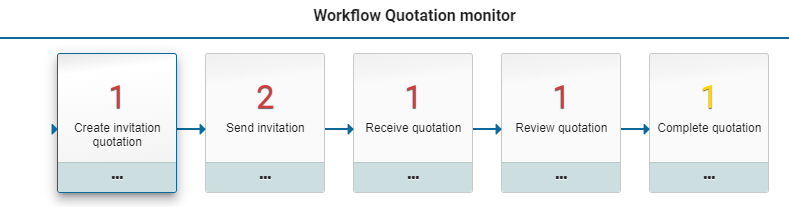
Tender screen
Shopper can guide you in processing tenders with the quotations for, and record communication with the suppliers involved. When processing a quotation for a tender, you can register a contract with this supplier in Shopper or create a requisition with this supplier.
The creation and management of tenders is accessible via the menu Quotation with the menu item Tender and the tender screen with a layout in accordance with the standard as described for the General screen layout Use of the other screens.
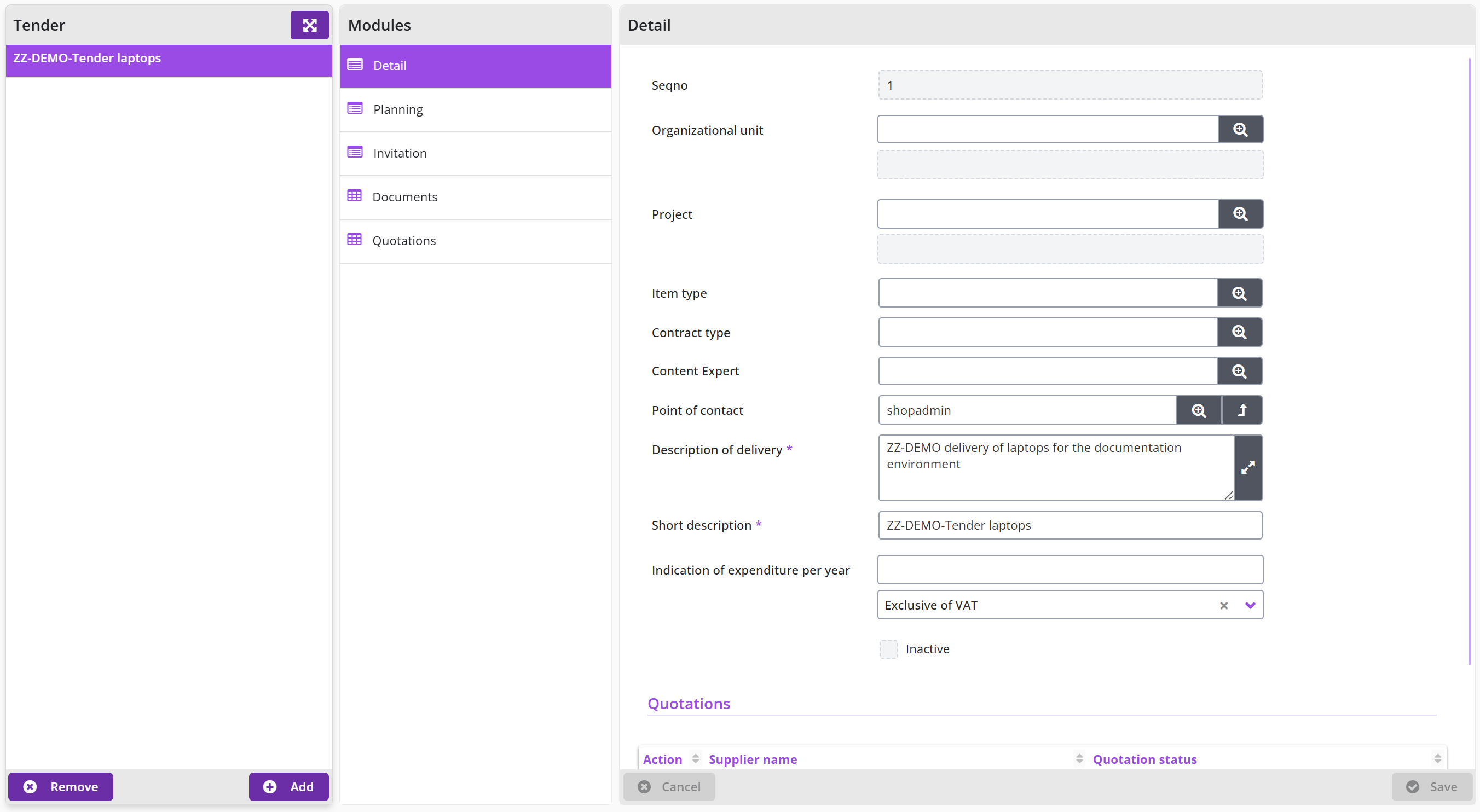
Below the list of tenders (on the left), you can create a new quotation trajectory with the button or remove the selected quotation trajectory with the button.
Note: A tender can only be deleted if quotations are not/no longer linked to it.
The Tender process is processed by entering data and performing the actions for the data modules Detail, Planning, Invitation, Documents and Quotations.
List of quotations (Detail data module)
In the Detail data module of a tender, the quotations of suppliers are listed at the bottom, along with the quotation status. If this screen is opened via the process diagram of the dashboard quotations, the action column will have a red boxed exclamation mark to indicate which quotation requires an action.

After selecting a quotation from this list, the overview of quotations is displayed with this quotation selected. This is the same list that is shown when you have selected a quote via the Quotations data module during a quotation process.
Adding tender
If you have selected the process step Define a new quotation in the quotations dashboard or if you have pressed the button at the bottom of the list of tenders, a new tender will be created for which you can enter the data in the Detail data module. The required fields are marked with an *. The Short description field is used to display the tender in the list of tenders.
Note: Only employees with the role quotation-requestor can create and maintain new tenders.
Under point of contact you need to select an employee who will be the point of contact for the invited suppliers for handling within the quotation process. The employee at Specialist point of contact can be another employee who can be approached by the supplier for specialist questions.
Note: All employees can be assigned as a point of contact, regardless of their access to the quotation module (i.e. that have been assigned to a quotation echelon) of if they have access to the related administration. Upon selecting the employee the column Quotation indicates if the employee actually has access to the quotation module.
The fields Organizational unit, Project, Item type, Contract type are optional and can also be filled in later in the quotation process (when they are needed). When the mandatory fields are filled in, you can save the quotation process.
Note: Only organizational units, projects and item types that have been assigned to the employee via the quotation echelon, can be selected.
Tender planning
After adding and saving a tender, you can indicate in the Planning data module how many suppliers you want to invite to participate, and which timelines (dates) will be followed. This data is generated and entered by default. You can then change these if you wish to follow other timelines.
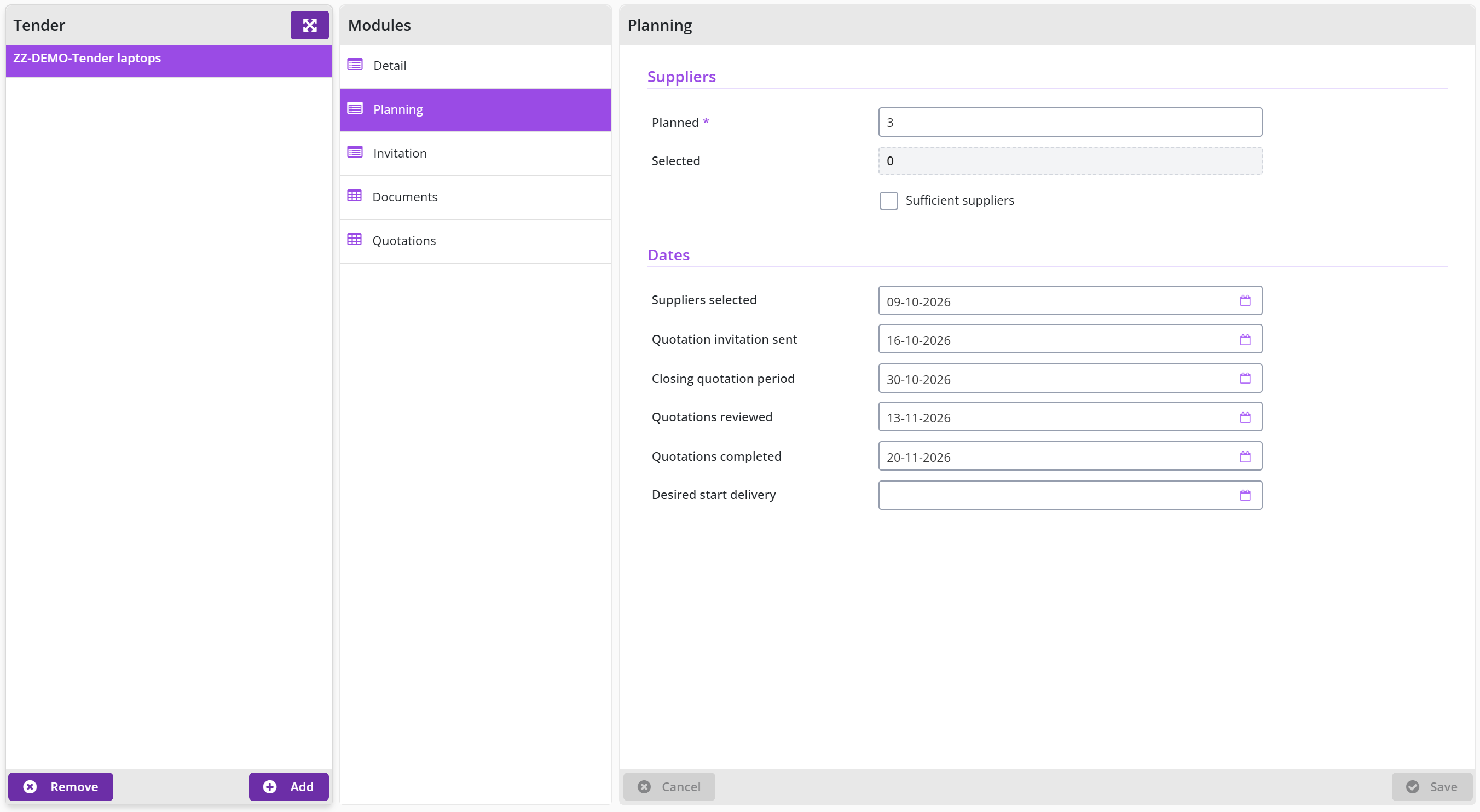
The Selected field shows the number of suppliers that you have added via the Quotations data module. If you have enough suppliers in view – even before the number of planned suppliers has been reached – to be able to make your choice, you can indicate this with the corresponding checkbox.
Adding suppliers / quotations
You can add the suppliers you want to invite to the Quotations data module with the button. A quotation is added to the quotation process for each supplier.
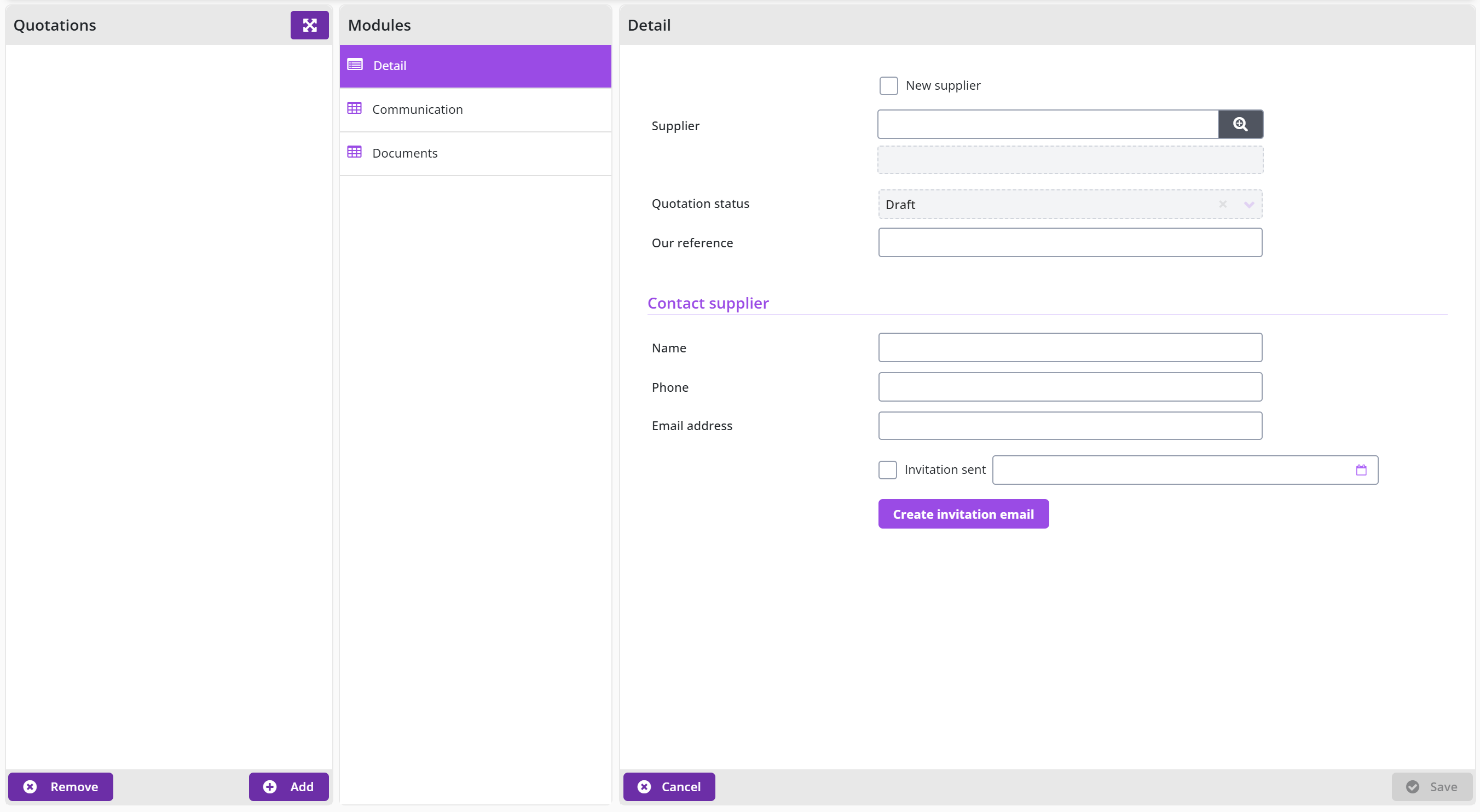
In the Detail data module of the quotation, you can enter the details of this supplier, including the supplier’s contact person who is applicable for this quotation process. If the Supplier is already known in Shopper, you can choose it from a list of suppliers. If the supplier does not yet exist, you can check New supplier checkbox and enter the Supplier name.
Note: You then need to create the creditor and supplier definitions (or have these created) before the quotation can be processed for a new supplier.
Only employees with the role quotation-requestor can add, modify, delete, send, receive and coordinate tenders (but not review and process/handle them).
Send the invitation for a quotation process to suppliers
In preparation for sending the invitations to the suppliers, you can specify the subject and content (body text) of the request e-mail in the Invitation data module of the quotation process. This concerns the texts for the email that is sent to all invited suppliers.
If you also want to send an attachment to this standard e-mail, you can add it via the Documents data module. Via the button you can add an attachment as a document to this data module, where you then mark the Attachment request e-mail checkbox.

The request e-mail can then be created per supplier (possibly customized) in the data module Quotations for those suppliers that have been added and whose contact details have been entered. There you can create the e-mail per supplier with the button . The created e-mail is then available in the Communication data module of the quotation, where you can view it, but not edit it.
When all data and attachment(s) have been entered, you can send the e-mail in the Communication data module and then by clicking the Outgoing mail on the Send Email in the Detail data module. After sending, Finished checkbox is checked and the shipment date is displayed in the On field. If you have sent the e-mail yourself (outside of Shopper), you can check Finished yourself and optionally enter the date in the On field.
If you add a supplier afterwards, you can create and send the request e-mail for this supplier in the same way, so that request e-mails have already been sent before.
Note: If the e-mail has not been received by the supplier or if the e-mail needs to be re-sent for other reasons, you can uncheck the Finished box. After saving, the button will become active again, so that you can resend the mail.
Receipt of and coordination of quotation with supplier
When the supplier has responded to the invitation/request e-mail, you can enter the received data in Shopper. To do this, select the relevant supplier from the list of quotations in the Detail data module of the quotation process (at the bottom of the details of a quotation process) and fill out the Reception section of this quotation. After saving, you can also enter a Resume and a Quotation amount.
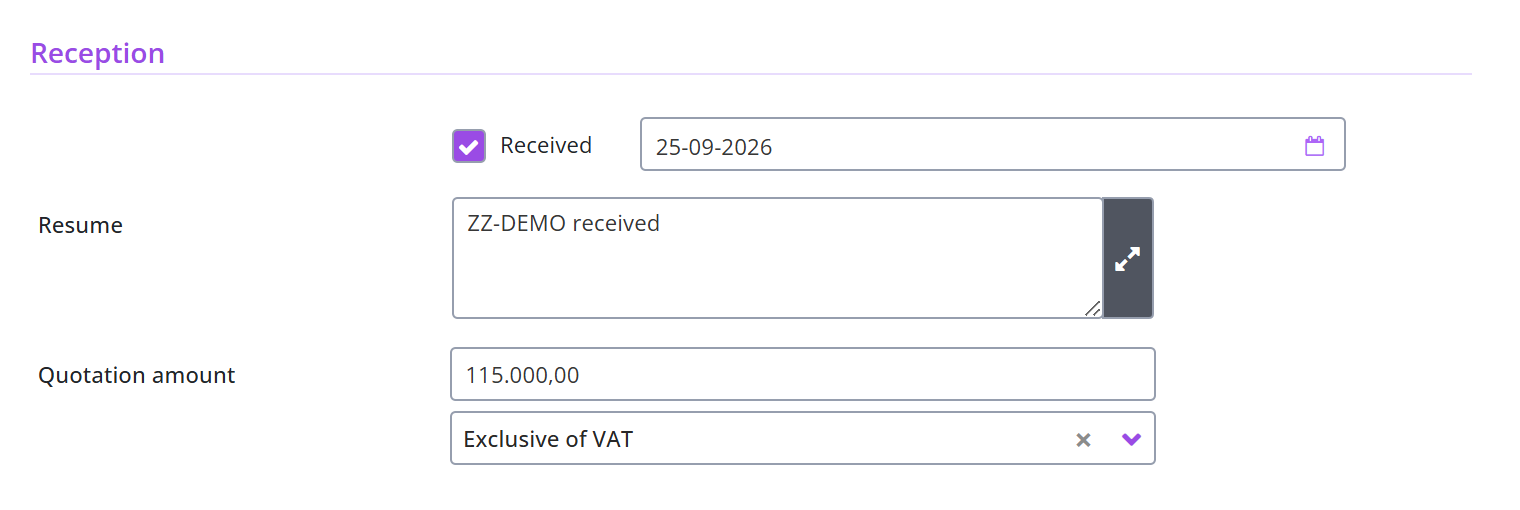
You can add the received email with the quotation from the supplier to the data module Communication as a communication type E-mail, where you can add quotation document as an attachment via the New document data module.
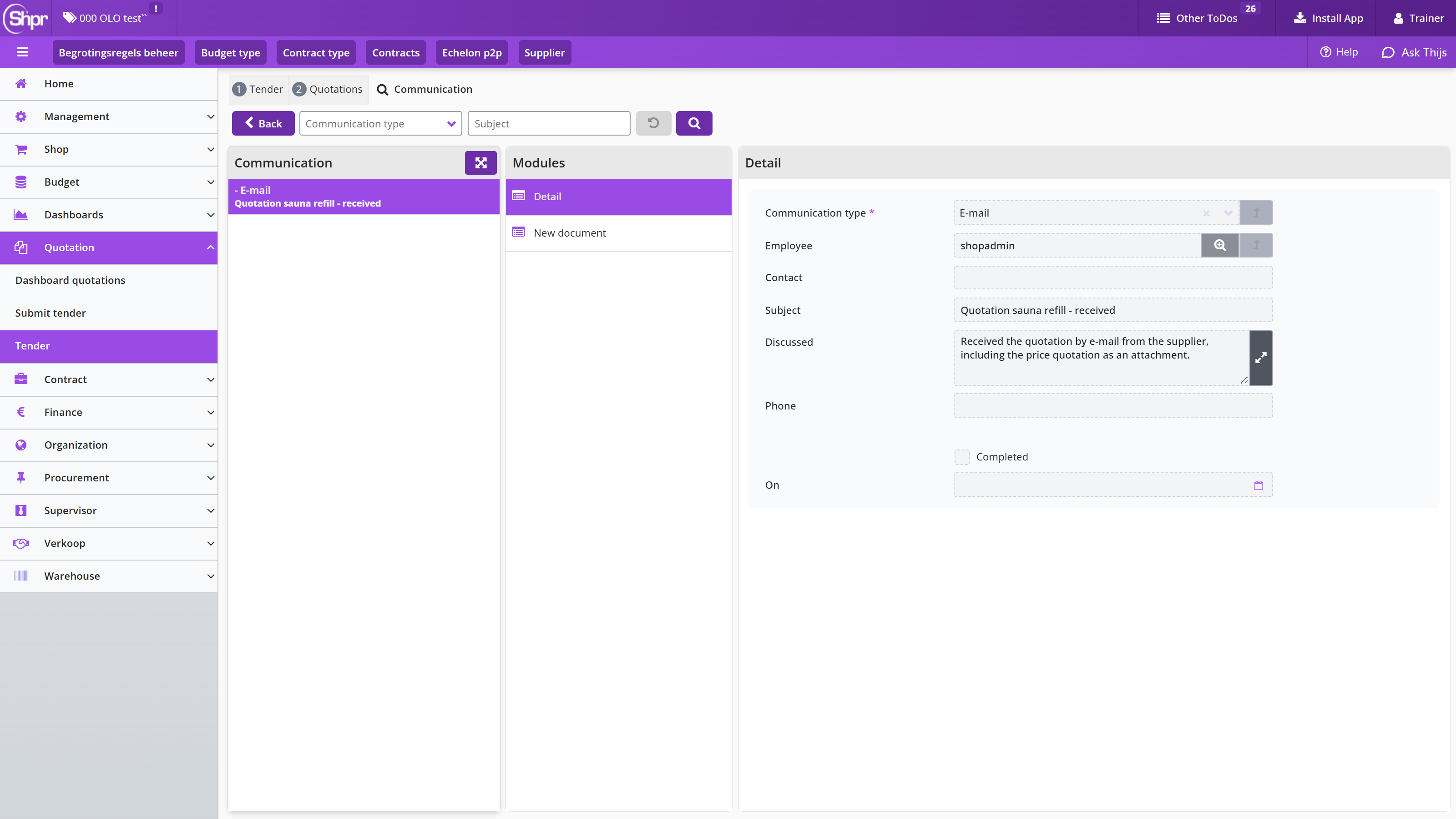
You can also add other communication moments with the supplier – regarding the tender – to the Communication data module, including telephone coordination or otherwise (other).
You can also send an e-mail to the supplier there by adding an Outgoing e-mail to the Communication data module. You can also send an attachment via the New document data module and after you have entered it via the button, add it as an attachment.
You can send the email by pressing the “Send Email button in the Detail data module. After sending, Finished checkbox is checked and the shipment date is displayed in the On field.
Reviewing supplier quotation
Next the received quotation will need to be reviewed. To do this select the supplier from the list of quotations (at the bottom of the data module Detail of a tender) and for this quotation under data module Detail in the section Handling you indicate the choice for Accepted or Rejected.
Note: Only employees with the role quotation-approver can review quotations.

Digitally sign quotation document
When applicable the quotation (and or related PDF-documents) can be digitally signed via Shopper.
Note: This requires the integration with a digitally signing system to be installed.
In that case, the data module Signings is available for the quotation. Using this data module you can setup and execute the handling for the digital signing. To this extend please read Sign documents digitally.
Note: If no PDF-documents were added to a quotation, the data module Signings will not be available for this quotation.
Processing a rejected quotation
If a quotation has been rejected, you will have to inform the supplier. You register the related correspondence, with or without a document, using the data module Communication. Once you informed the supplier you can mark the checkbox Rejection communicated.
Replies from the supplier on the rejection can also be recorded for the quotation. Once everything has been recorded you can mark the checkbox Completed. Consequently the sections for order-line and contract are no longer visible.
Note: Only employees with the role quotation-purchaser can process quotations.
Processing an accepted quotation: creating an order line
When you have accepted the quotation, the sections Contract and Order line also become available. After saving, the known data will already be filled in, insofar as you have already entered this in the Details data module of the tender. Such as Contract type, Organizational unit, Project and Item type.
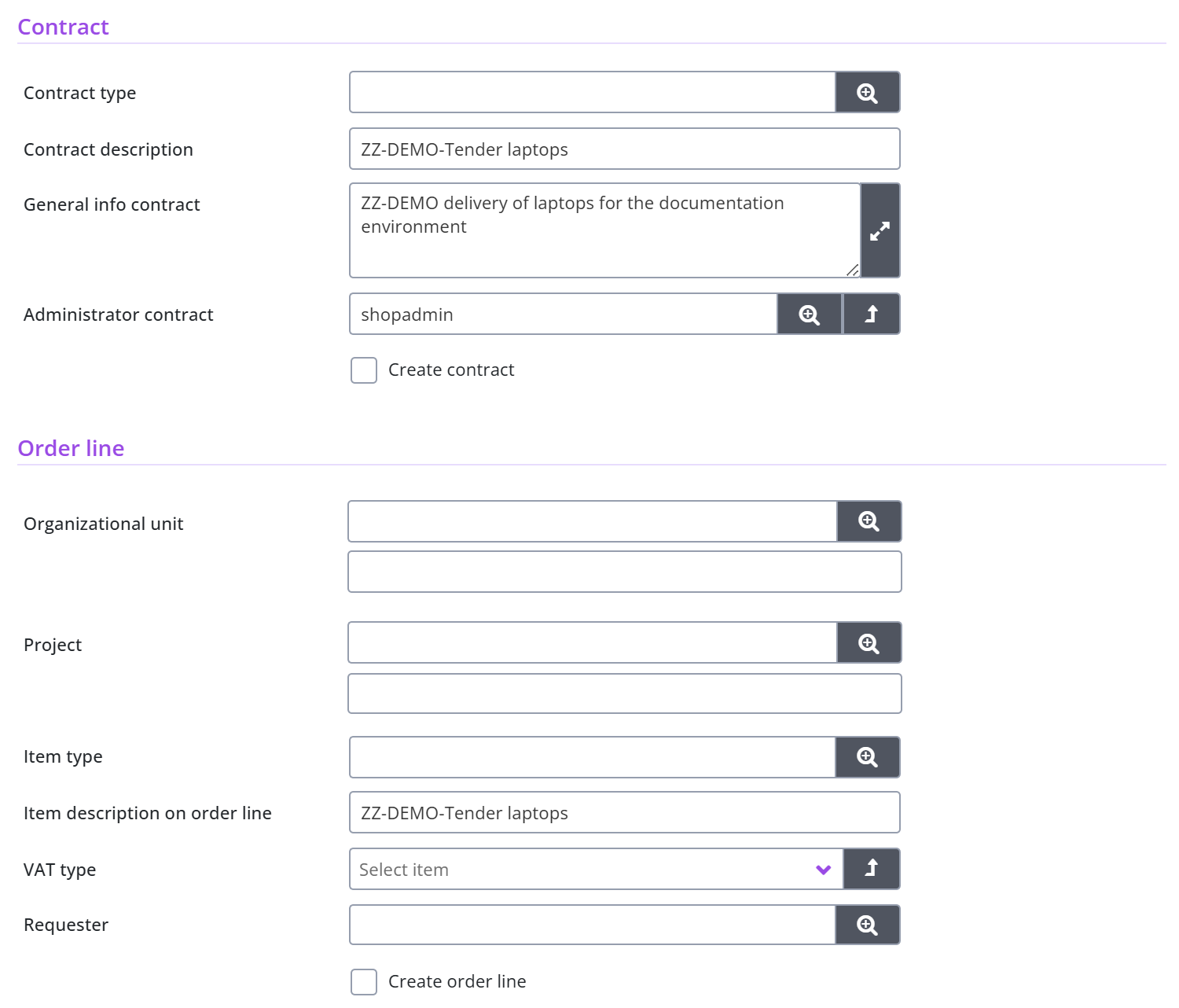
You determine the choice about how the quotation should be handled by checking the relevant box: Create contract checkbox or Create order line checkbox. To create a contract, it is required that the data in the Contract section is filled in. To create an order line, the Order line section must be filled in.
In case of an order line, you can specify or change the organization unit and optionally the project, as well as the item-time. If these were specified in the data module Detail of the Tender, they will be prefilled, however they can still be changed. Additionally, an item description of the order line, the VAT-type and a requester need to be provided.
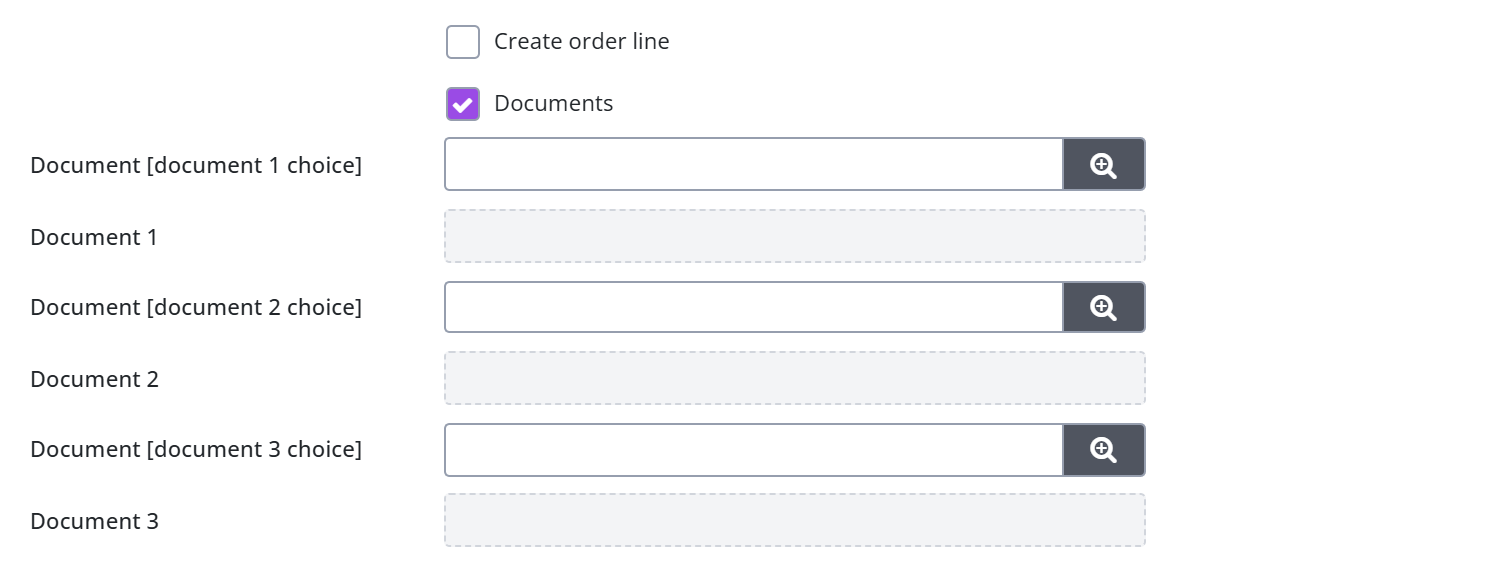
You can also include documents for this order line, based on the documents of the quotation. To add documents mark the checkbox Documents and save it. Next you can connect up to 3 documents.
After saving a quote for which the checkbox Create order line checkbox is selected, an order line is added in Shopper for the employee who is entered under Requester. This employee will find this request line in the shopping cart that becomes visible in the ToDo process flow. After Apply definitive for this shopping cart, you need first go through the required approval (if applicable) before finally placing the order. See Request for further explanation.
Note: Don’t mark the checkbox Create order line until everything has been filled in and the documents have been specified.
Processing an accepted quotation: creating a contract and completing
For an accepted quotation you can have Shopper register a contract through the Contract section of the quotation by selecting the Create contract checkbox. Once the contract or the order line has been created, you complete the processing of the quotation with the Completed checkbox.
In case of a contract, you can specify or change the contract-type. If these was specified in the data module Detail of the Tender, it will be prefilled, however it can still be changed. Additionally a description and general info for the contract need to be provided.
After saving a quote with the Create contract checkbox selected, a contract is registered in Shopper. You can then find this contract via the Contract menu and the menu item Contracts. See also Adding a new contract.

Once you have fully completed the processing of the order-line or contract, mark the checkbox Completed. Afterwards the sections Order-line and Contract can no longer be changed.
Note: You can choose for multiple suppliers/quotes and have the processing run differently for each supplier.
Once a quotation has been completed and the requisition or a contract has been created for it, the entry fields of the quotation in relation to this requisition or contract can no longer be changed. The corresponding checkbox for “creating a requisition or a contract are then also disabled. Also the fields for a requisition or a contract will not be shown once the checkbox Completed had been marked manually (i.e. no requisition of contract was created for it).
Contract
This chapter gives an overview of the contract chapters of this manual, in the order in which you work through them: creating and activating a contract, offtake and invoices, documents, communication and signing, monitoring, renewing and ending, setup, and reports and audit trail.
Would you rather see how this is done on screen first? Watch the Contract module video walkthrough.
Creating and activating a contract
This part describes how you manually create (register) a new contract in Shopper and take it through to an activated contract. "Adding a new contract" covers the "General / Periods" form with its required fields and the "Term" block, "Financial and contact details" the "Financial", internal contact and "Contracting party" blocks, and "Recording agreements and order dates" the agreements and order dates of a contract. "Other contract modules" describes the modules Indexation, Reviews supplier, Documents, Communication, Employees and Audit trail, and the overview modules.
Then follow the steps "Submitting a contract for review", "Reviewing a contract: approve or reject" and "Activating a contract", which take a contract from the status Draft through To approve and To be activated to Activated.
This part describes what happens to the offtake (deliveries, instalments or periodic charges) of a contract after a contract period has been activated, and to the related supplier invoices (purchase invoices). Approve offtake screen explains how you assess and approve an offtake, Approve contract offtake workflow which employees (quality, procurement and budget holder) are involved, and Location offtakes per order date where you find the offtake per location for an order date.
Invoices to be received for a contract and Invoices to be paid for a contract describe the screens of the same name, where you reconcile invoices with the contract offtake and write off what will not be invoiced. Create order dates and proforma order explains how Shopper creates the order dates and proforma orders of a contract period, Creating journal entries how journal entries are formed on activation, and Cancel payment how you cancel outstanding payments at the end of a term.
Contract documents, communication and signing
For a contract you can build up a complete contract archive in Shopper: documents, the communication with the supplier, reviews and the digital signing are filed with the contract by an employee who holds the contract role of administrator, advisor or owner through the contract echelon. Adding contract documents describes how you add a document as an attachment or as a reference to a network location (UNC path); Validity and archiving of documents how you track a document's validity date and renewal and mark the file as complete or archived.
Supplier evaluations and communication covers the periodic evaluation with the supplier and recording communication moments in the "Communication" data module; Supplier reviews on a contract covers viewing and adding reviews of the supplier. Digitally sign contract document describes when the "Signings" data module is available for the contract.
Monitoring, renewing and ending a contract
This part describes how you monitor a running contract and what to do when a contract period comes to an end. "Contract signaling on the dashboard" explains which tiles the dashboard shows and which dates on the contract period drive those alerts. "Other ToDos for contracts" covers the alerts you follow up from the Other ToDos list, with "Contract documents incomplete" and "Renew contract document" as worked examples.
The decisions themselves follow: "Renew a contract" (manually or automatically), "Amend a contract mid-period" for a change to an active period, "Cancel a contract" to end a contract before its end date, "Cancel within the trial period" and "End a contract at its end date".
This part describes the setup of the contract module: the principles and the settings that determine how contracts are requested, reviewed and managed. "Contract echelons and contract workflows" explains what these two building blocks are and what you can and cannot set up yourself. "Contract workflow" describes the review workflows that can be chosen per contract type. "Contract authorization and access rights" describes how employees get access to contracts and which roles they hold via the contract echelon.
"Contract type" describes the contract type screen and the fields of the "Detail" data module; "Contract types per administration" covers the other data modules and the contract types supplied with Shopper.
Contract reports and audit trail
This part describes how you gain insight into your contracts and into what has happened to a contract. "Contract reports" describes the reports in the "Contract" menu and the Excel export. "Current overview data module" shows, for a contract period with invoice matching, the initial and current value and the outstanding liabilities.
"Audit trail of contract and period" describes which actions are recorded in the audit trail and where you find them. "Offtake mutations of an arrangement" describes the data module with all mutations applied during the approval of contract offtake.
Contract: process, statuses and roles
This chapter gives the overview of the Shopper contract module before you start working on a contract. "The contract process at a glance" describes the stages a contract goes through, from registration to renewal, amendment or termination, and "Following your contracts on the dashboard" the process diagram Status my contracts and the contracts monitor on the Dashboard contracts screen.
Status model of a contract explains the approval status and the runtime status of a contract period, Roles on a contract which role (Requester, Approver, Purchaser, Regulator and the other roles) may perform which action, and Action buttons on a contract at which stage, role and status each button on the contract screen is available. Points of attention for contracts and Best practices for contracts close the chapter with the pitfalls and tips for registering, reviewing and monitoring contracts.
Would you rather see how this is done on screen first? Watch the Contract module video walkthrough.
This part describes how you manually create (register) a new contract in Shopper and take it through to an activated contract. Adding a new contract covers the General / Periods form with its required fields and the Term block, Financial and contact details the Financial, internal contact and Contracting party blocks, and Recording agreements and order dates the agreements and order dates of a contract. Other contract modules describes the modules Indexation, Reviews supplier, Documents, Communication, Employees and Audit trail, and the overview modules.
Then follow the steps Submitting a contract for review, Reviewing a contract: approve or reject and Activating a contract, which take a contract from the status Draft through To approve and To be activated to Activated.
This part describes what happens to the offtake (deliveries, instalments or periodic charges) of a contract after a contract period has been activated, and to the related supplier invoices (purchase invoices). Approve offtake screen explains how you assess and approve an offtake, Approve contract offtake workflow which employees (quality, procurement and budget holder) are involved, and Location offtakes per order date where you find the offtake per location for an order date.
Invoices to be received for a contract and Invoices to be paid for a contract describe the screens of the same name, where you reconcile invoices with the contract offtake and write off what will not be invoiced. Create order dates and proforma order explains how Shopper creates the order dates and proforma orders of a contract period, Creating journal entries how journal entries are formed on activation, and Cancel payment how you cancel outstanding payments at the end of a term.
For a contract you can build up a complete contract archive in Shopper: documents, the communication with the supplier, reviews and the digital signing are filed with the contract by an employee who holds the contract role of administrator, advisor or owner through the contract echelon. Adding contract documents describes how you add a document as an attachment or as a reference to a network location (UNC path); Validity and archiving of documents how you track a document's validity date and renewal and mark the file as complete or archived.
Supplier evaluations and communication covers the periodic evaluation with the supplier and recording communication moments in the Communication data module; Supplier reviews on a contract covers viewing and adding reviews of the supplier. Digitally sign contract document describes when the Signings data module is available for the contract.
This part describes how you monitor a running contract and what to do when a contract period comes to an end. Contract signaling on the dashboard explains which tiles the dashboard shows and which dates on the contract period drive those alerts. Other ToDos for contracts covers the alerts you follow up from the Other ToDos list, with Contract documents incomplete and Renew contract document as worked examples.
The decisions themselves follow: Renew a contract (manually or automatically), Amend a contract mid-period for a change to an active period, Cancel a contract to end a contract before its end date, Cancel within the trial period and End a contract at its end date.
This part describes the setup of the contract module: the principles and the settings that determine how contracts are requested, reviewed and managed. Contract echelons and contract workflows explains what these two building blocks are and what you can and cannot set up yourself. Contract workflow describes the review workflows that can be chosen per contract type. Contract authorization and access rights describes how employees get access to contracts and which roles they hold via the contract echelon.
Contract type describes the contract type screen and the fields of the Detail data module; Contract types per administration covers the other data modules and the contract types supplied with Shopper.
This part describes how you gain insight into your contracts and into what has happened to a contract. Contract reports describes the reports in the Contract menu and the Excel export. Current overview data module shows, for a contract period with invoice matching, the initial and current value and the outstanding liabilities.
Audit trail of contract and period describes which actions are recorded in the audit trail and where you find them. Offtake mutations of an arrangement describes the data module with all mutations applied during the approval of contract offtake.
The contract process at a glance
A Shopper contract goes through these stages: registration, submission for review, review (approve or reject), activation, running (offtake, invoices, indexation and the rest of day-to-day administration), monitoring, and finally renewal, an interim amendment, or termination. At any time while a contract is active you can start an interim amendment without waiting for a renewal.
Two loops matter. In the rejection loop, a rejected contract goes back to Draft with a remark, the requester corrects it and submits it again. In the renewal and amendment loop, a renewal or an interim amendment creates a new Draft contract period, and that period goes through review and activation again, exactly like a brand-new contract.
The dashboard Processflow Contracts shows the same stages as tiles with a live count per stage: New contract, "Request", "Approve", Activate, Approve offtake, "Invoices to be received" and "Invoices to be paid". The contract chapters of this manual walk through each of these stages in turn, then cover renewal, amendment and termination, then contract set-up and reporting.

Following your contracts on the dashboard
You follow the contracts you requested in the process diagram Status my contracts on the Dashboard contracts screen, opened from the Dashboards menu or the Contract menu. Click a step to open the matching screen. These screens only give insight: you cannot change or add anything there. The exception is Running, which behaves like the menu item Contracts but lists only contracts in progress. The numbers are counts of contract periods in that state, because a contract gets a new period for each renewal. Steps that belong to a licence module you have not purchased, such as Approve offtake, Invoices to be received and Invoices to be paid, are not shown.

A team leader or manager can also follow the contracts that other employees in the same organizational units requested, for example while they are absent, in the block Processflow Contracts Monitor. This monitor is only shown to employees who are contract owner in the contract echelon.
Note: on the Processflow Contracts Monitor block the role that grants this view is labelled Executive on screen. That is a different English translation of the Dutch role name Bestuurder from the one shown in the Employees module of a contract itself, where the same role is labelled Governor; see Roles on a contract. Both labels refer to the same underlying role.

A video walkthrough shows the contract module in use; see "Where can I watch a walkthrough of the contract module?" in the FAQ chapter.
Status model of a contract
A contract period has two independent statuses, and the screen shows them combined, for example Activated (Running).
The approval status shows where the period is in the registration and review process: Draft (Concept), To approve (Te beoordelen), To be activated (Te activeren) and Activated (Geactiveerd). The runtime status is based on the dates: Future (Toekomstig) when the period has not started yet, Running (Lopend) while it is in progress, and Ended (Beëindigd) once it is over. The contract as a whole shows a summary status in its header: Draft, Running or Ended.
While a period is a Draft, a detail label after the status tells you why it is a draft:
| Label on the screen | Meaning |
|---|---|
| Draft (Contract registration) | A new contract that is still being filled in. |
| Draft (Rejected contract registration) | The contract was rejected during review and must be changed. Read the rejection remark. |
| Draft (Renewal contract) | A follow-up period for a renewal exists but is not yet approved or activated. |
| Draft (Amendment contract) | An interim amendment of a contract period is in progress. |
| Draft (Amendment renewal) | An interim amendment of a renewal period is in progress. |
Roles on a contract
An action button is only visible to the person who holds the right role on that specific contract. The role is set per contract, in the Employees module of the contract, which lists every employee together with the roles that person holds on this contract and has a filter box to narrow a long list.
The Employees module shows eleven role columns. The table below gives the confirmed English and Dutch labels, read from that module on shopper-dev, together with what each role is confirmed to do elsewhere in this document:
| Role (Dutch) | Role (English) | Can do |
|---|---|---|
| Aanvrager | Requester | Submits a contract for review, withdraws a submitted review, starts an interim amendment, extends a period manually, and removes a follow-up period. |
| Beoordelaar | Approver | Approves or rejects a review step. A contract can need more than one review step. |
| Besteller | Purchaser | Activates an approved contract period. |
| Bewaker | Regulator | Acknowledges automatic renewals and automatic endings. |
| Controleur | Controller | Cancels payments on the open period. |
| Ontvanger | Receiver | Approves offtake, in one of three capacities depending on the employee's expertise type: quality, price (procurement) or final budget approval; see Offtake and agreements. |
| Beheerder | Administrator | Confirmed to include following up the Contract documents incomplete and Renew contract document to-dos and filing contract documents; a complete list of this role's rights has not been confirmed. |
| Regisseur | Orchestrator | Role exists on the contract; rights not confirmed. |
| Bestuurder | Governor | Role exists on the contract; rights not confirmed. On the Processflow Contracts Monitor dashboard block the same role is labelled Executive instead; see Following your contracts on the dashboard. |
| Uitvoerder | Operator | Role exists on the contract; rights not confirmed. |
| Raadpleger | Viewer | Role exists on the contract; presumably read-only access; not confirmed. |
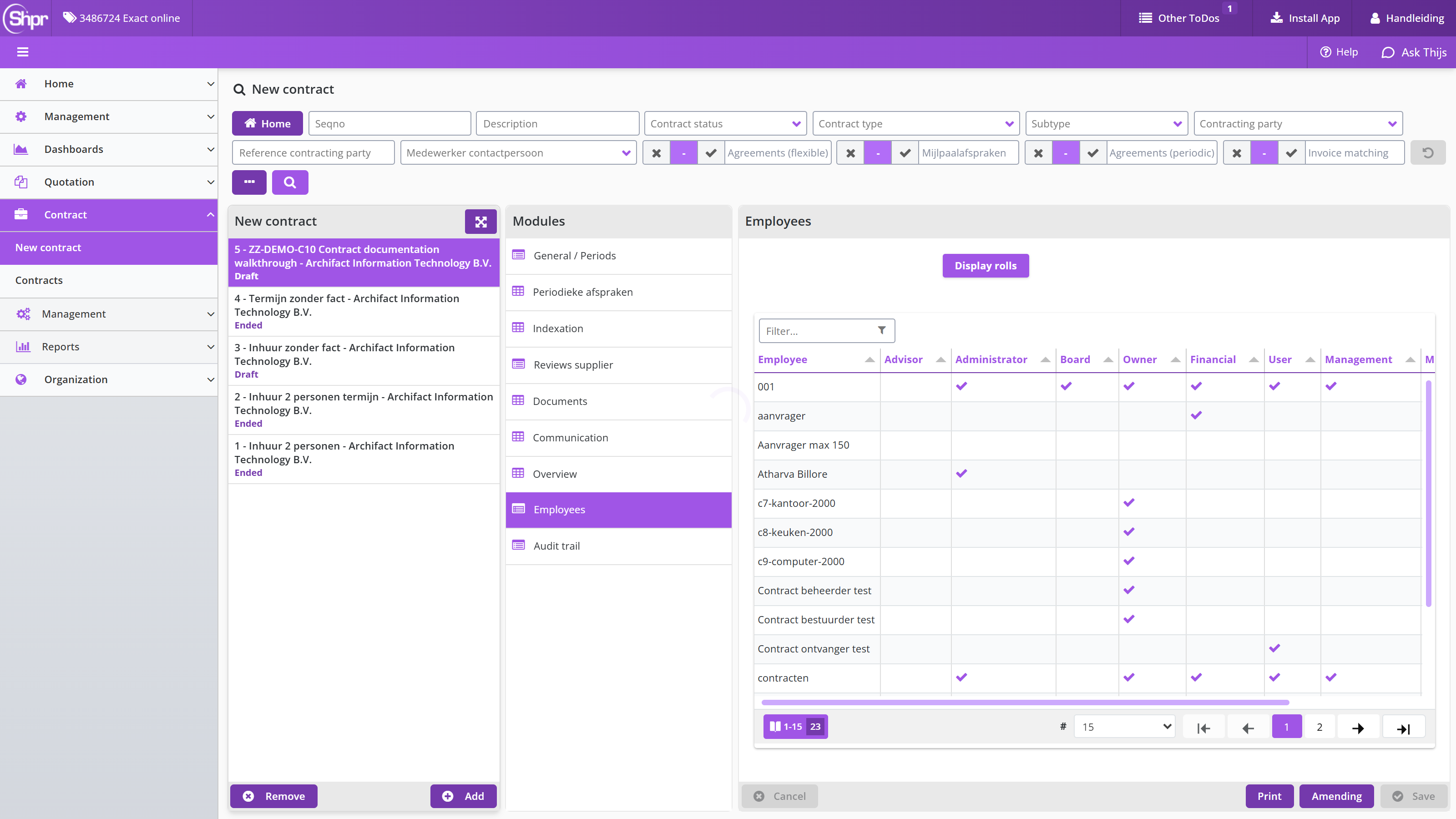
Action buttons on a contract
The table below lists each action button on the contract screen with the stage of the contract process it belongs to, the role an employee needs and when the button is available.
| Button (Dutch) | English name | Stage | Role | Available when |
|---|---|---|---|---|
| Ter beoordeling aanbieden | Submit for approval | Submitting a contract for review | Requester | Draft, nothing missing |
| Beoordeling afbreken | Withdraw approval request | Submitting a contract for review | Requester | To approve |
| Accorderen | Approve | Reviewing a contract | Approver | To approve |
| Afkeuren | Reject | Reviewing a contract | Approver | To approve |
| Activeren | Activate | Activating a contract | Purchaser | To be activated |
| Tussentijds aanpassen | Amending | Amend a contract mid-period | Requester | Activated or To be activated |
| Handmatig periode verlengen | Manually prolong period | Renew a contract | Requester | Activated, follow-up decision = Prolongation |
| Vervolg periode verwijderen | Remove follow-up period | Renew a contract | Requester | Follow-up is Draft (Renewal contract) |
| Auto verlengd gezien | Auto renewal seen | Renew a contract | Regulator | Period was renewed automatically |
| Auto beeindigd gezien | Auto terminated seen | End a contract at its end date | Regulator | Period was stopped automatically, no follow-up |
| Nieuwe factuur (onregelmatig) | New invoice (irregular) | Invoices and indexation | - | Irregular invoicing frequency |
| Betalingen annuleren | Cancel payments | Invoices and indexation | Controller | Open period amount > 0 |
| Toevoegen leveranciersbeoordeling | Add supplier review | Documents, communication and signing | - | Any time |
| Printen | Adding a new contract | - | Contract printable |
Points of attention for contracts
Some labels have no English text in the English interface: the periodic agreements module, the contract value fields, the milestone agreements toggle, the internal contact field, the price completeness column, the option values for item type and VAT type, and the ended checkbox next to Ended.
- Contract type cannot be changed after a contract has been submitted for review. Check it before you submit.
- The Aborted box has two uses: it uses a trial-period cancellation right, or it ends the contract earlier than planned outside a trial period. Read Cancel a contract before you tick it.
- The offtake decision columns depend on three settings on the contract: Quantity adjustment possible upon offtake?, Approve prices on offtake? and Final approval by the budget manager upon offtake?.
- The English role labels Approver (Beoordelaar), Purchaser (Besteller), Regulator (Bewaker), Orchestrator (Regisseur), Governor (Bestuurder) and Operator (Uitvoerder) are read directly from the column headers of a contract's own Employees module, confirmed live on shopper-dev (contract 5, 3486724 Exact online administration). An earlier draft of this document used the words Reviewer, Orderer and Guardian for the first three; those were reasonable descriptions of what the roles do, but they are not the words the screen actually shows, so they have been replaced throughout.
- The Processflow Contracts Monitor dashboard block uses Executive for the same role the Employees module of a contract labels Governor; see Following your contracts on the dashboard.
- The bare heading Contract reporting that used to sit directly above Contract reports carried no content of its own and has been removed.
Best practices for contracts
These best practices help you when registering, reviewing and monitoring contracts in Shopper.
- Choose the carefully before you click : it is locked directly afterwards and can only be corrected by starting the contract again.
- If Save or Submit for approval does not react, check Contracting party, Contract type and Start date first. The button is disabled, not broken, until all three are filled in.
- Look at the Contract todo panel on the Dashboard contracts screen regularly. The tiles show the contracts that are near a renewal decision or a trial-period cancellation window, or that wait for an acknowledgement.
- Do not tick Aborted outside a trial period unless you mean to end the contract earlier than planned. The same box is also used for the trial-period cancellation right, so the effect depends on the timing.
- Set Signal period in months on every contract that has a notice period or a renewal decision, so you are warned in time.
- Use the Contract status and Contract type filters in the search bar to narrow a long list instead of scrolling through it.
Creating and activating a contract
This chapter describes how you register a new contract in Shopper and take it through to an activated contract. "Adding a new contract" covers the General / Periods form with its required fields and the Term block, "Financial and contact details" the Financial, internal contact and Contracting party blocks, and "Recording periodic, flexible, milestone and order date agreements" the agreements and order dates of a contract. "Other contract modules" describes the modules Indexation, Reviews supplier, Documents, Communication, Employees and Audit trail, and the overview modules.
Then follow the steps Submitting a contract for review, Reviewing a contract: approve or reject and Activating a contract, which take a contract from the status Draft through To approve and To be activated to Activated.
Adding a new contract
In the Contract menu, choose , select any contract in the list so the screen becomes active, and click under the list. Shopper opens a blank General / Periods form for the new contract. The Contracting party, Contract type and Start date fields are required and marked with an *. Contracting party can only be a company that is already registered as a supplier in Shopper. The Contract type determines which further data and actions are available for this contract, and it can no longer be changed once the contract has been submitted for review.
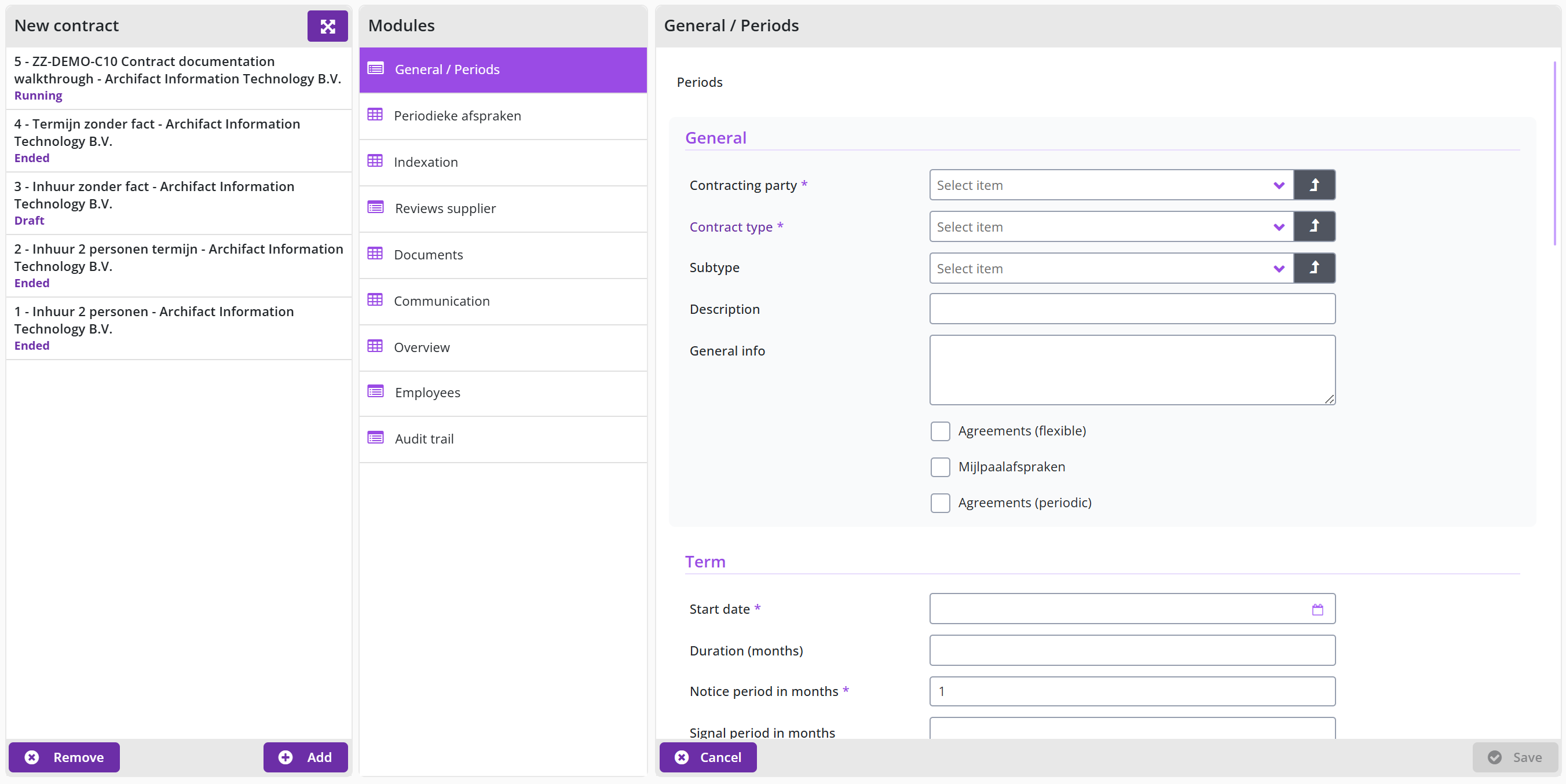
The button and the button stay disabled on a blank form until Contracting party, Contract type and Start date are filled in. If a button looks unresponsive, check those three fields first.
The form then has a Term block. Start date is the date the contract begins. Duration (months) is used to calculate the end date of the contract period (End of term). Notice period in months is required and defaults to 1: it is the number of months before the end of the active period after which renewal or termination can no longer be changed and is carried out automatically by Shopper. Signal period in months sets how many months before that Shopper raises a signaling to-do in advance.
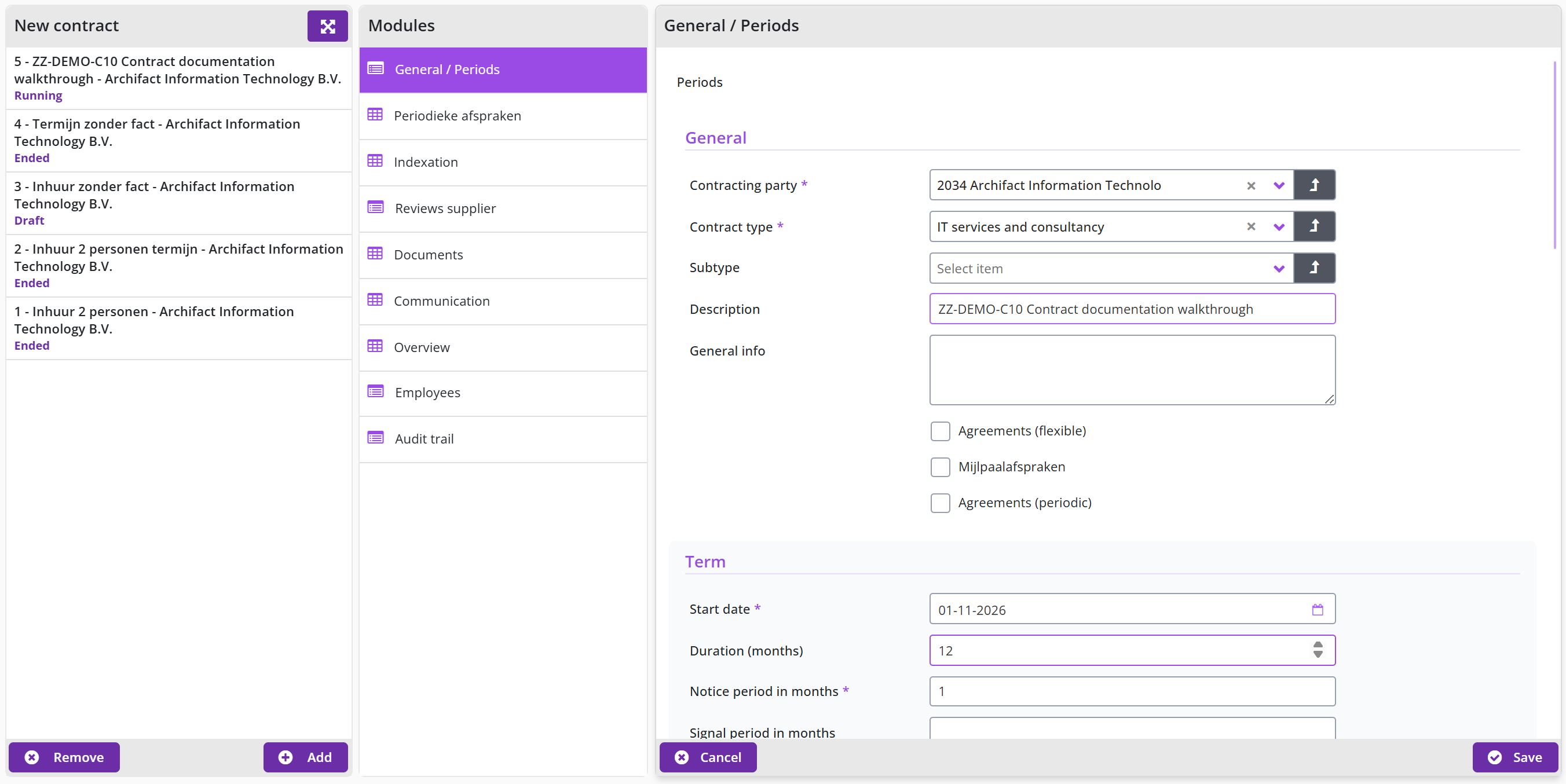
The first time you save, Shopper assigns a sequence number, calculates the contract period from the start date and the duration, and sets the status to Draft (Contract registration). The contract now appears in the New contract list. The banner at the top of the form shows the contract period and the status. You can change everything freely while the contract has this status, and nothing is sent to reviewers until you click .
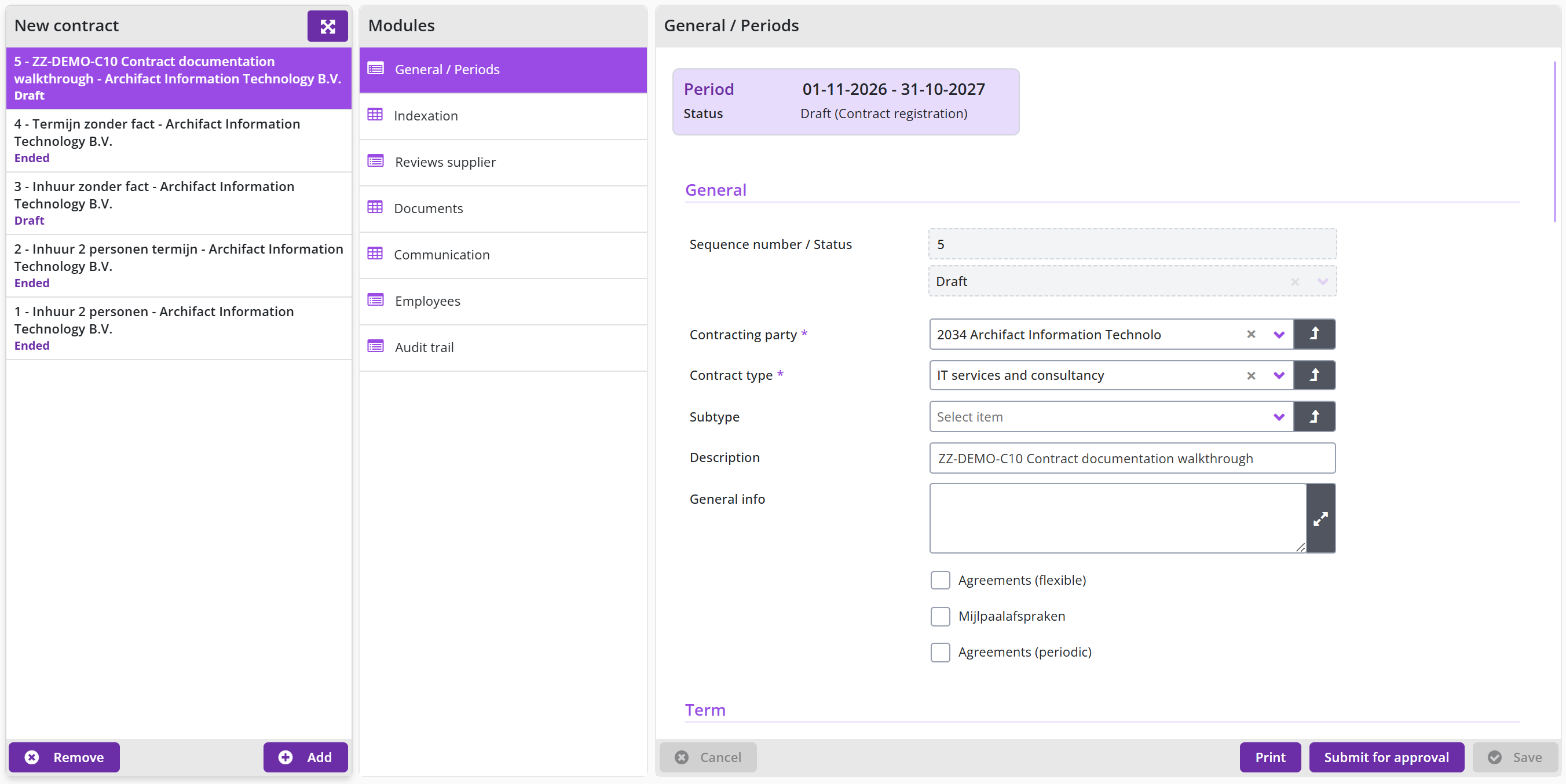
PVH: THIS SCREEN NEEDS TO BE RENEWED WITH CORRECTED LANGUGAGE
Financial and contact details
On the General / Periods form of a contract, the Term block is followed by a Financial block. Contract value and Contract value per year hold the value of the contract and its value per year, and VAT selects the VAT type that applies. The internal contact block records which of your own employees is the contact person for the contract (Owner) and, optionally, the Organizational unit the contract is restricted to. Under Contracting party you can record a Reference: the number under which the supplier knows this contract.
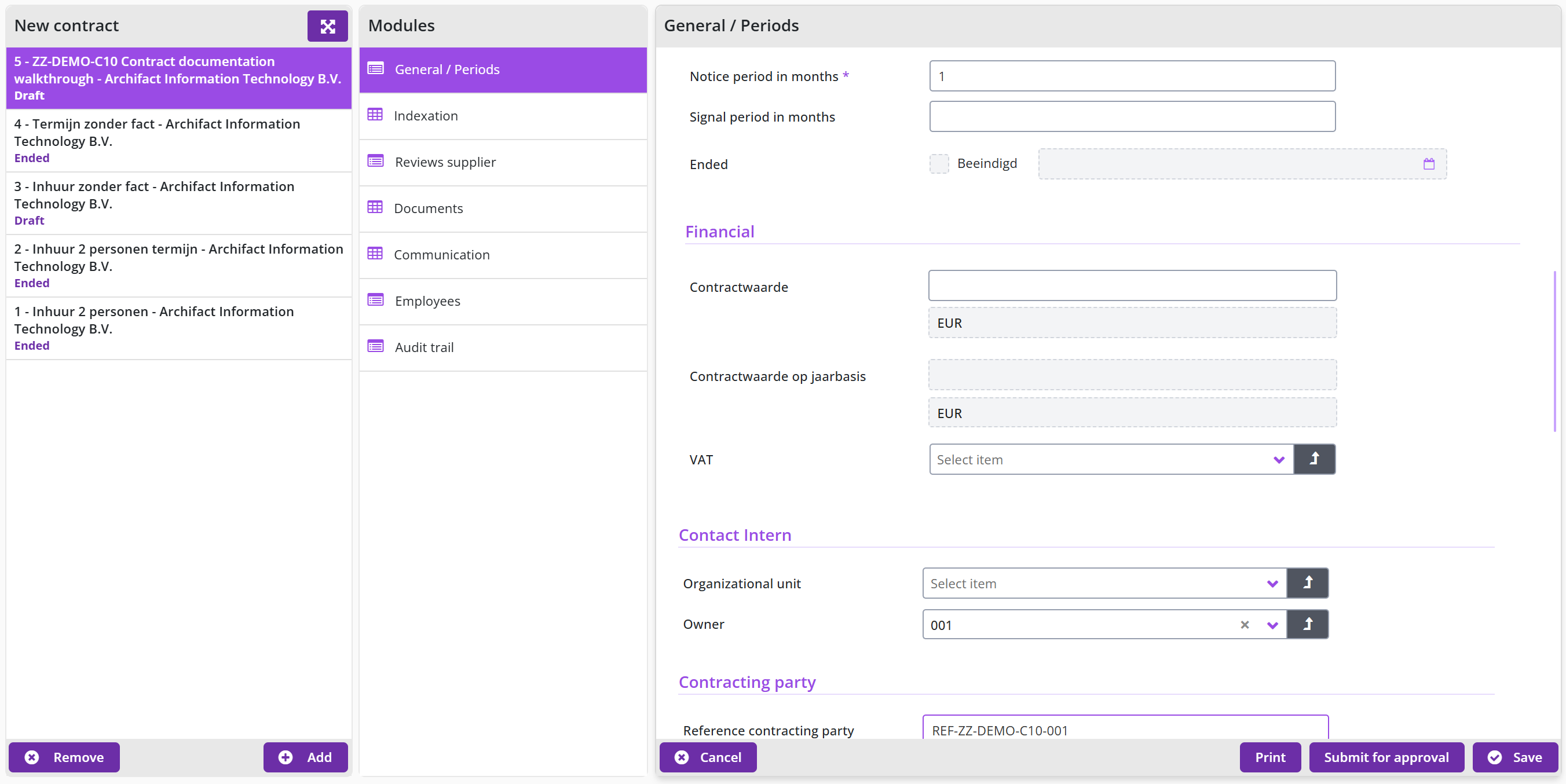
PVH: THIS SCREEN NEEDS TO BE RENEWED WITH CORRECTED LANGUGAGE
For a contract with periodic agreements the Financial block also holds the invoicing set-up: Invoice matching, Invoice frequency, Number of invoices (calculated), Termijnbedrag per (the instalment amount, a Dutch label) and First invoice on. Three checkboxes decide what may be decided when an offtake is approved: Quantity adjustment possible upon offtake?, Approve prices on offtake? and Final approval by the budget manager upon offtake?.
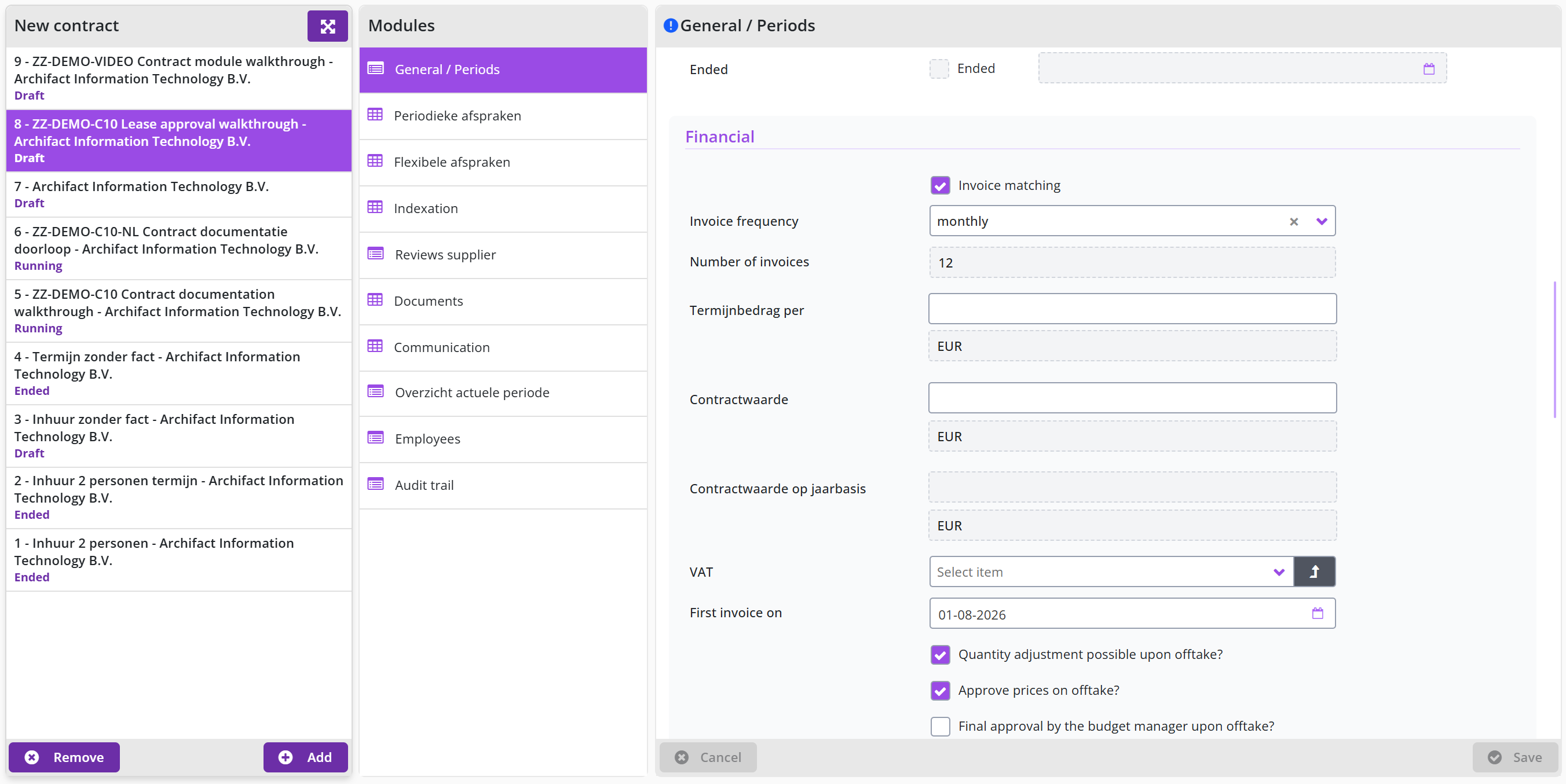
PVH: THIS SCREEN NEEDS TO BE RENEWED WITH CORRECTED LANGUGAGE
Recording periodic, flexible, milestone and order date agreements
To record periodic agreements on a contract, tick Agreements (periodic) at the top of the General block and save the contract. Shopper then adds the periodic agreements module to the Modules list. Open that module and click at the bottom right of that column, not the button of the contract list.
The required fields of a periodic arrangement are Organizational unit, Item type, Item description and Unit price (excl. VAT). After you save, Shopper shows the arrangement with its calculated total amount, and the arrangement gets its own modules: Prices, Documents, Offtakes, Offtake mutations and Audit trail.
Note: the option values of Item type and VAT type have no English text in the English interface (for example the household expenses item type and the low VAT type).
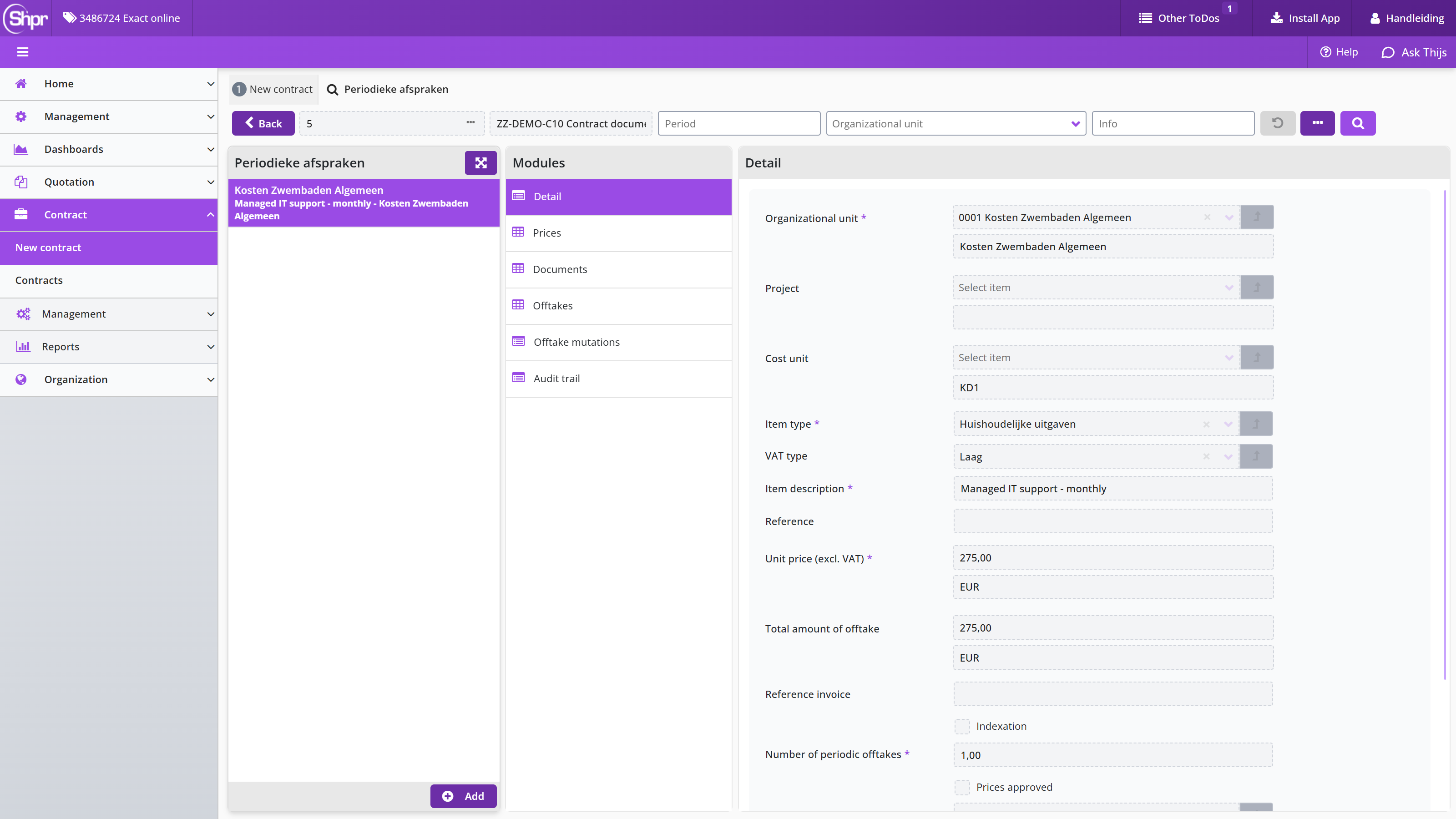
The module Prices of an arrangement holds the unit price per start date. The list shows each price with its start date and whether it is approved. A price has a required Start date, the checkbox Divergent, the Unit price (excl. VAT) and the checkbox Approved.
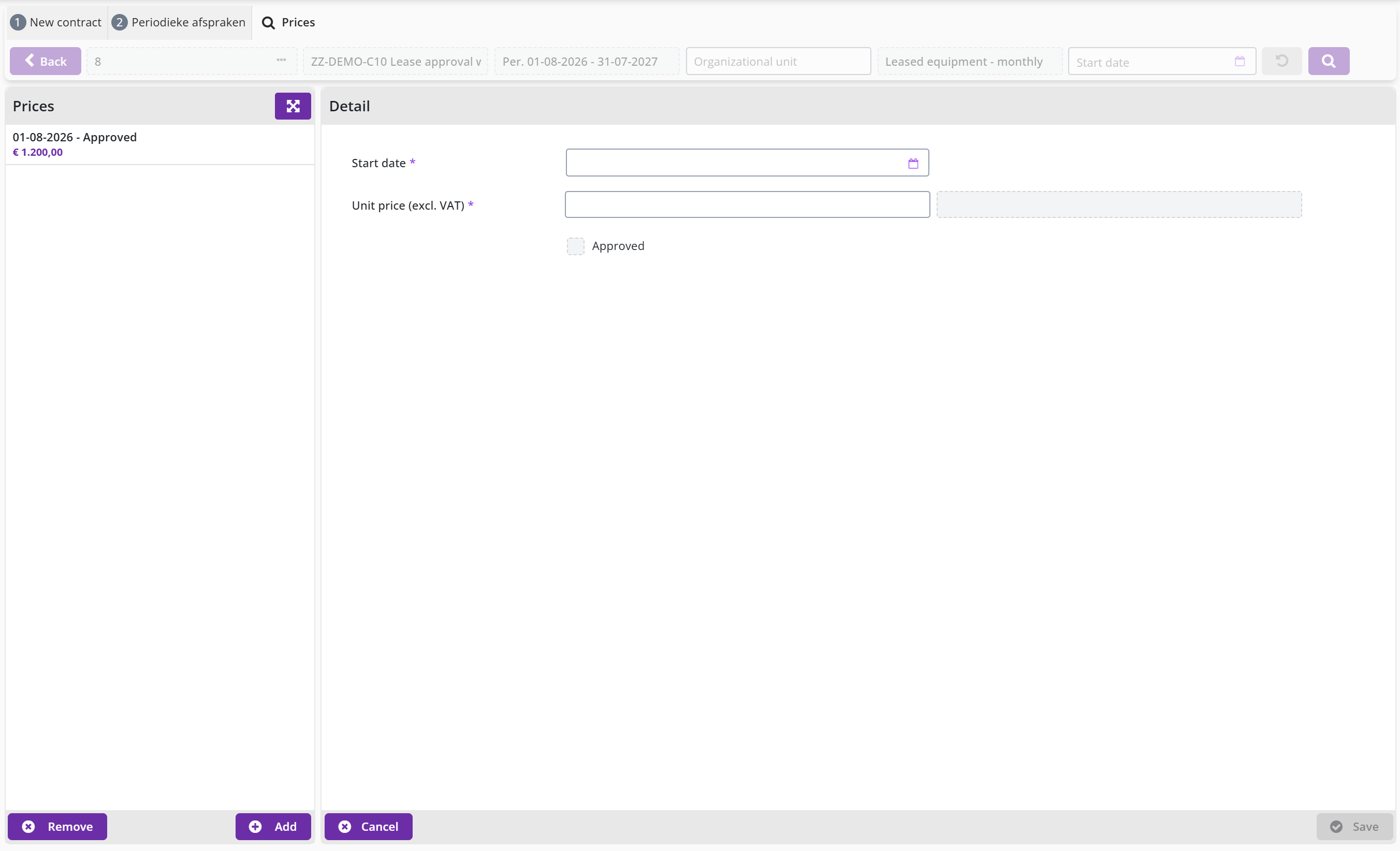
Besides periodic agreements a contract can also hold flexible (ad hoc) agreements, milestone agreements and order dates. Tick the matching box in the General block to use them. A flexible agreement has a required Description and the fields Organizational unit, Project, Cost unit, Item type, VAT type and Item, with a button to create a new item on the spot. Minimum offtake and Maximum offtake set the agreed range, Actual offtake shows what has been taken so far, and Deviating period lets the agreement run for a different period than the contract. The field for the supplier taking the initiative has no English text in the English interface.
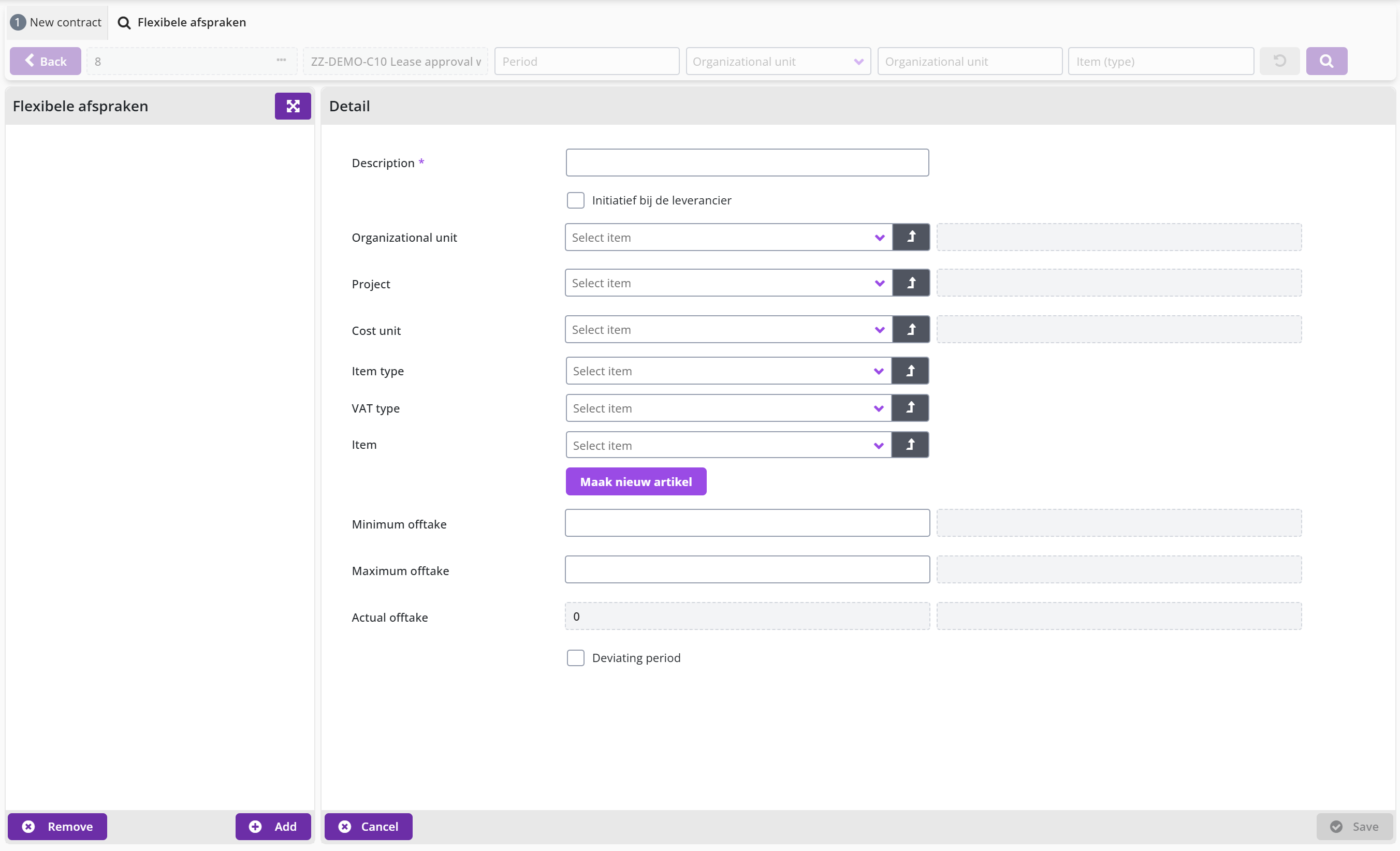
PVH: THIS SCREEN NEEDS TO BE RENEWED WITH CORRECTED LANGUGAGE
Other contract modules
The Modules column in the middle of the contract screen opens the other parts of the contract. Indexation records a structured, dated price index. Choose to record an increase with a required Starting date, an optional Date end, an Increase % or an Increase amount, and the option Generate annual indexes. Reviews supplier logs supplier evaluations, and the button is available at any time. Documents stores the contract's own documents, separate from documents on an individual arrangement. Communication keeps a record of contact moments with the supplier. Employees shows who holds which role on the contract; see Roles on a contract. Audit trail lists every event on the contract and its periods, with the date and the employee, for example the contract being created, its type being set and every status change.
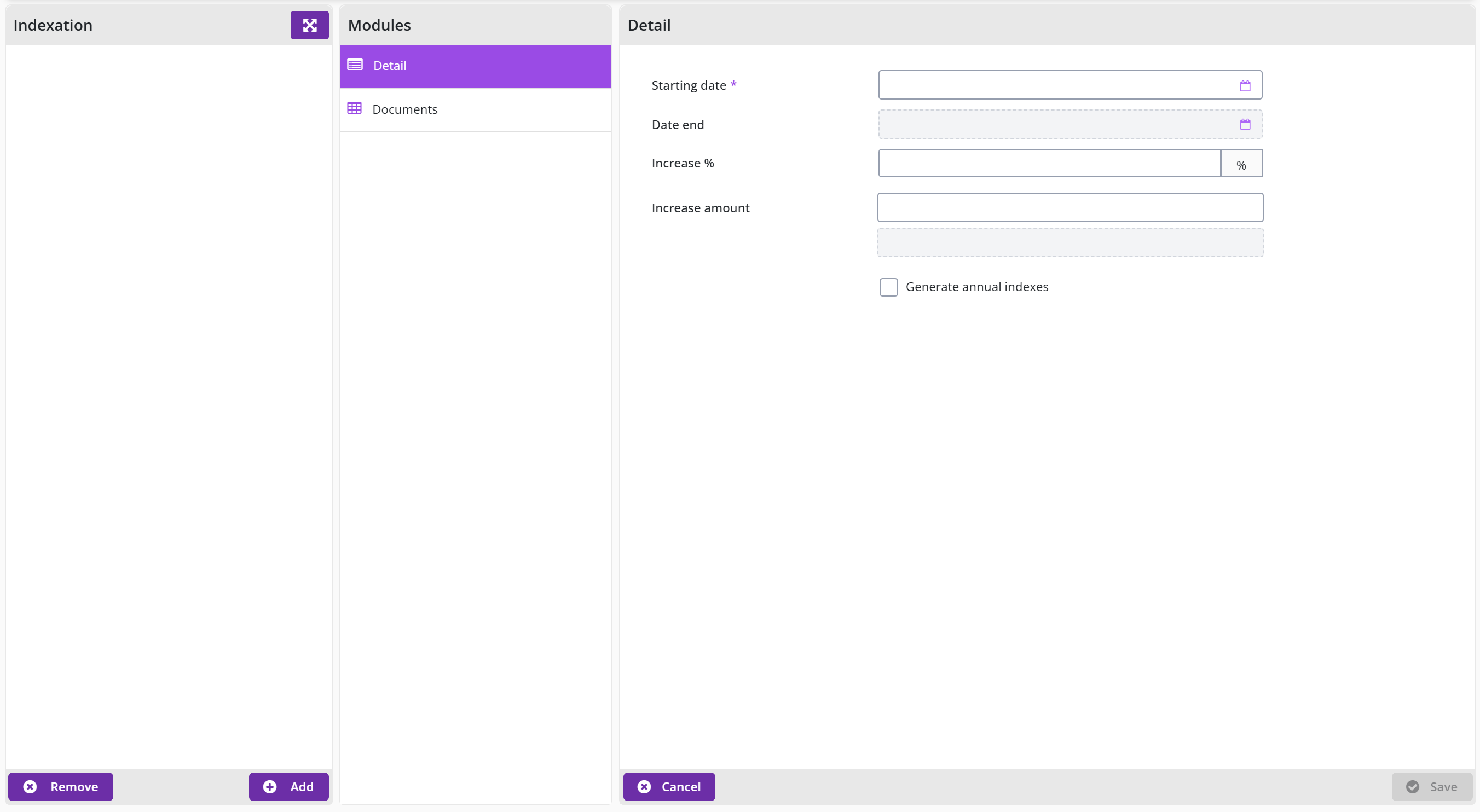
Once at least one arrangement is registered the Overview module appears. It shows one summary line per contract period with the period dates, the total amount and the invoicing frequency, for example Per. 01-11-2026 - 31-10-2027 - Total amount € 0,00 (Billing frequency Monthly).
Ticking Agreements (flexible) and saving adds the module Flexibele afspraken (the module name is Dutch on the English screen). It lists the flexible agreements of the contract and has its own button; see Recording periodic, flexible, milestone and order date agreements for its fields.
A contract with periodic agreements also has the module Overview current period. It summarises the current period with the fields Initial value period (excl. VAT), Current value period (excl. VAT), Approved offtakes (excl. VAT), Invoices booked (excluding VAT) and Outstanding liabilities (excluding VAT).
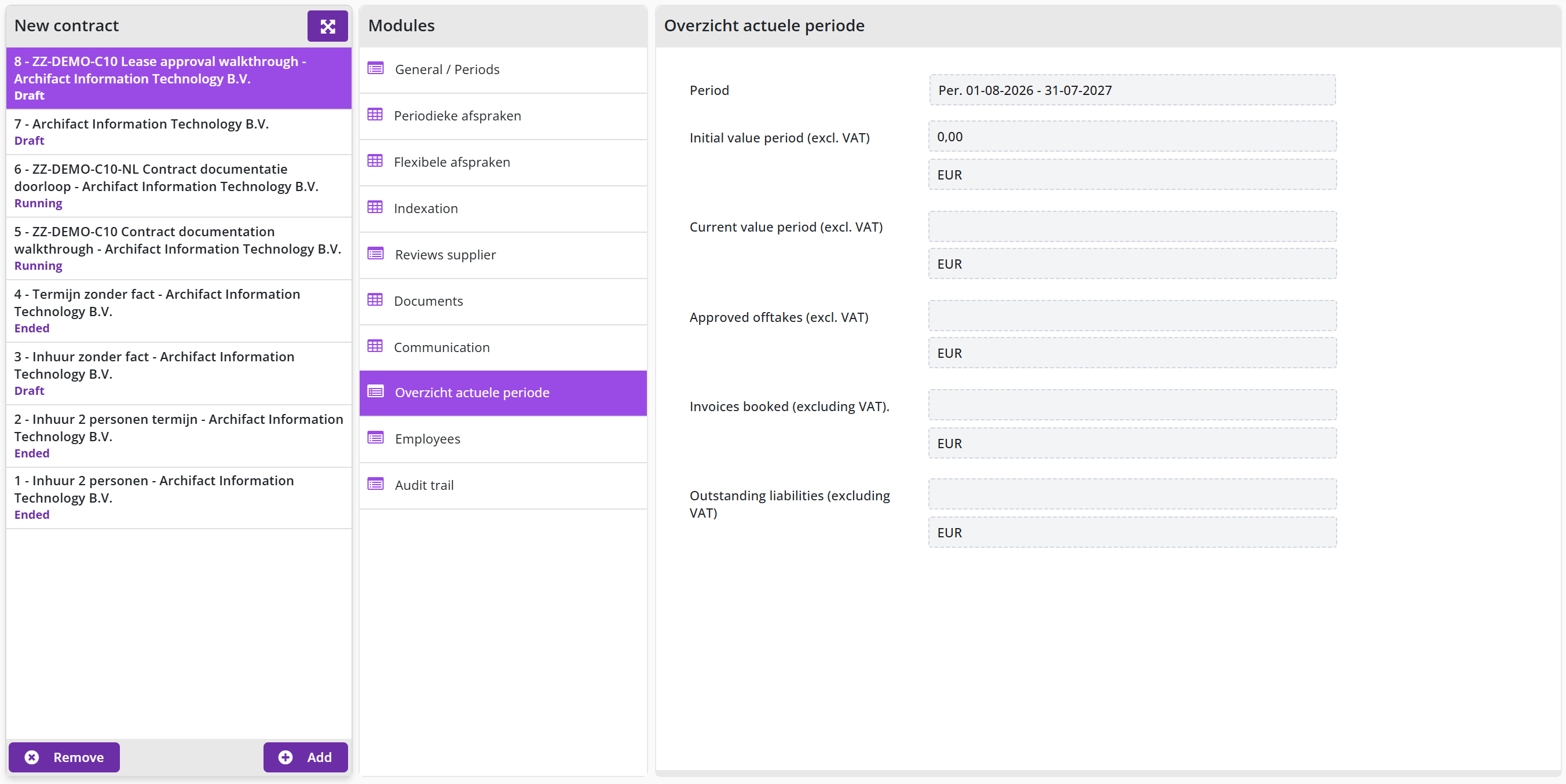
PVH: THIS SCREEN NEEDS TO BE RENEWED WITH CORRECTED LANGUGAGE
Submitting a contract for review
On the General / Periods screen of a Draft contract, click (Ter beoordeling aanbieden). While data is missing, the button is not shown and the form displays the field Missing data with the reason: Term in months missing, Start date missing, Arrangements missing, Framework contract not activated or Invoice frequency and instalment amount are mandatory. If the contract was rejected before, you must first confirm that you have read the rejection remark.
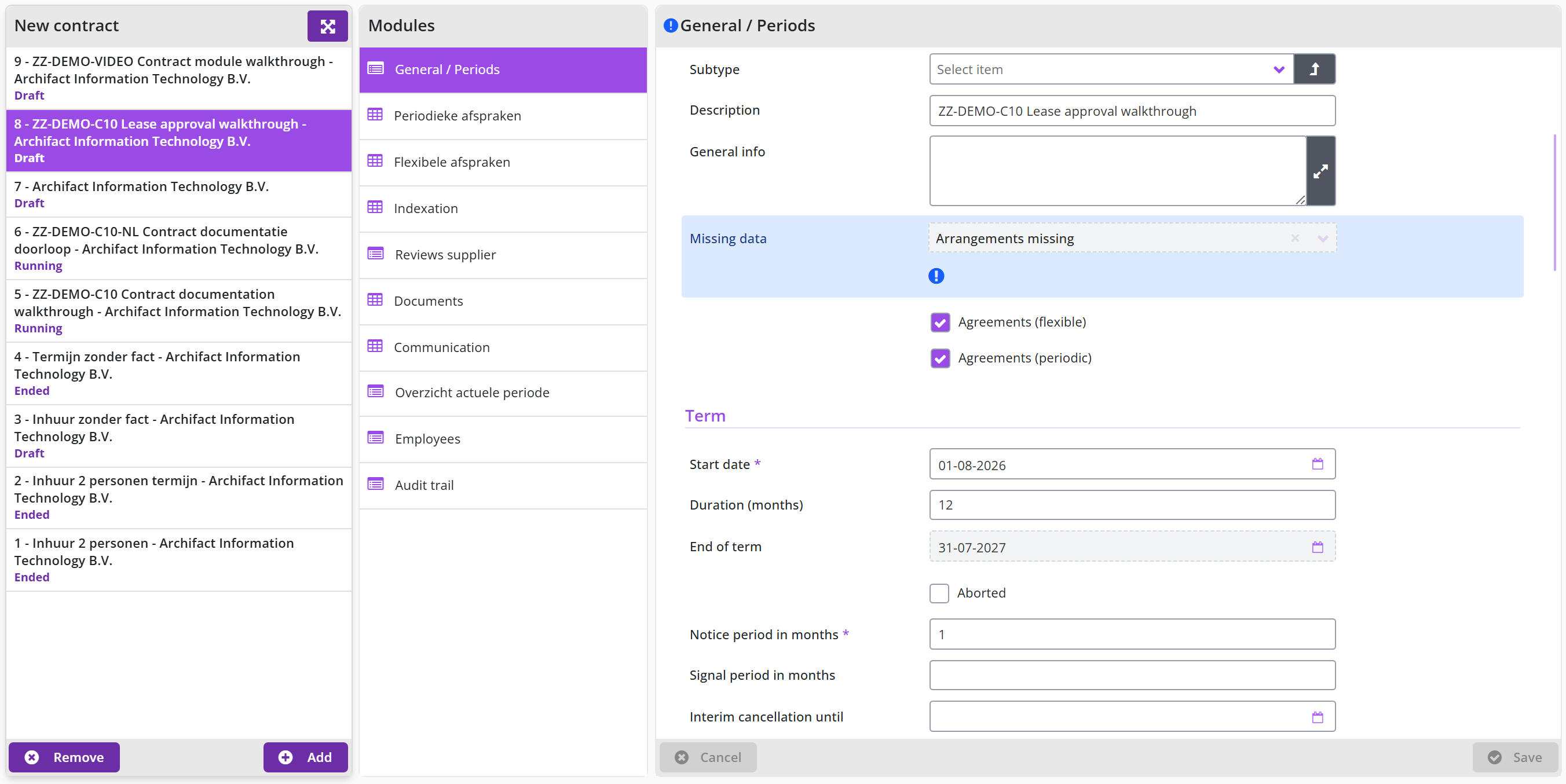
After you submit, the approval status changes from Draft to To approve (Te beoordelen) and the reviewers registered on the contract, holding the role Approver, are asked to assess it. If no review step is configured for the contract type, the contract goes straight to To be activated. If you change your mind while the status is To approve, click (Beoordeling afbreken) to send the contract back to Draft.
Reviewing a contract: approve or reject
An employee holding the role Approver (Beoordelaar) opens a contract with the status To approve and clicks Approve (Accorderen) or Reject (Afkeuren). When you reject, you enter a remark that explains why. When you approve, the step is complete; if the contract needs more than one review step, each approver reviews their own step.
After the last required approval the status becomes To be activated (Te activeren). After a rejection the contract returns to Draft (Rejected contract registration) and the remark is shown to the requester, who corrects the contract and submits it again.
A contract in review shows the fields Status (To approve), Step to approve (the review step that is waiting, for example Board approval Contracts)and Already approved by. Rejecting opens the dialog Contract authorization - reject with a required Note and the buttons and Reject. After a rejection the requester sees the Rejection note and confirms it with the checkbox Reject comment seen.

The contract has now cleared review and is ready to go live. You see the status To be activated after the last required approval, or straight after submission when the contract type has no review step. From this point the Contract type can no longer be changed. The button now appears next to Amending, and only an employee holding the role Purchaser sees it. It is the last status before the contract starts to run.
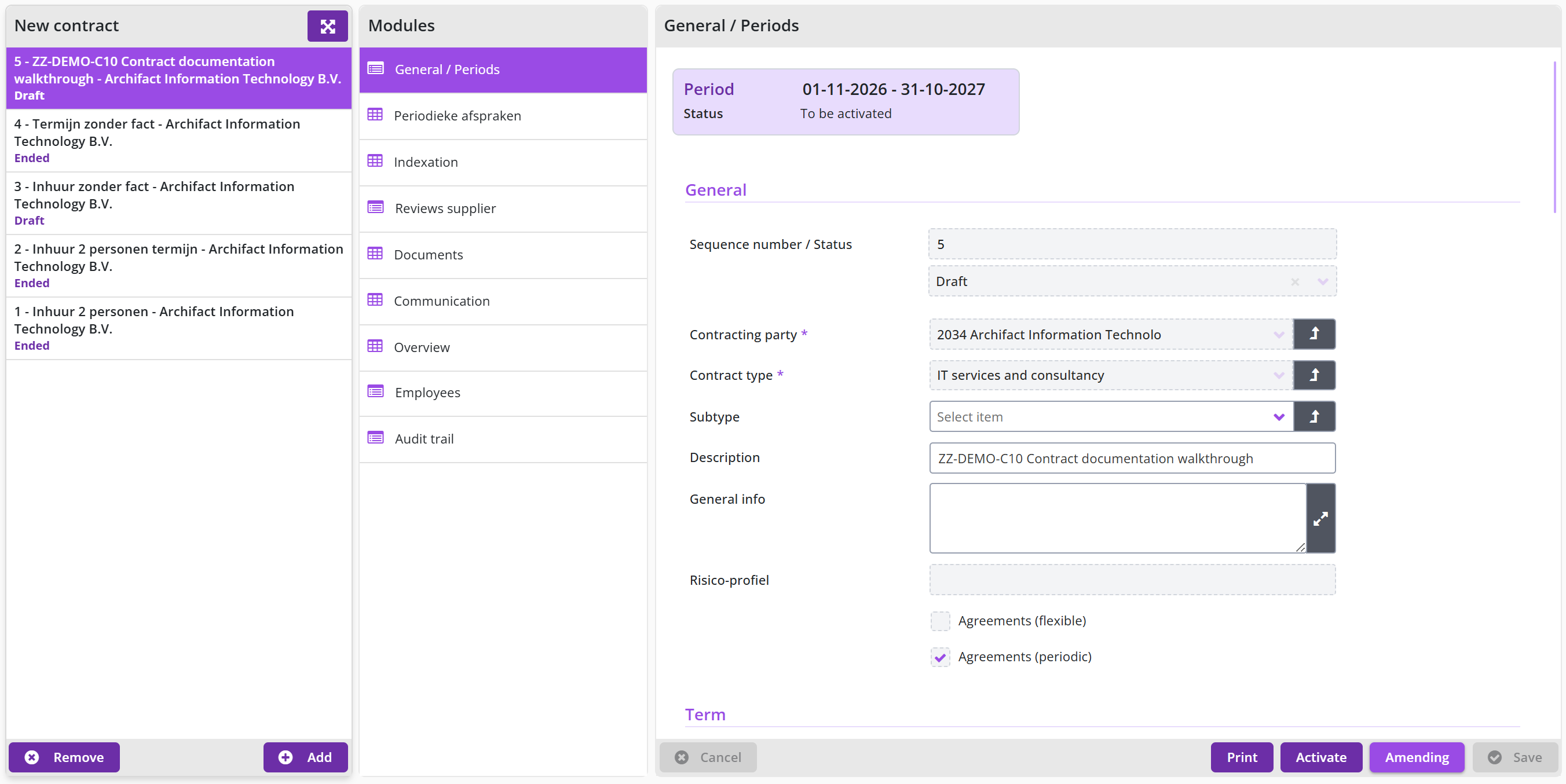
Activating a contract
The employee holding the role Purchaser (Besteller) opens a contract with the status To be activated and clicks Activate. The approval status becomes Activated. The runtime status follows the dates: Future when the start date is still ahead and Running when the contract period has already begun. From then on orders, deliveries and invoices can be linked to the contract, and the contract runs according to the periodic arrangements and invoicing settings recorded on it.
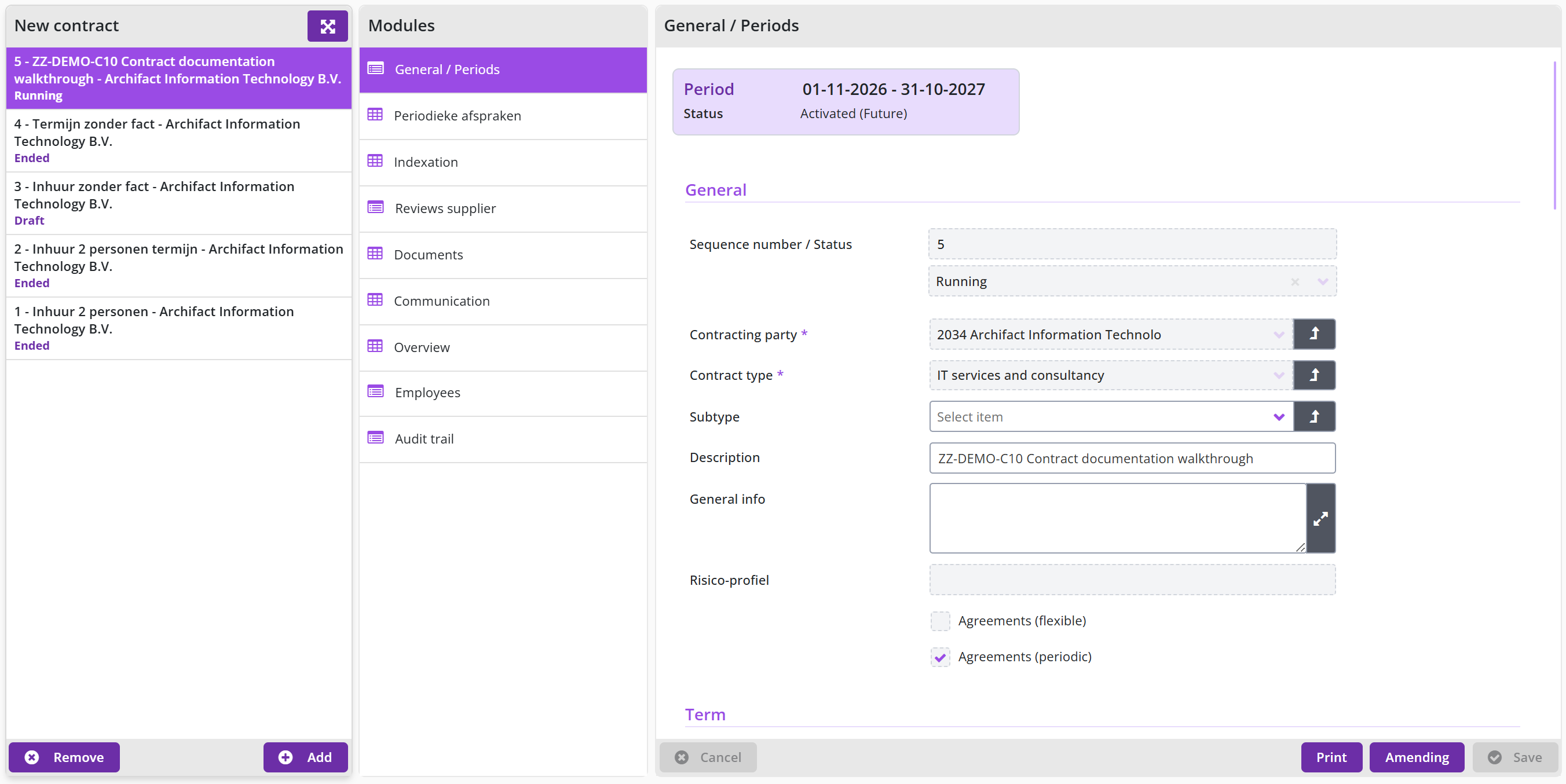
For contracts where Invoice matching is checked, activating the contract period also creates the order dates for periodic offtake in the Order dates data module, based on the invoicing arrangements for the period; see Invoices and indexation. If the licence for journal entries has been purchased, the journal entries for the period are created at the same time; see Invoices and indexation.
Contract offtake and invoices
This chapter describes what happens to the offtake (deliveries, instalments or periodic charges) of a contract after a contract period has been activated, and to the related supplier invoices (purchase invoices). Approve offtake screen explains how you assess and approve an offtake, Approve contract offtake workflow which employees (quality, procurement and budget holder) are involved, and Location offtakes per order date where you find the offtake per location for an order date.
Invoices to be received for a contract and Invoices to be paid and invoice matching for a contract describe the screens of the same name, where you reconcile invoices with the contract offtake and write off what will not be invoiced. Create order dates and proforma order explains how Shopper creates the order dates and proforma orders of a contract period, Creating journal entries how journal entries are formed on activation, and Cancel payment how you cancel outstanding payments at the end of a term.
Approve offtake screen
Offtake registered against a running contract, for example a delivery, a lease instalment or a periodic charge, can require a separate approval before it counts as accepted. Open Approve offtake from the Contract menu, or click the matching tile on the contracts dashboard, to see every offtake that is waiting for a decision. The screen has three panes: the list of pending offtakes on the left, a Modules column with Detail and Follow-up by, and the selected module on the right.
The Detail pane repeats the Contract the offtake belongs to with its contract period, the Organizational unit, the Supplier, the Administration and the Order date. The Project field shows the project code when the purchase carries one. The Completed? checkbox marks whether the whole order line has been completed. The module Follow-up by lists the employees who follow up the offtake, each with a phone number and an e-mail address where these are known; it is a reference list and has no fields to fill in.
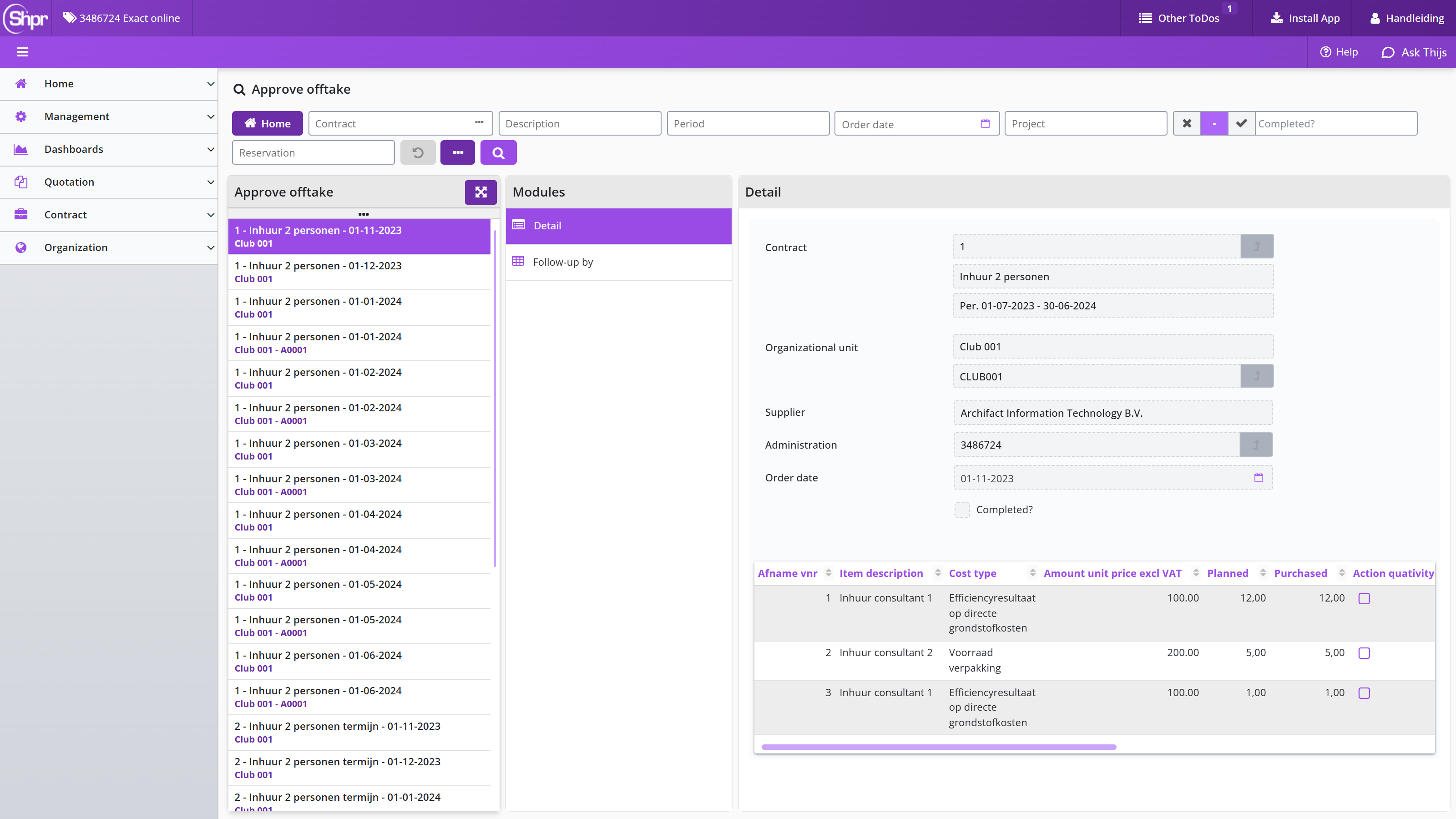
A grid under the header fields lists the individual offtake lines: the offtake number (the sequence number of the offtake), Item description, Cost type, Amount unit price excl VAT, the Planned and Purchased quantities, and then the decision columns: a quantity check, Action price is correct, Quantity is correct, Price is right, Approve and Cancel offtake.
Whether a contract asks for a decision per line depends on three settings recorded on the contract when it was activated: Quantity adjustment possible upon offtake?, Approve prices on offtake? and Final approval by the budget manager upon offtake?.
Note: on the English screen the Quantity is correct decision column is labelled Action quativity is correct.
The arrangement itself also shows every offtake registered against it in its own Offtakes module, one line per planned offtake with its date and approval status:
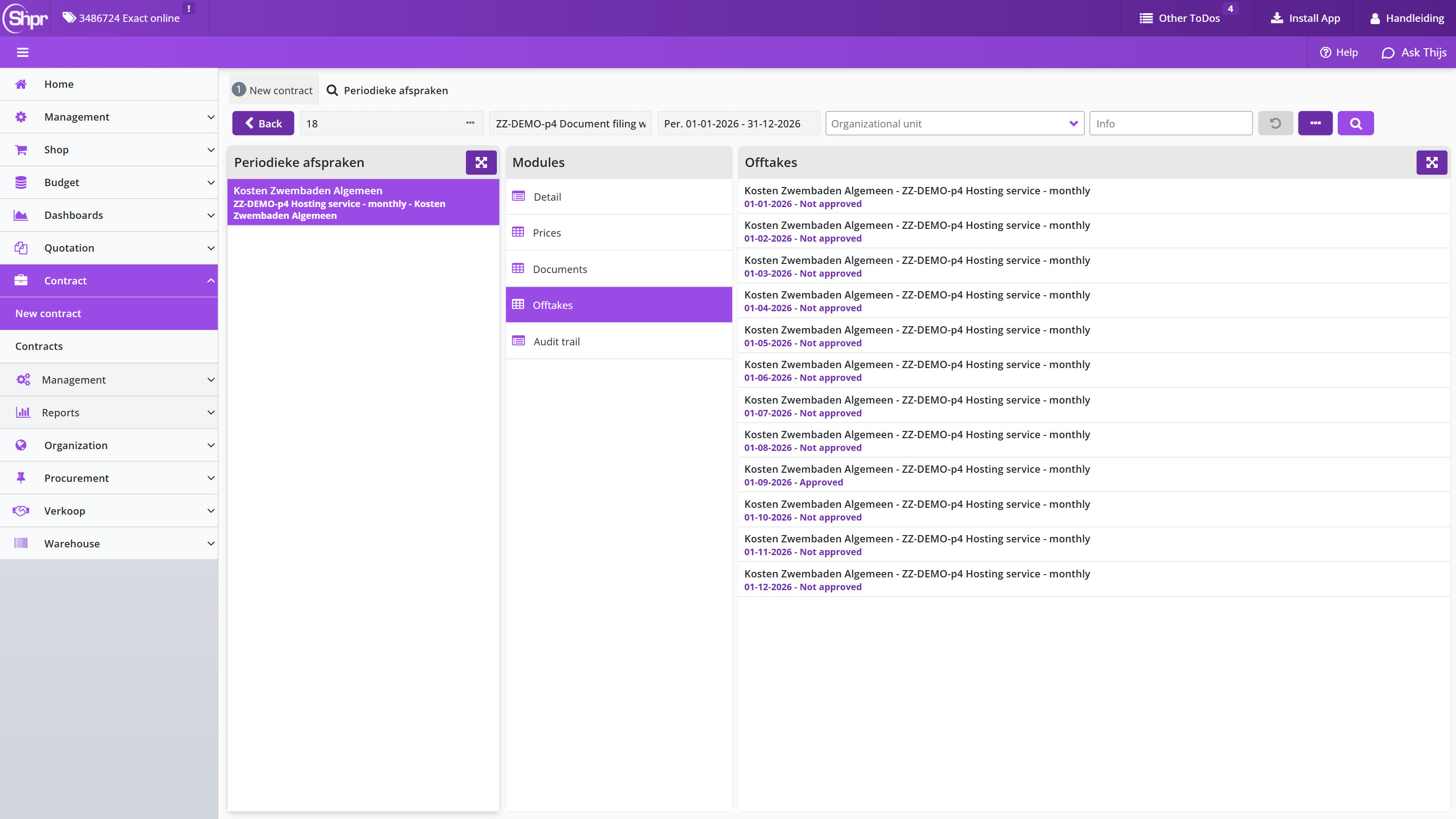
Approve contract offtake workflow
Several employees can be involved in approving an offtake. An employee approves the quality of the offtake, an employee of procurement approves the price, and a budget holder gives the final approval. The Follow-up by data module reflects the employee or employees who can approve the next step in the offtake approval workflow.
Approving the quality of the offtake requires an employee with the contract role Receiver and the expertise type Quality, as part of the echelon Contract user.
Note: if the quantities of the offtake are changed while approving quality, an employee of procurement may then have to validate and, if needed, adjust the price. That can in turn require the budget holder to give a final approval for the changed quantity or price, since it affects the value of the committed contract period that was approved earlier.
Approving the price of the offtake also goes through the Approve offtake workflow step, by an employee with the contract role Receiver and expertise type Procurement, as part of the echelon Contract administrator. This employee selects the location offtake from the list, validates the price, and uses the button to approve it.
The final approval of the offtake also goes through the Approve offtake workflow step, by a budget holder with the contract role Receiver and expertise type Budget holder, as part of the echelon Contract owner. This employee selects the location offtake from the list, validates the impact of the quantity in relation to the price, and uses the button to approve it.
Location offtakes per order date
In the Order dates data module of a contract period, the Detail data module of each order date shows the order date and whether a proforma order has already been created for it.
For the order dates of a contract period, per order date for which a proforma order has been created, the Location offtakes data module lists the offtake per location (organizational unit). Selecting a location offtake shows its Details data module, including the article offtake lines at the bottom.
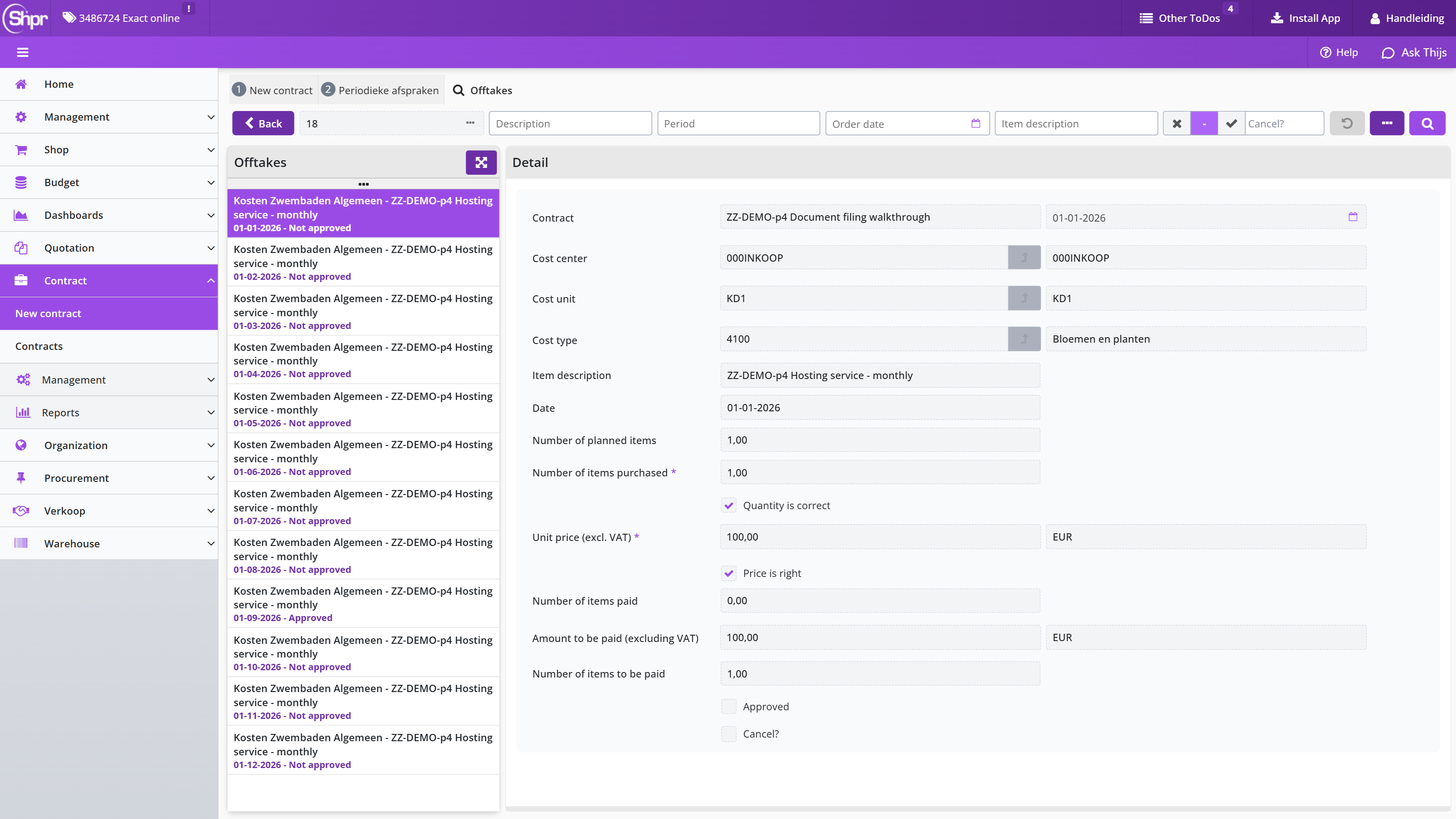
Once approval of every location offtake item is complete, the Completed? checkbox is marked. The checkmarks in the offtake item columns reflect the progress of that approval workflow.
Note: all changes made during offtake approval, including approval and cancellation, are recorded in the Offtake mutations data module of the corresponding agreement; see Offtake mutations. If invoices have been booked on a location offtake, its Details data module also lists the related Bookings.
Location offtakes are created with the price that applies at that moment, in other words the price of the contract agreement with the (most recent) effective date that applies on or before the order date of that contract offtake or term. Selecting an offtake line shows its own Details data module as well.
Invoices to be received for a contract
Invoices to be received lists the offtake lines that are still waiting for the supplier's invoice, for a contract with periodic agreements. Open it from the Contract menu or from the dashboard tile with the same name. It is only available to employees who hold the controller role through the contract echelon. When you select a row, the Detail pane shows the same fields as the offtake approval screen together with a grid of the underlying offtake lines.
The grid adds four columns: Number complete and a column for price completeness, then Approved and Canceled, each shown as a checkmark once that stage of the line has been settled, followed by Invoices to be paid and Financial write-off.
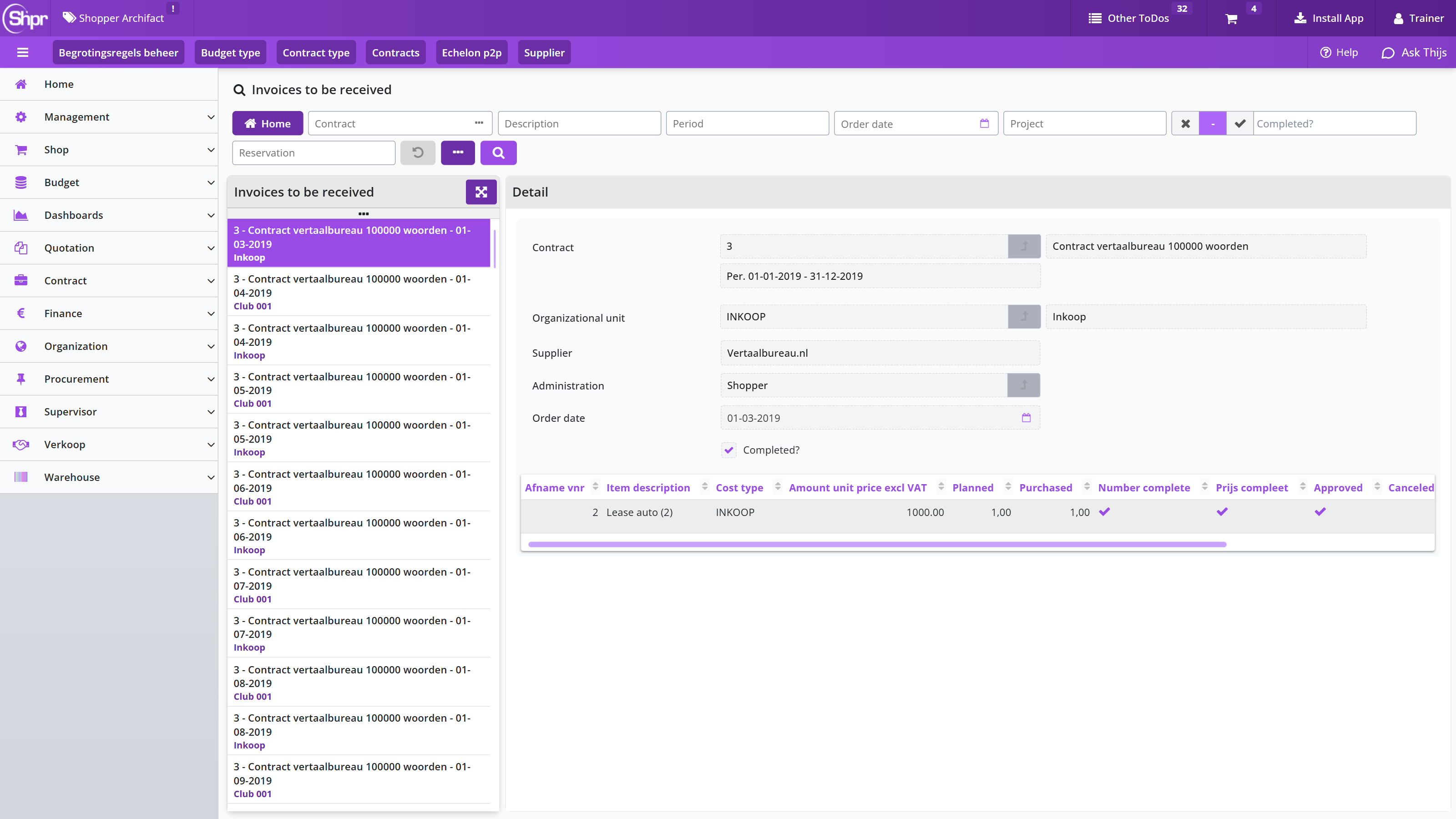
If no invoice is to be expected for part of the offtake, use the button in the column Financial write-off (scroll to the right to find it). The dialog Contract purchase financial write-off shows the offtake number, asks for the Quantity write off and a required Note, and Making a write-off books it.
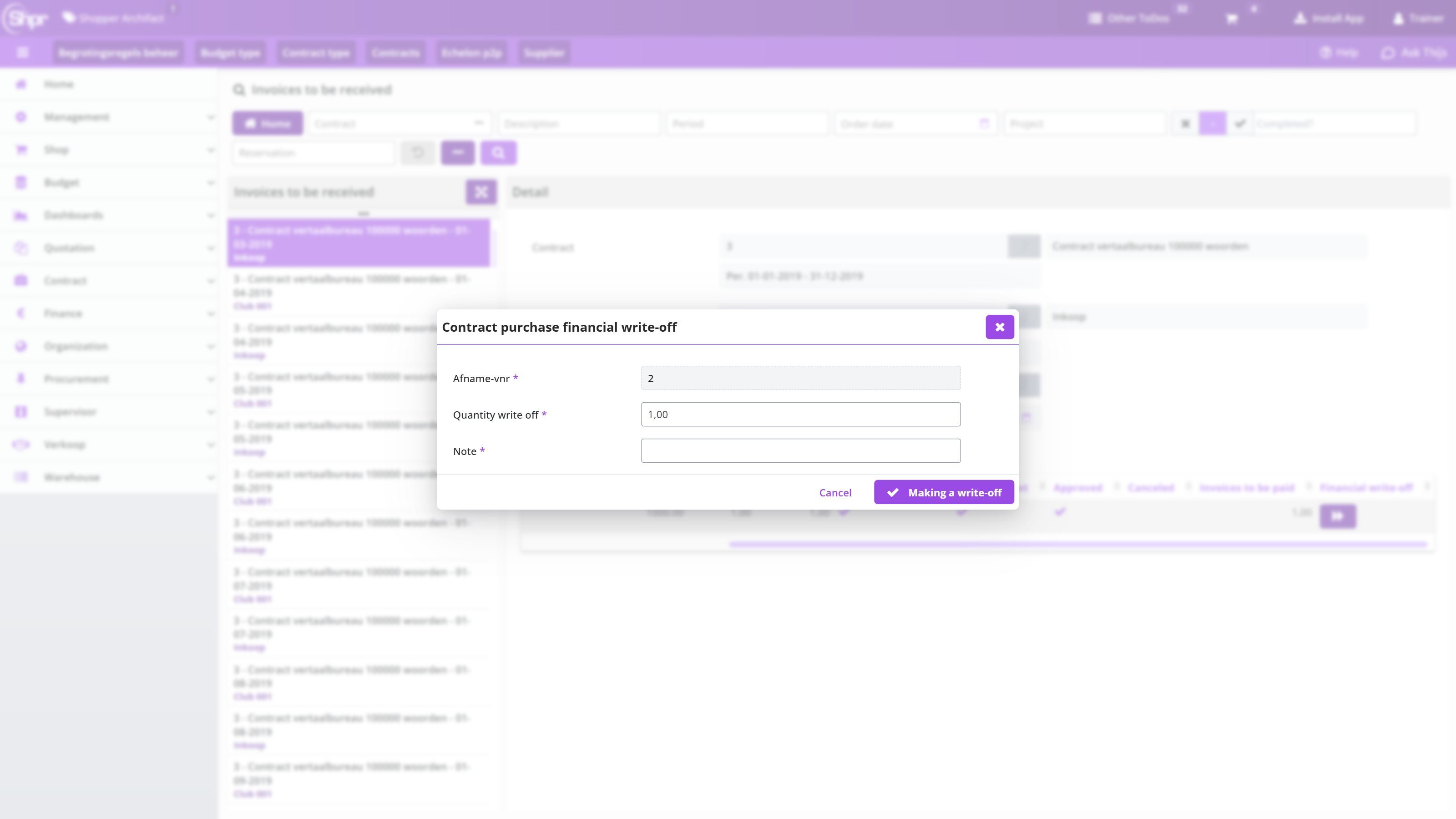
Invoices to be paid and invoice matching for a contract
Invoices to be paid is where an incoming supplier invoice is reconciled against the offtake of the contract before it is paid. Open it from the Contract menu or from the matching dashboard tile. Select an invoice to see its Entry number, the Creditor who sent it, the Invoice amount in the original currency, the Amount ordered (the total ordered for the items at the time of ordering), the Difference between the invoice amount and the sum of all postings in the local currency, and any Extra costs that the supplier added to the invoice and that cannot be accounted for from Shopper (excl. VAT). A Completed checkbox marks the invoice as fully processed. From here you can view the invoice PDF, show the audit trail or remove the invoice.
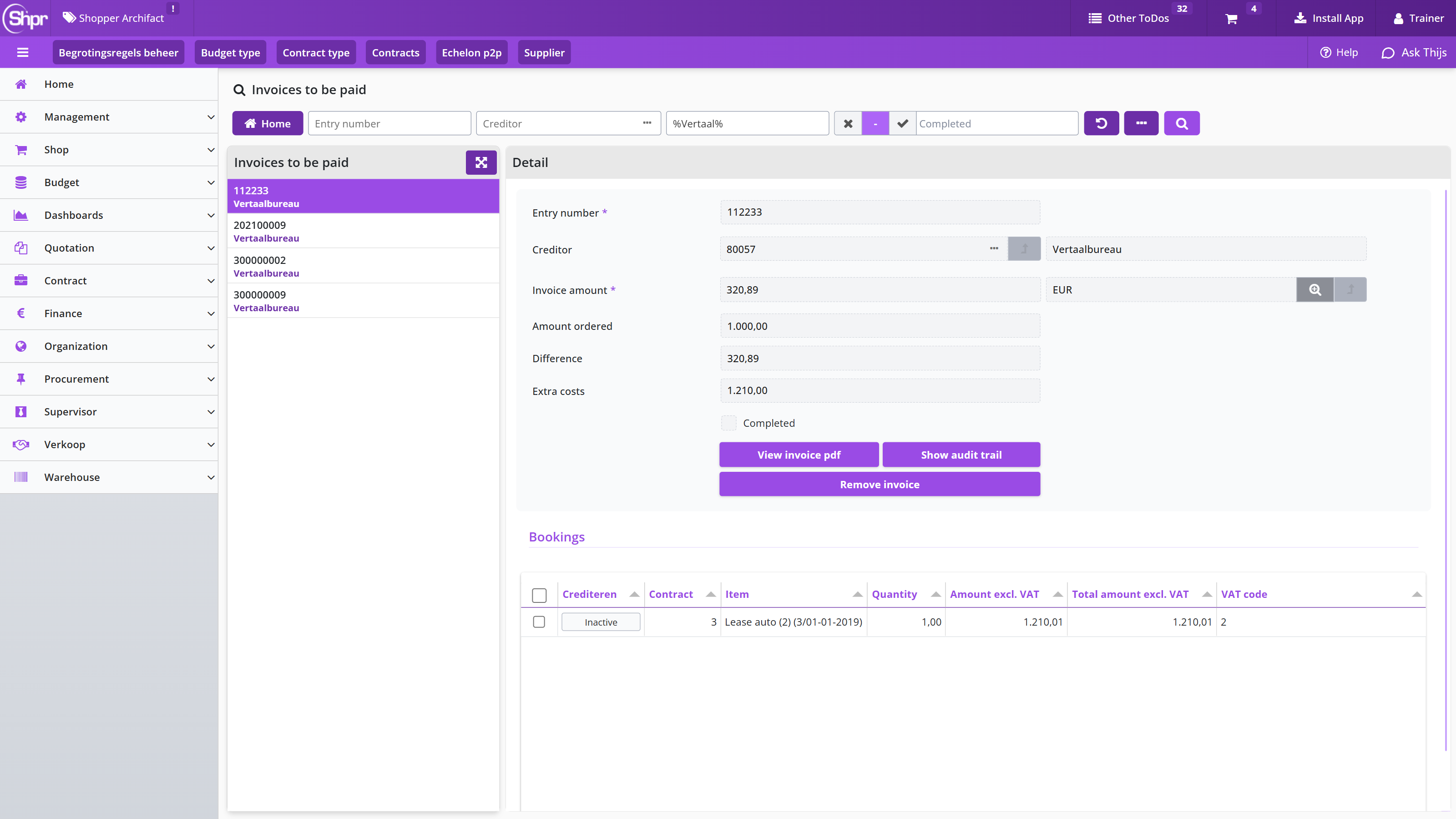
Whether incoming invoices must be matched to a contract is set with the Invoice matching setting on the contract. For contracts built around milestones instead of periods, the related setting is the milestone agreements setting: the milestones are agreed for the contract period in advance, and an application line is created for each milestone that is reached, so an incoming invoice can be matched against it. Once matching applies, the Bookings grid on the Invoices to be paid screen makes the match concrete. Each booking line ties a Contract and an Item to a Quantity, an Amount excl. VAT, a Total amount excl. VAT and a VAT code. The Crediteren column marks a line as a credit instead of a charge.
Create order dates and proforma order
For contracts for which Invoice matching is checked, activating the contract period creates the order dates for periodic offtake in the Order dates data module, based on the invoicing arrangements for the contract period. A checkbox indicates whether a Proforma order has already been created for each order date. Shopper automatically creates the proforma order on the order date of the offtake, so that invoice processing can take place. If it is desirable to create proforma orders earlier, this can be set in the contract section of System parameters.
In the Detail data module for an order date, Proforma order created can also be checked manually to create it earlier. This may also apply when registering an already-running contract where the order date has already passed but invoice processing has yet to be performed.
In Shopper 10 the Order dates list shows this indicator as a button in the Proforma column: Inactive as long as no proforma order exists and Active once it has been created; clicking Inactive creates the proforma order for that order date. The Still to be paid column shows the amount that is still open per order date.
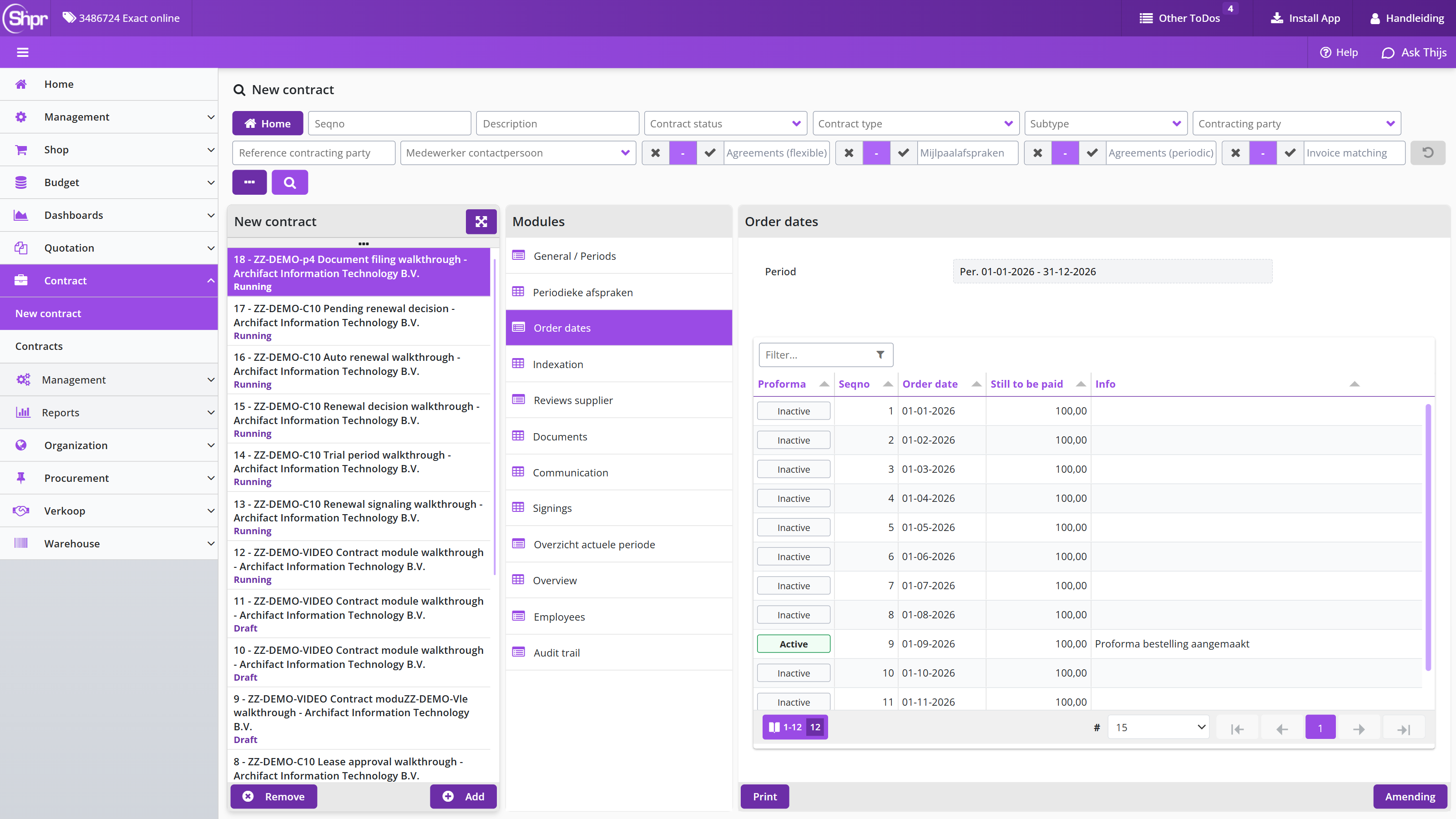
Note: you can delete proforma orders, by unchecking the relevant box, but only as long as no offtake has been approved or canceled.
If the contract uses an irregular invoice frequency, an order date can be missing from the Order dates list. In that case the button is available at the bottom of the list, so you can add the required order date yourself.
The budget expenditure that follows from a contract's proforma orders is totaled in the annual budgets per cost type and can be found in the budget periods as contract obligations; see also Budget periods under Budget control.
Creating journal entries
If the license for journal entries (memorial bookings) has been purchased, journal entries are created when the contract is activated, based on the Item type journal entries specified in the Financial data module of the contract; see also Financial and contact details. The general journal entry is created according to the Item type journal entries specified in the contract type, per term or per entire period: a journal entry is created per order date for the instalment amount (when the proforma order is created), or a journal entry is created for the value of the entire period (when the period is activated); see also Contract type.
When activating a contract period after an interim amendment, the new contract value is set off against the old contract value, and the difference is corrected with a general journal entry. Depending on the Journal entry type of the contract type, this is done for the entire contract term or by interim date; see Amend a contract mid-period.
Cancel payment
If differences arise at the end of a term when booking invoices for periodic offtake, even after all offtake has been approved or canceled, they keep reappearing as potential bookings during invoice processing. You can write these differences off in Shopper by choosing the relevant instalment from the Order dates data module and canceling the outstanding payments with the button . This button is only available to employees holding the contract role Receiver through the contract echelon, and only for contracts where Invoice matching is checked.
Above the button the field Still to be paid shows the amount for which payments are still outstanding.
Note: all outstanding payments for all proforma orders of an ended contract period can be canceled in a single action, using the button in the Details data module of an Ended contract period.
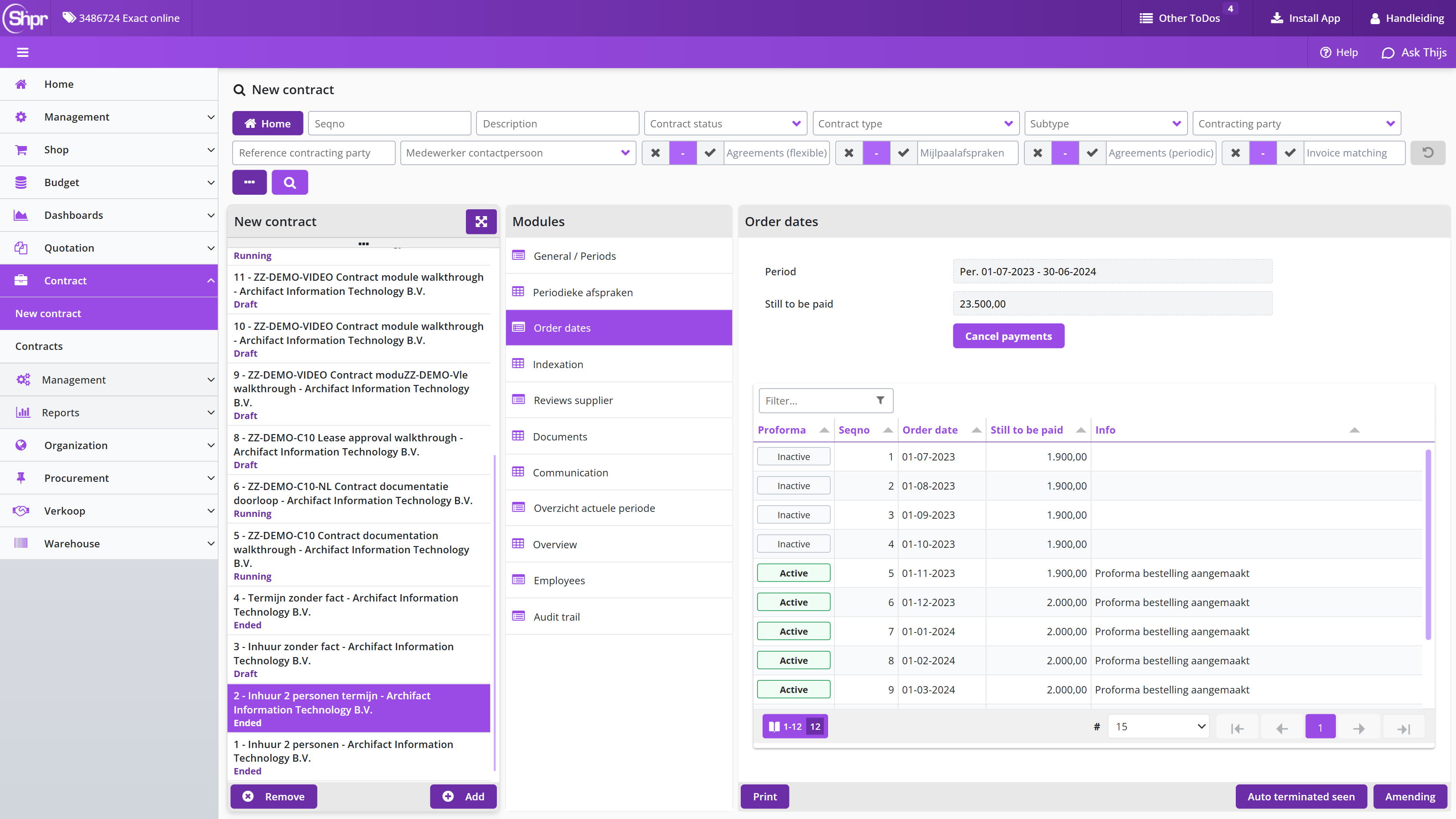
Contract documents, communication and signing
For a contract you can build up a complete contract archive in Shopper: documents, the communication with the supplier, reviews and the digital signing are filed with the contract by an employee who holds the contract role of administrator, advisor or owner through the contract echelon. Adding contract documents describes how you add a document as an attachment or as a reference to a network location (UNC path); Validity, Documents complete and archiving of contract documents how you track a document's validity date and renewal and mark the file as complete or archived.
Supplier evaluations and communication for a contract covers the periodic evaluation with the supplier and recording communication moments in the Communication data module; Supplier reviews on a contract covers viewing and adding reviews of the supplier. Digitally sign contract document describes when the Signings data module is available for the contract.
Adding contract documents
Documents relating to the contract can be filed for the contract in Shopper, so a complete contract archive can be built up in Shopper. A document can be added as an attachment or file, or by means of a reference to a network location. This can be performed by an employee who holds the contract role of administrator, advisor or owner through the contract echelon.
Documents are added to the data module Documents with the button or removed with the button .
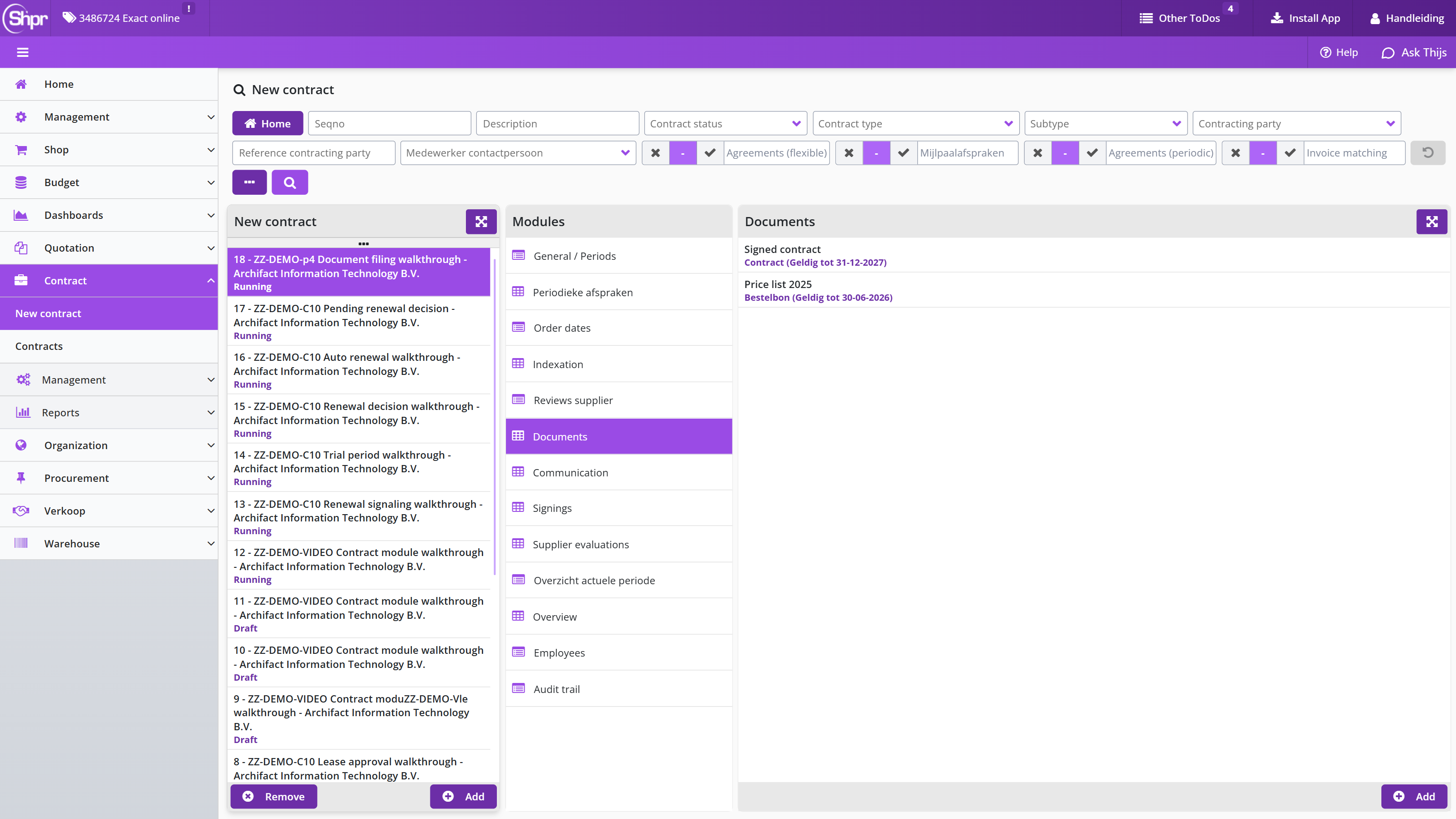
When adding a document, specify the Name and the document Type from the list. The document can be added as an attachment via the upload button. The supported formats are PDF, MSG, and MS Office documents from Word and Excel. Added documents can be viewed by opening them via the download button; you can then print them or save a copy on your own PC.
Note: the download button only becomes available after the button has been used. MSG files open in the default mail application, as configured in Windows.
There is also the option to include attachments by reference to a file on a network location, without uploading them to Shopper, for example a reference to a file in an existing or external archive.
Note: manual file references are only available if the Attachment with path reference possible checkbox is checked in the system parameters for your organization; see the data modules Back office folders and Drive paths under System parameters.
You specify the manual file reference by entering the UNC path to the folder and the file name in the field Attachment (enter folder and name manually), for example \SHARE\folder\file.ext. After you enter this UNC path and save it (button ), the download button becomes available behind the entered path, so you can open the file from Shopper, assuming the UNC path was entered correctly.
Validity, Documents complete and archiving of contract documents
For a contract document in the contract's Documents data module you can also track the validity and renewal of the document, and on the contract itself indicate that the documents are complete or archived.
If your organization's contract set-up uses signaling for document renewal, additional fields are available for filing documents; see the Parameters data module under System parameters.
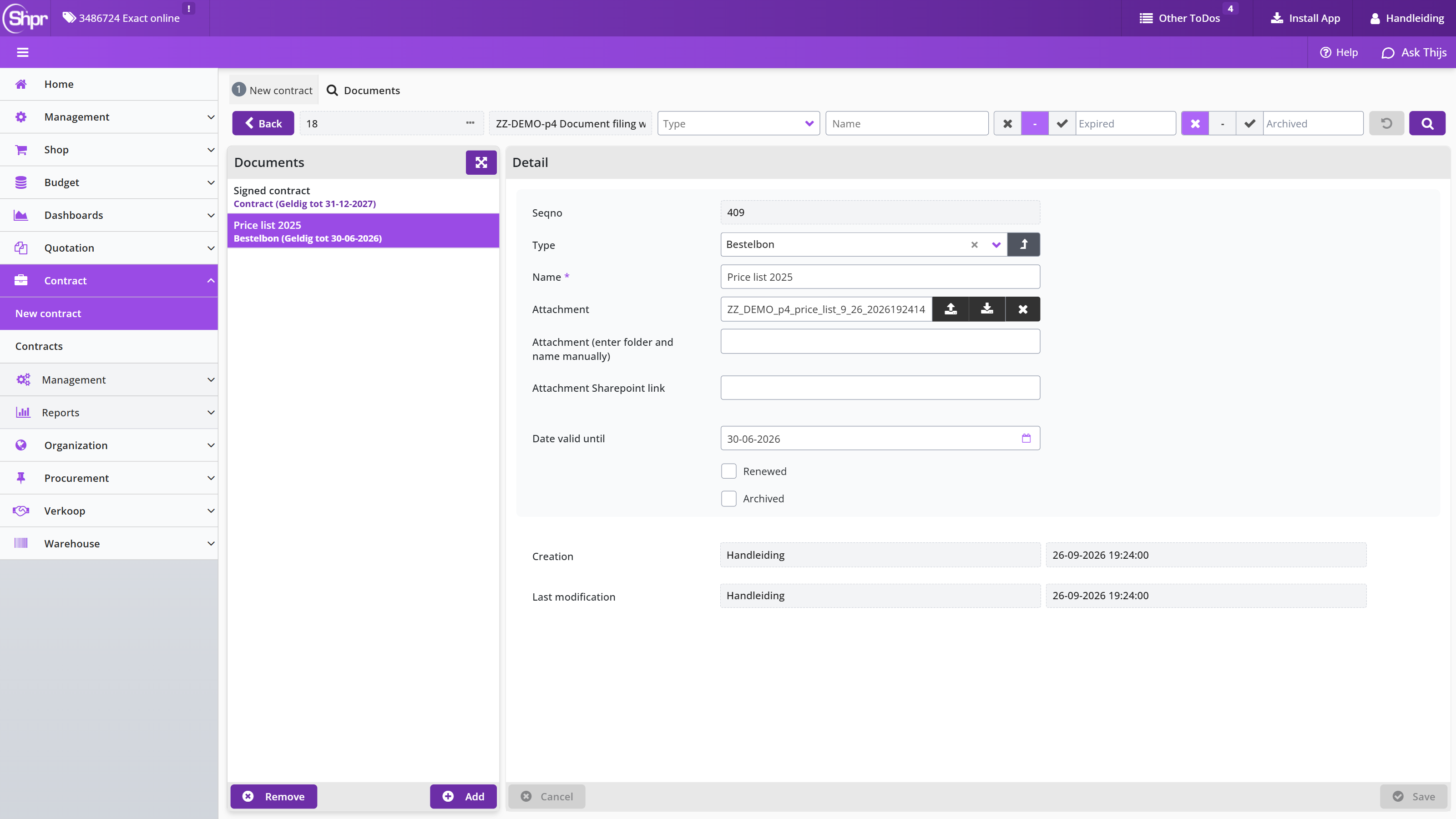
By filling in the validity date, another to-do will be created later to renew this document in time. If the document has been renewed, you can check Renewed. At the bottom of the document's Details data module it is recorded who created the document (added it to Shopper) and who made the last change to it, such as renewing the document.
When all documents have been registered completely and correctly, you can indicate this at the bottom of the contract in the General / Periods data module with the Documents complete checkbox.
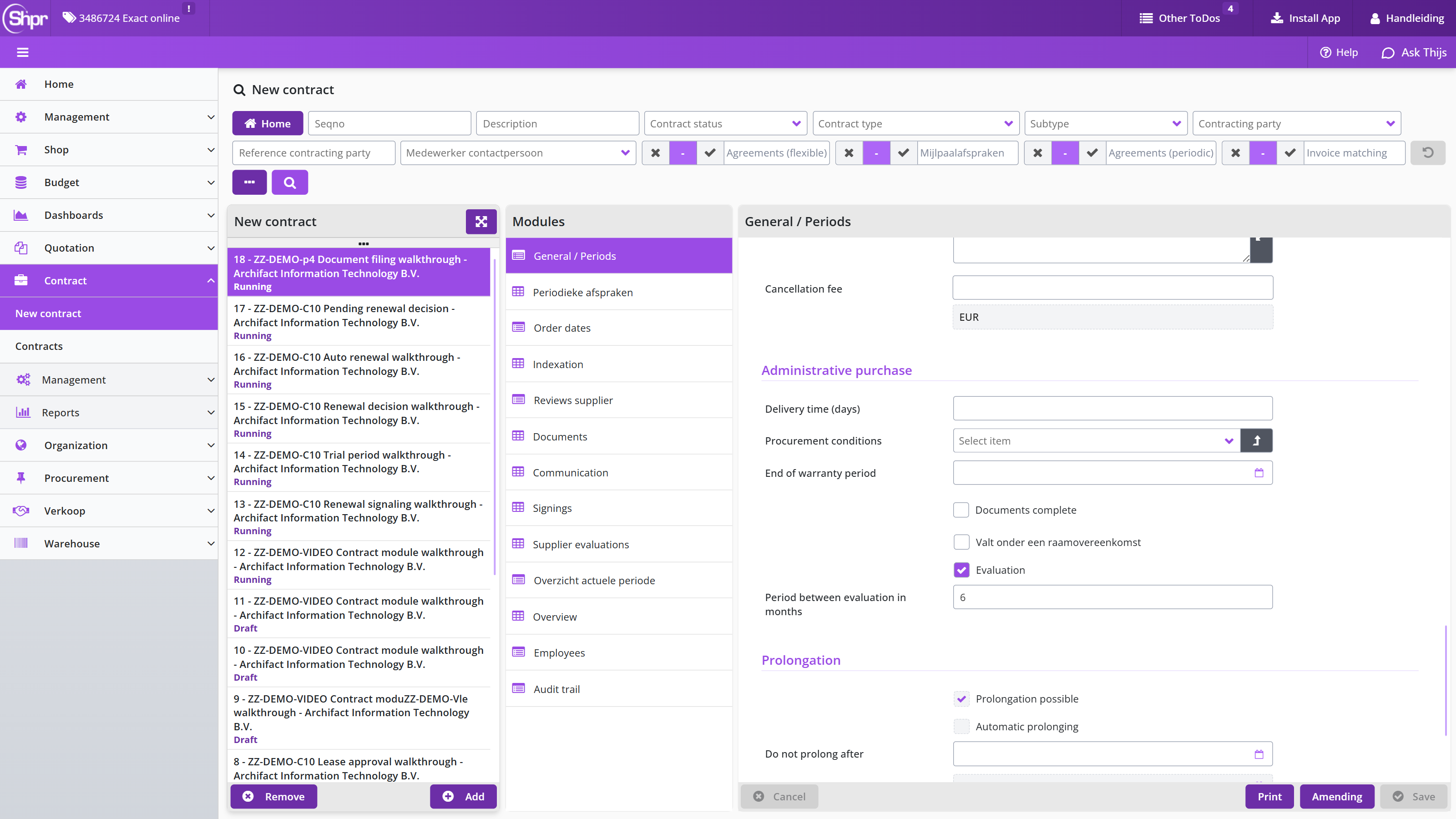
Supplier evaluations and communication for a contract
If you want to evaluate the contract with the supplier in the interim, mark the Evaluation checkbox in the Administrative purchase block of the General / Periods data module and then specify the Period between evaluation in months.
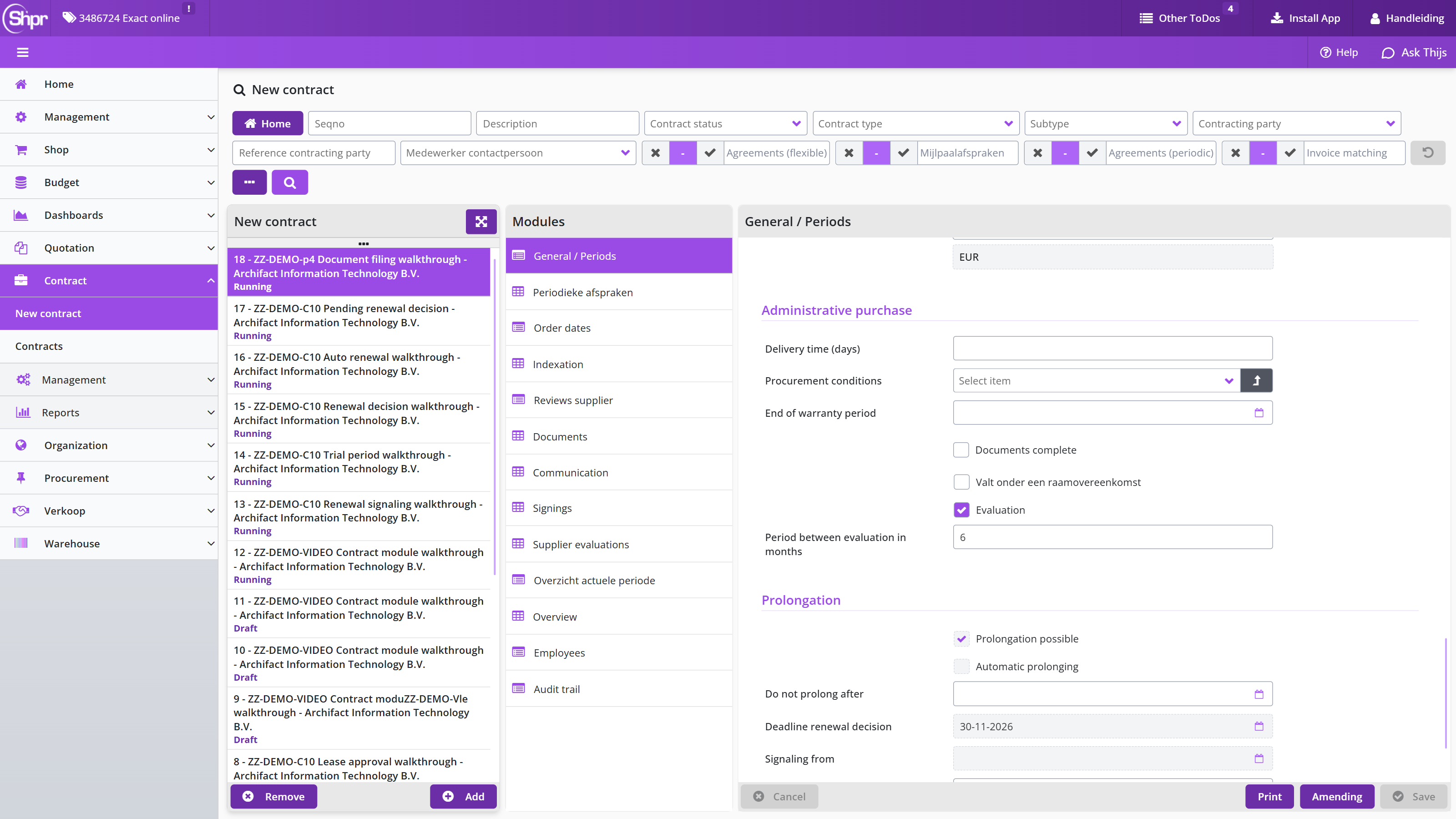
The resulting evaluation moments are flagged by Shopper and reported to the contract manager by means of an Other ToDos entry, so they can be scheduled. During the evaluation you can use all registered documents, contact moments and reviews that your organization has recorded with the contract in Shopper. Reports and declarations of performance created with Shopper can also be added to the contract as PDF, so everything is accessible in one place.
Should you agree with the supplier, following the evaluation or otherwise, that the contract will be terminated prematurely, see Cancel a contract.
All correspondence with the supplier regarding the contract can be kept in Shopper with the contract. In the Communication data module, the button records a communication moment.
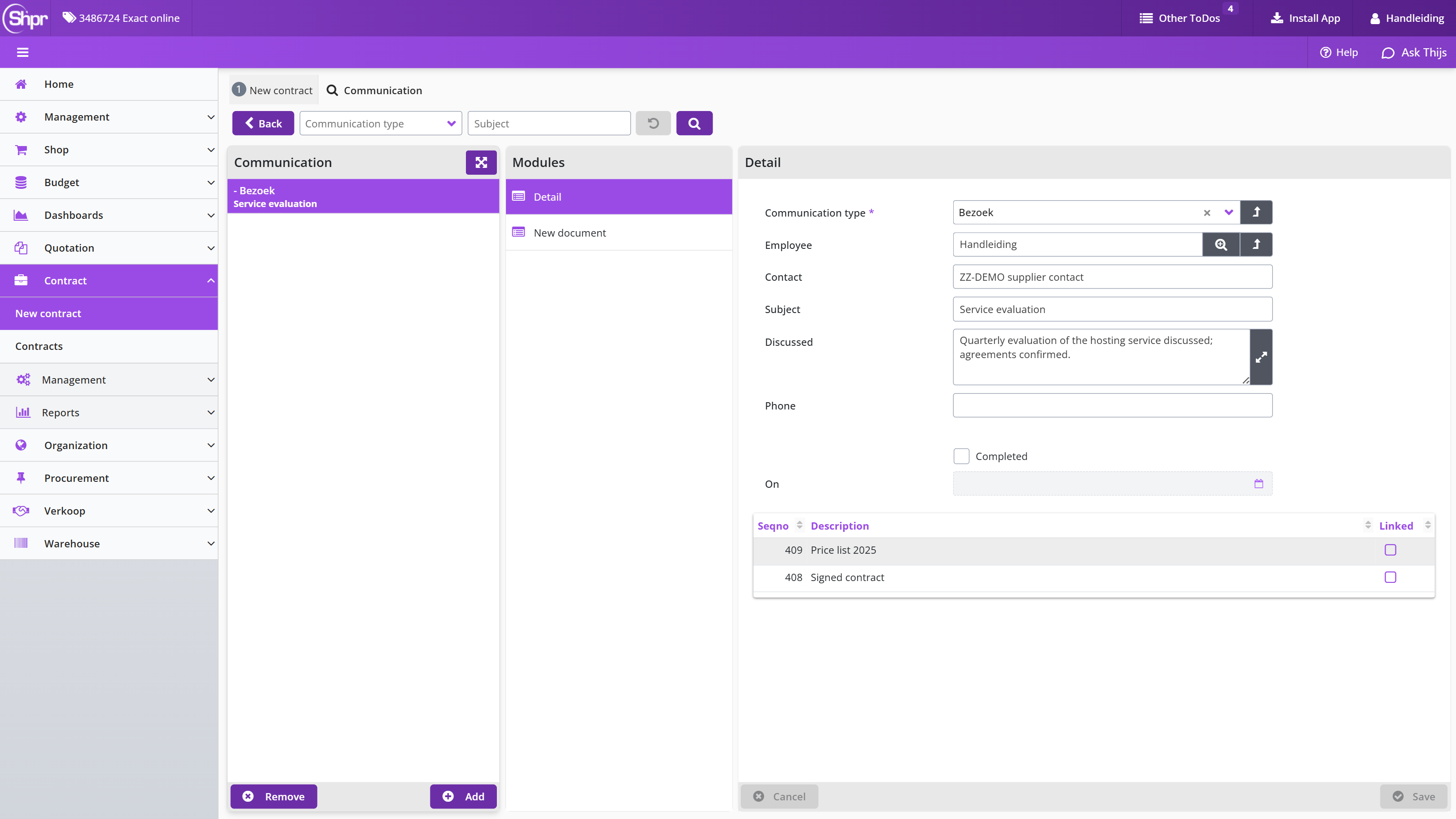
In the Detail data module you specify the related data of the communication moment, including what was communicated and with whom. Under Communication type you indicate how the communication took place, and if the coordination has been fully completed with this communication moment, the Completed checkbox can be checked. With the communication type Outgoing e-mail this indicator is turned on by default.
Any attachments can be added via the New document data module of the communication moment. The linked documents are then listed at the bottom of the Detail data module, where you can unlink them with the Linked checkbox if applicable. Attachments added here are also visible in the Documents data module of the contract, where they can be removed if necessary.
Supplier reviews on a contract
In the Reviews supplier data module you can find the supplier's reviews or add your own review. By default only the supplier reviews for this contract are listed.
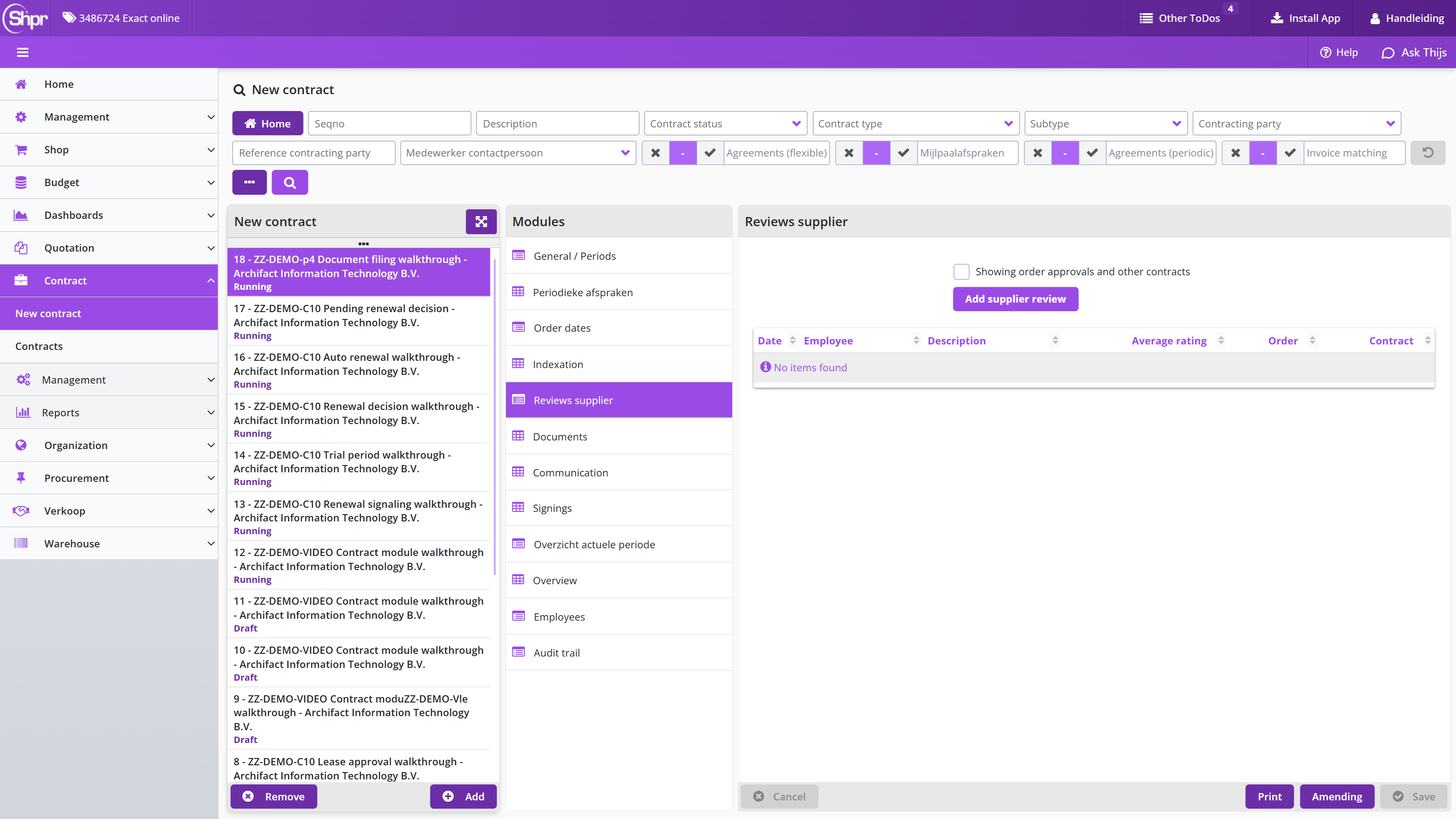
If the checkbox Showing order approvals and other contracts is marked, supplier reviews given during the P2P process and for other contracts are also listed. Select a review to see its full details or, when applicable, modify them.
The button adds a supplier review for this contract; for the fields on that screen, see Report problems with the delivery or supplier internally under To be received. See Reviews at Catalog management for more details.
Note: you can only modify the reviews you gave yourself. The categories for a review are adjustable; see Review categories under Catalog management.
Digitally sign contract document
When applicable the contract, and any related PDF documents, can be digitally signed via Shopper.
In that case, the data module Signings is available for the contract, and you can set up and carry out the digital signing from it. For the procedure, see Sign documents digitally.
Note: this requires the integration with a digital signing system to be installed.
If no PDF documents have been added to a contract, the data module Signings is not available for it.
Monitoring, renewing and ending a contract
This chapter describes how you monitor a running contract and what to do when a contract period comes to an end. "Contract signaling on the contracts dashboard" explains which tiles the dashboard shows and which dates on the contract period drive those alerts. "Other ToDos for contracts" covers the alerts you follow up from the Other ToDos list, with "Contract documents incomplete" and "Renew contract document" as worked examples.
The decisions themselves follow:
- Renew a contract (manually or automatically)
- Amend a contract mid-period for a change to an active period
- Cancel a contract to end a contract before its end date
- Cancel a contract within the trial period
- End a contract at its end date.
Contract signaling on the contracts dashboard
Contract signaling alerts you to the deadlines on a contract period: the notice period, the renewal decision deadline and the trial-period cancellation window. Instead of remembering the dates, Shopper raises a to-do when a deadline gets close. The lead time comes from the contract type and can be changed per contract with Signal period in months.
The alerts are collected in the Contract todo panel of the Dashboard contracts screen, which you open from the Dashboards menu. Each entry is a tile with a live count. Click a tile to open the list of contracts in that condition. There is no repeated reminder if the first alert is ignored.

The dashboard can show these tiles:
- Contract signaling (cancellation) - for contracts near the Interim cancellation until date
- Contract signalling (renewal decision) - for contracts near the Deadline renewal decision that still need a Renewal decision
- Contract signaling (auto renewed) and Contract signaling (auto terminated) - for contracts that were renewed or ended automatically and still have to be acknowledged
- Contract rejected - for contracts that were rejected during review
- Renew contract document - for contracts flagged for a renewed contract document
- Alerts for periodic or flexible agreements: Contract agreement (alert offtake exceeded) and Contract agreement (alert max offtake).
The dates that drive the alerts are set on the contract period itself and cannot be changed on the dashboard: Notice period in months and Interim cancellation until drive the cancellation alerts, and Signal period in months, Signaling from and Deadline renewal decision drive the renewal decision alert.
Other ToDos for contracts
Other ToDos for contracts are the alerts you follow up from the Other ToDos list; they apply alongside the contract signaling on the Dashboard contracts screen.
Contract alerts apply to different stages in a contract's life cycle: signaling for extension, cancellation or termination, and signaling when a contract has been automatically extended or terminated. There are also alerts for archiving a contract, renewing contract documents, and planning and completing evaluation interviews.
These alerts are handled via Other ToDos. As with the Other ToDos that follow from the P2P process, you follow up a ToDo by choosing it from the list and completing the follow-up in the screen that appears. For contracts, the contracts screen is usually shown with a list of contracts to which this ToDo applies, similar to following up from the process flow ToDo.
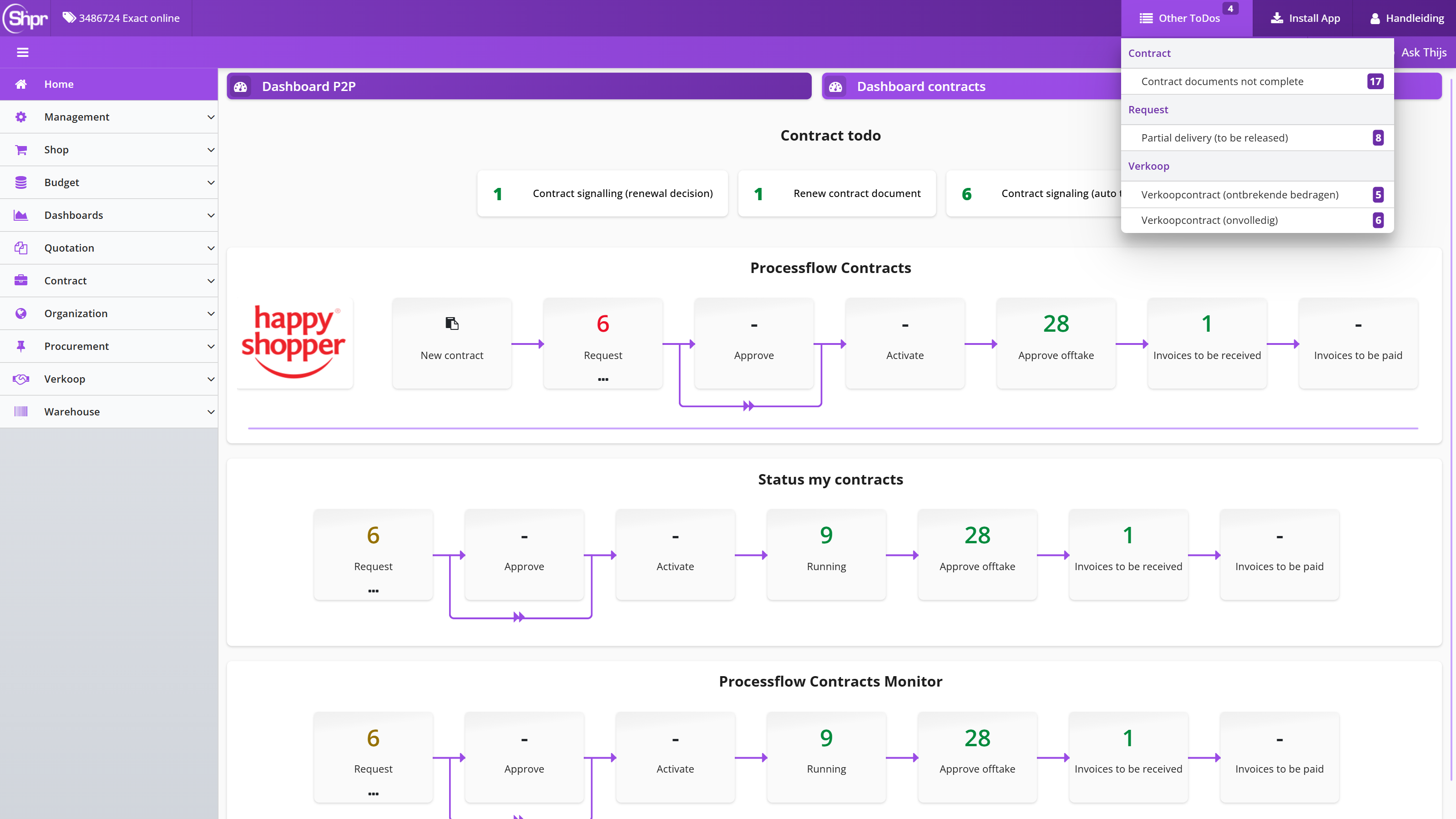
After choosing a contract from the list, you can determine, where applicable, to which period the ToDo applies. If a period of a contract needs follow-up from another ToDo, a blue exclamation mark is shown for that period. For other ToDos that are not tied to a contract period, no blue exclamation mark is shown. Other ToDos are assigned to employees who have the role assignment, via the contract echelon, needed to follow up that ToDo.
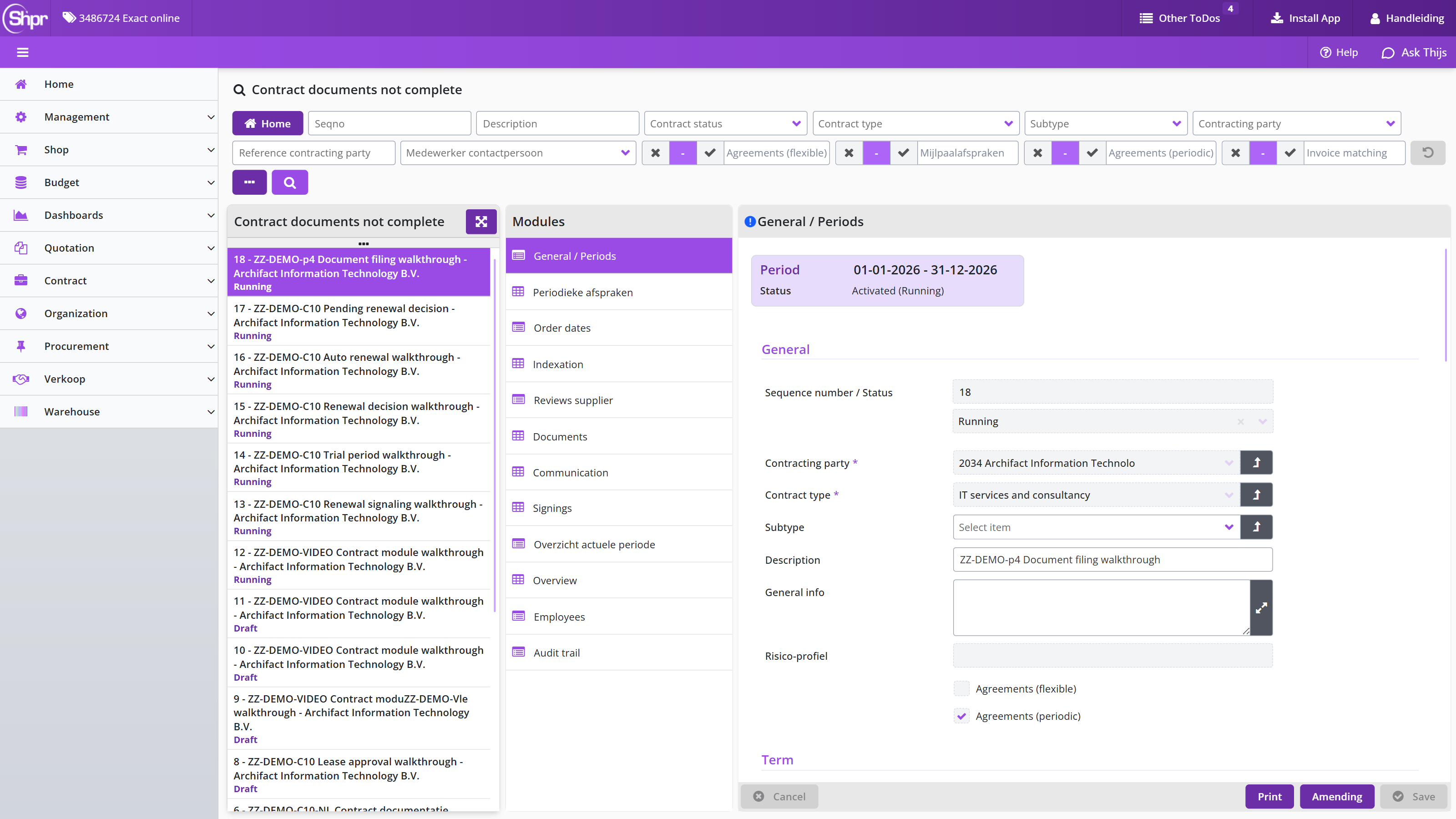
Contract documents incomplete
The ToDo Contract documents incomplete is shown to an employee who holds the role Administrator via the contract echelon. Choosing this ToDo shows a list of contracts that still need to be archived; see Documents, communication and signing for registering and archiving documents. Once the documents your organization requires have been added, the Documents complete checkbox can be selected for the contract in the General / Periods data module, after which the contract is no longer shown at this ToDo.
Renew contract document
If, when registering documents for a contract, an expiration date (Date valid until) is specified, the contract is listed in the Renew contract document ToDo once a document needs to be renewed. This ToDo is shown to an employee who holds the role Administrator or owner via the contract echelon. A few days before the document expires, this is stated under Other ToDos; the number of days is adjustable at the Parameters data module under System parameters.
After choosing this ToDo, a list of contracts with documents that still need to be renewed follows. When following up this ToDo, go to the Documents data module of the contract and expand the list of documents to see which need renewing. The button to expand the list puts Documents in the title bar on the right.
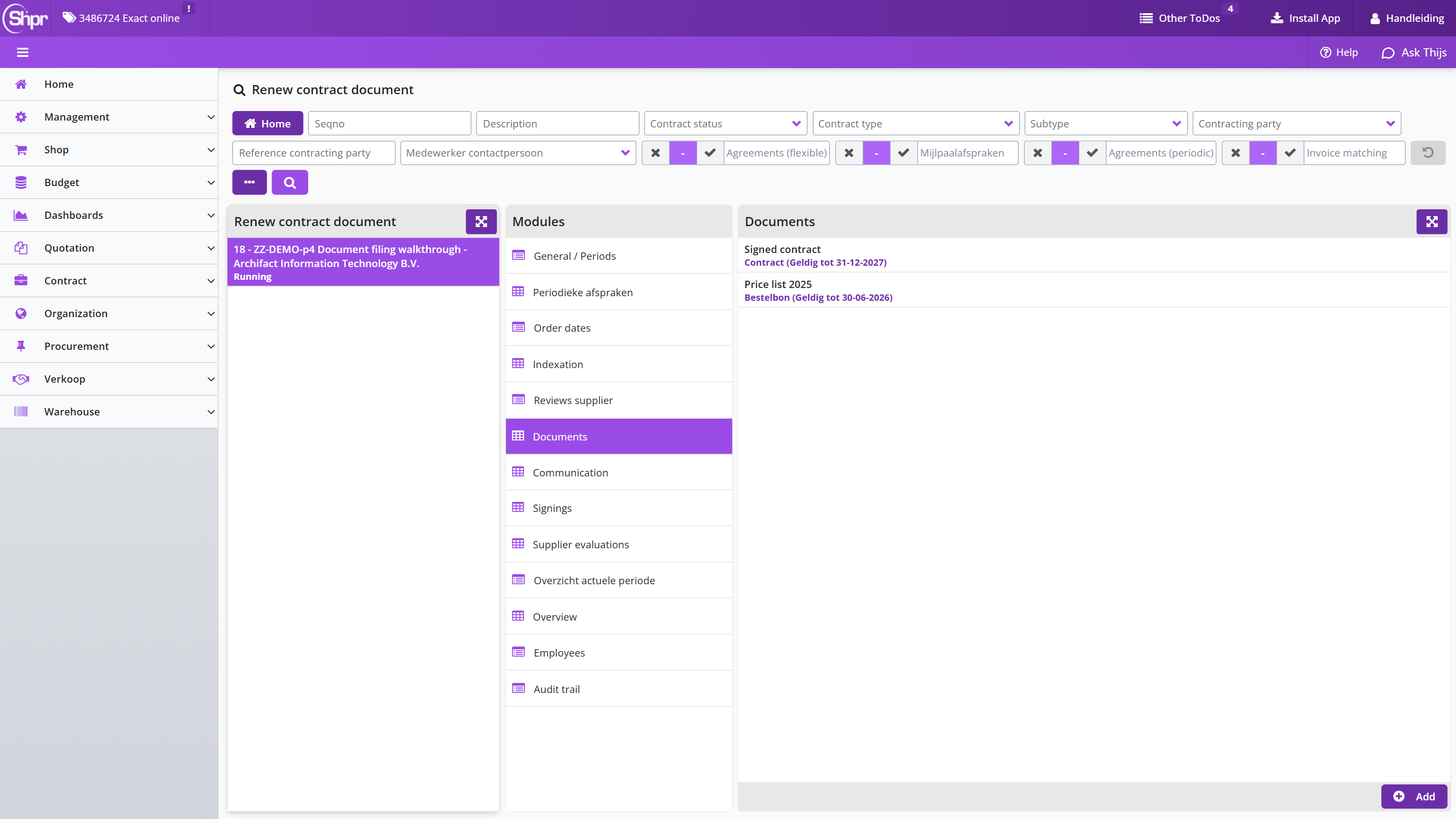
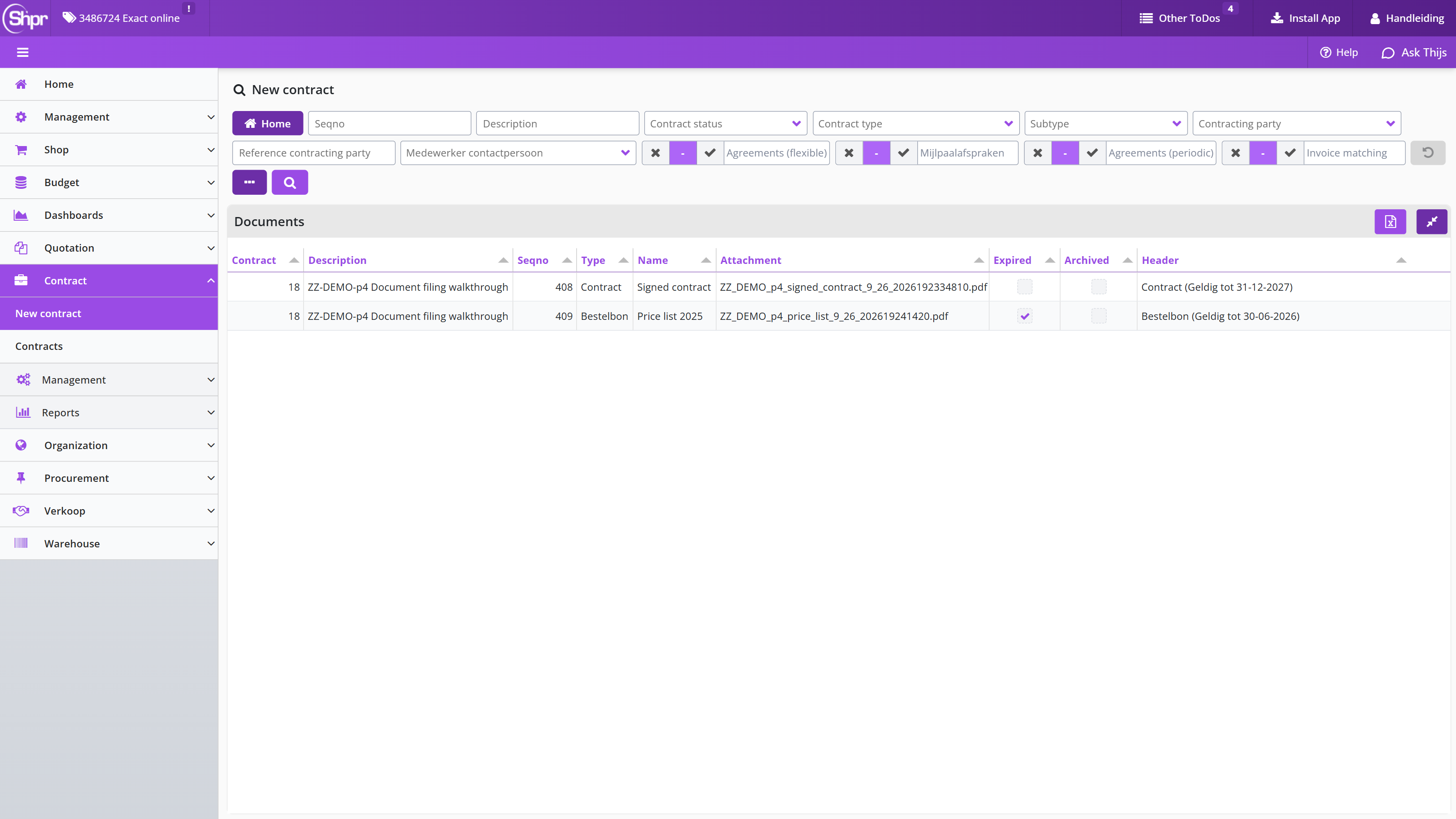
After choosing the document for which Yes is shown in the Expired column, you can replace it and, if necessary, enter a new Date valid until. After replacing or renewing the document, the Renewed checkbox can be checked to set the Expired indication back to No.
If No is shown for all documents in the Expired column, the contract is no longer shown at the Renew contract document ToDo. If a document is replaced by another document, the existing document can be marked as Archived. The detail fields for a single document are described under Documents, communication and signing.
Renew a contract
Renewal is prepared before the contract ends. On contract types where renewal applies, Prolongation possible is ticked in the Prolongation block of the General / Periods module. Deadline renewal decision is the last date on which the renewal decision can still be set by hand, and Signaling from is the date on which the signaling Contract signalling (renewal decision) appears on the contracts dashboard. Prolongation in months sets the length of the follow-up period.
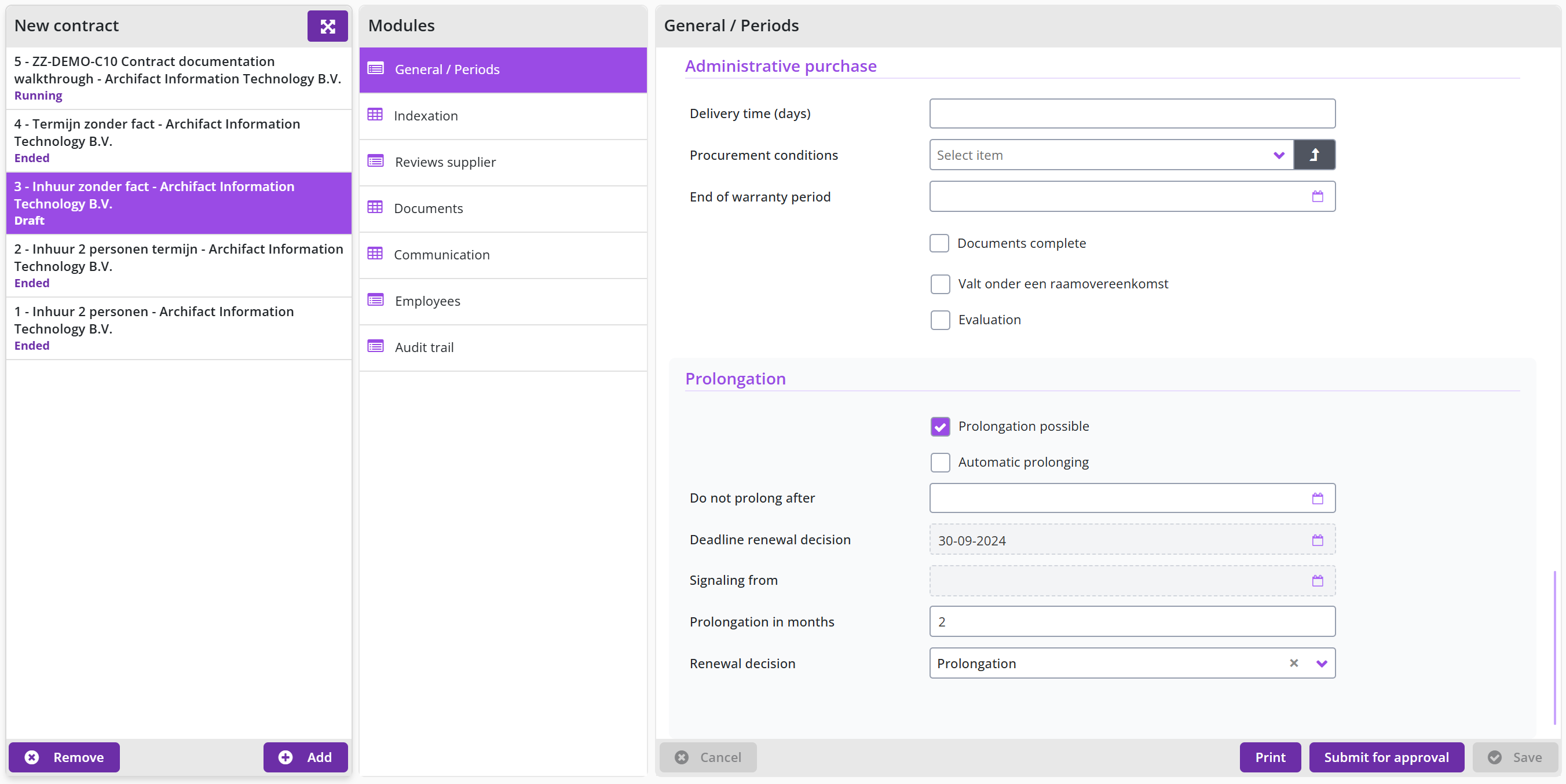
To renew the contract, set Renewal decision to Prolongation. To let it end at the date already recorded, set it to Stop. If you set Renewal decision to Prolongation, click to create the follow-up period; it is created with the status Draft (Renewal contract) and has to go through review and activation like any other Draft. If Automatic prolonging is ticked and nobody has set a renewal decision, Shopper prepares the follow-up period automatically when the Deadline renewal decision has passed. The automatic renewal prepares the follow-up period; it does not activate it.
After you click , the General / Periods module shows a second period card next to the current one with the status Draft (Renewal contract), and the button appears next to Add.
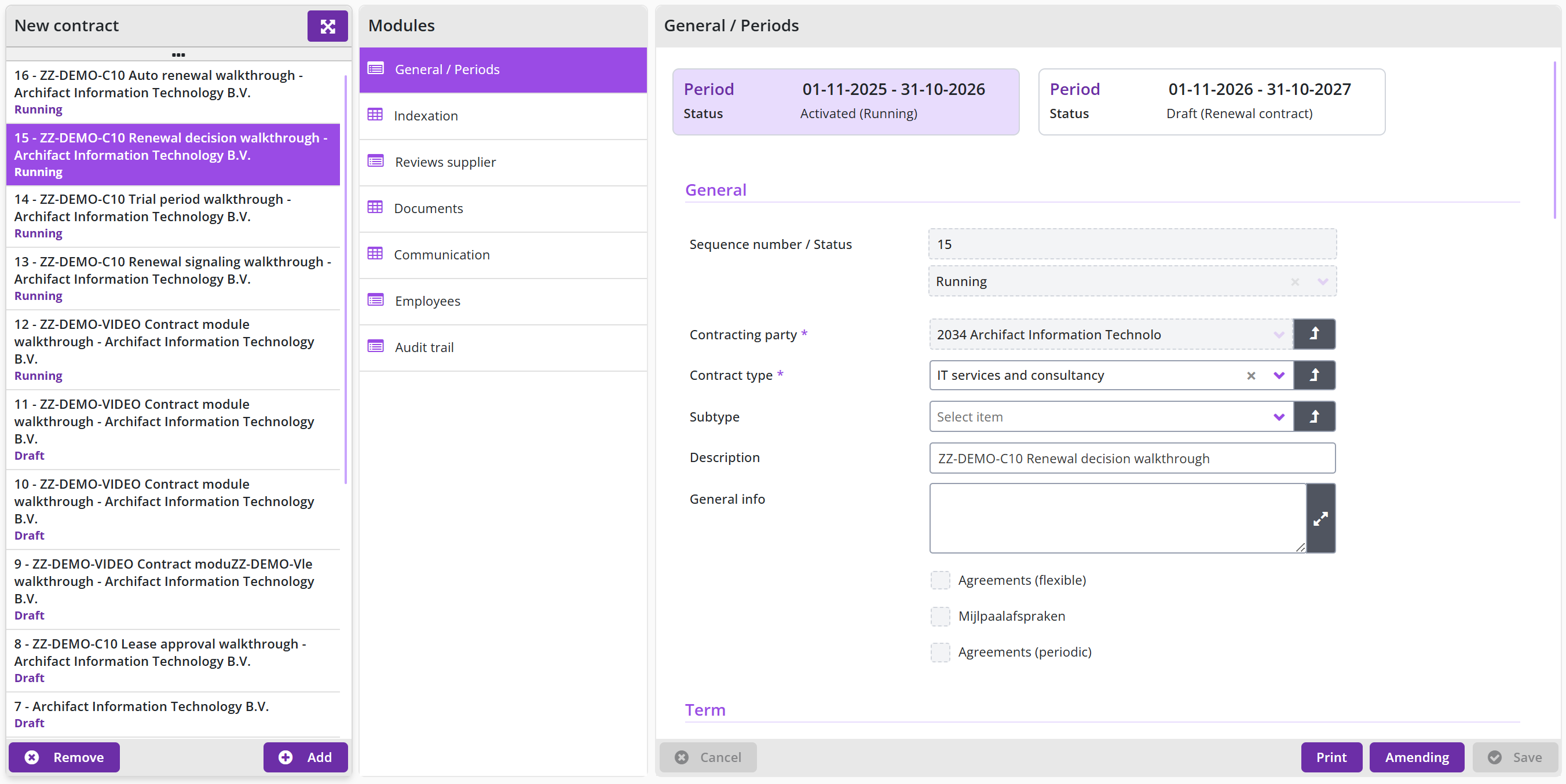
The requester can remove a follow-up period that should not exist with Remove follow-up period, as long as it is still Draft (Renewal contract). After an automatic renewal the employee holding the role Regulator opens the contract and confirms it with Auto renewal seen. Do not prolong after caps how far a contract can be renewed.
Amend a contract mid-period
Use an interim amendment to change a contract period that is active or approved, for example to correct a rate, add a clause or change a contact, without waiting for the next renewal. It keeps the change controlled: the change is reviewed and activated again and is visible in the audit trail, whereas editing the active period directly is not possible.
Open the contract, go to the General / Periods module and click () at the bottom right. The button is available while the status is Activated or To be activated. Shopper opens the Amending contract dialog with a required Note field in which you record what changes and why. Confirm with Amending contract to create a Draft period with the status Draft (Amendment contract) or, for a renewal period, Draft (Amendment renewal). Make the change in that draft and submit it for review. The workflow that is used depends on the contract type, with or without invoice matching.
After you confirm, the period card shows Draft (Amendment contract) and the buttons at the bottom change to Print, Submit for approval and Save.
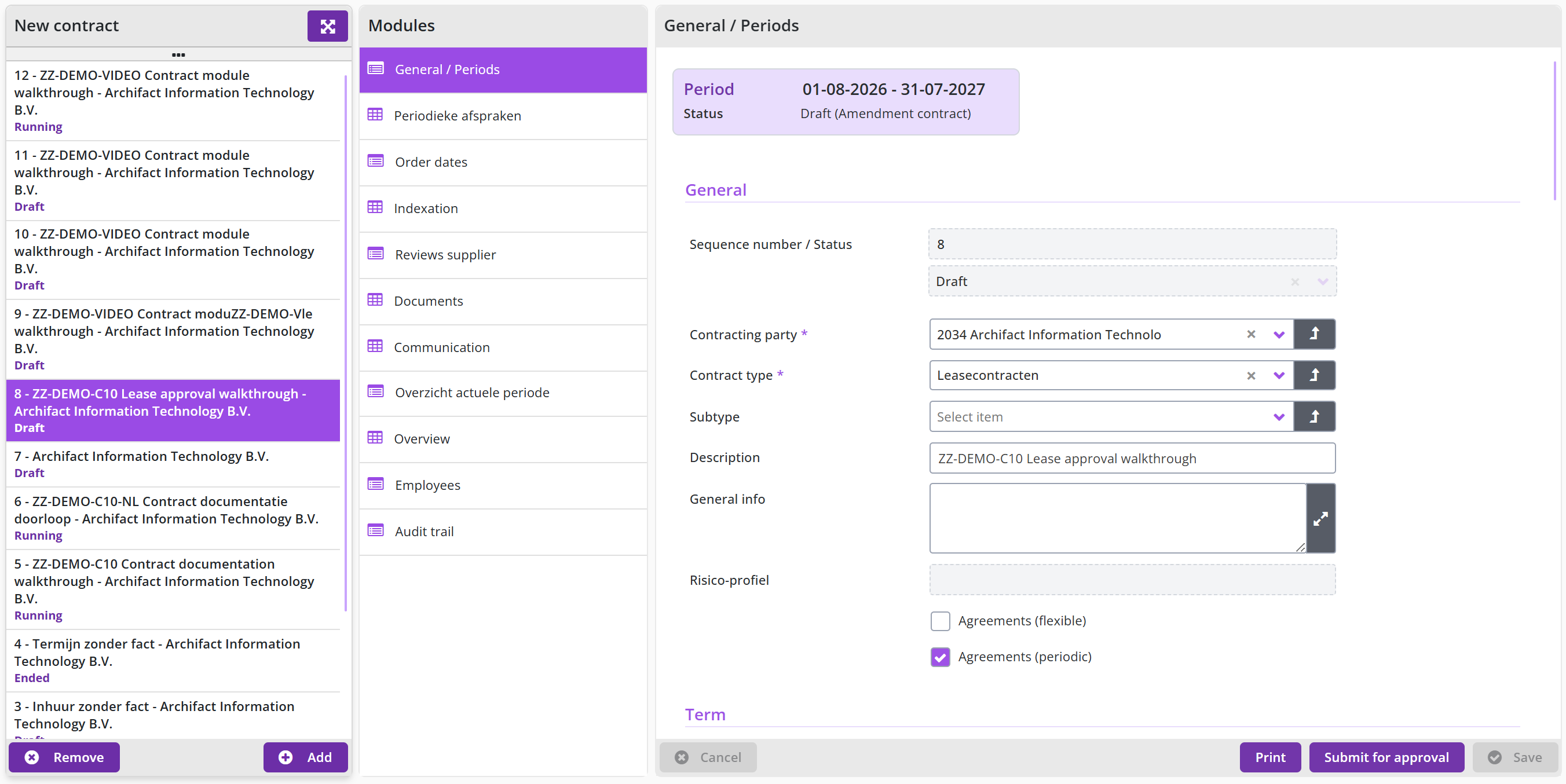
Cancel a contract
To end a running contract before its end date, open the contract from the Contracts list, go to the General / Periods module, scroll to the Term block of the current period and tick Aborted. There is no separate button. Depending on the contract type, the same box is also used for a trial-period cancellation right; see Cancel a contract within the trial period. Outside a trial period, ticking it ends the contract earlier than its normal end date.
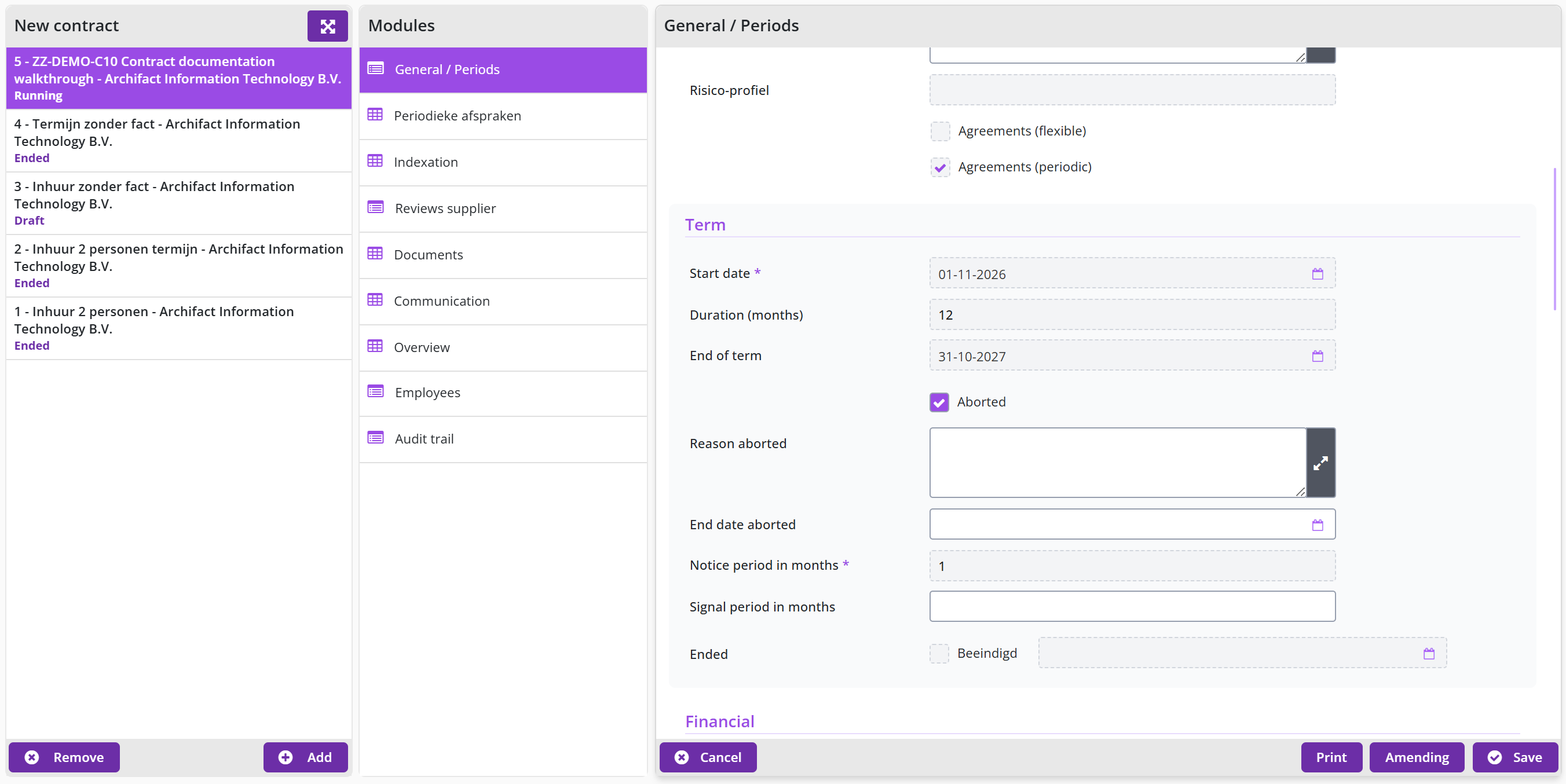
Ticking Aborted reveals Reason aborted, a free-text explanation of why the contract is terminated, and End date aborted, the date on which the termination takes effect. End date aborted only becomes active once the termination is authorized, so until then the contract keeps running under its current period. When a contract period has actually ended, Ended is ticked automatically and shows the date on which the contract ended or will end. The button in the toolbar at the bottom only discards unsaved changes on the form; it does not cancel the contract.
The notice period (Notice period in months) and the cancellation costs (Opzegkosten) also apply to an early termination. If a contract may not be terminated early, the flag Do not cancel prematurely applies; the default follows the contract type.
Cancel a contract within the trial period
Some contract types have a trial period during which the contract can still be called off at short notice. Shopper records the end of that period in the Term block of the General / Periods module: Interim cancellation until shows the last date on which the contract can still be cancelled under the trial period.
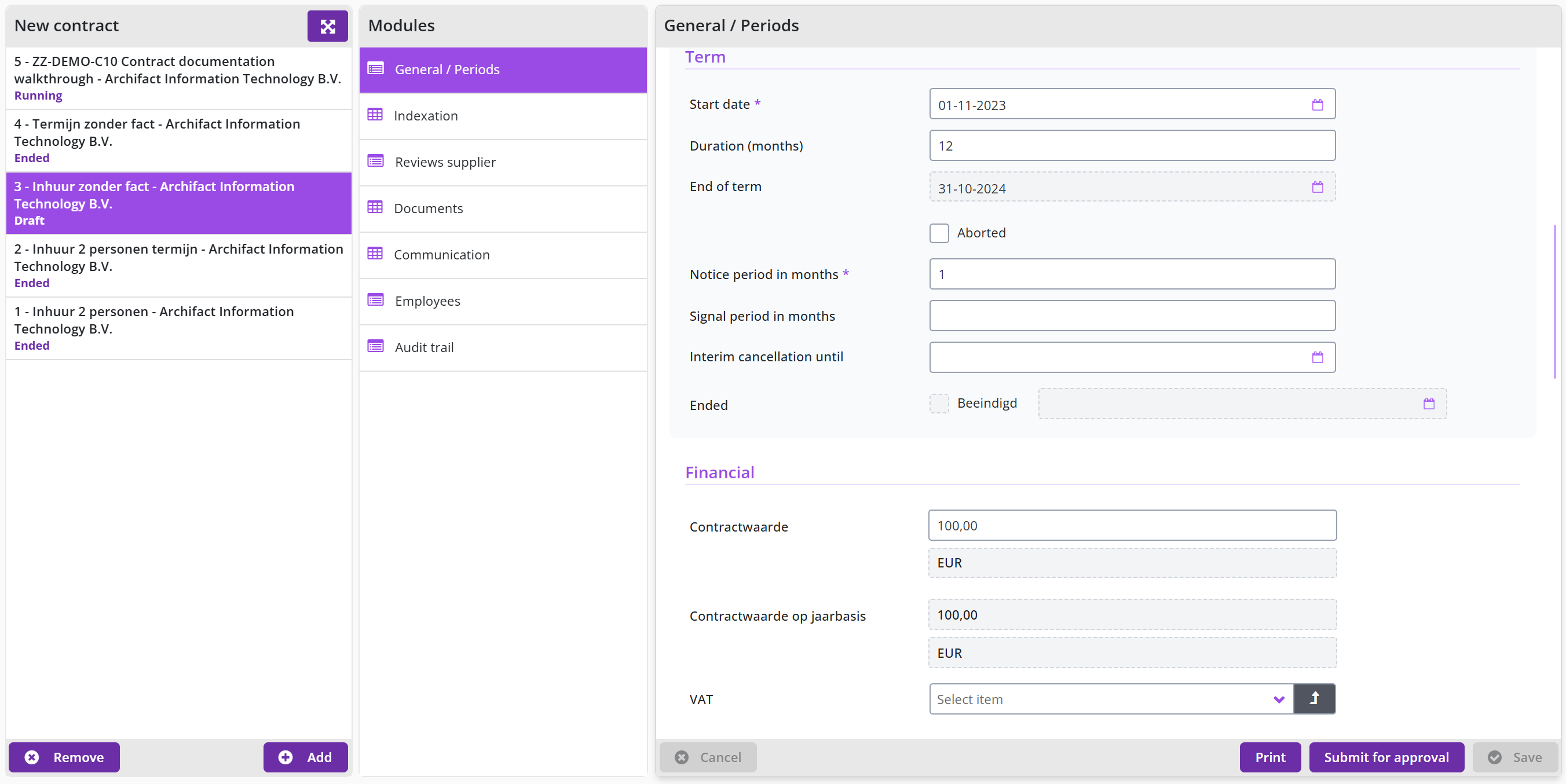
Signal period in months sets an early warning before that date. Shopper then raises a Contract signaling (cancellation) entry on the contracts dashboard, so the decision is not missed. To use the cancellation right, tick Aborted and fill in Reason aborted before the Interim cancellation until date has passed. If the contract must continue, tick Do not cancel prematurely instead. Ticking Do not cancel prematurely also clears the Contract signaling (cancellation) entry from the dashboard, because it completes that to-do.
End a contract at its end date
A planned end is registered before the deadline of the follow-up decision: set Renewal decision to Stop, or do not renew. When no follow-up exists at the end date, the period is flagged as stopped automatically, its runtime status becomes Ended and the employee holding the role Regulator confirms it with Auto terminated seen. The contract and its history stay available and the audit trail stays intact. The controller can still cancel open payments on an ended contract with Cancel payments; see Invoices and indexation.
On an ended period the Term block shows the end date under Ended and the toolbar at the bottom offers Auto terminated seen.
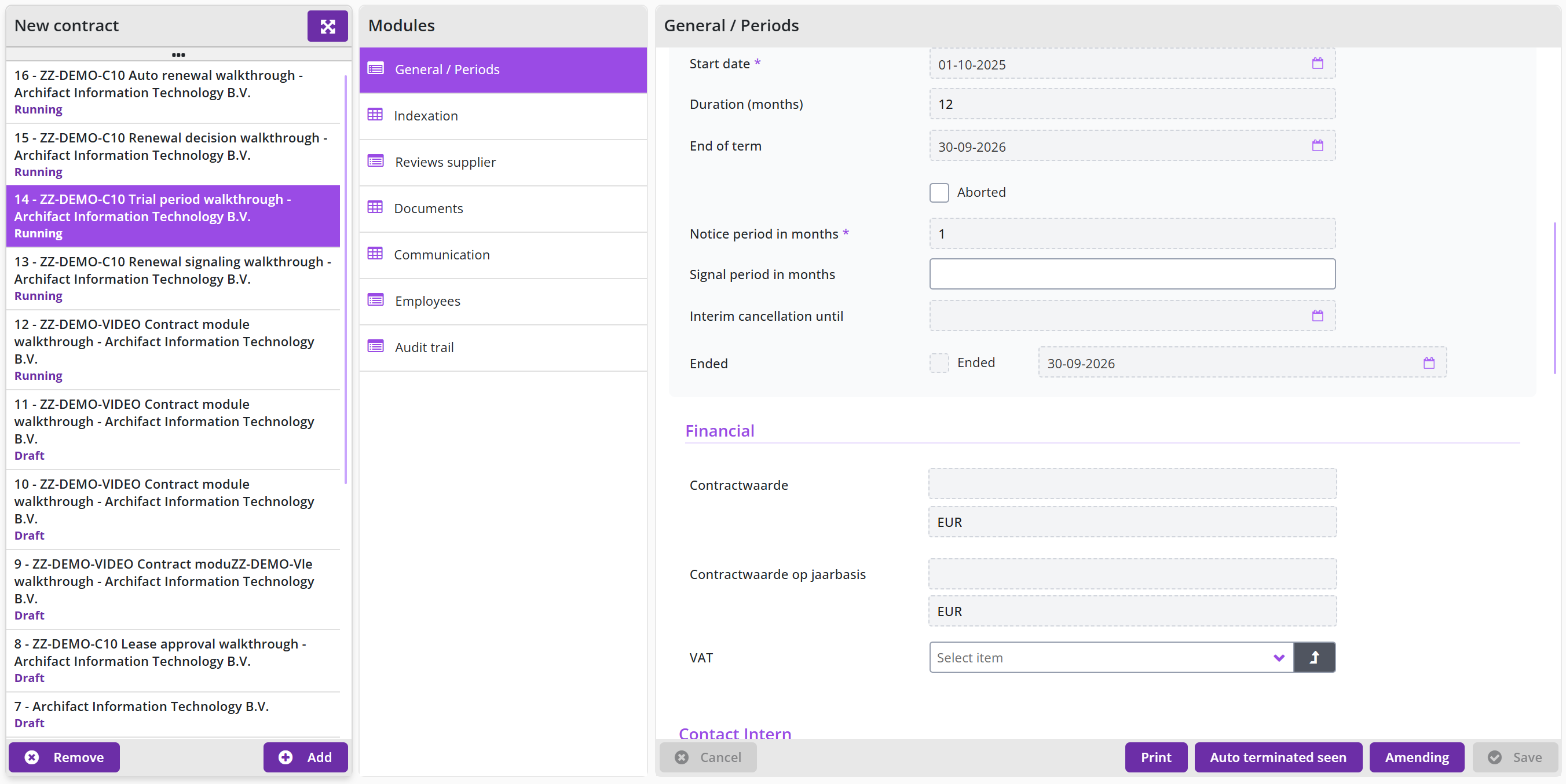
Contract setup
This chapter describes the setup of the contract module: the principles and the settings that determine how contracts are requested, reviewed and managed. "Contract echelons and contract workflows" explains what these two building blocks are and what you can and cannot set up yourself. "Contract workflow" describes the review workflows that can be chosen per contract type. "Contract authorization and access rights" describes how employees get access to contracts and which roles they hold via the contract echelon.
"Contract type" describes the contract type screen and the fields of the Detail data module; "Contract type per administration, subtypes and default types" covers the other data modules and the contract types supplied with Shopper.
Contract echelons and contract workflows
When setting up contracts in Shopper, you can determine which working method is used and which access rights apply. Within the standard product there are several contract echelons and contract workflows for this, based on best-practice experience.
With contract echelons, different levels or ranks can be set up within your organization, supporting a free form of organization in relation to the roles, expertise and access rights that apply. The steps in the process from requesting to activating contracts are set up in the contract workflow, where one or more review steps can be applied.
Note: you cannot add a contract echelon or contract workflow yourself, or change role assignments or workflow configuration. This can be provided in customized form by an Archifact employee; inquire about the available options through your contact person.
Note: the best-practice configuration for contracts is described under "Contract organization" in the chapter Organization.
Contract workflow
For the review process step, a different workflow can be set up per contract type. A default workflow is set up at the level of the financial administration and the system parameters, and applies whenever a different workflow is not specified for a contract type.
The review process step is based on this workflow set-up, which can use the best-practice workflows supplied with Shopper, listed below. Workflows are managed in the Workflow screen (menu Management, item Workflow, available to an account with management rights); each workflow has a Detail and a Workflow steps data module.
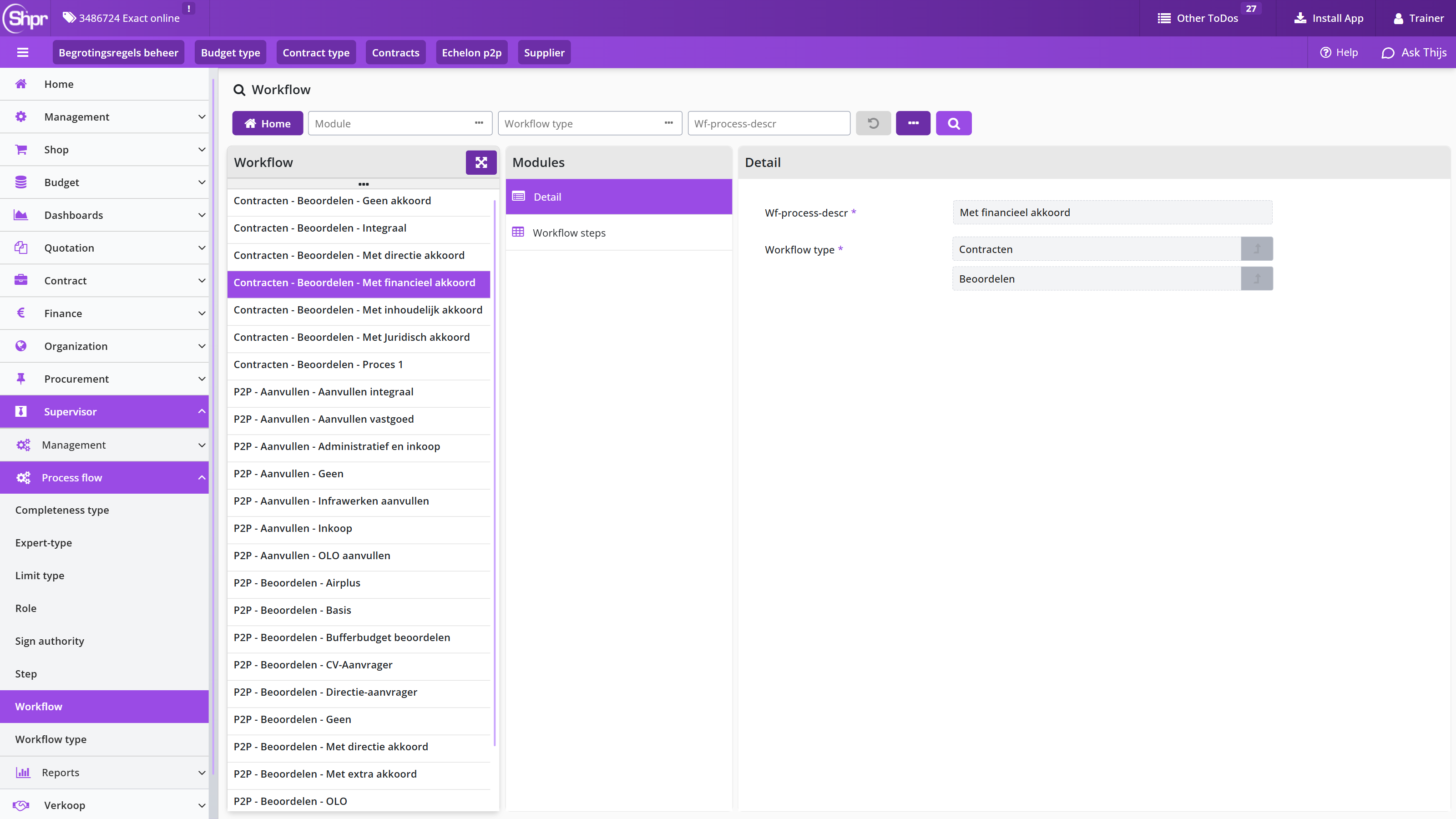
Workflow 1 – Implicit approval: the requested contract can be activated without review.
Workflow 2 – With content-based approval: an employee's approval with the role Approver and the content expertise type is required.
Workflow 3 – With legal approval: an employee's approval with the role Approver and the legal expertise type is required.
Workflow 4 – With board approval: an employee's approval with the role Approver and the board expertise type is required.
Workflow 5 – With financial approval: an employee's approval with the role Approver and the expertise type contract-financial is required, in combination with a limit type and the number of approvals required.
Workflow 6 – With board approval: multiple approval steps are concatenated, requiring the approval of several employees with the role Approver and the expertise types for Business, Legal and Financial.
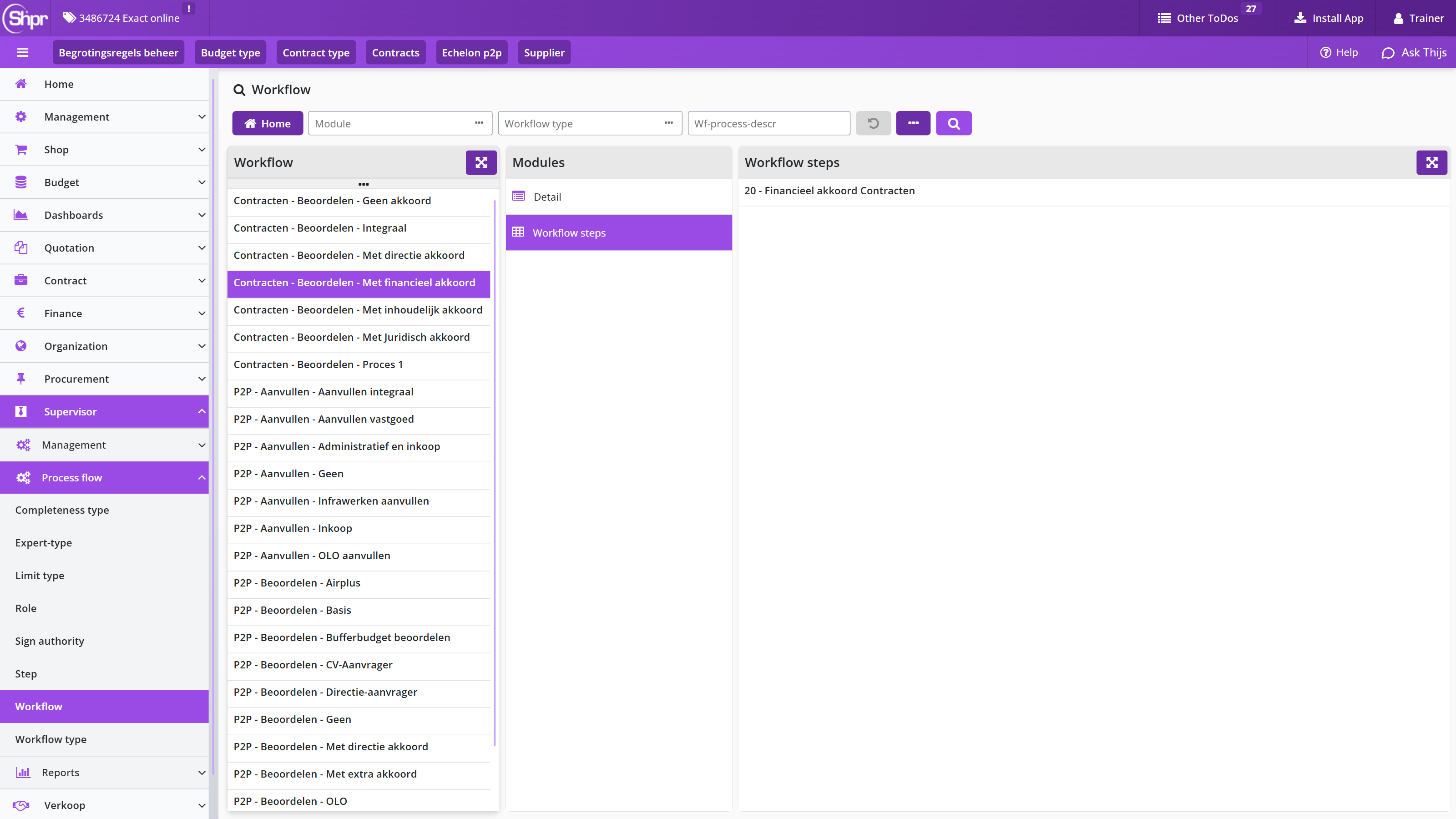
The best-practice set-up for contracts is described under Contract workflow (approve) in the chapter Workflow.
Contract authorization and access rights
Access to the contract functionality is obtained by assigning (checking) Contract management in an employee's profile. Role authorization then determines which contract functionality is accessible to them via the contract echelon. For checking contract management see Employee roles and user licenses under Employees and authorized persons.
Role authorization follows from the roles assigned to a contract echelon. One or more roles can be assigned to each contract echelon, and each role translates into an authorization to perform certain tasks and actions (ToDos) within the contract process.
Note: assigning roles to contract echelons is not available by default. Contact Archifact if your contract organization, in addition to the best-practice options, requires additional contract echelons or other role assignments.
Within the contract echelons, the content-based authorities are set up in relation to organizational units, item types and contract types. The choice of organizational units and contract types in the employee assignment is limited to what has been set up for this in the contract echelon, and only organizational units the employee belongs to can be selected; see Employee roles and user licenses under Employees and authorized persons.
Note: for setting up contract echelons, see the section Contract echelons, under Organization, Contract organization.
The set-up at the contract echelons translates into contract roles per authorized employee, made transparent for a contract in the Employees data module. In other words, whenever this manual refers to a required role for a described process step or task, this overview shows which employee has that role, showing only those employees who have the required authorization for the organizational units, item types and the contract type of this contract.
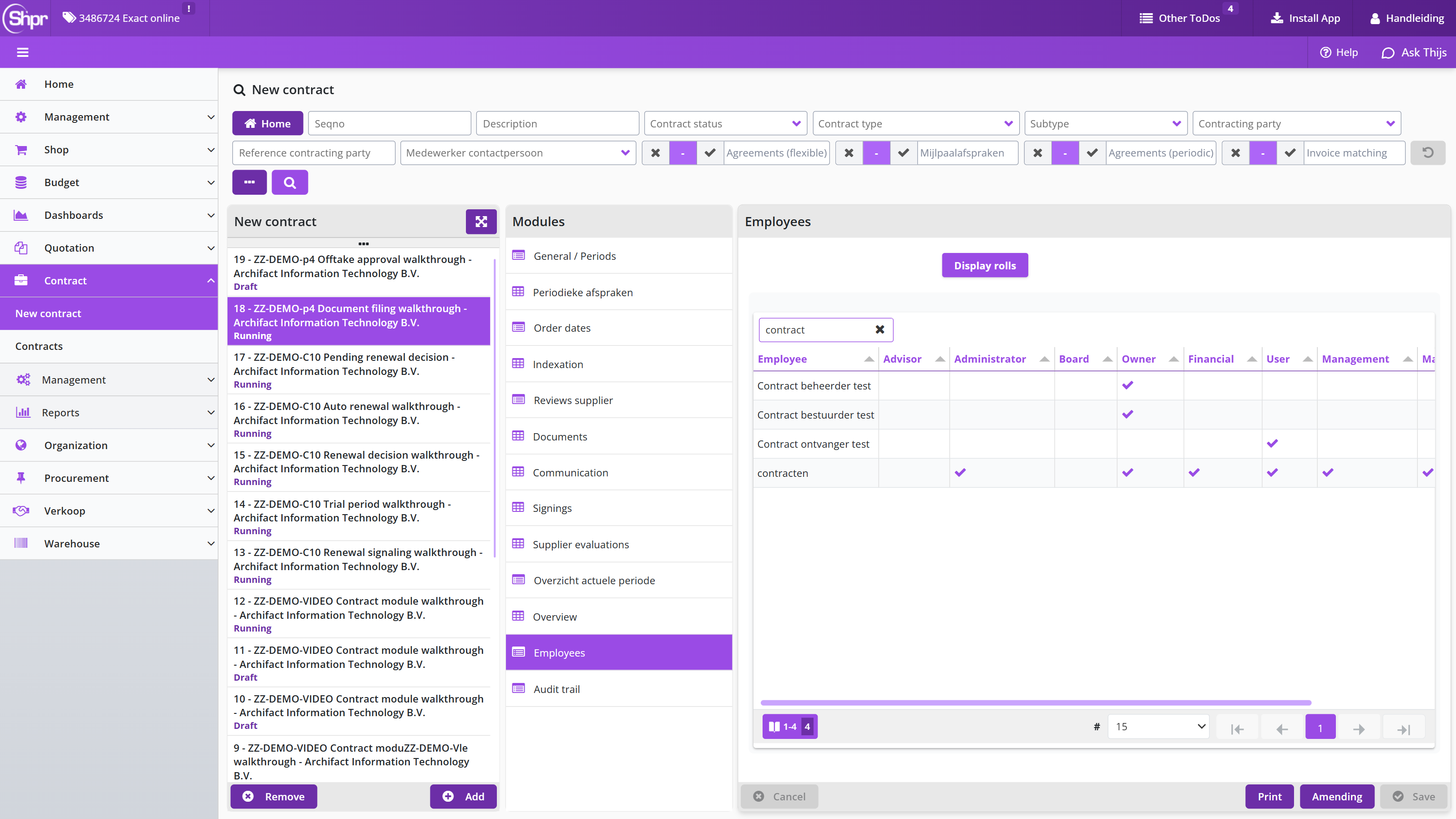
Contract type
Contract types are managed via the "Contract" menu, menu item Management – Contract type; see the Contract organization section for an explanation of contract types. The contract type screen follows the standard layout described for "General screen layout" under Use of the other screens.
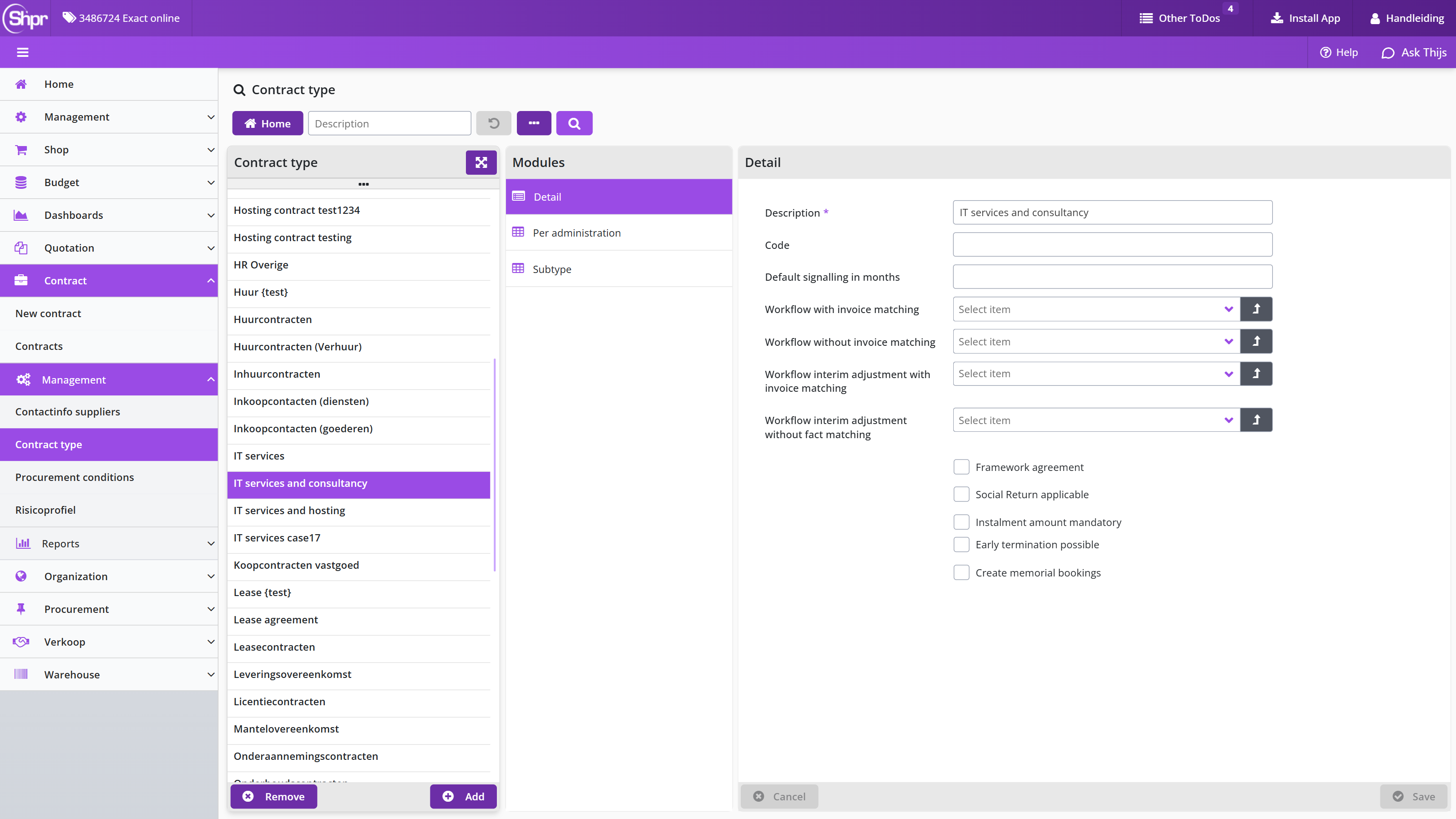
With the buttons and , contract types can be added or removed. In the Detail data module you can optionally enter a description and a code. The other fields are optional and only need to be filled in if it is necessary to deviate from what is set in the Parameters data module for contracts under System parameters, such as a different Default signaling in months or the choice of workflow that applies to this contract type. A distinction can be made for the workflow that must be followed for contracts with or without invoice matching (the fields Workflow with invoice matching and Workflow without invoice matching, and the same pair for an interim amendment).
There are several options that can be checked that apply to this contract type; see also the ? help texts in the screen for more explanation.
Note: the checkbox Framework agreement can no longer be deselected once contracts of this type have been created and contracts with suppliers have been attached to this framework agreement.
The checkbox Create memorial bookings and the field Journal entry type are only available if the licence for journal entries has been purchased; see Invoices and indexation.
Contract type per administration, subtypes and default types
Besides the Detail data module, the contract type screen (Contract menu, menu item Management – Contract type) has the data modules Per administration and Subtype; in addition, Shopper supplies a number of contract types by default.
In the data module Per administration you link the administrations to which this contract type applies. With the data module Subtype you can create different contract subtypes for your own administration.
When installing Shopper, several contract types are available by default for setting up contracts, based on best practices. You can adapt or extend these contract types in line with your own contract organization; you do not normally need support from an Archifact employee for this.
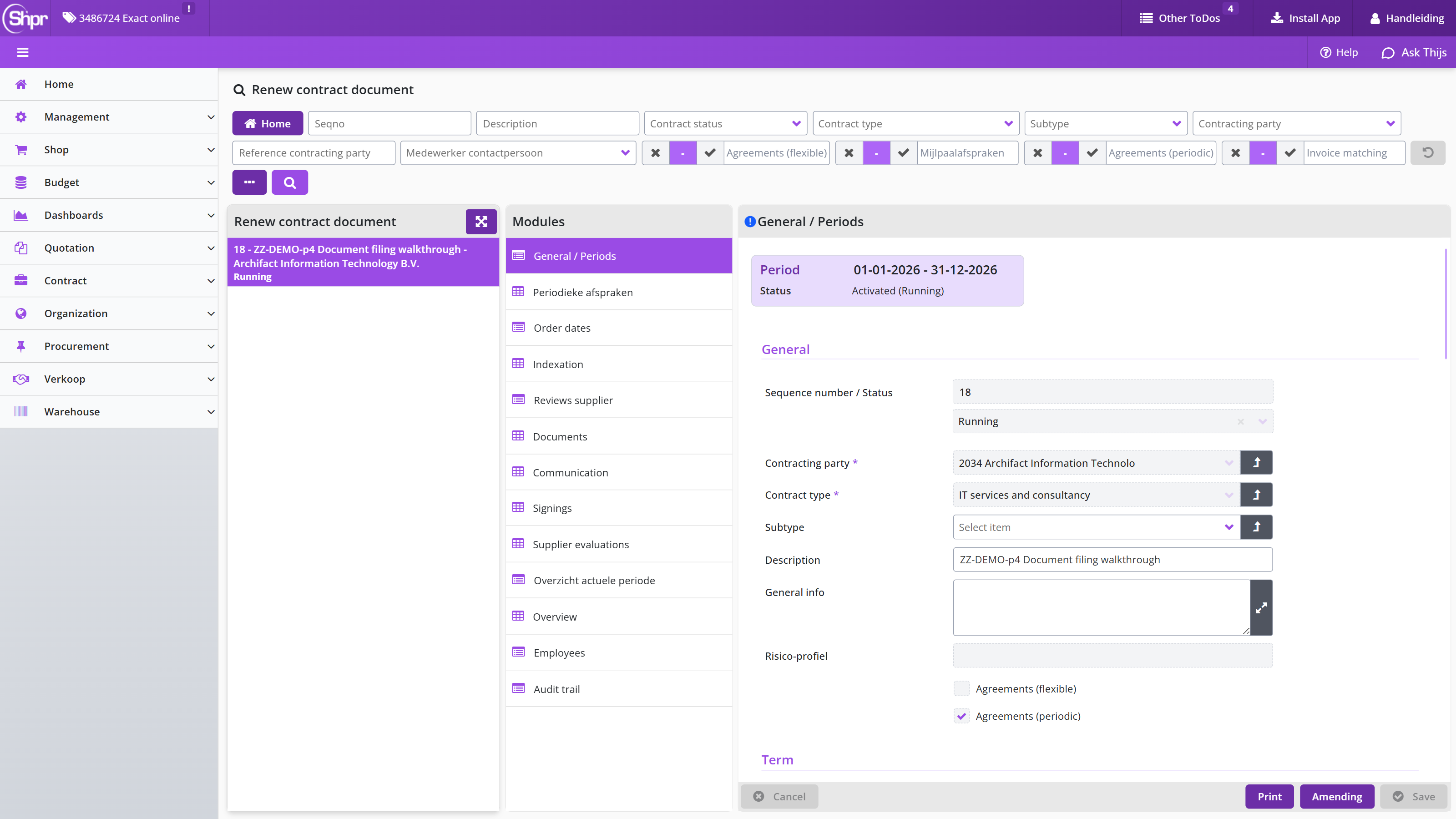
Note: if you want to work with different role authorizations within a contract type, that is, assign different groups of employees different role authorizations, you can only do this by creating multiple contract types and differentiating per contract type.
A number of master data values, such as some contract types, have no Dutch text and are shown in English even on the Dutch screen; the demonstration data used for this manual includes a contract type IT services and consultancy.
Contract reports and audit trail
This chapter describes how you gain insight into your contracts and into what has happened to a contract. "Contract reports" describes the reports in the "Contract" menu and the Excel export. "Current overview data module" shows, for a contract period with invoice matching, the initial and current value and the outstanding liabilities.
"Audit trail of contract, contract period and arrangements" describes which actions are recorded in the audit trail and where you find them. "Offtake mutations of a contract arrangement" describes the data module with all mutations applied during the approval of contract offtake.
Contract reports
In the Contract menu you can request various reports, such as for current contracts, expiring contracts and current contracts per supplier. For several reports you can specify a selection, such as a filter by organizational unit in the report Ongoing contracts, which also groups the report by organizational unit.
These reports can also be exported as an Excel export, with the related data, including contract subtype, available.
Note: the Excel export includes more data and columns than are shown in the contract report overviews in Shopper, such as contract value and obligations.
Current overview data module
For a running contract using invoice matching, the Current overview data module (shown as Overzicht actuele periode in the module list) is available for the utilization of the contract period. It shows the initial value of the contract period, approved as part of the contract period review, as well as the current value.
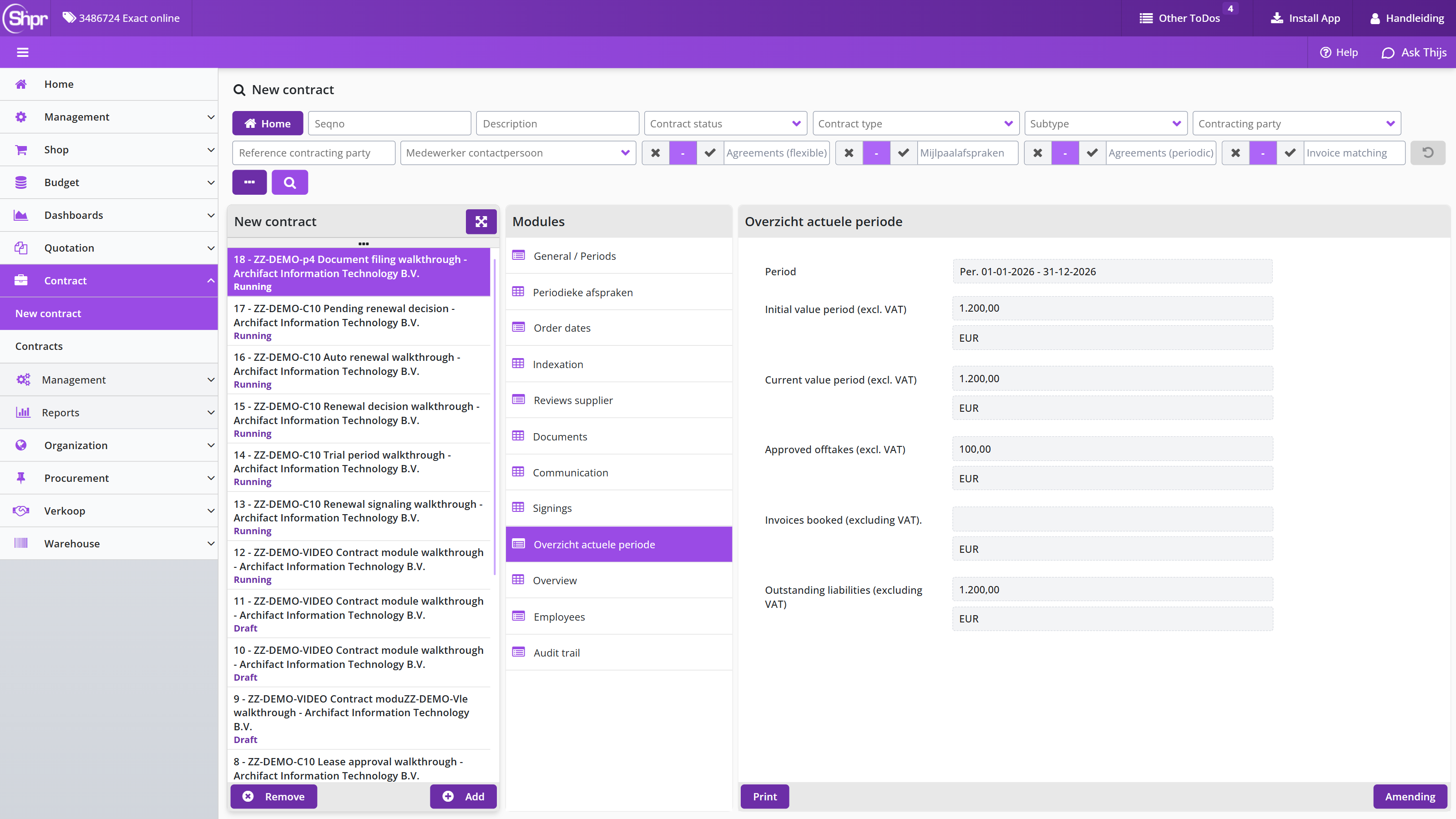
The current value is calculated by taking into account the mutations in quantity and prices of approved offtake, as well as deviating amounts that follow from the booked invoices. The outstanding liabilities are calculated using the current value of the contract diminished by the booked invoices.
At the bottom of the overview the active arrangements are listed, with the periodic offtake and prices approved as part of the contract review. These are therefore the most current arrangements, even if, for example, they were changed using an interim amendment.
Note: a deviation of the current value from the initial value can be caused by offtake with deviating numbers or prices, that, depending on the set-up of the offtake approval workflow, can only take effect after approval of the budget holder (checkbox Final approval budget holder in the Invoicing setup of a contract period); see also Financial and contact details.
Audit trail of contract, contract period and arrangements
Various actions are recorded in the audit trail for the contract and contract period, with the date/time and the employee who performed it, and the remark specified in case of rejection or cancellation: creating the contract, offering a contract period for review, cancelling a contract period review, accepting a contract period, rejecting a contract period, activating a contract period, an interim amendment of a contract period, renewing a contract period, adding and removing occasional offtake, terminating the contract, follow-up of an interim termination of the contract (cancel, continue or deadline passed), issuing the renewal decision, cancelling a payment, completing archival, revising or updating a document, viewing an auto-renewal and viewing an automatic termination.
The auto-renewal performed by Shopper is also listed in the audit trail, with the statement that it was performed by the employee SHOPPER.
The addition, adjustment or removal of agreements and prices for a contract period is separately tracked in an audit trail for the relevant agreement. With the agreement, the Transactions data module is also available with all operations related to adjusting quantities, prices, offtake and invoicing. For adding, adjusting or removing occasional offtake, an audit trail is also kept.
Note: an employee with the contract role Controller or Operator can use the Finance/Reporting menu to access the report Contract overview audit trail.
In Shopper 10 the contract and its periods share the Audit trail data module of the contract: the entries of a period carry the period in the Period column.
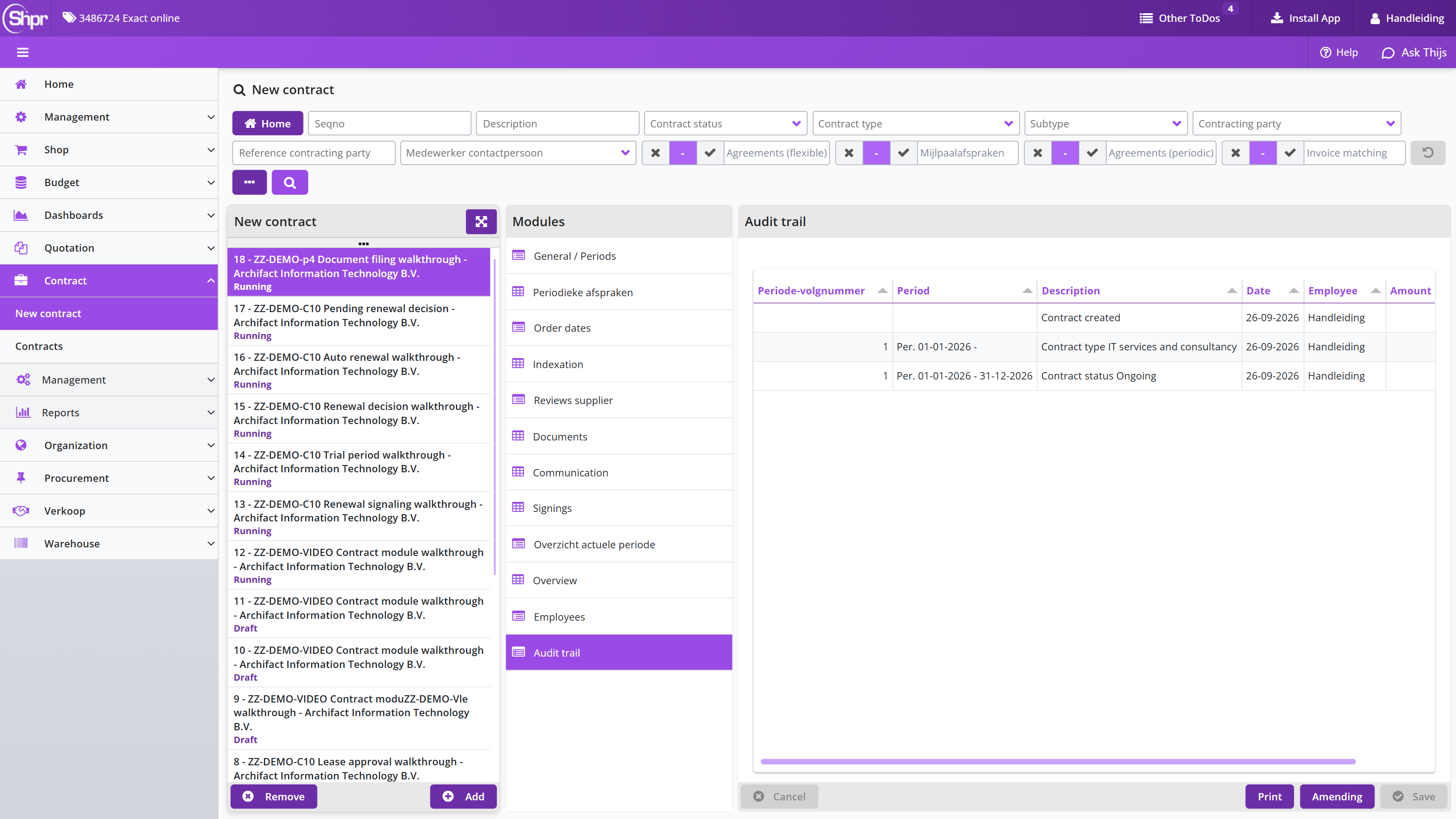
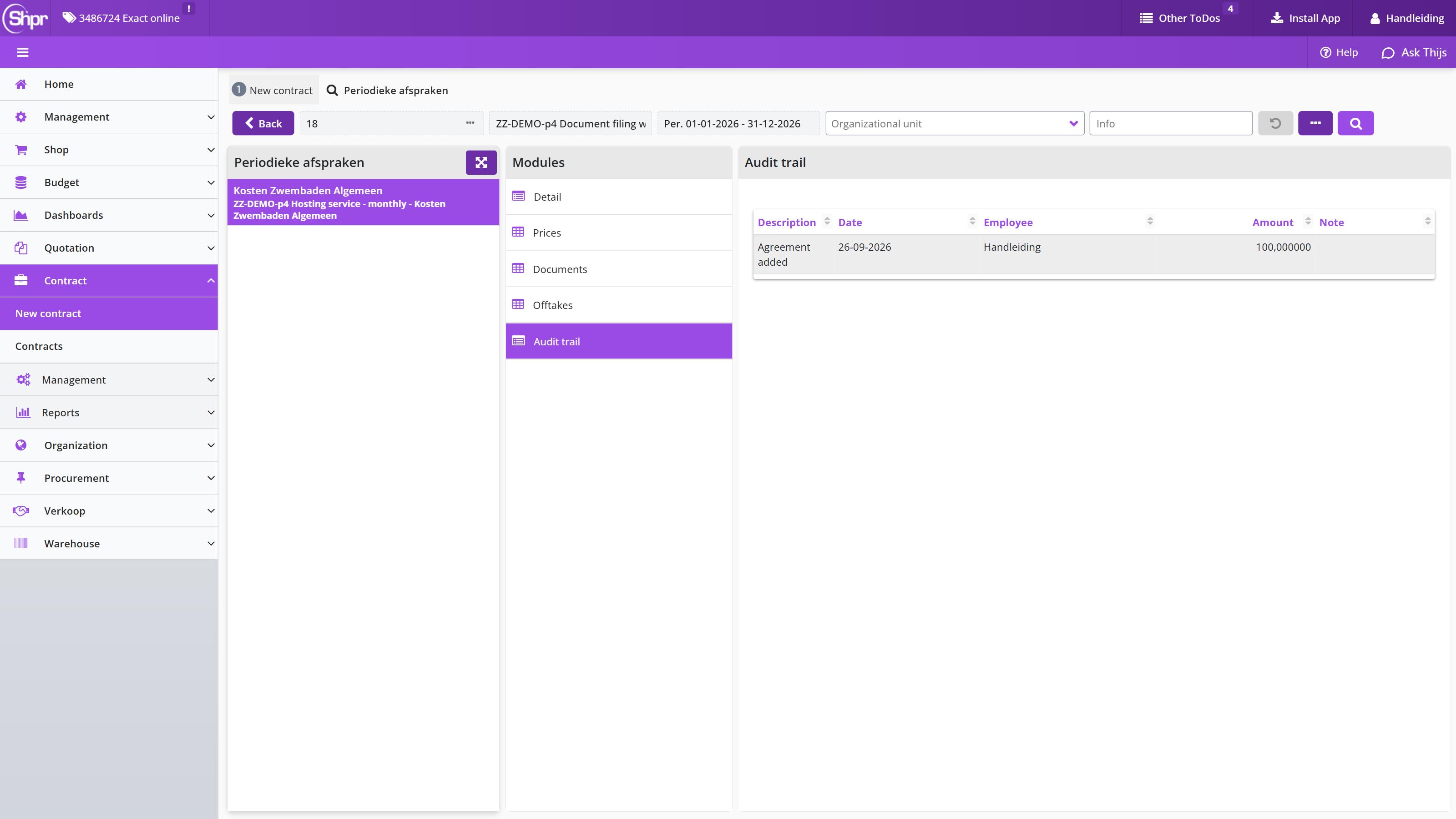
Offtake mutations of a contract arrangement
The Offtake mutations data module of a contract arrangement lists all handling and mutations that were applied during the offtake approval workflow. This provides an insight into the quantity and amounts that were used in contrast to what was originally recorded for the contract arrangement.
See also Offtake and agreements for details on changing numbers and pricing, including the involved approval steps.
Contract module video walkthrough
Would you rather see how the contract module works before reading the explanation? The video walkthrough follows one sample contract from start to finish: registration, review, activation, offtake and invoices, monitoring, and finally renewal, amendment and termination. The video takes about 11 minutes and was recorded in a demonstration environment, so the names and amounts are examples. Under "Watching the video" you find the player, the downloads and a chapter list that takes you straight to a topic in the video or to the section of the manual that explains the screen.
Watching the video
Start the video with the play button; the icon at the bottom right of the player shows it full screen. To watch the video on your phone or keep a copy, use the download links under the player.
Download the video | phone version (smaller file)
Want to watch one topic only? Click a time in the table to start the video at that point, or the section on the right to read the explanation in the manual.
Budget control
Budget control describes how Shopper prevents budget overruns: the annual budgets with their responsibilities, import and periods, the budget types, the ToDos for requisitions without a budget, and the budget dashboard and reports.
Budget control: annual budgets and responsibilities
Budget control in Shopper prevents budget overruns by validating the expenditure before an order is sent to the supplier. This chapter describes how annual budgets are built up per administration year, cost center and cost type (Annual budgets), how expenditure and commitments are derived and where the budgets are managed (Budget expenditure, commitments and budget management), which employees may control or manage budgets through echelons and budget types (Budget responsibilities) and how you read in budgets from a .csv file (Budget import).
It then covers the screens under the Budget menu: the Budgets per year screen (Annual budgets screen), the Budget overview with all budgets in one list, the distribution of a budget over Budget periods and the transfer of budget to another budget via Budget transactions.
Annual budgets
Budget control supports you in proactively preventing budget overruns by validating the budget expenditure before the order is sent to the supplier (i.e., before the commitment is made). Shopper takes into account the current budget expenditure and what is in Shopper’s pipeline. The current budget expenditure can be supplied by the source system for the budgets, but the shopper can also derive this from the booked invoices for the orders and the approved contract offtake.
Budget control can be turned on and off via the Details of a administrative year of a financial administration under Accounting. If budget control is on, then in Shopper all expenditures that follow from the orders for (P2P) and the proforma orders (for contracts), are tracked in relation to the corresponding annual budgets.
Annual budgets are recorded per administration year and cost center and/or cost unit, depending on the setup of the designated financial administration as configured using the Financial data module section Budgets.
The annual budget is comprised of budgets per costing type (thus corresponding with the general ledger accounts in the financial administration). These budgets are divided into budget periods based on the budget period setup. You can, per administration indicate whether budgets are mandatory or whether they should be created automatically before an order can be placed with a supplier in relation to this budget.
For more details see section Budgets in the financial data module of the financial administration under Accounting.
Budget expenditure, commitments and budget management
The budget expenditure and commitments of an annual budget are visible in Shopper per budget and per budget period; the budgets themselves are managed in the budget source system or in Shopper.
With the annual budget, for the underlying budgets per cost center and also per budget period, the detail of the budget, allocation and commitments are available, where the underlying orders and pro forma orders can be found per budget period.
The pending commitments on budgets are derived by Shopper. The budget allocation is reported by the budget source system (that is used to manage the budgets) or derived in Shopper based on the booked invoices on the orders and proforma orders in Shopper. For more details see indicator Derive budget expenditure in the Indicators data module of the System parameters and in the section Budgets of the financial data module for the financial administration under Accounting.
Setting up annual budgets is usually carried out in an external (financial) system, whereby these budgets (budget scenario) are transferred to Shopper. These budgets can be viewed via the Budget menu with the menu item Budgets per year or – if the budgets are managed and maintained within Shopper – budgets can be created and changed here (see Annual budgets screen).
Note: Currently Shopper supports only one budget scenario that is administered in the financial administration, regarding the budget structure and budget allocation. For more details see administrative year for financial administration under Accounting.
If the budgets are managed in Shopper, any budget changes can be made, whereby part of a budget can be transferred to another budget. Budget tasks also apply (Other ToDos) in relation to the automatic or non-automatic creation of missing budgets (if allowed), where the data for this new budget needs to be supplemented, or to add the budget manually.
Note: It is necessary to create a new administration year for each year – at the administration – before budgets for that year can be transferred or created. See financial administration under Accounting.
Budget responsibilities
Budget responsibilities are assigned to employees using echelons. Employees are via the echelon authorized for a budget type that provides access to all budgets of this type, for budget control or administrative tasks. A budget is by default assigned with the budget type General. This budget type works with two expertise types Budget year and Budget period, that can be assigned different workflows for budget control.
The example below contains a setup of three different budget types: Kitchen, Computer and Office. Where the P2P-echelons P2P Budget owner and Budget delegate provide the employees with this echelon the right to approve budget overruns for the assigned budget type.
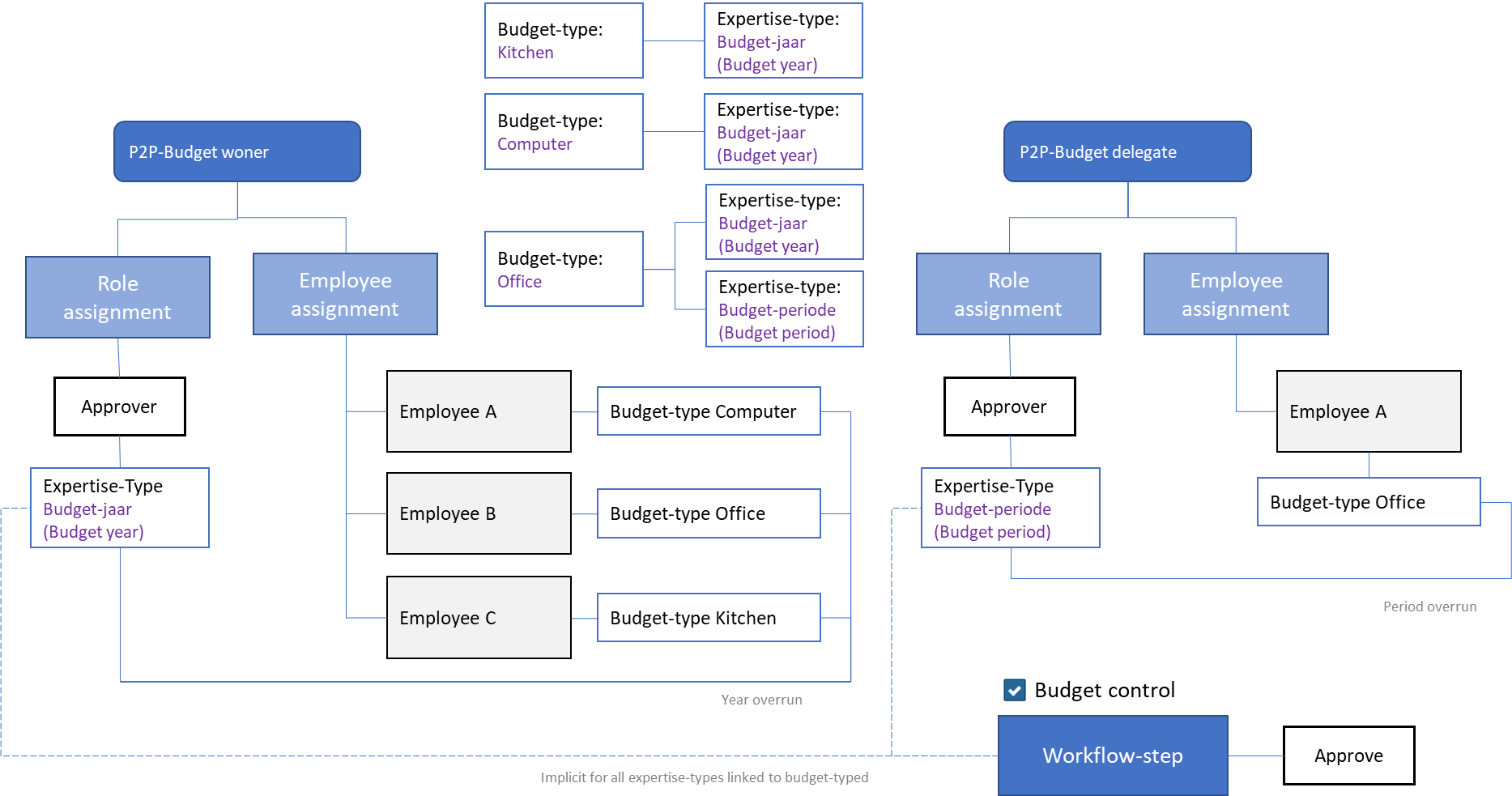
Employees assigned with a budget type (via the echelon) get access to the Budget menu. They can only view the budgets for the assigned budget types. Employees with the contract role Approver can follow up the tasks for budget overruns, based on the assigned budget types and the related expertise type (for budget year and budget period) via the echelons Budget owner and Budget delegate.
Note: It is only possible to assign budget types to an employee if the checkbox Budget control is marked for the corresponding echelon.
Employees with the contract role Orchestrator can set up budget types and assign them to (annual) budgets. An employee with financial responsibility (contract role controller or operator, as part of echelon P2P-Financial administration) can administer budgets or import them from another source system.
Also see Budget control for echelons under Organization.
Budget import
Instead of entering budgets manually or synchronizing/transferring them via a link with an external system, you can also read in a .csv file to import or update the budgets. The budget import can be performed by an employee with financial responsibility (contract role controller or operator, as part of echelon P2P-Financial administration) using the Budget import item of the Budget menu.
With the button the .csv file is read in and displayed in the table view below. If any data in the file is not correct (such as a reference that cannot be found) then there will be a Yes in the Alert column. You can then edit the .csv file accordingly and read it again.
If there are no lines with an Alert or if you want to disregard the lines with an Alert, you can use the button to enter the budget data in Shopper. In that case, only the lines with Alert No are read in.
If you do not want to process the file or start over, you can cancel the import with the button and delete the previously imported data in the table view.
The columns in the import File ((where Columns 1 to 5 are required):
- Administration code
- Year
- Cost center (code)
- Cost type (code)
- Cost unit (code)
- Amount for current budget (initial)
- Amount for budget expenditure (committed)
- Budget holder (echelon)
Note: Before importing, do not forget that an administration year must first be created for the related administration.**
Note: Depending on the Windows language and country settings, the separator (comma or semicolon) may differ for the format of the .csv file for import from your PC. This also applies to the amount notation (points or commas). Check your Windows settings to see what applies to your PC.
Annual budgets screen
Budgets are managed via the Budget menu option Budgets per year. After choosing a budget from the list, the Detail data module displays the totals and the expenditure (commitment and reservations), including reservations for requisitions that are still in the pipeline (i.e., that still need to be approved).
The buttons and are only available for employees with the role Orchestrator, as for the echelon P2P-Setup.
The annual budgets are made up of the different budgets per cost type (with the corresponding ledger accounts in the financial administration).
A budget type can be assigned to the annual budget by an employee with the role Orchestrator, as for the echelon P2P-Setup, or it can be assigned per cost type budget.
The Budgets data module displays these in a list, whereby – after a budget has been selected – the Details data module is displayed. The budget totals and expenditures (commitments and reservations) are also displayed here.
An employee with the role Orchestrator, as for the echelon P2P-Setup, budget types can be assigned to the budget per cost type if they are deviate from the annual budget. For an explanation about approving or rejecting requisitions that exceed a budget, see process step Approve.
Note: The default budget owner and budget delegate can be set up per annual budget and per administration.
Budget overview
In Shopper 10 the Budget menu has an additional menu item Budget overview, next to Budgets per year. In this screen you can consult the budgets per year, cost center, cost unit and cost type in one list. In the search bar at the top you can search on Year, Cost center, Cost unit and Cost type. The list on the left shows for each budget the year, cost center, cost unit and the budget amount.
After you select a budget from the list, the Detail data module shows, among others, the fields Initial, Mutations, Total, To be approved, Amount purchase obligation, Invoices received Shopper, Receiving invoices outside Shopper, Invoices received other, Total (excl. To be approved), Budget space and % Spent. Besides Detail the screen has the data modules Budget periods, Budget mutations, Requisition lines and Bookings outside Shopper.
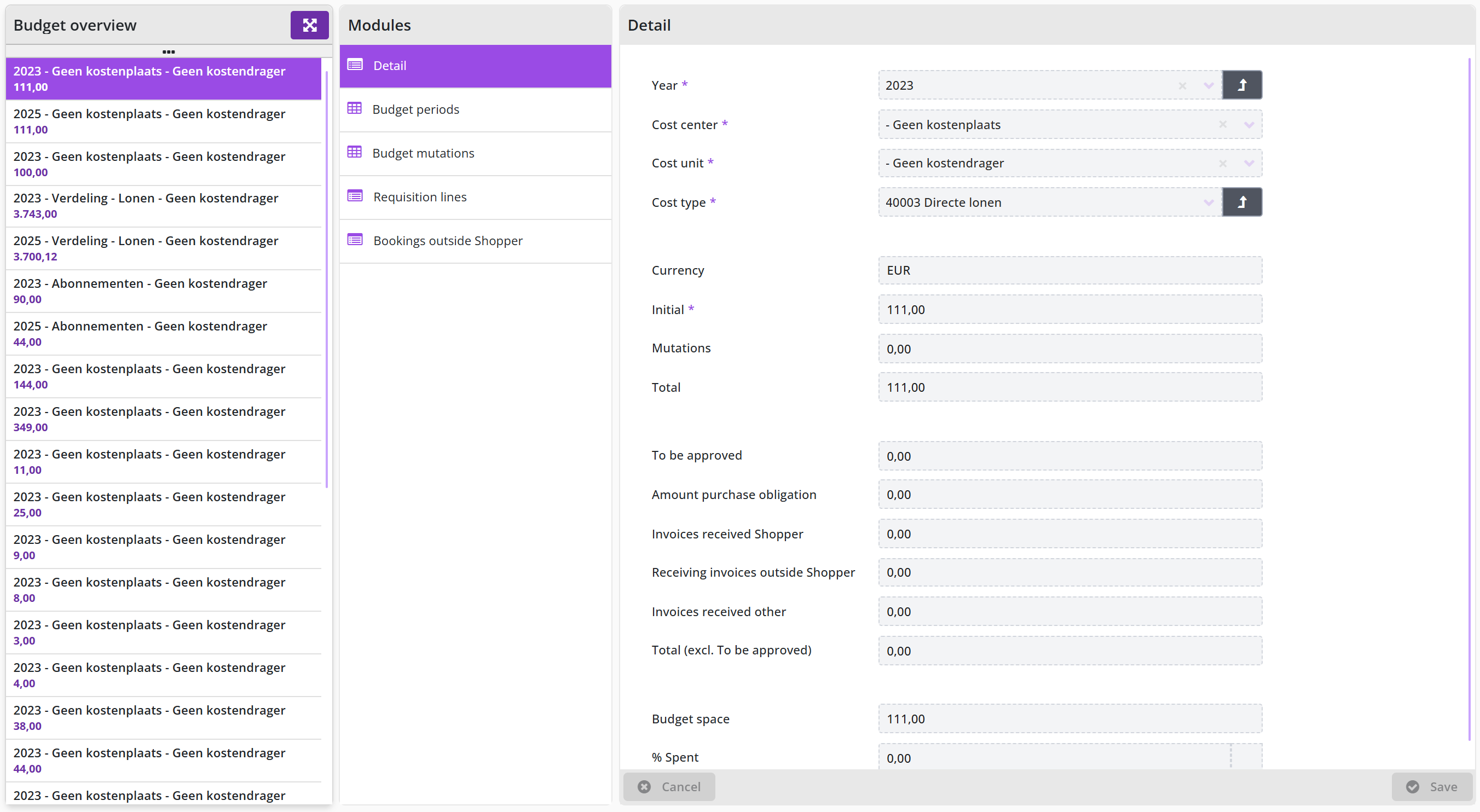
Budget periods
Budget periods are the periods into which a budget is divided within the administration year; you find them via the Budget menu in the Budget periods data module of the selected budget.
In the Budget periods data module, the periods of a budget are displayed, with the distribution of the amount pro rata part of the period. The budget allocation is initially determined based on the Period default budget allocation that is specified with the relevant administration. See Financial data module of the financial administration under Accounting.
If the period budgets are managed in Shopper, after choosing a period you can – if necessary – adjust the percentage of the distribution and Save it. In combination with the other periods, this is calculated into the percentage for the last period, which is adjusted to arrive at 100%.
In the Detail data module, the budget totals, obligations, and reservations are displayed pro rata part of the period. In the field Invoices received other you can optionally specify additional budget obligations for expenditures that occurred outside of Shopper on this budget. The other obligations are made clear in the data modules Order lines and Contract obligation.
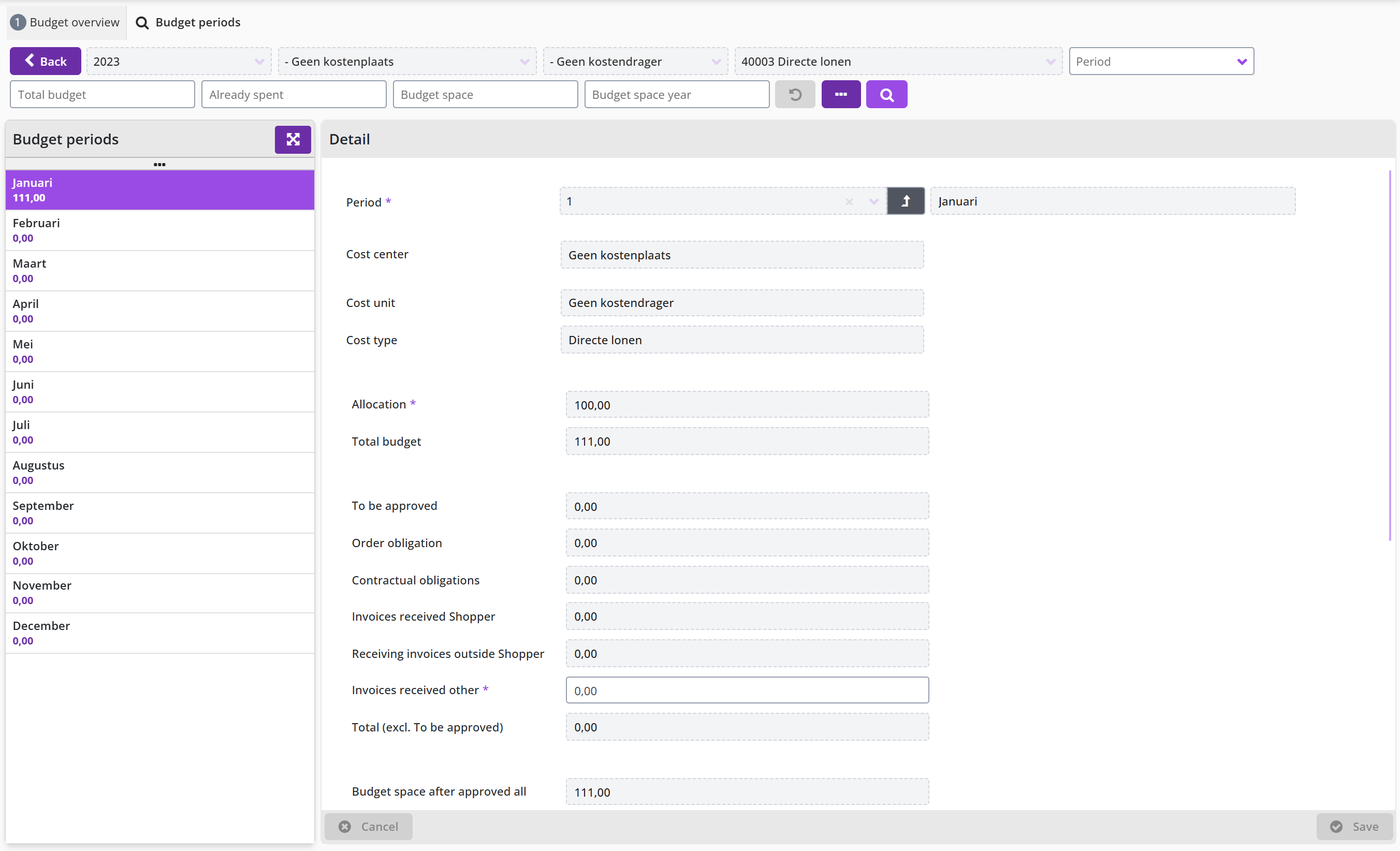
In the Order lines data module, the order lines can be found in relation to the obligations arising from the orders in the P2P process. In the Contract obligations” data module, the contract offtake purchases can be found in relation to the obligations arising from the proforma orders in the contracting process.
If the budget expenditure is derived in Shopper, the invoice entries in relation to the budget expenditure can be found in the Booking cumulations data module. See also the indicator Derive budget spending in the Indicators data module of the System parameters and the Financial data module of the financial administration under Accounting.
Budget transactions
With a budget transaction (budget mutation) a financial employee transfers part of a budget to another budget within Shopper.
In the Budget transactions data module for a budget per costing category, you have the option of transferring budget allocation from one budget to another. You enter the amount of the transaction and the budget for the counter-entry, in other words the amount for which the transaction is settled. For the selected budget of the counter-entry, the fields below are filled in to further identify this budget.
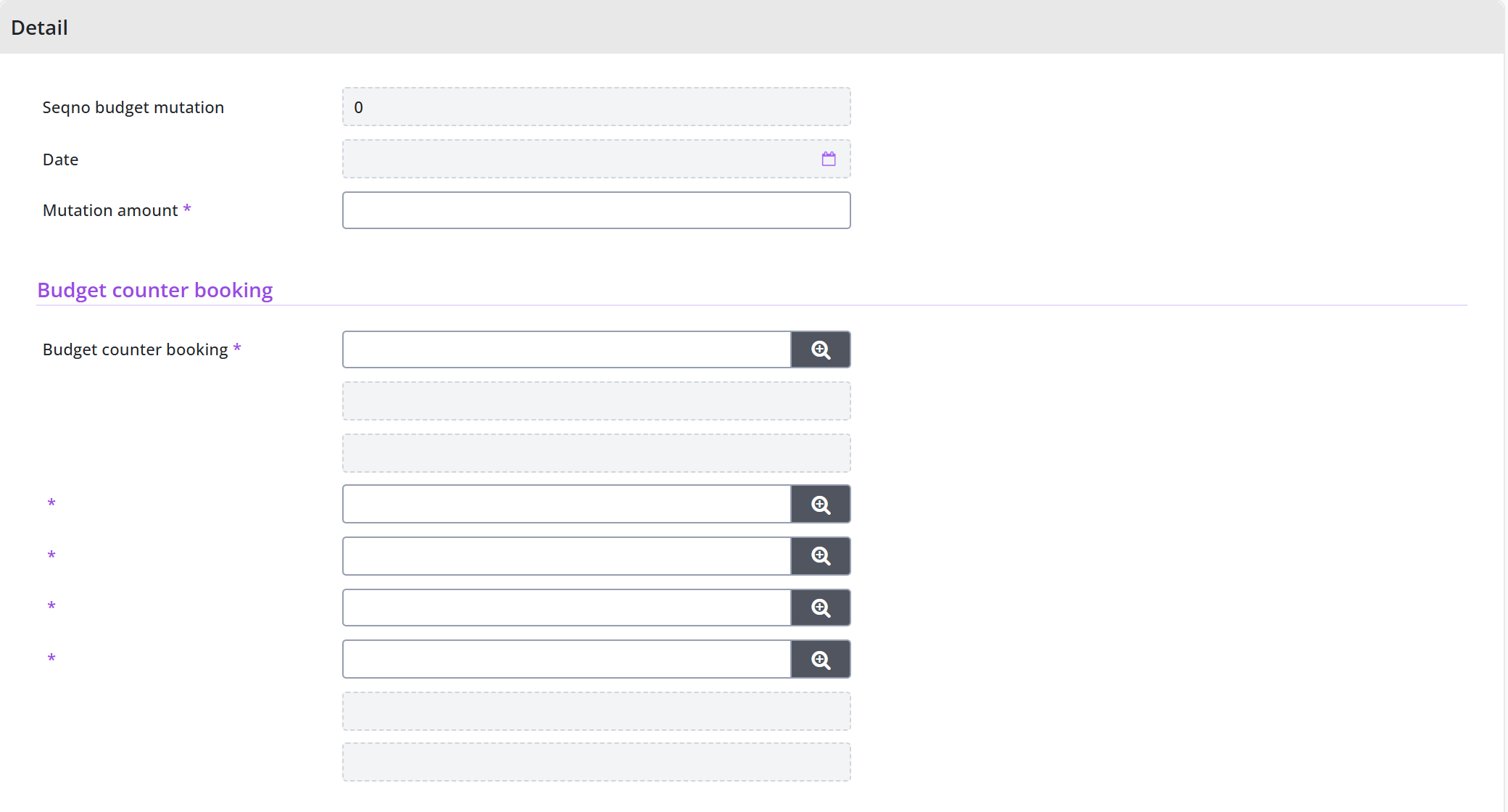
Note: This only applies if the budgets are managed in Shopper and the budget administration in Shopper is leading (compared to other systems). In other cases, the budget will be changed in other systems and then synchronized with Shopper.
Budget control: tasks, types and reporting
When budgets are managed in Shopper, budget control also involves tasks, budget types and reports. This chapter describes the Budget tasks (Other ToDos) that arise for requisitions without a budget, following up the other ToDo Order line (no budget available) with the button, the ToDo Fill out initial budget for automatically created budgets and the setup of Budget types with their expertise types.
Finally it covers the Budget Dashboard/Reporting (Dashboard budget in the Dashboards menu) and the report Overview of budgets under the Budget menu, Reports item.
Budget tasks (Other ToDos)
In addition to the management of the budgets, additional (follow-up) actions may also be required, in addition to approving budget overruns, in relation to the requisitions in the P2P process. Such (follow-up) actions are visible for the relevant employees (with the required budget authorizations) under Other ToDos. These ToDos mainly relate to supplementing or expanding budgets per cost type. This depends on the setup of the Budget section in the Financial data module of the financial administration under Accounting.
If it has been set that requisitions are not possible without a budget, then – if a requisition is made for an item for which there is still not a budget for the linked cost type – this budget must first be created within the defined annual budget. Only when it has been created is it possible to run through the P2P process flow for approving or not approving the budget. The notification alerts and follow-up take place via the other ToDo Order line (no budget available).
The other ToDo’s for budget tasks can be followed up by an employee with financial responsibility (contract role controller or operator, as part of echelon P2P-Financial administration) and only applies to the budgets that are managed within Shopper.
Order line (no budget available)
The other ToDo Order line (no budget available) appears when a requisition is made for a cost type that has no budget yet within the annual budget, while requisitions without a budget are not allowed.
When following up this other ToDo, you choose the relevant (follow-up) action for the budget task from the list shown and after assessing the data in the various data module, you can create the relevant budget in the General data module with the button .
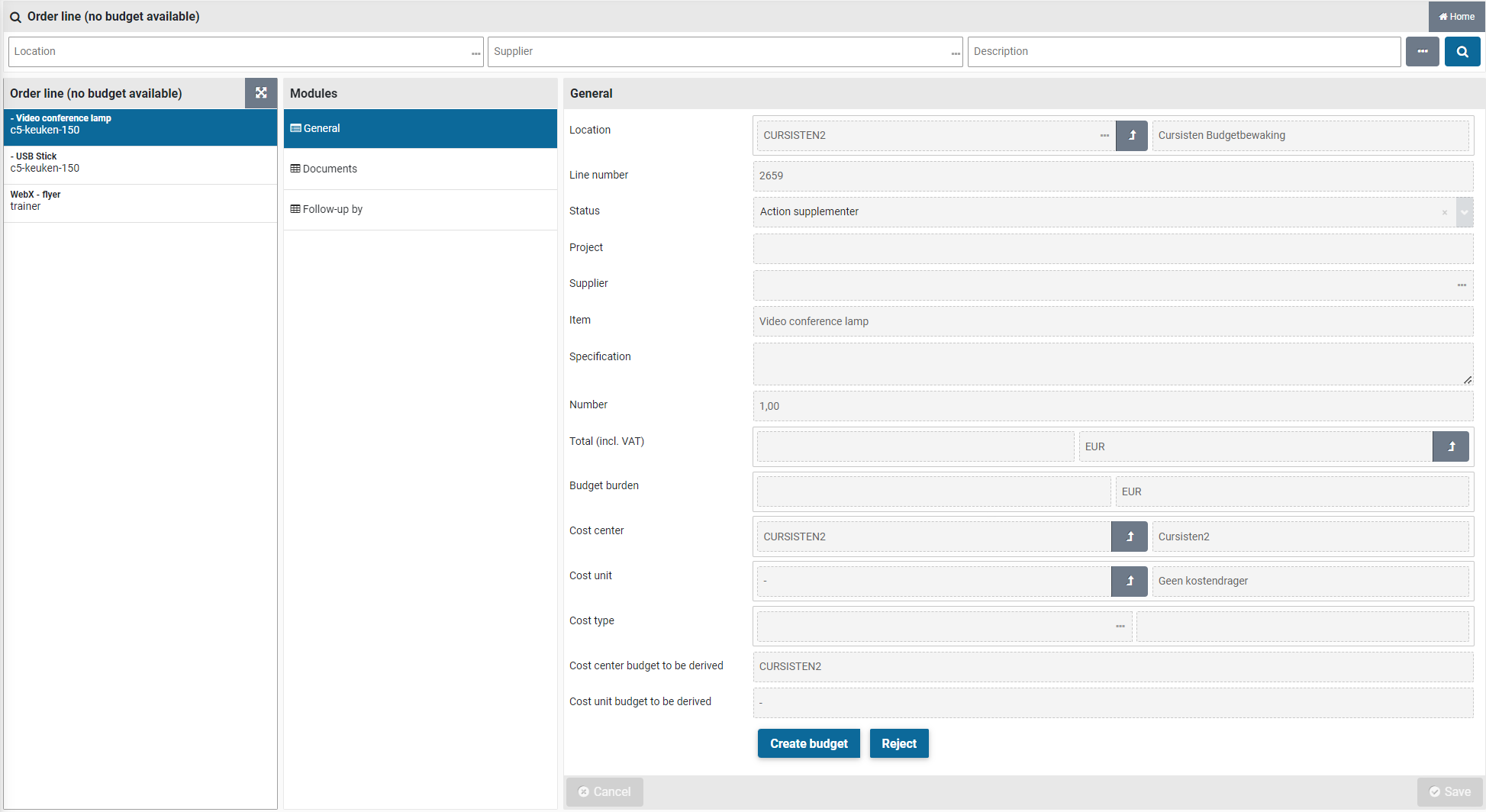
In the dialog you can enter the Initial budget. The budget type is inherited from the default set for the financial administration. If another budget type is to be used, an employee with the role Orchestrator first needs to specify a different budget type at the level of the budget. If a financial employee also has the role of Orchestrator, the budget type can also be specified as part of following up this budget task in the Other ToDo’s.
Note: If the employee assigned for this budget task is not authorized for the role Orchestrator while the budget type still needs to be set, no budget task will be assigned for this. Following up this task needs to be organized differently (manually).
If all is well the budget can be added using the button. If it is decided to not add the budget, then the concerning requisition needs to be rejected. You can then use the button and specify the reason for rejecting.
Fill out initial budget
The other ToDo Budget (Fill out initial budget) appears when Shopper has automatically created a missing budget per cost type.
The budget indicators can be set up so that a missing budget is created automatically. In that case, the budget for the cost type is automatically added with the default values. However, the initial budget is set to 0 and another ToDo is created to supplement this initial budget.
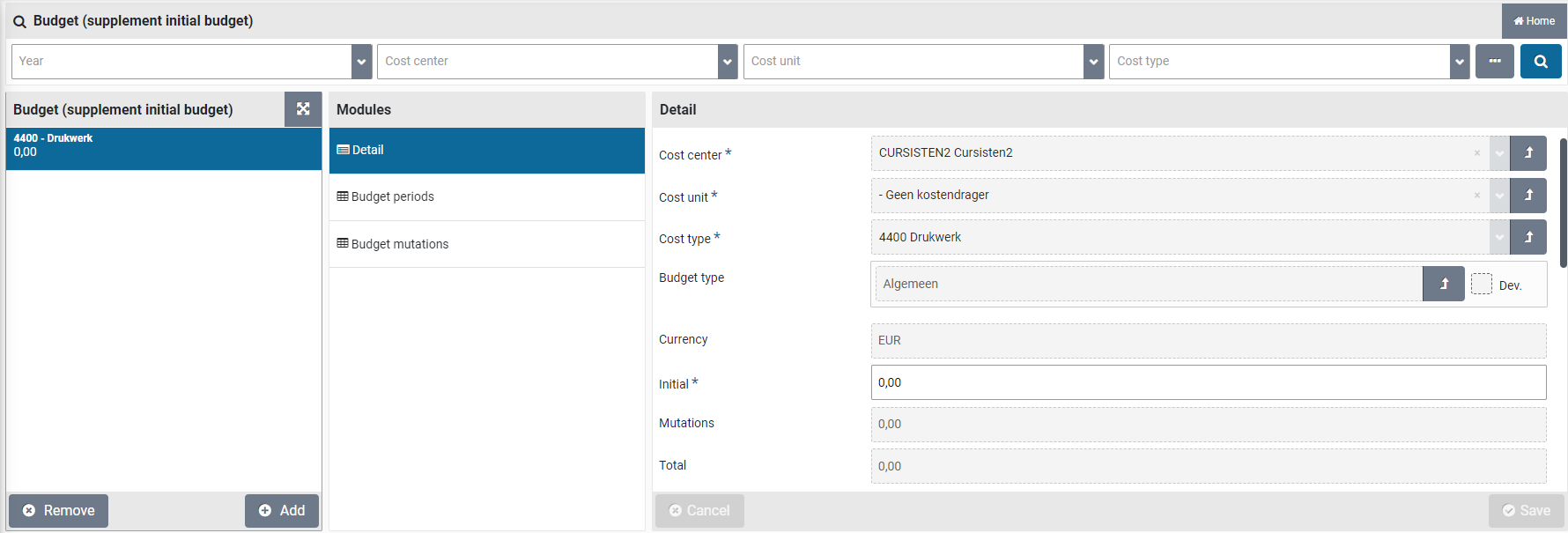
Note: The field Budget type can only be changed if the financial employee also has the role Orchestrator, as is part of the echelon P2P-Setup.
When following up this ToDo Budget (Fill out initial budget), the relevant annual budget is opened, where you can set the value for the initial budget for the relevant cost type.
Budget types
Budget types can be created in Shopper by an employee with the role Orchestrator using Management under the menu Budget. This employee can also use the Budget menu to view all budgets and assign budget types to budgets.
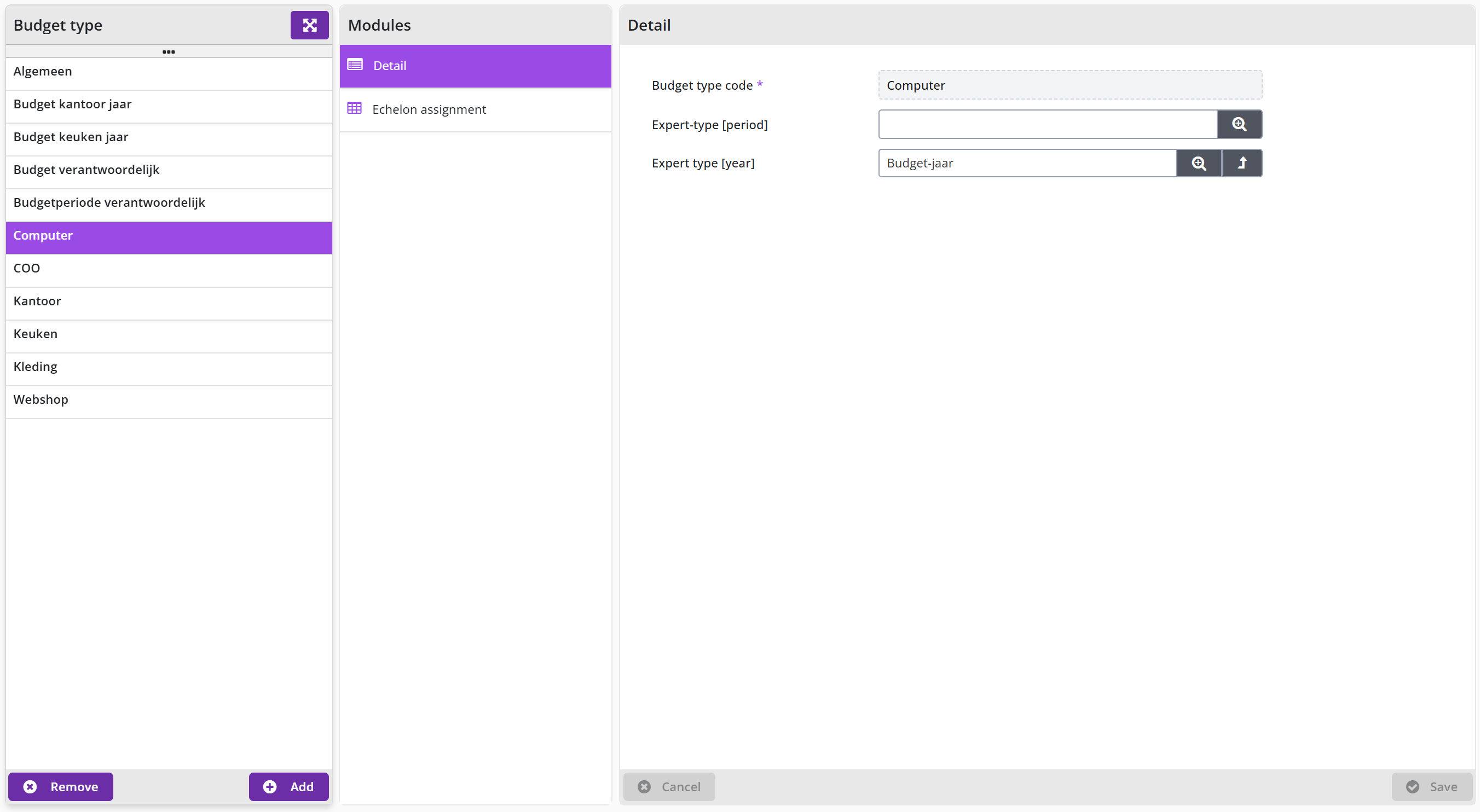
The screen is structured according to the standard as described for the General screen layout under Use of the other screens.
On the left the budget types are listed and to the right the Details data module is shown for the selected budget type. Budget types can be assigned with expertise types for the handling budget overruns of a budget period and budget year.
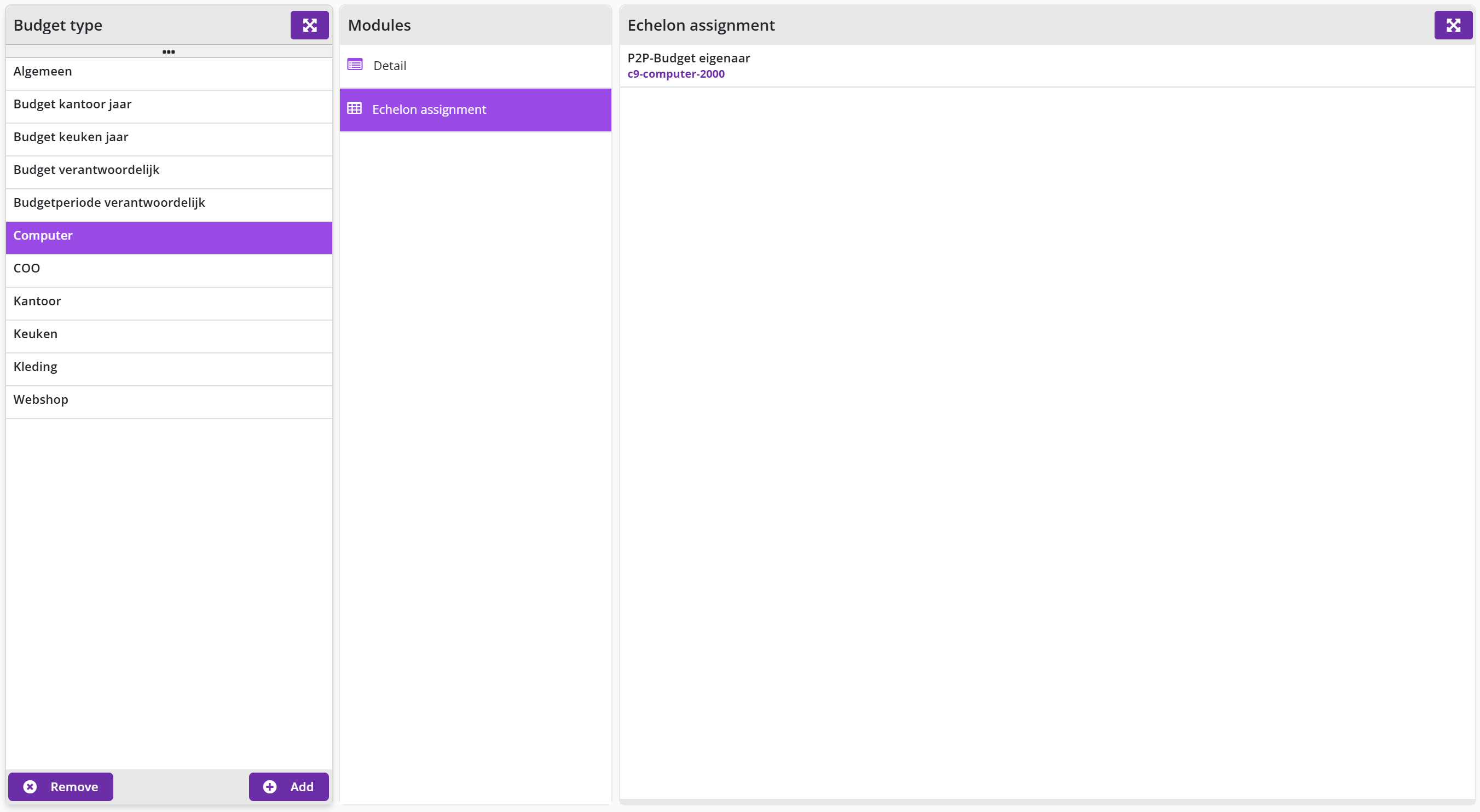
The data module Echelon-assignment lists the employees that are connected to the budget type, based on their echelon assignment.
Budget Dashboard/Reporting
Employees with financial responsibility (contract role controller or operator, as part of echelon P2P-Financial administration) and employees with budget authority (for approving budget overruns) also see the menu item Dashboard budget within the Dashboards menu. On this dashboard you quickly gain insight into spending, space and possibly exceeding the budget.
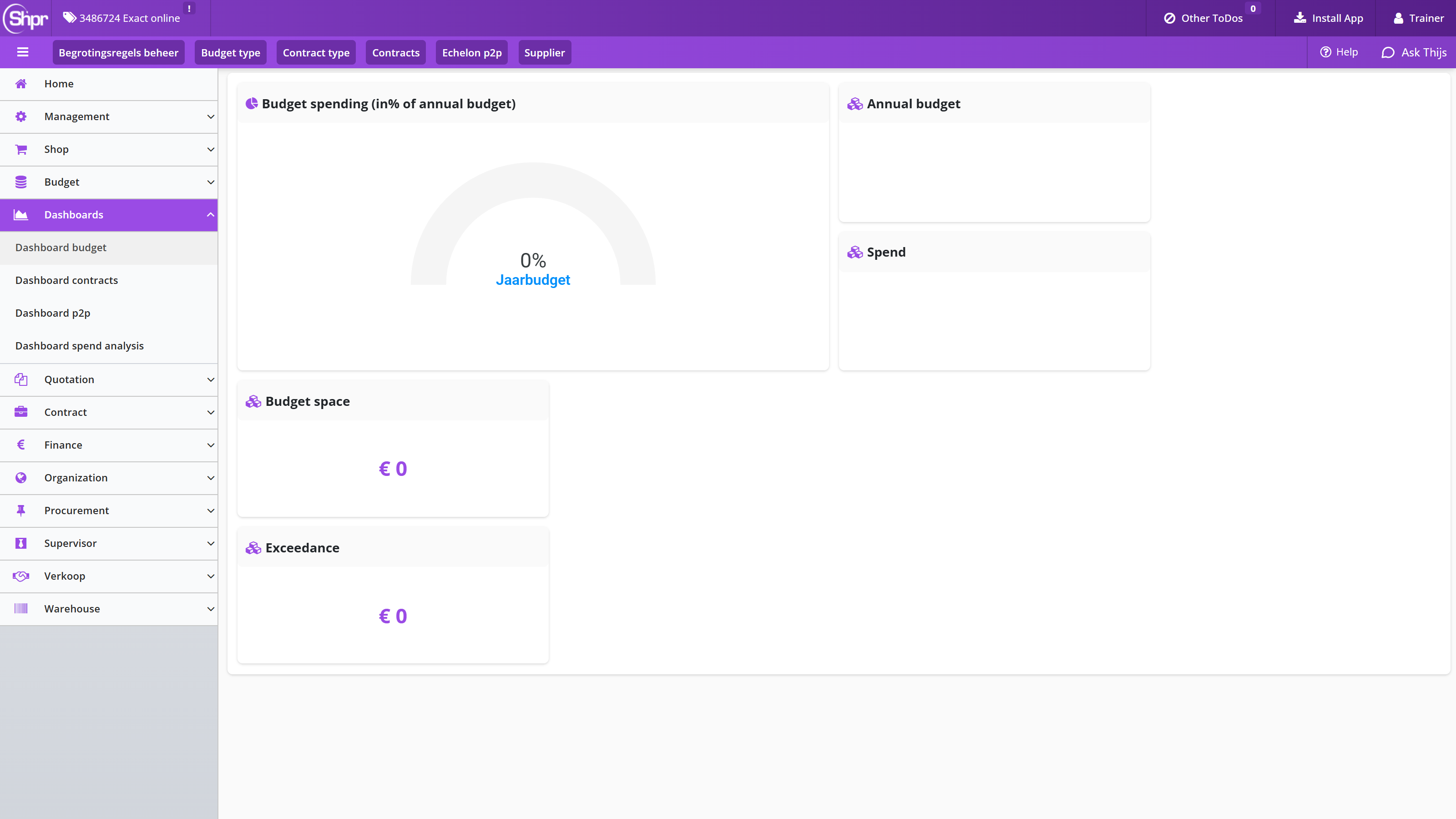
You can zoom in on costing unit, cost center and costing type by selecting them in the search bar at the top of the dashboard.
Overview of budgets
Employees with financial responsibility (contract role controller or operator, as part of echelon P2P-Financial administration) have the “Reports“ item under the menu Budget, that provides access to the report Overview of budgets. This report provides the means to create an overview of the budgets for a selected financial year. For the budget expenditure that same color coding is used for the amount as for the budget flags shown for approving budget overruns.
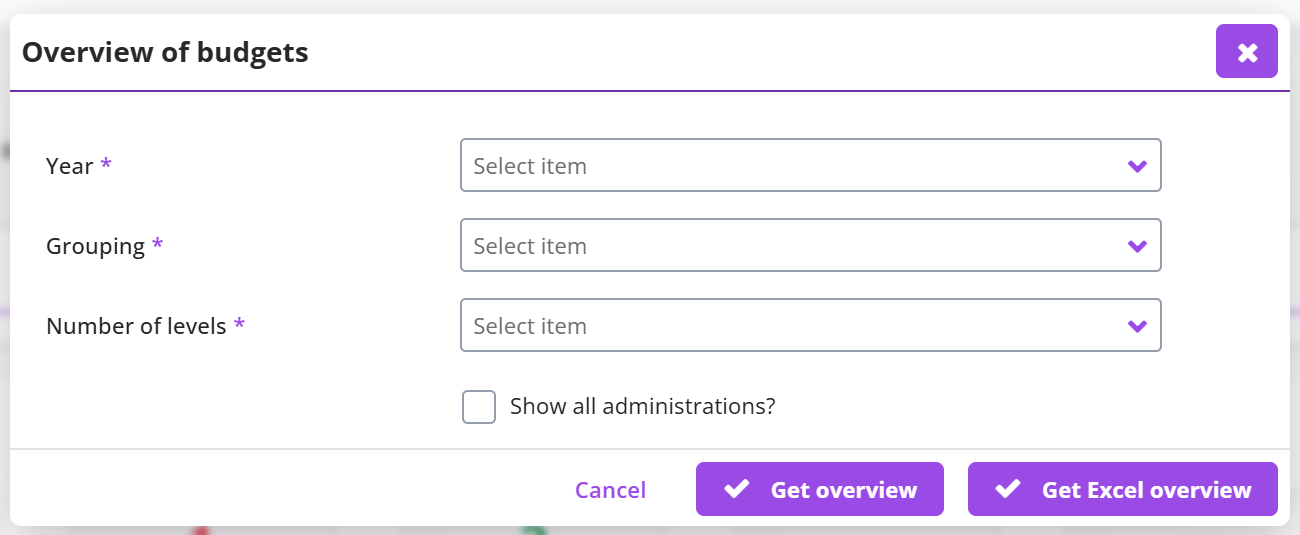
After choosing Year, Grouping and Number of levels (all required) you retrieve the overview with Get overview, or as an Excel file with Get Excel overview. With the checkbox Show all administrations? you include all administrations.
Note: the printed report itself keeps its own fixed layout and the older Shpr logo mark; only the screen around it (the PDF viewer opened from Shopper) is in the current purple styling.
Procurement
Procurement covers the purchasing data and reporting: suppliers with their order method, creditors, items and item types, importing items, supplier reviews, procurement reports, spend analysis and digital signing of documents.
Catalog management: suppliers
This chapter describes how you set up and manage suppliers in Shopper. Catalog management explains the choices you have: your own internal catalog, a catalog supplied by the supplier or OCI, or only a supplier for the free request. Supplier screen and order method describes the screen under the Procurement menu item Management - Supplier, the order method (E-mail, Post, XML) and sending orders automatically. Supplier logo in the internal catalog and other Detail settings covers showing the supplier in the internal catalog, the virtual supplier and the fields added in Shopper 10. Delivery time, alert and extra discount of a supplier deals with the delivery time, the late signaling, the alert in the shopping cart and the extra discount.
Address, account manager, delivery days and linked data modules of a supplier describes the contact details, the order template, the delivery days and the data modules Items, Item types and OCI item. These are followed by Delivery costs of a supplier, Linking a creditor to a supplier (required for invoice processing), Supplier with an OCI link in the external catalog, Reviews of a supplier and Review categories, where you manage the categories used in supplier reviews.
Catalog management
The management of suppliers and the (price) agreements for the items (which can be purchased via the P2P process) can be set up in different ways in Shopper. You can choose to manage an internal catalog yourself with items per supplier. You then have full control, but you are then responsible for implementing (price) changes in the catalog in a timely manner.
The alternative is that you make the supplier responsible for keeping the catalog up to date. For example, the supplier can provide you with a file with the current catalog that you can import into Shopper or if the supplier supports OCI, you can order via the supplier’s website, whereby the supplier implicitly manages the catalog via their website. However, with OCI you have less control over the linked item type that determines how the posting is made.
If you want to leave the product range free, you only create the supplier, and the items are purchased via the free request. For more details see Free request under Request.
Supplier screen and order method
In order to be able to place an order or conclude a contract with a supplier, the supplier needs to be known in Shopper. Employees from procurement (the purchasing department) with the Administrator role in their profile can manage the suppliers via the Procurement menu item Management - Supplier.
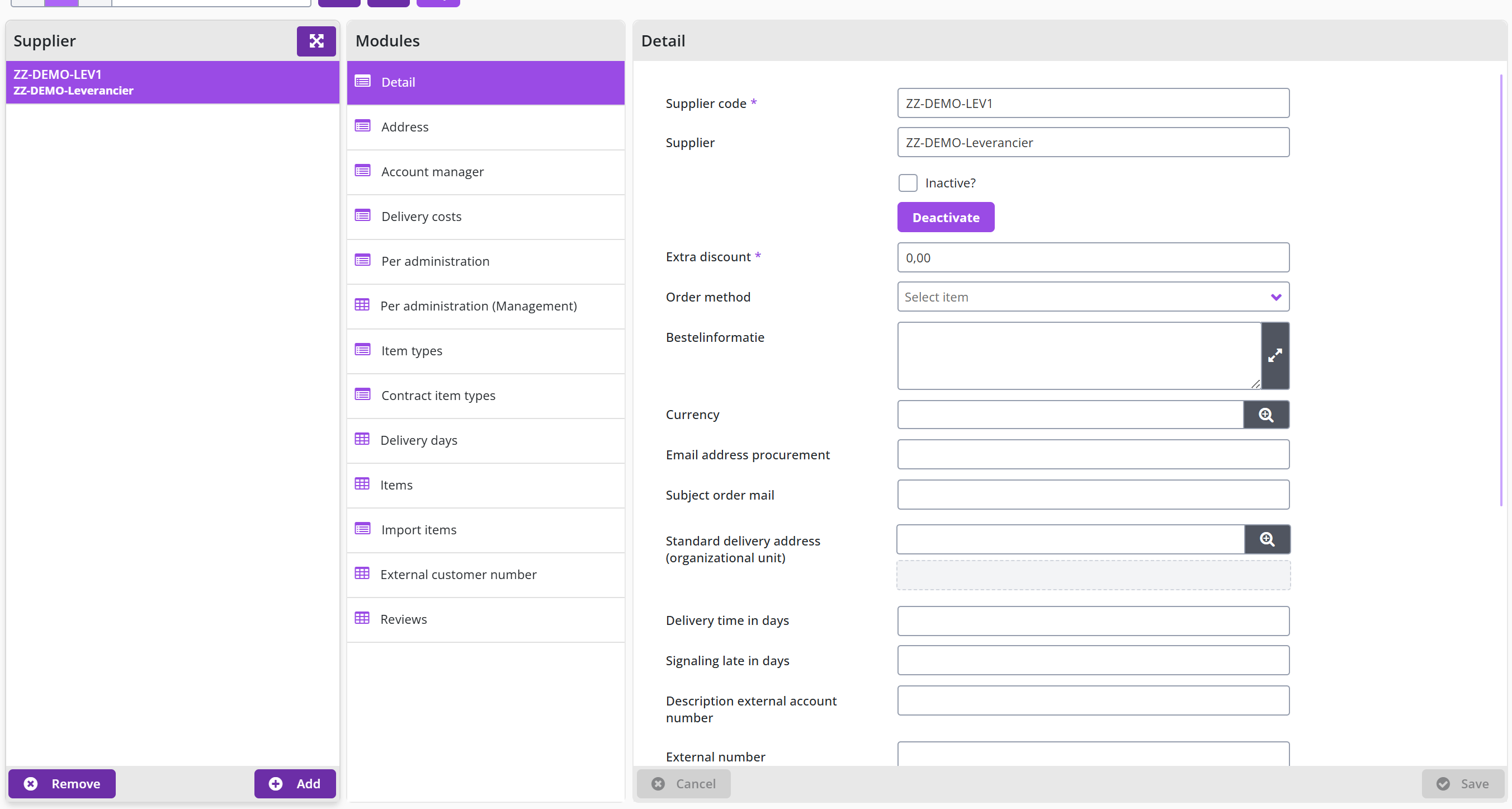
The screen is structured according to the standard as described for the General screen layout under Use of the other screens.
In the Detail data module you can manage the general data and indicate how you want to order. In other words, order method via E-mail, Post, Telephone and other options.
Note: If you choose the E-mail order method, you need to also enter the e-mail address to which the orders must be sent under Email address Procurement.
The XML order method is only possible if the supplier also supports cXML in addition to OCI. The supervisor can set this under OCI link in the data module Detail for suppliers that support cXML and this OCI link is supported by Shopper.
Note: A supplier may ask you to use cXML, but it does not matter to you whether E-mail or XML is used (unless the supplier then offers better price agreements). Both order methods can be used to send the order automatically.
To send fully authorized orders directly to the supplier, you can check Send order automatically. The order does not end up at the process step Order but goes straight to the process step To be received, if automatic sending is possible.
Supplier logo in the internal catalog and other Detail settings
In the Detail data module of the supplier (Procurement menu item Management - Supplier) you also determine whether the supplier is shown with its logo in the internal catalog, whether it is a virtual supplier and which additional order information applies.
If the logo of this supplier also wants to be displayed (at the top) in the internal catalog, you can check Show in internal catalog.
This logo of the supplier can be set at Internal catalog logo. Employees who work at an organizational unit that is linked to this supplier will then see the logo of this supplier in the internal catalog.
Note: if an employee has no items available for a supplier – within the assigned item types for an organizational unit – then the logo of this supplier will not be shown in the internal catalog of this employee.
Items are also not available in a supplier’s internal catalog if the linked creditor (via supplier) and the cost type (via item type) are not linked to the active company that the employee has selected. To set this up, use the data modules Per administration and Per administration (management) at the supplier and the item type.
If a supplier is not shown in the internal catalog, the supplier can still be available to choose at the Free request in the shop catalog section, whereby only those item types can be selected that have been assigned to this supplier via the Item types data module if these are also assigned to the relevant organizational unit for the free request.
It is also possible to create a virtual supplier for which supplementing of the requisition is required, to force another supplier to be selected. To this extend use the checkbox Supplier must be changed in supplement step.
Shopper 10 adds two items to the Detail data module of the supplier: the Order information field (a text field; this field has no English text in the English user interface) and, at the bottom of the module, the checkbox Items on a separate pick list.
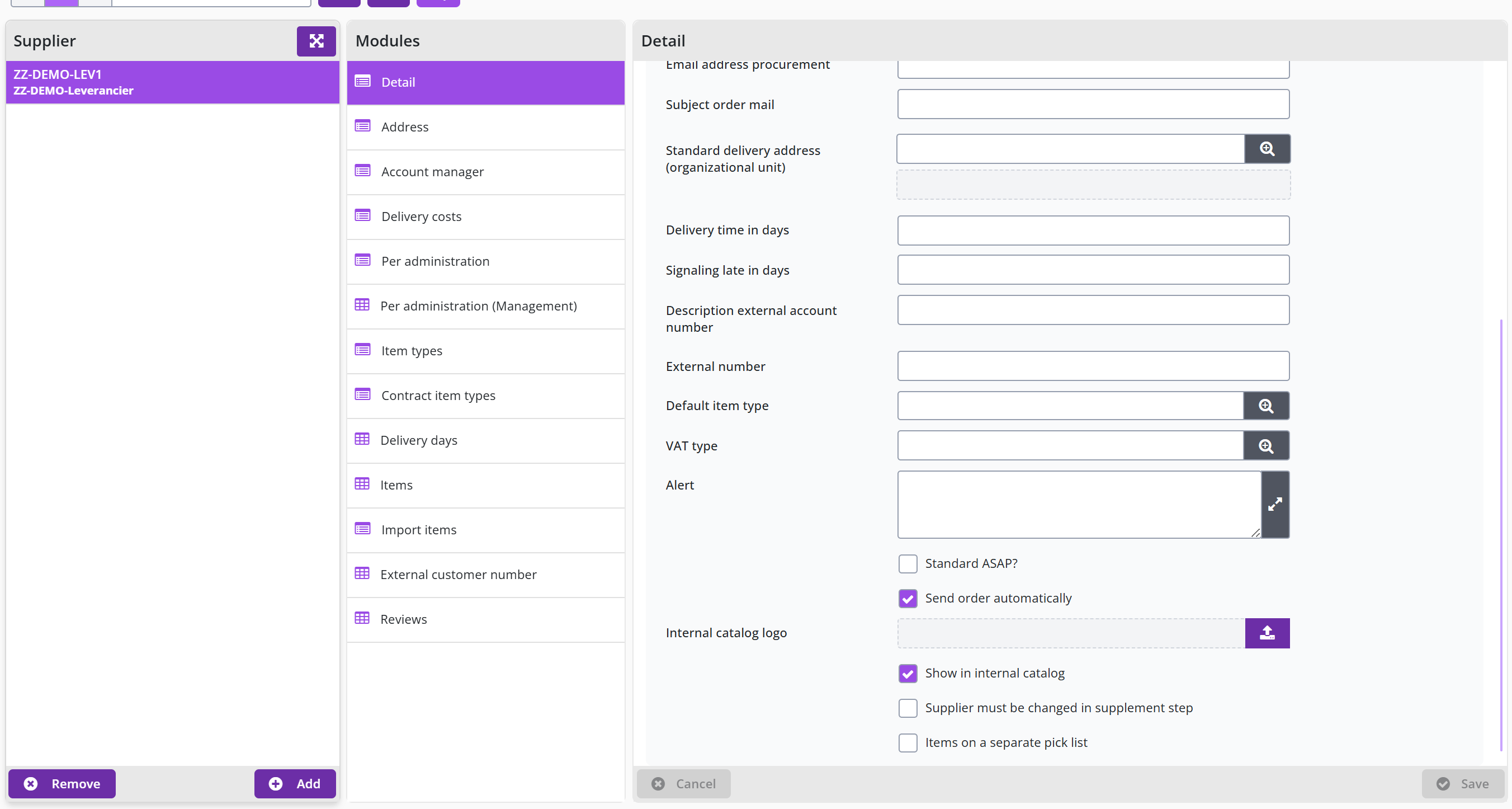
Delivery time, alert and extra discount of a supplier
In the Detail data module of the supplier (Procurement menu item Management - Supplier) you record the delivery time, a signaling for late delivery, an alert for employees and an extra discount on all items of the supplier.
You can also set the agreed Delivery time in days for the supplier and optionally indicate with Signaling late in days when a ToDo must be stated under Other ToDos. The value of Signaling late in days can therefore deviate from the Delivery time in days. If nothing is entered at “Signaling late in days", then the ToDo for Too late will not be created/reported under Other ToDos. The other ToDo for Too late is shown for all employees who are allowed to perform the receipt registration for the relevant organizational unit.
Optionally you can set an Alert. The text you enter here will be shown to the employee when an item from the supplier is placed in the shopping cart. This can be used, for example, to point out the necessary additional information that the supplier needs for handling and delivery, or in relation to other agreements with the supplier that need to be considered.
Note: for the items of a supplier, you can also set up your own web alert for each item. A notification for existing and new items can also be entered under item type.
If you have made agreements with the supplier about an extra discount on all items purchased through this supplier, you can enter the discount percentage in the Extra discount field. This discount is applied to all items and is therefore on top of any discount of the item itself. For more information about item discount, see Item: Costs data module (price, discount and VAT type). If this extra discount also applies to the requisitions via the OCI, the supervisor can set this under OCI link in the Detail data module.
Address, account manager, delivery days and linked data modules of a supplier
Besides the Detail data module, a supplier (Procurement menu item Management - Supplier) has the data modules Address, Account manager and Delivery days, and data modules that show the linked items, item types, reviews and OCI items.
In the data module Address and Account manager you can include the relevant contact details of the supplier. In the Address data module, you can also select a different Order template, which you can create via the Procurement menu item Management - order template. For more information about the use of an order template, see administrations See financial administration under Accounting.
Note: The supplier’s address is required if you use the Post order method.
The contact information of the account manager at the supplier is also available to employees via the Shop menu item Contact info suppliers. If employees are not allowed to contact the account manager themselves, you can hide the contact information of this supplier in this menu item with the checkbox Contact info not public.
Optionally, you can adjust the supplier’s delivery days in the Delivery days data module. When validating the delivery time, the days on which delivery is or is not taken into account.
The data modules Items, Item types, Contract item types and Reviews show the relevant items that are linked to the supplier. The Item types in this section refer to the items that can be purchased via the P2P process and the Contract item types refer to the item types for periodic offtake (and the journal entries / memorial bookings for this) in contracts. You can also go directly to the relevant item to manage it via the Items and Reviews data module.
The OCI item group and OCI item data modules can apply to suppliers with an OCI-link, enabling shopper to derive the corresponding item type for the OCI items or OCI item groups. See Derive item type under OCI link.
Note: The OCI Item data module is only available if the checkbox Manage Oci items is marked. This checkbox can be found at the bottom of the Details data module of the supplier.
Delivery costs of a supplier
The Delivery costs data module of the supplier (Procurement menu item Management - Supplier) is used to register the delivery costs used by the supplier, where a limit amount together with delivery cost for the above and below this limit can be specified. If the limit is specified, orders with a total amount below the limit amount will have an order advice applied.
Note: This data module is only available if the license module SHOPMOD-CO Shopper module Contract offtake, contract invoices, contract utilization and order advice optimalization has been purchased or if Shopper Enterprise edition is used.
Linking a creditor to a supplier
For the administrative processing it is required that a creditor is linked to a supplier. You can assign this creditor differently per administration if they are not the same across all administrations. See the data modules Per administration and Per administration (management). For an explanation of the use of these data modules see section Management by administration of the financial administration under Accounting.
If no creditor has yet been created for a supplier, but you already want to send orders to this supplier, you can postpone the linking with a creditor when setting up per administration (by not completing this for an administration yet).
Note: you do have to link the administration with the supplier to be able to place an order, but you can leave the Creditor field empty.
An Other ToDo is then created for Supplier (link creditor) to flag this and follow up later. The supplier can then already be used for that administration for requisitions up to and including the registration of the receipt. However, settlement of the invoice is only possible after the creditor has been set up with the supplier for the relevant administration. The order lines are therefore not picked up for invoice processing until the creditor has been linked (and in that case is therefore not captured in screenshots).
Supplier with an OCI link in the external catalog
If you want to include a supplier in the external catalog, you need to first make agreements with the supplier about the use of an OCI link. Also, the OCI definition for this vendor must be available in the Shopper implementation you purchased.
The link for the OCI of a supplier is set up by the supervisor via the menu Supervisor and the menu item OCI link. See OCI link in management tasks.
The logo with which the supplier is displayed in the external catalog follows from the OCI definition in the Archifact catalog. You cannot change this yourself!
In Shopper 10 the OCI link (see OCI link) also has the checkbox Linked to procurement contract and the field Procurement contract [linked to]; these two items have no English text in the English user interface.
Note: if the data field Default item type is specified at the supplier with the external catalog via an OCI-Link, or if the item type is determined using the OCI item or OCI item group, this item type need to also be assigned to the organizational unit where this OCI link is used, or else the item cannot be placed in the Shopper cart. Also see Derive item type under OCI link.
Reviews of a supplier
The reviews registered for a supplier at order receivals, or contracts will be listed in the data module Reviews of the supplier (Procurement menu item Management - Supplier). The reviews categories are also available at the data module Valuations. You can also add a review for this supplier using the button. After selecting a review (or when adding a review) the following fields will be shown
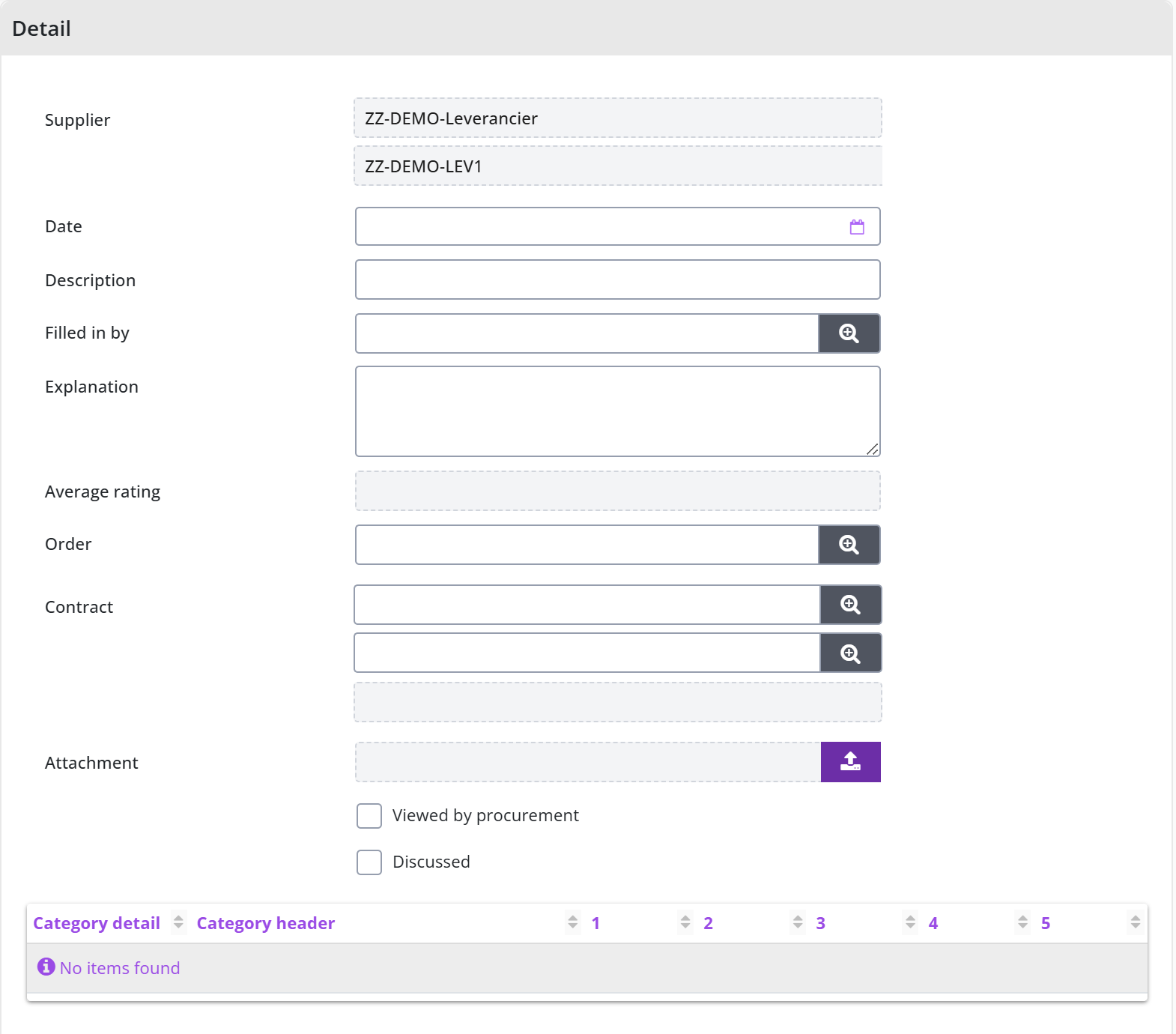
Using the checkboxes Views by procurement and Discussed it is possible for an employee of procurement to track if the reviews was read and or discussed with the supplier (for example, during the contract evaluation).
Review categories
When registering receipts and managing contracts, a supplier can be approved. It is also possible by means of a number of stars are given a value judgment within certain categories. These Review categories can be managed via the menu Procurement menu item Management – Review category groups.
Different category groups can be created, containing Review categories. By default, the groups Financial, Logistics and Quotation phase are present here, with the categories Invoice correct, Invoice on time, Delivered on time and Correct information.
Categories that have not yet been used within a Review can be removed from the list with . If a category has already been used but is no longer applicable, you can check Inactive for this category, so that it will no longer be shown in the Review.
Items
This chapter describes how you set up and manage the item types and the items of the internal catalog in Shopper. Item type describes the screen under the Procurement menu item Management – Item type: the number of decimals, the CPV-Code, notifications, the supplement workflow and the checkboxes Direct order and Project Required. Cost type and VAT type per administration for an item type explains how order lines of an item type are posted per administration. Item: data module General describes the item screen (Procurement menu item Management - item) with description, image, order unit, minimum amount, item code, inactive, preferred item, web alert and CPV-Code.**
Item: data module Costs (price, discount and VAT type) covers the price exclusive of VAT, the discount percentage or discount amount and the VAT type taken over from the item type. Item: estimate, price adjustment by requester and installments describes the checkboxes Estimate, Requester may adjust price and Installments. Item: order lines, accounting data per administration and multiple item types covers the data modules Order lines and Per administration and linking several item types to one item. CPV-Codes describes the standard CPV-Codes for European tenders, and Import items explains how you read in or update the items of a supplier from a CSV or XML file.
Item type
Items within Shopper are identified with an item type. You can manage these item types via the Procurement menu item Management – Item type. Item types can also be used to determine how order lines should be posted in your financial administration. This is done in Shopper via the VAT type and cost type that are linked to a VAT code and a general ledger account within your financial administration.
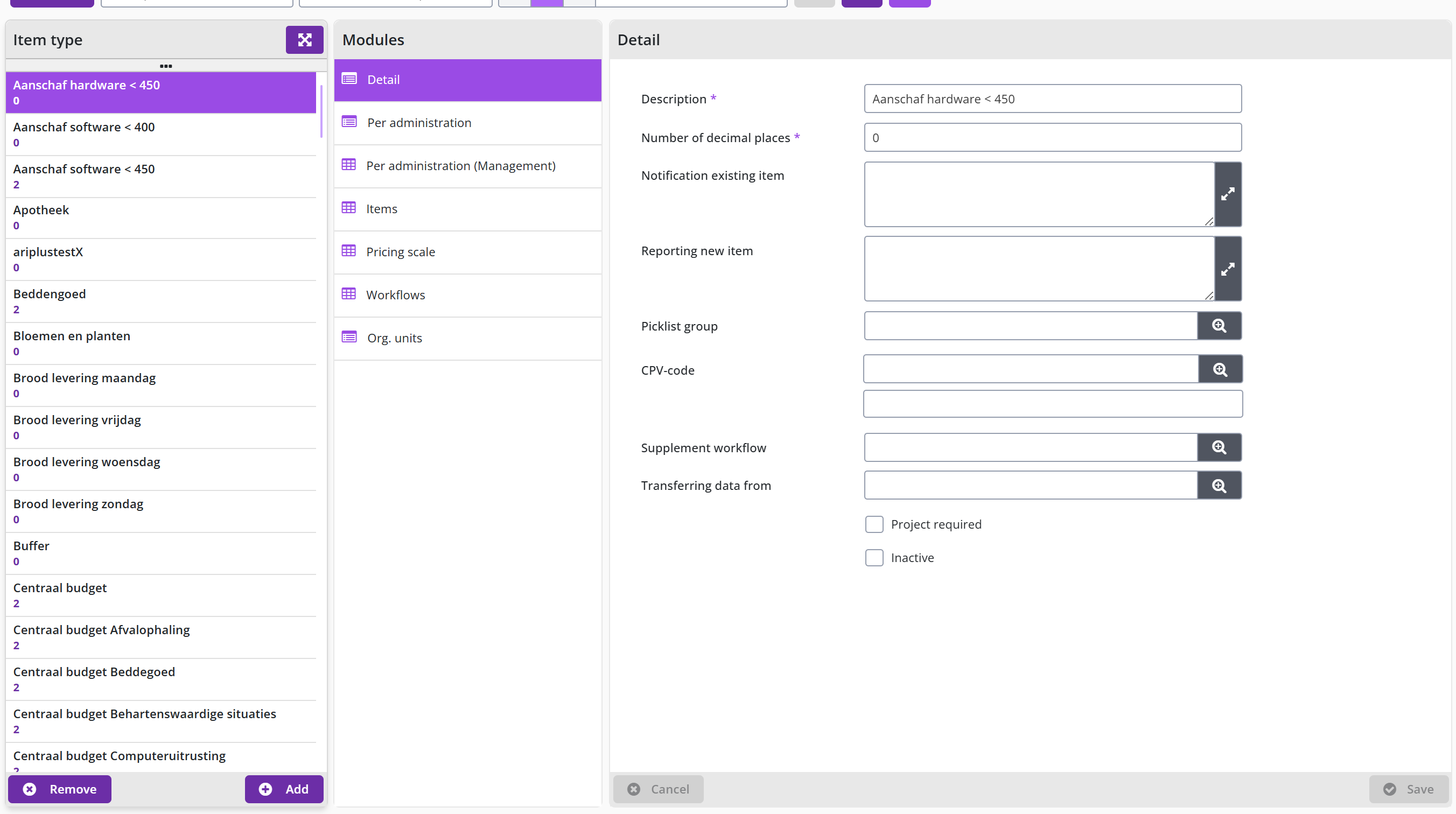
The screen is structured according to the standard as described for the General screen layout under Use of the other screens.
With the item type you also define the number of decimal places for the quantity that can be ordered. This is usually 0, since only whole order units (for example per piece) can be delivered. However, if, for example, deliveries are made per measured weight or otherwise in fractions, you need to specify the number of decimals that apply here.
Note: for orders that need delivery using installments, it is required that the item type supports at least 2 decimals.
Using the field CPV-Code the corresponding CPV-Code can be provided (regarding European tenders).
Optionally, you can set notifications when ordering an existing item (from the internal catalog) or a new item (with the free request) of this item type. Using the field Supplement workflow you can specify a different workflow that will be applied to requisition lines with this item type. Also see P2P-Workflow Supplement, under Workflow.
Note: The changes made for the supplement workflow will only be applied for new requisitions. that are already in a supplement workflow will continue to follow that workflow.
With the checkbox Direct order you can indicate whether or not direct orders are allowed for this item type. With the checkbox Project Required you can indicate that the item type may only be used for requisitions for a project (i.e., requisitions for which a project is specified).
Cost type and VAT type per administration for an item type
For an item type (Procurement menu item Management – Item type), the data module Per administration (management) holds, per administration, the cost type and the VAT type used to post order lines of this item type.
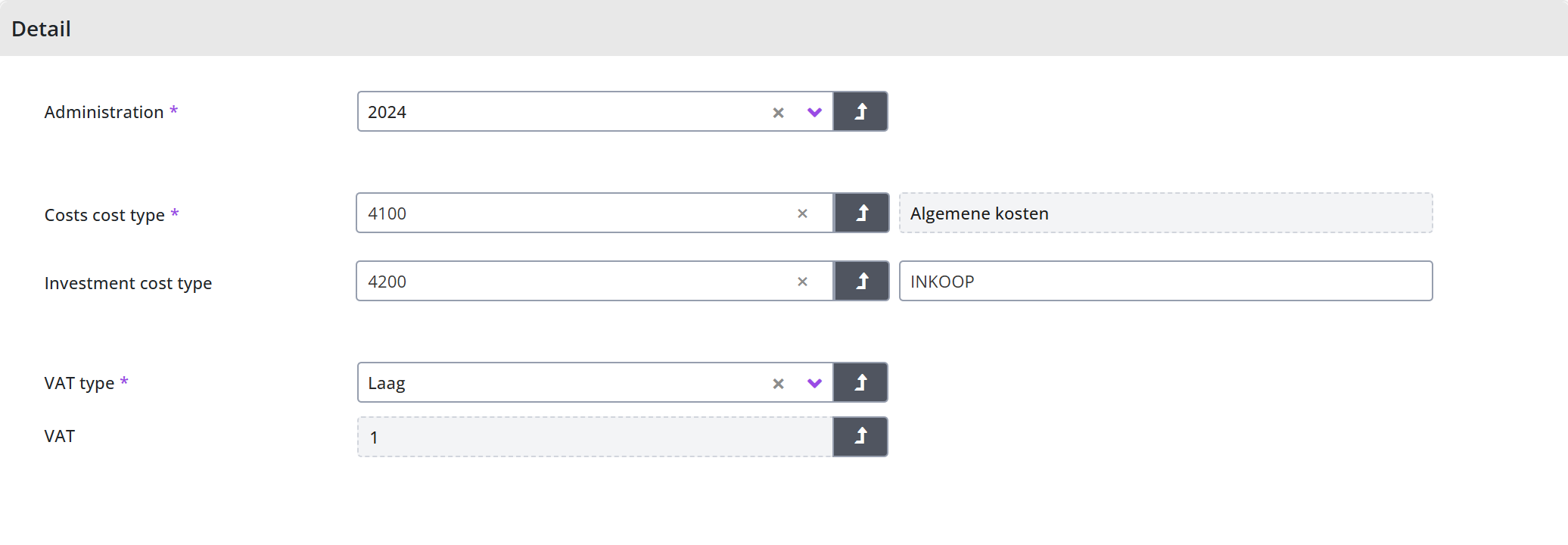
You can set up the cost type and the VAT type for the item type per administration. See sections Cost structure and VAT administration under Accounting for more information.
In the data module Per administration (management) you indicate which cost type and VAT type applies to this item type, which may differ per administration. When specifying the costing type, you can additionally also specify a costing type for investment requisitions with this item type. Exceptions to this can be recorded with an item.
Note: if you work with different costing categories per administration, you need to set a different costing category for an item type per administration. In other words, if different general ledger accounts apply per administration.
For an explanation of the use of the data modules Per administration and Per administration (management) see section Management by administration of the financial administration under Accounting.
Item: data module General
The items shown in the internal catalog are created per supplier via the data module Item at the supplier. You can also view, create and manage all items via the Procurement menu item Management - item.
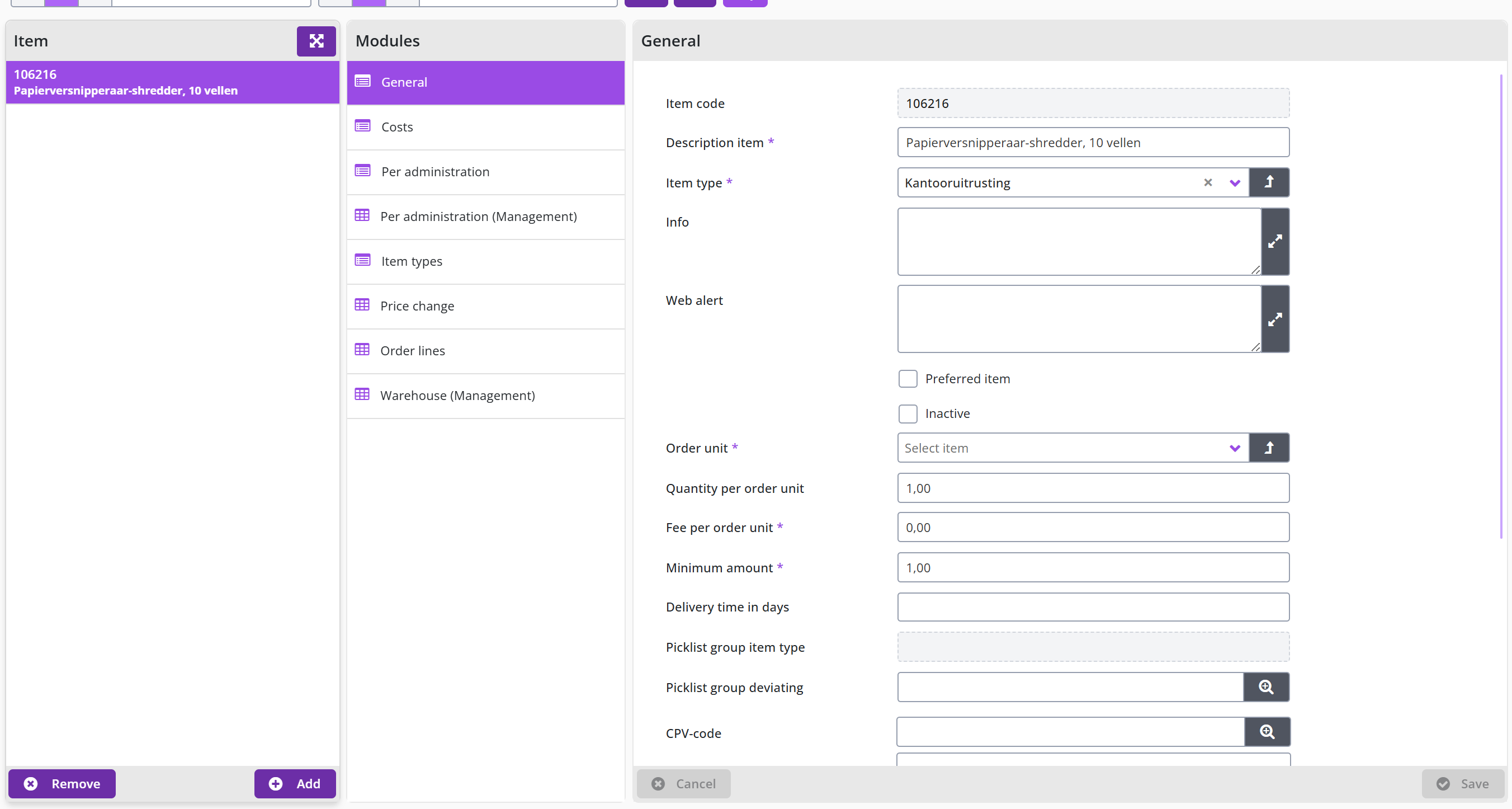
The screen is structured according to the standard as described for the General screen layout under Use of the other screens.
In the data module General you can enter the data of an item, such as a description and the image (Web image filename) that will be shown in the internal catalog and with order lines. In addition, you can add information (Info) that is displayed with an item when you hover over the item in the shopping cart.
In addition, it is required to fill in the mandatory fields “Order unit Fee per order unit and the Minimum amount for an item, which are usually supplied by the supplier. The minimum amount refers to the minimum number of order units that need to be purchased with an order. At the bottom of the data module General you can enter the Item code under which the item is known to the supplier.
If an item is (temporarily) out of stock or if you no longer wish to purchase the item, you can set the item to inactive with the corresponding checkbox. The item will then no longer be displayed in the internal catalog.
If this item may only be requested by an employee from procurement (the purchasing department) and not by other employees, then the Preferred item checkbox can used. If the checkbox is unmarked, the item will only be displayed in the internal catalog of procurrement employees. See also financial administration under Accounting.
Using the field CPV-Code the corresponding CPV-Code can be provided (regarding the European tenders). The CPV-Code of the item will overrule the CPV-Code of the item type.
You can also optionally set a Web alert. The text you enter here will be shown to the employee when an item from this supplier is placed in the shopping cart. This can be used, for example, to point out to the employee that they can/should set further specifications about the item, such as color, size or design.
Item: data module Costs (price, discount and VAT type)
In the Costs data module, you enter the price Exclusive of VAT of the item, optionally with a Discount percentage or Discount amount as agreed with the supplier.
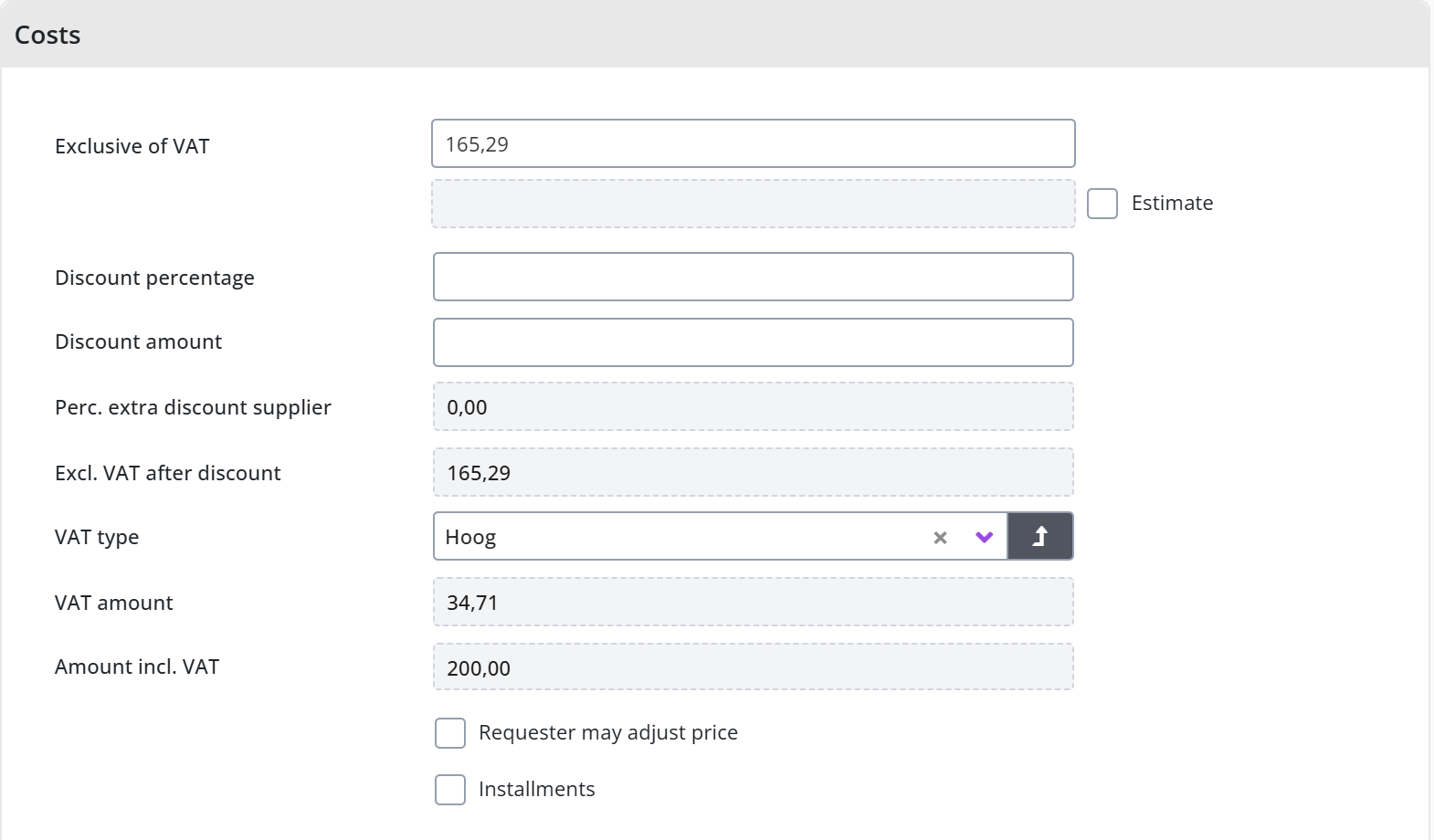
If the discount percentage has been entered, the discount amount is calculated when saving. The discount amount can then no longer be entered yourself (unless you remove the discount percentage again and save the item). The percentage of extra discount that has been specified with the supplier is also stated, with the costs excluding VAT after all discounts have been processed.
At least one item type needs to be assigned to an item. For a requisition line the VAT type is taken over from the item type of this item, whereby the VAT amount and the Amount incl. VAT are calculated and displayed. If a different VAT type applies, you can change this under VAT type. If the deviating VAT type or cost type for this item differs per administration compared to the item type, you can enter these deviations in the Per administration data module or the Per administration (management) data module.
For an explanation of the use of the data modules Per administration and Per administration (management) see section Management by administration of the financial administration under Accounting.
Item: estimate, price adjustment by requester and installments
For an item (Procurement menu item Management - item), the checkboxes Estimate, Requester may adjust price and Installments determine whether the price and the delivery of the item may deviate in a requisition.
If the price of an item is not fixed, but can change based on a target price, you can check Estimate checkbox. The price on the invoice may then differ. In that case, employees can adjust the price when registering the receipt, so that the invoice processing can still take place automatically.
Note: This is only available if the Estimated allowed indicator is checked in the Indicators data module of System parameters. The checkbox is also available if for the item in the catalog the checkbox Requester may adjust price is checked.
With the checkbox Requester may adjust price it can be set that an employee may adjust the price when applying or receiving. This is an exceptional situation, in which it is not a price estimate, but the price can still deviate and need to be determined at the time of requisition. For example, with a unit price per weight, where the weight can differ per requisition/order.
If the item can also be delivered in parts, you can indicate this with the checkbox Installments. It is then required that the item type allows this (see the number of decimals under Item type). Part deliveries are requested by the employee by checking the Instalment payments box next to an item in the shopping cart or via the Free request. See also >> Requests and shopping cart section Free request.
Item: order lines, accounting data per administration and multiple item types
An item (Procurement menu item Management - item) also has the data modules Order lines and Per administration, and more than one item type can be linked to an item.
You can view all order lines that have been created/processed via the P2P process for this item in the Order lines data module.
If different accounting data applies to this item in relation to the item type, you can indicate in the Per administration data module which costing type and VAT type apply for this item, which then may differ according to the respective administration. When specifying the costing type, an additional cost type can also be specified here for investment requisitions with this item type.
Note: If the supplement process step applies, the item type can also be set during this step, to allow for deviating bookings. at this process step the price can also be supplemented and when applicable this new price can be applied to the item in the internal catalog.
Additionally, it is possible to assign multiple item types to an item, where the restrictions on item types at the level of the organizational unit and/or project (used for the requisition) direct what item type to use, depending on the item-types assigned to the organizational unit or project. If organizational unit is part of an organization layer, the restrictions on item types of the organization layer will be leading to deriving the item type.
CPV-Codes
Shopper is provided with the standard CPV-Codes that can be assigned to items or item-types for European Tenders. Where needed this can be modified. Also, CPV-Codes can be removed and added when needed.
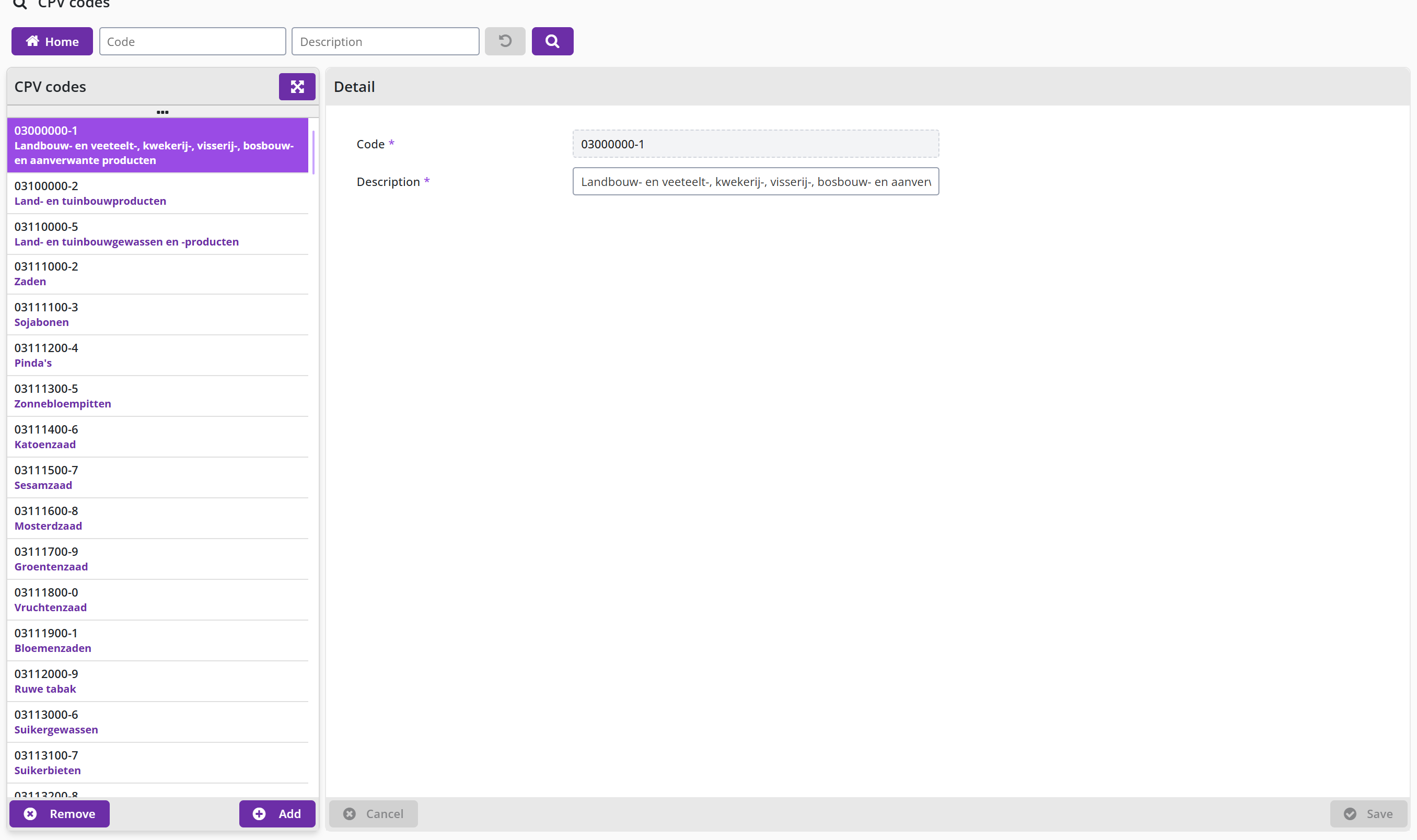
Import items
Instead of entering items manually, you can also read in a file to import or update the items from a supplier. You can choose the following file types: Standard CSV, Fixed CSV or XML.
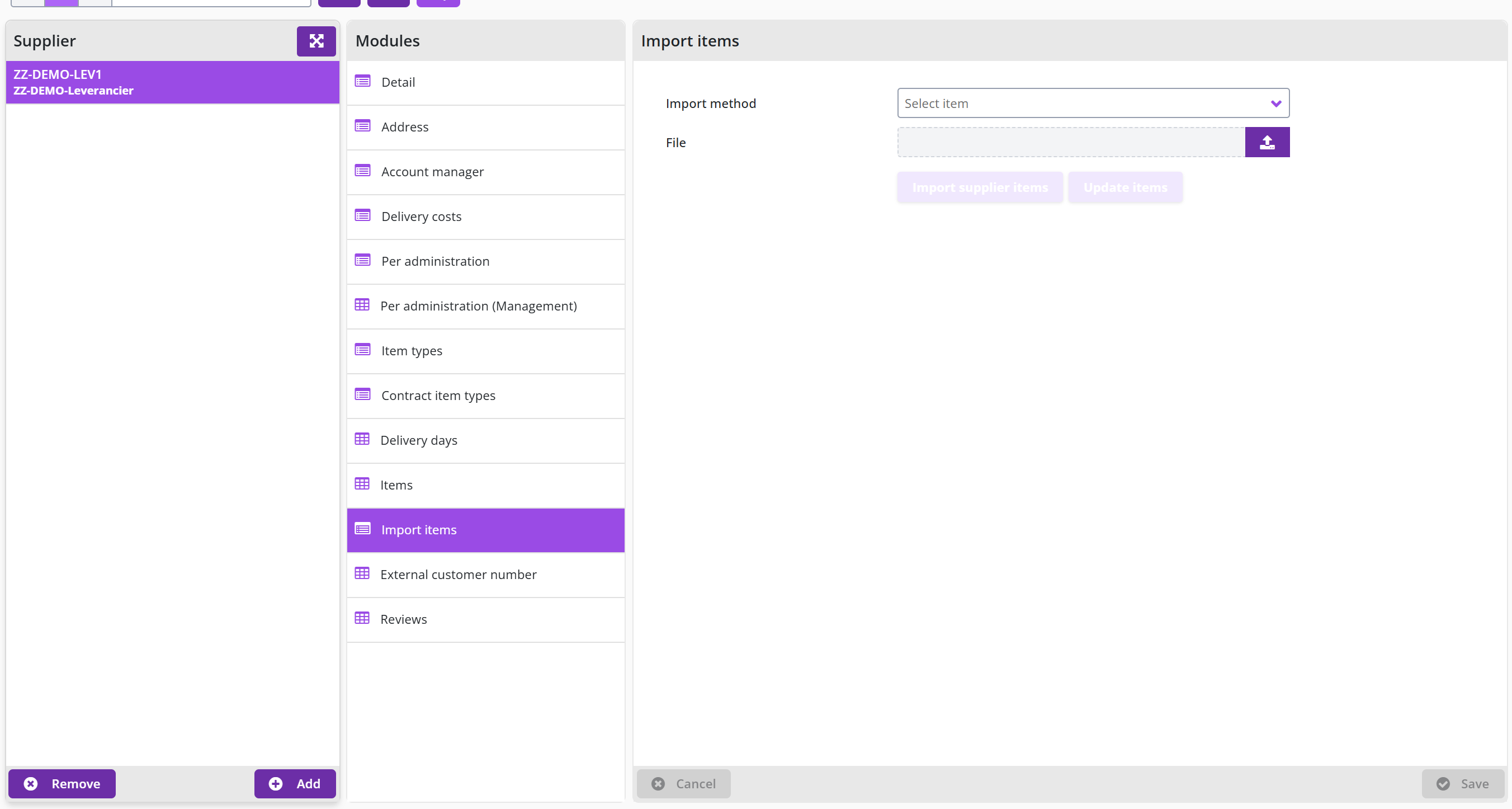
With the button you can read in the .csv file and display it in the table view below. If any data in the file is not correct (such as a reference that cannot be found) then there will be a No in the column OK?. You can then edit the .csv file accordingly and read it again.
Should all lines say OK? set to Yes or if you want to disregard the lines marked No, then you can read the item data into Shopper with the button . In that case, only the lines with OK? on Yes are read in.
If you do not want to process the file or start over, you can cancel the import with the button after the file name and delete the previously imported data in the table view.
The columns in the import file:
- Supplier code (if this is known in Shopper)
- Supplier item code
- Supplier item description
- Order unit
- Number of items per order unit
- Minimum number per order
- Amount per order unit (excl. VAT)
- VAT type (H, L or N)
- Percentage discount
- Discount amount
- Costing type (code)
- Image file name
- Extra column (dummy)
Where columns 1, 2, 3, 7, 8 and 11 are mandatory and where the supplier, and the VAT type exists.
For example, CSV:
103122;12873;Pickwick Earl Grey;Pack (100 units);1;1; 6,14 ;L;;;7004;;
103122;22845;Pickwick Pro Green Tea Pure;Pack (75 sachets);1;1; 7,61 ;L;;;7004;;
The column Image file name refers to image file without path and with file name extension (jpg, gif, png). These image files must be manually copied to the configured back-office location in Shopper (Photos of items). For more information see data module Back-office folders under System parameters. This may also be done after the import of items has been carried out.
Note: The item type needs to be entered for the relevant costing type in Shopper in order to be able to unambiguously derive the item type (since a costing type can be assigned to several item types). See section Cost structure under Accounting for more information.
Procurement overviews and reports
Shopper offers several standard overviews and reports to track the results of the purchasing process or a specific order. This chapter describes the Orders overview (menu Procurement, menu-item Orders) with the complete history of requisition-/order lines, the Order overview: status and approval including the Excel export of orders, and the Order line details in the Order overview.
It also covers the Procurement reports (Crystal Reports, menu-item Reports), the charts on the Procurement dashboard and the Spend analysis dashboard.
Orders overview
If you want to view the status or progress of a specific requisition-/order line, you can select via the Procurement menu item Orders. In this overview you will see the complete history. You can also request this for Order, Requisition and Incoming invoice.
The screen is structured according to the standard as described for the General screen layout under Use of the other screens.
Overview: Requisition / order lines
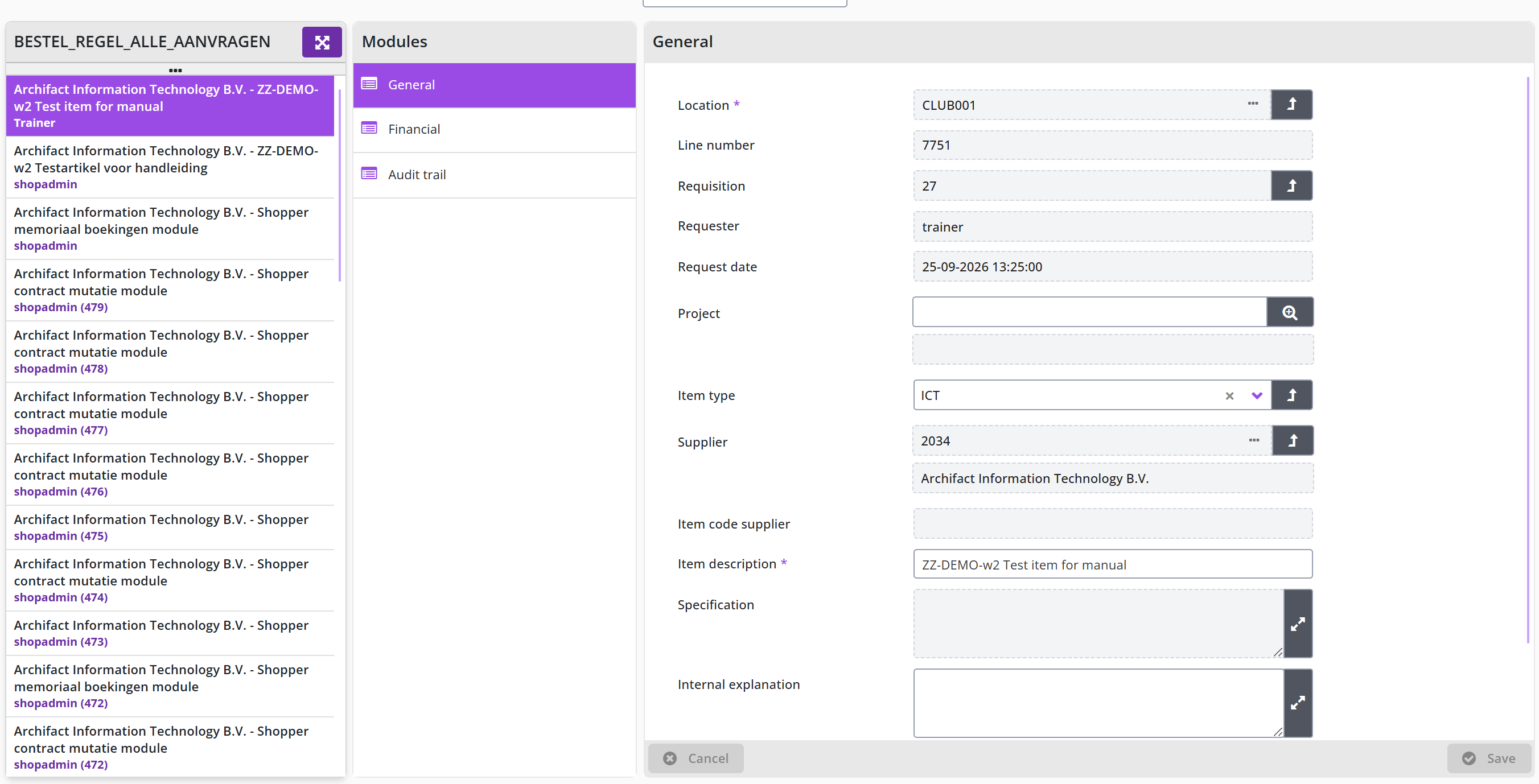
You can view the details of the requisition line and its processing in the various data modules. In the General data module you see the requisition data, in the Financial data module you see the financial data, in the Installments data module you can view the status of the partial deliveries – if applicable – and in the Follow-up action by you can see which employee(s) can perform the next process step for this requisition-/order line.
Order mutations and audit trail
In the Order mutations data module, you can see the operations performed since the order for the requisition line was created, with the specification of when and the employee that performed the operation. If you want to see all operations including those performed in other systems – if they are integrated with Shopper – you can request this Audit trail data module. See Incoming invoices and audit trail section Audit trail for more details.
Order overview: status and approval
The Order overview (menu Procurement, menu-item Orders) shows all data and the process progress of an order, with the Status and approval data module and the related order lines.
Overview: Order
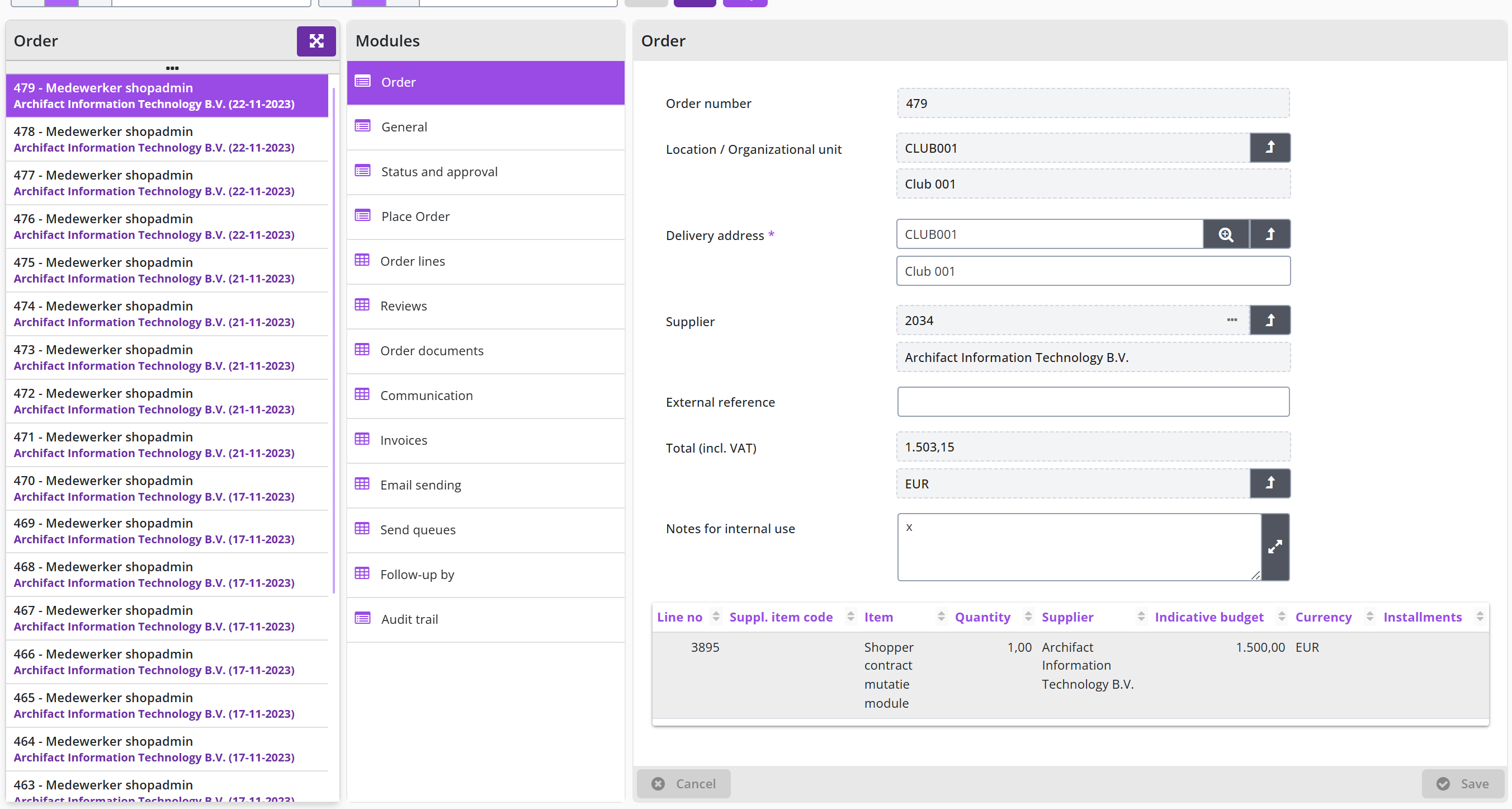
You can view the details of the requisition and the processing of the order. In the data module General the order summary, in the data module Order and Place order the details regarding the settlement, in the data modules Status and approval and Follow-up by, you can view the process workflow. In the data modules Order lines, Reviews, Order documents, Communication and Invoices you can look up the corresponding data related to this order.
Status and approval
In the Status and approval data module you can follow the progress of the order. You can see which employees have performed what and when, and which process steps still need to be completed. This data module is also available with the order line via the data module Order lines. There you will find more details about the next process step. Workflow and order mutations.
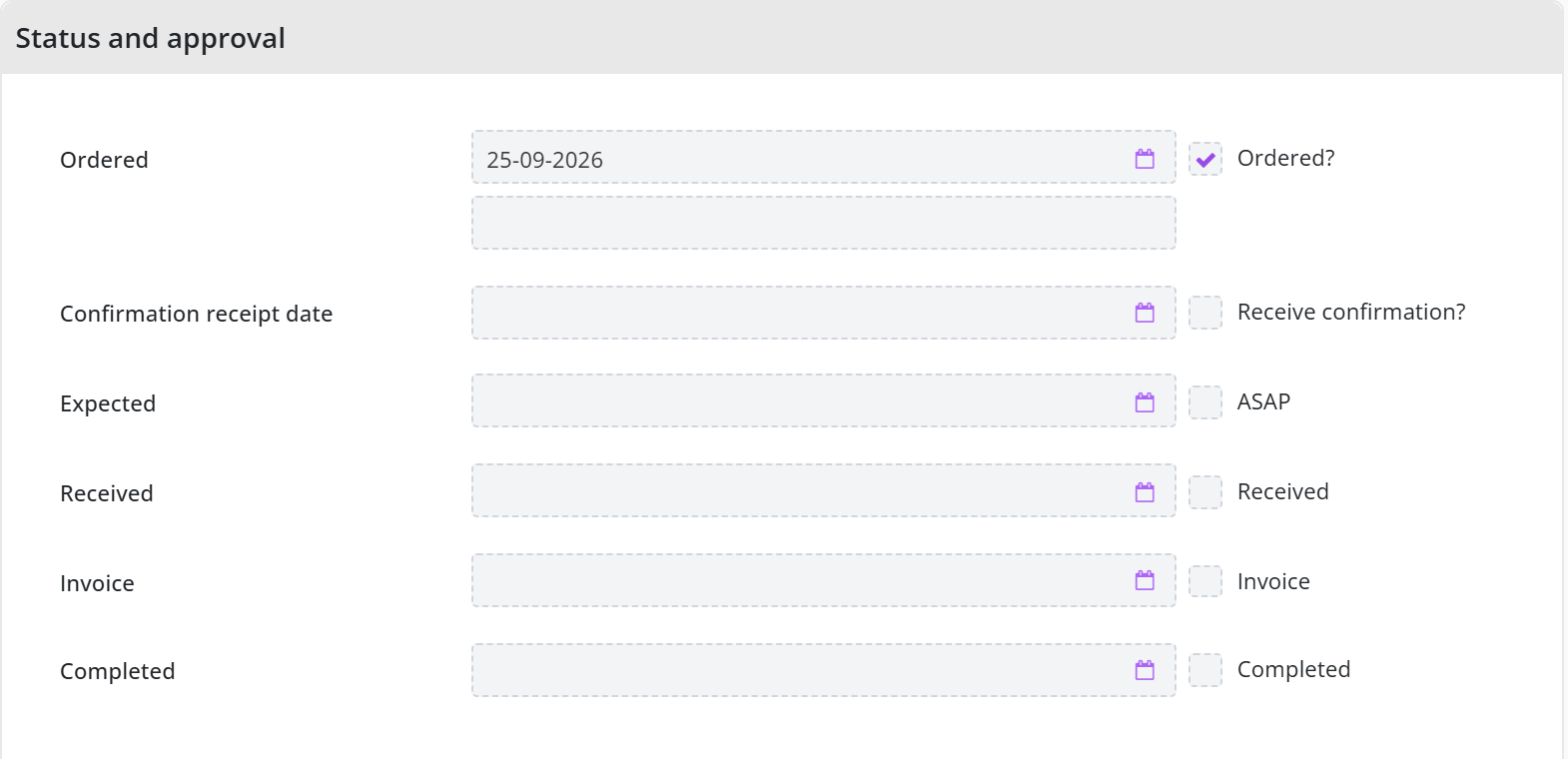
As of Shopper 10 the Excel export of orders contains three extra fields, added to support year-end reporting and reconciliation:
| Field | Description |
|---|---|
| Amount Ordered (excl. VAT) | The total value of the order at time of placement, excluding VAT |
| Amount Received | The total value of goods confirmed as received |
| Amount Invoiced | The total value against which an invoice has been issued |
These fields make it straightforward to compare ordered, received and invoiced amounts in a single export without manual cross-referencing.
Order line details in the Order overview
In the Order overview (menu Procurement, menu-item Orders) you can zoom in on the details of an individual order line from the Order lines data module.
After choosing an order line in the Order lines data module, you can zoom in further on details of the order line, where you can also find transactional data such as the numbers in relation to the different stages in the processing of the process.
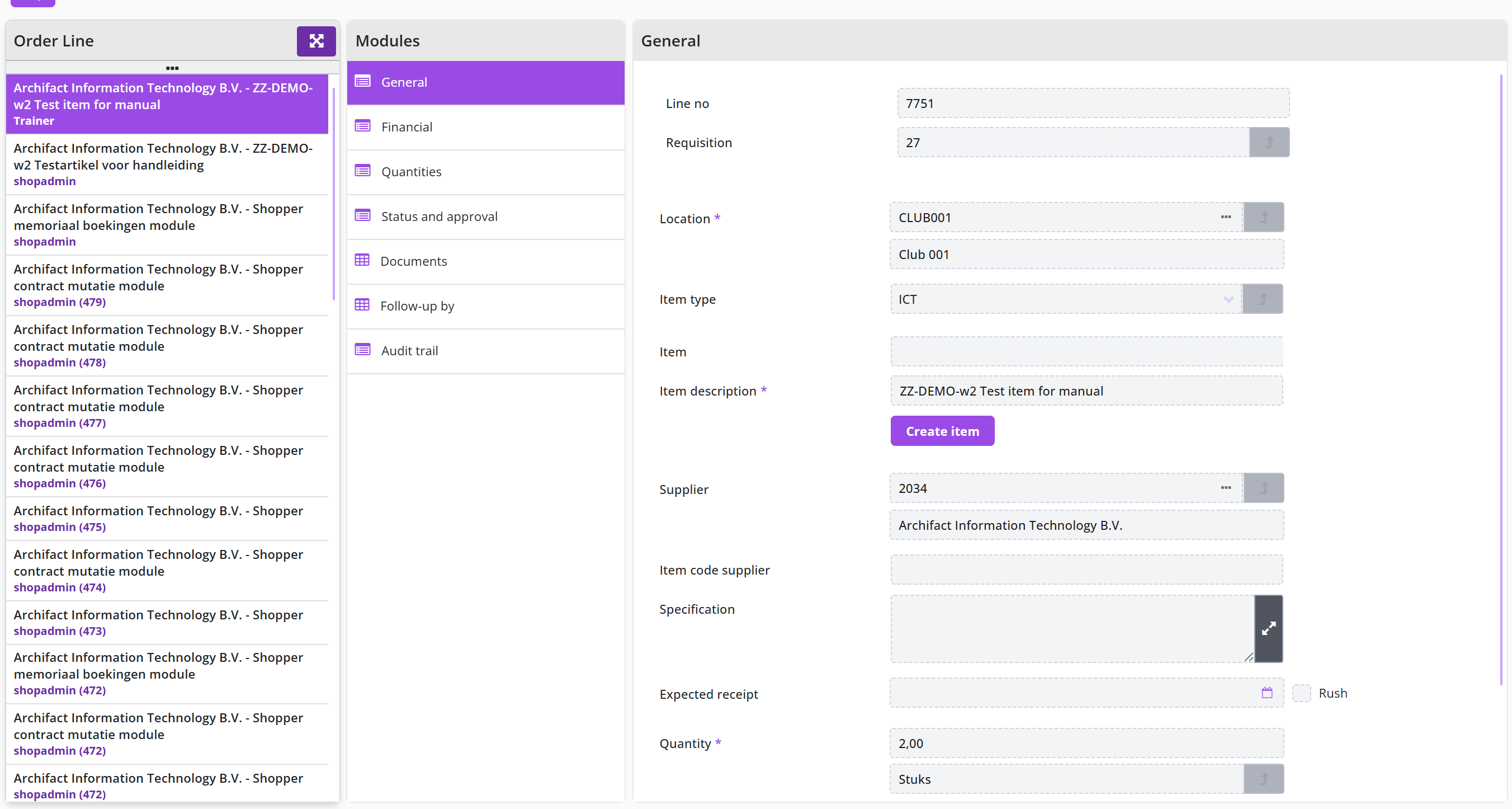
You can view the data of the order line and the progress of the various data modules. In the modules General and Order the settlement data, in the modules Financial and Numbers the results, in the modules Status and approval, Order mutations and Follow-up by you can view the process flow, and in the module Documents you can find the linked (order) documents. Optionally the module Installments is available for order requisitions that were specified with installments.
In Shopper 10 the General data module of an order line also has a Procurement contract section and the checkbox Outside contract (this checkbox has no English text in the English user interface).
If no employee is listed in the Follow-up by data module, you can find the status and the current workflow-step using the Status and approval data module, to determine what is missing in the setup. If this situation arises, this will also be made known via the other ToDos. Also see Order (not to be approved) under Signing authority / Power of attorney.
Procurement reports
In addition to requesting the status of a requisition-/order line, order, or invoice online, you can create various reports and save or print them if desired. These reports are accessible through the Procurement menu via the Reports menu item. You can then scroll down the list to find the report you want.
These reports are generated with Crystal Reports and the output is shown in Shopper. With some reports you can also choose to save the output in an MS-Excel file, depending on the available buttons:
If you choose then the output of the report will be exported to a *.xls file which will be available as a download via your browser. If you choose the report will be displayed in the Shopper PDF viewer:
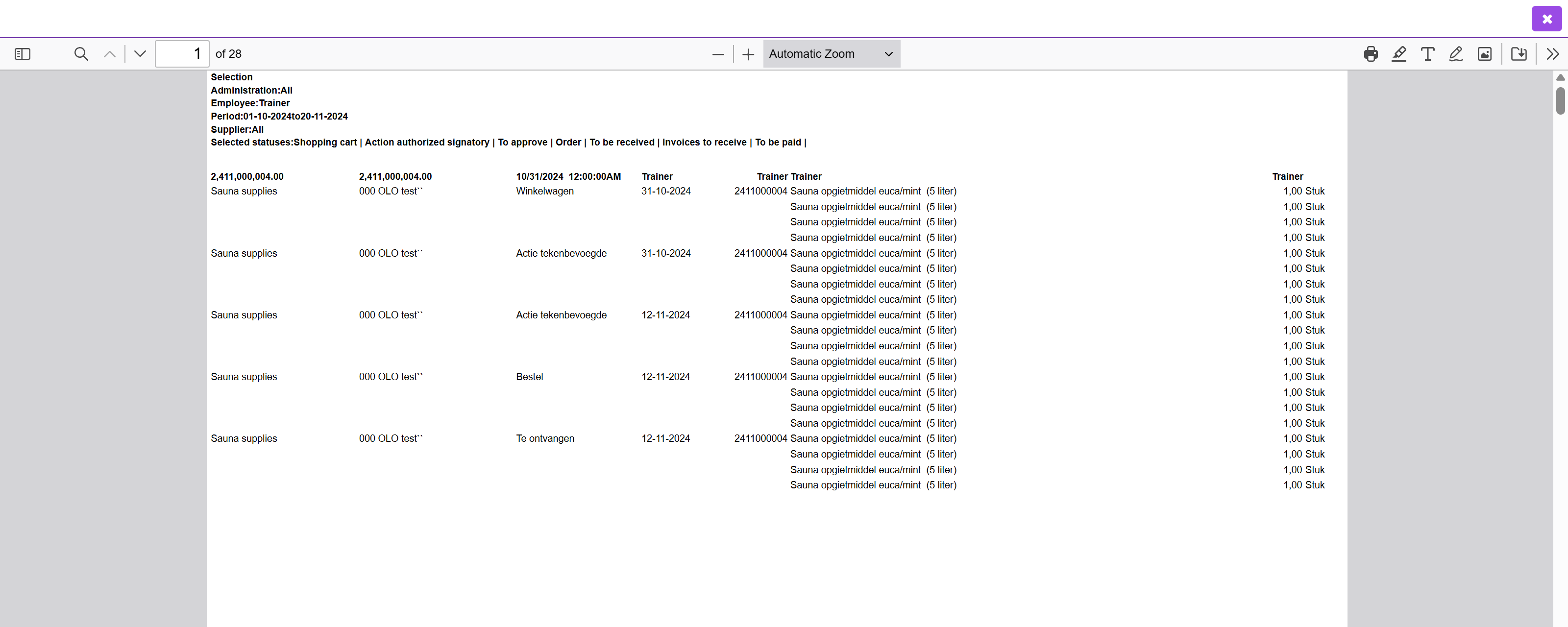
In the PDF viewer you can browse, search, print or save the report as a PDF. You can also adjust the view to full-screen, rotate or zoom in. You can close the viewer with the button at the top.
After selecting the report, you will see a dialog in which you can enter the selection for the report. As in the example below, where you can choose the , Employee and optionally Supplier.
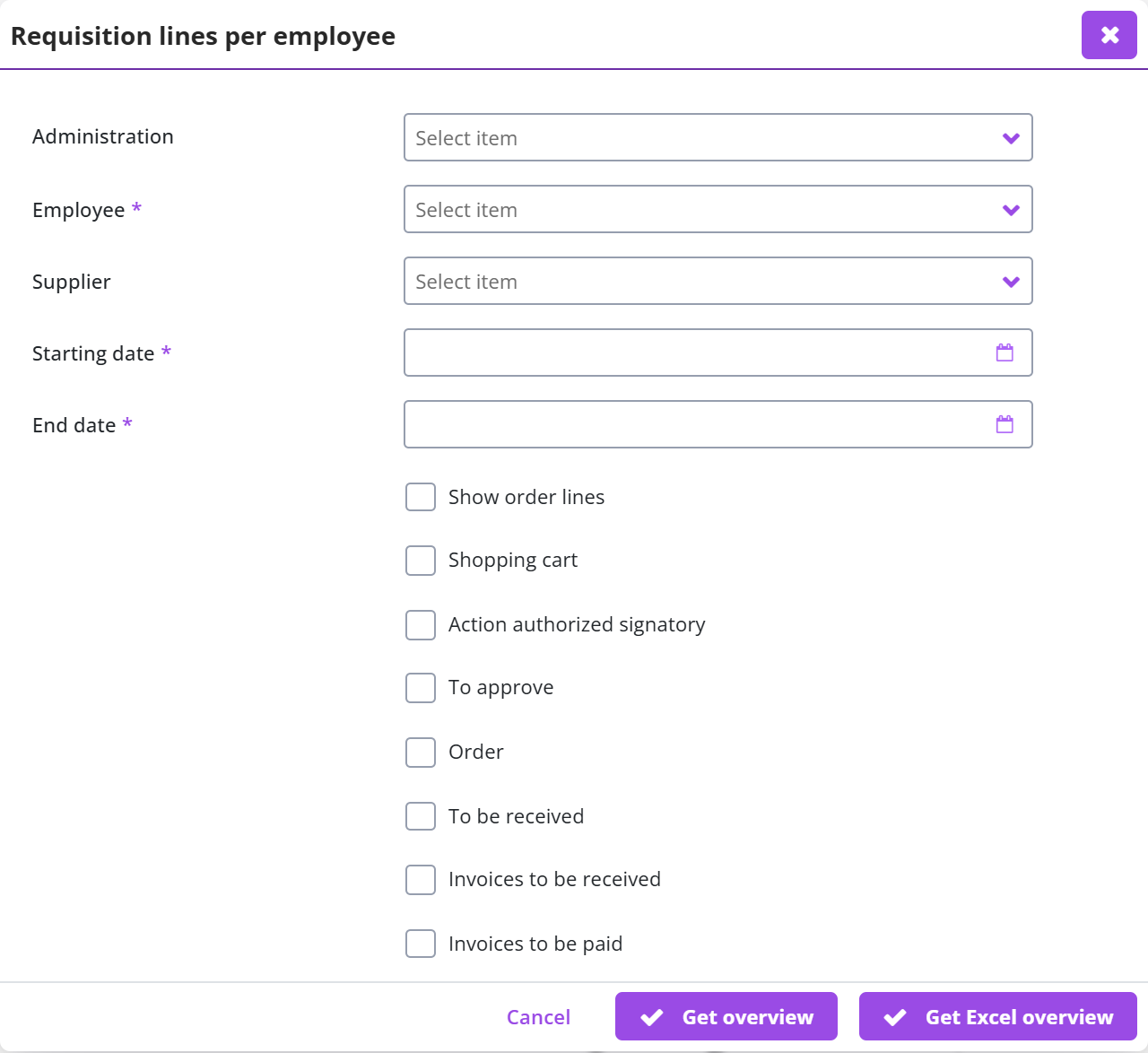
Then specify a date range with the Start date and the End date and select which status the requisition line should have to be included in the report. If you want to see everything, you have to check all the boxes. If you do not check any boxes, you will get an empty report. The report will also be empty if there is no result from the other selection.
The list of reports in the Reports menu item may differ depending on the Shopper implementation and the license modules you have purchased.
Procurement dashboard
For employees with authorization to perform (procurement) management (role Administrator), charts are also available on the Home dashboard or the P2P dashboard to visualize the purchasing processes. These graphics are located under the various process flow diagrams that are also shown on this dashboard.
A dashboard is usually the homepage of this employee and can also be retrieved via the menu Dashboards menu item Home dashboard. The composition of the graphs on the home dashboard can be customized by the user in user settings. See also Dashboard Graphs and Charts.
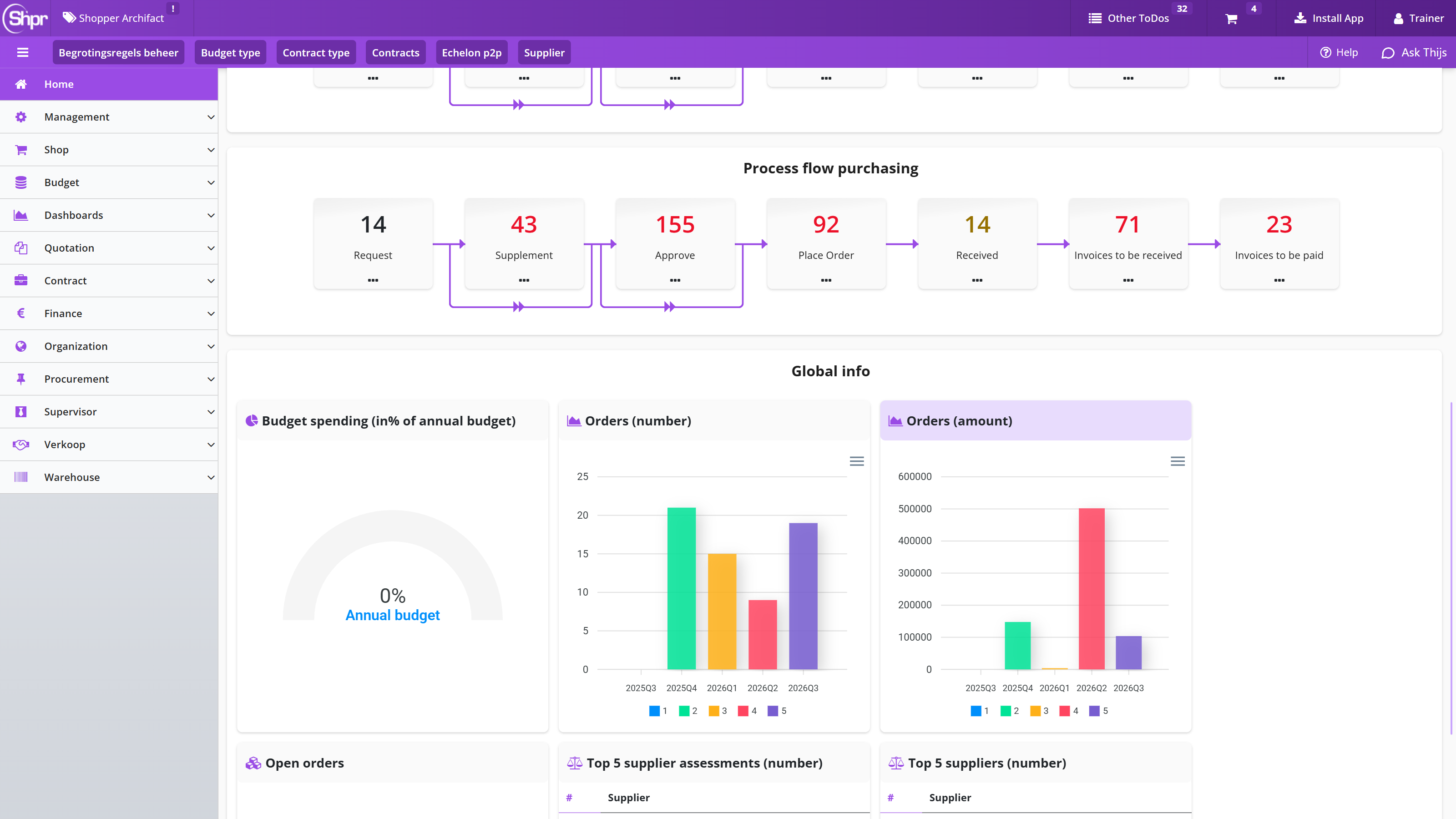
Note: The availability of items on the Home dashboard may vary depending on which Shopper implementation and license module you have purchased.
Spend analysis
From the Dashboard menu the dashboard Spend analysis can be selected. This dashboard provides an overview of quantity and amounts in relation to two dimensions, where a selection can be made for item-types, CPV-codes, organization units and suppliers.
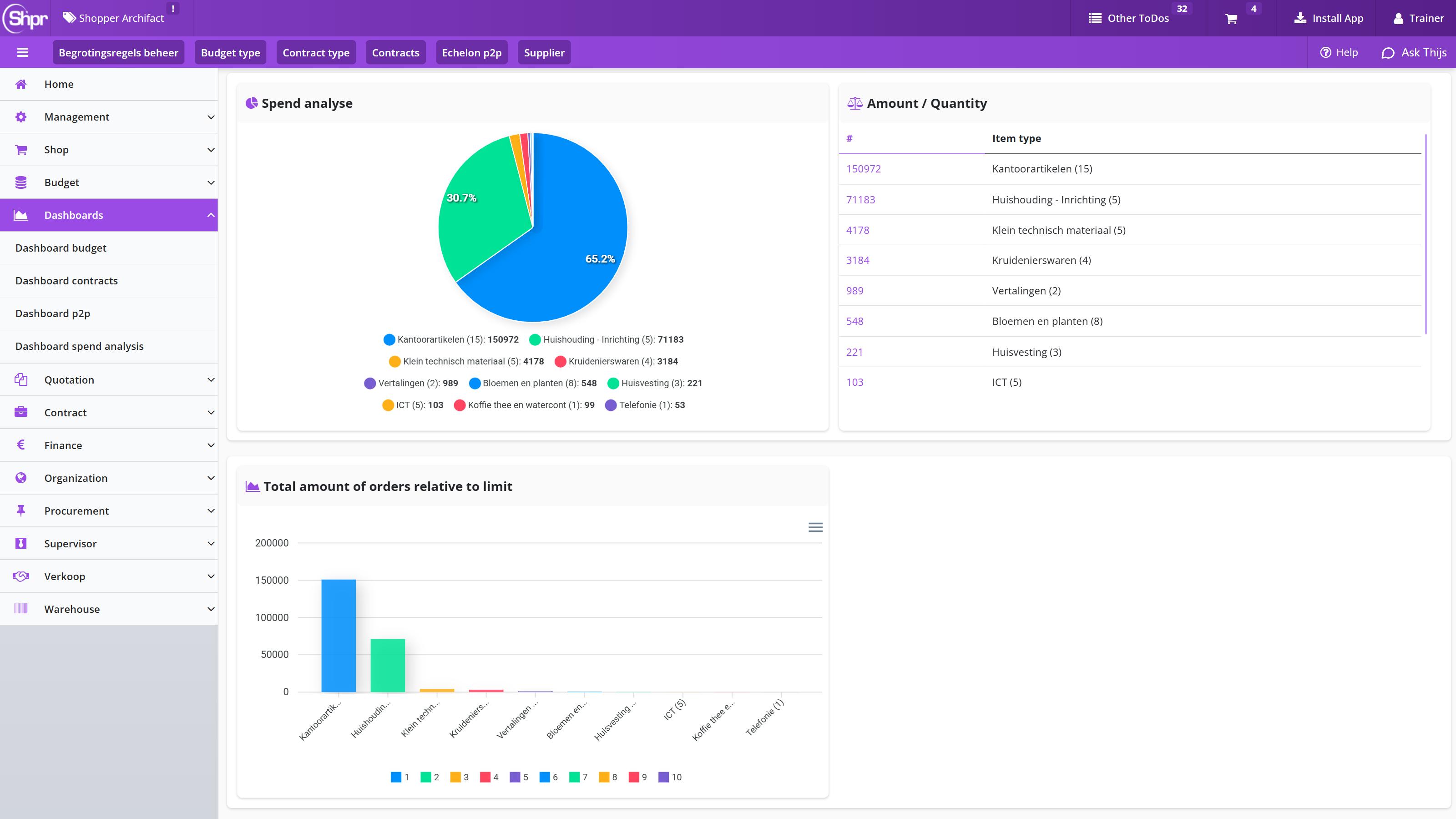
Using the search bar on top, a selection of data can be made based on a date range and the number records in the result set. Also, the two dimensions can be specified in the search criteria (i.e. the two selections for item-types, CPV-codes, organization units or suppliers).
Signing documents digitally
This chapter describes how you have purchase conditions or a contract signed digitally from Shopper through the integration with DocuSign or Entrust. Digital signing in Shopper explains where signing fits in the process flow and which signing systems Shopper connects to. Signatories and documents: data module Detail describes how you add a signing to a contract or quotation and record the administrator, the template, the internal signatory, the signatory of the supplier/contracting party and the documents to be signed. Additional signatories: data module Persons describes how you add further persons and their signing sequence.
Perform signing covers activating the signing, tracking its status, aborting it and activating it again. Other ToDos for signing covers the ToDos Signing (completed alert), Signing (aborted alert) and Signing (reminder) for the administrator of the signing. Signing templates describes how you manage the templates with the texts for the correspondence and the default template.
Digital signing in Shopper
When committing to financial obligations Shopper offers the option to initiate the digital signing of purchase conditions or contracts. As this is integrated in the process flow of Shopper, it becomes part of the audit trail. Using the approval workflow, the validation of documents can be performed internally within your organization, preceding the activation of the contract, where the supplier/contracting party and authorized signatory within your own organization can be requested to perform the digital signing.
To digitally sign PDF-Documents, integrations are available with DocuSign and Entrust. Integration with other systems can be realized.
Signatories and documents: data module Detail
Using the data module Signings (for a contract or quotation) signings can be added or removed.
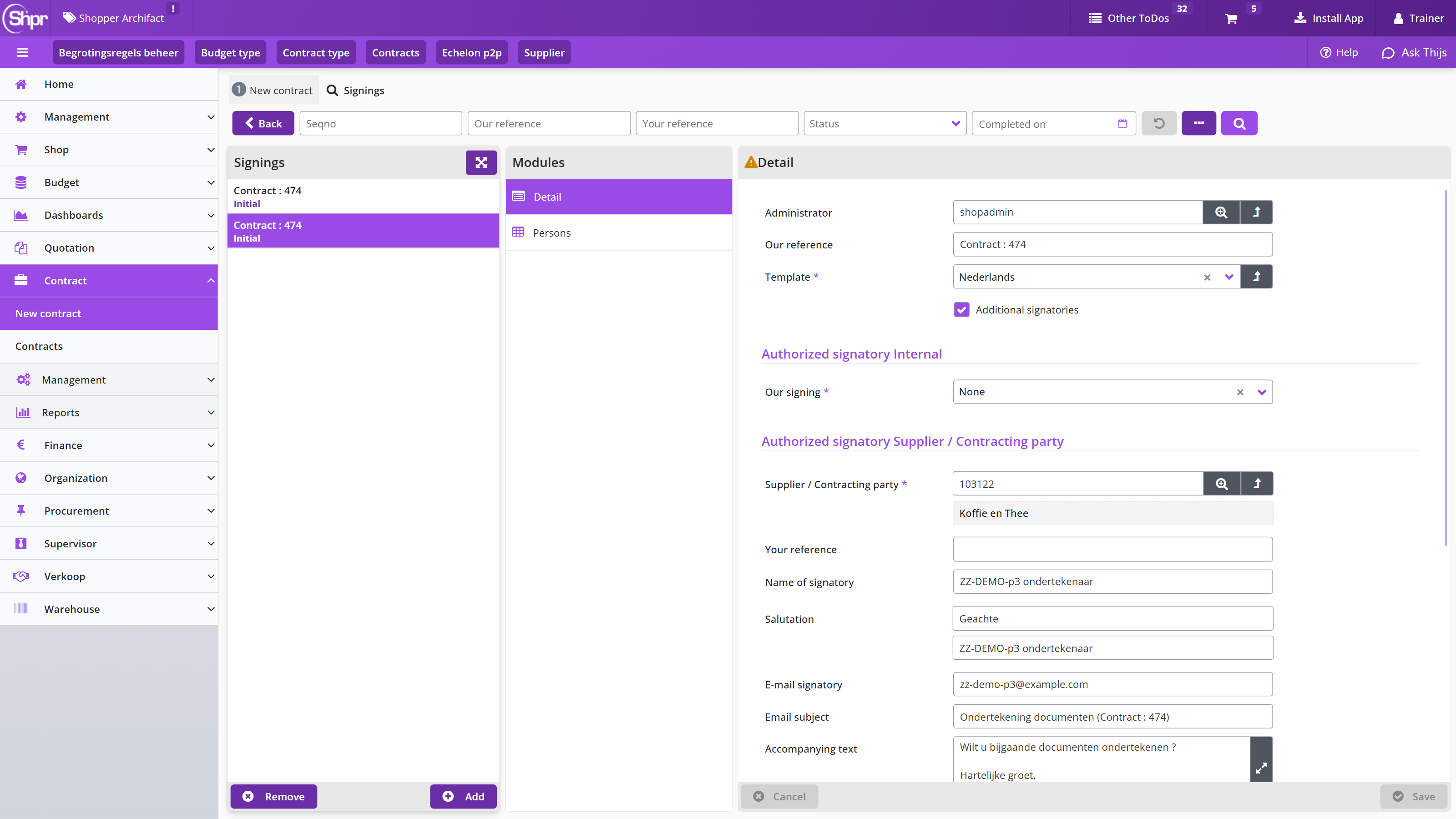
The screen is structured according to the standard as described for the General screen layout under Use of the other screens.
The data module Detail contains the data of the employee that will administer the signing process, the Authorized signatory Internal and the authorized signatory of the Supplier/Contracting Party Authorized signatory Supplier/Contracting Party. At the bottom the Status of the digital signing is show, followed by the involved Documents and the Persons that have performed the digital signing.
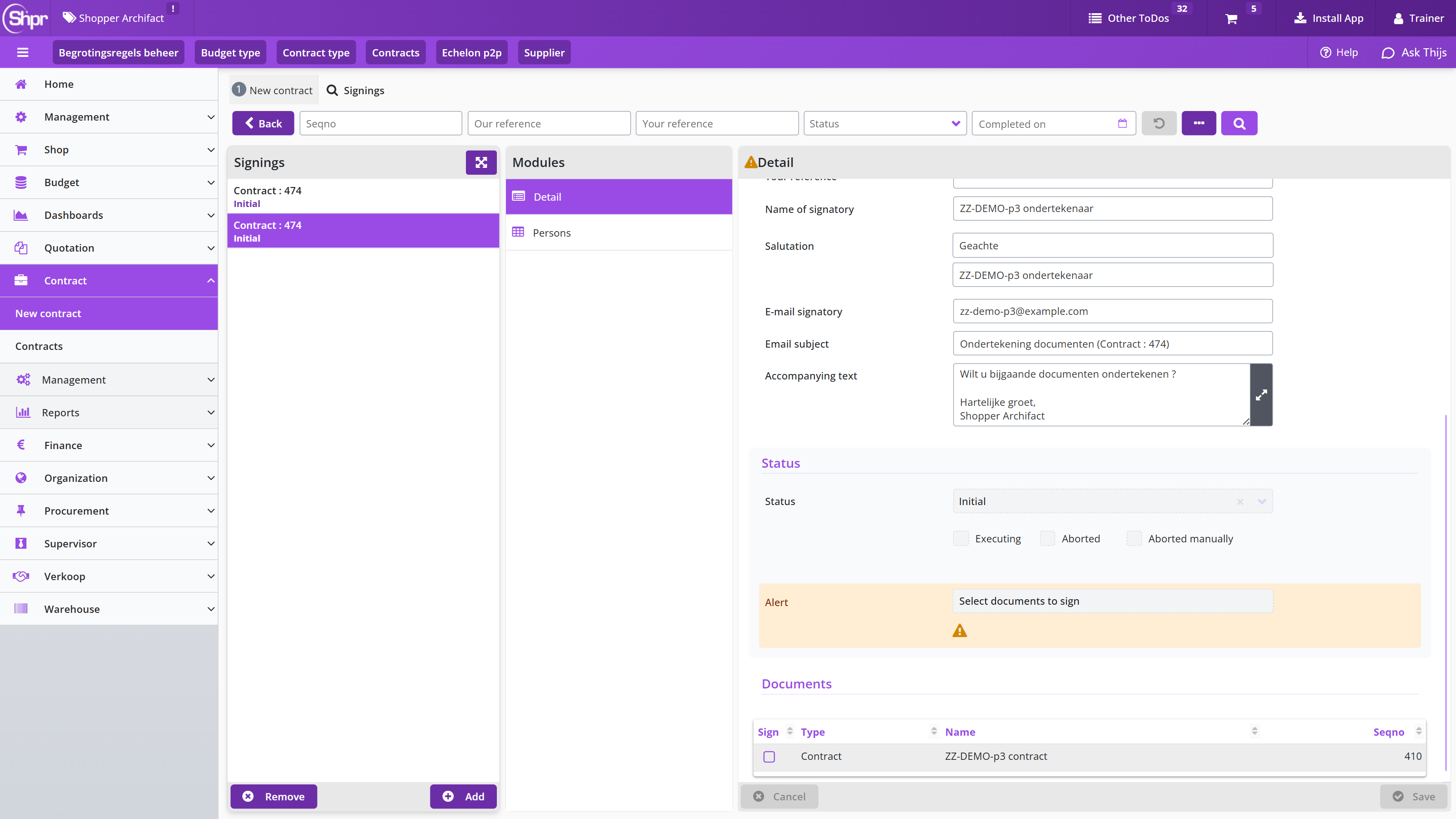
The Administrator is the employee responsible for the execution of the signing process. This employee will not perform the signing itself, unless they are also listed as an Authorized Signatory. The field Our reference can be used to refer to the contract or quotation involved. The administrator can modify this, along with the Template that can - among other things – be used to specify the language for the correspondence regarding the digital signing.
Note: the default template is prefilled, based on the setup of the signing templates. For example to set the default template for the language.
Based on the selected template the fields Salutation, Email subject and Accompanying text are prefilled. It is possible to modify them if needed.
Note: When you select another template the fields Salutation, Email subject and Accompanying text will be overwritten based on this new template and previous modifications will be lost.
Using the section Authorized signatory Internal the employee(s) with signatory powers can be specified, that need to perform the signing. By default the field Our Signing is set to None, i.e. only the supplier/contracting party needs to sign. This can be changed to Before or After (i.e. the internal signatories sign after the supplier/contracting party needs to sign).
Mark the checkbox Additional signatories to allow for the entry of multiple employees with signatory powers. Once this checkbox is set (and saved), the data module Persons becomes available, that can be used to add the additional employees (on either side).
Using the section Authorized signatory Supplier/Contracting party the supplier/contracting party will be derived and prefilled based on the contract or quotation (optionally this can be changed by selecting it from a list of suppliers). The field Your reference is used to specify to the other party what the signing is concerning. The field Name of signatory and to the right of the field Salutation refer to the person that is to be addressed for suppling the signature, where the email address is provide using the field E-mail signatory.
The section Documents lists the PDF-documents that are present for the contract of quotation in Shopper. To indicate which document need to be signed use the checkbox(es) in the column Sign.
Note: Once the signing is being performed, these checkboxes can no longer be changed
In case required data is omitted for the signing, for example when no documents have bet selected/marked, an alert is shown underneath the status of the signing:
Additional signatories: data module Persons
The data module Persons of a signing (for a contract or quotation) becomes available once the checkbox Additional signatories has been set in the data module Detail.
The data module Persons is used to specify the data for additional signatories. Using the button additional persons/signatories can be added. This can be an employee of your internal organization as well as from the supplier/contracting party side.
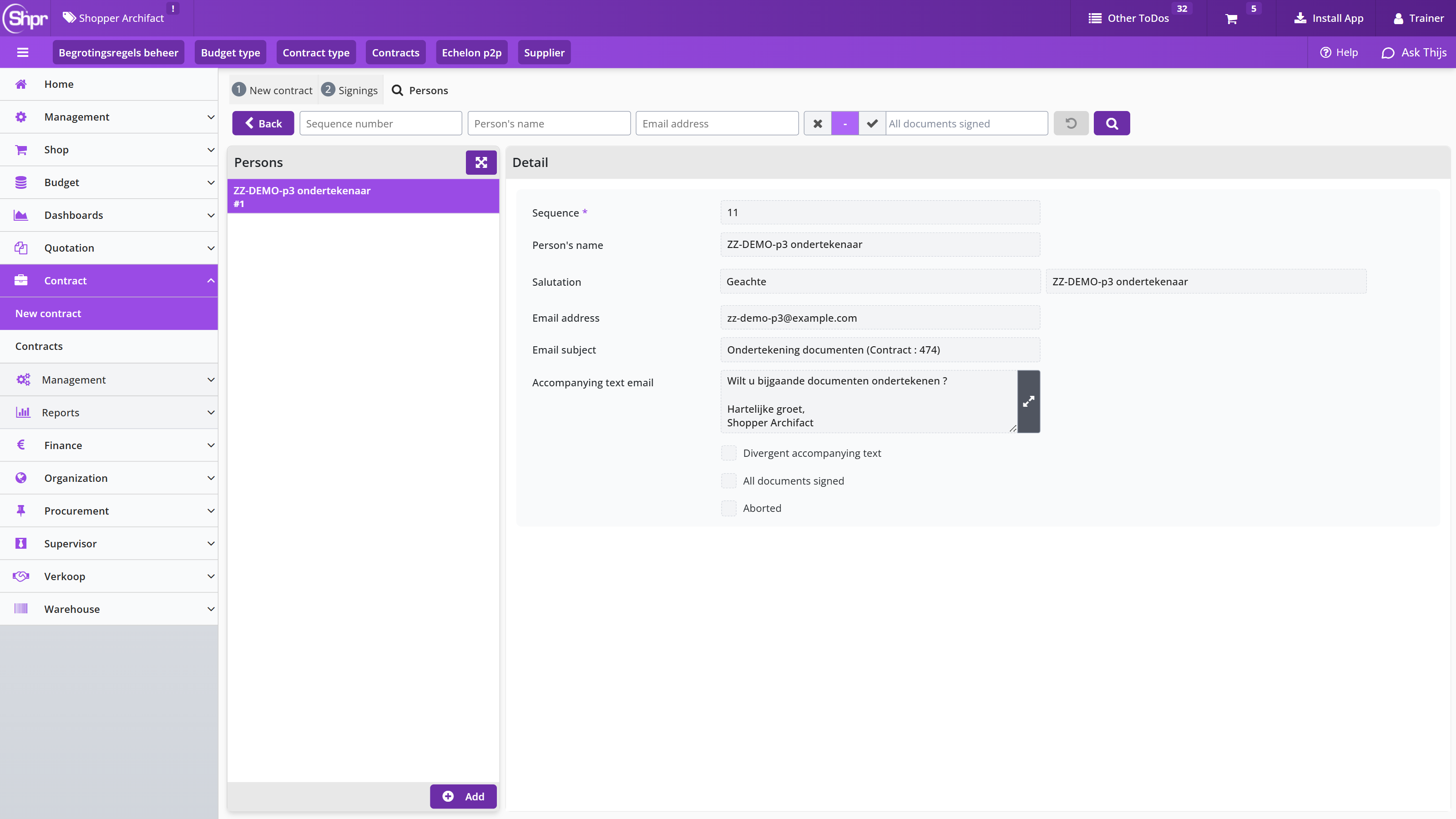
Using the field Sequence a number can be specified that indicates the position within the ascending sequence of signatures to be provided. In the list of persons (on the left side) these numbers are listed in order to identify the sequence.
Note: The persons that were added using the details section for the signing are also listed at the data module Persons, however they cannot be changed from this list. Instead use the data module Details for this purpose.
In case of an additional signatory from the internal organization, the employee can be selected using a list of employees in Shopper, Where – after saving – the data fields underneath will be derived from the selected employee.
In case a deviating accompanying text is to be used, then set this checkbox, allowing the according data fields to be modified.
At the bottom of the person details, the progress of the digital signing by this person is reflected by the checkboxes All documents signed or Aborted.
Perform signing
The section status of the Details data module can be used to track the overall progress of the signings. When the signing is being created/setup, the status is set to Initial. When the required data for the signatories is specified, the checkbox Ready for execution can be marked (and saved). The status of the signing is then set to Ready for execution.
Once the checkbox Ready for execution has be set, the button will become available. Using this button the signing process is initiated using the connected signing system.
After the use of the button the status of the signing will then reflect the progress in relation to the pending signing actions, e.g. Waiting for supplier or Waiting for our signature.
Note: The layout of the email depends on the digital signing system used. The content follows from the template and the signing details provided in Shopper.
The checkbox Executing is set during the signing process being executed. Also, the data module Persons will be hidden and the data contained is now reflected in the section Persons at the bottom of the details data module. This list contains the people that need to sign, including columns regarding progress, allowing for progress tracking.
Note: You need to refresh the signing data module to see the progress.
Should a signatory (using the signing system) decide to decline the document, then the status for the signing in Shopper will be set to Aborted, as also indicated by the corresponding checkbox. See also Other ToDos for signing.
While the signings are being executed (using the signing system) the administrator of the signing can intervene and choose to manually abort this process. For example, when no action is being taken on the e-mails being sent by the signing system or when an email address is incorrect. Using the button the signing process from Shopper can be aborted. This is independent of the process in the signing system. After a manual abort the checkbox Aborted manually is marked.
After a manual abort or when the signing is aborted due to a declined signing of a document, changes can be made in Shopper to the signing, allowing it to be activated and executed again, or alternatively the signing can be cancelled (possibly followed up by another signing request in Shopper). To activate/execute the signing again, use the button .
Other ToDos for signing
During digital signing, three other ToDos can be assigned to the administrator of the signing: Signing (completed alert) once all signatures have been obtained, Signing (aborted alert) when a signatory declines the document and Signing (reminder) when the signing takes too long.
Once all digital signatures have been obtained, the other ToDo Signing (completed alert) is assigned to the administrator of this signing. The administrator can follow up this signing and – when applicable – check the log of the signings. This alert can, for example also be used to activate the contract or proceed with the handling of the quotation.
The signed documents of the signing are available in the data module Signed documents
Note: When using DocuSign, a document under the name Summary becomes available in the data module Signed documents. This document contains a summary of the performed signings.
Using the button the administrator can indicate that this signing has been completed. After the use of the button, the ToDo Signing (completed alert) is no longer listed.
When the digital signing of a document is declined by a signatory, the other ToDo Signing (aborted alert) is assigned to the administrator of this signing. The administrator can follow up this signing and either choose to acknowledge this abortion by using the button , of follow up by making changes to the signing (or the related documents) and using the button for activate and execute the signing again.
When completing the signing is taking to long the other ToDo Signing (reminder) is assigned to the administrator of this signing. The administrator can follow up this signing and take action on the process in the signing system or contact the next signatory in line.
Note: the alert will be triggered based on the setting for the Standard turnaound time (days) as part of the data module Parameters, section Signing of the System parameters.
Signing templates
The setup of the signing templates can be setup using the menu-item Signing template from the menu Procurement - management.
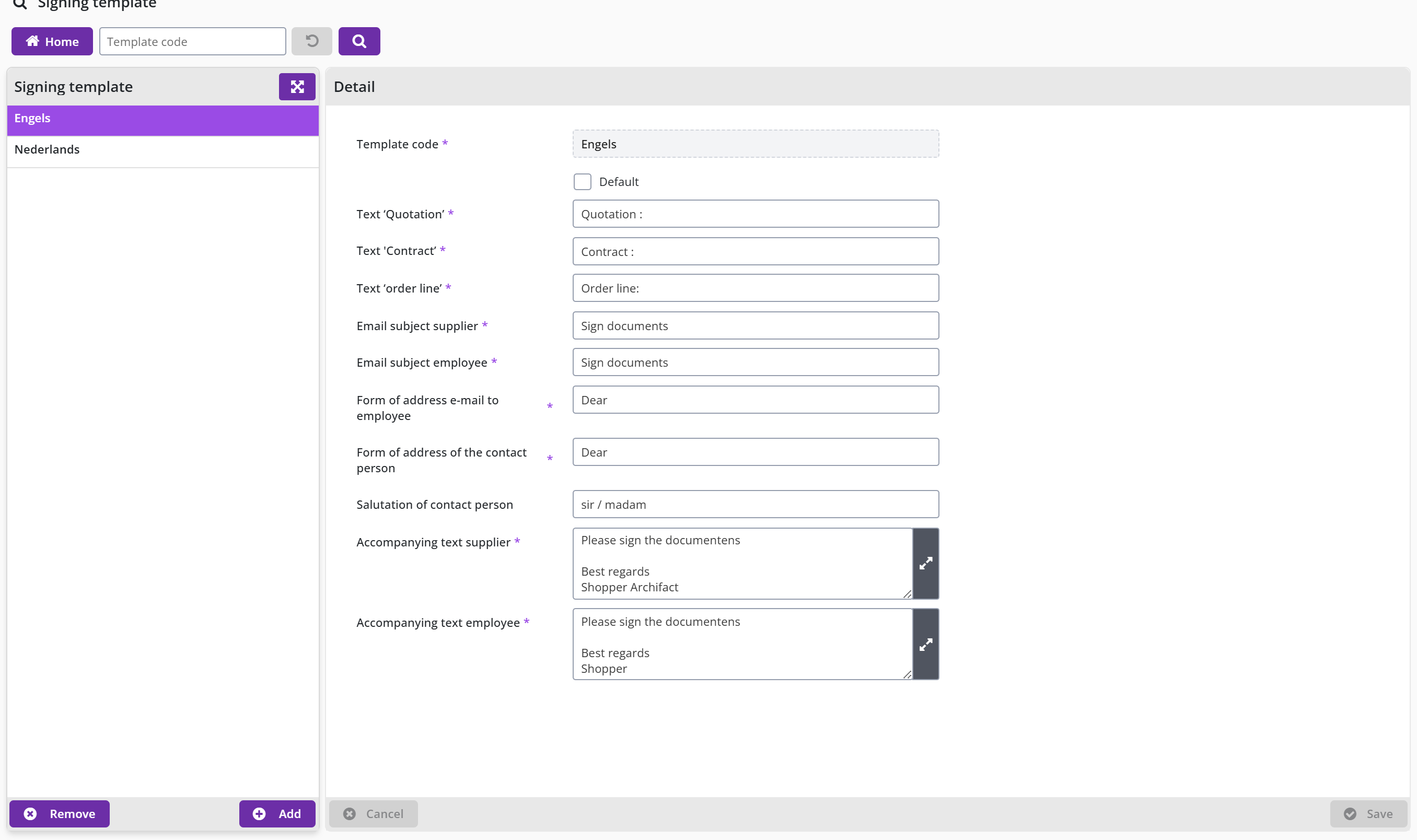
Shopper is provided with 2 templates. Once for English and one for Dutch. The texts for the labels of the template can be modified. Additionally, templates can be added (or removed), to accommodate for other applications that require deviating texts.
The checkbox default can be set to indicate the default template for signing of quotations and contracts.
Note: Only one template can be made the default. When the default is set for another template, it is reset at the template that was the default before. Always one template needs to be the default!
Warehouse index
Warehouse index covers managing warehouses, stock and issuing items: the warehouses and their data modules, stock management with replenishment, inventory and reports, and delivery via picklist, counter or without stock management.
Warehouse management
This chapter describes how you define and set up warehouses in Shopper, so that items are delivered from stock to your own organization. Warehouse management in Shopper explains how it works: internal orders at the warehouse, replenishing the stock at the supplier, picklist and counter pick-up. Requesting and ordering via the warehouse describes what the requestor sees in the catalog (delivery unit, price) and which order lines Shopper creates; Request status for delivery via the warehouse describes how the requestor tracks the request.
The management itself is done in the menu Warehouse: Warehouses (the screen and the Detail data module), Stock and Organizational units data modules of a warehouse, Counter pick-ups, Picklist, Employee, Locations and Stock value data modules of a warehouse, and Warehouse echelon (roles and employees per warehouse). Add items to warehouse describes how you assign an item to a warehouse; Warehouse setting up describes the reference data mutation reason, delivery group and picklist group.
Warehouse management in Shopper
If items requisitions are delivered via a warehouse, you can define these warehouse(s) in Shopper and set them up in line with your stock policy. You determine for which organizational units and items the requisitions are made via the warehouse, where Shopper then supports you with stock management and issues via the warehouse.
Requisitions for items delivered through the warehouse are processed within Shopper as an internal order at the warehouse. This is then delivered from stock in the warehouse. If the stock in the warehouse is insufficient or if the limit for the minimum stock - after processing this internal order - is breached, an order is automatically created in Shopper with the supplier of this item and according to the P2P process flow in Shopper completed.
Delivery of the items in the warehouse is possible when the stock is sufficient and can then be done by means of a picklist (delivery list) will be processed, whereby any deviations in the stock can be followed up immediately. Delivery from stock directly at the counter of the warehouse is also supported in Shopper. You process the regular inventory of the stock in Shopper, whereby any transactions can be made for the differences.
Requesting and ordering via the warehouse
Items that are delivered via the warehouse are requested through the internal catalog; Shopper creates an internal order at the warehouse for them and, if needed, orders from the supplier to replenish the stock.
In the process step Requests it is indicated with the item in the internal catalog if this is requested via the warehouse. In the column Supplier / Item the name of the warehouse is then stated between brackets. (As seen in the image below with the red outlined text)
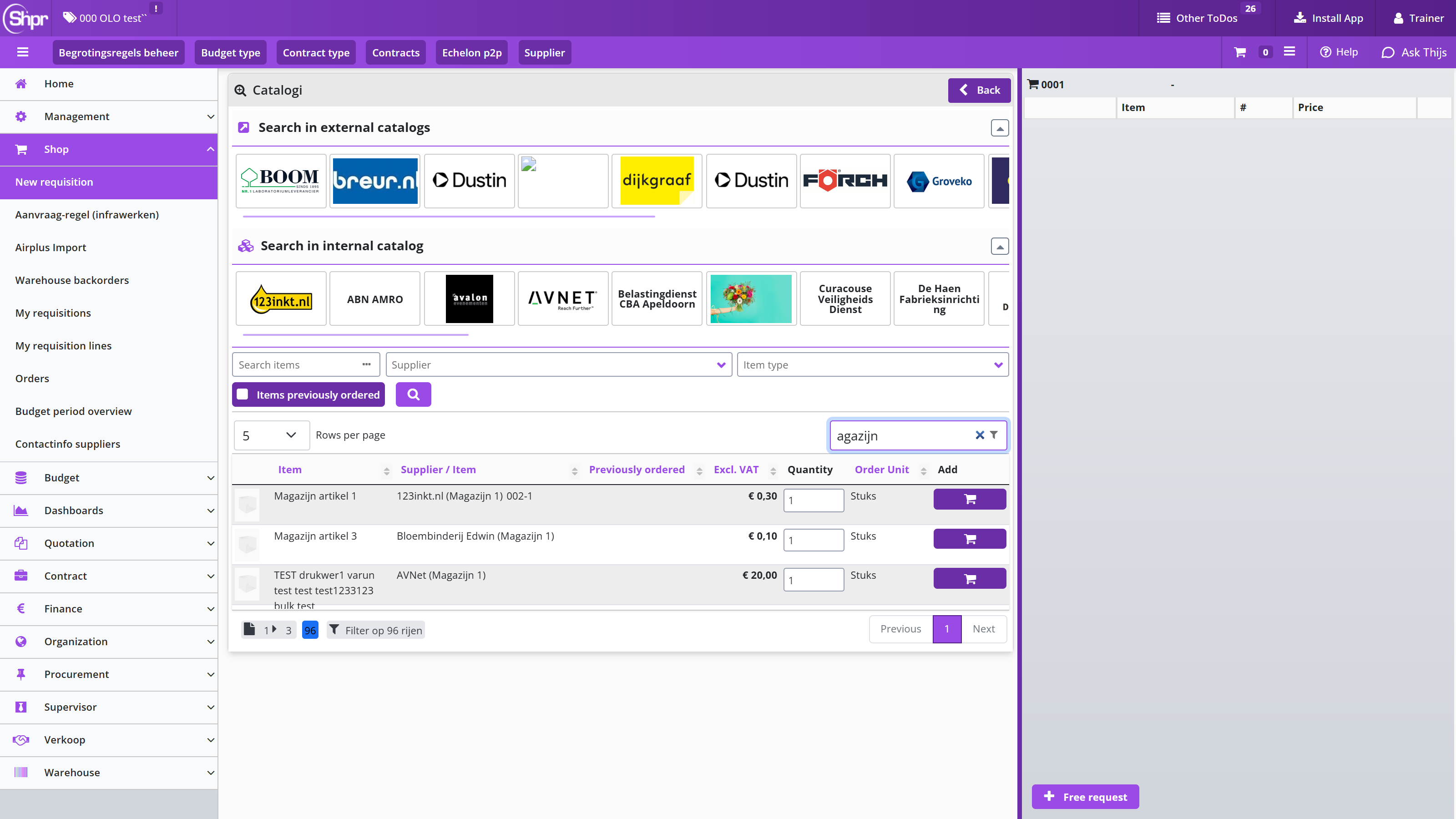
The order unit for items that are delivered via the warehouse (delivery unit) may differ from the order unit used by the supplier. For example, if the supplier supplies pens in sets of 10, it is possible that a multiple of 1 can still be requested/delivered via the warehouse. For items that are delivered via the warehouse, the Order unit column also states the warehouse’s delivery unit, with the Price excl. VAT column converting the price in relation to the delivery unit.
For the requisitions that go through the warehouse, an order line is created in Shopper for issue of items by the warehouse. If the stock in the warehouse is insufficient, a new order line is created to replenish the stock. This order line is created with the booking data stated at warehouse and depending on the setup for the workflow of the (organizational unit of the) warehouse and the supplier, the order is automatically sent to the supplier.
After registration of reception by the warehouse, the items are added to the stock of the warehouse. If sufficient stock has been created for outstanding orders at this warehouse, the delivery procedure will be initiated (via the picklist handling).
Request status for delivery via the warehouse
The employee that issued the requisition for an item from the warehouse, can track the requested items using the Status requests flow for the process steps Place order and Received, where for the related order the name of the warehouse is listed instead of the name of the supplier.
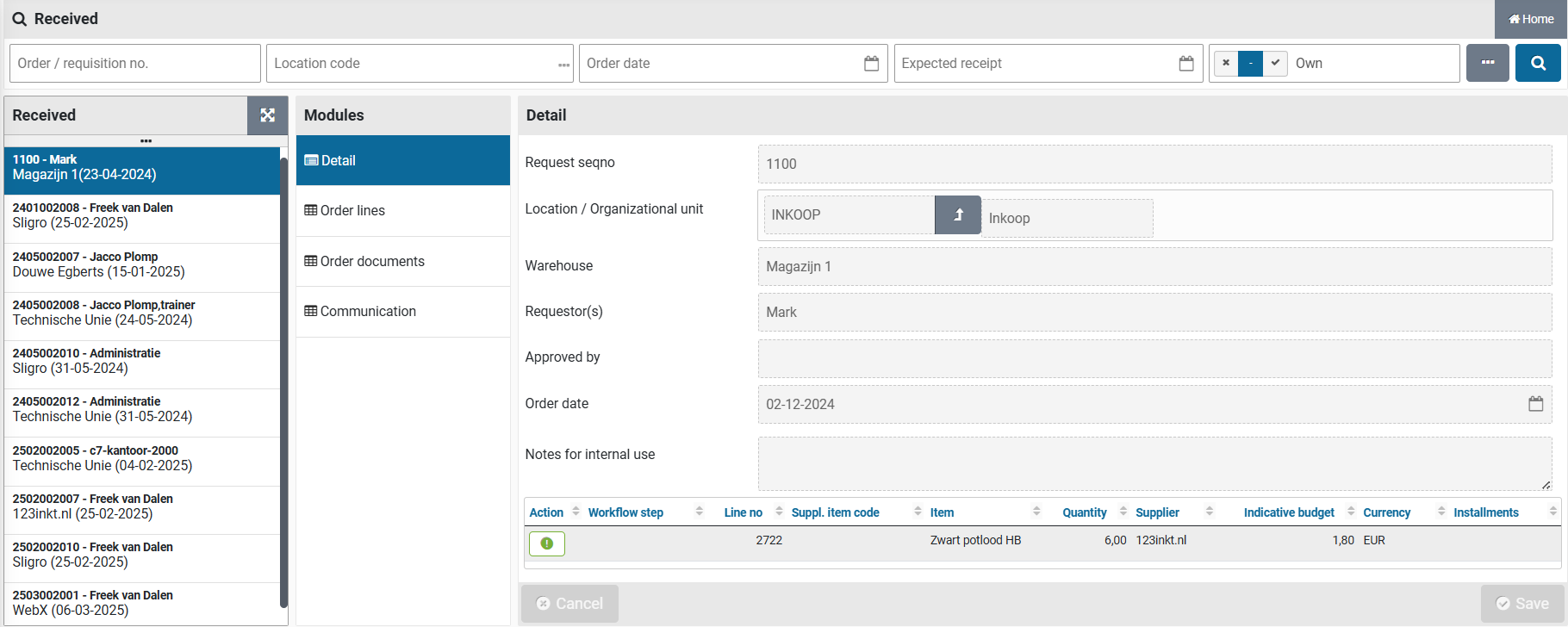
The step Place order lists the items that have an order pending for replenishment of the warehouse, before the internal (picklist handling) delivery can be performed. The step Received lists the items that are in stock and are awaiting the picklist handling for delivery. Once the picklist handling has been completed the item will no longer be visible in the Status requests flow.
Note: The order number of these requests is 0 (zero), because no order applies for the requests that are delivered via the warehouse.
Warehouses
Adding and managing warehouses is done via the menu Warehouse menu item Warehouses. You can also follow up the inventory, delivery & counter pick-up via this menu item.
The Warehouse menu is only available for warehouse employees. In other words, an employee who has the Warehouse checkbox selected under Employee via the supervisor setup menu.
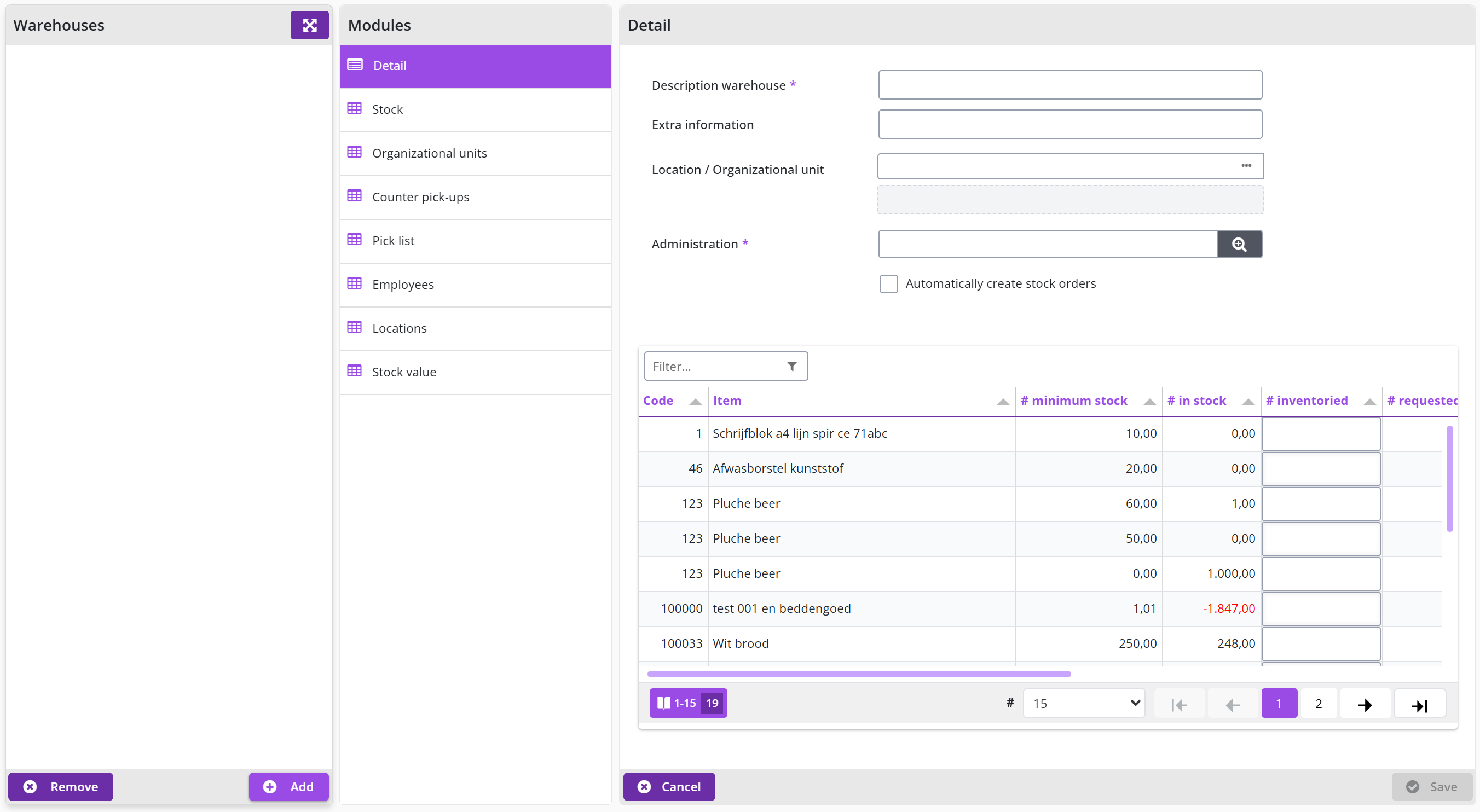
The image shows the screen while a new warehouse is being added with the button. The Detail data module contains the fields Description warehouse, Extra information, Location / Organizational unit and Administration, and the checkbox Automatically create stock orders. The item stock overview is shown below these fields.
The screen is structured according to the standard as described for the General screen layout under Use of the other screens.
On the left you will find the list of warehouses and below it the buttons and Remove to add or remove warehouses. Warehouses can only be deleted if no orders have been processed at this warehouse yet.
For each warehouse, you can view or manage the data related to the warehouse in the various data modules.
The Detail data module contains the basic data regarding the warehouse, being: the name/description of the warehouse and the booking data for orders from the warehouse (for replenishing the stock).
Note: This supplier linked with the warehouse must be set to Inactive. This is to prevent this supplier from being selected in the case of a free request. Further setup for the supplier is not necessary, as this follows from the layout of the warehouse.
At the bottom is the item stock overview with all items that are managed in the stock of the warehouse. By choosing an item in the list, the screen is opened with the details of the stock management, as described under Items in stock under Stock management.
Note: The standard workflow applies for orders to replenish the warehouse stock, as is setup for the system parameters or the financial administration where the warehouse is positioned. If you require a different workflow (for example, without financial approval) you can assign a deviating workflow for the organizational unit of this warehouse. To Do so, please read organizational units under Organization.
The button in relation to item stock list below, are described in the section Stock inventory underStock management.
Stock and Organizational units data modules of a warehouse
Besides the Detail data module, a warehouse (menu Warehouse, menu item Warehouses) has the data modules Stock and Organizational units, in which you manage the stock items and the linked organizational units of the warehouse.
In the Stock data module, you will find an overview of all items that are kept in stock in the warehouse, you can manage which items are concerned and you can set up stock management. You can also initiate related actions for item in stock. See also Stock management.
In the data module Organizational units you manage the linked organizational units. For these organizational units, items (that fall under stock management) are delivered via this warehouse. Here you can add or remove organizational units and specify a position within the warehouse. The lowest item value indicates that a warehouse has a preferred position, if an item exists in multiple warehouses. See also Items in stock under Stock management.
Note: for items that are kept in stock in the warehouse, orders will be made directly from the supplier for those organizational units that are not linked to the warehouse and this order will not be processed via the stock in the warehouse. Delivery also take place via the warehouse. For this, see Delivery via the warehouse without stock management under Pick-up from warehouse.
Counter pick-ups, Picklist, Employee, Locations and Stock value data modules of a warehouse
A warehouse (menu Warehouse, menu item Warehouses) further has the data modules Counter pick-ups, Picklist, Employee, Locations and Stock value.
In the data module Counter pick-ups you will find an overview of all counter pick-ups for items that have been collected from this warehouse. To add a new counter, see Delivery via the counter of the warehouse under Pick-up from warehouse.
In the Picklist data module you will find the delivery lists with the items that need to be delivered from stock, in relation to the internal order placed at the warehouse. For this, see Delivery from picklist under Pick-up from warehouse.
In the Employee data module, you can find and manage the employees that are allowed to perform warehouse management.
In the Locations data module, you define the locations where the items can be stored in the warehouse. These locations are shown when processing the Picklist to find the items in the warehouse. You can enter a location code and description.
In the Stock value data module you will find the stock value overviews and you can also add a value overview. An inventory value overview is a representation of the value of the items that are in stock at the moment you add the value overview. See also Stock inventory under Stock management.
Warehouse echelon
Which employees and organizational units belong to a warehouse is also arranged with the screen Warehouse echelon, which you find in the menu Organization, menu item Management. The list on the left shows the roles Warehouse counter issue, Warehouse manager and Warehouse director. For the selected role the Detail data module has the fields Module, Description, Own description and Organization layer, the checkboxes General, All organizational units, All item types and All projects, the buttons and Select none and a list of organizational units. The other data modules are Contract types, Item type, Employee allocation, Role assignment, Projects and Transferring data from.
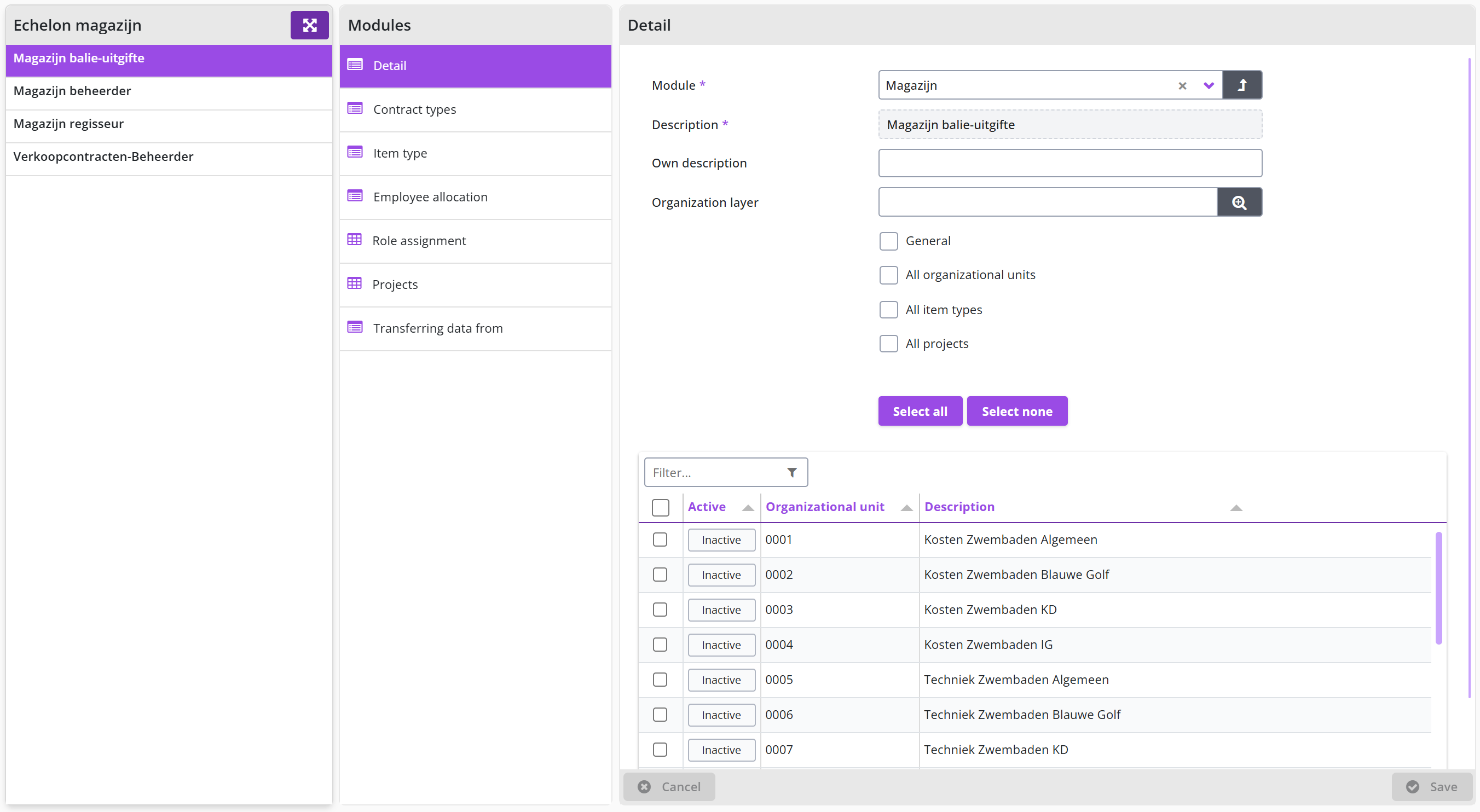
Add items to warehouse
Items in Shopper are ordered and delivered via the supplier in the standard P2P process. If an item can (also) be ordered via the warehouse (to subsequently be delivered from stock), this item must be set up for the warehouse. To do this, select the menu item in the Procurement menu.
You will find the data module Warehouses (management) next to the item, where you assign this item to a warehouse with the button .
You then select the relevant warehouse in the Detail data module, fill in the delivery unit and record this with the button. If applicable, you can allocate an item to multiple warehouses by repeating these steps.
The delivery unit is the unit you wish to use for ordering and delivery of this item within this warehouse. The delivery unit can correspond to the order unit of the item at the supplier but can also be specified differently for the warehouse.
You can set up the fields regarding the stock management of this item now or later - whether or not via the Warehouse menu - depending on the division of tasks of procurement employees and warehouse employees within your organization). See also Items in stock under Stock management.
After assigning the item to a warehouse, the Warehouse stock data module also becomes available for the item in the procurement menu. However, if multiple warehouses are applicable for this item, this data module is not available, and you can access the warehouse stock by first selecting the relevant warehouse in the Warehouses (management) data module.
Warehouse setting up
In the menu Warehouse at the menu item Management you manage the reference data that are used when working with warehouses and stock.
Under Mutation reason you will find a list of the existing change reasons. You can adjust or expand this for the changes that are used in your organization.
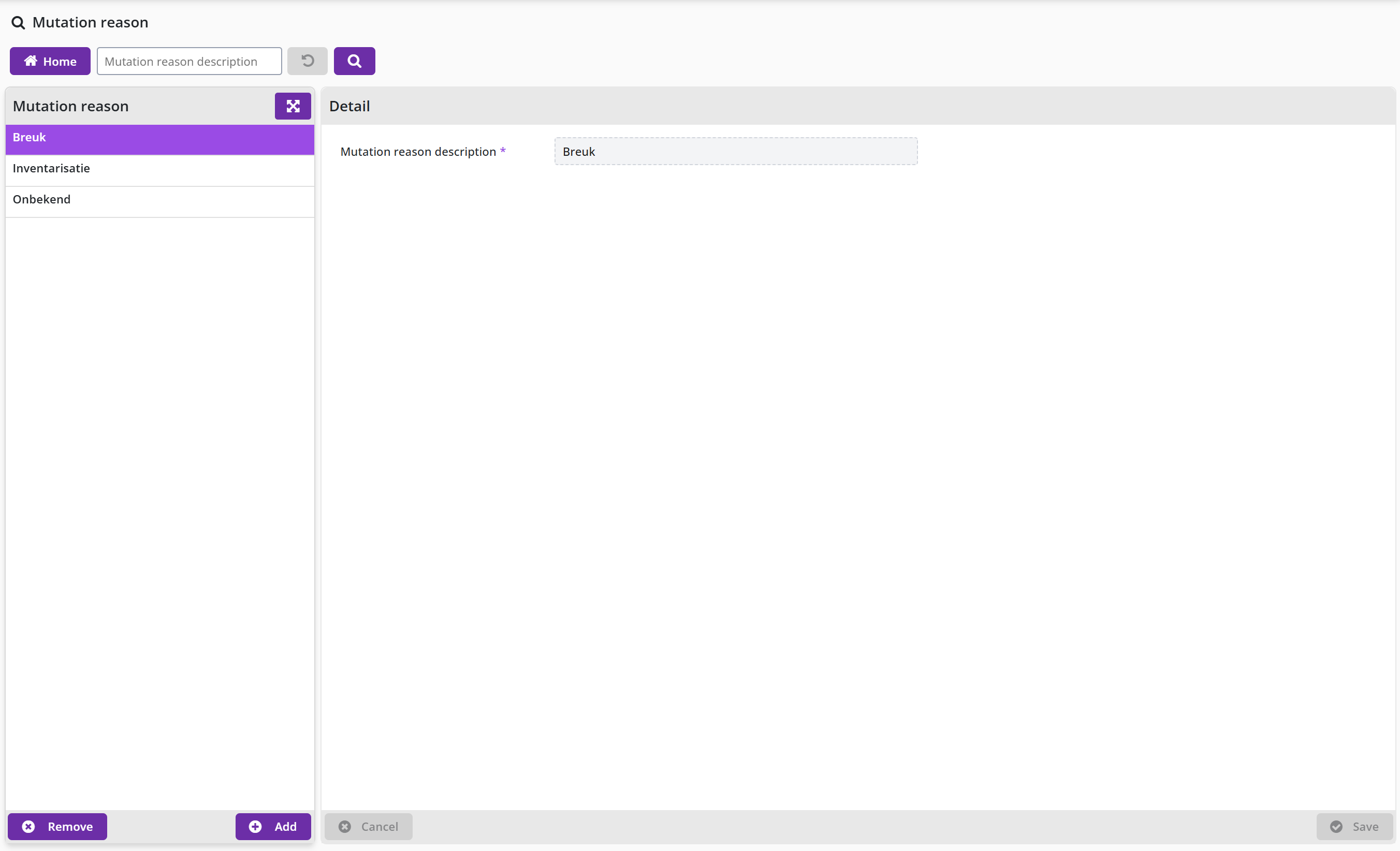
The menu item Management also contains Delivery group.
With Picklist group you can manage the Picklist groups. If you create multiple picklist groups, you need to indicate which picklist group is used using the field Default, if Picklist for delivery items is checked in an organizational unit, but no (deviating) item for the requested item or related item type is selected. You can view which picklist has default checked in the overview screen of the picklist group list selection.
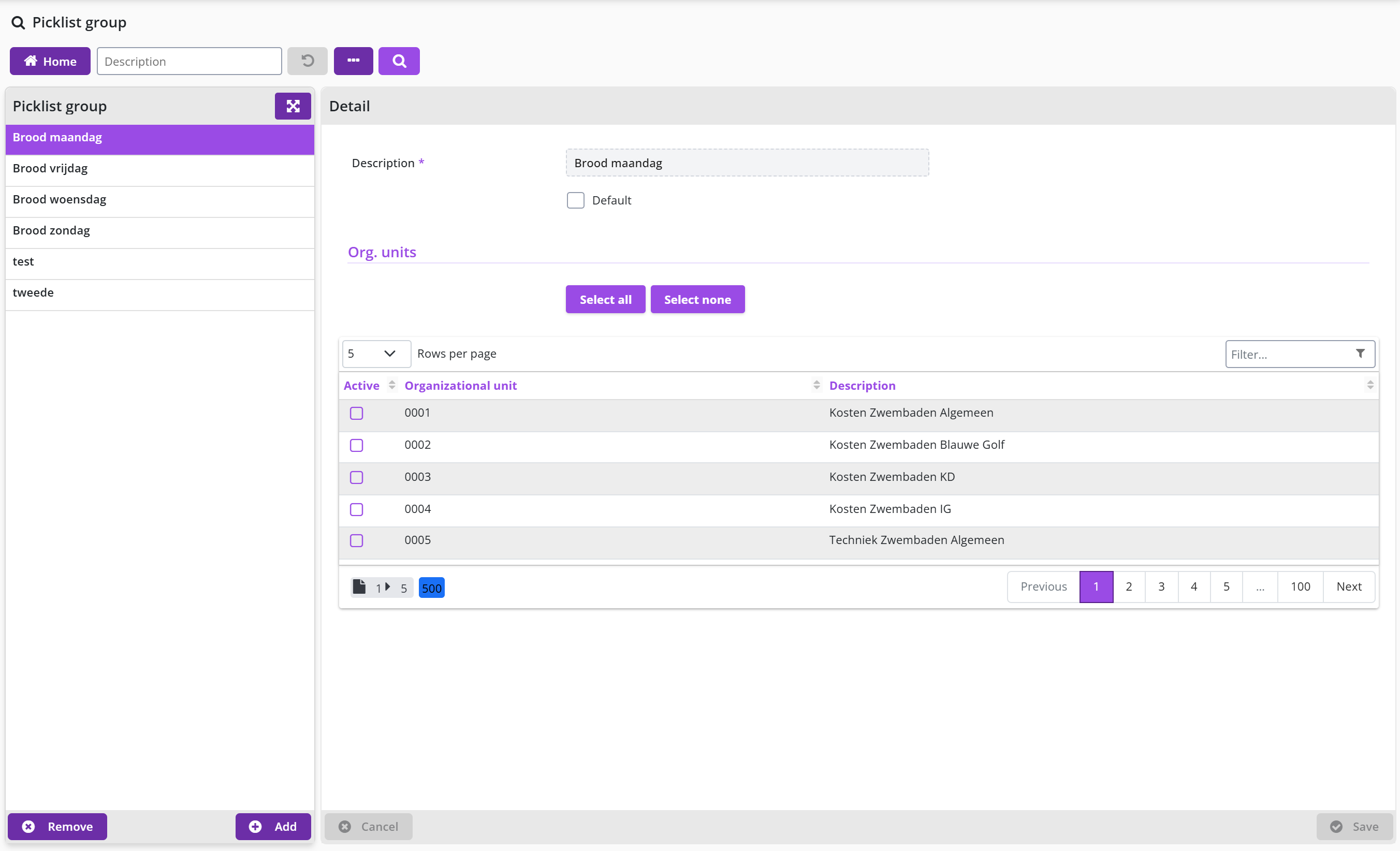
Note: Always mark one picklist group as default, to prevent items from being delivered to the warehouse without a picklist being created for it. In other words, if an order has been placed for an organizational unit where Picklist for delivery items is checked and the items are delivered to the warehouse, but if the Picklist group for the relevant item / item type is missing, nobody knows where the delivered items should go. For this, see Delivery via the warehouse without stock management under Pick-up from warehouse.
For a picklist group it can be setup if it applies to all organizational units or that it is limited to a selection of organizational units. You can mark the organizational units that can be used for requisitions of items using these picklist groups.
For the use of picklist groups also read Delivery via warehouse without stock management under Pick-up from warehouse.
Stock management
Stock management is linked to a warehouse: items that are delivered via a warehouse are kept in stock there and replenished when needed for internal delivery to the own organization. The stock can be spread over several locations and warehouses; if an item is available in several warehouses linked to the same organizational unit, Shopper delivers from the warehouse with the lowest position that has sufficient stock. This chapter describes under "Items in stock" setting up and viewing the stock per item, under "Replenishing stock" the automatic and manual stock order, under "Inventory of stock items" the periodic count with warehouse transactions and valuation, and under "Warehouse reports" the reports on warehouse and stock.
Items in stock
Viewing the stock and setting up stock management is possible for items that are assigned to a warehouse. This can be set up from the item as well as from the warehouse (for an item in the warehouse), respectively at Item via the menu item Management of the Procurement menu; or for an item listed in the Stock data module via the menu item Warehouses in the Warehouse menu.
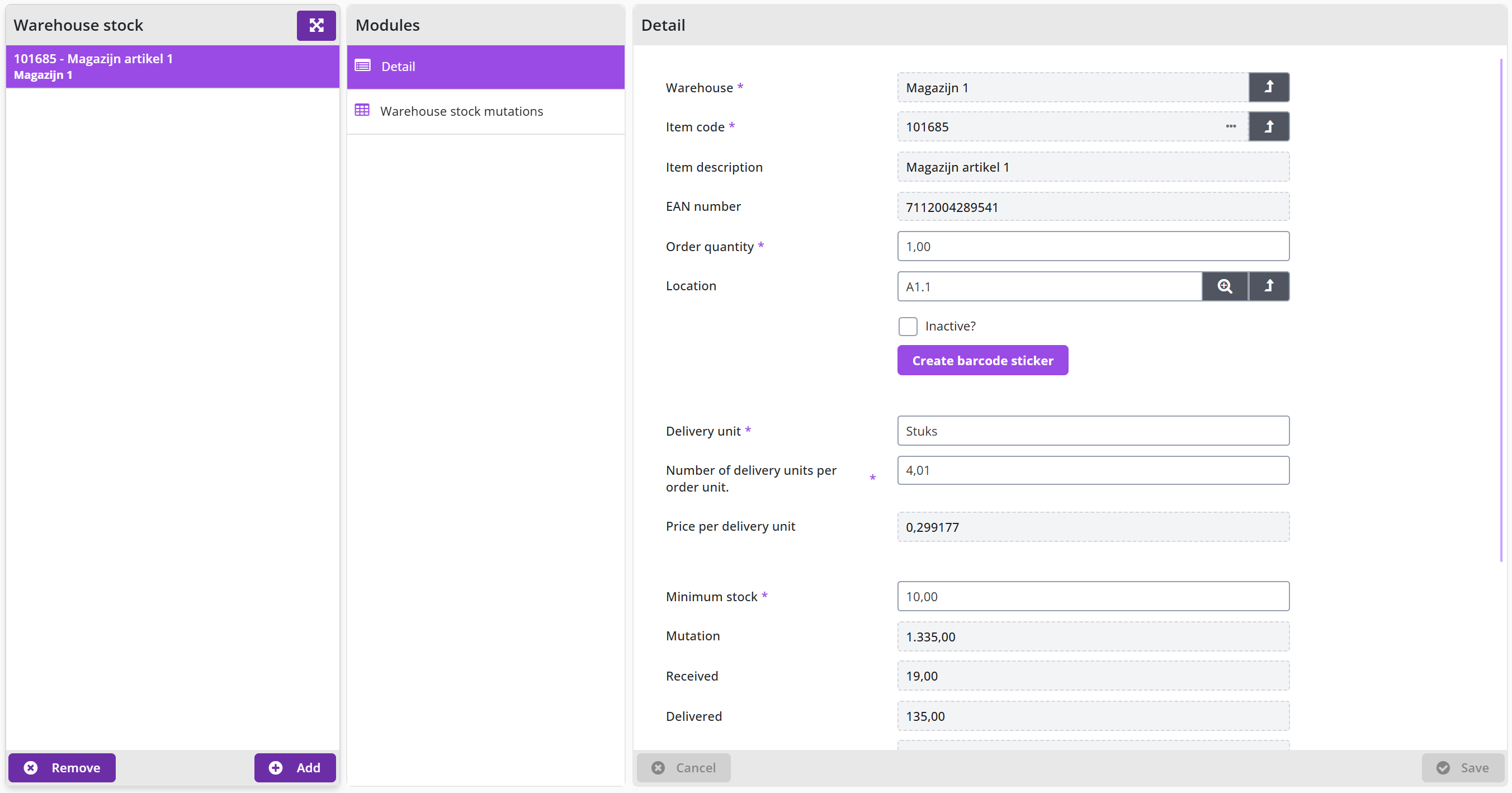
Note: for setting up the stock management for an Item (via menu procurement management), only the Detail data module is available in the Warehouse stock data module of the item (and the column with data Modules - as in the screenshot above) is – not shown, these data modules are available (after choice of the warehouse) in the Warehouses (Setting up) data module.
In the Detail data module, you set up the stock management for this item as applicable within this warehouse. The following fields apply:
Order quantity:The number of order units with which the stock is replenished if the minimum lower limit is exceeded.
Location:The place/location where the item can be found in the warehouse
Delivery unit:The unit with which internal orders can be delivered to the warehouse (this can therefore differ from the order unit at the supplier)
Number of delivery units: The ratio between the delivery unit and the order unit,per order unit:specified as the delivery unit factor per order unit.
Price per delivery unit:The price of the delivery unit, calculated by dividing the price of the order unit by the number of delivery units per order unit (see above).
Minimum stock:The lower limit for the stock. If the stock falls below this limit, the stock replenishment is initiated.
The other fields display the statistics, which are described further on in the section Stock items inventory.
For new items in the warehouse or if a new sticker is needed, you can use the button to print a sticker and then paste it on the location (rack, shelf, etc.) where the item is in the warehouse.
In the Order lines data module, the order lines that have been created for replenishing the stock are shown for this item. In other words, for the order with the supplier
In the Delivery lines data module, the order lines for this item are shown for the orders that have been delivered via the warehouse.
In the data module Warehouse inventory changes, you will find a list of changes that have been made to the inventory over time. An adjustment/mutation on the stock can be added with the button . You specify the date and the number. In addition, you can enter a comment and a reason for the mutation (such as for example: fraction, over date, no longer in use, etc.).
[Screenshot to be added: the Warehouse inventory changes data module of an item in stock with the list of mutations and the mutation form]
Mutations to the warehouse stock are only made if the checkbox Approved is checked. For example, the mutation can be entered by an employee and approved by another employee, who checks the Approved box to actually implement the mutation.
In Shopper 10 the mutation also shows who created it and when (Created by / date) and who changed it last and when (Last modification).
Note: Shopper also adds a warehouse inventory mutation for the item in question after processing the inventory. See section Stock items inventory for more details about inventory.
In the Counter pick-up data module, you will find a list of counter pick-ups that have taken place over time. For further explanation, see Delivery via the warehouse counter under >> Counter pick-up of warehouse.
Replenishing stock
Items in stock are – as long as stocks last – delivered directly from stock. The moment the quantity stated in the field Stock falls below the value of the field Minimum stock (or if more is ordered than is available in stock), the replenishment of the stock is initiated.
At that time, the Shopper creates an order line for the quantity stated in the Order quantity field with the supplier of this item. For this order line, the administration and organizational unit set up for the relevant warehouse is used (data module Detail of the warehouse). These order lines can be found in the data module Order lines for this item in the warehouse.
The order will be processed according to the workflow that applies for the organizational unit of this warehouse. Depending on the setup at the supplier (checkbox Send order automatically), the order for replenishing the stock is sent immediately or indirectly. The delivery address of the organizational unit that is set at the warehouse is used for the order. In other words, the address of the warehouse.
The receipt registration is also based on the organizational unit of the warehouse and a (warehouse) employee linked to this organizational unit can perform the receipt registration. If necessary, an employee of procurement (the purchasing department) can follow the order/order lines (for replenishing the stock) in the process flow ToDo step Order or view the overview of all requisition / order lines. These orders can be recognized by the fact that they are requested by the employee SHOPPER.
If an order line for the warehouse is rejected during the process step Order (using thumbs down) a other ToDo Requisition (confirm warehouse) is created under the section Warehouse. Following up on this other ToDo will allow the order line to be submitted again using the button . If the order needs to be cancelled, then select the order line from the All requisition / order lines under the procurement menu, go to the Status and approval data module and then use the button to cancel this order line.
When registering a receipt for the delivery from the supplier, the warehouse updates the inventory for the relevant item: with the quantity resulting from the number of order units received, increased by the factor of the number of delivery units per order unit, as is stated in the field Number of delivery units per order unit for this item. To perform the reception registration, see Registering reception under To be received.
Inventory of stock items
During the periodic inventory of the stock, the counted items in Shopper are processed in relation to the stock. The counts are entered in Shopper in the column # inventoried of the item stock list.
The counts can be seen in the column # inventoried - in the list of items in stock - at the bottom of the screen in the Detail data module of a warehouse. Optionally, the specified count can still be adjusted here before they are processed. The counts are entered manually in this list.
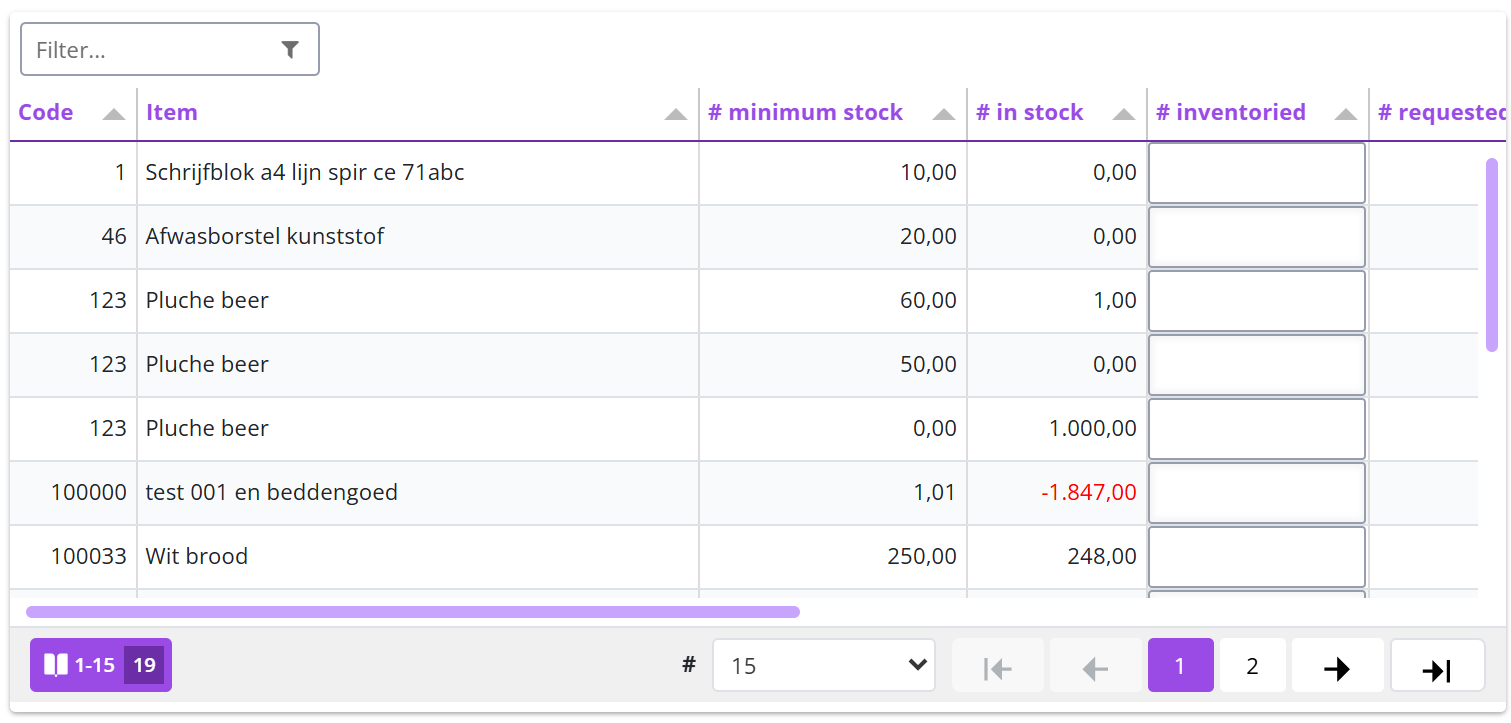
When everything has been inventoried and all numbers/counts are correct, the inventory can be processed by using the button .
By using this button, all inventory quantities (column “# inventoried“) are compared with the quantities in stock (column # stock) in order to subsequently make any corrections to the stock. For these corrections, warehouse stock transactions are then created with the transaction reason Inventoried (which are immediately marked as Approve).
In the Stock value data module, a valuation of the items in stock can be added or a previous valuation can be viewed. A valuation can be added with the button . In that case, you provide an explanation of why the inventory is being carried out in the Extra information field, for example before or after an inventory or conversion. The date is automatically filled in when you start the valuation with the button.
The value list is displayed aggregated per Costing type. You can modify and Save the explanation in the field Extra information afterwards. Or delete the value overview with the button.
You can easily gain insight into the differences between the various value overviews via the report Warehouse inventory differences that you can find in the menu Warehouse under the menu item Reports. This report is created as an Excel overview and can then be opened in MS Excel.
The statistics regarding stock management, purchases and deliveries per item can be found at the relevant item in the Stock data module for a warehouse.
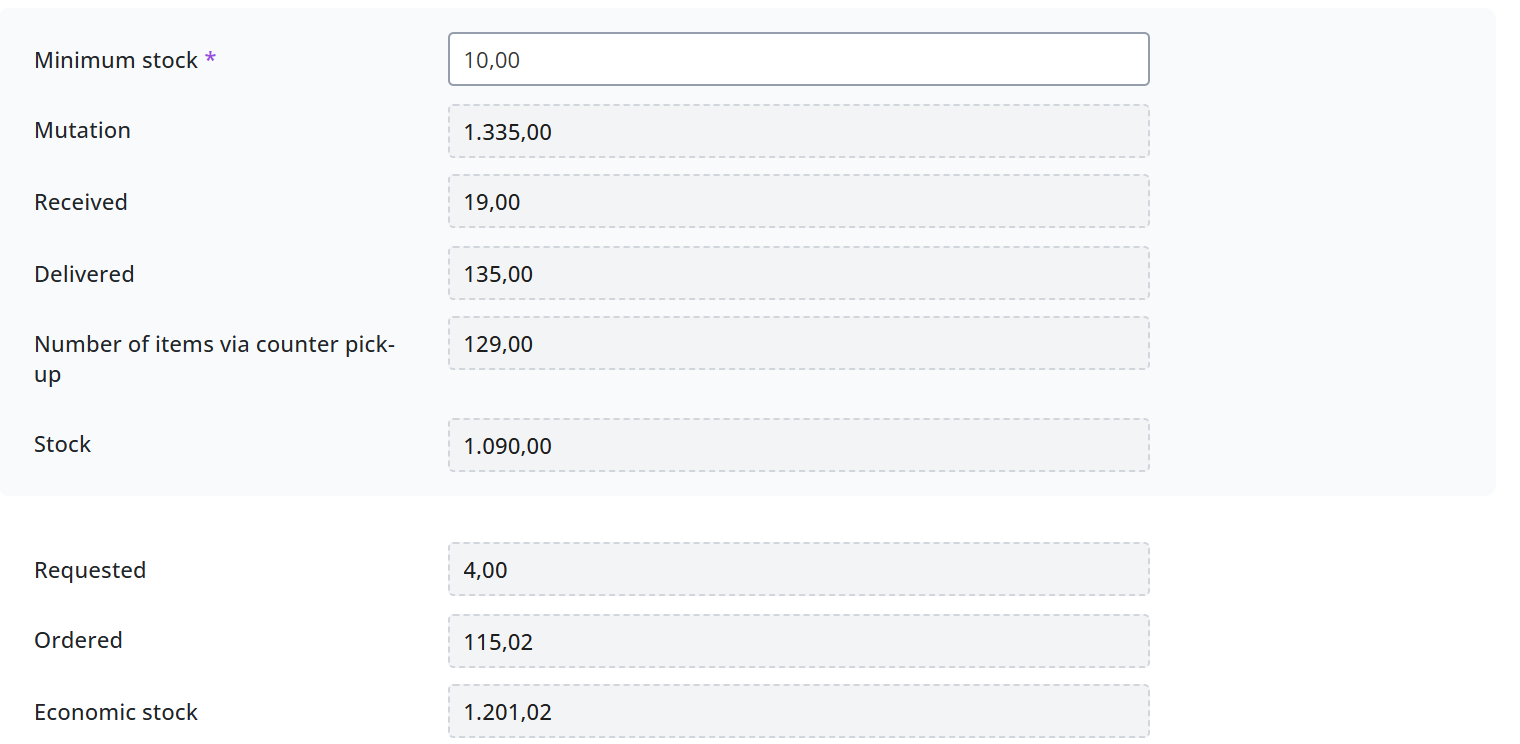
The following fields apply to the item:
Mutation:The total of all changes that have been made in the stock
Receive:The total quantity received from the supplier
Delivered:The total quantity that has been delivered from the warehouse
Number of items viaThe total quantity that has been delivered from the warehouse
counter pick-up:
Stock:The total number that should be in stock, based on the numbers stated under Received, Change, Delivered and Number of items via counter pick-up.
Requested:The total quantity that has been requested from the warehouse, but has not yet been delivered
Ordered:The total number that is still on order with the supplier
Economic stock:The stock that arises after processing the quantities stated under Requested and Ordered
(Additional) information about the stock can also be found in the reports.
Warehouse reports
At the menu item Reports of the menu warehouse, you can request various reports regarding the warehouse and stock.
By default, the following reports are available here:
Warehouse inventory differences overview (as described in stock inventory)
Overview internal deliv per article type (delivery per item type within a certain period)
Overview of internal deliveries (for a selection of cost center, year week)
Week (export bookings) (refers to the screen for the export of the bookings of a week)
Warehouse stock mutation overview (an overview of all warehouse stock mutations)
Period warehouse entries exported
The report Warehouse stock mutation overview lists the mutations of all warehouses. You can search on Warehouse, Item code, Date from, Date to and Approved?. For the selected mutation the fields Warehouse stock, Seqno warehouse mutation, Date, Number of items, Mutation reason, Note and Approved? are shown, as described for the data module Warehouse inventory changes under Stock management.
Note: the menu item Warehouse stock mutation overview and the field Created by / date have no English text in the English user interface. This is a localization gap.
The screen Week (export bookings) shows a list of all weeks for the administration years that exist in the active administration. See also Administrative year under Accounting.
The screen is structured according to the standard as described for the General screen layout under Use of the other screens.
The list of weeks is maximized to 500 weeks and is populated according to the search criteria specified. You can therefore reduce the number of weeks mentioned in the list by adjusting the selection criteria.
With the button the export of that week is created. The checkbox Export warehouse bookings? is checked and the name of the file that has been created is shown in the field Warehouse bookings, where it can then also be downloaded.
If an export has already been done - which is not visible as such in Shopper - then Export warehouse bookings? can be checked manually and changed with the button, so that it is no longer in the list or as a ToDo. In the search bar the filter Warehouse bookings exported limits the list to weeks that have or have not been exported.
For a warehouse employee, the export of the booking data for that week is also made known to the Other ToDo under the Warehouse section, as Week (bookings to be exported), followed by the number of weeks that still have to be processed.
By selecting this ToDo, the list of weeks to be exported is displayed in Shopper. See the Week screen as described above.
Pick-up from warehouse
Pick-up from warehouse is the delivery of items from the warehouse stock to the own organization: through a request in the internal catalog, delivered with a delivery list (picklist), or at the counter of the warehouse, where an employee requests the item directly. Items that are delivered to the warehouse but whose stock is not managed in the warehouse can still be delivered with a picklist through a picklist group. This chapter describes "Delivery via picklist", "Delivery via the counter of the warehouse" and "Delivery via warehouse without stock management". In Shopper 10 you perform all these steps in the web screens of this chapter; the old mobile application with scanner screens is no longer available, see Tasks on your phone for the new mobile app.
Delivery via picklist
A picklist (delivery list) is created in Shopper when there is sufficient stock in the warehouse to be able to deliver the requested items (whether or not after replenishing the stock following the order received from the supplier) or if items within a picklist group have been received for an organizational unit. These delivery lists can be found under the menu item Warehouses of the menu Warehouse, in the data module Pick list, and under the menu item Pick list of the menu Warehouse.
For a warehouse employee, the picklist is also made known in the Other ToDos under the Warehouse section as Picklist to be processed, followed by the number of Picklists that still have to be processed.
By selecting this ToDo, the list with the delivery lists to be processed is displayed in Shopper. For the follow-up, the warehouse employee will remove the items from stock and deliver them with or without a packing slip.
The Picklist number field shows the number of the picklist. The origin of the picklist can be derived from the fields in the Detail data module: Warehouse and Picklist group. If the items for this picklist are kept in stock, the relevant warehouse will be listed in the Warehouse field. If the picklist is intended for items that do not fall under stock management, then the Picklist group field is filled in.
In the field Employee the employee who has requested the order is stated, followed by the field Organizational unit for which the delivery must be made, i.e., where the items need to be sent. In addition, the Info field may contain a statement from the requestor regarding the processing of the order.
The order lines related to the picklist are listed in the Order lines data module. By choosing an order line, additional information regarding the order and the history can be found.
The picklist is printed with the button . The warehouse employee can use this picklist to walk through the warehouse to collect the items.
If the items on the picklist have been collected, they can be booked in at the bottom of the screen in the Detail data module, in the list Delivered, which shows the columns Line number, Requested, Item code, Item, Loc., Quantity to deliver and Later.
[Screenshot to be added: the list Delivered of an open picklist with order lines]
If the quantities stated in the column quantity to deliver are available for delivery, this delivery can be confirmed in the column Deliver for this item.
If an item cannot be delivered, you can indicate in the Cancel column that this Picklist line should be canceled.
If all items can be delivered according to the stock in Shopper, then the button “Ship all is also available. All items and quantities can then be confirmed in time before delivery.
If not all items in stock were available, the number that is available for delivery can be entered in the column Part delivery.
When the picklist has been processed and is ready for delivery, you can use the button to print the packing slip stating the items that have been confirmed for delivery.
Note: the packing slip is also automatically printed when the picklist has been fully processed.
The order lines related to the picklist can be found under the Delivery lines for this item in the Stock data module of the warehouse.
Delivery via the counter of the warehouse
If employees at the warehouse can pick up items from stock - without a requisition having been made beforehand - then Shopper has support for counter issuing.
A counter pick-up issue is carried out via the menu item Warehouses of the menu Warehouse by looking up the requested item in the item inventory overview in the Details data module. If there is enough stock for this item, you can retrieve the requested number of items from the warehouse and then register them in Shopper for this warehouse.
If the item is in stock, you can remove the requested number of items from the stock and then process the delivery at the Counter pick-ups data module. This data module gives you an overview of the previously executed counter pick-ups and you can enter a new counter pick-up at the bottom of the list by clicking the button.
In the fields Employee and Organizational unit you fill in the information about who will be delivered. You start typing and then a list of possible choices that match what you typed will appear. Then choose the correct name from this list. Specifying an employee is optional. When the pick-up from the warehouse counter is performed by another employee on behalf of another employee, then list, optionally together with other details, under the field Explanation. The organizational unit and the Issue date are mandatory.
If everything has been entered correctly, you can confirm the counter issuance with the button. The data on the screen is then further enriched with a list of items – that are managed for this warehouse – that is displayed at the bottom, with a Deliver checkbox and a Quantity column per item.
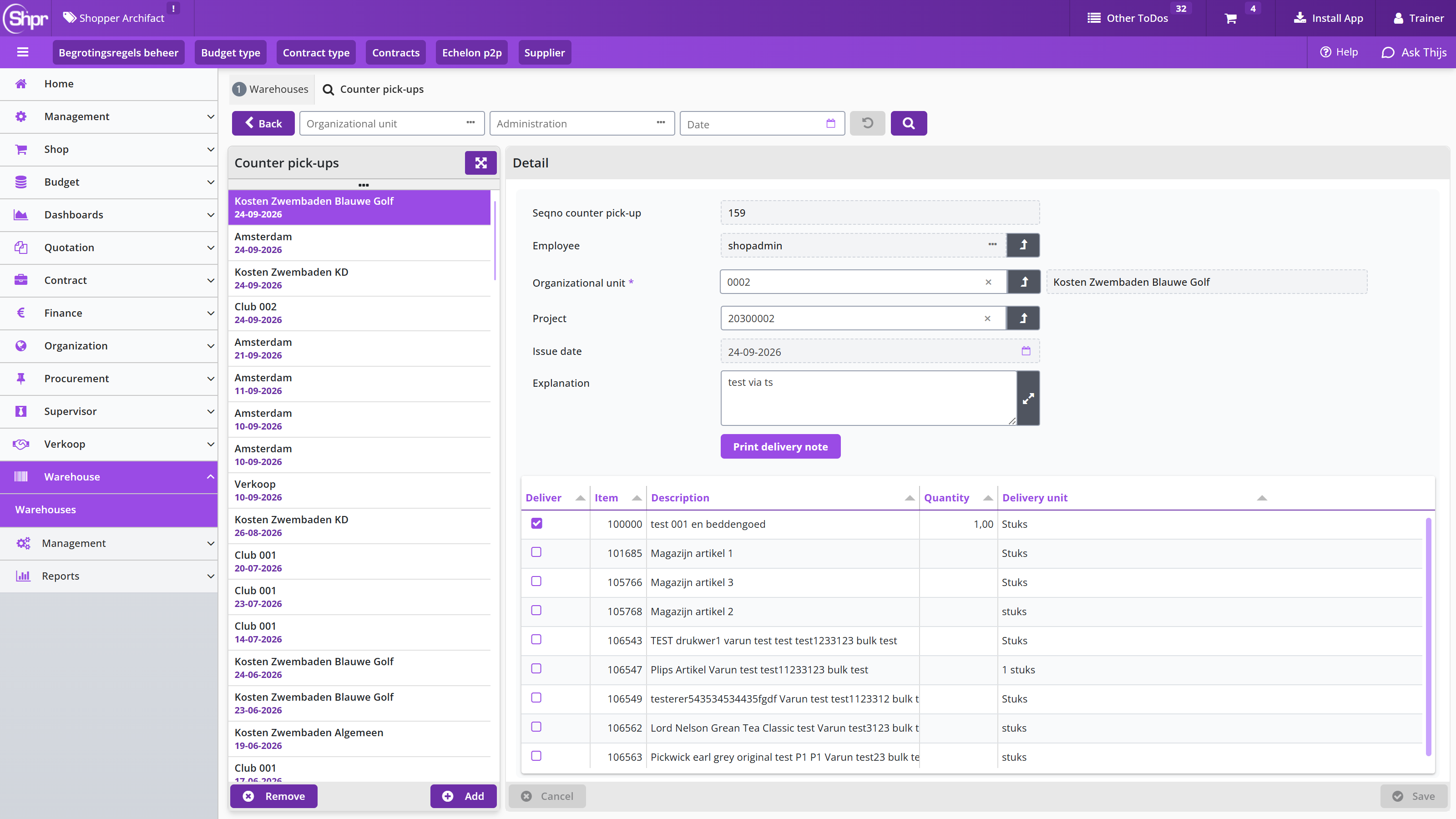
Select the designated item for the counter pickup from the list to register the delivery. Using the filter you can find the item quicker. This field is located at the top of the list on the right hand side. The list will be limited using this filter by typing a part of the item name or item number. Mark the checkbox in the column Deliver and then enter the quantity for that item.
Using the Quantity column you specify the number that is to be delivered, in the item’s delivery unit. If you want to adjust the quantity afterwards, just click again on the checkbox of this item for the column Deliver.
You can repeat these steps if more items need to be published, whereby you can choose the next item from the list of items in stock on the left or open the filter at the top of the list or use the search bar to find the item faster.
You can print a delivery note for the counter pickup. This note is generated using the button . You can use this button multiple times, also after adding new items to the counter pickup.
Delivery via warehouse without stock management
For orders with a supplier that go beyond the stock management of the warehouse, but which are delivered to the warehouse for distribution within the own organization, it is possible to set up picklist groups within Shopper.
Creating a picklist group is described in the section Setup under Warehouse management. A picklist group is created per delivery location (warehouse) in combination with a possible distinction in the different methods of storage or processing. For example, these could be refrigerated or sterile items, so that separate delivery lists can be created for this.
For all related item types, you can indicate to which picklist group they belong. This can be set up by an employee of procurement (the purchasing department) via the Procurement menu - menu item Management - Item type, by entering the relevant Picklist group for the Item type in the Detail data module. (For the setup see Item type under Catalog management)
If an item of this item type is viewed, the picklist group that has been entered with the item type is stated there (field Picklist group item type). If a different picklist group applies to this item, an employee of procurement (the purchasing department) can specify a different picklist group for this item via the Procurement menu - menu item Management - Item, by selecting the Item in the General to select the deviating picklist group in the Picklist group deviating field. (For the setup see Item under Catalog management)
Note: if you do not specify a picklist group for an item type, the default picklist group will be used for the items of this item type if a picklist group applies to the relevant organizational unit from which the order was requested. On the other hand, if the use of the picklist group for delivery is not enabled for the organizational unit, the information for item type and item will not be used and no picklists will be created.
In the organizational units for which the distribution must take place via the warehouse, the supervisor can select the checkbox at the relevant Organizational unit in the General module.
The field Location / org. part can also be set to the organizational unit of the Warehouse, or – if no other delivery locations apply – the warehouse can be specified as Source for the delivery address in the Delivery address data module.
This field ensures that the delivery address to be chosen will default to this location when making a final request (the standard delivery address is that of the organizational unit itself).
Note: If the use of the picklist group for delivery is used for an organizational unit, the receipt registration is not performed by the employees of this organizational unit, but by a (warehouse) employee linked to the organizational unit where the order is delivered.
For the layout, see Organizational Units under Organization.
Finances
Finances describes the financial side of Shopper: incoming invoices and their audit trail, accounting and the financial administration with its link to the financial system, the administration setup for creditors, costs and VAT, and the invoices dashboard.
Incoming invoices and audit trail
The incoming invoices can be read digitally into Shopper and linked to the related order line by matching. In addition, Shopper supports integration with applications that scan and match invoices. This integration is transparent and seamless, allowing you to follow everything in Shopper in a uniform manner, regardless of the method of invoice processing.
Viewing orders for the financial administration, including the audit trail, can be accessed via the Finance menu. This menu can be accessed by employees that have the mark financial administration, thus have the role Controller or Operator, combined with the role Viewer allowing them to also see orders that have no invoice attached to it (yet), assigned via the echelon Financial administration. This chapter covers Orders (financial overview), the Incoming invoice screen and its data modules, the Audit trail of incoming invoices, Reporting using export audit trail (the Excel export) and the Dashboard invoices.
Orders (financial overview)
In Shopper you can follow the progress of a requisition-/order line from front to back, including the processing and payment of the invoice. You will find this in the diagram of the Process flow ToDo or in the Status of requisitions. The process steps regarding invoice processing are described under Invoices and payment.
You can also view orders (from all administrations) - from a financial point of view - via the menu Finance menu item Orders – All orders (all admin) (role Viewer).
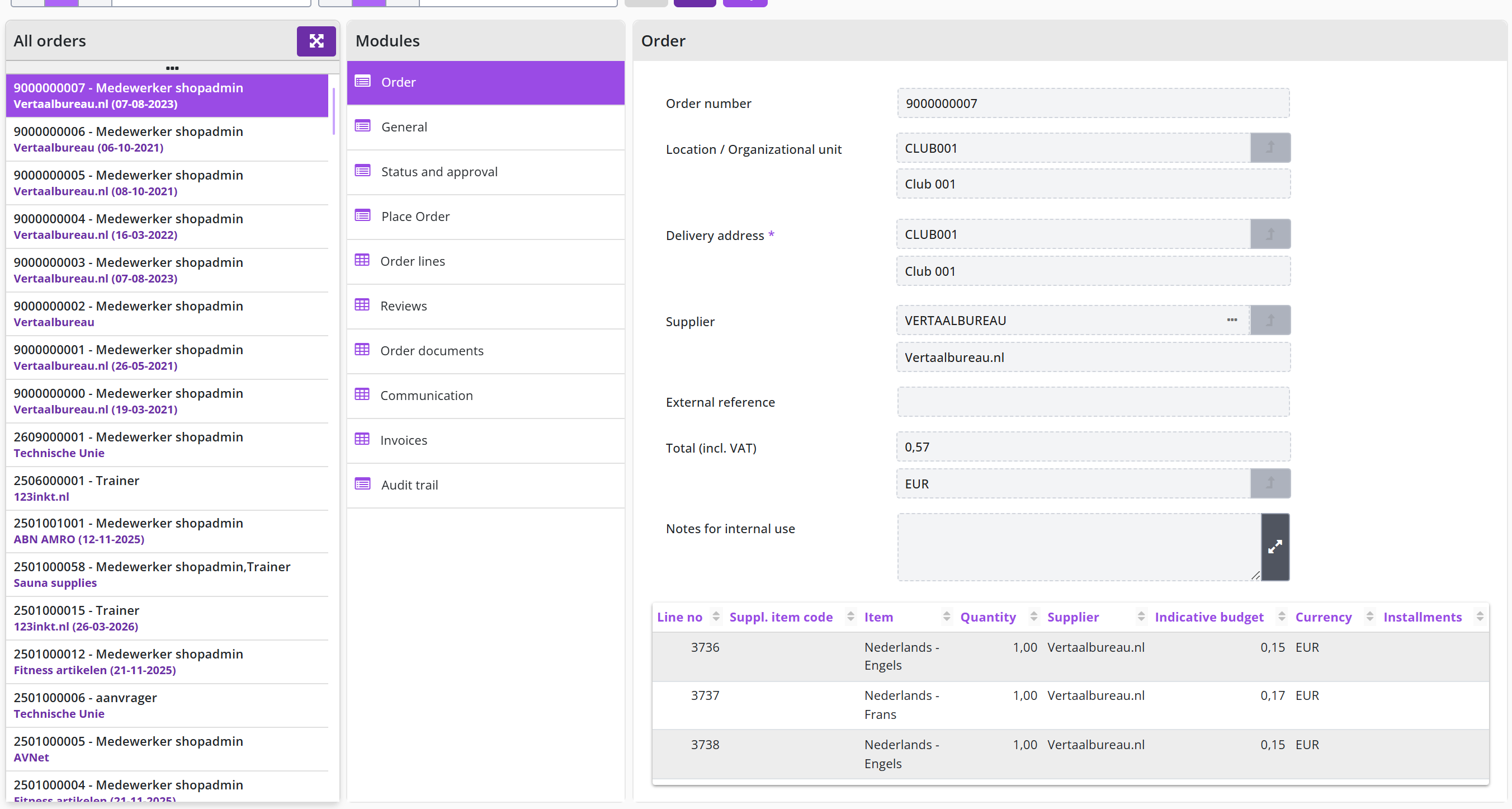
The screen is structured according to the standard as described for the General screen layout under Use of the other screens.
In various data modules you can find the data regarding this order, including the Status, Order authorizations and the Invoices. Via the data module Order lines you can zoom in on the data regarding the individual order lines.
The explanation of the various data modules when ordering and processing ordering lines can be found under Overviews and reports under Procurement
Incoming invoice
All incoming invoices that are known to Shopper can be viewed via the incoming invoice under the Finance menu.
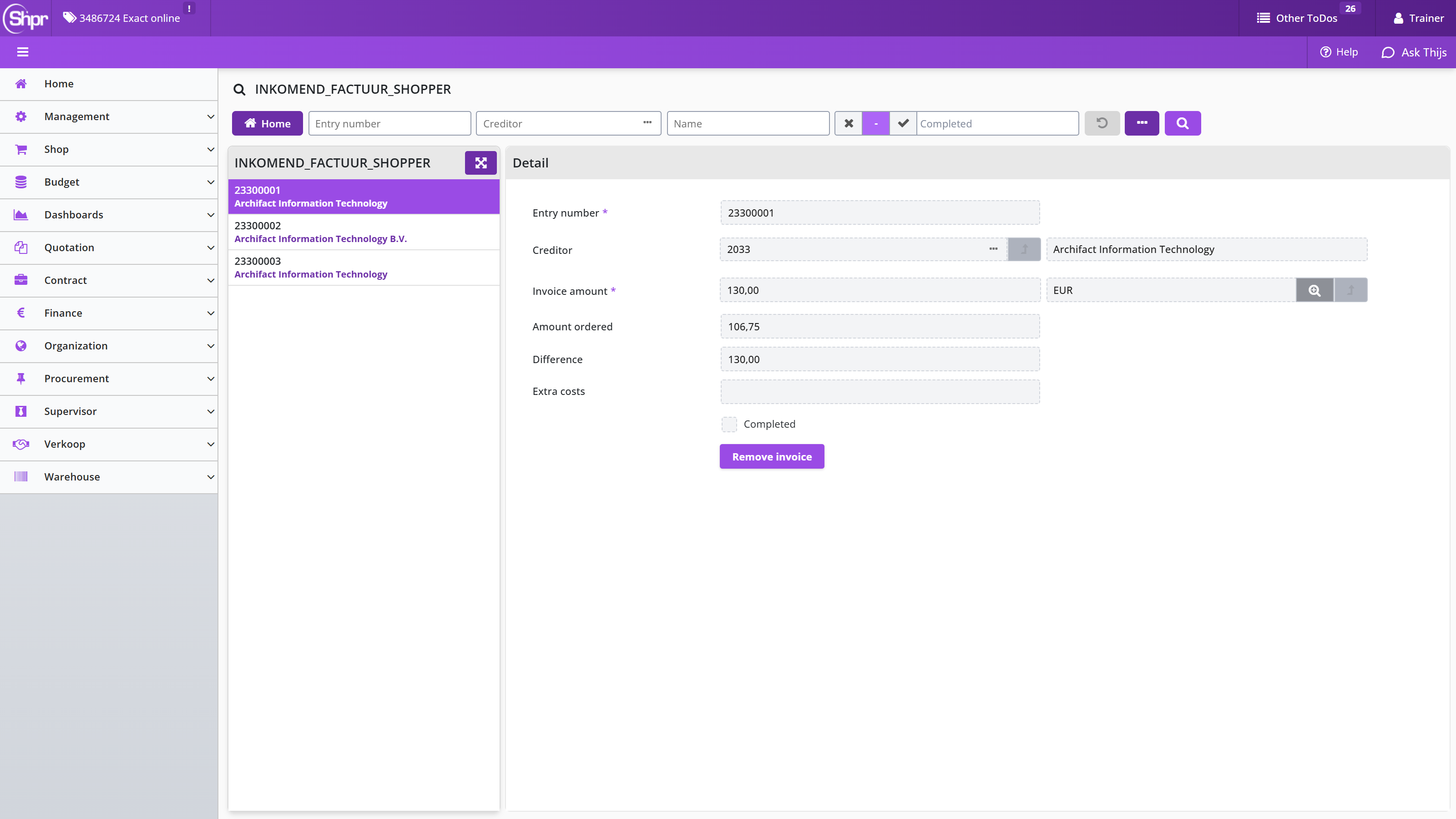
The Details of the invoice are displayed in the corresponding data module. The scanned invoice can be viewed using the button and if this turns out to be the wrong invoice, you can remove the invoice with the button .
In Shopper 10 the Detail data module of the incoming invoice contains the fields Entry number, Creditor, Invoice amount, Amount ordered, Difference and Extra costs, the new checkbox Completed and the button.
Note: The button can only be used by a supervisor in combination with the role Controller and it is only visible if allowed by the system parameters.
The Orders data module contains the orders that are linked to this invoice. The Bookings data module contains the bookings for invoice lines corresponding to the order lines. If they are not yet available, this module is not visible. These bookings are also listed at the bottom of the Details data module.
If the matching and making invoices payable is performed in Shopper (not using ImageCapture) then in addition, data modules are present for the incoming invoice, as described below.
Note: The data modules below and the Action incoming invoice are not applicable if Shopper is used in combination with ImageCapture)
The Orders data module contains the details of the related order in Shopper combined with a list of order lines at the bottom, in relation to the received invoice. The Accumulations data module lists the invoice bookings grouped by cost centre, cost unit, cost type and VAT code of the invoice. The Corrections data module contains the references to other invoices that correct this invoice (hence credit invoices). The Approved data module contains the memo’s that have been exchanged in order to reach the decision to make the invoice payable.
More information on linking and handling of incoming invoices in Shopper, see Action incoming invoice, under Invoices and payment.
Audit trail of incoming invoices
For an incoming invoice and for the related order you can view the audit trail (the handling of all performed tasks) with the button.
If the invoice was provided with an audit trail from Image Capture the button will be available for the incoming invoice. This audit trail will only contain handling that was performed using Image Capture.
An overview of all handling for the performed tasks on an order and its order lines can be found in the Audit trail data module of an order and order line. This data module also contains a button, that will show the audit trail of the tasks that were performed in external systems, if these systems have an integration with Shopper (Like for ImageCapture and Exact Globe/ Exact Online).
A more detailed description of the Audit trail data module (including examples) for requisition (lines) and order (lines) can be found under Audittrail P2P.
Note: The audit trail that can be printed using the button for an order, is also delivered to ImageCapture, that will forward this to Exact Globe/Exact Online, together with the audit trail of ImageCapture regarding the invoice handling.
Reporting using export audit trail
Two audit trail reports are available under the item Reports of the Finance menu. The report P2P audit trail overview and the Contracts audit trail overview. For these reports you can select the year for which you would like the audit trail to be exported to Excel.
Dashboard invoices
If an employee has the checkbox Financial administration checked in their profile, they also see the menu item Dashboard Invoices in the Dashboard menu. This dashboard provides quick insight into the number and amount for invoices per period.
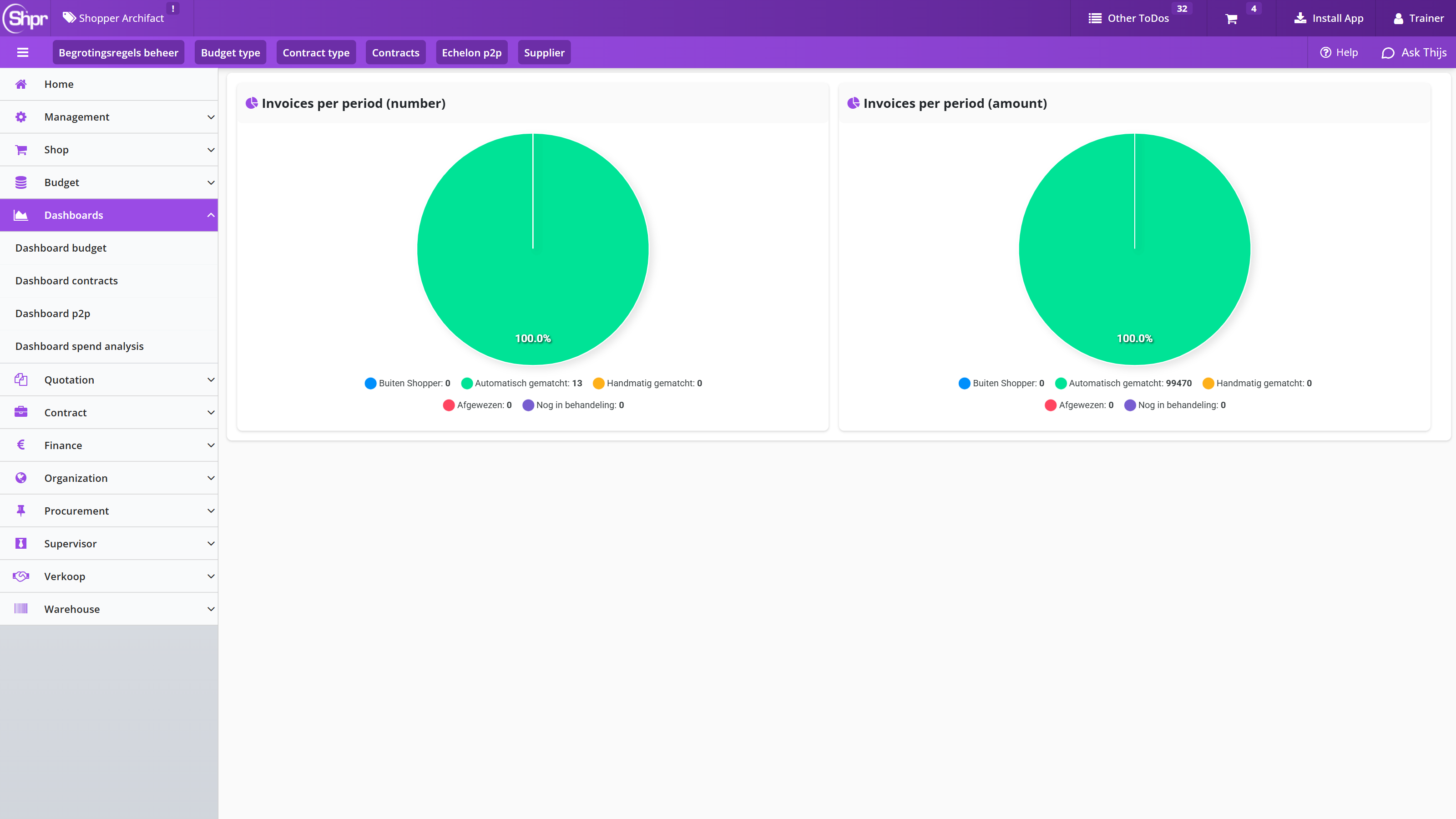
The period can be adjusted in the search bar and after using the search button (the magnifying glass) the charts on the dashboard are updated.
Note: This dashboard is not available if Shopper is implemented combined with ImageCapture and Exact Globe or Exact Online
Accounting
In Shopper you carry over the administrations from your accounting (your financial system, such as Exact Globe, Exact Online, Exact Financials or Navision) and set them up for the purchasing process. This chapter covers Accounting (which data comes from the financial system and where you find it), setting up the Financial administration in the Detail data module (name, prefixes and order number), the Order form type and order template of the administration, the Workflows, preferred items and contact details of the administration, the Checkboxes, documents and layout of the administration and the Data modules for costs, VAT and administration years of the administration.
It then covers the Financial data module of the administration (cost types, memorial bookings and projects), the Budget setup of the administration, the Budget rules for requisitions per administration, the Integration with the financial system (Exact Globe example), the Creditors – suppliers interface with the financial system and the manual Transferring financial data.
Accounting in Shopper
In Shopper you can carry over the administration data from your accounting and set it up for use within Shopper as you wish. Normally, the administration data is read from your financial system, such as Exact Globe, Exact, Online, Exact Financials or Navision. The external system is then leading and the related data (creditors, cost centers, costing types, payment conditions, VAT codes and, if applicable, projects and budgets) are then not managed in Shopper. This data can be viewed in Shopper, where it is expressed in the Shopper data model and can be enriched there with additional design.
The data of the financial administration can be accessed in Shopper via the menu Finance and the menu item Management. This menu is only available for employees who have the role Controller or Operator, as part of the echelon Financial administration.
All financial administrations that have been read from your financial system can be set up by the supervisor, using the item Administration under the Supervisor/Management menu.
Financial administration
The financial data at the administration(s) in Shopper correspond to the administrations in your financial system and can also be automatically copied and synchronized. With the definition of the administration in Shopper, the synchronization thereof is set up and the data is enriched with regards to the organization and processes of purchasing.
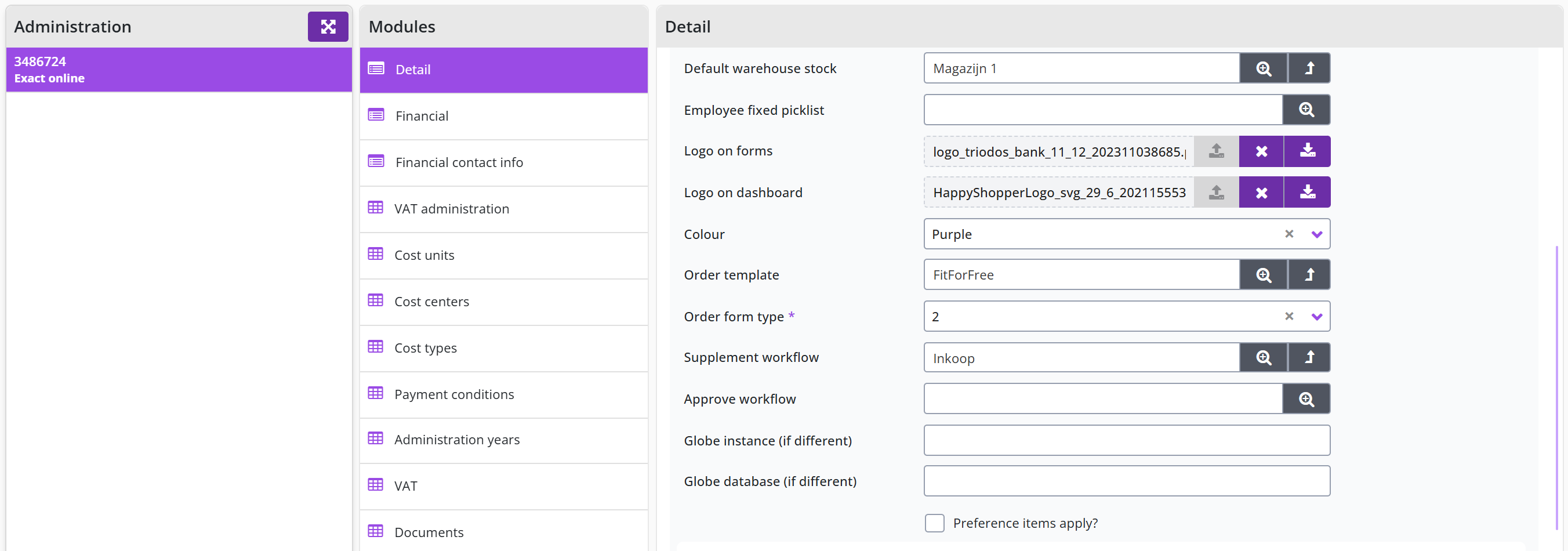
The screen is structured according to the standard as described for the General screen layout under Use of the other screens.
The Detail data module contains the standard data for the administration with regards to purchasing, whereby the name of the “Administration" need to be entered. Several fields are also required to make the basic purchasing functionality work for this administration: Prefix order number (PR)”, Prefix contract number (CN), Order form type [2]. The prefix numbers are the leading codes that are used when the numbering is automatically created.
The order number is generated as a unique number for each order. By default, this is derived as YYMMAAASSS, where YY=Year, MM=Month, AAA=administration code and SSS =Serial number. If desired, you can work with your own ascending number by entering the number you want to start with.
Order form type and order template of the administration
In the Detail data module of the administration (menu Supervisor/Management, item Administration) you set the Order form type and the Order template with which the orders of this administration are made.
The order is made according to the set Order form type and Order template. The order form type determines the format of the form and the fields that appear on it (this refers to a definition in Crystal Reports). The order template contains the titles of the fields on the form, including the formatting of the header and footer. The template also contains the default value for filling in the order E-mail (subject and text body). This value can be overridden in the definition of the order e-mail in the management of the Supplier.
Note: For the header and footer is is possible to use html coding, by placing the codes in between round brackets. Lik for bold (b), for underscore (u) and for italic (i).
By default, the STANDARD template and form type 2 are used here, which are supplied with Shopper. The content of the form can be managed via the order template via the menu Procurement and menu item Management - Order template. If no order template has been entered in the administration, then the order template filled in at the supplier – Address data module – is used, or if this is not specified either, the order template from the System parameters is used.
Workflows, preferred items and contact details of the administration
In the Detail data module of the administration (menu Supervisor/Management, item Administration) you also set the workflows, the preferred items, the contact details and the mail server for this administration.
The fields Supplement workflow and Approve workflow can be used to specify a different workflow that applies for this administration, overriding the setup under the System parameters. Also see P2P-Workflow supplement and P2P-Workflow approve, under Workflow.
Note: The changes made for the supplement or approve workflow will only be applied for new requisitions. Requests that are already in a workflow will continue to follow that workflow.
If next to the administration the checkbox Preferred item? is checked, a distinction is made between procurement and other employees, when compiling the internal catalog. Preferred items are then only available to procurement (the purchasing department). To set preferred items, see: Item under Catalog management.
In the Delivery address and Email sections you can enter the respective contact details. For the financial department (invoicing), you can set the relevant contact details of this department in the Financial contact info data module.
You can also set the data for the mail server if this differs for this administration from the default mail server set in the system parameters.
Checkboxes, documents and layout of the administration
Setting up an administration (menu Supervisor/Management, item Administration) also covers the checkboxes at the bottom of the Detail data module, the Documents data module and the colour and logo of the administration.
At the bottom of the Details data module several checkboxes can be marked:
The checkbox Send orders indicates if for this administration the orders should be sent via e-mail or XML. Hence you can turn off the actual sending of the order e-mail to the supplier.
The checkbox Expected receipt date required makes the entry of a desired receipt date mandatory for starting a new requisition. See Request for the entry of the receipt date.
The checkbox Ad hoc requestion attachment required makes it mandatory to attach a document to a requisition line using the Free Request. This can for example be used to force the attachment of a quotation to the requisition.
The checkbox Customize order template during order step allows for a different order template to be selected during the handling for process step Place order.
If you want to send your purchase conditions or another document with every order, you can set this in the Documents data module. Here you can upload this document as an attachment to Shopper and check Attachment order e-mail checkbox so that it is sent with the order e-mail. You can also add an attachment to display as a menu item in the Settings menu. Then check Show menu settings checkbox. It is then available to all employees who work in this administration in the settings menu.
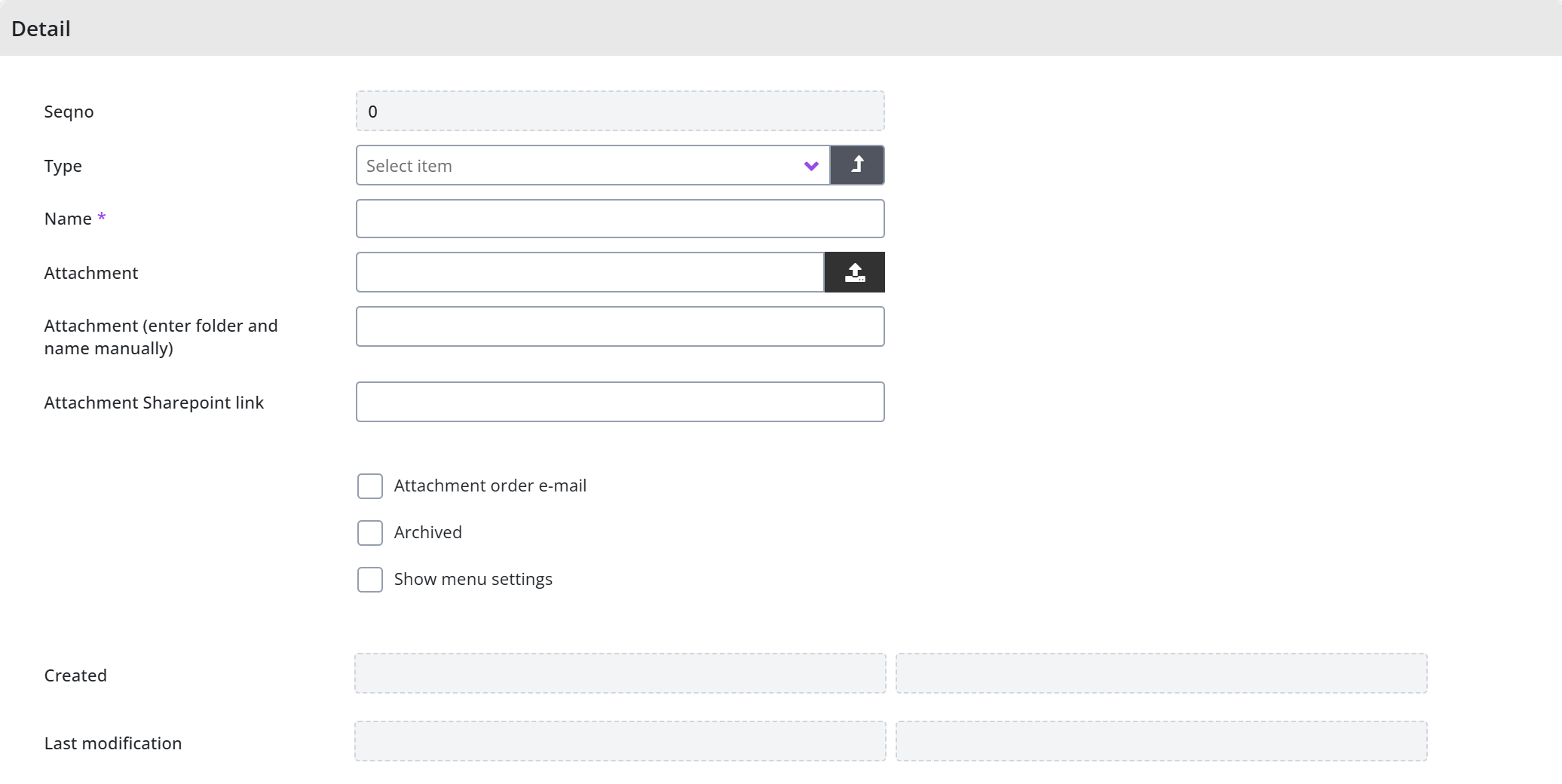
For the layout of the user interface in Shopper, you can use your own Color and Logo per administration, which can also be set in the Detail data module.
Data modules for costs, VAT and administration years of the administration
The administration (menu Supervisor/Management, item Administration) has its own data modules for the cost units, cost centers, cost types, payment conditions, the VAT link and the administration years.
In the administration, the Cost units, Cost centers, Cost types, and Payment conditions are listed with the corresponding data modules for that administration. In the VAT data module, the link is made between the VAT types in Shopper and the VAT codes in the financial administration, which you can find in the VAT administration data module. For the management of the VAT types see VAT administration. In the Administration years data module, an administration year must be created per year (and therefore every year again). This is also required to be able to create budgets for this administration. See also Budget control.
Financial data module of the administration
In the Financial data module you register for this administration: how entries are made; how budgets are handled; and configure the interface with the financial system.
In the Cost type section, enter the cost type for the bookings of transport costs and any other bookings if these apply to your facility. You can also indicate whether cost units are used and what else the Default costing unit is. You can also indicate whether the employee is obliged to choose a project when ordering.
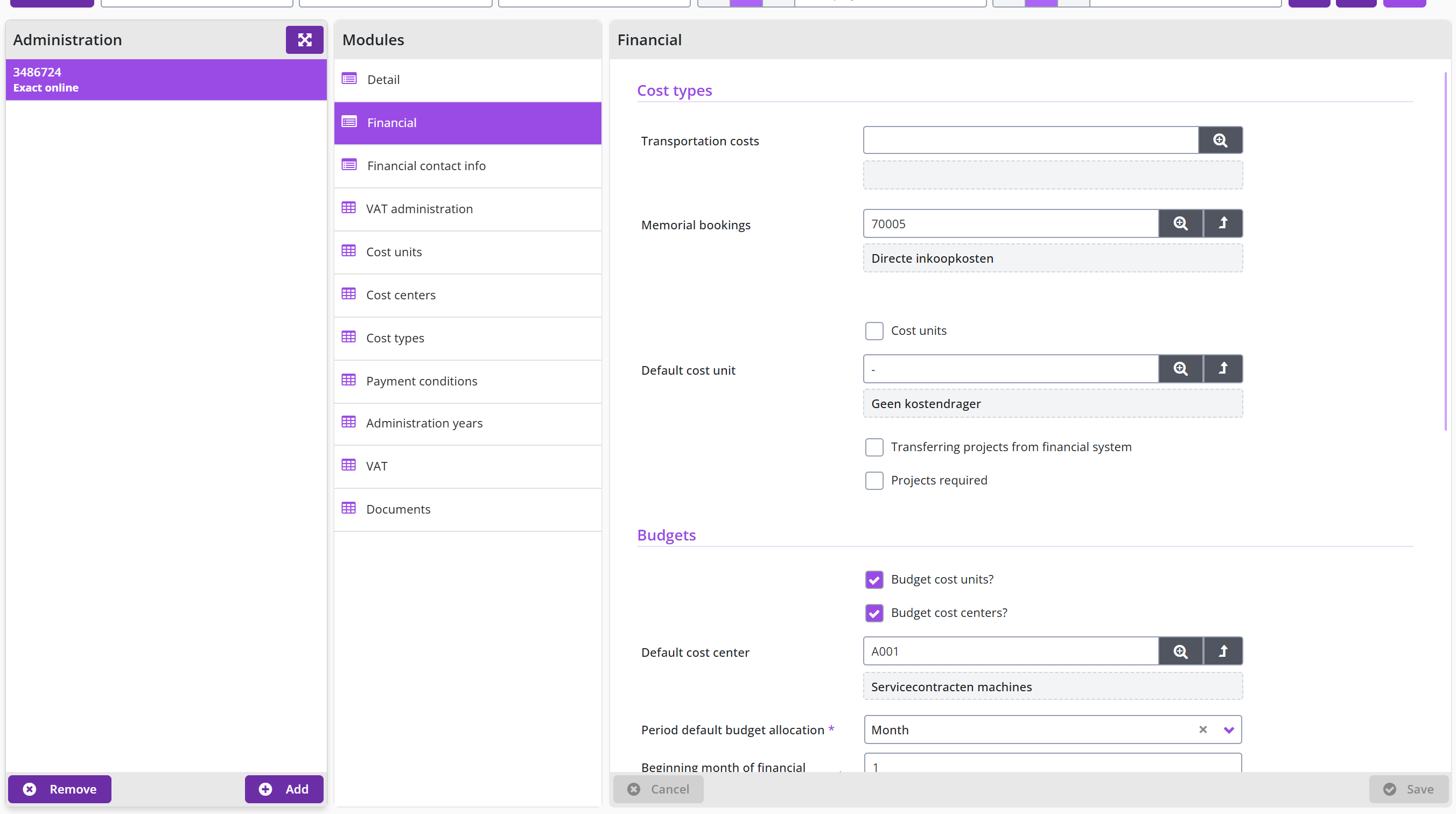
If you fill in a cost type at Memorial bookings, then booking entries will be delivered for the purpose of registering obligations in the financial system, when related receipts be reported. Also see the remarks about the counter-entry under Invoices and payment, for when there is a data conflict with the invoice.
Note: For Exact Globe the folder Memorial bookings under System parameters Back office folders must also be provided
The checkmarks Transferring projects from financial system and Project required are used to indicate if projects in Shopper should be read from the financial system and if so, it becomes mandatory to select a project for a requisition.
Budget setup of the administration
The Budgets section is part of the Financial data module of the administration (menu Supervisor/Management, item Administration).
In the Budgets section you indicate how budgets are used within this administration.
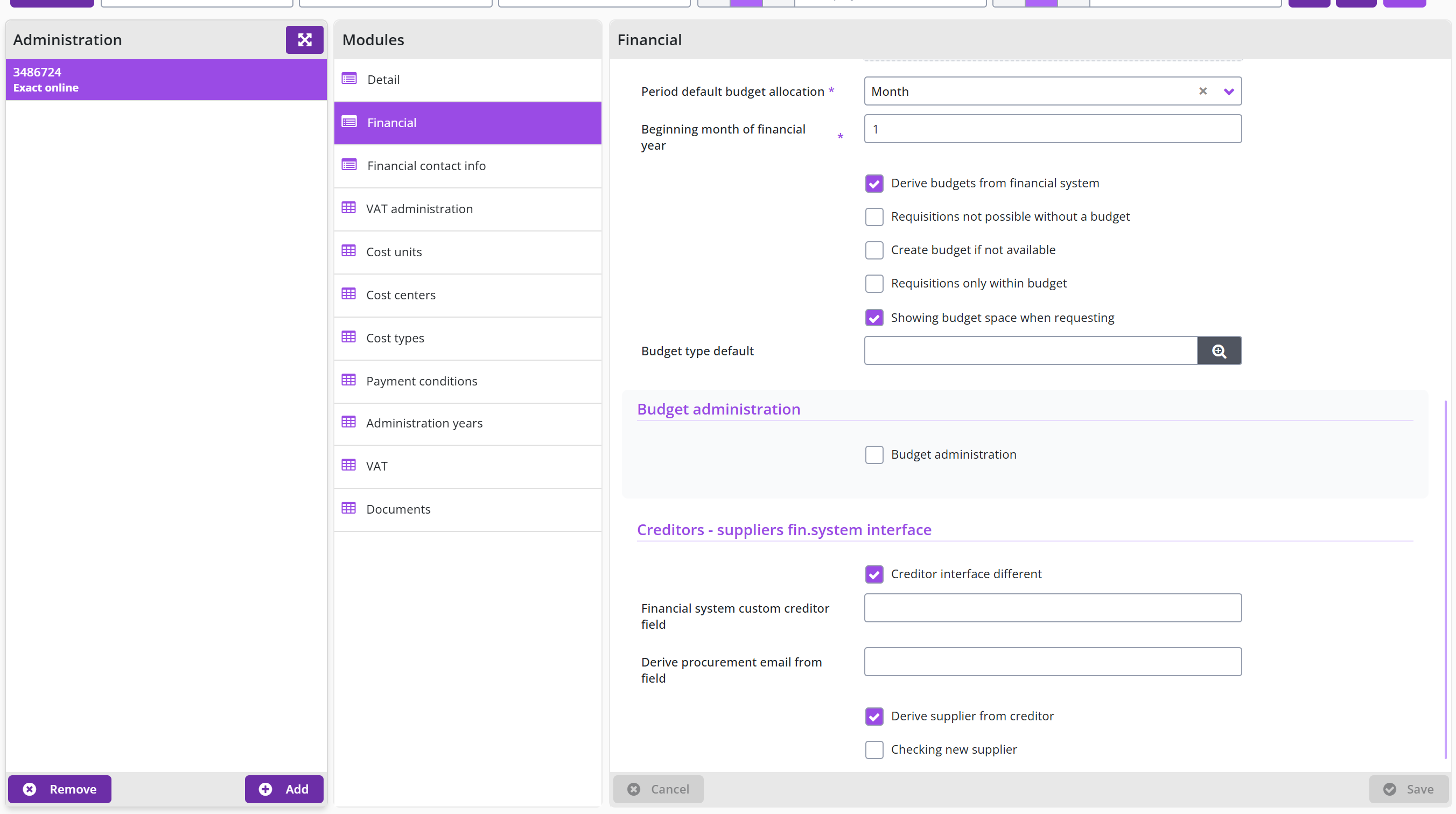
You can indicate with the relevant checkboxes Budget cost units? and Budget cost centers? whether cost centers and costing units are used in the annual budgets. If no cost centers are used in budgets, indicate what the Default cost center is indicated within the budget. This also applies to the default cost unit that is set in the Default Cost types section, if no cost units are used within the budgets. Also see Cost structure.
Note: if no cost centers are used for the budgets, entry is made to the default cost center within the annual budget - if one already exists for the relevant costing unit. Likewise in the case that costing units are not used, but then on the default costing unit. If the budget for the relevant cost type or the annual budget does not yet exist, processing will follow as described in Budget tasks (Other ToDo’s) under Budget control.
You can also set the default budget owner and delegate and the Default budget allocation. The latter is set to Month by default. Additionally, you can set a Budget type default, that is used to derive the budget owner and budget delegate if no budget type is specified for a budget.
The annual budgets in Shopper apply within a financial year and start by default on the 1st of January. Should the financial year for your organization start in a different month (e.g., 1st of July), you should then specify this month number in the Beginning month of financial year.
If the budgets are to be copied from your financial system, check the box Derive budgets from financial system. During the synchronization, the budgets and budget expenditure are then transferred from your financial system.
Budget rules for requisitions per administration
In the Budgets section of the Financial data module of the administration, the following checkboxes determine what happens with requisitions when there is no or insufficient budget.
The checkbox Create budget if not available indicates that if a budget does not yet exist, it will be automatically created with an initial budget of 0. A further ToDo is then also created to supplement the initial budget.
The checkbox Requisitions not possible without a budget indicates that approval of requisitions is not possible if there is no budget for the cost type of the item within an annual budget for the cost type/cost unit combination. Another ToDo is created to create this budget.
The checkbox Requisitions only within budget indicates that a requisition can only be submitted if it’s within the related budget.
The checkbox Shoving budget space when requesting indicates that the budget space is shown for a requisition line when opened or modified for an item in the shopping basket or when entering a free request.
For the section Creditors – suppliers fin. System interface see Creditors – suppliers interface with the financial system.
Integration with the financial system
Shopper supports interfaces with different systems for copying and synchronizing the data from your financial system. The example below assumes the integration with Exact Globe. For more information about technically activating the integration with financial systems, see the Shopper installation guide document.
For every company that exists in Exact Globe, you need to create a company in Shopper with a Administration code that matches the database name in Exact Globe. The Detail data module contains the fields to indicate the link with Exact Globe if different.
Shopper assumes that the Shopper database is in the same Database instance as the Exact Globe database. If that is not the case, you can enter this under Global instance (if different). For testing purposes, you can enter a different name in the Global database (if different) field, so that you can, for example, (temporarily) switch to a database in a test environment.
Most data is read from Exact Globe’s database. Data that goes to Exact Globe is not supplied via the database but via folders in the file system. Such as for the general journal entries / memorial bookings for the purpose of registering obligations in Exact Globe. The folder that is used for this can be set at System parameters in the Back-office folders data module.
By default, the cost centers, costing types, payment conditions and VAT codes are adopted per company. In the Financial data module of the administration you can indicate in the various sections which data you want to synchronize or how you want to deal with it.
Creditors – suppliers interface with the financial system
The Creditors – suppliers fin. System interface section is part of the Financial data module of the administration; the example assumes the integration with Exact Globe.
In the section Creditors – supplier fin. System interface you can indicate how you want to deal with the creditors in Exact Globe in relation to the suppliers within Shopper.
Where for the combination of the checkbox Derive supplier from creditor, with the field Derive procurement email form field it can be specified with field/column form Exact Globe should be used by Shopper to derive the email address of the supplier.
If you marked the checkbox Creditor interface different only the creditors that have been marked as a creditor for Shopper, will be read from Exact Globe for creation in Shopper. The Financial system custom creditor field is then used to specify which field/column in Exact Globe is used for to determine if it should be read and created.
The checkbox Checking new supplier indicates if the data of a new supplier – derived from the creditor of the financial system – first needs to be checked and or supplemented before use.
If this checkbox is set, for each newly created supplier a “Supplier (check)“ task is added to the Other ToDo’s, in the section Management. When following up on this ToDo, the supplier is selected from the list, validated and if needed supplemented. When completed checkbox Check needs to be unmarked.
Transferring financial data
The periodic synchronization of the financial data is performed (in the background) based on the setup for the integration with the financial system. Additionally, the synchronization can be executed manually, for example to make a newly added creditor or the most recent budget allocation available in Shopper.
Transferring the most recent data from the financial system is executed using the menu-item Transferring financial data from the setup in the menu Financial.
For the integration with Exact Globe a financial administration can be selected:
For the integration with Exact Online, all financial administration will be transferred (no selection of administration), however it is restricted to only transferring budgets and creditors. It is possible to select what data will be transferred/synchronized:
Note: In the daily synchronisation the other data will be transferred from Exact Online
Administration setup: creditors, costs and VAT
Several financial data are managed per administration in Shopper, largely carried over from the linked financial system. This chapter covers Management per administration (the data modules Per administration and Per administration (management)), the Creditor administration and linking suppliers to creditors, the Cost structure (cost centers, cost units, cost types and projects), the VAT administration with its VAT types, and the Administrative year that you add to the administration every year.
Management per administration
For the management of data that occurs in multiple administrations, the data modules Per administration and Per administration (management) are used when managing various data objects in Shopper.
The Per administration data module contains the data for the current administration (i.e., the active administration that is displayed at the top left of the title bar of Shopper).
If you want to view or change the data for the other administrations, you do not have to change administration, but you can choose the relevant administration in the data module Per administration (management) to manage it.
Note: If you have indicated in the indicators in the section Financial at the System parameters that for the relevant object (such as items or organizational units) these are the same for all administrations or are kept in sync for all administrations, then the data module Per administration (Management) with the related object does not apply and the setup in the data module Per administration does not only apply to the active administration, but to all administrations.
Creditor administration
The financial administration in Shopper is carried over from the linked financial system, whereby the creditor number is linked at the supplier in Shopper. You can access the data in Shopper via the Finance menu item Management – Creditor.
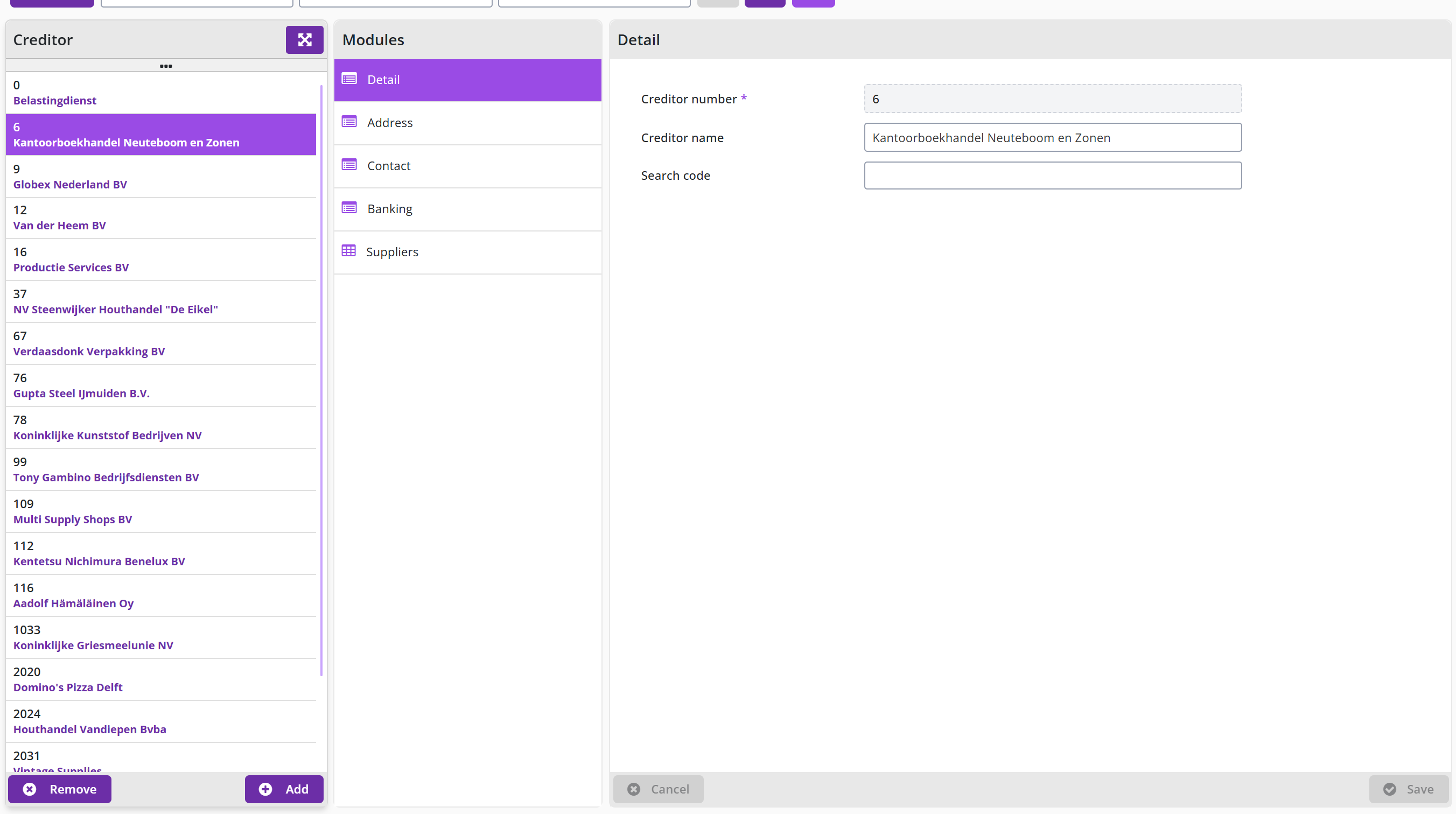
The screen is structured according to the standard as described for the General screen layout under Use of the other screens.
If applicable, multiple supplier definitions in Shopper can be linked to the same creditor. In the Suppliers data module, the linked suppliers can be viewed, and you can choose them to view further details of the respective supplier. If applicable, the creditors in relation to the suppliers can also be differentiated per administration.
A supplier can initially also be entered without a link with a creditor. Items can already be ordered for this supplier (from request to receipt), but processing of the invoice for this order is only possible after the link with the creditor has been established. In this way, when choosing a new supplier, the Procurement Manager can already make this available within the organization and only add the creditor link afterwards – when it has been added to the financial administration.
For adding the creditor link afterwards, a (follow-up) action (ToDo) is created, which can be found for an employee with the role Administrator under Other ToDos if: Supplier (link creditor.
Cost structure
The cost structure of an administration is expressed in Shopper at Cost centers, Cost units, Cost types and, if applicable, Project, which can be accessed via the Finance menu item Management. This can differ from one administration to another. See also Financial data module of the administration.
Cost centers and costing units correspond one-to-one with how they are defined in the financial system. The costing type is related to a general ledger account.
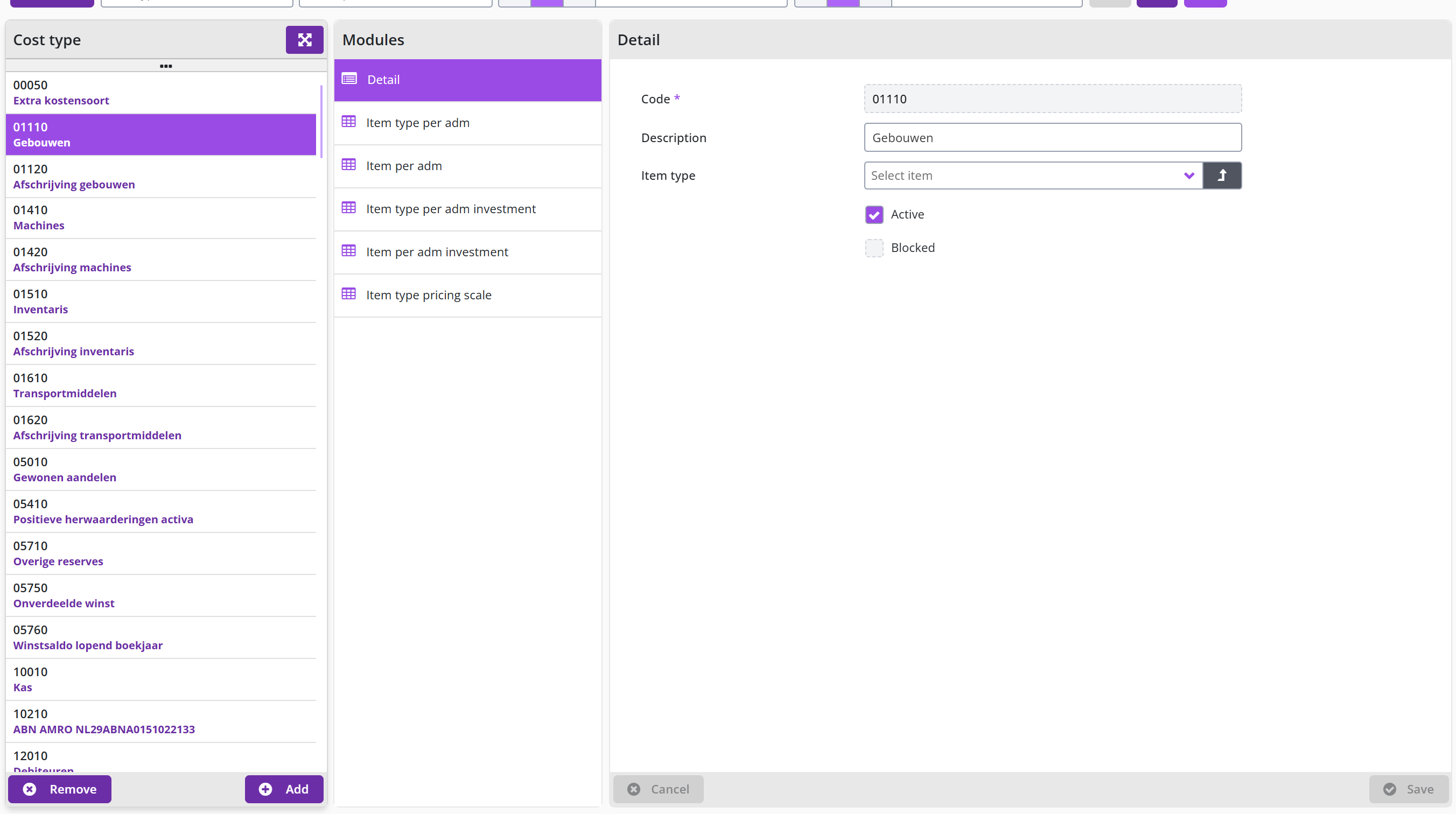
An additional Item type can be set up for the cost type. This field is only required if items are imported for a supplier where the relevant item type need to be derived from the cost type stated in the import file. See Catalog management section Import items.
The data modules Annual budget and Expected entry cumulation are additionally available for the cost centers to provide insight into the data linked to the cost center in Shopper. This also applies to the cost units for the Annual budgets and Project per administration data modules.
For a project can be defined whether it is an Investment project. In the case of a requisition for an investment project, the investment costing types are used for the booking data for an order, as specified for the item or item type.
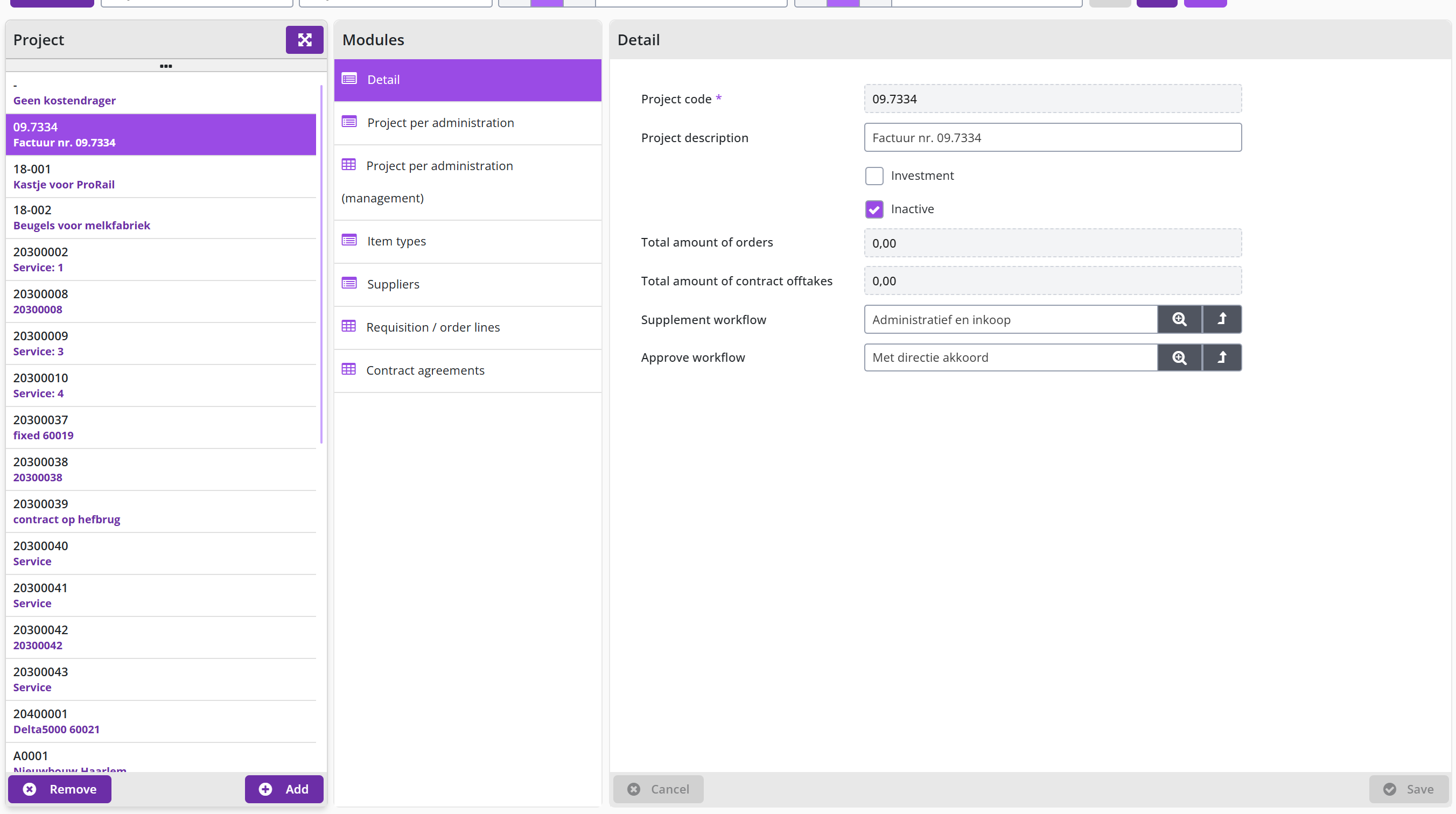
In addition, the Requisition / order lines data module is available for projects to provide insight into the orders per project. The fields Total amount of orders and Total amount of contract offtakes in the data module Detail of the project lists the total amount of all (proforma) order lines of all orders and contracts for this project.
For more information about automatic import and synchronization with the financial administration system (such as Exact or Navision) see Integration with the financial system.
VAT administration
The VAT administration in Shopper is set up per administration in line with the VAT codes and the percentages as defined in the external administration. Within Shopper, different VAT types are available by default. For the Netherlands this is High, Low and Null/Zero. If applicable, you can supplement this with the other VAT types within your own organization.
The VAT data can be accessed via the menu Finance menu item Management. Setting up the VAT administration per administration is managed in Shopper by the supervisor at the administration; see Data modules for costs, VAT and administration years of the administration.
Administrative year
For financial administrations each new financial year needs to be manually added. To this extent use the Administration years data module of the administration in Shopper.
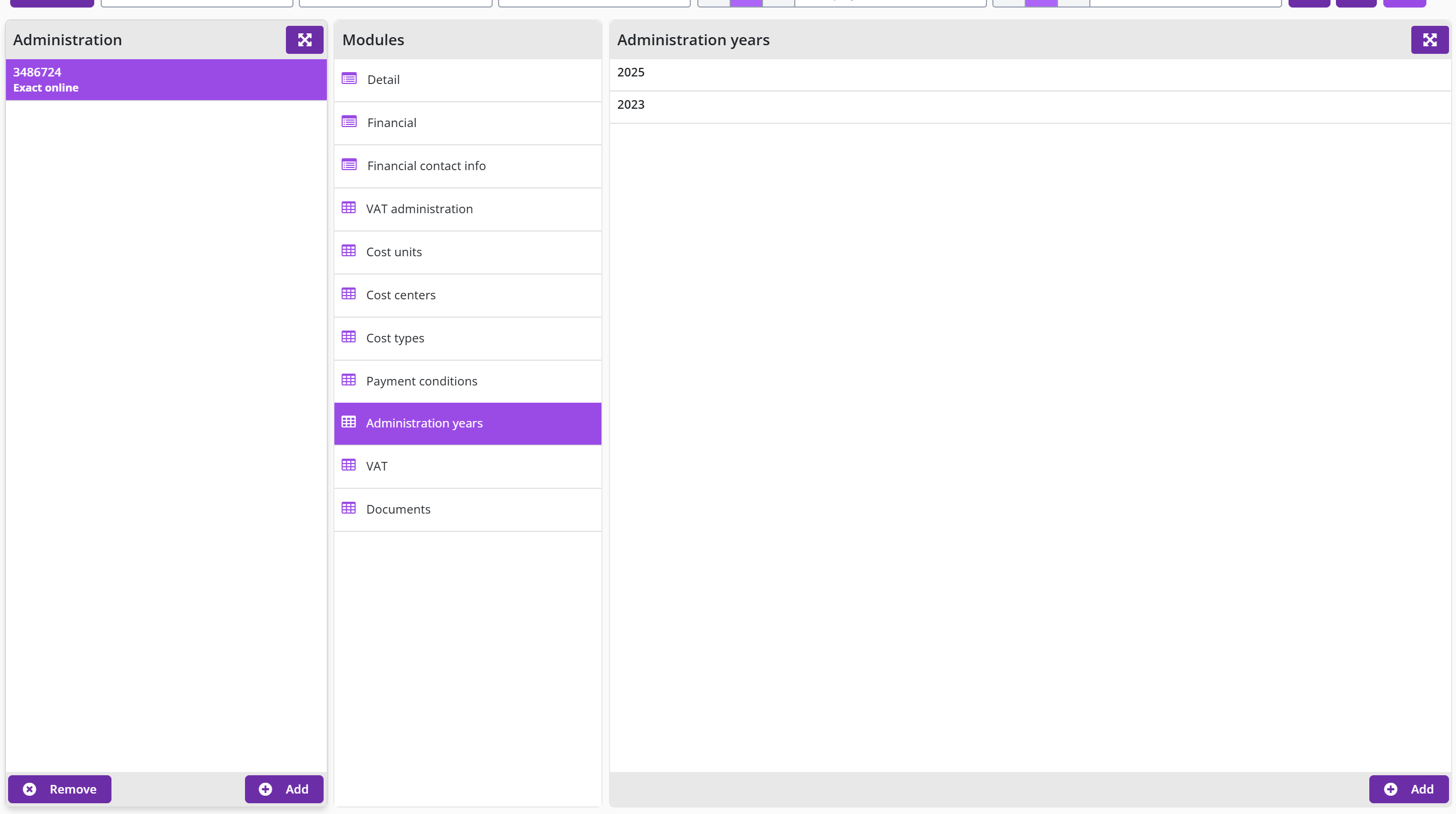
The buttons and are used to add or remove an administration year. Per administration year you can use the corresponding checkbox to indicate if Budget control? is applicable. Also, you can specify the Period type budgets (if they deviate from the setting of the financial administration) and what the Beginning month of the financial year is.
Per administration it can be specified what Budget scenario should be used when synchronizing budget data from the financial system.
Note: The checkmark Budget control? cannot be unmarked (turned off) once the administration year has started and (proforma) orders have been booked on the budget/budget period.
Administrative tasks
Administrative tasks describes how supervisors and administrators set up and maintain Shopper: the organization with its organizational units, projects and echelons; employees, authorizations and signing authority; the P2P and contract workflows; the OCI link to supplier catalogs; system parameters, e-mail and files; e-mail notifications; and countries and currencies.
Organization setup
This chapter explains how you set up the organization in Shopper: organizational units, organization layers, projects and echelons, and the assignment of employees and roles to echelons. Organization describes the principle behind this setup. Organizational units explains how organizational units relate to cost centers, cost units and administrations; General data module of an organizational unit describes the hierarchy, delivery location, workflows and the checkboxes Contract module, Direct order and Blocked; the delivery address and the receiver are described under Delivery address data module of an organizational unit, and the link per administration, the permitted OCI links, cost units, suppliers and item types, the organization layers and the employees of a unit under Organizational unit: administrations, permitted links and employees. Organization layers and Projects follow.
Echelons describes what an echelon is and its Detail data module; Restricting an echelon to organizational units and projects and Restricting an echelon to item types and contract types describe the checkboxes General, All organizational units, All item types and All contract types. Under Employee assignment you assign employees with their access rights to an echelon; No authorized employee available in an echelon explains what happens when a requisition cannot be processed as a result. Transferring data from another echelon describes copying the assignments of another echelon, and Role assignment of an echelon shows which roles, expertise types and limit types the echelon contains.
Organization
In Shopper, your organization and your business operations determine your experience. You can set up the tasks for your organization and work processes with the relevant roles & hats and also use proven models drawn from practice (best-practice).
With Shopper you can optimize existing working methods step by step and adjust them where necessary over time. Shopper’s processes and operations respond adaptively to this, allowing implementation and changes with very short timelines.
Your financial administration is structured with a financial approach in regard to booking transactions. The procurement organization may require a more intricate structure to be able to achieve your desired procurement method and objectives. To set up your organization, you define organizational units in Shopper, whereby you can specify financial and content-based authorization schemes. The organizational units are linked to the cost centers and cost units of financial administration(s), but with the setup of organizational units you can follow your own structure of the organizational units and define units with the same cost center and cost units, allowing for different authorization schemes per unit.
In Shopper the echelons are configured and assigned the roles with the corresponding authority for the ranks within your company, in line with the to the power of attorney scheme/authorization scheme. With the Shopper enterprise edition, it is also possible to create separate echelons for projects or organization layers, that have their own authorization scheme. Shopper allows for the setup of several different forms of organization (to co-exist).
Employees are placed in organizational units and authorized for certain roles and authorities by assigning them echelons. Within the echelon it is determined for what part of the organization this applies. Also, a selection of item types and contract types can be assigned. Within the same echelon this can be different per employee of the echelon, in line with their responsibilities.
Hence, via the echelon the employee is authorized for performing tasks as part of a role, within (part of) the organization, within the assigned financial and content-based restrictions. See Echelons for more information.
An employee with the role Orchestrator or Contracts Orchestrator (echelon P2P Setup or Contracts Setup) can manage the Organization in Shopper via the Management item under the Organization menu.
Organizational units
A cost center and optionally the cost center are registered for an organizational unit in Shopper. These are used to determine how order lines should be booked and therefore also the relevant annual budget.
There can be multiple organization units that are linked to the same cost center and one organizational unit can combine different cost centers (and costing units) across multiple administrations. In this way you can set up the (Procurement) organization according to the actual or desired organizational structure and you are not limited by the history of how the cost structure within the financial administration(s) has arisen over time.
If you want to change the cost structure or assign a different financial administration, you do not need to change the organizational structure in Shopper. In that case, you only have to edit the linked cost centers/cost units and administrations in the organizational units in Shopper accordingly.
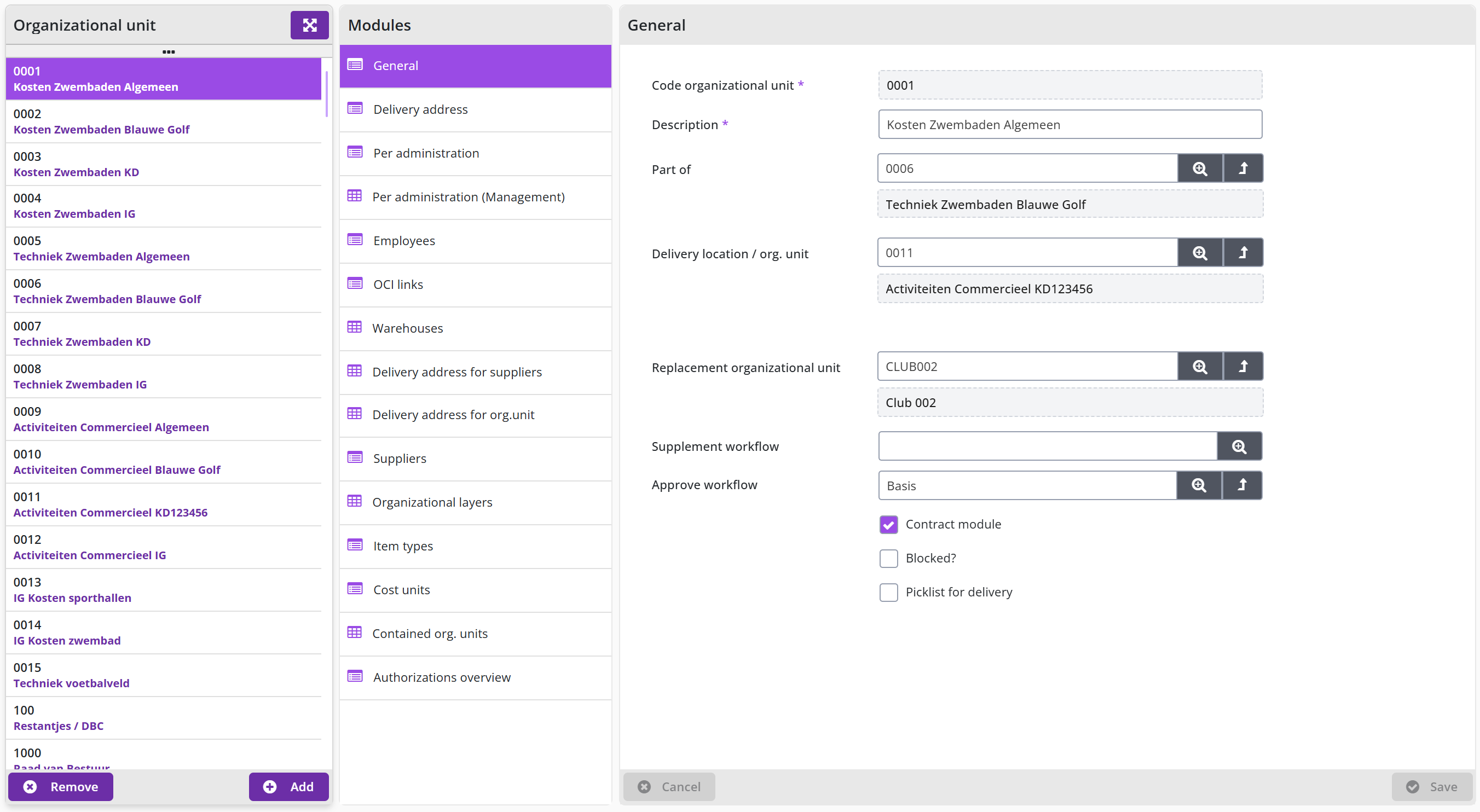
The screen is structured according to the standard as described for the General screen layout under Use of the other screens.
General data module of an organizational unit
In the data module General the organizational unit is defined, whereby the hierarchy and (temporary) reorganization can be specified with the fields Part of and Replacement organizational unit. The other way around, the data module Contained org. Units lists the organizational units that are part of this organizational unit.
In the field Delivery location/organizational unit the default delivery location can be specified, by referring to another organizational unit that contains the delivery location. If this field is not provided, the address in the Delivery address data module is used. See also Delivery address data module of an organizational unit and the section Shopping cart under >> Requests, for the choice of delivery location when using Apply definitive (where this delivery location is selected as default).
Using the fields Supplement workflow and Approve workflow you can specify a different workflow that will be applied to the requisition lines for this organizational unit. Also see P2P-Workflow Supplement, under Workflow.
Note: The changes made to the supplement or approve workflow will only be applied for new requisitions. Requests that are already in a supplement workflow will continue to follow that workflow.
With the checkbox Contract module you can indicate whether this organizational unit may also be used in the Shopper contract module. In other words, whether contracts with suppliers apply to these organizational units. With the checkbox Direct order you can indicate whether or not direct orders are allowed within this organizational unit. If the checkbox Blocked is checked, then no requisitions can be made for it.
Note: it may be that more or fewer fields are shown. This depends on the composition of the license purchased for Shopper. These data modules are described in the related part (such as the checkbox Picklist for delivery that is described under Warehouses).
Delivery address data module of an organizational unit
The delivery address and the receiver of orders for an organizational unit are recorded in the Delivery address data module of the Organizational unit screen.
The contact details for this organizational unit are registered in the Delivery address data module. This data is used, among other things, for the order form that is sent to a supplier. If organizational units are located at the same address, you can refer an organizational unit to another organizational unit under Source address. This way you can avoid having to enter (or change) the address multiple times. In the receiver field you can then distinguish where the delivery should come from internally. If a different address does apply, you can check this and enter this address. The same applies to the telephone/fax number. If no address is specified for the organizational unit (at the highest level), the delivery address will be used as registered with the administration.
Note: Each organizational unit with its own address can be selected as a delivery address when definitely confirming the requisition (even if the address is the coming from the same source). To prevent this: mark the checkbox Deviating address? and erase all the address related fields below it. You then need – on the level of the organizational unit – to use the field “Delivery location/organizational unit“ to specify the organizational unit that has the correct delivery address, otherwise no delivery address will be assigned.
Note: For Apply definitive on a shopping cart, if a different delivery location can be specified, a list is displayed with all delivery addresses that have been specified at all organizational units of that administration.
For an order the value of the field Receiver is used as the name of the person that by default receives the deliveries for this organizational unit. This name is also reported on the order form, under the field Attn.. The field Receiver is only entered if the requestor of the requisition is not the person to perform the receive handling of the placed order. If the field E-mail recipient is entered, this e-mail address with be used for all orders for this organizational unit, as the e-mail address of the receiver.
Organizational unit: administrations, permitted links and employees
Besides the data modules General and Delivery address, the Organizational unit screen has data modules for the link per administration, the permitted OCI links, cost units, suppliers and item types, the organization layers and the employees of the organizational unit.
The data modules Per administration and Per administration (management) are used to set up the link with cost center and, if applicable, costing unit per administration. See Management per administration for an explanation of the use of these data modules.
The permitted OCI links, Cost units, Suppliers and Item types for an organizational unit are managed in the corresponding data modules. There is also the option to set the All … checkbox or when not set, to mark the them per individual item. As in the example below with suppliers:
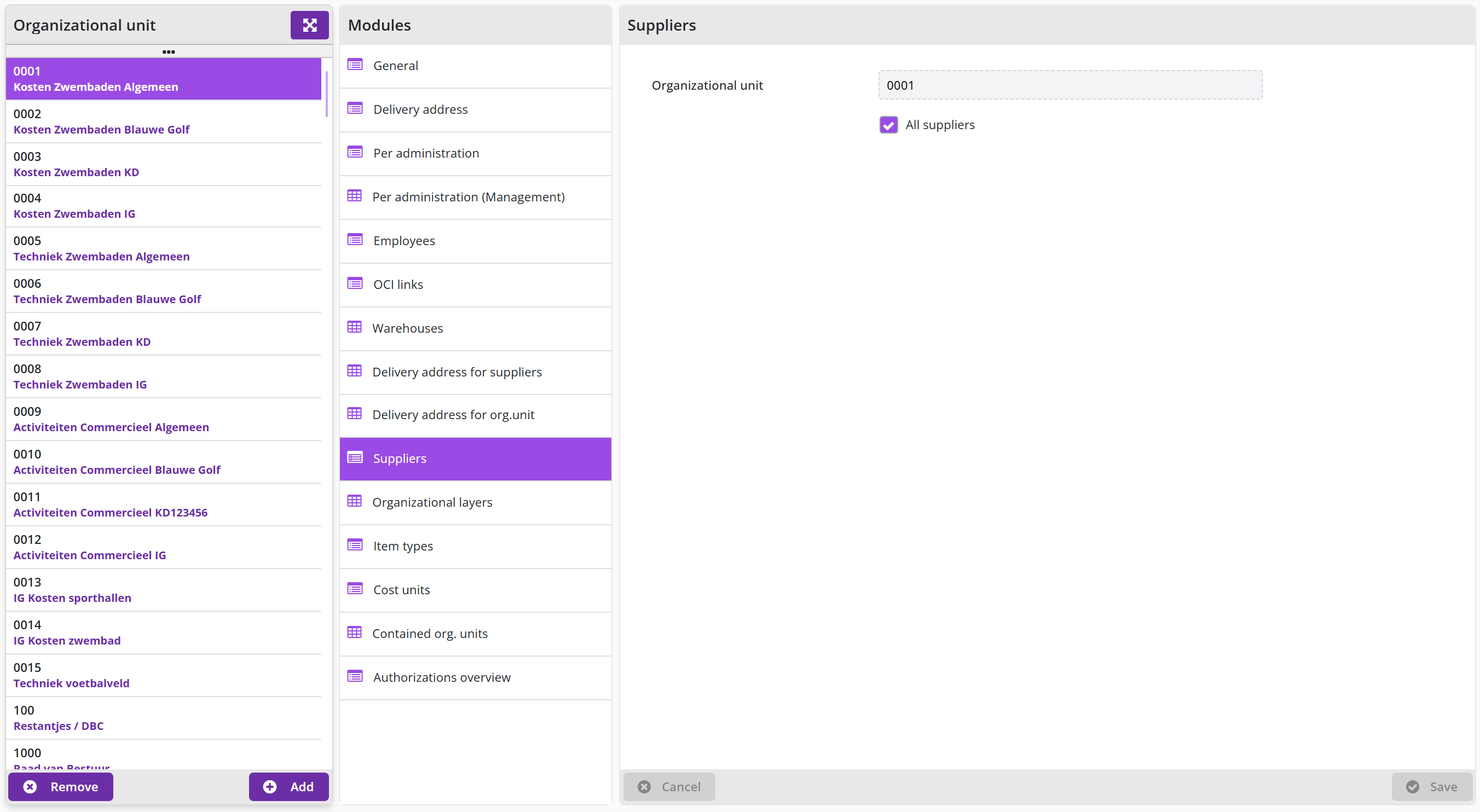
You can browse to reach the other items in the list or use the “Select all“ or buttons to select or deselect the checkboxes for all items.
In the data module Organizational layers the organizational layers are listed that include this organizational unit. You can also add or remove a link to an organizational layer. For more details see Organization layers.
The data module Employees provides you with a spreadsheet overview of the employees that are placed in this organizational unit, with the option to select or deselect the employee checkboxes. Additionally, the report Overview employee per org. unit (Menu Organization/Reports).
Note: In Shopper 10 the Organizational unit screen also shows the data modules Warehouses, Delivery address for suppliers, Delivery address for org.unit and Authorizations overview.
Organization layers
In Shopper you can define the organization layers that exist in your organization. For example, if for ICT or Housing different roles and authorization schemes apply.
The Organizational units data module is used to link the organizational units to the organization layer. Organization layers can overlap. Thus, the same organizational unit can be linked to different organization layers.
The Echelons data module is used to link the echelons for this organization layer. I.e., assign with roles and authorization scheme applies for this organization layer. The echelon itself can only be connected to one organization layer.
Note: To work with multiple echelons that are applied differently for the organization layer than for the global organization, the Shopper Enterprise edition needs to be purchased.
The Item types module can be used to restrict what item types can be used for requisitions made for the organizational units assigned to this organization layer.
Projects
The projects in Shopper are read from the financial administration of the financial system and an employee with the role Orchestrator, as part of the echelon P2P Setup, can setup the project and its workflow. However, this employee cannot add or remove projects.
The checkbox Investment in the Detail data module indicates if this project is an investment project. Orders for an investment project will use a different cost type, as is registered for the item type for investments cost type.
The checkbox Inactive can be used to make this project inactive. No requisitions / orders can be created for inactive projects.
The fields Total amount of orders and Total amount of contract offtakes in the data module Detail of the project lists the total amount of all (proforma) order lines of all orders and contracts for this project.
Using the fields Supplement workflow and Approve workflow you can specify a different workflow that will be applied to the requisition lines for this project. Also see P2P-Workflow Supplement, under Workflow.
Note: The changes made to the supplement or approve workflow will only be applied for new requisitions. Requests that are already in a supplement workflow will continue to follow that workflow.
The data modules Per administration and Per administration (management) are used to set up the link with the costing unit per administration. Also see Projects as part of the cost structure under Accounting.
The Requisition / order lines data module lists the requisition/order lines that have been created for this project, And the Contract agreements data module lists the contract arrangements for this project.
The Suppliers and Item types data modules can be used to restrict what suppliers and item types can be used for requisitions made for organizational units in combination with this project.
Echelons
An echelon is a collection of role assignments with financial and content-based authority, to which employees can be assigned, each within the scope of their responsibilities.
For the echelon it is specified for what part of the organization or project(s) it applies to, combining the role assignments and employee assignments can be used to set up the allocated positions within the organization.
Echelons exist in relation to application modules in Shopper. As such there are echelons for P2P and for contracts (Echelon P2P and Echelon Contracts), that are managed via the menu item Management under the Organization menu.
The screen is structured according to the standard as described for the General screen layout under Use of the other screens.
The field Module in the Detail data module specifies for what application module the echelon applies. The fields of the Detail data module cannot be changed, also not by the supervisor.
Note: If you are logged in as Shopconfig, you can modify the fields and checkboxes of the Detail data module of an echelon, however you cannot modify the role assignments or roles themselves. Also Shopconfig cannot add or remove echelons. This is only possible if the Shopper Enterprise license is used and then only by an employee of Archifact. Check with your commercial contact to discuss your options.
The description of the echelon is provided by Archifact and cannot be changed, however you can provide your Own description, so it can be recognized by your organization. Your description will then be shown when the echelon is to be selected for an organizational unit, employee or organization layer. If an echelon is part of an organization layer, it can be specified in the field Organization layer.
Restricting an echelon to organizational units and projects
The checkboxes General and All organizational units in the Detail data module of an echelon determine for which administrations, organizational units and projects the echelon applies.
The checkbox General is used to indicate that an echelon applies for all financial administrations and organizational units. In such cases there is no need to assign organizational units to the employees.
If the General checkbox is unchecked, the checkbox All organizational units becomes available. The echelon then only applies for the administrations for which employees are assigned to the echelon and then only for the selected organizational units. If the checkbox is unchecked followed by the button, a list of organizational units to be selected will be displayed at the bottom of the Details data module. There you can use the buttons and Select none to change all organizational units, and then check or uncheck individual organizational units.
Note: If you uncheck General and All organizational units and explicitly specify organizational units, then employees can only see requisitions/orders or contracts for one of those organizational units from the perspective of this echelon. Whereas contracts without organizational unit are then only visible to employees with contract echelons where the checkbox General or All organizational units is selected.
As such an echelon can also be set up for specific projects. In combination with a selection of organizational units it becomes possible to define a matrix organization, if so needed.
Restricting an echelon to item types and contract types
With the checkboxes All item types and All contract types in the Detail data module you can restrict an echelon to certain item types or contract types.
The Details data module can also contain checkboxes regarding Item types and or Contract types, that can be used to restrict the echelon to certain or all item/contract types.
If the checkbox All contract types or All item types is unchecked followed by the button , a data module Contract types or Item types will be added.
In this data module, the item-/contract types can be marked to indicate which ones apply for this echelon.
Note: Within a item-/contract type, no distinction can be made in relation to the role authorizations that follow the echelon. If that is necessary, you need the Shopper Enterprise license to divide the item-/contract types over multiple echelons to make the distinction in the role authorizations.
Additional checkboxes can be present depending on the module the echelon is for. See P2P echelons and Contract echelons.
Employee assignment
The Employee allocation data module is used to list the employees assigned to this echelon and to add or remove employees. After choosing an employee, the Detail data module for this employee is displayed. The employ-assignments can be managed by an employee with the role Orchestrator.
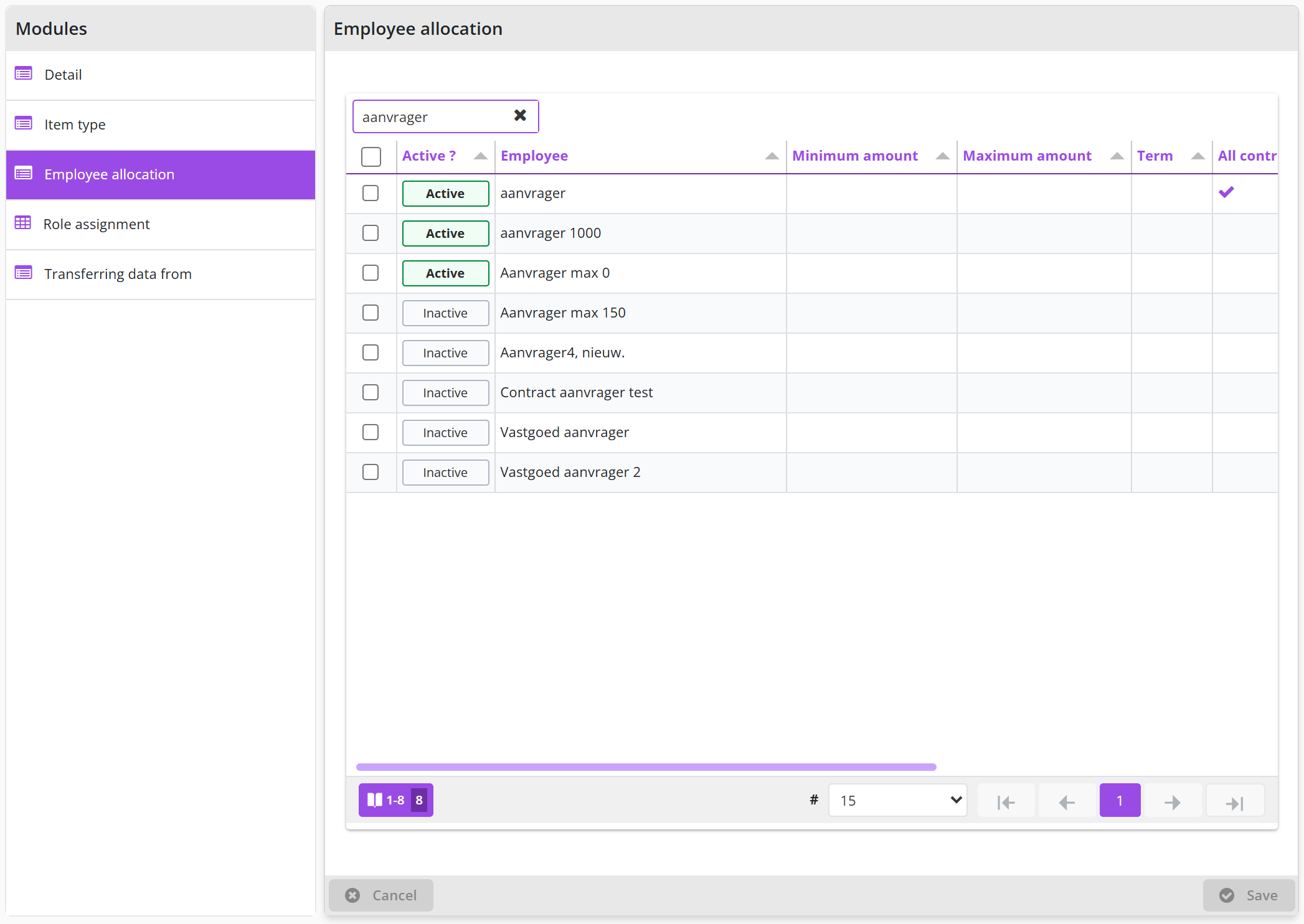
With the buttons and employees can be added or removed. The employee is selected in the field Employee and in the fields Starting date and End date can optionally be indicated from or until which date or within which period this assignment is valid. In this way, employee changes can also be planned, ahead of time.
Note: An employee with the role Orchestrator can never add themselves using the employee assignment. A co-worker with the role Orchestrator will have to take care of this.
With the employee assignment, the employee’s authority can be restricted (further) for the organizational units, project, budget types, item types and contract types of the echelon.
The checkbox Organizational units of echelon and employee can be used to indicate that the assignment of organizational units for an employee will be derived from intersection of the selections at the level of the echelon and the employee. These are then displayed using checkmarks in the column Active in a spreadsheet view at the bottom, where the selection cannot be changed.
Note: the organizational units to be selected for the employee assignment of an echelon are subordinate to the organizational units that are linked to the employee.
If the All contract types, All item types, All budget types of All projects checkbox is unchecked, a corresponding data module will be added for this employee, where you can specify which ones (contract type, item types, etc.) within this echelon apply to this employee.
As such, within the same echelon you can assign different organizational units, projects, budget types, contract types and item types, to employees with the same role authorizations.
No authorized employee available in an echelon
If no employee with the access rights a requisition requires is assigned to an echelon, that requisition cannot be followed up in the process flow; Shopper then creates the Other ToDo Requisition (cannot be approved).
Note: if there is an insufficient number of employees available for the certain echelon (that have the required authority for organizational units, projects, budget types, contract types and item types) it can happen that there is no employee available in relation to the role authorization of the echelon (Supplement, approve, order, etc.) that is required to follow up a task in the process flow ToDo.
If such a situation occurs - where a requisition cannot be processed - an Other ToDo Requisition (cannot be approved) is assigned to an employee with the role Orchestrator, as part of the echelon P2P Setup. This employee will then be listed as the employee for the Follow-up by data module of the requisition. Also see follow-up action, under From request to receipt and the Other ToDo Requisition (cannot be approved), under Signing authority / Power of attorney.
You must then assign an employee – with the required authority – to the designated echelon to resolve the situation. You – as an administrator - can analyze it using the Status and Approval data module of the designated requisition/order line. Also see Orders under Overviews & reports.
Transferring data from another echelon
With the Transferring data from data module, the role assignments and employee assignments including the authorizations for organizational units, projects, budget types, item types and contract types can be transferred from another echelon.
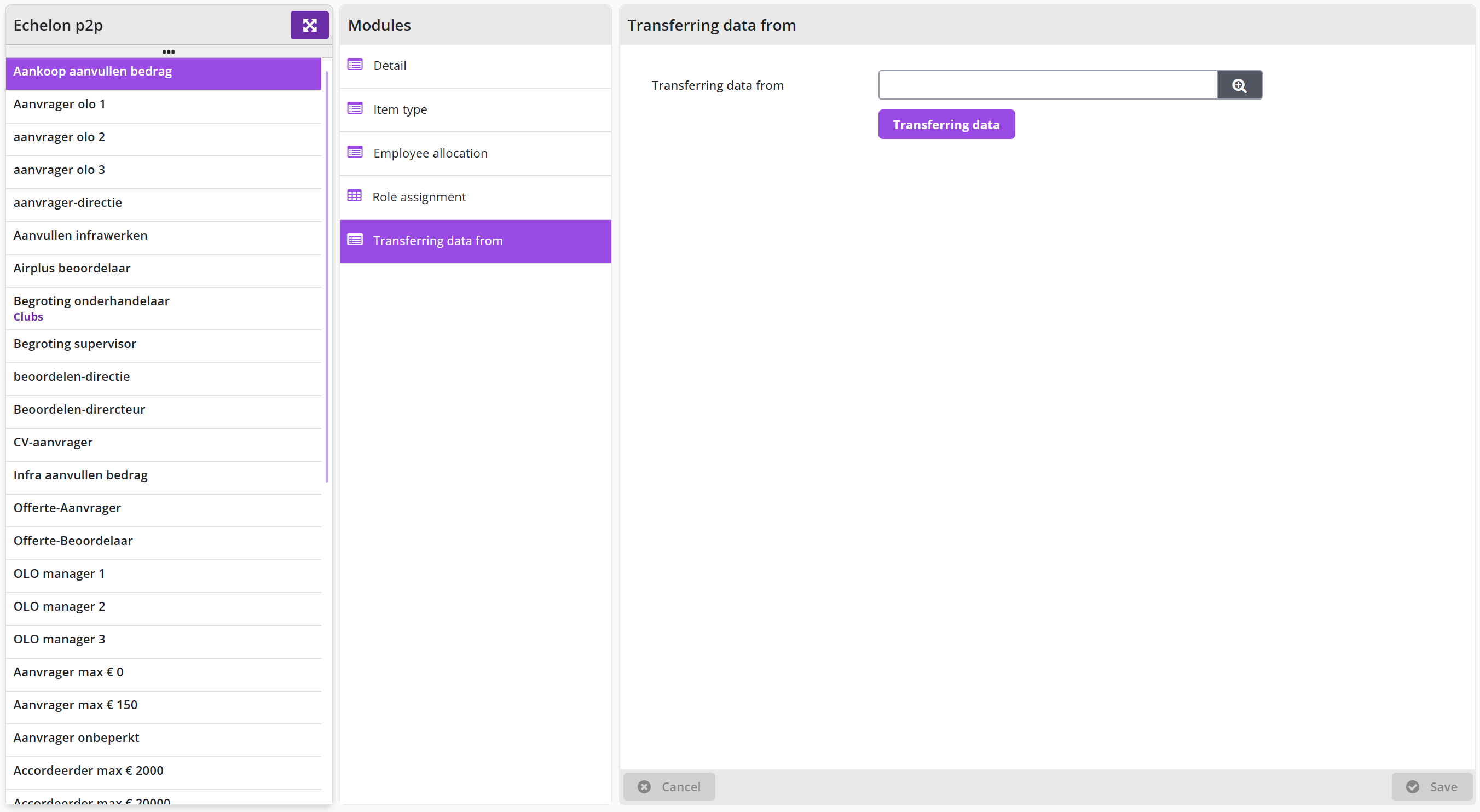
Select another echelon under Transferring data from, save this and use the button to carry out the transfer.
Role assignment of an echelon
The Role-Assignment data module will show you what roles have been assigned to this echelon. After selecting a role-assignment you can see the linked expertise type and or limit type, including the number of approvals required to perform the task for this role and expertise type. Optionally a start-/end date can be provided with the role assignment if applicable. This way a reorganization can be planned, ahead of time.
Note: The Role-Assignment data module is only visible for a supervisor and can only be changed by an employee of Archifact.
P2P organization
The required P2P organization is set up in Shopper based on roles / hats, whereby a role / hat has a direct relationship to a task within a process step in the P2P process flow. This chapter describes that setup. P2P role authorization lists, per P2P role (Regulator, Governor, Administrator, Orchestrator, Requester, Supplementer, Approver, Purchaser, Receiver, Controller, Operator and Viewer), which ToDos and actions that role may perform. P2P echelons describes how roles are assigned to employees through P2P echelons and the checkboxes Budget control and Non-public requisitions possible; Best-practice P2P echelons shows the echelons Shopper provides as standard (Employee, Manager, Board, Procurement, Domain Expert, Financial administration, Setup, Extra approval, Budget owner and Budget delegate) and the ordering and approval limits. P2P access rights explains how the content-based and financial access rights of an employee limit the list of requisitions/orders and the ToDos that can be performed.

P2P role authorization
Below is an overview of the P2P roles with the mention of the most important ToDos that can be performed by a role (i.e. the role authorization):
- RegulatorOther ToDo’s: rejections, too late and order not sent.
- GovernorAccess to process flow management, dashboards and reports
- AdministratorSet up procurement and monitor requisitions and orders
- OrchestratorSet up P2P organization
- RequesterOrder requisition
- SupplementerSupplement requisitions with item-, price- and booking details
- ApproverApprove or reject requisitions
- PurchaserMerge requisitions and Place orders
- Receiver Register receipts
- ControllerHandling/monitoring of invoices to be received for orders
- OperatorHandling/monitoring of invoices to be paid for order
- Viewer View orders (i.e., read-only)
- Protecting requisitions/orders in relation to role authorization
When performing tasks for ToDos or using screens accessed via menu item, the list of requisitions/orders will only contain requisitions/orders for which you have the required role authorization via the P2P echelon. Additionally certain buttons or fields may not be usable or are invisible if the required role authorization is missing. The list of requisitions/orders is also limited in relation to the organizational units, project and other the (content-based) access rights of the employee, see P2P access rights.
P2P echelons
Role authorization is assigned through P2P echelons, where roles are assigned to P2P echelon and employees are assigned an echelon (or the employee is assigned to a P2P echelon).
P2P-echelons are administered by employees with the role Orchestrator. A description of the general fields and data modules is provided under Echelons. Additionally, the Detail data module of a P2P echelon contains two more checkboxes.
The checkbox Budget control indicates that this echelon is used for budget control. Consequently, budget types can be assigned to employees of this echelon.
The checkbox Non-public requisitions possible enables employees of this echelon to indicate that their requisitions are not public. This will allow for hiding confidential requisitions from the rest of the organization. Also see the use of the checkbox Requisition not public, under Request.
Best-practice P2P echelons
Shopper provides a set of best-practice P2P echelons for several ranks within the organization, such as: Employee, Manager, Board, Procurement, Domain Expert and Financial administration. The overview below shows the role assignments for the best-practice P2P echelons.
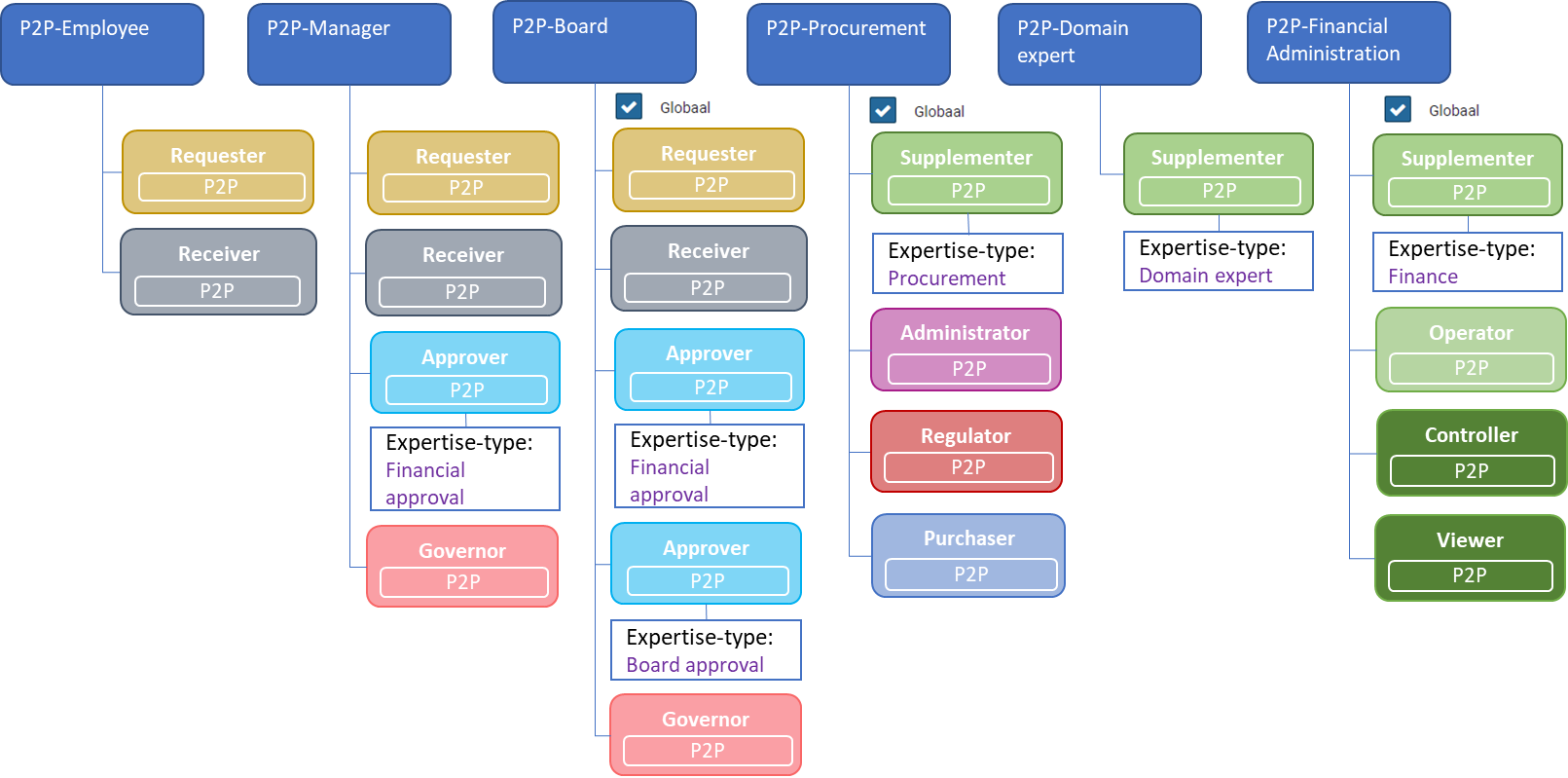
Depending on the power of attorney scheme within your organization, the implementation of Shopper can be configured in line with your organization, where variations on the above are reflected in the naming of the echelon. For recognition you can provide your own description for these echelons, allowing you to adopt the naming conventions of your power of attorney scheme.
The limit type for the role assignment Requester represents the ordering limit. I.e., the limit for the total amount of a requisition for which no financial approval is required.
The limit type for the role assignment Approver represents the signing authority. I.e., the limit range for the total amount that can be approved.
Additionally, best-practice P2P-echelons exist for performing the setup, provide an extra approval, budget owner and budget delegate.
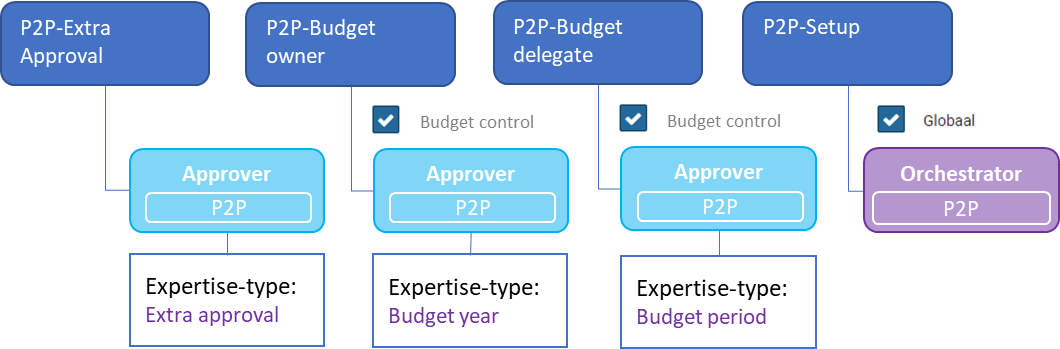
The matrix below globally reflects the authorization for tasks & ToDo’s per P2P-echelon, that follow from the combination of the role-assignments for the designated echelons:
Employees with the echelon P2P Setup have access to the Organization menu, to orchestrate the setup for employees, organizational units, organizational layers, projects and P2P-echelons.
P2P access rights
When assigning an employee to a P2P echelon, the (content-based) and financial authorizations for these employees are specified. These access rights manifest themselves in different ways within the use of the Shopper application. Such as protecting access to the requisitions/orders for certain projects, item types and budget types. As a result, only certain objects can be modified or removed by an employee based on these access rights:
When performing a ToDo (after selecting it in the ToDo process flow) the above protections also apply, whereby the list of requisitions/orders is then further limited in relation to the chosen ToDo and the required role assignment:
So, after choosing the ToDo, there are only requisitions/orders in the list that have this ToDo outstanding and for which the employee has the required role authorization, expertise type and limit type to be able to perform this ToDo.
Contract organization
The required contract organization is set up in Shopper based on roles / hats, whereby a role / hat has a direct relationship to a task within a process step in the process flow of contracts. This chapter describes that setup. Contract role authorization lists, per contract role (Regulator, Governor, Administrator, Orchestrator, Requester, Approver, Purchaser, Receiver, Controller, Operator and Viewer), which ToDos that role may perform and how the list of contracts is protected accordingly. Contract echelons describes how roles are assigned to employees through contract echelons, the best-practice contract echelons (such as Owner, Administrator, Manager, Financial and Setup) and the data modules of a contract echelon. Contract access rights explains how the content-based access rights of an employee limit the list of contracts and the ToDos that can be performed.

Contract role authorization
Below is an overview of the contract roles with the mention of the most important ToDos that can be performed by a role (i.e. the role authorization):
- RegulatorOther ToDo’s: Contract signalling and renewal decision.
- GovernorAccess to process flow management and reports
- AdministratorContract recording and document administration
- OrchestratorSet up contract organization
- RequesterSubmit contracts for approval
- ApproverApprove or reject contracts (and add documents)
- PurchaserActivate contracts
- Receiver Agree to contract offtake
- ControllerHandling/monitoring of invoices to be received for contract offtake
- OperatorHandling/monitoring of invoices to be paid for contract offtake
- Viewer View contracts (i.e., read-only)
- Protecting contracts in relation to role authorization
When performing tasks for ToDos or using screens accessed via menu item, the list of contracts will only contain contracts for which you have the required role authorization via the contract echelon. Additionally certain buttons or fields may not be usable or are invisible if the required role authorization is missing.
The list of contracts is also limited in relation to the organizational units, project and other the (content-based) access rights of the employee, see Contract access rights.
Contract echelons
Role authorization is assigned through contract echelons, where roles are assigned to contract echelon and employees are assigned to a contract echelon (or the employee is assigned to a contract echelon).
Contract echelons are administered by employees with the role Contracts Orchestrator. A description of the general fields and data modules is provided under Echelons.
Shopper provides a set of best-practice contract echelons in relation to commonly used ranks for contract management. The overview below shows the role assignments for the best-practice contract echelons.
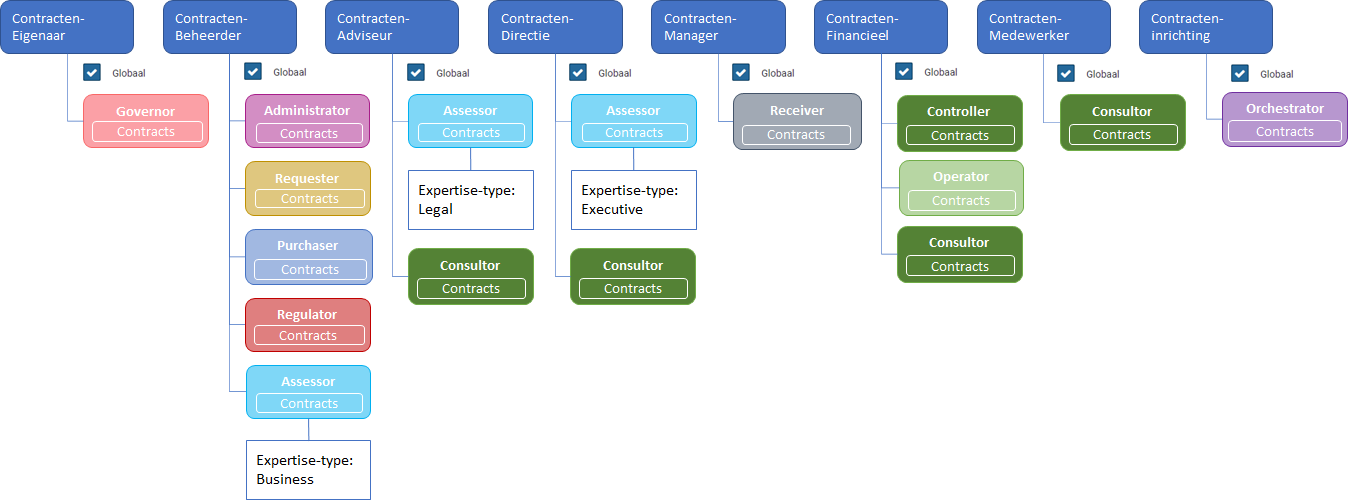
The Detail data module of a contract echelon also contains the checkboxes All contract types and All projects, and the data modules Contract types, Item type, Employee allocation, Role assignment, Projects and Transferring data from.
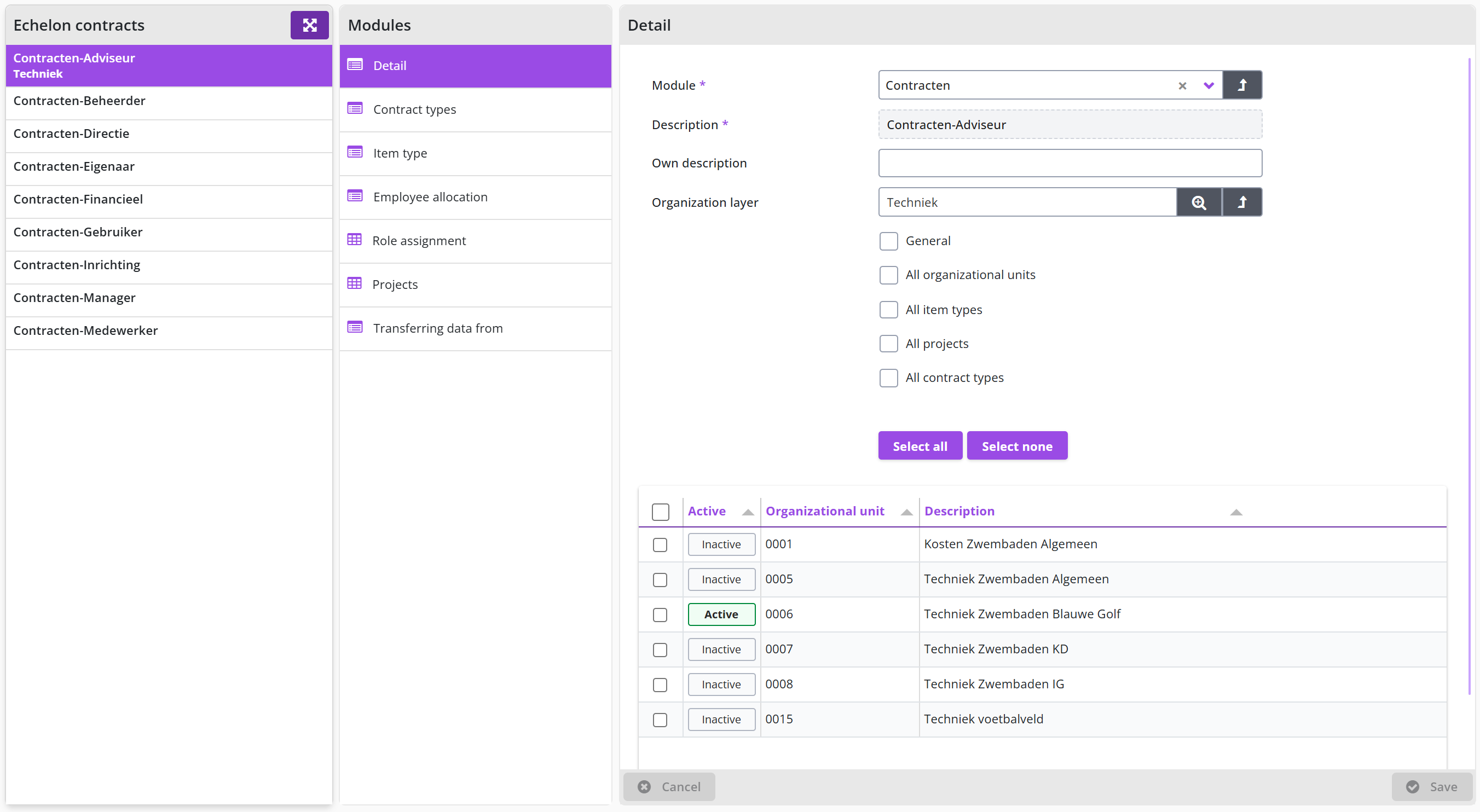
The matrix below globally reflects the authorization for tasks & ToDo’s per contract-echelon, that follows from the combination of the role-assignments for the designated echelons:
Employees with a view/consult authorization have only read-only access to contracts unless additional authorizations are assigned at the echelon.
If an employee need to be able to perform management for all contracts from a contract, this can be achieved by assigning this employee to the contract echelons Owner, “Administrator, Manager, Financial, and possibly also to the contract echelon Setup.
Employees with the contract setup echelon can set up contract types, contract workflow, contract echelons and purchase conditions in the contract setup menu. Within this echelon, too, the employee’s authority can be limited by organizational unit, contract type and item type. So, they can only add or adjust employees to echelons in relation to the contract types, item types and organizational units for which they are authorized themselves. In this way, different levels/ranks can be created for setting up.
Contract access rights
When assigning a contract echelon to the employee, the (content-based) authorizations for these employees are specified. These access rights manifest themselves in different ways within the use of the Shopper application. Such as protecting the contracts that can be approached, and only changing those parts for which the employee has access rights:
When performing a ToDo (after selecting it in the ToDo process flow), the above powers also apply, whereby the list of contracts is then further limited in relation to the chosen ToDo and the required role assignment:
So, after choosing the ToDo, there are only contracts in the list that have this ToDo outstanding and for which the employee has the required role authorization, expertise type and limit type to be able to perform this ToDo.
If you do not approach the contract via the ToDo, but via the Contracts menu option (and thus all authorized contracts are in the list), the related functionality (buttons, etc.) can only be used for the relevant contracts – which have an outstanding ToDo. The other contracts can only be viewed.
Employees and access rights
This chapter explains how you enter and manage employees (users) in Shopper and which access rights they receive. Employees covers the Employee screen: description, username, e-mail, language and the initial password. License usage shows the license modules and user licenses an employee uses and the buttons and License overview. General attributes of an employee describes checkboxes such as Direct order, Task list by e-mail, Show web alerts and Multi-Factor Authentication; Deactivating an employee and appointing a successor describes the Successor field, the Inactive from date and the Inactive checkbox.
Assigning administrations, organizational units and echelons describes how an employee's access rights follow from these assignments and from delegation during absence; Authorization overview of an employee shows the data module that summarizes these access rights. Copying access rights to another employee describes the Take over rights from data module, Assign/transfer requisition lines the transfer of shopping carts and requisition lines to another employee, and User history the supervisor's report on who has used Shopper recently and how often.
Employees
The employees in your organization who work with procurement tasks in Shopper are entered by an employee with the role Orchestrator or Contracts Orchestrator, as part of the echelon P2P Setup or Contracts Setup, via the menu Organization menu item Management – Employee.
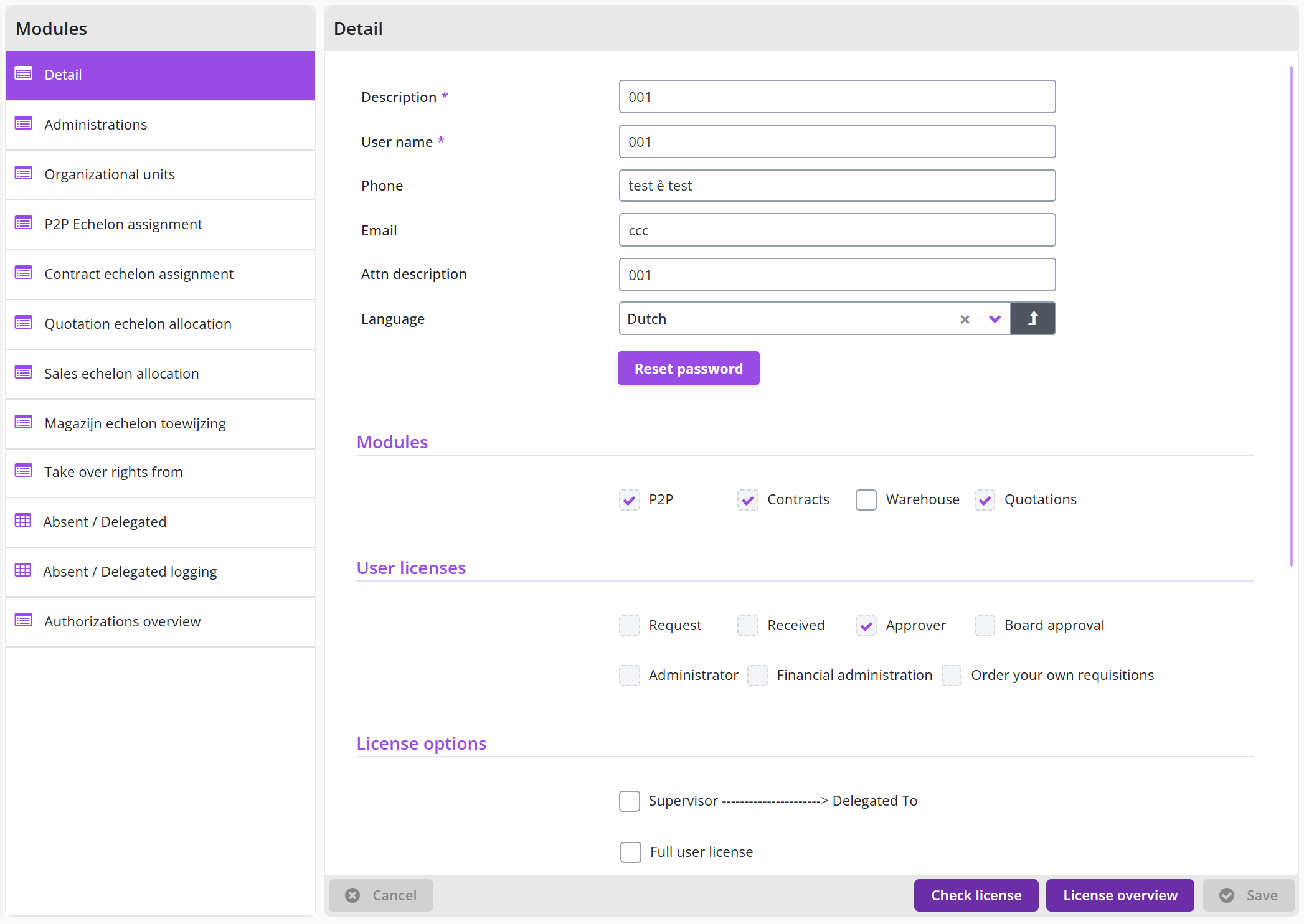
The screen is structured according to the standard as described for the General screen layout under Use of the other screens.
The employee is recorded with a description and a username. The username is used for login. If Windows authentication is used, the username needs to correspond with the username in Windows, including the windows-domain, for example Domain\Username.
A phone number an e-mail can be assigned to the employee using the Phone and E-mail field. The email address is used for the e-mail notifications and e-mail cc messages and is also listed for the employee in the Follow-up by data module. The Attn. Description you can specify the ascription of the employee that will be used for correspondence.
You can also specify the language for the employee. The employees can change this later themselves using the user settings. Also see User settings.
When creating a user, the initial password is the same as the username. After the first login, the employee is forced to change the password. If the employee has forgotten the password, the password can be reset to the initial password using the button in the Detail data module.
Note: this does not apply if you use Windows authentication for logging into the Shopper application.
License usage
An overview is presented of license modules and user licenses that are allocated for this employee. In the Modules section you can see the use of the P2P, Contracts and Quotations modules that are derived from the role assignments of the echelons of the user for P2P, Contracts or Tenders. For the license module Warehouse you can use the checkboxes to indicate if the employee can make use of these modules. For the User licenses section the checkboxes are derived from the corresponding role assignments in the P2P echelons of this employee.
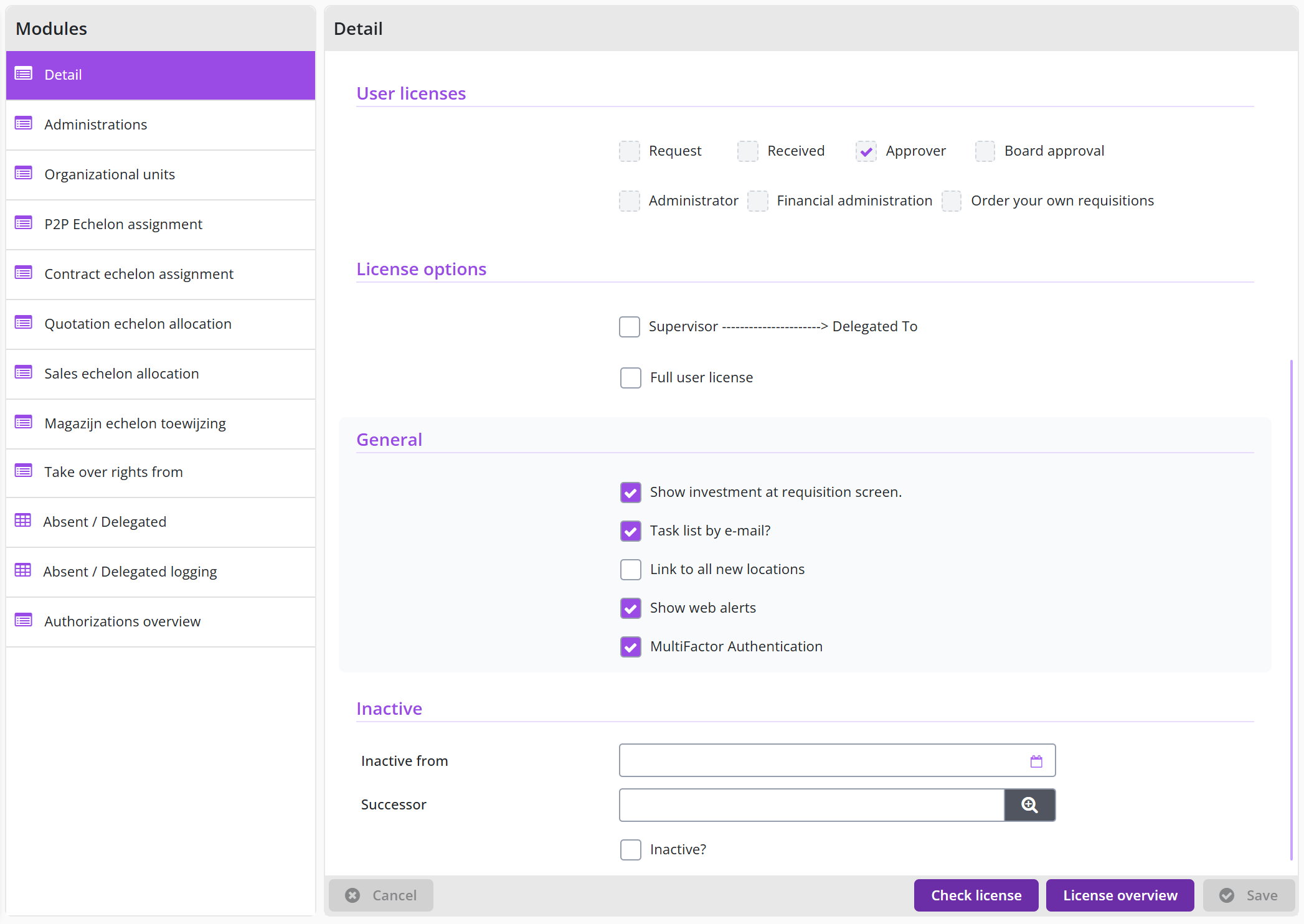
For the License options section you can use the checkboxes to indicate if this employee is a supervisor or if – for the user licenses – a Full user license should be assumed. For the checkbox Supervisor it is also indicated if this has been delegated to another employee.
The assigned roles that follow from the marked checkboxes of the employee are counted in relation to the Shopper user licenses that have been purchased for your company/organization. If the Full user license has been selected for an employee, the roles are not counted as individual user licenses, but instead all roles can be assigned freely to the employee. The number of employees with the Full-user license is limited to the number of purchased full-user licenses.
You can use the button to show the information on the allocated user licenses in comparison to the purchased licenses. Additionally, the “License overview" button can be used to generate a report with all data on the employee license allocation.
These buttons can be found in the button bar at the bottom of the employee screen.
General attributes of an employee
For the employee several general indicators can bet set:
The Send requisition as separate order checkbox is used to indicate that the employee can indicate to send this order as a separate order (when confirming the requisition). The Direct order checkbox indicates that this employee may submit requisitions as a direct order. The checkbox Show investment at requisition screen makes it possible for the user to indicate with the requisition that it should be booked as an investment.
Note: the checkboxes Direct order and Show investment at requisition screen are only available if the corresponding indicator under System parameters is checked.
To inform the employee about the (follow-up) actions that can be done in Shopper – for the assigned Tasks - the checkbox Task list by e-mail can be marked. All process flow ToDo and other ToDos that can be followed by the employee at that time, are then regularly sent by e-mail.
Note: the checkbox Task list by e-mail is only available if you have purchased the data module ToDo email notification.
If you want to automatically link this employee to new organizational units when they are created, mark the checkbox Link to all new locations. The checkbox Show web alerts indicates that the employee will be shown a (web) alert when placing specific items in the shopping cart, that on the level of the supplier or item have been set up with a web alert.
Mark the checkbox Multi-Factor Authentication if this employee is required to use Multi-Factor Authentication (MFA) to login. See Multi-Factor Authentication (MFA) under Logging in to Shopper.
Deactivating an employee and appointing a successor
For an employee, the Successor field, the Inactive from date and the Inactive checkbox determine what happens when the employee leaves or may (temporarily) not log in.
When an employee is discharged a successor can be appointed. The pending shopping carts of the existing employee will then be transferred to the successor. The existing employee wil be deactivated on the date specified in the Inactive from field. If no successor is applicable, this field can be left empty and then only the existing employee will deactivated on this date. The checkbox for Inactive will then automatically be set.
Note: If you want to transfer shopping baskets/requisition lines to another employee without deactivation of the current employee, please read Assign/transfer requisition lines.
The checkbox Inactive can also be used to (temporarily) deactivate an employee. If this checkbox is marked the employee cannot login. This checkbox is also automatically marked if the maximum number of login attempts have been exceeded. When you unmark this checkbox, the employee will be activated again and can once again login.
Note: When the checkbox Inactive is marked or if it is marked when the Inactive from date has been reached. All assigned organizations units are removed from this employee. If the checkbox is again unmarked, it is required to manually add these assignments again to the employee.
Because of the removed organizational unit assignments, the user licenses of an inactive employee are not counted as part of the license check
Assigning administrations, organizational units and echelons
The (content-based) authorizations of the employee follow from the assignment of administrations, Organizational units and Echelons that are assigned to an employee in the corresponding data modules. There is a choice to use Select all and Delete all. As in the example below in organizational units:
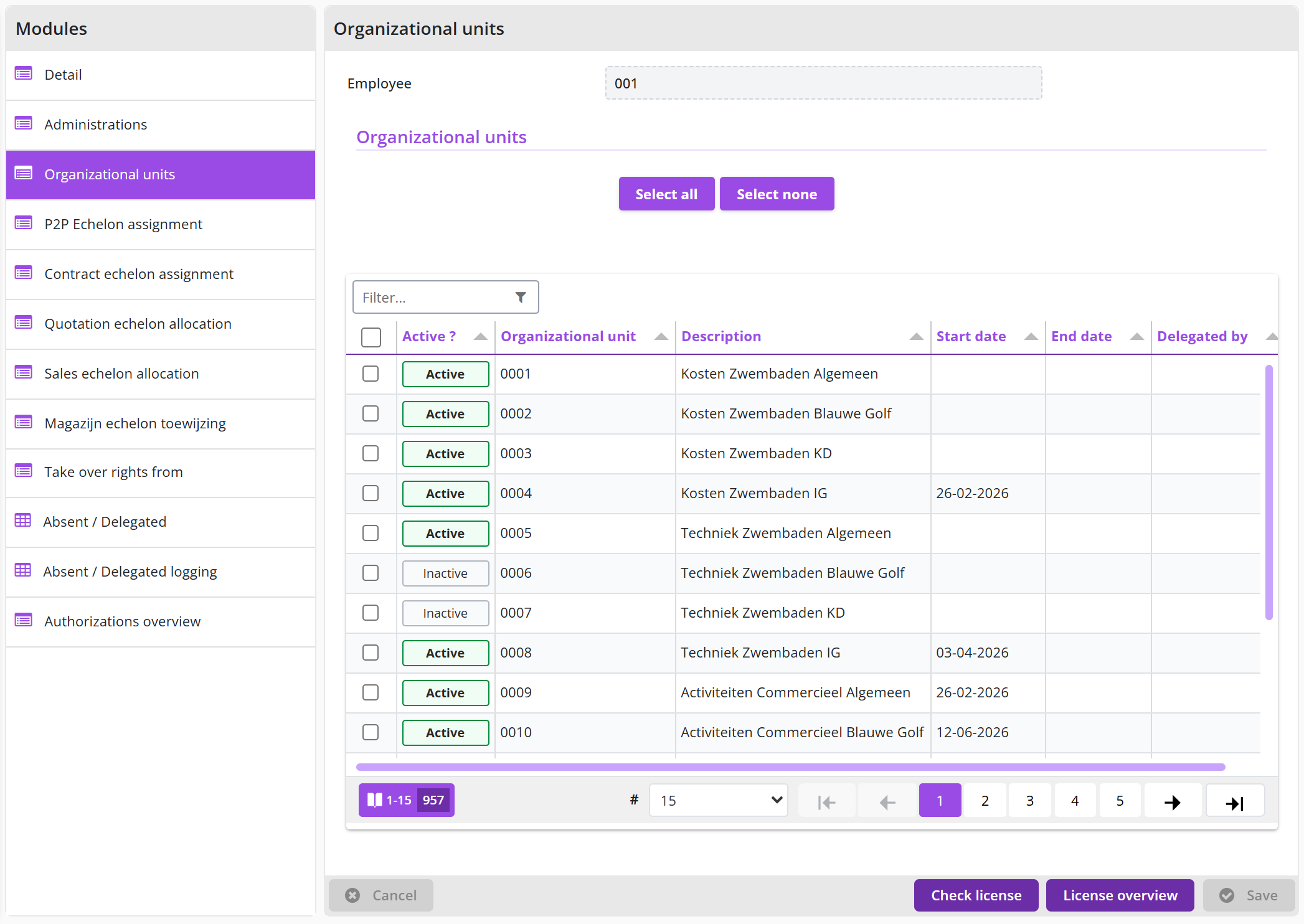
The access rights for Organizational Units and Echelons can also be obtained from delegating the tasks of another employee, such as during absence or delegating the supervisor function. This is visible in the column Delegated by.
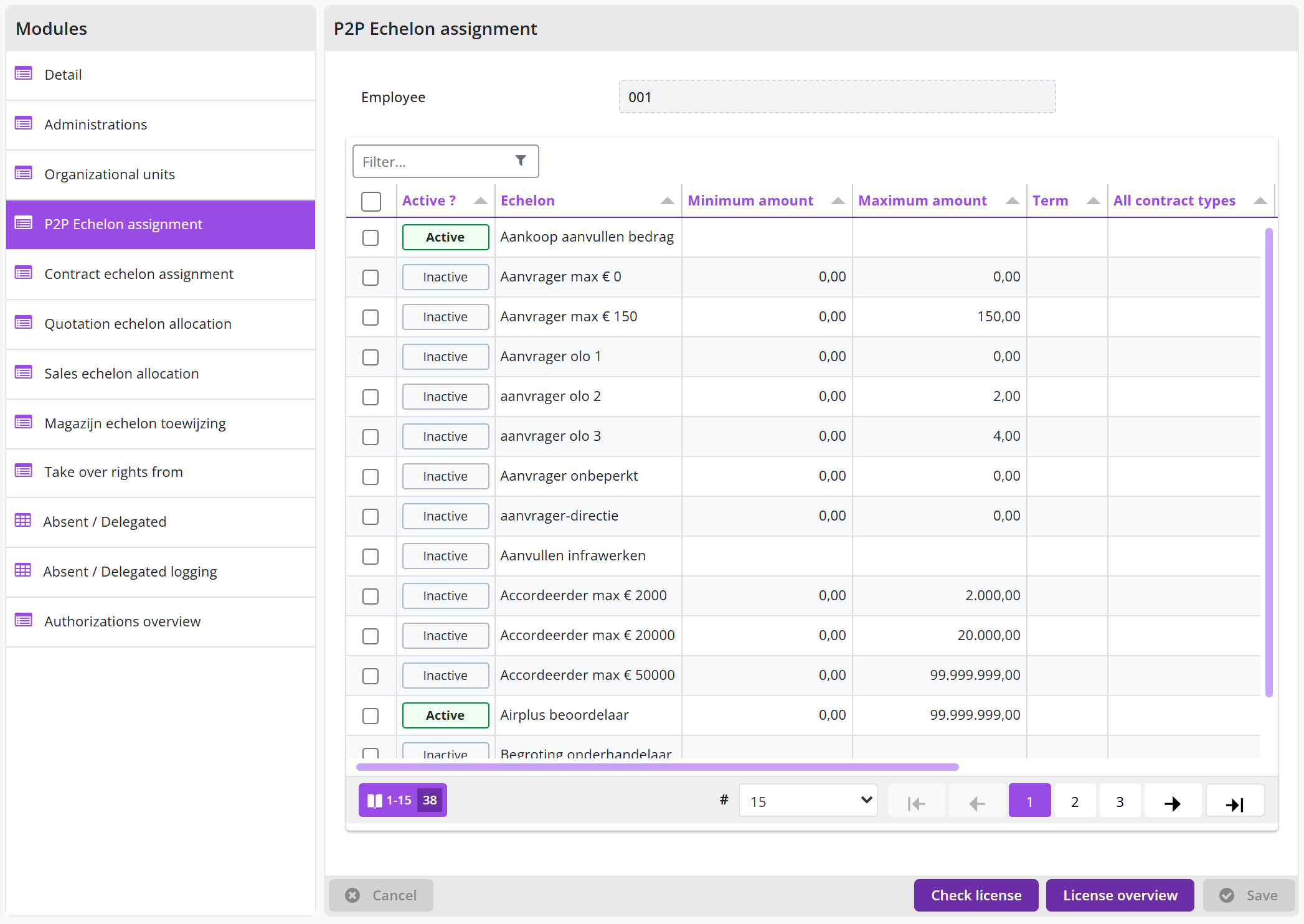
The echelon screen also shows if the are general (All) authorities that result from this echelon, such as for item types, budget types and contract types.
Note: An employee with the role Orchestrator can never assign echelons to themselves using the employee echelon assignment. A co-worker with the role Orchestrator will have to take care of this.
The same applies to the data modules Contract echelon assignment, Quotation echelon allocation, Sales echelon allocation and Warehouse echelon assignment.
In the data module Absent / Delegated you can manage the planned absence of the employee. The data module shows a list of already planned absences. This list also contains the absence created by the user himself via the user settings. Multiple absences can be scheduled. The buttons and can be used to administer the absences.
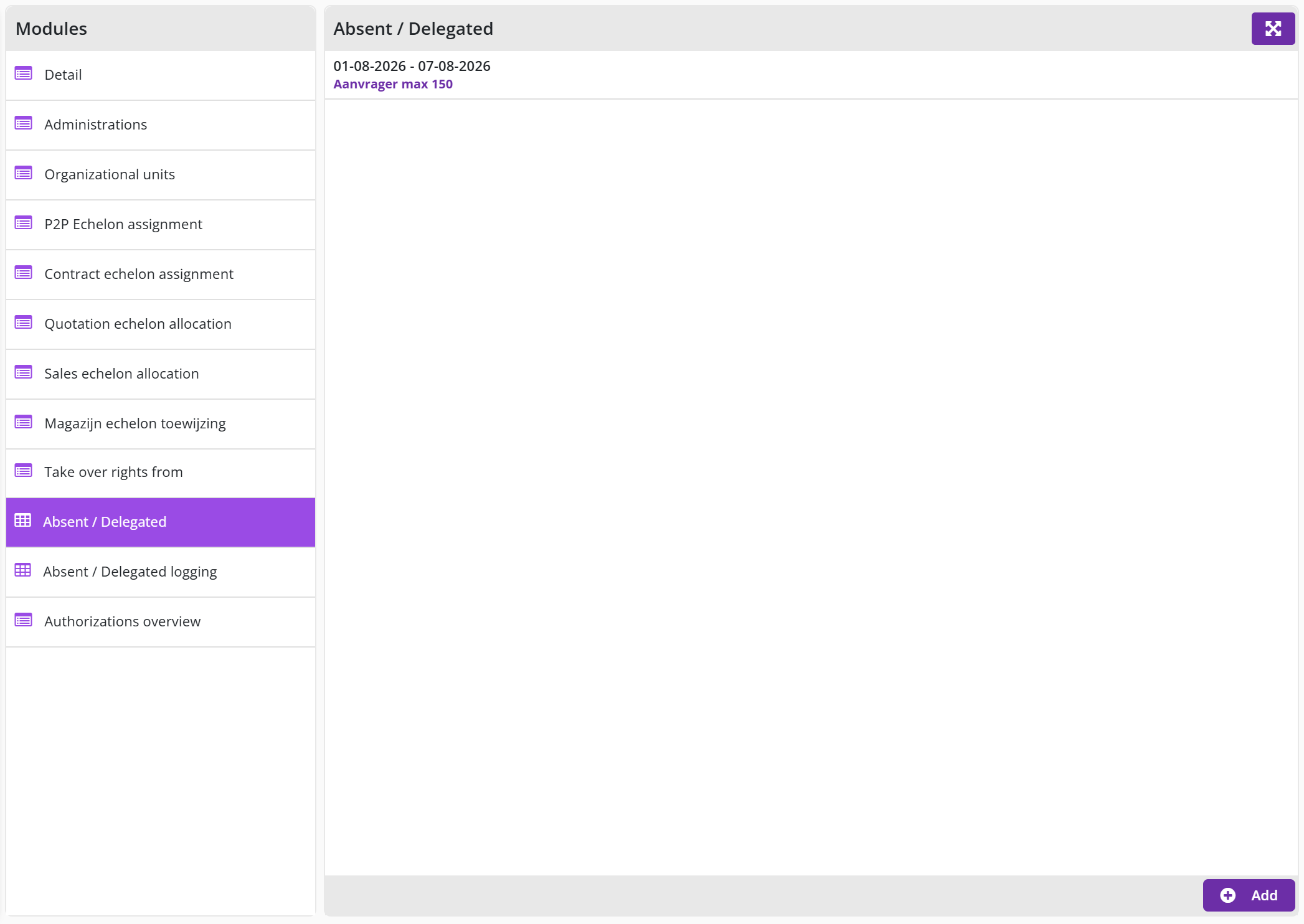
In the event of absence, it can be indicated which employee will be delegated the tasks and access rights of this employee. For more details see Absence. The history of the management of the employee’s absence is listed in the data module Absence / Delegated logging.
Authorization overview of an employee
The Authorizations overview data module shows a global overview of the authorizations of this employee within the process flow ToDo. This is derived from the echelon assignments for this employee.
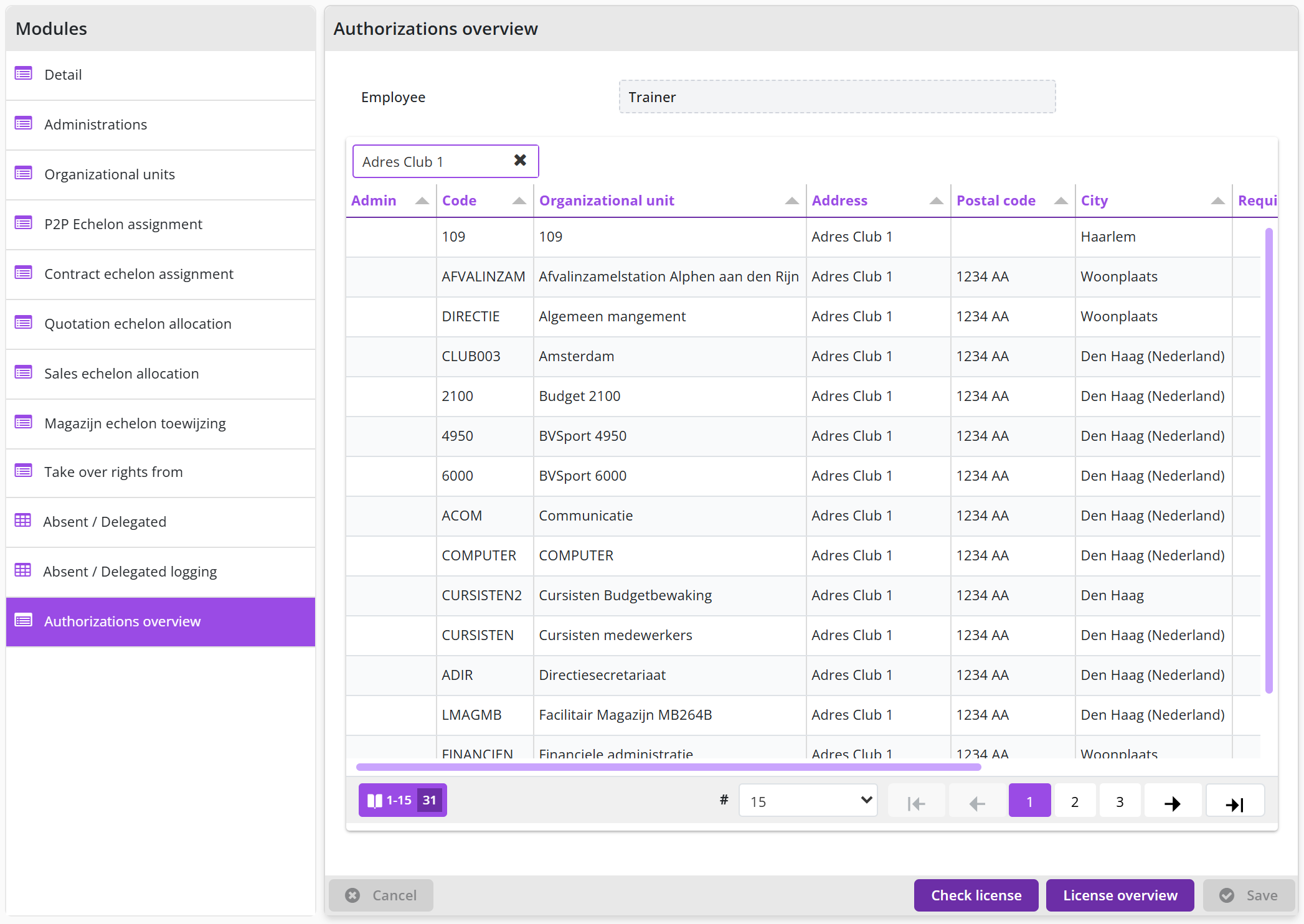
Copying access rights to another employee
When creating a comparable employee in your organization, you can also choose to take over the authorizations of another user via the data module Take over rights from you indicate from which employee this should be taken over. Optionally, you can indicate that this employee will be made inactive after taking over the rights, so that you can first implement any deviations in the authorizations.
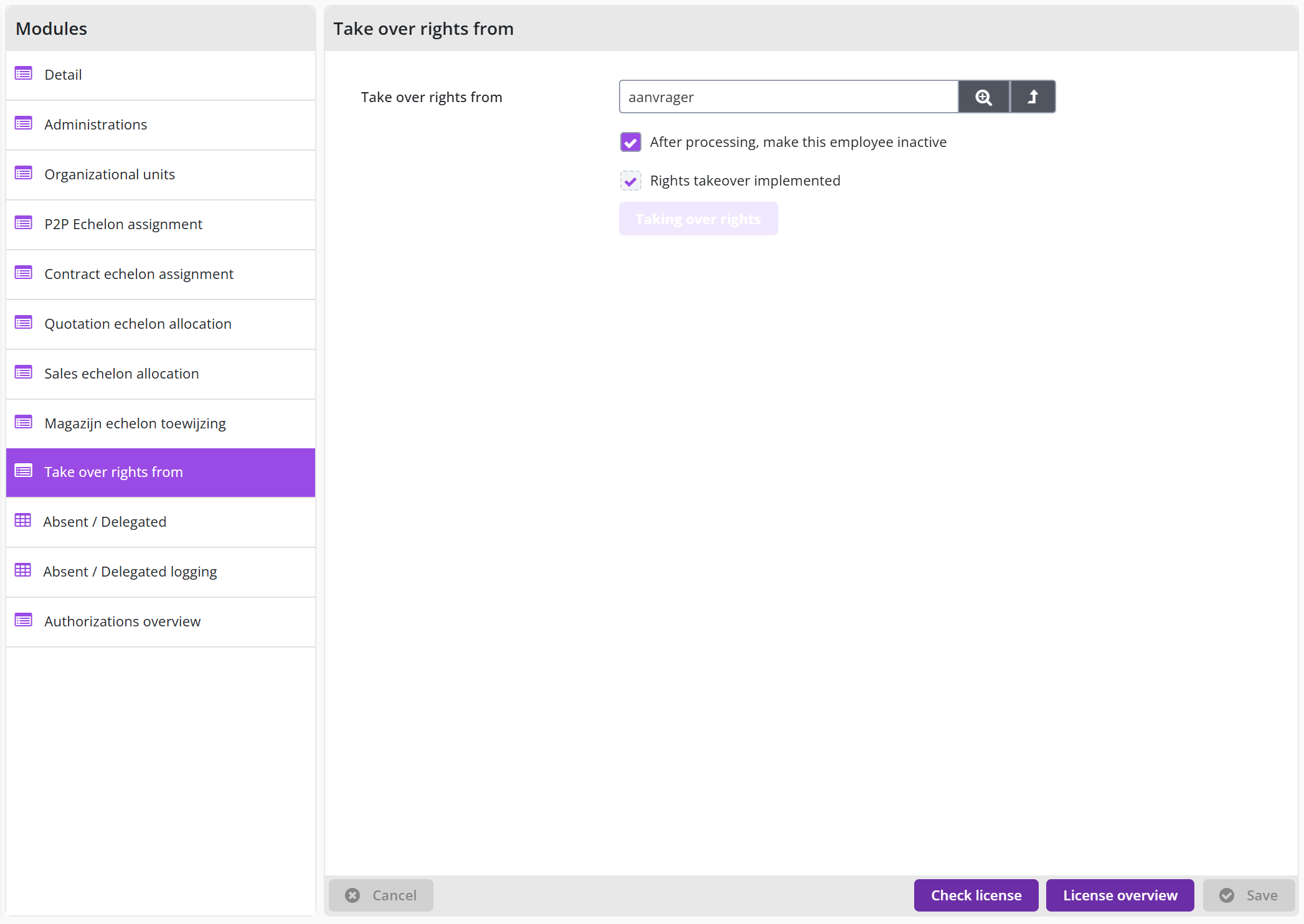
When you are done with that, you can then make the employee active by unchecking the Inactive checkbox in the Detail data module. After using the button, you can use the button to actually take over the rights. You can then see that this has been carried out, because the checkbox has been checked at Rights takeover implemented.
Assign/transfer requisition lines
Using the menu-item Assign requisition lines for Orders in the menu Procurement, the ownership of shopping carts en related pending requisition lines can be transferred, by assigning them to another employee.
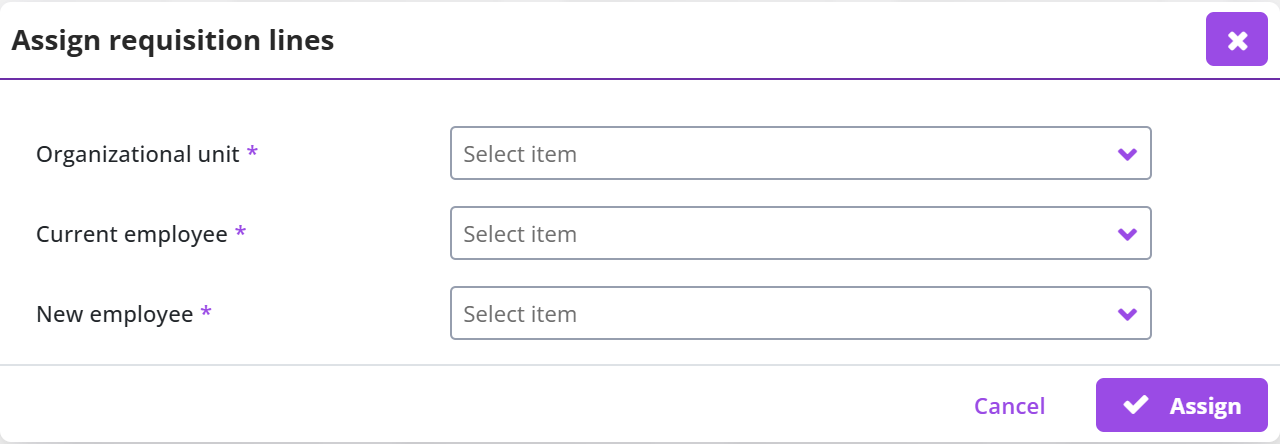
Select the organization unit and current employee to specify what shopping cart/requisition lines need to be transferred. Then specify the new employee and press the button to perform the transfer.
Note: If the New Employee does not have the required rights for the shopper cart/requisition lines being assigned, they will be assigned never the less. It might then be required to add rights to this employee in order for them to see the assigned shopping carts.
User history
To see which users have recently used Shopper and how often, you can use the User history overview. This overview is available to the supervisor via the menu Supervisor menu item Report.
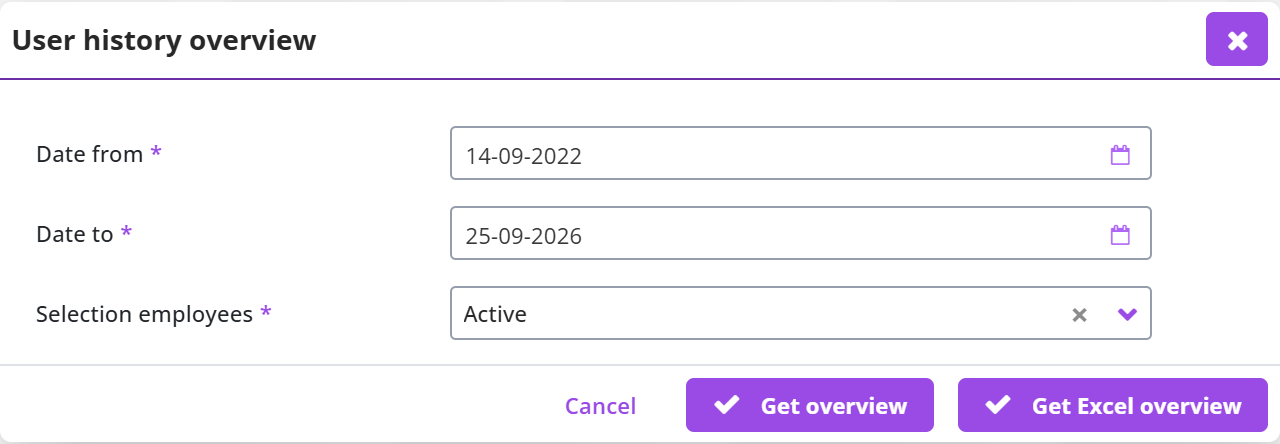
You specify a selection (all, active or inactive) of employees for a period. The list (see example below) can be displayed as PDF via the button or exported to Excel via the button .
Note: The user history regarding the Date last activity and the Number of times active are only kept since the 07.20 release of Shopper. So you can set the Date from to a date starting from the implementation of release 07.20 (or above).
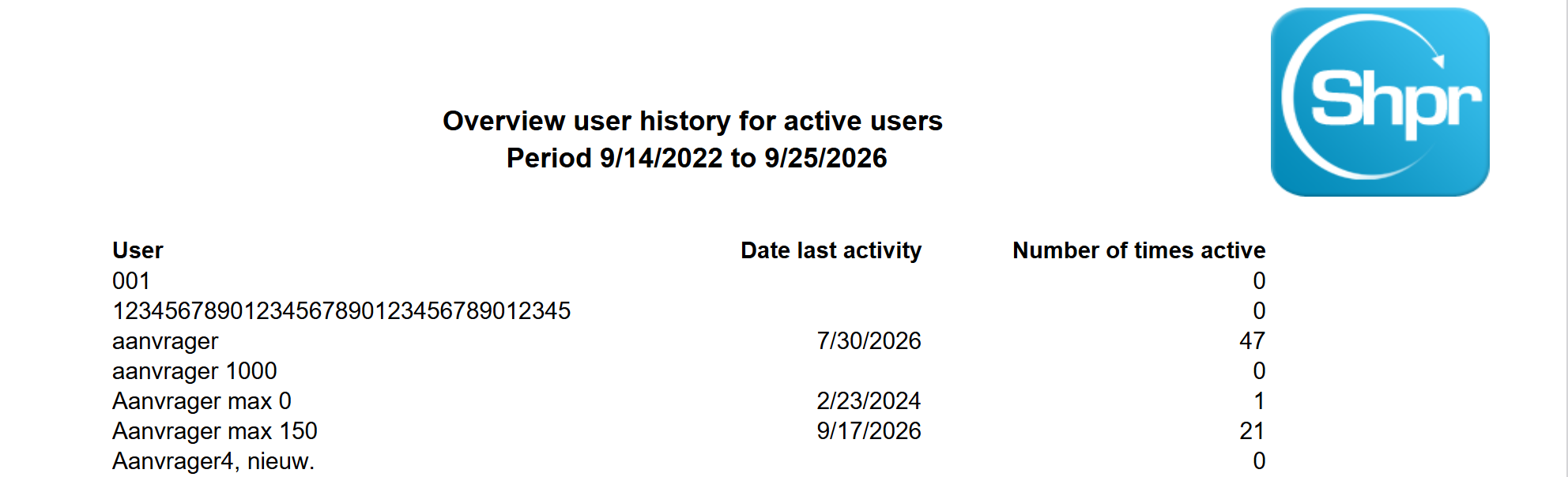
Signing authority / Power of attorney
Signing authority (power of attorney) determines in Shopper how many approvals are needed to approve a requisition, in line with the statutory powers and the power of attorney scheme within your organization. The amount ranges are defined with limit types; the signing authority follows from the combination of expertise type and limit type used in a role assignment. If no explicit signing authority is registered for that combination, one approval suffices; if one is registered, it determines the number of approvals required, if needed in several levels. This chapter describes under "Limit type" managing the amount ranges, under "Power of attorney" the screen in which you specify the number of approvals per expertise and limit type and under "Other ToDo Requisition (cannot be approved)" what happens when no employee has the required authority.
Limit type
The Process flow item of the Supervisor menu contains the Limit type menu-item.
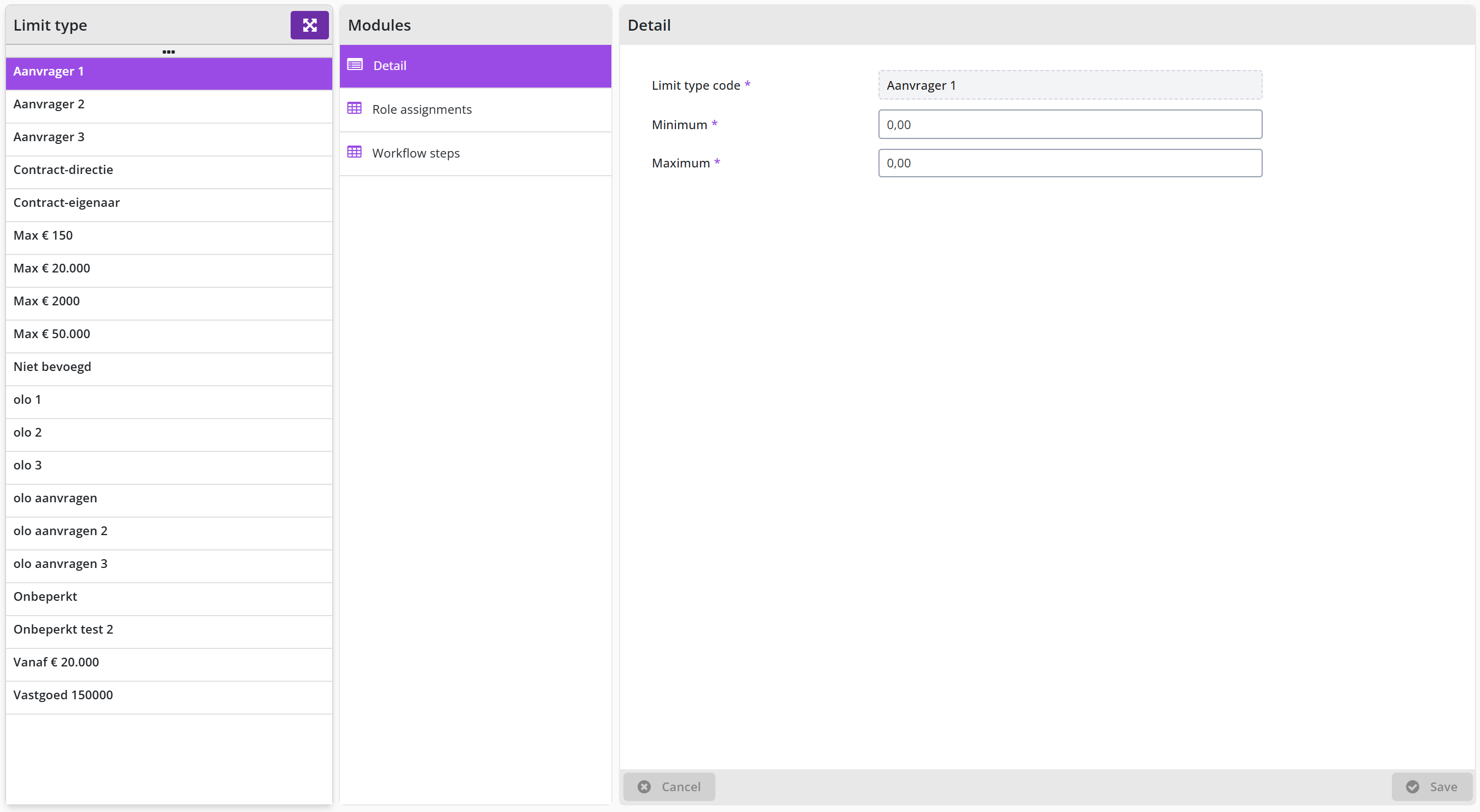
The screen is structured according to the standard as described for the General screen layout under Use of the other screens.
The list of the different limit types is shown on the left. You can specify a lower and upper limit for a limit type using the Minimum and Maximum fields of the Detail data module. Limit types can overlap or interconnect. If you work with signing levels, i.e., a tiered arrangement of limit types, you must ensure that the maximum and minimum of the different consecutive limit types do not overlap and interconnect without gaps. For example: 0,00 to 9999,99 and the next tier starting from 10.000,00 etc. The highest amount that can be entered in Shopper is 99.999.999,99 (i.e., 100 million). The amounts of the limit type are of the default currency that is setup in the section General of Parameters data module, under System parameters.
Note: Shopper comes with a set of standard limit types. The buttons and are not available for the list of limit types. Shopconfig can change the amounts for the limit types, but cannot add or remove limit types. This can only be performed by an employee of Archifact.
Be sure no gaps exist and that the whole range from € 0 to € 99.999.999,99 is covered by the limit types. If the total amount of a requisition does not get a match with a limit type, the workflow step approve cannot be performed. Hence the requisition cannot be approved. Also see section Other ToDo Requisition (cannot be approved).
Limit types are linked to the role assignments for echelons and the related workflow. The Role assignments data module shows you what role assignments use this limit type. The Workflow steps data module shows you what workflow steps use this limit.
Note: If for a workflow step All limit types is marked, then this workflow-step is not listed in the Workflow steps data module for the limit types.
Power of attorney
The Process flow item of the Supervisor menu contains the Sign authority menu-item.
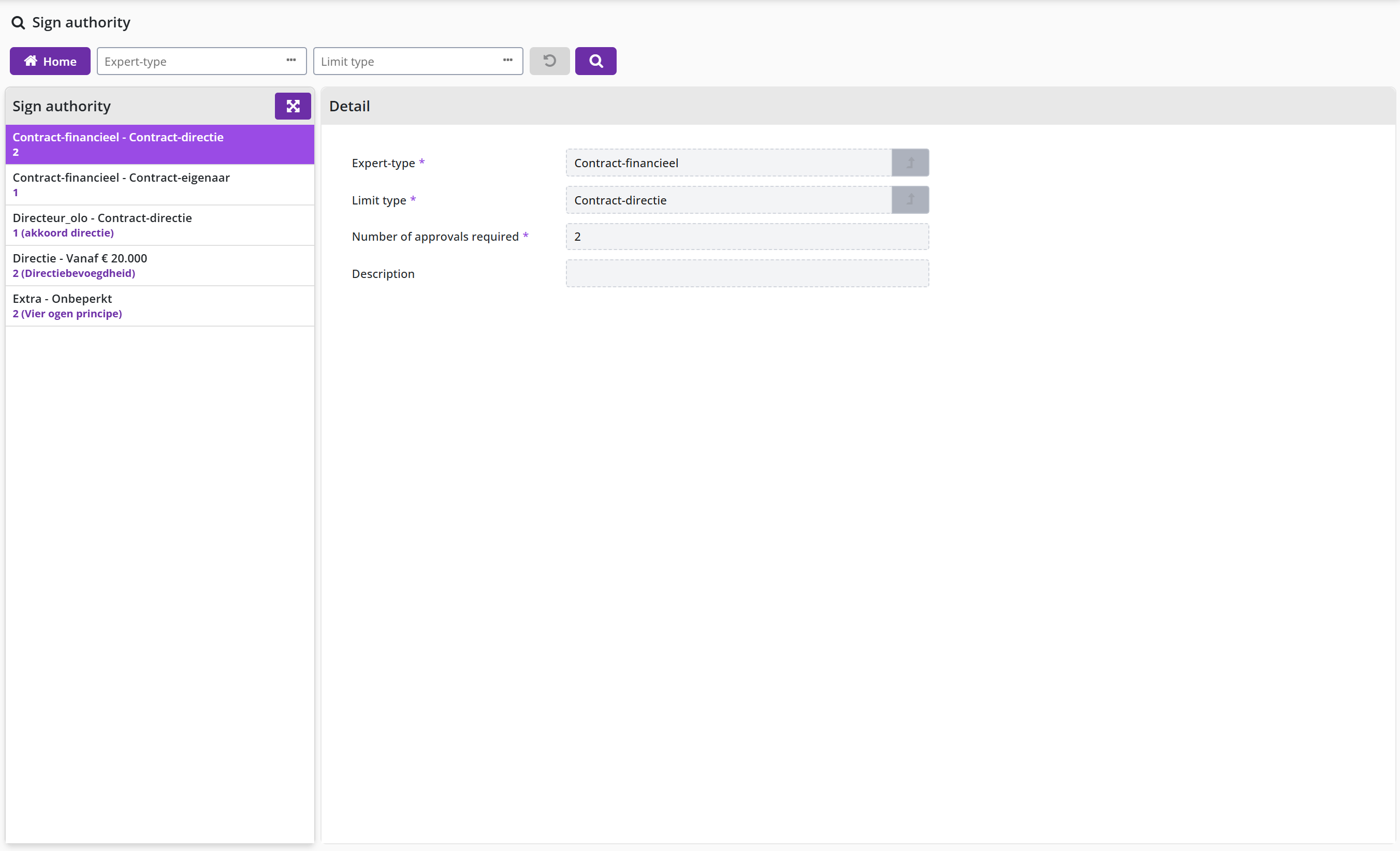
The screen is structured according to the standard as described for the General screen layout under Use of the other screens.
The list of the different limit types is shown on the left. For a selected sign authority, the Detail data module will show the combination of an Expert-type and a Limit type that applies. The Number of approvals required can be entered in the corresponding field. Also, you can enter a description that can be recognized in relation to the reference in the power of attorney scheme.
Note: Shopper comes with a set of sign authorities. The buttons and are not available for the list of limit types. Shopconfig can change the Number of approvals required and the removal or addition of sign authorities (i.e., introducing a new combination of limit type and expertise type) can only be performed by an employee of Archifact.
Other ToDo Requisition (cannot be approved)
If a requisition cannot be approved, the Follow-up by data module of the requisition will list the employees with the role Orchestrator (echelon P2P Setup). This can for example be caused by the fact that an employee has become inactive or is no longer with the company and no replacement has been arranged. It can also be caused if the role assignment (due to an organizational change) on a certain date change. Also an wrong or incomplete setup will cause this problem.
The requisition will then be listed for the Other ToDo in the section Orders:
After selecting this Other ToDo the relevant requisition line will be shown, and you can analyze the setup for it.
Using the Status and Approval data module of a requisition, you can determine what workflow-step needs to be performed. For this workflow-step you can then determine what role, expertise type and limit type is required to perform this step.
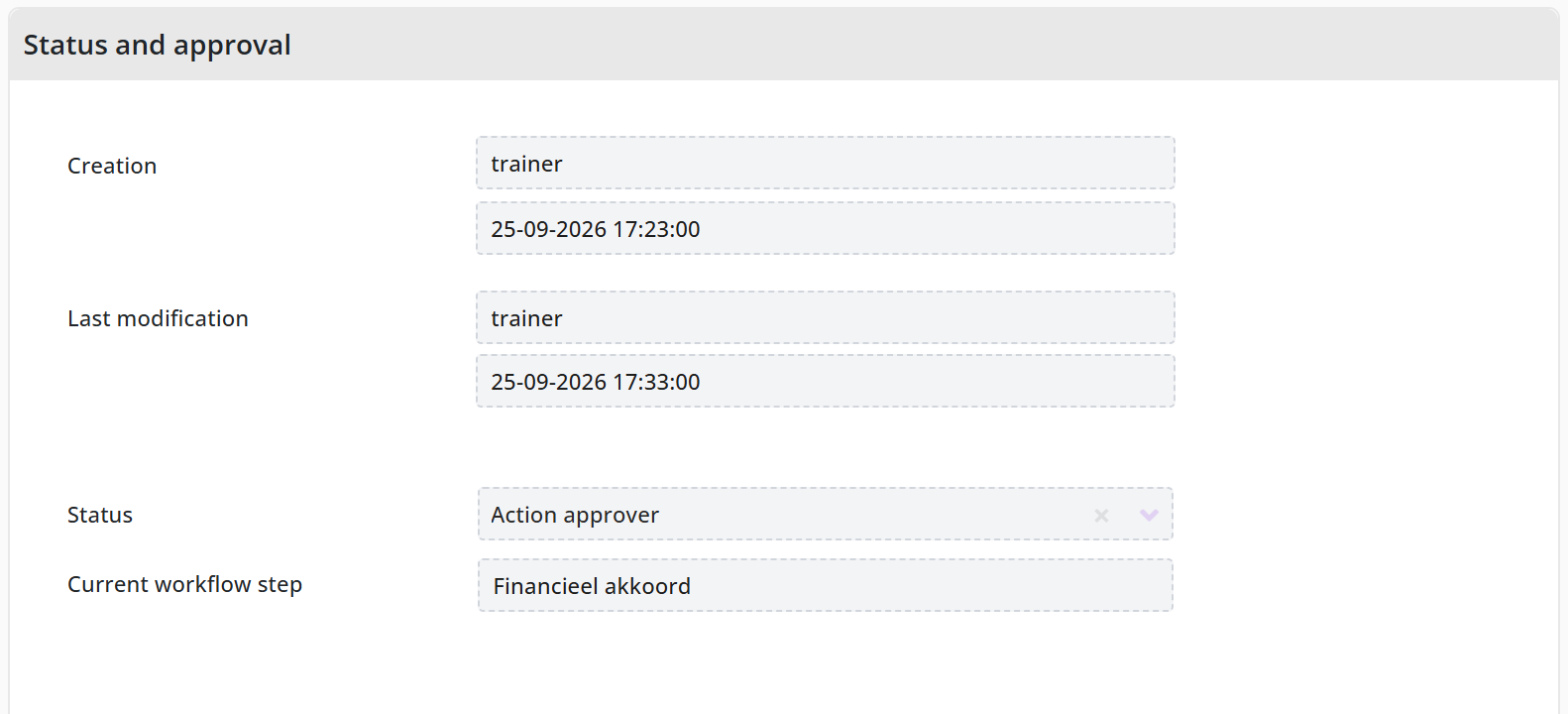
Next you can determine what echelon has this role assignment and then check if there is an employee assignment with the required authority to perform the task for this requisition (organization unit, item type, budget type, etc.). If something is missing this needs to be resolved before the requisition can be approved.
If the requisition is invalid or when it no longer applies, it can be cancelled using the button.
Workflow
The handling of orders and contracts in Shopper is directed by a workflow for the process steps supplement and approve, which can differ per administration, organizational unit, project and contract or item type. A workflow consists of workflow steps; each step is linked to a role, an expertise type and, if applicable, a limit type (signing authority), and the order follows from a sequence number. Shopper ships with proven best-practice workflow scenarios for P2P and contracts. This chapter describes under "Workflow and workflow step" the Workflow screen and its steps, under "Role, expertise type, limit type" the building blocks of a step, under "Completeness type" the completeness check for a supplement step and under "Source type" the origin of a requisition line. Note: as Shopconfig you can change workflow options and deviations for workflow steps, but not the step definitions, and you cannot add or remove workflows or steps; that is only possible with a Shopper Enterprise licence, by an employee of Archifact.
Workflow and workflow step
The menu item Workflow is part of the Supervisor/Process flow menu.
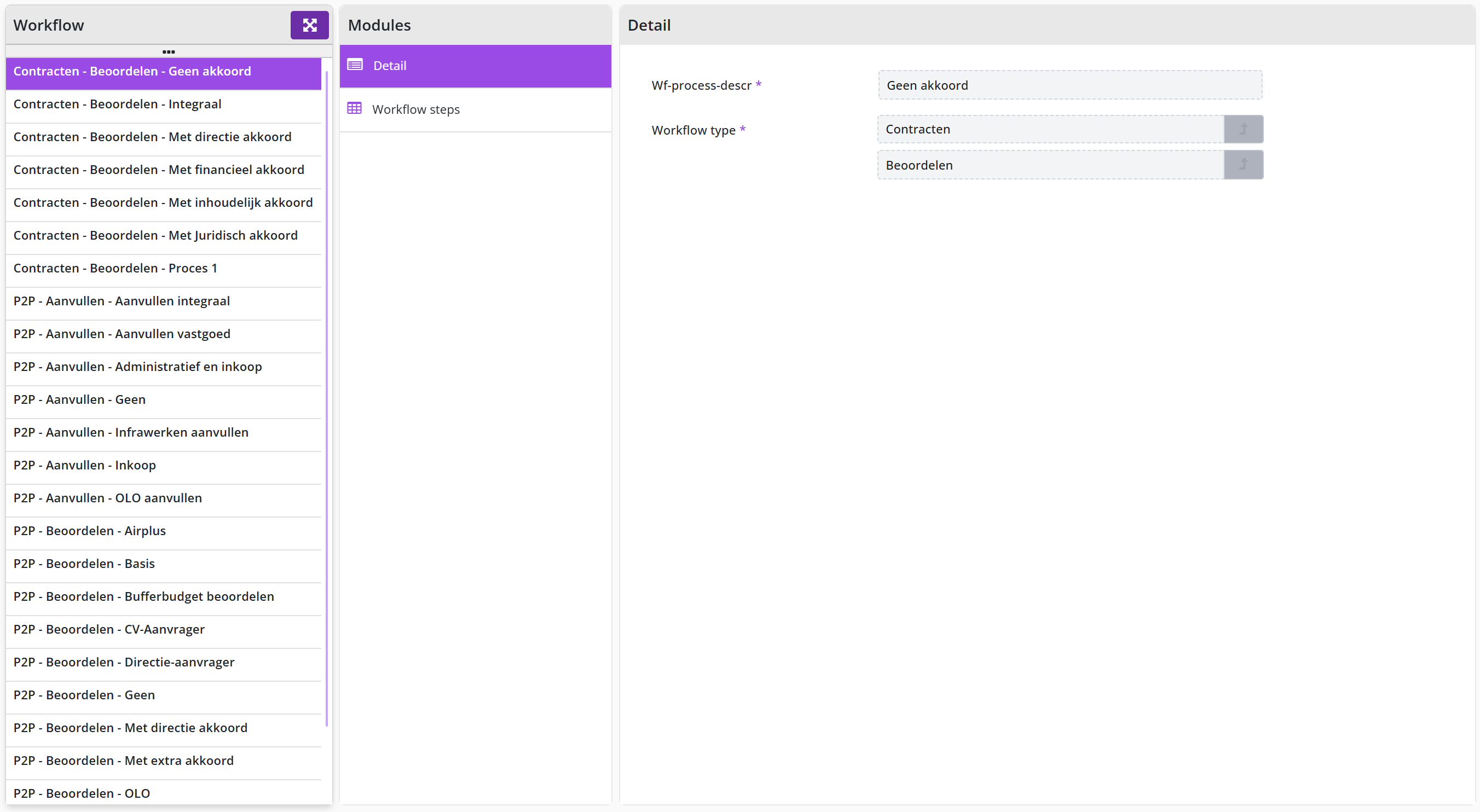
The screen is structured according to the standard as described for the General screen layout under Use of the other screens.
On the left side is a list of available workflows. The naming convention is License module, Workflow type and the name of the workflow, as is detailed in the Detail data module. Existing workflow types are available for the workflow steps: Supplement and Approve, however the workflow type supplement is not available for contracts.
The Workflow steps data module lists the workflow steps for this workflow. A workflow can consist of one or more workflow steps that are listed with the sequence number in front of it.
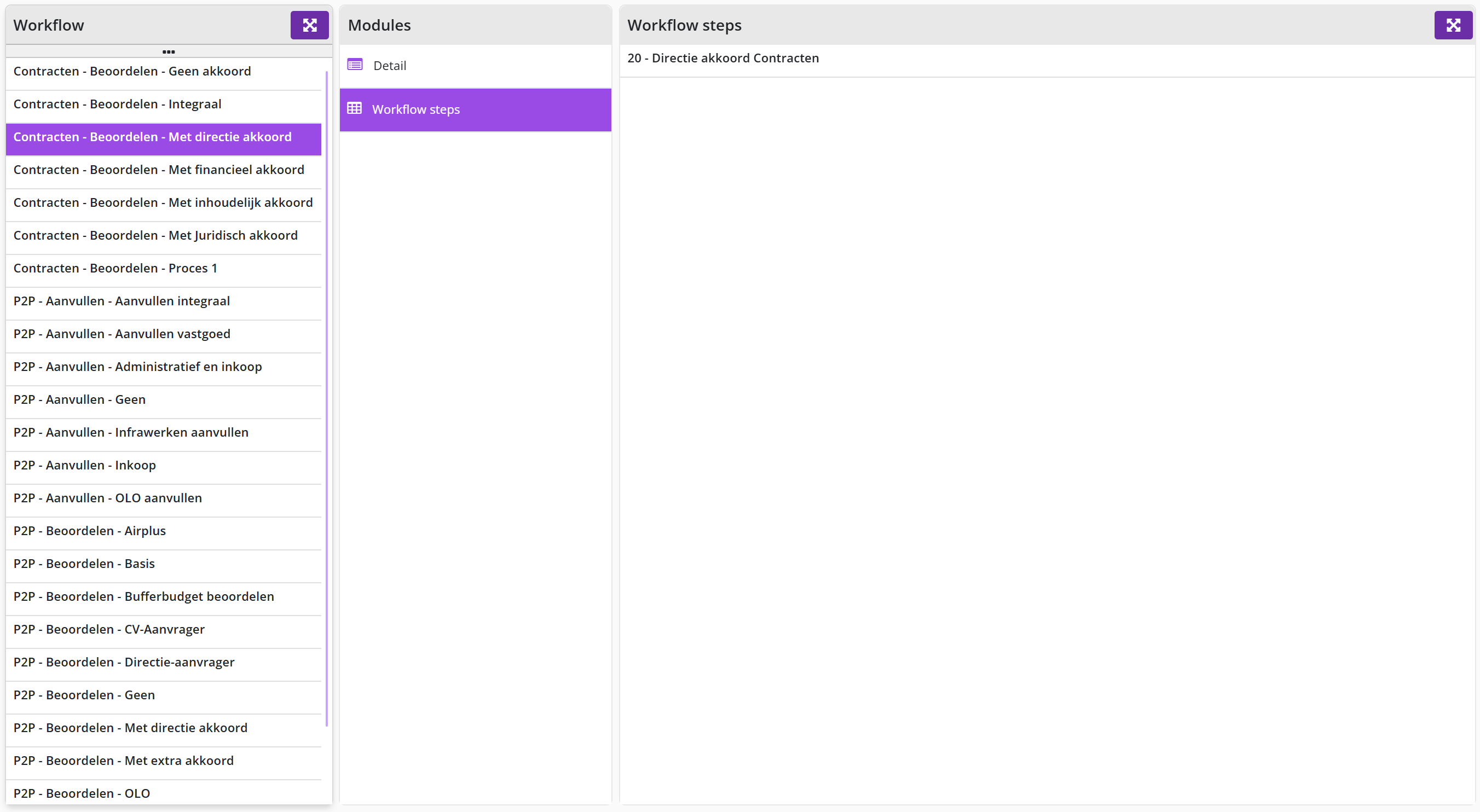
After selecting the workflow step the details are shown.
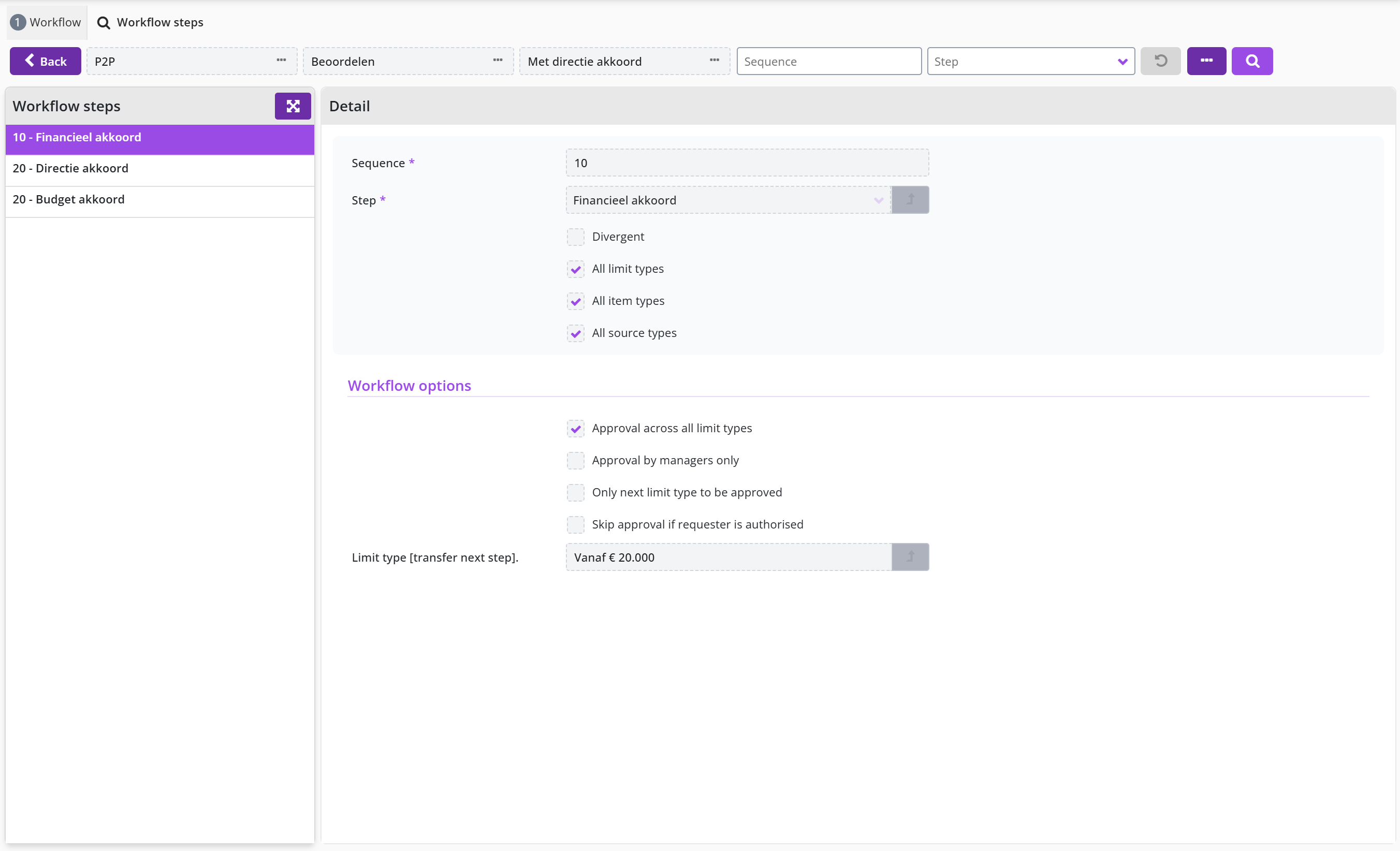
The screen is structured according to the standard as described for the General screen layout under Use of the other screens.
The Detail data module contains the field Sequence, followed below by the description of the step definition in Shopper. Shopper comes with several step definitions as part of the standard product. These steps are used to construct the workflow.
A role and expertise type have been assigned to a step definition. I.e., the employee that is authorized via an echelon for this role, combined with this expertise type, can perform the workflow step based on this step definition. Additionally, a step definition can be limited to one or more item types, requiring the employee to also be authorized for these item type(s).
Depending on the workflow step type Supplement or Approve different workflow setup can apply, such as for All limit types, All source types” and Completeness check n/a. These checkboxes are described under the P2P-Workflow Supplement and P2P-Workflow Approve sections, further on in this chapter.
If it is needed to change the assigned limit types, item types, source types of the completeness check for a workflow step, you need to mark the checkbox Divergent, which consequently will allow you to change these checkboxes. For the marked checkboxes – after saving – the corresponding data modules become available for the workflow step, allowing you to make a selection for it.
Note: a supervisor can, using the arrow button – to the right of the Step field – open the details of the step definition, however this is read-only. This can be used to see what will apply if the deviant checkbox is not marked (hence the default for this step definition).
The Add and buttons are not available for the Workflow and Workflow step. Only an employee from Archifact can make such changes.
Role, expertise type, limit type
The Role, expertise type and limit type menu items are part of the Supervisor/Process flow menu. These objects are used to set up workflows. Also, they are used to set up echelons regarding the organization of tasks and authorities. These objects are read-only and can only be changed by an employee of Archifact. However, for limit types the supervisor can change the amount boundaries. See Limit type and Power of attorney under Signing authority / Power of attorney.
Roles are available depending on the selected license module, listed with an explanation and a set of checkboxes, used to specify the differentiation and authorization aspects.
If a limit type applies, a default limit type will also be set. The actual financial demarcation is set up for the limit type (using amount boundaries).
The role assignment for an echelon specifies the expertise type and limit type that applies, and for the limit type the number of required approvals is shown, based on the setup of the sign authorities.
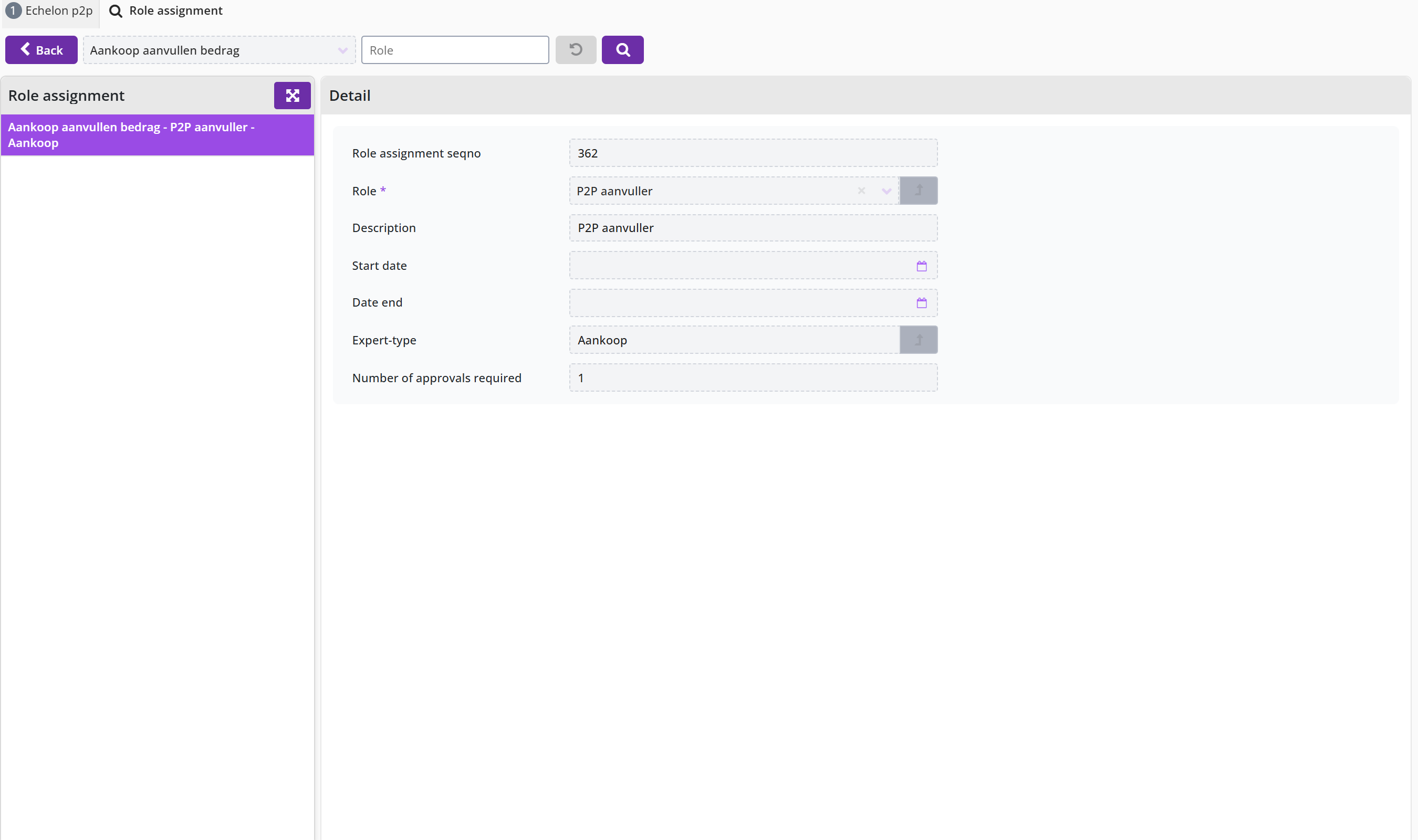
Note: The role assignments can only be modified by an employee of Archifact.
Completeness type
The menu item Completeness type is part of the Supervisor/Process flow menu and is used to setup a workflow step of the type Workflow Supplement for P2P.
Within the best practice scenarios, the following completeness types are available:
- FinancialFor - supplementing the item types regarding accounting.
- ProcurementFor - supplementing the supplier, item, and price/total amount etc.
- NoneUsed - for example to skip a workflow step supplement procurement,while a financial supplement is used.
For the completeness type it is specified which completeness criteria apply, when processing the supplement workflow for P2P supplement.
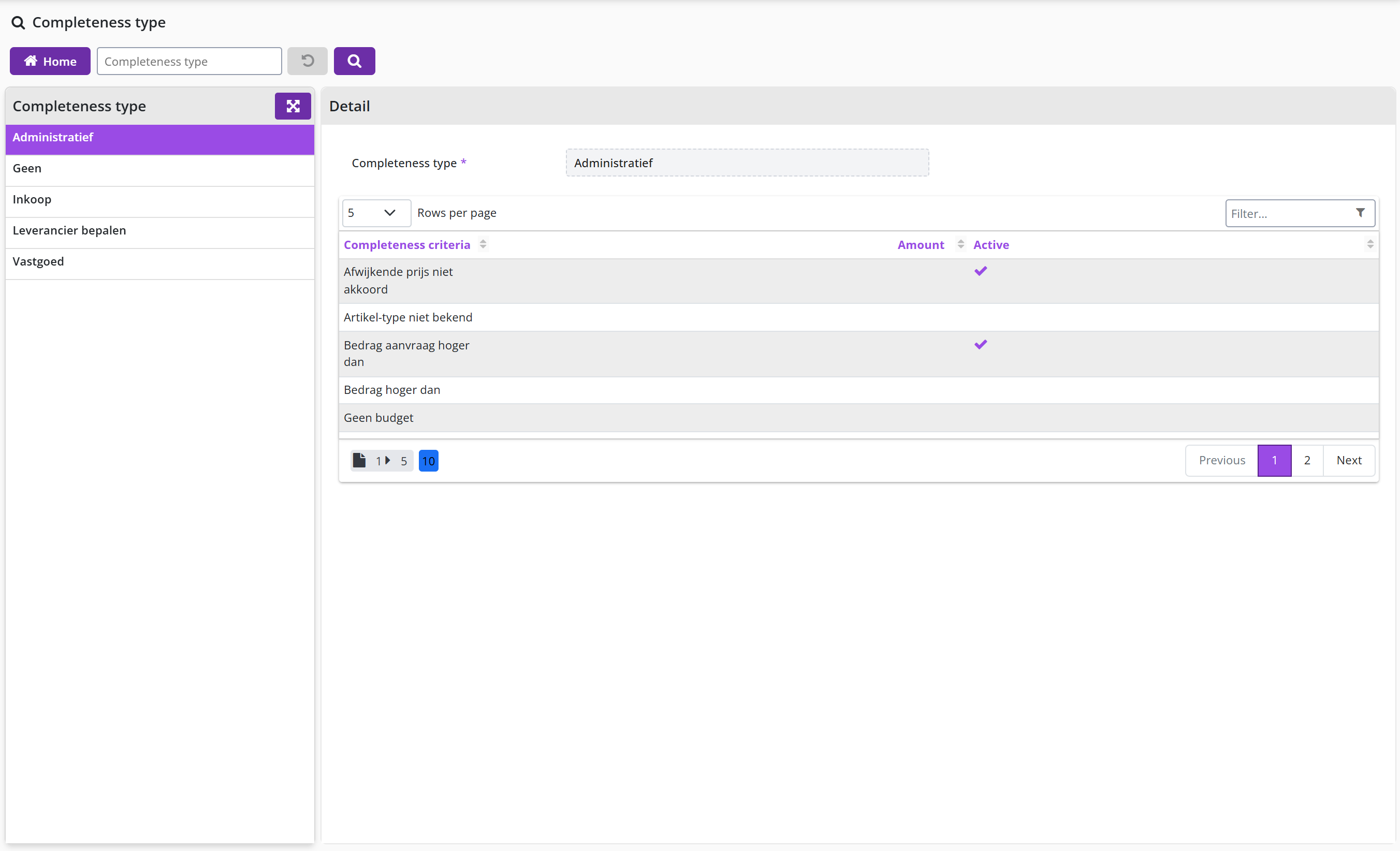
The completeness types that can apply for a requisition line:
- If all checkboxes are unmarked, this implies that a supplement action is never required. The workflow step with this completeness type will effectively never be performed.
- Only the fields that correspond to a marked completeness criteria can be modified by the supplementer that follows up the workflow step for this completeness type.
Source type
When setting up the workflow step for supplementing, it need to be specified what source the requisition is for. This is specified using a source type.
P2P-Workflow Supplement
The P2P workflow for the process step Supplement determines which requisition lines must be supplemented and by whom: each workflow step has criteria for item types, source types and the completeness check, and each step belongs to an expertise type from the P2P echelons. This chapter describes under "Supplement workflow scenarios" the best-practice workflows supplied with Shopper (Basic, Procurement and Integral) and their criteria, followed by the three workflow steps: "Financial Supplement" (item type and booking details), "Business Supplement" (domain specification) and "Procurement Supplement" (item, supplier and price).
Supplement workflow scenarios
Following up on the process step Supplement the workflow will indicate which requisition lines need to be supplemented and what kind of supplement is needed. This is determined by what was set up for the step definition, however if the Divergent checkbox was set for the workflow step, this can be set up different for the workflow step.
The workflow step only applies for a requisition line if it satisfies the supplement criteria that are entered for the selected checkboxes. I.e., for All item types or only for a selection of item types (e.g., only for ICT requisitions), for All source types or only for a selection of source types (e.g., only for free requests) and for all incomplete data or only for the data that follows from the selection of the criteria for the completeness check (e.g., only for missing price or supplier).
See Source type and Completeness type for more details on the available choices.
Note:If the checkbox Completeness check n/a is marked, then for the requisition everything needs to be complete, i.e., the workflow step will always be performed for all lines of the selected source- and item types.
Several best practice supplement workflow scenarios are provided with Shopper, based on proven customer cases, linked to expertise types that are assigned for the P2P-echelons. Also see P2P organization, under Organization.
Workflow 1: P2P – Supplementing – Basic
Workflow 2: P2P – Supplementing – Procurement
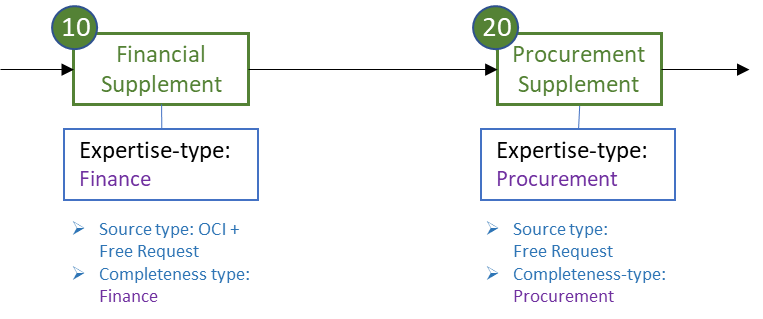
Workflow 3: P2P – Supplementing – Integral
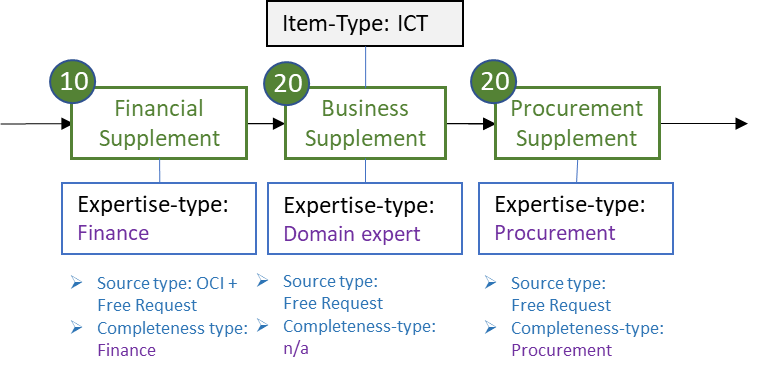
Within a workflow the – in Shopper available – workflow steps will be processed as they apply. For workflow 1 (Supplement-basic) no steps apply. The process step Supplement will then be skipped. For workflow 2 and 3 the workflow steps Financial supplement and Procurement supplement. For workflow 3 the procurement supplement is preceded by the workflow step Business Supplement. Depending on setup of the designated workflow step, a step can conditionally be skipped if it does not apply.
Financial Supplement
For the workflow step Financial supplement an employee with the expertise type Financial needs to supplement the item type, assuring that a costing type can be determined for the requisition line. For example, if no item type was specified or if this requisition line originates from the external catalog (via the supplier’s website / OCI), where no costing type can be derived for accounting.
Note: If a Default item type is specified for a supplier; or if an OCI item group exists for the item; or if the item exists as an OCI item, the item type for the requisition can be derived and the financial supplement step will be skipped. Also see Derive item type under OCI link.
If for the supplier the checkbox Manage Oci items is set, the item type that is assigned during the financial supplement step will be automatically added to the designated supplier in reference to the item description. Next time the item type for this item can then be derived from the OCI items of this supplier and does not need to be supplemented anymore.
Business Supplement
For the workflow step Business supplement an employee with the expertise type Business needs to apply their domain expertise (e.g., ICT) to supplement the requisition, allowing for brand compatibility, and support aspects to be validated in determining the right item. The supplier can change all fields (because no completeness check applies for this type of supplement)
Procurement Supplement
For the workflow step Procurement supplement an employee with the expertise type Procurement needs to supplement the requisition line according to the completeness criteria, allowing for validation of the procurement policies regarding item and supplier selection. Additionally, agreed prices and discounts can be checked.
Note: If during the processing of this workflow step the item type is modified, the supplement workflow needs to be redetermined based on this item type and the workflow will start again from the first step.
P2P-Workflow Approve
The P2P workflow for the process step Approve determines which requisitions must be approved and which approvals are required: each workflow step has criteria for item types and limit types, and each step belongs to an expertise type from the P2P echelons. This chapter describes under "Approve workflow scenarios" the best-practice workflows supplied with Shopper (none, Basic, using extra approval and using board approval), then the workflow steps "Financial approval", "Board approval", "Extra approval" and "Budget approval", and finally under "Contract-Workflow (Approve)" the review workflows linked to a contract type.
Approve workflow scenarios
Following up on the process step Approve, the workflow will indicate which requisitions need to be approved and what kind of approval is needed. This is determined by what was set up for the step definition, however if the Divergent checkbox was set for the workflow step, this can be set up different for the workflow step.
The workflow step only applies for a requisition if it satisfies the supplement criteria that are entered for the selected checkboxes. I.e., for All item types or only for a selection of item types (e.g., only for ICT requisitions) or for All limit types for only for a selection of limit types (e.g., for alle limit types except the board approval).
Workflow 1: P2P – Approve – none
Workflow 2: P2P – Approve – Basic
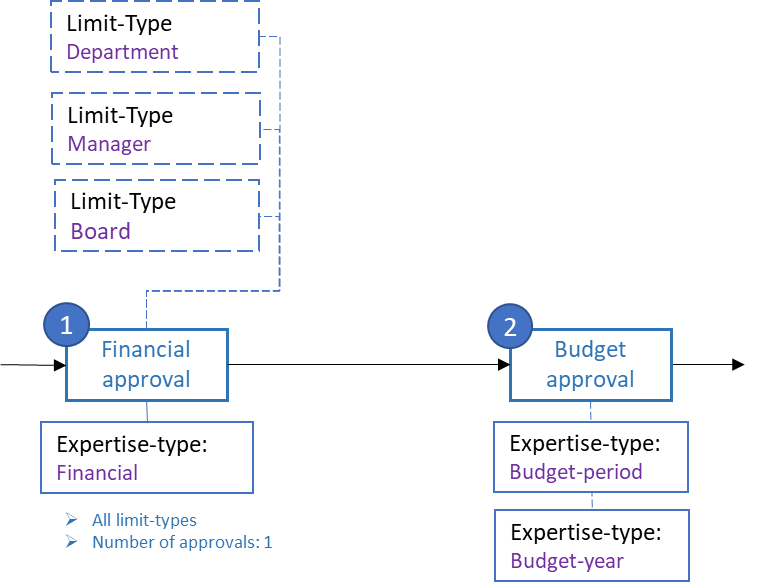
Workflow 3: P2P – Approve – using extra approval
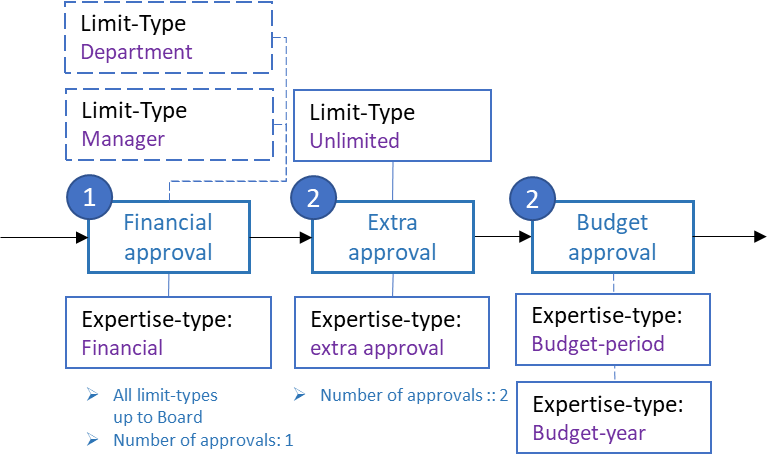
Workflow 4: P2P – Approve – using board approval
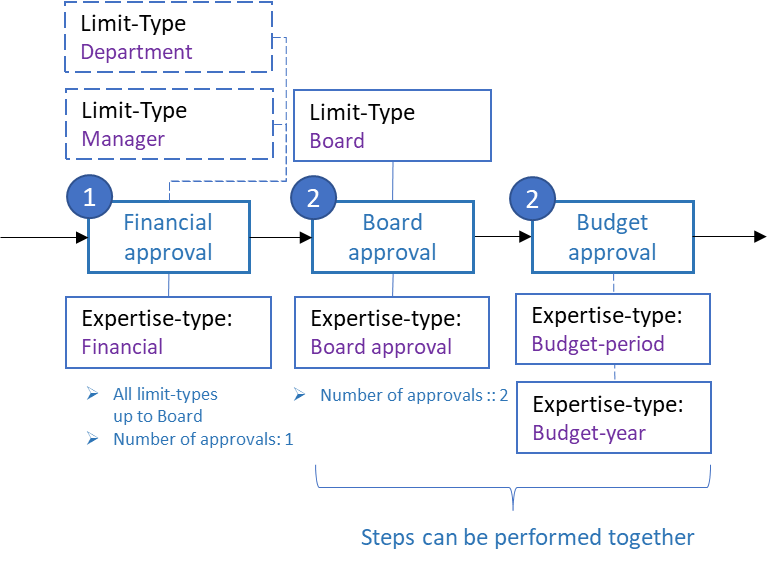
Within a workflow the – in Shopper available – workflow steps will be processed as they apply. For workflow 1 (Approve-none) no steps apply. The process step Approve will then be skipped. For workflow 2 the workflow steps Financial approval and Budget approval apply. For workflow 3 the budget approval is preceded by the workflow step Extra approval. For workflow 4 the budget approval is preceded by the workflow step Board approval. Depending on setup of the designated workflow step, a step can conditionally be skipped if it does not apply.
Note: optionally it can be specified for the workflow step, that it does not apply for all items, but only for a selection of items. This way the approval can be conditionally applied, for example only for medical requisitions.
Financial approval
For the workflow step Financial approval an employee with the expertise type Financial needs to review and approve the requisition, where for the workflow step it can be specified for which limit types this approval will be triggered. By default, this step is triggered for All limit types, but if this checkbox is unmarked, it is only triggered for the limit types selected in the Limit types data module.
The number of employees that need to provide a financial approval are derived from the setup of multi-tiers (approval across limit types) and the sign authority. Also see Signing authority / Power of attorney.
Note: The P2P echelon dictates for which organizational units the financial approval is applied, or if it needs to be applied globally.
The workflow options contain checkboxes that specify how to go through the limit types and which employees (with the role Approver) are to be involved. The workflow options in Shopper 10 also contain the checkbox Approval by managers only.
Note: if the checkbox Approval across all limit types is set, then it is required for the sign authority to specify the same number of required approvals for all the involved limit types. If the number of required approvals changes starting from a certain limit type, an additional workflow step needs to be created for it (like for the Board approval).
The Limit type (transfer next step) is used to specify the limit type for which this approval workflow step ends when approval is applied across all limit types. I.e., the next approval workflow step is set up to do approvals starting from this limit type. For example, when the workflow step for the Board approval is used, the limit type Board is specified, forcing the financial approval across all limit types to stop at this limit type and to have the workflow step for board approval take it from there, using a different number of required approvals.
Board approval
For the workflow step Board approval an employee with the expertise type Board needs to review and approve the requisition, where for the workflow step it can be specified for which limit types this approval will be triggered. By default, this step is setup only for the limit type Board, where the setup of the sign authority determines the number of required approvals (i.e., the number of board members that have to approve). Also see Signing authority / Power of attorney.
It can also be that this workflow step is only to be applied for certain item types, for example only for medical requisitions. In that case the checkbox All item types needs to be unmarked, allowing you to specify the selection of item types in the Item types data module.
-
Optionally the board approval can also be multi-tier, by marking the checkbox Approval across all limit types, however this is not likely to be used for a board approval.
-
The board approval applies to a selection of organization units or is applied globally, depending on the setup of the P2P-echelon Board.
-
if multiple approvals from the board are required, it is required that at least as many employees are linked to this the P2P-echelon Board. Also – if the echelon is not set up as global – all employees also need to be linked to the organizational unit of the designated requisition. This ensures that there are enough employees to provide the approval.
Extra approval
For the workflow step Extra approval an employee with the expertise type Extra needs to review and approve the requisition. By default, this step is only applied for the limit type Unlimited, for which the sign authority is setup to require 2 approvals (i.e., a four-eyes principle is ensured). Also see Signing authority / Power of attorney.
Note: Optionally the board approval can also be multi-tier, by marking the checkbox Approval across all limit types. This will ensure a minimum of 2 approvals, hence a multi-eye principle.
Budget approval
For the workflow step Budget approval an employee with the expertise type linked to the designated budget type, needs to review and approve the requisition if there is a budget overrun. By default, two expertise types are used Budget year and Budget period. This step is only applicable if a period budget or an annual budget is overrun.
Note: if the workflow to approve budget overruns needs to be different across budgets, you need to define different budget types and link them to the required workflow.
Expertise types are linked to a budget type that will enable you to direct who can perform the Budget approval step (i.e., an employee assigned with the role Approver and the designated expertise type). Also see Budget types under Budget control.
Note: For the budget type it is indicated what expertise type can be used for a period budget overrun or an annual budget overrun.
Employees are assigned to the designated P2P-echelon to enable them to approve budget overruns for annual- and period budgets. By default, two echelons are provided for this matter P2P Budget owner and P2P Budget delegate.
See the provided example for the setup of budget authorities under Budget control.
Contract-Workflow (Approve)
When setting up a contract type, the workflow is linked. Also see the section Contract types. By default, 5 best practice workflows are available in relation to the expertise types that are assigned for the contract echelons. Also see Contract organization under Organization.
Workflow 1: Contracts - Approval – None

Workflow 2: Contracts - Approval – Business

Workflow 3 Contracts - Approval – Legal

Workflow 4 Contracts - Approval – Board

Workflow 5 Contracts - Approval – Financial
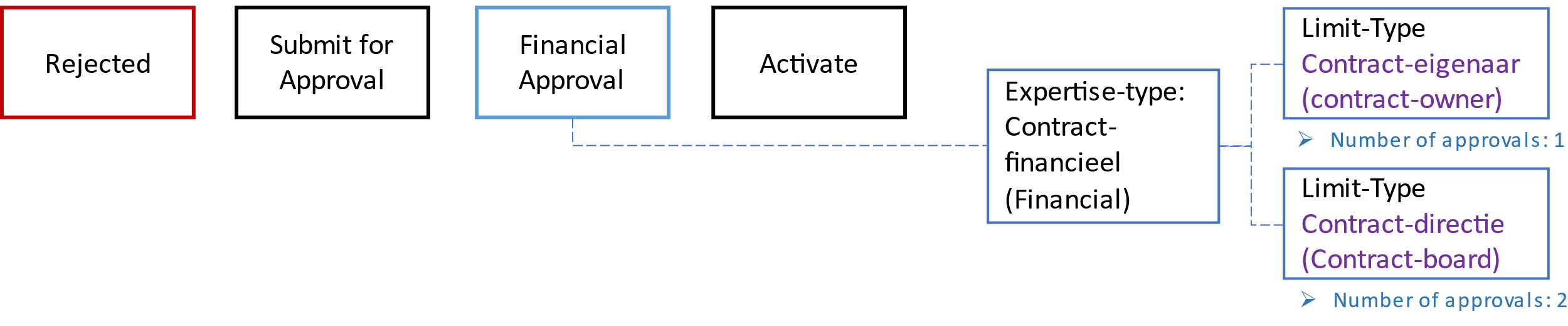
Workflow 6 Contracts - Approval – Integral
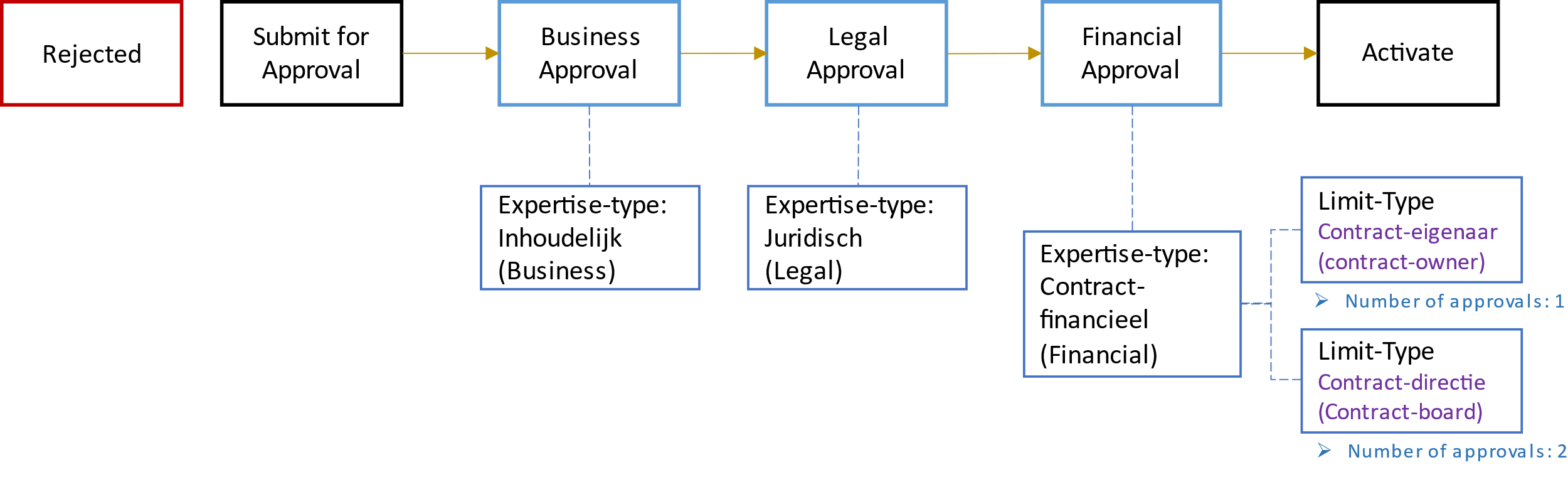
In the Approval None workflow, the requester is independently authorized, which means that the Approval step is skipped, and the contract ends up directly at the step for activating the contract. In the other workflows, the Approval step is differentiated according to the expertise type. The following are recognized by default: Content, Legal or Direction Also see the section Contract workflow under Contract setup.
The workflow step Financial Approval uses limit types in relation to the signing authorization and power of attorney. Also see Signing authorization / Power of attorney.
OCI link
With an OCI link (Open Catalog Interface) employees order through the external catalog of a supplier: the items from the supplier's web shop arrive in the Shopper shopping cart through the OCI check-out. This chapter describes under "Setting up the OCI link" how the supervisor sets the OCI definition, the username and password, cXML and the authorizations per organizational unit, under "Derive item type" how Shopper determines the item type of an OCI item, and under "OCI item group" and "OCI item" how you derive the item type from the item group or the item in the OCI check-out.
Setting up the OCI link
The supervisor can manage the Open Catalog Interface (OCI) definitions via the menu item OCI link under the Supervisor/Management menu. This applies to Suppliers for which requisitions can be requested via the external catalog in Shopper.
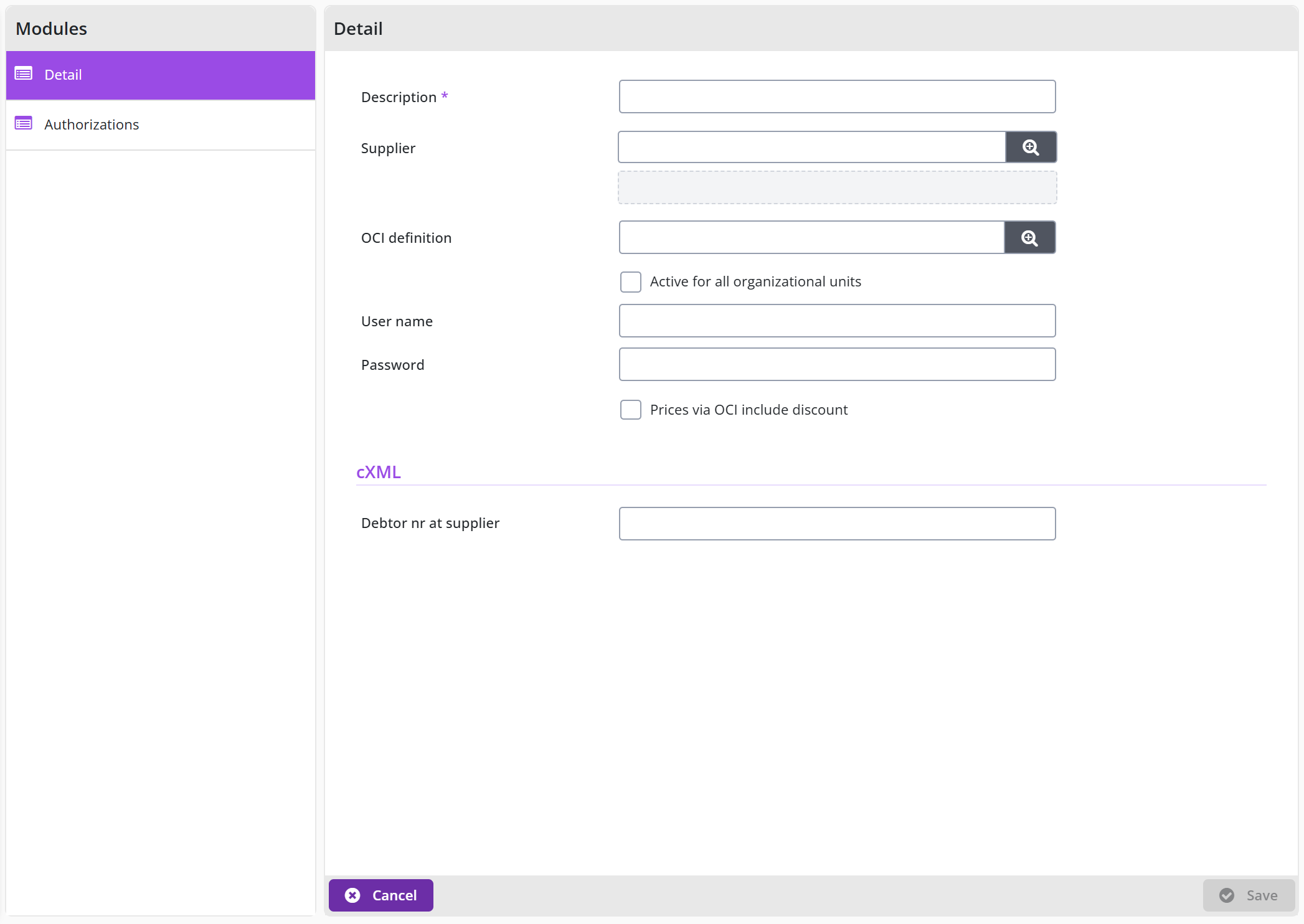
Choose the under which this supplier link is known within shopper. Then enter the Username and Password that you received from the supplier.
Note: The list of available OCI definitions is limited to those OCI definitions purchased for your company/institution within the Shopper license.
OCI Links can be linked to an organizational unit with their own username and password. If the OCI link applies to all organizational units (i.e., the whole company/organization) you can use the checkbox Active for all organizational units.
If the supplier requires you to submit an order via cXML and if this is supported for this supplier within Shopper, you can separately enter the identification (username and debtor number) and the password that you have received from the supplier for this in the cXML section. These may therefore deviate from the data you have entered for OCI.
Note: it is not mandatory to use cXML for suppliers where this section is available in Shopper at the data module Detail of the OCI Link. If the supplier requires this from you, you can use this by checking Order via cXML.
The checkbox Prices via OCI include discount is enabled by default. This means that the supplier’s prices supplied via OCI are leading. So, no extra discount is applied, as can be set at the supplier. If this extra discount has to be applied, you need to uncheck this box.
If different identities are used within your company/institution to order from a supplier via the OCI link, you can enter the relevant combination of username and password per organizational.
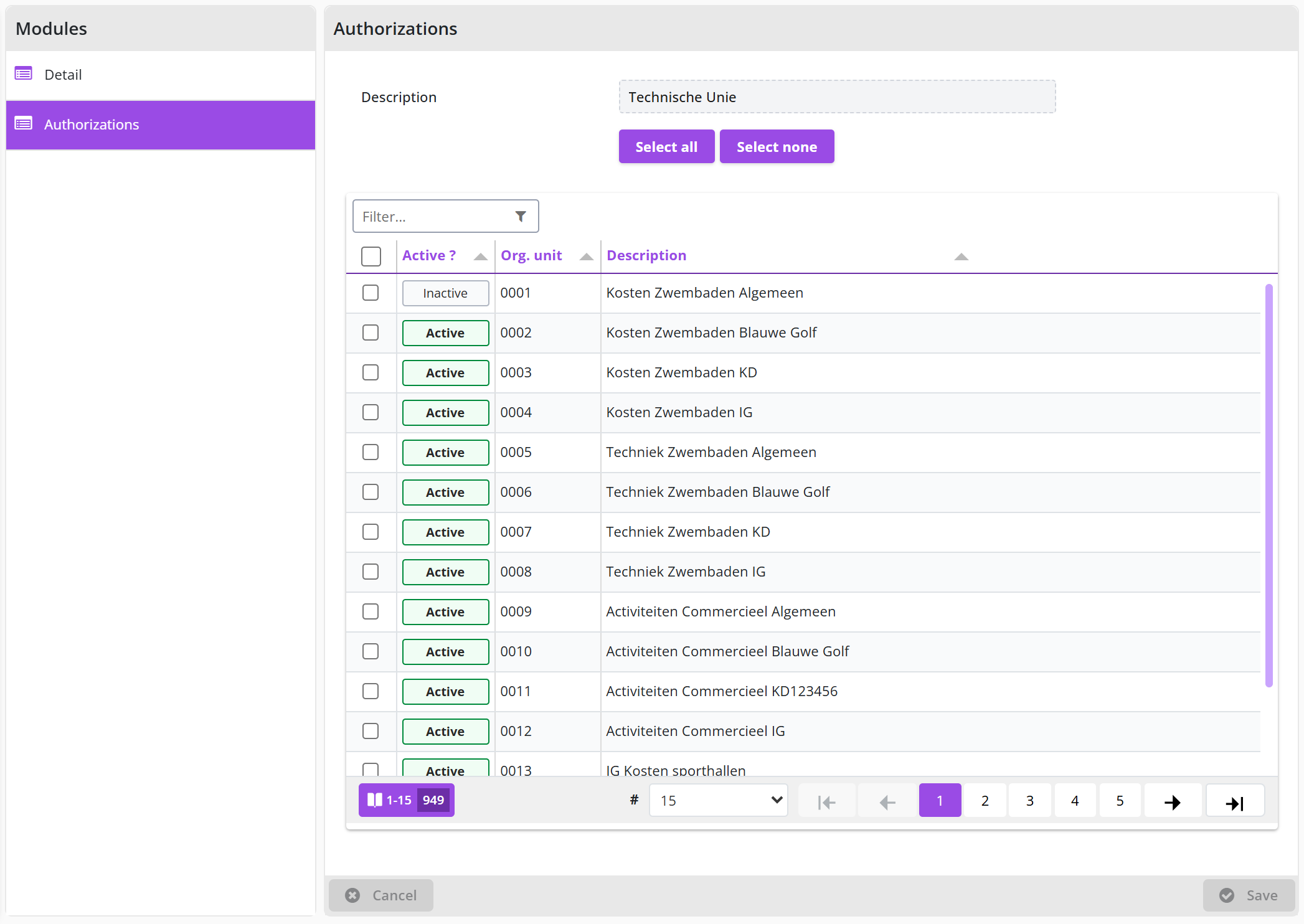
In the data module Authorizations you will find a list of authorized organizational units, whereby you can specify a different username and password for OCI and cMXL for each organizational unit.
Derive item type
The default item type of a supplier will be assigned to items that are transferred to the shopping cart of Shopper, using the OCI check-out from the supplier’s website. If no default item has been specified for the supplier, it must be provided using the workflow step Financial Supplement. Alternatively, the item time can be derived using the OCI item group or OCI item setup in Shopper.
OCI item group
Using the field NEW_ITEM-MATGROUP of the OCI-Check-out, the item type can be derived based on the item group registration for the supplier in Shopper.
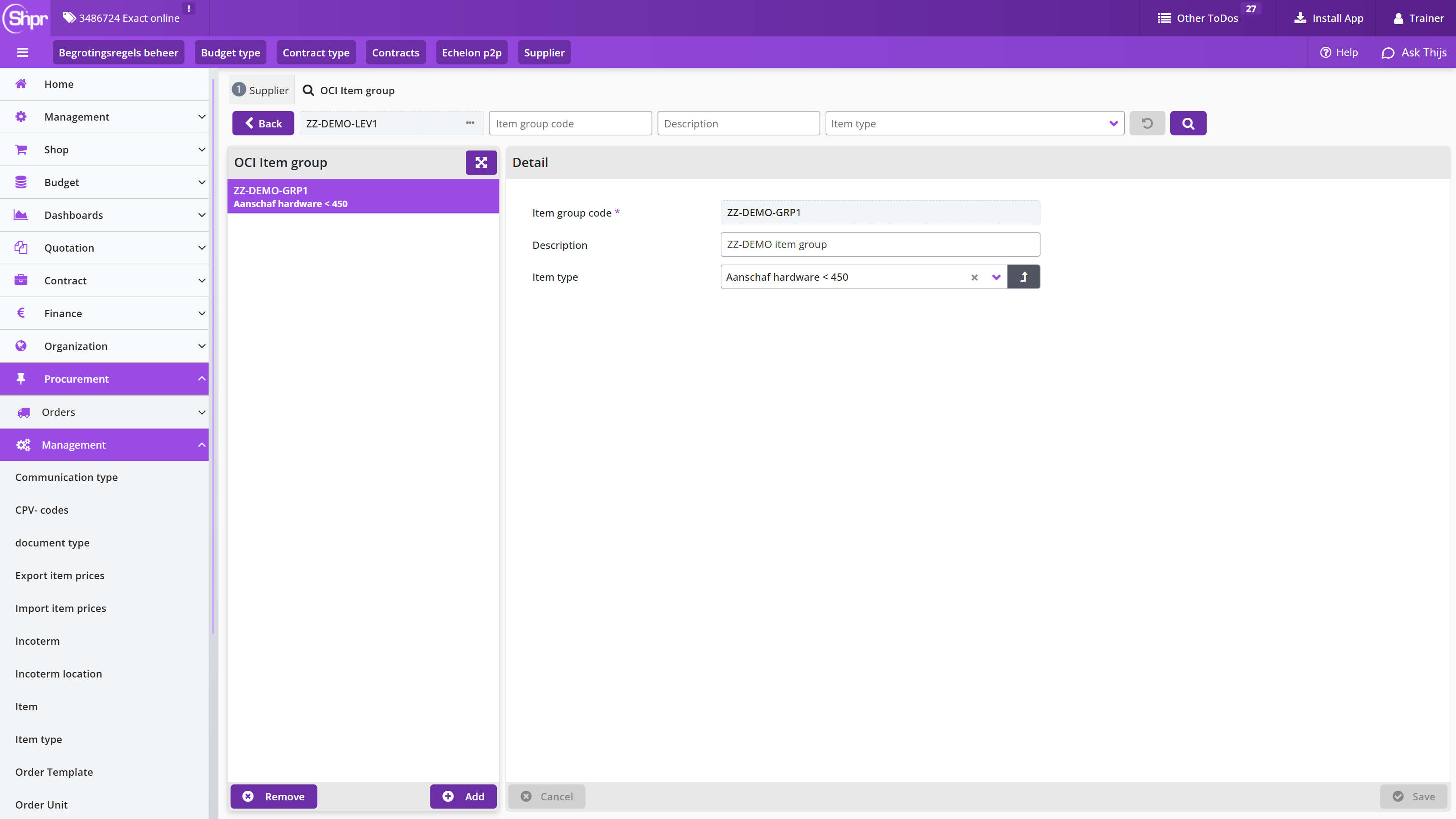
The item group code can be registered in the OCI Item group data module of the supplier, as is applicable in the OCI-Check-out. This code can provided by the supplier in the OCI-Field NEW_ITEM-MATGROUP. If the code matches with the code registered in Shopper, the item type registered for this code will be used for the requisition line in the shopper cart. You can also register a description of the item group that corresponds to the item group of the supplier.
Note: The code is being checked from left to right. If all positions of the code in Shopper match, this item group is a match. Hence if the OCI code has more positions, for which the leading part match the code in Shopper, it is a match.
OCI item
The item type can also be derived based on the OCI item registration in Shopper.
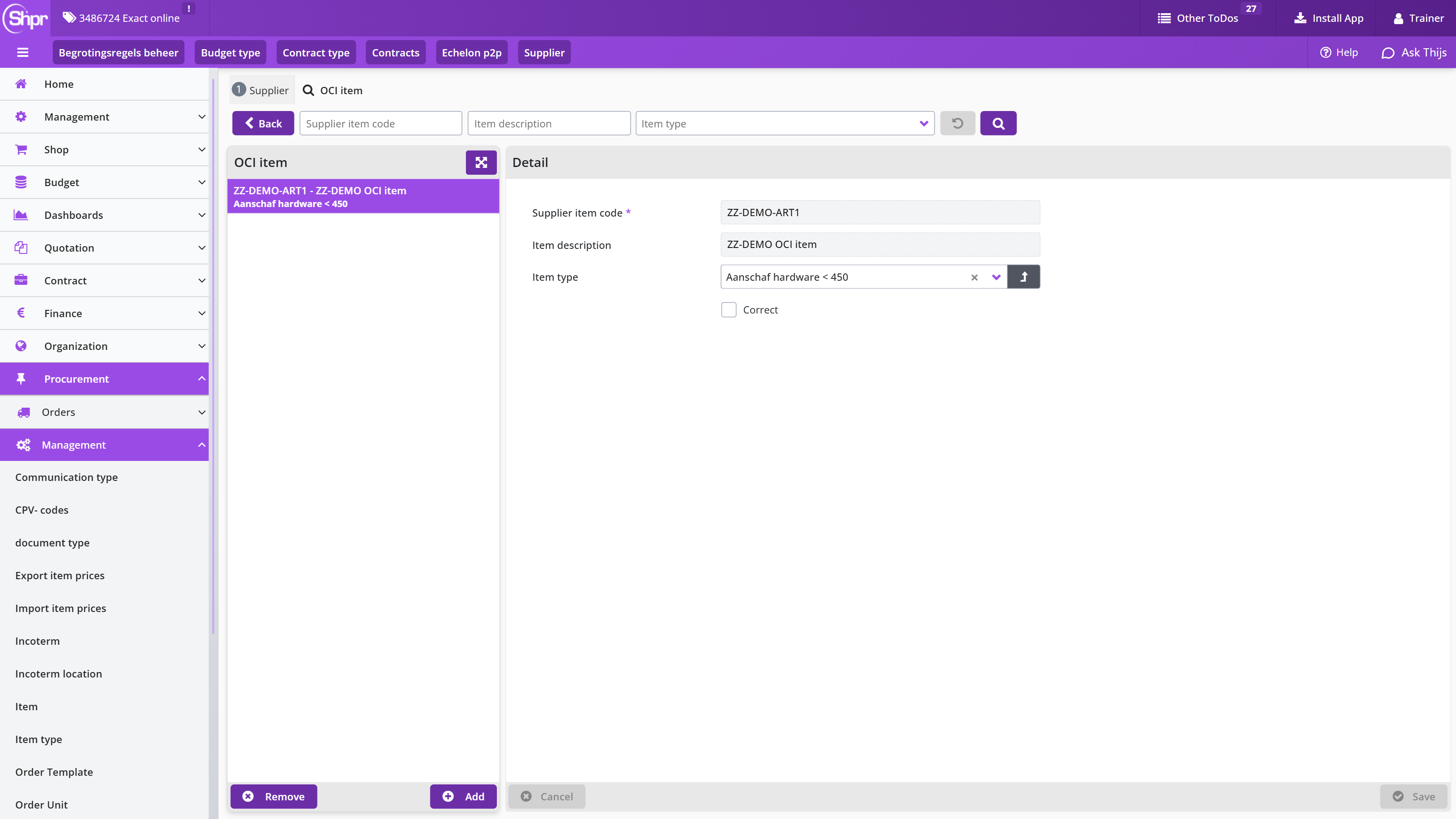
The item description can be registered in the OCI item data module of the supplier, as is applicable in the OCI-Check-out. If the item description matches with the description registered in Shopper, the item type registered for this item will be used for the requisition line in the shopper cart.
Note: If an item type is provided as part of the workflow step Financial Supplement for a supplier with the checkbox Manage Oci items set, the combination of item description and item type will be automatically added to the designated supplier. A next time the item type can be derived from the item description and no supplementing will be needed. I.e., the workflow step Financial Supplement will be skipped.
System parameters
System parameters are the settings that, in addition to the setup of the organization and the workflow, determine how Shopper works for all administrations. The supervisor sets them through the menu Supervisor, menu item Management - System parameters, divided over data modules. This chapter describes the Parameters data module with the sections "System parameters P2P", "System parameters contracts", "System parameters financial", "System parameters warehouse" and "System parameters signing", followed by the Indicators data module, the Supplement Completeness Check data module and the Organization data module. The data modules for e-mail, back-office folders and disk references are in System parameters: e-mail and files.
Parameters data module
The parameters are populated with default values when you install Shopper and can be customized for your implementation. The parameters are divided into several sections.
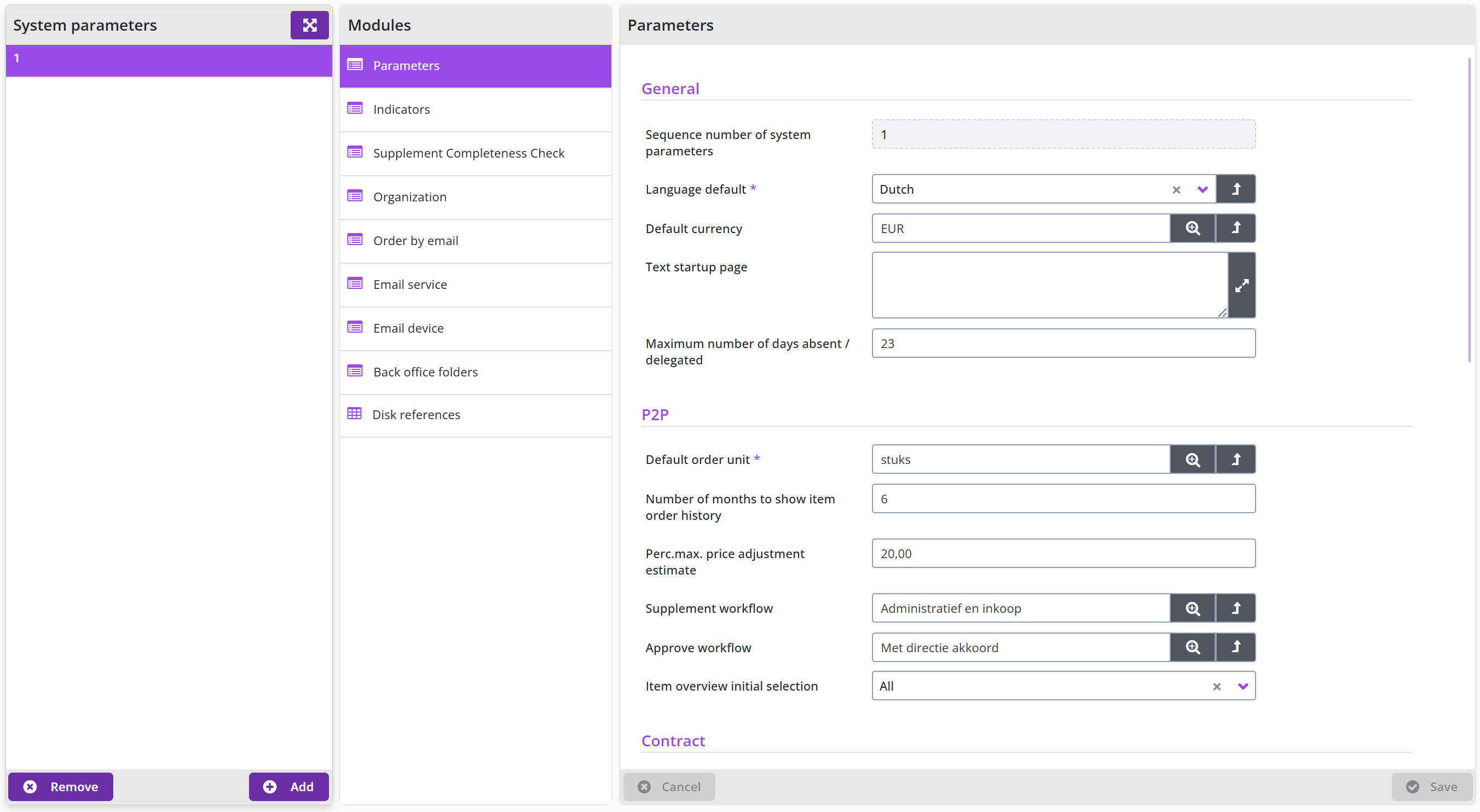
The parameters in the General section relate to several default values that are used in the system, such as for language, currency, text shown in a pop-up on the homepage after login, and periods for document renewal or absence alerts.
If you want to point out something to employees when using Shopper, you can enter this in the Text start page. When logging in (or starting a session with Shopper via Windows authentication) a pop-up is first shown with this text that your employee need to confirm before the homepage is displayed. For example, to report that a new release of the application is available.
System parameters P2P
The parameters in the P2P section relate to several default values that are used in the P2P functionality, such as for the default order unit, the number of months of item order history, limitation (percentage) of the price adjustment that is made upon receipt of the estimated requisition-/order line and the default selection shown in the item overview.
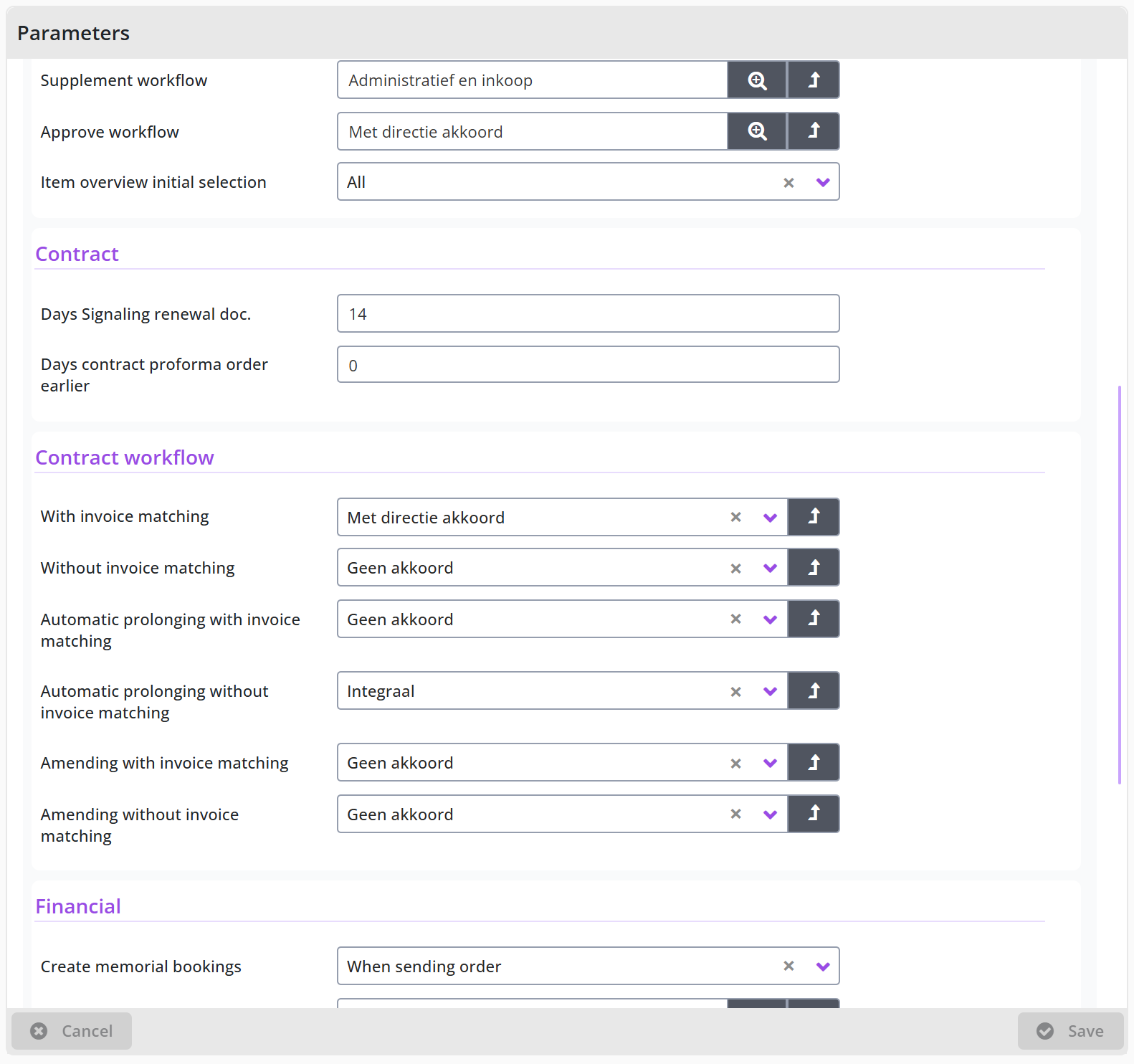
The Workflow supplement and Approve workflow parameters specify the default workflow for the process steps Supplement and Approve. See for more details Workflow.
Note: The changes made to the Supplement or Approve workflow will only be applied for new requisitions. Requests that are already in a supplement workflow will continue to follow that workflow.
System parameters contracts
The parameters in the Contract and Contract workflow section relate to several default values that are used in the Contracts functionality, such as for contract signaling renewal alerts and the earlier creation of the proforma order.
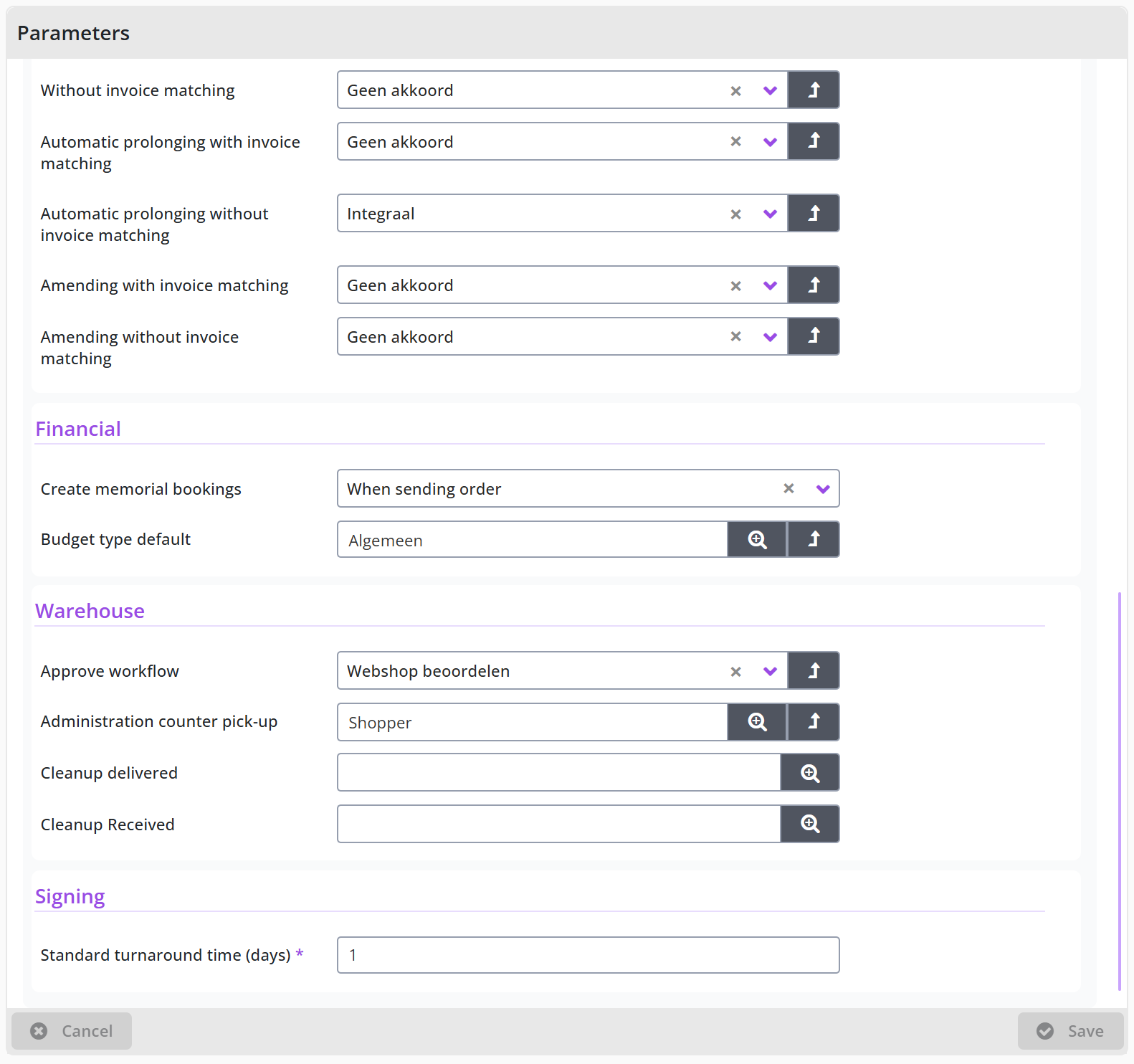
In the contract workflow, it is indicated for the different occurrences of contracts which workflow is applicable by default (if this is not specified with the contract type).
The contract workflow specified for the system parameters for Amending and prolongation applies to all contract types. If no workflow is specified for amending, the workflow specified for the contract type is used.
System parameters financial
The parameters in the Financial section relate to several default values that are used with the Contracts functionality, such as for automatic booking and the maximum deviation from the amount of a booking that is allowed without further approval from the budget holder.
The fields Maximum write off and % maximum write off specify the amount or the percentage (in relation to the total amount of the invoice) that can be written off, when handling the ToDo Action incoming invoice.
The field Deviating booking budget holder is used to specify the amount limit for approval of deviating invoices. Hence the maximum deviation of the amount of the invoice booking, that will not require an approval of the budget holder.
With the parameter Create memorial bookings, if available, you can set when the booking entry is created for the financial administration. Here you have the following options: “When sending order Received on registration or not.
The Financial section also contains the parameter Budget type default.
System parameters warehouse
The parameters in the Warehouse section relate to several default values that are used in the Warehouse functionality, such as for the counter issue and the default reason for cleaning on delivery and receipts.
The Approve workflow parameters specify the default workflow for the process steps Approve in case of requisitions from the warehouse.
System parameters signing
The parameters in the Signing section relate to digital signing of PDF-documents for contracts and quotations using the designated digital signing system.
The parameter Standard turnaround time (days) refers to the number of days for completing the signing. If the threshold is exceeded the signing administrator will be notified.
Indicators data module
The operation of Shopper is through setting up several indicators for your company. These indicators apply to the entire system (i.e., to all administrations).
The Indicators data module is divided into the sections Budgets, Place Order and Financial.
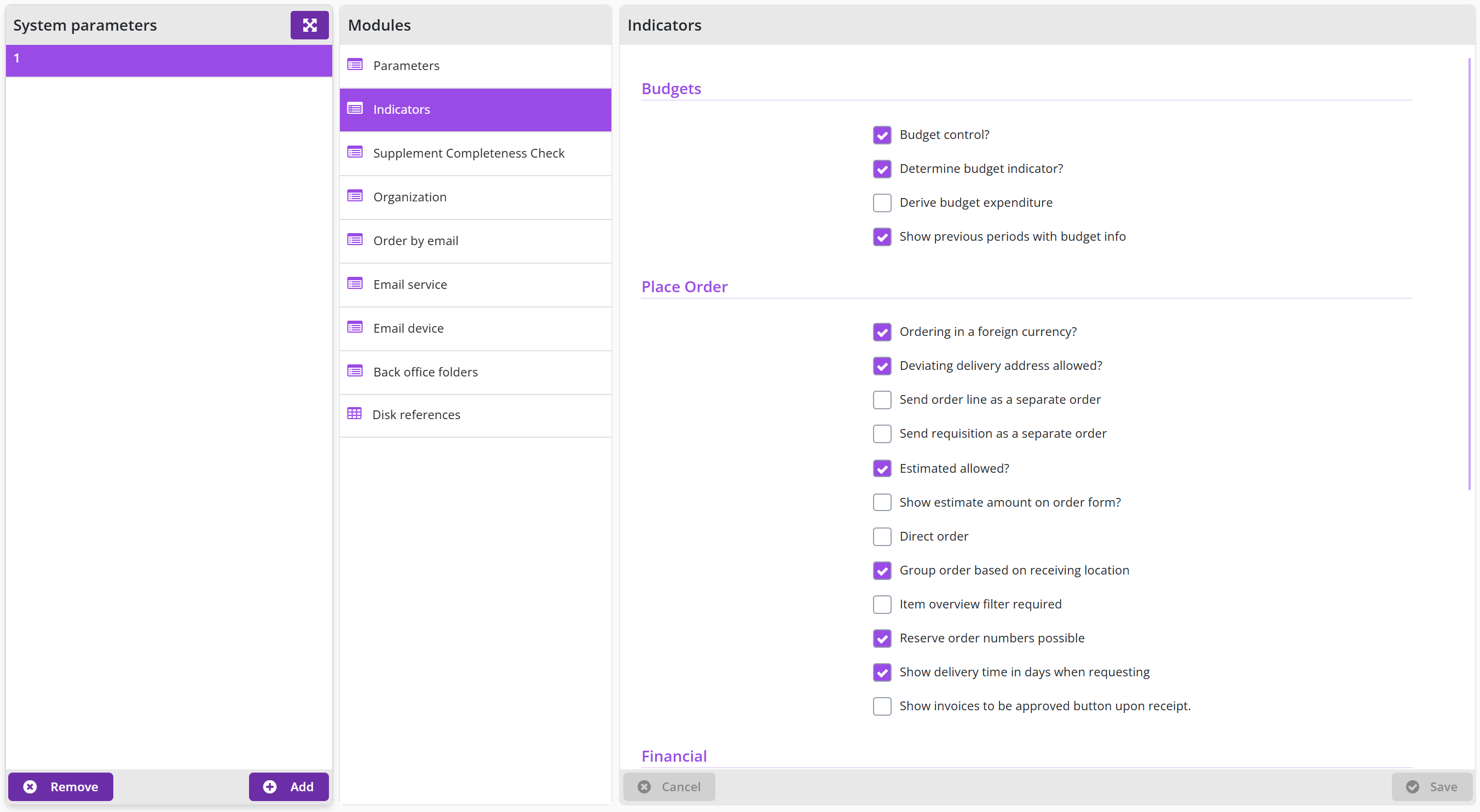
Note: The indicator Group order based on receiving location is only available if you purchased the license module SHOPMOD-CO Shopper module Contract offtake, contract invoices, contract utilization and order advice optimalization or if you use the Shopper Enterprise Edition.
Supplement Completeness Check data module
Using this data module, you can define what completeness checks can be used for the setup of the workflow step Supplement. By default, all checkboxes are marked. If a checkbox is unmarked, that check will no longer be applied, and it is no longer available for the setup of the completeness criteria.
Organization data module
In this data module you define which organizational unit is responsible for the relevant context. By default, this is the Procurement organizational unit.
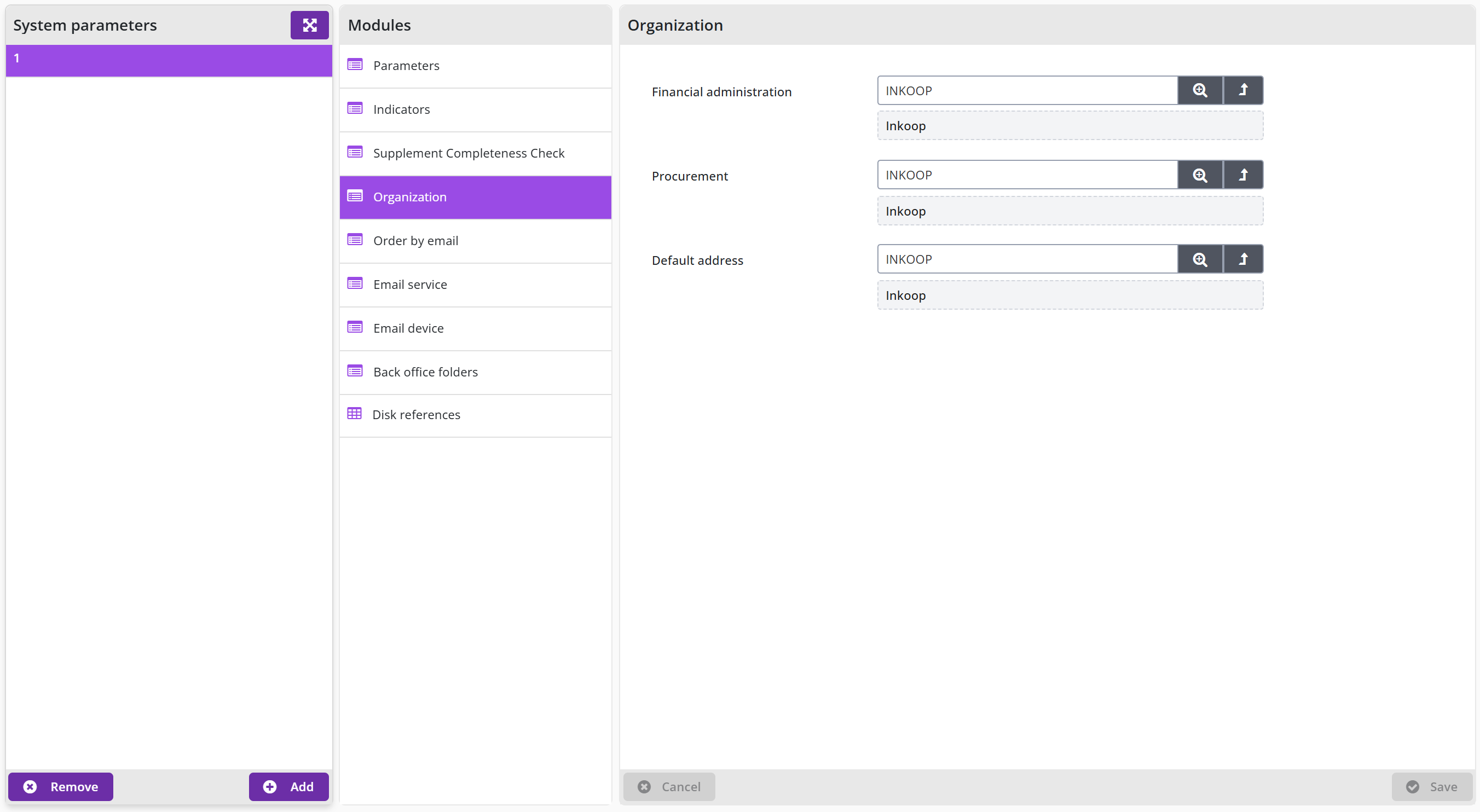
System parameters: e-mail and files
These system parameters control how Shopper sends e-mails and where it stores files; the supervisor sets them through the menu Supervisor, menu item Management - System parameters. This chapter describes the Order by email data module (sending orders by e-mail), the Email service data module (the notification e-mails for ToDos), the Email device data module (the link with the mail server), the Back-office folders data module (the folders for documents, images and exports) and the Disk reference data module (attachments as a reference to a network location). The other system parameters are in System parameters.
Order by email data module
With this data module you set up the use of ordering via email at the highest level. If the Shopper is not allowed to send the order via email, uncheck the box next to Direct email. If no order e-mail subject or order template is specified at the administration or the supplier, then the value set in this data module is used. With the field Max. lines order remark specifies the maximum number of lines that can be used for the comment in the email.
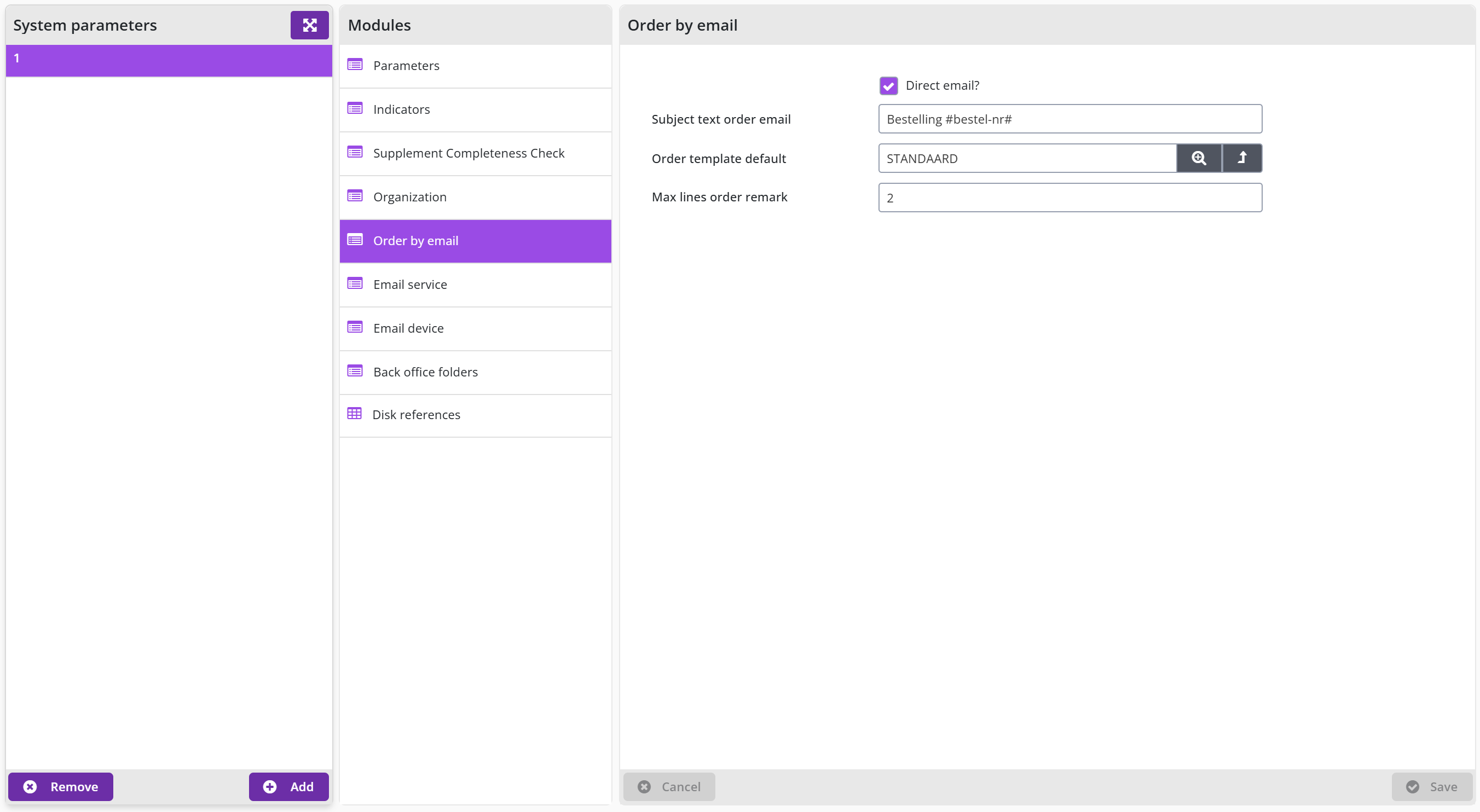
Email service data module
In the Email service data module, you set the data for sending e-mails to notify the (follow-up) actions for tasks arising from the ToDo process flow and other ToDos, such as for contracts, etc. This concerns the texts that are used in the email and on whose behalf, it is sent.
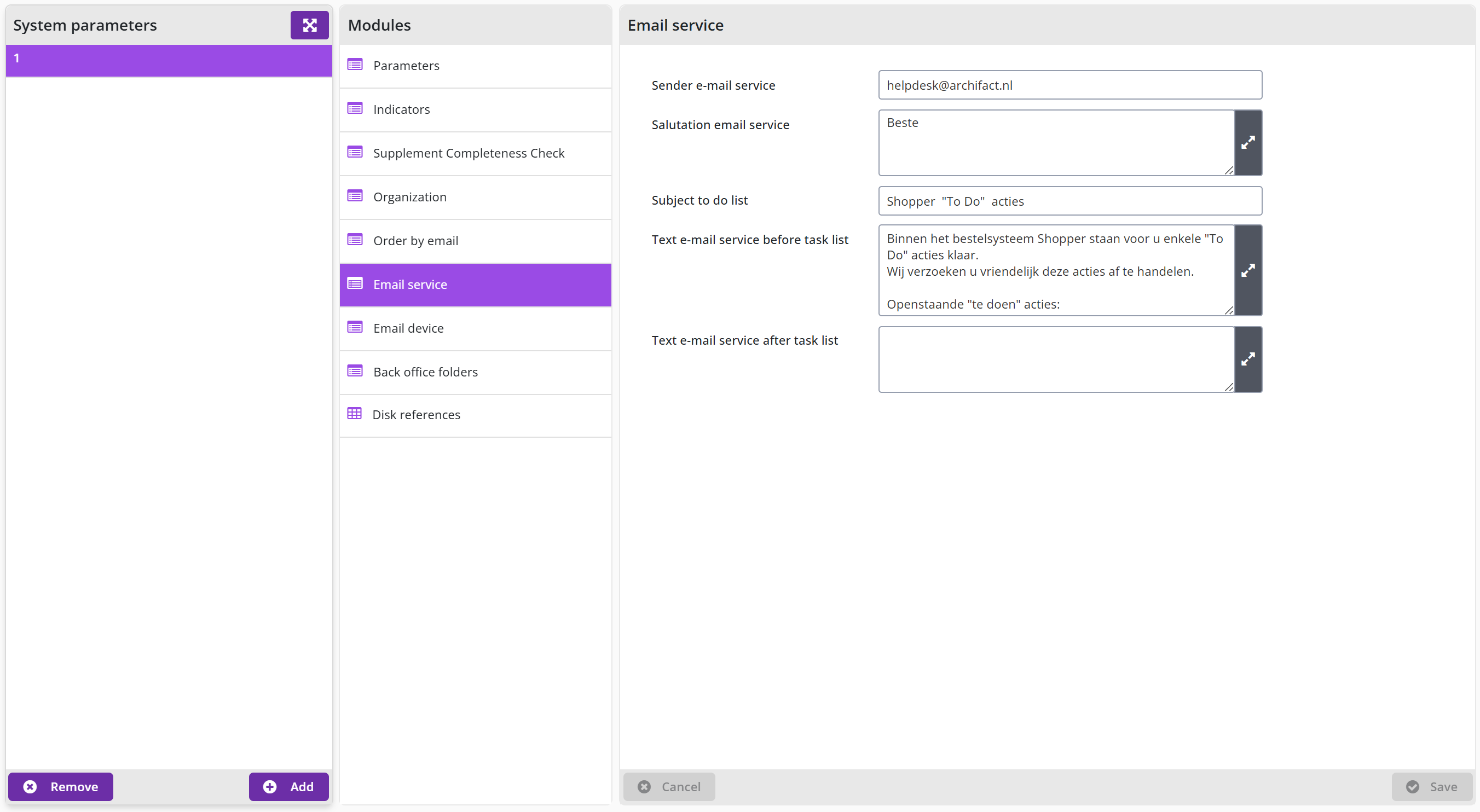
Email device data module
With this data module you set the default data for the link with the mail server for the purpose of sending e-mails by Shopper. This data can be overwritten per administration, if different email addresses or mail servers are used for different administrations. The field Shopper startup url need to be filled in for the links in the ToDo emails. Enter here the web address of your Shopper application, i.e., the URL to start Shopper in the browser.
The data module also contains the checkbox Microsoft graph api and the fields Tenant ID, Client ID and Client Secret Value.
Note: the password required to access a mail server is set separately. Please contact the Shopper helpdesk for this.
Back-office folders data module
Shopper stores certain data in files. With the Back office folders data module, the locations of the folders in the file system can be set or adjusted.
The location of the folders is indicated by UNC paths, so these folders can also be located in shared locations of another server, if these paths are accessible from the server where Shopper is installed (i.e., the required permissions are available thereon).
If you want to do this when adding documents (such as contracts) a manual reference to a file on a network location, you need to check the box Attachments with path reference possible. For example, you make it possible to link files in an existing archive on a network location as a document in Shopper.
You can also enforce a mandatory starting point within the network reference for manual file references by specifying this in the Mandatory start reference path field. This means that for filling in the manual file reference - when adding or changing a document - this path must always start with this. In other words, from this point on, the folder tree can be continued, but files contained in the folders before it cannot be referenced.
Note: If you want to use different network locations for the manual file references, each with its own mandatory start reference path, you must leave the field Mandatory start reference path empty and specify the appropriate folder for the UNC path in the data module Disk references (See below under Drive paths data module).
Disk reference data module
NThis data module is only available if the checkbox Attachments with path reference possible is checked in the data module Backoffice folders.
When adding documents (such as contracts) it is possible to link attachments without uploading them to Shopper. Such manual file references are specified as a reference to a network location. That can be a complete UNC path, but it can also be by means of drive letter assigned to the network location. However, it is then required to add the reference to this drive letter in the Disk references data module.

You specify the disk (possibly with folder), with the related UNC path below it. If you specify a folder, then this folder is the mandatory starting reference path, from which documents on this network location can be added.
In this way it becomes possible to use these paths in Shopper. You must then ensure that these network paths are accessible on the server where Shopper is installed (i.e., that the required permissions are available).
E-mail notifications
E-mail notifications inform employees by e-mail about the (follow-up) actions (ToDos) they have to perform in Shopper, for assigned tasks or in response to situations that arise in Shopper. The e-mails are sent periodically in a batch and you decide which ToDos are included. This chapter describes under "E-mail notifications per ToDo" how the supervisor sets per ToDo where it is brought to attention, under "Email item" the custom e-mails in Shopper Enterprise and under "Email frequency" how often the standard and the direct ToDo e-mail are sent.
E-mail notifications per ToDo
A supervisor can indicate via the menu Supervisor menu item Management – ToDo for each ToDo that is displayed in the list where this ToDo is brought to the attention.
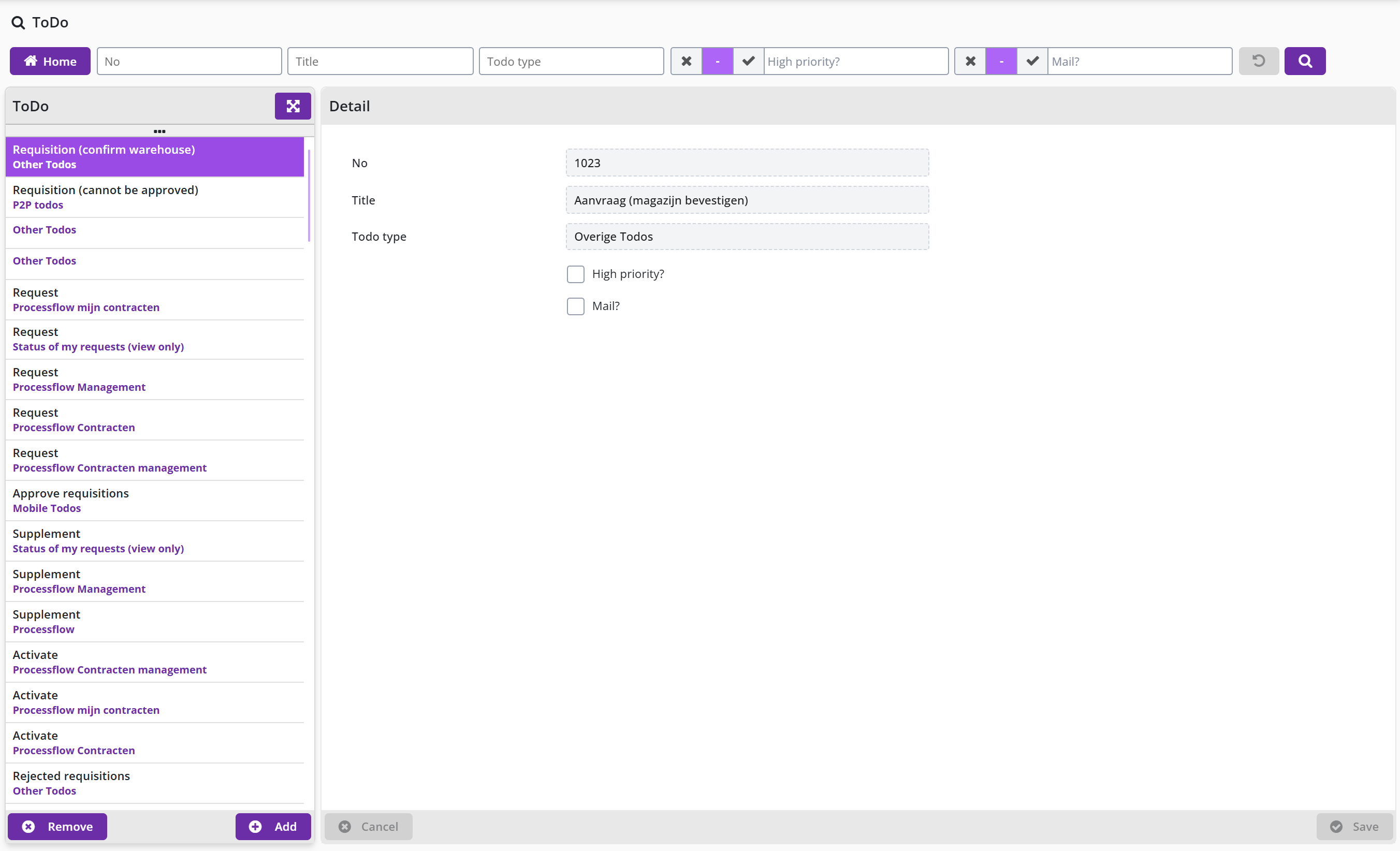
The checkbox High priority indicates whether this ToDo is also displayed for the other ToDos if it applies to another administration.
With the checkbox Mail? - you can set whether this ToDo is included in the email to the relevant employee. This email is sent by administration to those employees who have the checkbox Task list by email checked in their profile (data module Detail).
For the ToDos Action by authorized signatory and Approve order the checkbox Immediate notification is also available. If this box is checked, the employee will be immediately informed by email for each order - for which this ToDo applies.
Note: the checkboxes Mail? and Immediate notification are only available if you have purchased the data module ToDo email notification.
How the mail is sent can be directed to the data module Email service of the system parameters:
In the email, the various open ToDos for tasks are presented in a table. See the example below of the content for the To-do email:
Dear employee,Within the Shopper ordering system, a number of To Do actions are available for you.We kindly request you to handle these actions.Open to-do actions:
The ToDos are included as links in this email. Following a link opens Shopper in the browser and directly opens the checkout of the related ToDo. If user authentication is still required to gain access to Shopper, the screen for processing the ToDo follows, after the Shopper registration has been completed.
Note: For the correct functioning of the links in the ToDo email, you need to configure the Shopper startup URL in data module Email service of the system parameters.
Email item
In Shopper Enterprise, Archifact can add custom e-mails that are sent under certain conditions. These can then be configured by the supervisor via the menu Supervisor menu item Management – Email item. For these e-mails you can set what the content consists of and what is sent with the e-mail.
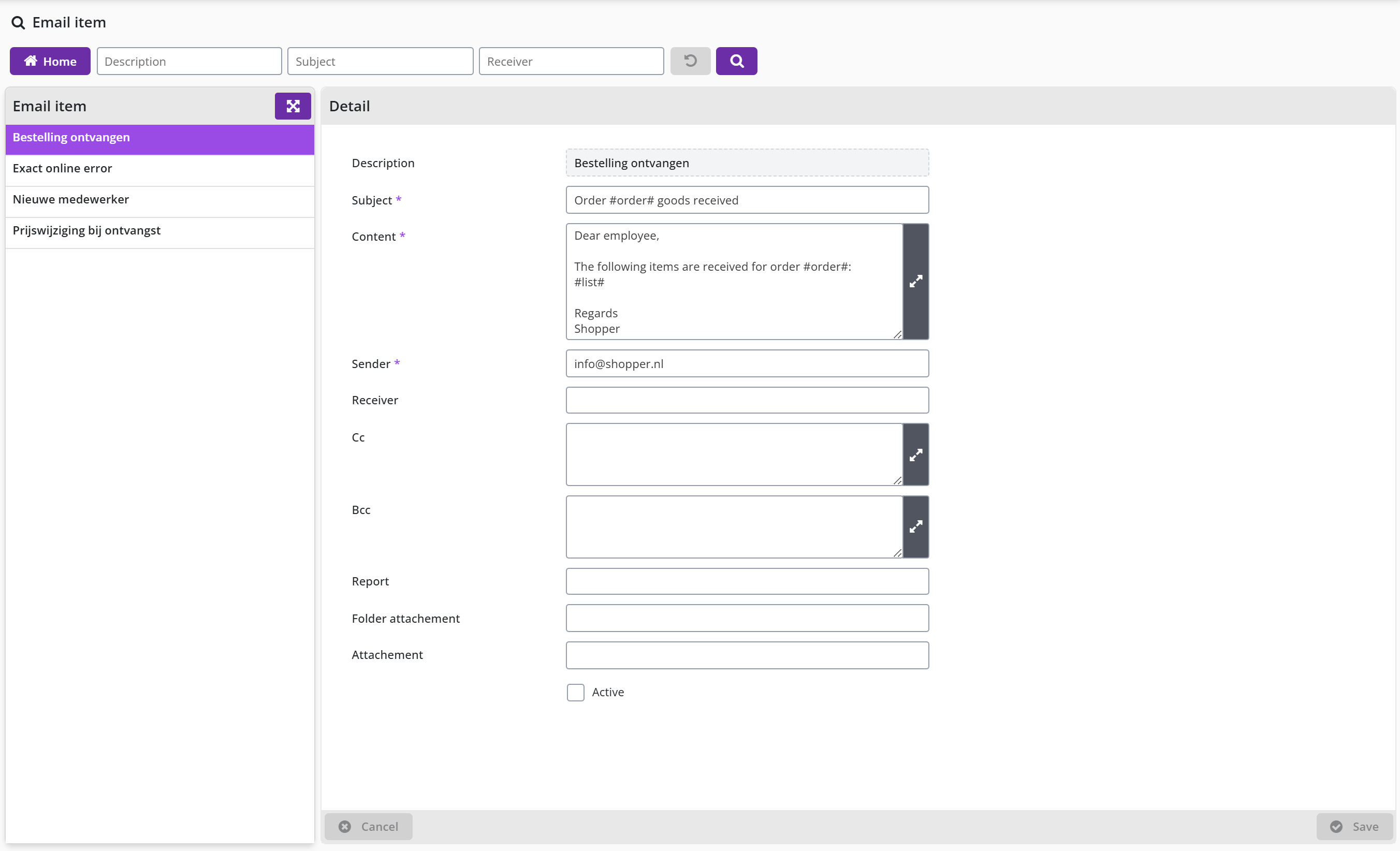
Note: Only an employee of Archifact can activate the sending of an email notification for an email item using the checkmark Active. Only the e-mail items that are active can be seen by the supervisor.
Email frequency
When setting up Shopper, it can be determined how often the different ToDo emails are sent. This can be set separately for the standard ToDo email and the direct ToDo email. For example, you can receive the standard ToDo email with the overview every day and the direct ToDo email every 10 minutes.
Countries and currencies
Shopper supports several countries and currencies: the supervisor manages the country codes and currency codes, and with the indicator Order in foreign currency in the system parameters you can order from suppliers in a country with another currency. This chapter describes under "Working with multiple countries and currencies" how the currency of a supplier carries through to the catalog, requisitions, approval, budget, invoices, quotations and contracts, under "Country" the management of countries and under "Currency" the management of currencies and exchange rates.
Working with multiple countries and currencies
Shopper supports several different countries and currencies. During set up by the supervisor, the required country codes and currency codes are set. The language of the employee can be set in the Detail data module. However, the languages available to assign to employees depend on the languages available in Shopper in relation to the license that your organization has purchased.
Suppliers may be located in more than one countries if the indicator Order in foreign currency is turned on in the system parameters, it will also be possible to place orders with suppliers in those countries with a foreign currency. If this indicator is on, then Currency will be displayed or added as a field in those screens and dialogs where applicable. If no currency is displayed, then the Default currency from system parameters is active.
The deviating currency is then specified at the supplier in the Detail data module. If a currency is exchanged, all amounts for the items of this supplier will be converted using the exchange rate of the relevant currency. This currency is automatically adopted when displayed in the internal catalog with requisitions (or with a free request) and the order lines/orders that follow from it. When making a requisition, it is possible to have several items in a shopping cart with different currencies.
Note: If a different VAT system is applicable in the country of the supplier, then the relevant VAT type can be linked to the definition of the items, which is related per administration to the VAT code in the financial administration.
With Action by authorized signatory and Accept orders the foreign currency is shown per requisition-/order line and handled as such. When assessing the budget, the currency is converted, if necessary, based on the exchange rate and the currency in which the budget is recorded. The currency is also taken into account in invoice processing, quotations and contracts and is processed as such and displayed in the relevant overviews.
Country
Available as standard are Belgium, Germany and Netherlands. Countries can be added or removed via the menu Supervisor menu item Management – Country, with a Country description and ISO country code.
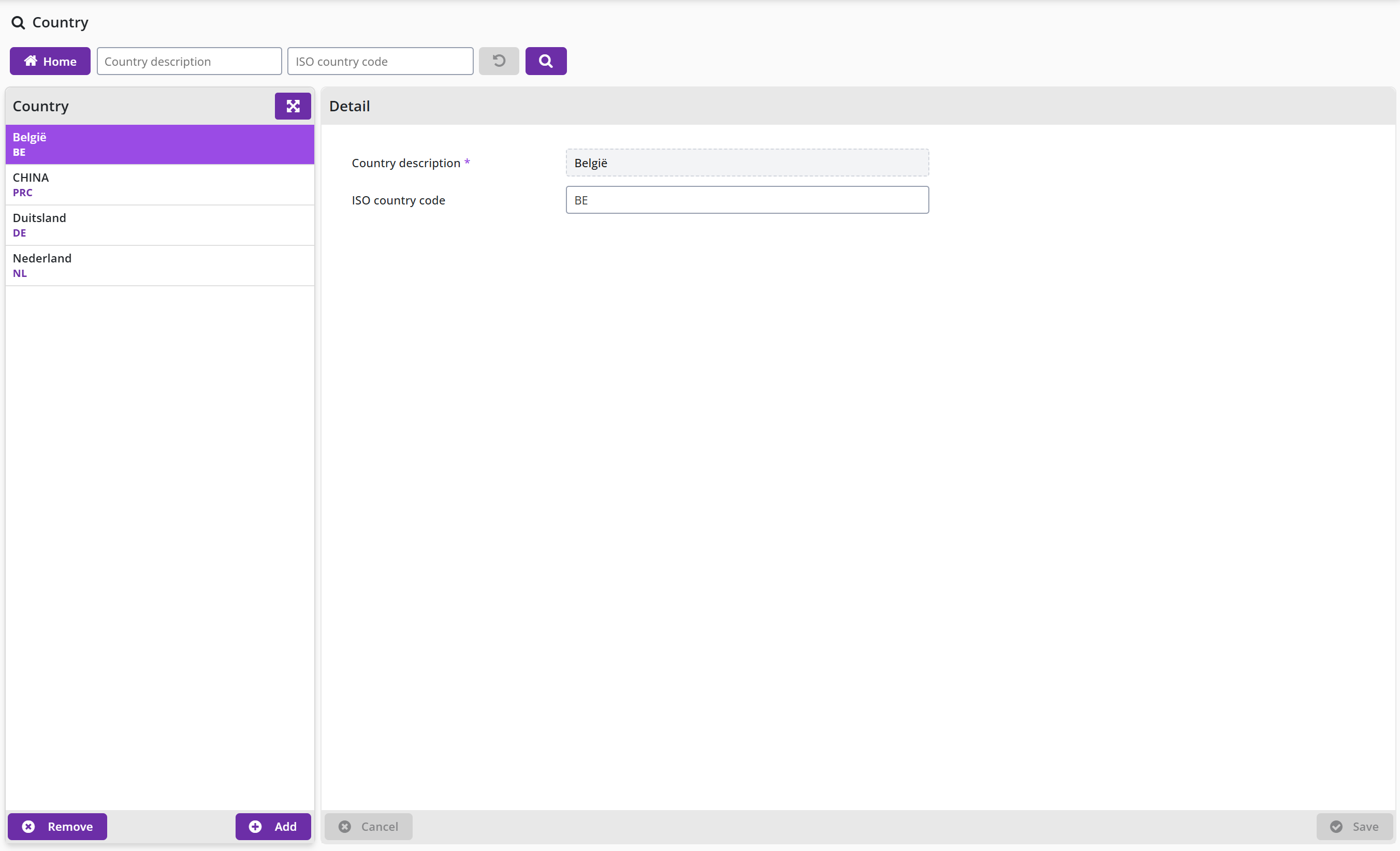
Currency
Available as standard EUR and USD. Currencies can be added or removed via the Supervisor menu item Management –Currency, with a Currency code for the ISO 4217 currency code the rate and the Abbreviation symbol notation for the currency, as shown on the screens and reports will be displayed.
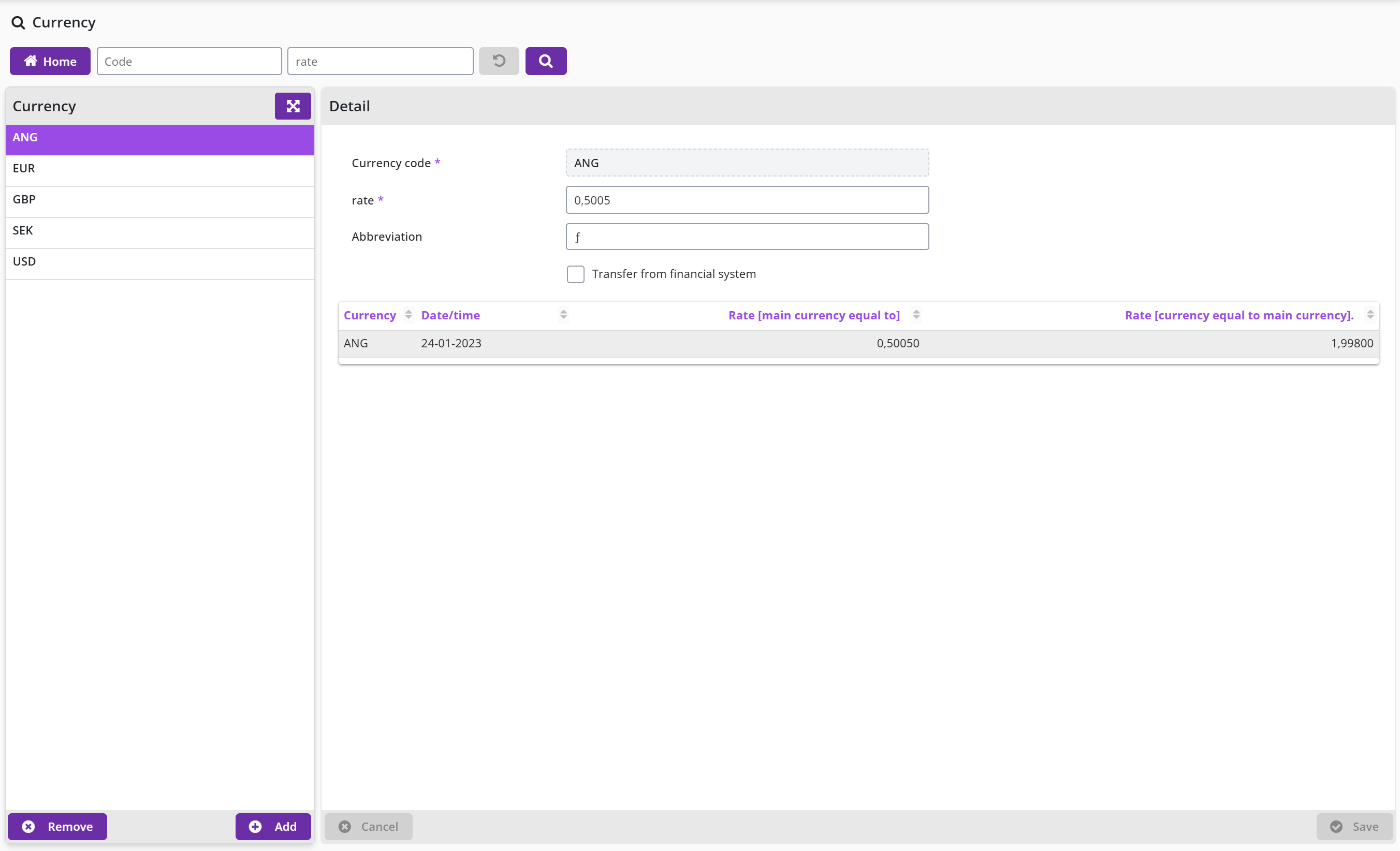
The following principles are used to convert the currency:The exchange rate of the currency is determined in the order line at the time of ordering. With the incoming invoice, this is recorded at the time of adding the incoming invoice.
The method for refreshing the currency rates varies per implementation and it is often done as a custom job, where you determine the source and the frequency. If the exchange rates are transferred from the financial system, no custom job is required, and you can indicate this using the checkbox Transfer from financial system.
Note: If multiple financial administrations are integrated with Shopper, the most recent exchange rate is used if they are present in one of these administrations.
Below is an overview of the exchange rate history, that is shown at the bottom of the Details data module of a currency.
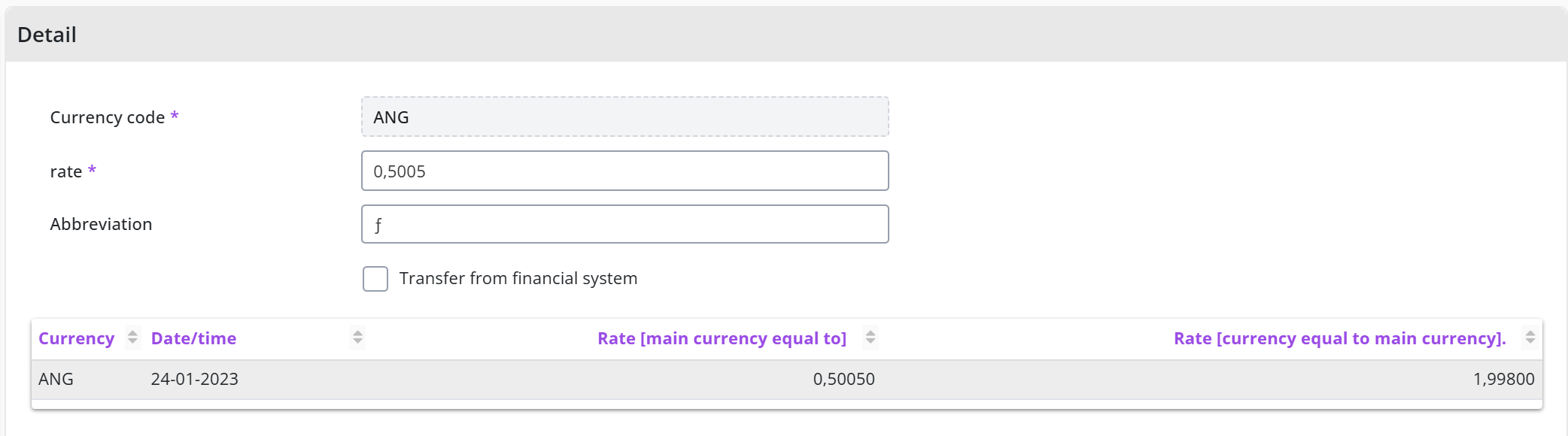
You can sort this overview per column or do a search using the Filter.
Mobile app: screens and navigation
This chapter describes the screens and the navigation of the Shopper mobile app, the view you work in on your phone or handheld scanner. As of Shopper 10 the mobile app has been rebuilt: it works faster, moves more smoothly between screens, behaves consistently on handheld scanners and phones and has an improved user interface; item barcodes can be scanned in the mobile app with the phone's camera.
The Shopper mobile view explains which ToDos and warehouse functions the app covers. The ToDo dashboard describes the cards per administration you land on after signing in, The account menu the Install as app and Log out options, and The warehouse switcher how you change warehouse. No outstanding tasks describes what you see when a list you open turns out to be empty. The tasks themselves, such as receiving an order or approving a requisition, are in the chapter Tasks on your phone.
The Shopper mobile view
Shopper has a mobile view for working on your phone. It runs on the same Shopper installation and the same data as the full web application; only the layout changes.
The mobile view covers the ToDos for approving requisitions, receiving orders and approving direct orders. For employees who work in a warehouse it also offers the warehouse functions Item management, Inventorize warehouse, Picklist to be processed and Counter pick-up as lines on a card. They are described under Manage items on your phone, Inventorize the warehouse on your phone, Process a picklist on your phone and Register a counter pick-up on your phone; the full web screens for the warehouse are described under Warehouses.
The ToDo dashboard
After you sign in on a phone, you land on a dashboard of cards, one card per administration you have access to and that currently has outstanding ToDos for you.
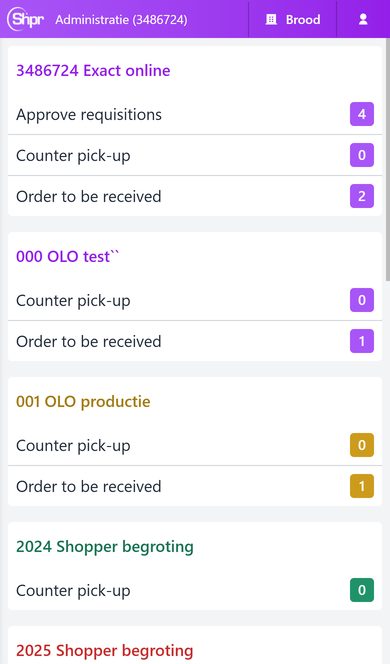
Each card is labelled with the administration name and is colored with that administration’s own color, the same color you see next to the administration name when switching administrations in the full web application. Inside a card, every outstanding ToDo type for that administration is listed on its own line, for example Order to be received or Approve requisitions, together with a colored badge showing how many items are waiting.
Note: A ToDo type only appears as a line inside a card once its own count is above zero. The warehouse lines, for example Counter pick-up, are not ToDos: they appear on the cards of an employee who works in a warehouse and show 0 when nothing is waiting. See No outstanding tasks for what you see once you do open a list that turns out to be empty.
Tapping a line inside a card does two things at once: it switches your active administration to that card’s administration, and it opens the list for that ToDo type. The bar at the top of the screen always shows which administration you are currently working in.
The account menu
Tap the person icon on the right of the top bar to open the account menu.
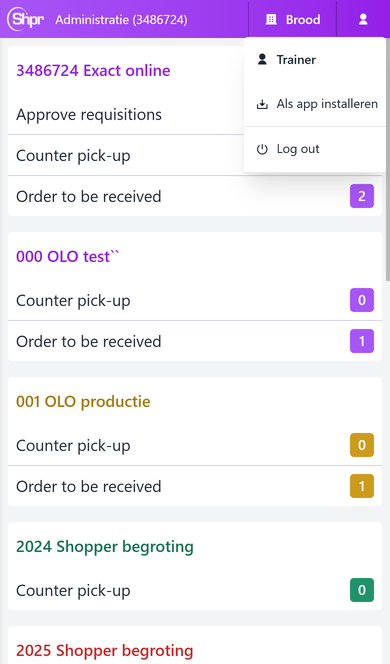
The menu shows your user name, an Install as app option that adds Shopper to your phone’s home screen as a Progressive Web App, and Log out.
Note: Install as app is still shown in Dutch in the English interface, and the administration label at the top left of the bar (Administration (…)) also keeps its Dutch wording regardless of your interface language.
The warehouse switcher
Tap the warehouse icon in the middle of the top bar to see the warehouses you can work in for the administration you are currently in.
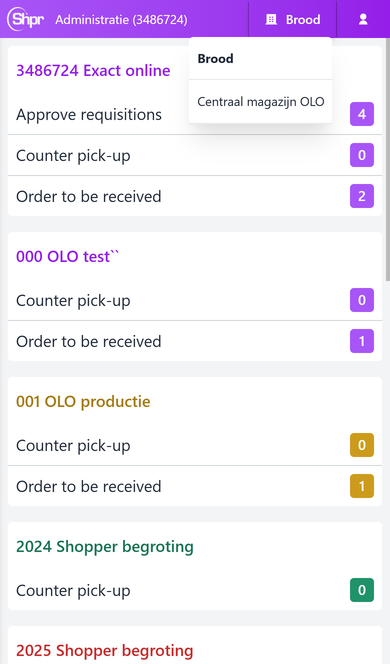
Your current warehouse is shown in bold. The list only contains the warehouses that belong to the administration shown at the top left; switching administration (by tapping a different card on the dashboard) changes which warehouses you can pick from here.
Note: If your account has no warehouse assigned in the current administration, the warehouse button is replaced by a warning icon and the text No warehouse available, together with a Log out shortcut placed directly in the top bar instead of behind the account menu.
No outstanding tasks
Because a card, and the ToDo line inside it, only shows once its count is above zero, you will normally never open an empty list from the dashboard. Occasionally, for example right after the last item on a ToDo was handled elsewhere, the list behind a line can turn out to be empty even though the badge you tapped still showed a count; in that case the list reads No tasks found. instead of showing any rows.
Tasks on your phone
This chapter describes, task by task, how you carry it out in the Shopper mobile app on your phone or handheld scanner; every task starts from a line on a card of the ToDo dashboard. The ToDos of the purchase process are under Receive an order on your phone, Approve a requisition on your phone and Direct orders awaiting approval on your phone.
The warehouse functions are under Manage items on your phone, Inventorize the warehouse on your phone, Process a picklist on your phone and Register a counter pick-up on your phone; in those functions you look an item up by item code or scan its barcode with the phone camera or a hardware scanner. The layout and navigation of the app, such as the warehouse switcher in the top bar, are in the chapter Mobile app: screens and navigation.
Receive an order on your phone
From the dashboard, tap the line inside a card to open the list of outstanding orders for that administration.
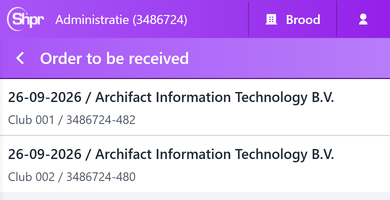
Each row shows the order date and the supplier, with the project or cost center and the order number underneath. Tap a row to open the receiving screen for that order.
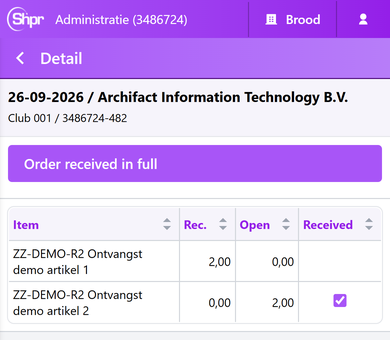
The receiving screen lists every order line with the item description, the quantity already received (Rec.), the quantity still outstanding (Open) and a Received checkbox. A line that still has an outstanding quantity is pre-checked; a line that has already been received in full is not. If everything on the order has arrived, tap at the top instead of working through the lines one by one. This is the same receiving step as the Receive data module described under Receipt ToDo (Registering reception) in the full web application, shown in a single-column layout for a phone screen.
Approve a requisition on your phone
From the dashboard, tap the line inside a card to open the list of requisitions waiting for your approval in that administration.
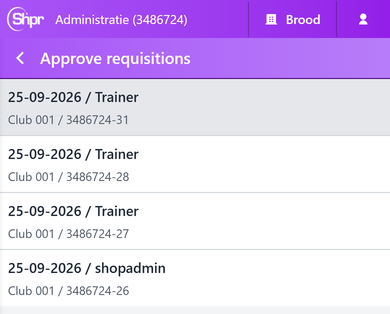
Each row shows the request date and the requester, with the cost center and the requisition number underneath. Tap a row to open the approval screen.
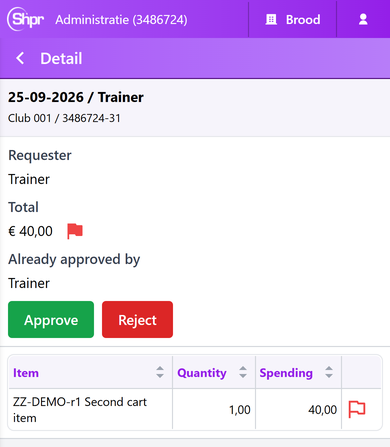
The approval screen shows who made the request (Requester), the total amount (Total), and, once someone has already given part of the approval, who that was (Already approved by). The colored flag next to the total, and the flag repeated on each item line further down, is the same budget-impact indicator described under Approve or reject in the full web application. Use Approve or Reject to decide on the requisition as a whole. Below the buttons, every requisition line is listed with the item, the quantity and the amount spent; if a requisition has more lines than fit on one page, a filter box and a rows-per-page selector appear above this table so you can search and page through the lines.
Direct orders awaiting approval on your phone
A card can also show a Direct order (to be approved) line. This is a direct order placed without a prior requisition that still needs sign-off. If there is more than one outstanding direct order, tapping the line opens a list of them, shaped exactly like the requisition list described in Approve a requisition on your phone; if there is only one, tapping the line goes straight to the approval screen. Either way, a line in that list opens the same approval screen — Requester, Total with its budget flag, Already approved by, Approve and Reject, and the list of items — for the direct order instead of a requisition.
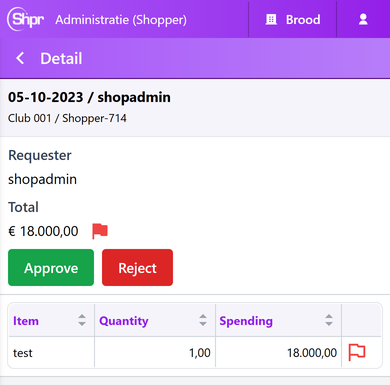
Manage items on your phone
Tap on a card to look up an item in the warehouse shown in the top bar and change its stock settings. The screen opens with an Item code field and a search button. Type at least two characters to get suggestions, choose one or type the full item code, and tap the search button. To look an item up by barcode instead, tap the barcode button at the top right and scan the barcode with the phone camera, or use a hardware scanner.
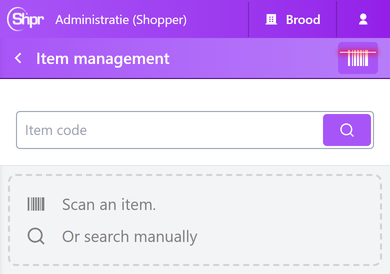
Note: The search only lists items that are stocked in the warehouse shown in the top bar. If an item you know does not appear, switch to the right warehouse first; see The warehouse switcher.
The result list shows one line per matching item, with the item code and description. Tap the line to open the item.
The Detail screen shows the Warehouse and the Item for information. Under those two you can change the Location, which you choose from the storage locations of the warehouse, the Order quantity, the Delivery unit, the Quantity per order unit and the Quantity of minimum stock. The required fields are marked with an *.
Further down, Number of current stock is shown for information, Quantity current stock inventoried holds the counted quantity, and ticking Inactive? marks the item as inactive. Tap to store the changes, or Cancel to leave without saving. Create barcode sticker creates a barcode sticker for the item, so that it can be scanned later.
Inventorize the warehouse on your phone
Tap on a card to register the quantity you counted in the warehouse shown in the top bar. Look the item up the same way as for item management: type its code in the Item code field and tap the search button, or scan its barcode with the barcode button at the top right. Then tap the item in the result list.
The Detail screen shows the Item code, the Warehouse and the EAN, the barcode number of the item. Enter the quantity you counted in Number of items, a required field that only accepts a number, and tap . Tap to leave without saving.
Process a picklist on your phone
Tap on a card to see the picklists that are waiting in the warehouse shown in the top bar. Each line shows the employee the items are for and the organizational unit.
Tap a picklist to open it. The Detail screen shows the Warehouse / Picklist group and the Organizational unit, followed by a table of the lines to pick with the columns Code, Item, Loc. and Deliv.. Tap a column heading to sort the table. To open a line, tap it, or scan the barcode of the item with the barcode button at the top right or a hardware scanner: Shopper opens the line whose item code or EAN matches.
The line screen shows the Line number and the Item, and the To be delivered quantity, which is preset to the quantity still to be delivered and can be changed. Tap to hand out that quantity. Backorder skips the delivery of this line for now, Cancel delivery cancels the delivery of the line, and Cancel returns without doing anything.
Register a counter pick-up on your phone
A counter pick-up records items that an employee collects at the counter of the warehouse shown in the top bar. Tap on a card to see the pick-ups. Each line shows the organizational unit and the issue date. Tap the plus button at the top right to add a new pick-up.
Fill in the Organizational unit, which you choose from the suggestions that appear while you type, and the Issue date, which is preset to today. Both are required and marked with an *. The Project and the Explanation are optional. Tap to create the pick-up, or Cancel to leave without saving.
After saving, the pick-up opens with its details. Tap to change them; this button is not translated on the English screen. Tap to add the items that are collected. Once items have been added, they are listed in the table with their Description and Quantity, and a button to view the delivery note becomes available.
On the scan screen, scan the barcode of an item with the barcode button at the top right or with a hardware scanner, or tap the keyboard button next to it to type the barcode. If the code does not belong to an item, the screen reports that the item was not found. Tap to store the scanned items on the pick-up, or Cancel to go back without changes.
FAQ purchase process
This chapter answers common how, what, where and which questions about the purchase process in Shopper, from requisition to receipt. Each answer is short and refers to the chapter with all the details.
The questions are: How do I submit a requisition? How do I approve or reject a requisition? How do I place an order for approved requisitions? How do I receive delivered items? How do I know why a requisition or order is delayed? What is the difference between the Supplement step and the Approve step? What does the colored flag next to a requisition line mean? Which employees can approve a requisition? Where do I see my pending tasks (ToDos)? Where can I see the audit trail of a requisition or order line?
Questions about logging in, absence and impersonation are in the chapter FAQ login and settings; questions about the contract module in the chapter FAQ contracts.
How do I submit a requisition?
You need the role Requester to submit a requisition.
- Start a new requisition from the Shop menu with New requisition, or click the Request step in the ToDo process flow on the P2P dashboard.
- Choose the organizational unit and, if it applies, the project. You can also give a desired delivery date. Click Request to open the shopping cart for that choice.
- Add items in one of three ways: enter a quantity for an item in the internal catalog and click its shopping cart button; open a supplier's external catalog, pick items on their website and confirm so the cart comes back into Shopper; or click Free request for anything that is not in a catalog (description, number and order unit are required).
- When the cart is complete, click Confirm requisition. Shopper shows an overview grouped per supplier, where you can still change the delivery address or go Back to adjust lines.
- Click Apply definitive to submit.
The requisition then follows your organization's workflow, which can include the Supplement and Approve steps before it is ordered. You can follow its progress under Status requisitions on the P2P dashboard. Details are in Order requisition in Shopper.
How do I approve or reject a requisition?
Approving is done by an employee with the role Approver who has enough signing authority for the amount and organizational unit.
- Click the Approve step in the ToDo process flow. The list on the left shows the requisitions you are allowed to approve.
- Select a requisition and check its details: the requester, the organizational unit, who has already approved it (Already approved by) and which approval is asked of you (Approve step).
- If budget control is active, look at the colored budget flags on the total and on each line; Budget impact shows the details.
- If you want to explain your decision to the next approver, type it in Notes for internal use and click Save before you approve.
- Click Approve or Reject to decide on the whole requisition. A rejection always asks for a reason.
To reject a single line instead, use the thumbs-down button on that line; it goes back to the requester's shopping cart with your reason. Employees with financial authority can also change a line's cost unit, cost center or project with Change booking item. Some requisitions need more than one approval before they move on. Details are in Approve requisitions in Shopper.
How do I place an order for approved requisitions?
Orders that Shopper does not send to the supplier automatically wait in the Place order step of the ToDo process flow, for employees who are allowed to send orders.
- Click Place order and select the order in the list on the left.
- Check the order details and fill in anything that is missing, such as the supplier's e-mail address or a different order method. Put remarks for the supplier in Notes and internal remarks in Notes for internal use.
- Enter an Expected receive date or tick A.s.a.p. and click Save.
- If the order has order advices, handle them first in the Order advices data module (tick Positive and save); the order button only appears once they are done.
- Click the order button, for example Place Order or Print and order, to send the order.
Use Order form to preview the order form before sending, and Resend email if the supplier did not receive the e-mail. While orders are held, new requisitions for the same supplier and delivery address can be merged into one order, if your setup allows it. Details are in Ordering in Shopper.
How do I receive delivered items?
Receipt is registered by an employee with the role Receiver for the organizational unit of the order, so a co-worker in the same unit can do it too.
- Click the Received step in the ToDo process flow and select the order.
- Optionally enter the packing slip number, or attach the packing slip under Order documents.
- If everything arrived correctly, click Order received in full.
- If only part arrived, enter the received quantity per order line in the Receive column (or use Receive all for a complete line) and click Save. The order stays in the list until the rest arrives.
If something is wrong: - Wrong or unusable item: click the cross in the Error column of the line and describe the problem and the agreement with the supplier. - Item will not be delivered: open the line, enter the quantity in the Requisition data module, tick Cancel?, give a note and save. - Wrong quantity booked: open Order mutations for the line, select the last Reception mutation, tick Rollback, save, and book the correct quantity.
Registering receipt accurately matters, because invoice matching is based on it. Details are in Receiving in Shopper.
How do I know why a requisition or order is delayed?
- On the P2P dashboard, click the matching block under Status requisitions and select your requisition or order.
- Read the Status and Approve step fields: they tell you which step it is waiting on, for example Action supplementer, Action approver or Ready to order.
- Open the Follow-up by data module to see which employees can take the next action, with their phone number and e-mail address when available.
If Follow-up by is empty, nobody has the role needed for the next step; contact your administrator or internal helpdesk so the setup can be corrected. You can also find all your requisitions under My Requisitions in the Shop menu. Details are in Status of requisitions in Shopper.
What is the difference between the Supplement step and the Approve step?
Supplement completes a requisition line: an employee with the role Supplementer, usually from procurement or the finance department, fills in what is missing, such as the supplier, item type, price or booking details. It applies for example to free requests, to catalog items with a changed price or discount, or to lines with a specification or internal explanation.
Approve authorizes the requisition as a whole: an employee with the role Approver and enough signing authority approves the total amount. Depending on the workflow this can be a financial approval, a board approval and a budget approval by the budget holder.
A requisition can need one of the two steps, both, or neither. That depends on the workflow set up for the financial administration, organizational unit, project and item type.
What does the colored flag next to a requisition line mean?
When budget control is active, the flag shows how the line affects the available budget. There are three levels: no budget is exceeded, the budget for the period is exceeded (more budget is used than is in proportion), or the annual budget is exceeded.
A flag next to the total amount shows the combined effect of all lines, and the Budget impact button gives its details. Click the flag on a single line to see a pop-up with that line's budget details.
The flag helps the approver decide, but it is not the budget approval itself: if a budget is actually exceeded, the budget holder still has to approve separately.
Which employees can approve a requisition?
Employees with the role Approver, in the echelon P2P-Manager or P2P-Board, who hold the power of attorney for the requisition's total amount within its organizational unit.
A financial approval is only needed when the total of all lines is above the requester's own order limit. Depending on the authorized signatory scheme, several approvers may have to sign the same requisition, for example under the four-eyes principle or for a board approval on large amounts. If a budget is exceeded, the budget holder also has to give a budget approval.
Where do I see my pending tasks (ToDos)?
On the Home dashboard, in the Process flow ToDo. Each process step shows the number of ToDos waiting for you, and the color of the number shows the urgency. Click a step with a number to open the list and handle the ToDos.
Tasks outside the standard process flow, such as supplier evaluations, order advices or contract signaling, are under Other ToDos in the header. If another dashboard tab (P2P, contracts or quotations) has ToDos waiting, that tab shows a red flag with an exclamation mark. Details are in Shopper homepage and Shopper Home Dashboard.
Where can I see the audit trail of a requisition or order line?
Open the requisition, requisition line, order or order line and choose its Audit trail data module. It lists every process and workflow step that was carried out, with when it happened, who did it and with which authority, including the note of any rejection.
Employees with the role Controller (finance) or Orchestrator (procurement) also have the Show audit trail and Print audit trail buttons there. Controllers and Executers can run the report P2P audit trail overview from Reports in the Finance menu. Details are in Audittrail P2P.
FAQ login and settings
This chapter answers common how, what, where and which questions about logging in and your personal settings in Shopper. Each answer is short and refers to the chapter with all the details.
On absence and delegation: How do I register my absence and hand my tasks to a colleague? and Where do I set my delegate or see who has delegated to me? On logging in as another user: What is impersonation, and how is it different from just logging in as someone else? What happens if I try to change something while impersonating another user? and Which account can impersonate another user?
Questions about the purchase process are in the chapter FAQ purchase process; questions about the contract module in the chapter FAQ contracts.
How do I register my absence and hand my tasks to a colleague?
- Open your user settings and go to the Absent / Delegated section.
- Fill in Start date, Up to and including and the Delegate.
- Save. You can register several absence periods in advance; they are all listed.
During that period the delegate takes over your tasks and access rights, without needing those rights themselves, and you cannot use them. If you come back early, change Up to and including to get your tasks and rights back. Details are in Absence.
Where do I set my delegate or see who has delegated to me?
Both are in your user settings. Absent / Delegated is where you name who covers for you and for which period. Delegated by lists the colleagues who handed their tasks to you. Their ToDos appear together with your own in the ToDo process flow and under Other ToDos. Details are in Absence.
What is impersonation, and how is it different from just logging in as someone else?
Impersonation lets an authorized employee open Shopper as another user and see exactly what that user sees, without knowing their password. It is meant for support and troubleshooting.
- The user gives permission in their own user settings, by naming you in the field for the employee who may log in as their user.
- You then open the menu under your user name (top right), choose the option to switch account, select that user and confirm.
- While impersonating, a highlighted block in the user menu shows both names, with a button to return to your own account.
It is read-only: you cannot create, change, delete, submit or approve anything, and every action is logged under both user names. See Impersonation in the Logging in to Shopper chapter.
What happens if I try to change something while impersonating another user?
Shopper refuses the change and shows a message. Impersonation only lets you look at the other user's screens and data; creating, editing, deleting, submitting or approving on their behalf is never possible. To make changes, return to your own account with the button in the user menu. You also cannot switch to yet another account from an impersonated one.
Which account can impersonate another user?
Only an employee who has been named by that user. The user does this in their own user settings, in the Medewerker mag inloggen als mijn user (Employee may log in as my user) field. The field is empty by default, so nobody can impersonate a user who has not chosen to allow it, and you cannot grant this right to yourself.
FAQ contracts
This chapter answers common how, why, what, who and where questions about the Shopper contract module. Each answer is short and refers to the chapter with all the details.
On searching and registering: How do I search for a specific contract? Why is the button grey on a new contract? and Why is a contract not shown in a to-do list yet? On the contract term: How do I renew a contract? How do I amend a contract during the period? How do I cancel a contract? How do I cancel a contract within the trial period? and How do I end a contract at its end date? On statuses and roles: What do the contract statuses mean? and Who can do what on a contract? Finally: Where can I watch a walkthrough of the contract module?
Questions about the purchase process are in the chapter FAQ purchase process; questions about logging in, absence and impersonation in the chapter FAQ login and settings.
How do I search for a specific contract?
The search bar at the top of the New contract and Contracts screens filters on Seqno, Description, Contract status, Contract type, Subtype, Contracting party and Reference contracting party, and on the internal contact employee. Four three-state toggles, Agreements (flexible), the milestone agreements toggle, Agreements (periodic) and Invoice matching, narrow the list to contracts where that setting is on, off, or either. Click the search icon to apply the filters. Use Contract status and Contract type to narrow a long list quickly.

Why is the button grey on a new contract?
Shopper disables Save and Submit for approval on a blank General / Periods form on purpose, so that no incomplete contract can be stored and you do not get an error after you click. They stay disabled until Contracting party, Contract type and Start date, the three required fields marked with an , are all filled in. Once they are filled in, Save* becomes available and you can store the contract as a Draft.
Why is a contract not shown in a to-do list yet?
A contract only appears in a signaling list once the date that triggers the alert has been reached. The alert date depends on the dates on the contract period: Signal period in months and Signaling from for the renewal decision, and Interim cancellation until for a trial-period cancellation. The lead time comes from the contract type unless you change it on the contract. If a contract is missing from a list, check these dates on the contract period first.
How do I renew a contract?
- Open the contract and go to the General / Periods module. Renewal is only offered when Prolongation possible is ticked in the Prolongation block.
- Before the Deadline renewal decision, set Renewal decision to Prolongation.
- Click Manually prolong period. A follow-up period is created next to the current one, with the status Draft (Renewal contract) and the length set in Prolongation in months.
- Submit the follow-up period for review; after approval it is activated like any new contract period.
If Automatic prolonging is ticked and nobody sets a decision before the deadline, Shopper prepares the follow-up period itself, but never activates it; the employee with the role Regulator then confirms it with Auto renewal seen. A follow-up period created by mistake can be removed with Remove follow-up period while it is still a Draft. See Renew a contract.
How do I amend a contract during the period?
- Open the contract and go to the General / Periods module. The status must be Activated or To be activated.
- Click Amending at the bottom right.
- In the dialog, describe in the required Note field what changes and why, and confirm with Amending contract.
- Shopper creates a draft period with the status Draft (Amendment contract), or Draft (Amendment renewal) for a renewal period. Make your change there.
- Click Submit for approval. The change is reviewed and activated again and stays visible in the audit trail.
You cannot edit an active period directly; an amendment is the controlled way to correct a rate, add a clause or change a contact without waiting for a renewal. See Amend a contract mid-period.
How do I cancel a contract?
There is no Cancel contract button; you end a running contract early on its current period.
- Open the contract from the Contracts list and go to the General / Periods module.
- In the Term block of the current period, tick Aborted.
- Fill in Reason aborted and End date aborted, the date the termination takes effect, and save.
The end date only takes effect once the termination is authorized; until then the contract keeps running. The notice period and any cancellation costs still apply, and some contracts are marked Do not cancel prematurely. The Cancel button in the toolbar only discards unsaved changes on the form. See Cancel a contract.
How do I cancel a contract within the trial period?
The last day of the trial period is shown in Interim cancellation until in the Term block of the General / Periods module. Shopper warns you in advance with a Contract signaling (cancellation) tile on the contracts dashboard, based on Signal period in months.
- To cancel: before that date, tick Aborted, fill in Reason aborted and save.
- To continue the contract: tick Do not cancel prematurely. This also completes the to-do, so the signaling disappears from the dashboard.
See Cancel a contract within the trial period.
How do I end a contract at its end date?
Before the deadline of the follow-up decision, set Renewal decision to Stop in the General / Periods module, or simply do not renew.
When the end date passes without a follow-up period, Shopper stops the period automatically and its runtime status becomes Ended. The employee with the role Regulator then confirms it with Auto terminated seen. The contract and its history, including the audit trail, stay available, and the controller can still cancel open payments with Cancel payments. See End a contract at its end date.
What do the contract statuses mean?
Every contract period has two separate statuses, shown together, for example Activated (Running):
- The approval status tracks registration and review: Draft, To approve, To be activated, Activated.
- The runtime status follows the dates: Future (not started), Running (in progress), Ended (over).
The contract header shows one summary status: Draft, Running or Ended. A Draft also shows why it is a draft:
- Draft (Contract registration): a new contract still being filled in.
- Draft (Rejected contract registration): rejected in review; read the rejection remark and correct it.
- Draft (Renewal contract): a follow-up period for a renewal, not yet approved or activated.
- Draft (Amendment contract) or Draft (Amendment renewal): an interim amendment in progress.
See The status model in Contract.
Who can do what on a contract?
Each contract has its own role assignments, set in its Employees module, and an action button is only shown to the employee holding the matching role on that contract. The main roles:
- Requester: submits the contract for review, withdraws a review, starts an amendment, prolongs a period manually and removes a follow-up period.
- Approver: approves or rejects a review step; a contract can need several.
- Purchaser: activates an approved contract period.
- Regulator: confirms automatic renewals and automatic endings.
- Controller: cancels payments on the open period.
- Receiver: approves offtake, on quality, price or as the final budget approval.
- Administrator: follows up the Contract documents incomplete and Renew contract document to-dos and files contract documents.
See Roles on a contract in Contract for all eleven roles.
Where can I watch a walkthrough of the contract module?
A video walkthrough shows the contract module in use: Watch the contract module walkthrough (video, about 3 minutes). It follows one demonstration contract from registration to a running contract: adding the contract, filling in the term and financial data, registering a periodic arrangement, submitting the contract for approval and activating it. It shows the screens in the order you meet them, so it is a good first look before you read the Contract chapter, which explains every field and status. The video is in English and was recorded on a demonstration environment with demonstration data, so the names and amounts you see are examples.
© Archifact BV Netherlands ICT 2026 | www.shpr.nl Terms and Conditions as published on the Shopper website www.shpr.nl